1
SMARTSCAN User Guide Page | 6 If you would like to scan a different athlete simply press “Reset” and the RFID unit will be ready to scan again. HOW DO I KNOW WHICH BAND BELONGS TO WHICH ATHLETE? As the Fusion Sport RFID wrist bands are generic, many users ask “how do I know which band has been associated with which player?” There are two methods that can be used‐ 1.
2.
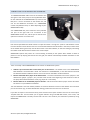
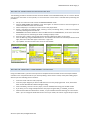
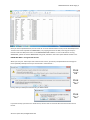
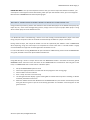
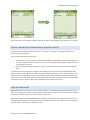
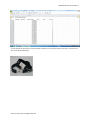
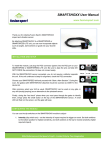
Label the bands – using names or squad numbers. Labels are provided with your bands at the time of purchase. When you create a new team list, print out a copy that shows the band number for each of your athletes in the team. Scan each band at the beginning of the session to see which athlete the band has been associated with To further explain the second option, imagine each athlete in your team has been associated with an RFID band, and after training each day you collect the bands. When you next run a session, simply set up your first drill for the session, take a band, scan it and the PDA will show you which athlete the band belongs to. Press “Reset” and scan the next band, and so on until all athletes at the session have their bands. This process takes around 10 seconds per athlete. The images immediately above illustrate this process. LABELING YOUR BANDS SMARTSCAN bands are made from a Silicon compound which is long lasting and durable but difficult to mark with a pen. Labeling your bands corresponding to the “Band Label” column in the Team Import List template is a good way to make it easy to hand out your bands in the session. When you first receive your SMARTSCAN bands, label them using the labels provided and scan them into the Team Import List template file. Save this Excel file as a template for future use, and then each time you add a team you simply need to add only the player names. © Fusion Sport 2012, All Rights Reserved