1
 Scheduling Complete Backups
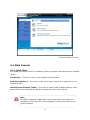
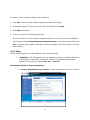
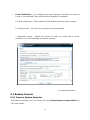
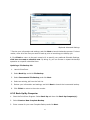
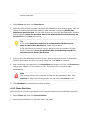
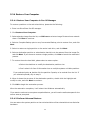
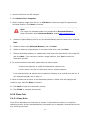
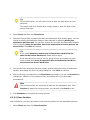
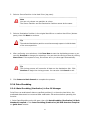
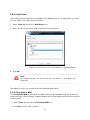
1.Complete backups and incremental updates can be created according to
the pre-set schedule.
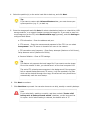
2. If the system is busy, DriveClone will not be able to perform the
scheduled backup job, and will automatically try again later.
•
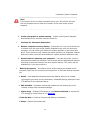
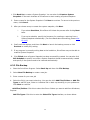
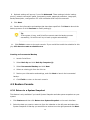
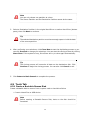
File Backup – DriveClone displays all of the file backup jobs related to this
computer, you’ll see the following options under each job:
a. Detail - View detailed information about a backup job you’ve created, including
the job name, job destination, scheduled settings and FTP address.
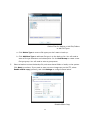
b. Edit Schedule – Change scheduled settings for the backup job you’ve created.
c. Offsite Copy – Change FTP settings or click Restore Defaults to restore the
FTP settings to be the same as it in Settings.
d. Add Files - Add files to your File Backup list.
e. Back Up Now - Run the selected incremental File Backup job immediately.
f. Delete - Delete the selected job.
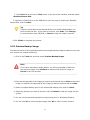
Scheduling File Backups
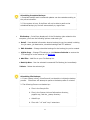
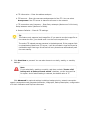
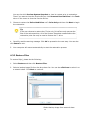
1. If your system is busy, DriveClone will not be able to initiate the backup
process. DriveClone will attempt to perform the backup after 5 minutes.
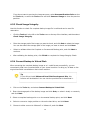
2. The following files are not backed up:
a. Files in the Recycle Bin
b. Files in the System Volume Information directory,
pagefile.sys, and the _$temp directory
c. Hiberfil.sys
d. Files with “.rit” and “.tmp” extensions
21