1
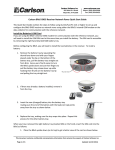
2. Slide the backlight bar further to the right or left, as desired.
CAUTION! If your screen shakes in direct sunlight, you must go to Start > Settings > Control Panel >
VComAdj. Inside this utility there is a slider bar.
While you are experiencing the shaking, move the slider SLIGHTLY left or right until the shaking stops. Moving
the slider all the way to the left or right will most likely not resolve the problem.
Network Connections
You can connect your Carlson Explorer directly to a network through an Ethernet (provided that the CF Card is the
same type) or dial-up connection to access e-mail, access files available on the network server, and browse the
Internet.
Creating a Network (Ethernet) Connection
To create a network (Ethernet) connection:
1. On your device, insert the Ethernet card.
2. Select Start > Settings > Control Panel. Double-tap Network and Dialup Connections.
3. Double-tap the connection icon for the adapter. For example, if you have a NE2000 Ethernet
adapter, double-click the NE2000 connection icon.
4. In the Ethernet Driver Settings dialog box, select Obtain an IP address via DHCP, and tap OK.
5. If prompted, enter the User Name, Password, and Domain name you use to log on to your
network.
6. From the Start menu, select Programs > Tools and then tap Save Registry.
Setting Up Identification for Remote Networks
Chapter 5. Configuration
45