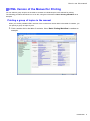
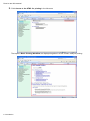
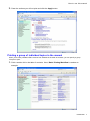
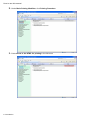
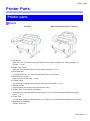
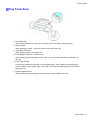
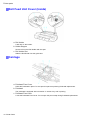
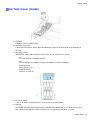
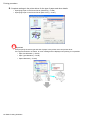
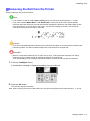
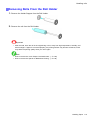
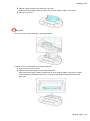
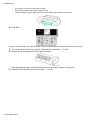
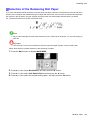
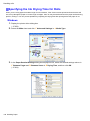
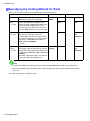
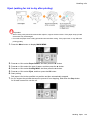
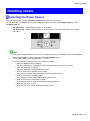
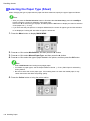
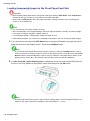
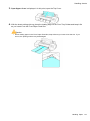
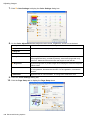
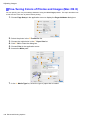
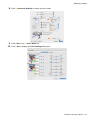
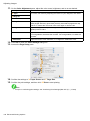
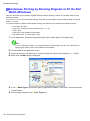
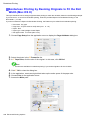
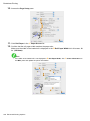
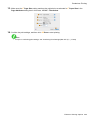
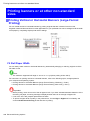
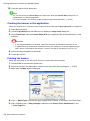
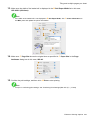
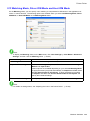
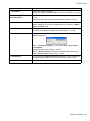
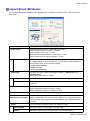
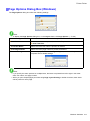
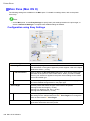
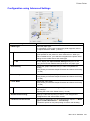
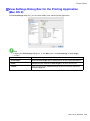
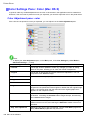
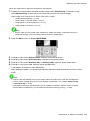
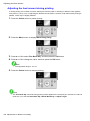
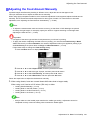
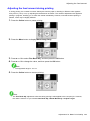
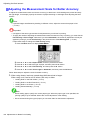
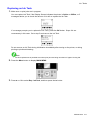
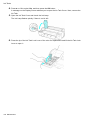
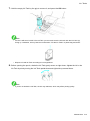
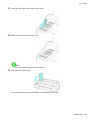
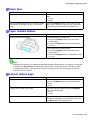
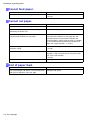
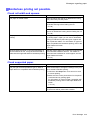
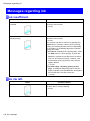
1
Lar g e F o r m a t P r i n t e r User Manual ENG Contents Contents Introduction 1 How to use this manual.....................................................................................1 About This User Manual...............................................................................................................1 Searching Topics..........................................................................................................................3 HTML Version of the Manual for Printing......................................................................................5 Printer Parts 13 Printer parts.....................................................................................................13 Front...........................................................................................................................................13 Back...........................................................................................................................................15 Top Cover (Inside)......................................................................................................................16 Tray Feed Area...........................................................................................................................17 Roll Feed Unit Cover (Inside).....................................................................................................18 Carriage......................................................................................................................................18 Ink Tank Cover (Inside)...............................................................................................................19 Vents..........................................................................................................................................20 Control Panel..............................................................................................................................21 Control Panel...................................................................................................24 Control Panel..............................................................................................................................24 Turning the Printer On and Off...................................................................................................27 Printer Modes.............................................................................................................................29 Switching Modes........................................................................................................................34 Printer Menu Operations............................................................................................................36 Main Menu Operations...............................................................................................................37 Menu Structure...........................................................................................................................41 Main Menu Settings....................................................................................................................55 Main Menu Settings (During Printing)........................................................................................65 Submenu Display.......................................................................................................................66 Status Print.................................................................................................................................68 Optional accessories.......................................................................................74 Stand..........................................................................................................................................74 Roll Holder Set...........................................................................................................................75 IEEE 1394 Expansion Board......................................................................................................75 Printer Specifications.......................................................................................76 Specifications.............................................................................................................................76 Basic Environmental Performance.............................................................................................80 Print Area....................................................................................................................................81 Contents � Contents Basic Printing Workflow 83 Printing procedure...........................................................................................83 Printing Options Using Rolls and Sheets...................................................................................83 Loading and Printing on Rolls....................................................................................................85 Loading and Printing on Sheets in the Paper Feed Slot............................................................90 Printing from Windows...............................................................................................................92 Printing from Mac OS X..............................................................................................................93 Canceling print jobs.........................................................................................95 Canceling Print Jobs from the Control Panel.............................................................................95 Canceling Print Jobs from Windows...........................................................................................97 Canceling Print Jobs from Mac OS X.........................................................................................99 Handling Paper 101 Paper.............................................................................................................101 Types of Paper.........................................................................................................................101 Paper Sizes..............................................................................................................................106 Handling rolls.................................................................................................109 Selecting the Paper Source......................................................................................................109 Selecting the Paper Type (Roll)................................................................................................ 110 Specifying the Paper Length (Roll)........................................................................................... 111 Loading Rolls on the Roll Holder.............................................................................................. 112 Loading Rolls in the Roll Feed Unit.......................................................................................... 114 Loading Rolls in the Printer...................................................................................................... 115 Removing the Roll from the Printer.......................................................................................... 117 Removing Rolls from the Roll Feed Unit.................................................................................. 118 Removing Rolls From the Roll Holder...................................................................................... 119 Clearing Jammed Roll Paper...................................................................................................120 Clearing Jammed Paper (Paper Feed Slot).............................................................................123 Feeding Roll Paper Manually...................................................................................................124 Detection of the Remaining Roll Paper....................................................................................125 Specifying the Ink Drying Time for Rolls...................................................................................126 Specifying the Cutting Method for Rolls...................................................................................128 Cutting the Leading Edge of Roll Paper Automatically.............................................................133 Reducing Dust from Cutting Rolls............................................................................................134 Roll Holder Set.........................................................................................................................135 Attaching Accessories to the Roll Holder.................................................................................136 Feeding Paper from the Roll Feed Unit....................................................................................138 Removing the Roll Feed Unit...................................................................................................139 Installing the Roll Feed Unit.....................................................................................................140 Handling sheets.............................................................................................141 Selecting the Paper Source......................................................................................................141 Selecting the Paper Type (Sheet)............................................................................................142 Selecting the Paper Size (Sheet).............................................................................................143 Loading Sheets Manually.........................................................................................................144 Removing Sheets from the Top Paper Feed Slot.....................................................................150 Removing Heavyweight Paper from the Front Paper Feed Slot..............................................151 ii Contents Contents Clearing Jammed Paper from the Tray....................................................................................152 Output Stacker...............................................................................................155 Output Stacker Precautions.....................................................................................................155 Using the Output Stacker.........................................................................................................156 Working With Various Print Jobs 158 Printing Photos and Images...........................................................................158 Printing Photos and Images (Windows)...................................................................................158 Printing Photos and Images.....................................................................................................160 Printing Photos and Images (Windows)...................................................................................162 Printing Photos and Images (Mac OS X).................................................................................164 Printing CAD Drawings..................................................................................167 Printing CAD Drawings.............................................................................................................167 Printing Line Drawings and Text (Windows).............................................................................168 Printing Line Drawings and Text...............................................................................................169 Printing Line Drawings and Text (Windows).............................................................................170 Printing Line Drawings and Text (Mac OS X)...........................................................................172 HP-GL/2 Printing......................................................................................................................175 Printing Office Documents.............................................................................176 Printing Office Documents........................................................................................................176 Printing Office Documents (Windows)......................................................................................177 Printing Office Documents (Mac OS X)....................................................................................179 Using the Printer With a Color imageRUNNER.............................................181 Printing Enlargements of Scanned Originals from a Color imageRUNNER.............................181 Printing Enlargements of Scanned Originals from a Color imageRUNNER (Windows)...........181 Printing Enlargements of Scanned Originals from a Color imageRUNNER (Mac OS X).........183 Enhanced Printing Options 185 Adjusting Images...........................................................................................185 Adjusting the Color in the Printer Driver...................................................................................185 Fine-Tuning Colors of Photos and Images (Windows).............................................................187 Fine-Tuning Colors of Photos and Images (Mac OS X)...........................................................190 Giving Priority to Particular Graphic Elements and Colors for Printing....................................193 Choosing the Document Type and Printing Conditions (Windows)..........................................196 Choosing the Document Type and Printing Conditions (Mac OS X)........................................198 Choosing Paper for Printing...........................................................................201 Choosing a Paper for Printing..................................................................................................201 Selecting the Paper Type (Roll)................................................................................................202 Selecting the Paper Type (Sheet)............................................................................................203 Specifying Paper in the Printer Driver......................................................................................204 Specifying Paper in the Printer Driver (Windows)....................................................................205 Specifying Paper in the Printer Driver (Mac OS X)..................................................................207 Contents iii Contents Printing enlargements or reductions..............................................................209 Resizing Originals to Match the Paper Size.............................................................................209 Resizing Originals to Match the Paper Size (Windows)...........................................................210 Resizing Originals to Match the Paper Size (Mac OS X).........................................................212 Resizing Originals to Fit the Roll Width....................................................................................215 Resizing Originals to Fit the Roll Width (Windows)..................................................................216 Resizing Originals to Fit the Roll Width (Mac OS X)................................................................218 Resizing Originals by Entering a Scaling Value.......................................................................221 Resizing Originals by Entering a Scaling Value (Windows).....................................................222 Resizing Originals by Entering a Scaling Value (Mac OS X)....................................................224 Printing Enlargements of Scanned Originals from a Color imageRUNNER.............................227 Printing Enlargements of Scanned Originals from a Color imageRUNNER (Windows)...........227 Printing Enlargements of Scanned Originals from a Color imageRUNNER (Mac OS X).........229 Printing at full size..........................................................................................231 Printing on Oversized Paper....................................................................................................231 Printing at Full Size (Windows)................................................................................................233 Printing at Full Size (Mac OS X)...............................................................................................235 Borderless Printing at Actual Size............................................................................................238 Borderless Printing at Actual Size (Windows)..........................................................................240 Borderless Printing at Actual Size (Mac OS X)........................................................................242 Borderless Printing........................................................................................245 Borderless Printing on Paper of Equivalent Size......................................................................245 Borderless Printing by Resizing Originals to Match the Paper Size (Windows).......................247 Borderless Printing by Resizing Originals to Match the Paper Size (Mac OS X).....................249 Borderless Printing by Resizing Originals to Fit the Roll Width................................................252 Borderless Printing by Resizing Originals to Fit the Roll Width (Windows)..............................254 Borderless Printing by Resizing Originals to Fit the Roll Width (Mac OS X)............................256 Borderless Printing at Actual Size............................................................................................259 Borderless Printing at Actual Size (Windows)..........................................................................261 Borderless Printing at Actual Size (Mac OS X)........................................................................263 Printing banners or at other non-standard sizes............................................266 Printing Vertical or Horizontal Banners (Large-Format Printing)..............................................266 Printing Vertical or Horizontal Banners (Large-Format Printing; Windows)..............................267 Printing Vertical or Horizontal Banners (Large-Format Printing; Mac OS X)............................271 Printing on Non-Standard Paper Sizes....................................................................................274 Printing on Non-Standard Paper Sizes (Windows)..................................................................275 Printing on Non-Standard Paper Sizes (Mac OS X).................................................................279 Tiling and multiple pages per sheet...............................................................281 Printing Multiple Originals Next to Each Other.........................................................................281 Printing Multiple Originals Next to Each Other (Windows).......................................................283 Printing Multiple Originals Next to Each Other (Mac OS X).....................................................285 Printing Multiple Pages Continuously.......................................................................................287 Printing Multiple Pages Continuously (Windows).....................................................................288 Printing Multiple Pages Continuously (Mac OS X)...................................................................290 Printing Multiple Pages Per Sheet............................................................................................292 Printing Multiple Pages Per Sheet (Windows)..........................................................................293 Printing Multiple Pages Per Sheet (Mac OS X)........................................................................295 Printing Posters in Sections.....................................................................................................298 iv Contents Contents Printing Large Posters (Windows)............................................................................................299 Centering originals.........................................................................................301 Printing Originals Centered on Rolls........................................................................................301 Printing Originals Centered on Rolls (Windows)......................................................................302 Printing Originals Centered on Rolls (Mac OS X)....................................................................304 Printing Originals Centered on Sheets.....................................................................................307 Printing Originals Centered on Sheets (Windows)...................................................................308 Printing Originals Centered on Sheets (Mac OS X).................................................................310 Conserving roll paper.....................................................................................312 Conserving Roll Paper by Rotating Originals 90 Degrees.......................................................312 Conserving Roll Paper by Rotating Originals 90 Degrees (Windows).....................................313 Conserving Roll Paper by Rotating Originals 90 Degrees (Mac OS X)....................................315 Conserving Roll Paper by Printing Originals Without Top and Bottom Margins.......................318 Conserving Roll Paper by Printing Originals Without Top and Bottom Margins (Windows).....319 Conserving Roll Paper by Printing Originals Without Top and Bottom Margins (Mac OS X)...321 Checking Images Before Printing..................................................................324 Checking the Layout in a Preview Before Printing...................................................................324 Checking the Layout in a Preview Before Printing (Windows).................................................326 Checking the Layout Before Printing (Mac OS X)....................................................................328 Other useful settings......................................................................................329 Printing With Watermarks.........................................................................................................329 Printing with Watermarks-COPY, FILE COPY, and so on (Windows)......................................330 Making the Original Orientation Match the Paper Orientation..................................................332 Making the Original Orientation Match the Paper Orientation (Windows)................................333 Making the Original Orientation Match the Paper Orientation (Mac OS X)..............................335 Using Favorites........................................................................................................................338 Using Favorites (Windows)......................................................................................................339 Using Favorites (Mac OS X).....................................................................................................341 Cutting Roll Paper After Printing...............................................................................................342 Cutting Roll Paper After Printing (Windows).............................................................................343 Cutting Roll Paper After Printing (Mac OS X)...........................................................................344 Windows Software 346 Printer Driver..................................................................................................346 Printer Driver Settings (Windows)............................................................................................346 Specifying Paper in the Printer Driver (Windows)....................................................................348 Confirming Print Settings (Windows)........................................................................................350 Checking the Layout in a Preview Before Printing (Windows).................................................352 Using Favorites (Windows)......................................................................................................354 Accessing the Printer Driver Dialog Box from Applications (Windows)....................................356 Accessing the Printer Driver Dialog Box from the Operating System Menu (Windows)..........358 Main Sheet (Windows).............................................................................................................360 Paper Information on Printer Dialog Box (Windows)................................................................363 Media Detailed Settings Dialog Box (Windows).......................................................................364 View Settings Dialog Box for the Printing Application (Windows)............................................365 Color Adjustment Sheet: Color (Windows)...............................................................................366 Matching Sheet (Windows)......................................................................................................368 Contents Contents Color Adjustment Sheet: Monochrome (Windows)...................................................................370 Page Setup Sheet (Windows)..................................................................................................372 Paper Size Options Dialog Box (Windows)..............................................................................374 Layout Sheet (Windows)..........................................................................................................375 Page Options Dialog Box (Windows).......................................................................................377 Special Settings Dialog Box (Windows)...................................................................................378 Favorites Sheet (Windows)......................................................................................................379 Utility Sheet (Windows)............................................................................................................381 Support Sheet (Windows)........................................................................................................382 Device Settings Sheet (Windows)............................................................................................383 Settings Summaries Dialog Box (Windows).............................................................................384 Status Monitor................................................................................................385 imagePROGRAF Status Monitor (Windows)............................................................................385 Digital Photo Front-Access............................................................................386 Digital Photo Front-Access.......................................................................................................386 PosterArtist....................................................................................................387 Using PosterArtist to Compose Originals.................................................................................387 Using PosterArtist to Compose Originals (Windows)...............................................................388 Device Setup Utility........................................................................................390 imagePROGRAF Device Setup Utility......................................................................................390 Installing imagePROGRAF Device Setup Utility......................................................................390 Configuring the IP Address Using imagePROGRAF Device Setup Utility................................391 Mac OS X Software 392 Printer Driver..................................................................................................392 Printer Driver Settings (Mac OS X)..........................................................................................392 Specifying Paper in the Printer Driver (Mac OS X)..................................................................393 Confirming Print Settings (Mac OS X)......................................................................................395 Checking the Layout Before Printing (Mac OS X)....................................................................397 Using Favorites (Mac OS X).....................................................................................................398 Accessing the Printer Driver Dialog Box from Applications (Mac OS X)..................................399 Main Pane (Mac OS X)............................................................................................................400 Paper Information on Printer Dialog Box (Mac OS X)..............................................................403 Media Detailed Settings Dialog Box (Mac OS X).....................................................................404 View Settings Dialog Box for the Printing Application (Mac OS X)...........................................405 Color Settings Pane: Color (Mac OS X)...................................................................................406 Color Settings Pane: Monochrome (Mac OS X).......................................................................408 Page Setup Pane (Mac OS X).................................................................................................409 Utility Pane (Mac OS X)........................................................................................................... 411 Additional Settings Pane (Mac OS X)......................................................................................412 Support Pane (Mac OS X)........................................................................................................413 Printmonitor...................................................................................................414 imagePROGRAF Printmonitor (Macintosh)..............................................................................414 vi Contents Contents Network Setting 415 Network Setting.............................................................................................415 Network Environment...............................................................................................................415 Configuring the IP Address on the Printer................................................................................417 Configuring the IP Address Using imagePROGRAF Device Setup Utility................................418 Configuring the IP Address Using the Printer Control Panel....................................................419 Configuring the IP Address Using ARP and PING Commands................................................420 Using RemoteUI.......................................................................................................................421 Configuring the Printer's TCP/IP Network Settings..................................................................422 Configuring the Printer's AppleTalk Network Settings..............................................................424 Configuring the Printer's NetWare Network Settings................................................................425 Specifying Printer-Related Information.....................................................................................427 Configuring the Communication Mode Manually......................................................................428 Email Notification When Printing is Finished or Errors Occur..................................................429 Initializing the Network Settings...............................................................................................430 Network Setting (Windows)...........................................................................431 Configuring the Printer Driver Destination (Windows)..............................................................431 Sharing the Printer in Windows................................................................................................432 Configuring the Printer's NetWare Network Settings................................................................434 Specifying the Printer's Frame Type.........................................................................................436 Specifying NetWare Print Services...........................................................................................438 Specifying NetWare Protocols..................................................................................................441 Configuring NetWare Network Settings....................................................................................443 Installing imagePROGRAF Device Setup Utility......................................................................444 Configuring the IP Address Using imagePROGRAF Device Setup Utility................................444 Network Setting (Mac OS X)..........................................................................445 Configuring the Printer Driver Destination (Macintosh)............................................................445 Configuring the Printer's AppleTalk Network Settings..............................................................446 Configuring the Destination for AppleTalk Network (Macintosh)..............................................447 Configuring the Destination for TCP/IP Network (Macintosh)..................................................450 Configuring the Destination for Bonjour Network (Macintosh).................................................452 Adjustments for Better Print Quality 453 Adjusting the Printhead..................................................................................453 Correcting Print Misalignment..................................................................................................453 Adjusting the Printhead Alignment Automatically.....................................................................453 Adjusting the Printhead Alignment Manually............................................................................455 Adjusting the Printhead Height.................................................................................................457 Adjusting the feed amount.............................................................................458 Adjusting the Feed Amount Automatically................................................................................458 Adjusting the Feed Amount Manually.......................................................................................461 Adjusting the Measurement Scale for Better Accuracy............................................................464 Adjusting Color on the Trailing Edge of Sheets........................................................................466 Adjusting the Vacuum Strength................................................................................................468 Contents vii Contents Maintenance 469 Ink Tanks........................................................................................................469 Ink Tanks..................................................................................................................................469 Replacing Ink Tanks.................................................................................................................470 Checking Ink Tank Levels.........................................................................................................476 When to Replace Ink Tanks......................................................................................................477 Printheads......................................................................................................478 Printhead..................................................................................................................................478 Checking the Print Quality........................................................................................................478 Improving the Print Quality.......................................................................................................478 Checking for Nozzle Clogging..................................................................................................479 Cleaning the Printhead.............................................................................................................480 Replacing the Printhead...........................................................................................................481 Maintenance Cartridge..................................................................................487 Maintenance Cartridge.............................................................................................................487 Replacing the Maintenance Cartridge......................................................................................487 Checking the Remaining Maintenance Cartridge Capacity......................................................492 When to Replace the Maintenance Cartridge..........................................................................493 Cleaning the Printer.......................................................................................494 Cleaning the Printer Exterior....................................................................................................494 Cleaning Inside the Top Cover.................................................................................................495 Cleaning the Paper Retainer....................................................................................................498 Cleaning the Printhead.............................................................................................................499 Other Maintenance........................................................................................500 Preparing to Transfer the Printer..............................................................................................500 Updating the Firmware.............................................................................................................504 Troubleshooting 505 Frequently Asked Questions..........................................................................505 Frequently Asked Questions....................................................................................................505 Problems Regarding Paper...........................................................................507 Clearing Jammed Paper (Paper Feed Slot).............................................................................507 Clearing Jammed Roll Paper...................................................................................................508 Clearing Jammed Paper from the Tray.................................................................................... 511 Roll Paper Cannot be Inserted into the Paper Feed Slot.........................................................514 Cannot Load Sheets.................................................................................................................514 Paper is not cut straight............................................................................................................514 Paper cannot be cut.................................................................................................................514 Depression on the leading edge is left.....................................................................................514 Roller marks are left across the trailing edge of paper.............................................................514 Printing does not start....................................................................................515 The Data lamp on the Control Panel does not light up.............................................................515 The Printer Does Not Respond Even if Print Jobs are Sent.....................................................515 The Display Screen indicates the system is filling with ink.......................................................515 viii Contents Contents The printer stops during a print job................................................................516 An error message is shown on the Display Screen..................................................................516 The printer ejects blank, unprinted paper.................................................................................516 The printer stops when printing a HP-GL/2 job (the carriage stops moving)............................516 Problems with the printing quality..................................................................517 Printing is faint..........................................................................................................................517 Paper rubs against the Printhead.............................................................................................518 The edges of the paper are dirty..............................................................................................519 The surface of the paper is dirty...............................................................................................520 The back side of the paper is dirty...........................................................................................520 Roller marks are left across the trailing edge of paper.............................................................520 Printed colors are inaccurate....................................................................................................521 Banding in different colors occurs............................................................................................522 Colors in printed images are uneven........................................................................................523 Image Edges are Blurred or White Banding Occurs................................................................524 The contrast becomes uneven during printing.........................................................................524 The length of printed images is inaccurate...............................................................................524 Documents are printed crooked...............................................................................................524 Documents are printed in monochrome...................................................................................524 Line thickness is not uniform (Windows)..................................................................................525 Lines are misaligned................................................................................................................525 Thin lines are not printed after switching to Economy Printing mode.......................................525 Problems with the printing quality caused by the type of paper...............................................525 Cannot print over a network...........................................................................526 Cannot connect the printer to the network...............................................................................526 Cannot print over a TCP/IP network.........................................................................................526 Cannot print over a NetWare network......................................................................................527 Cannot print over AppleTalk or Bonjour networks....................................................................527 Installation problems......................................................................................528 The IEEE 1394 Driver Cannot Be Installed Correctly...............................................................528 Removing Installed Printer Drivers...........................................................................................529 HP-GL/2 problems.........................................................................................530 With HP-GL/2, printing is misaligned........................................................................................530 Lines or images are missing in the HP-GL/2 data that was printed.........................................530 Lines Are Printed Too Thick or Thin During HP-GL/2 Printing..................................................530 HP-GL/2 jobs are printed in monochrome (or color)................................................................530 Printed Colors in Line Drawings are Inaccurate During HP-GL/2 Printing...............................530 HP-GL/2 printing takes a long time..........................................................................................531 Replotting with HP-GL/2 jobs is not possible...........................................................................531 The printer stops when printing a HP-GL/2 job (the carriage stops moving)............................531 Other problems..............................................................................................532 The printer does not go on.......................................................................................................532 If the Printer Makes a Strange Sound......................................................................................532 Messages advising to check the maintenance cartridge are not cleared.................................532 The printer consumes a lot of ink.............................................................................................532 Ink Level Detection...................................................................................................................533 Contents ix Contents Error Message 535 Responding to Messages..............................................................................535 Responding to Messages.........................................................................................................535 Error Messages........................................................................................................................536 Messages regarding paper............................................................................538 Paper Mismatch.......................................................................................................................538 Papr Type Mismatch.................................................................................................................538 Papr Size Mismatch.................................................................................................................539 Paper size not detected............................................................................................................539 Insufficient paper for job...........................................................................................................540 This paper cannot be used.......................................................................................................540 Roll printing is selected............................................................................................................540 Roll printing is selected, but sheets are loaded........................................................................541 The roll is empty.......................................................................................................................541 Roll feed unit err.......................................................................................................................541 No Roll Feed Unit.....................................................................................................................541 Sheet printing is selected.........................................................................................................542 Manual printing is selected, but a roll is loaded........................................................................542 Wrong paper feed slot for this paper type................................................................................542 Cannot feed paper....................................................................................................................542 Paper jam.................................................................................................................................543 Paper loaded askew.................................................................................................................543 Cannot detect papr...................................................................................................................543 Cannot feed paper....................................................................................................................544 Cannot cut paper......................................................................................................................544 End of paper feed.....................................................................................................................544 Borderless printng not possible................................................................................................545 Messages regarding ink.................................................................................546 Ink insufficient...........................................................................................................................546 No ink left.................................................................................................................................546 Remaining level of the ink cannot be correctly detected..........................................................547 Ink Level: Check.......................................................................................................................547 No ink tank loaded....................................................................................................................547 Ink tank error............................................................................................................................547 The Display Screen indicates the system is filling with ink.......................................................547 Messages regarding printing or adjusment....................................................548 Use another paper....................................................................................................................548 Cannot print as specified..........................................................................................................548 Cannot adjust band..................................................................................................................548 Cannot adjust printhead...........................................................................................................548 Messages regarding printheads....................................................................549 Cannot adjust printhead...........................................................................................................549 Cannot adjust band..................................................................................................................549 PHead needs cleaning.............................................................................................................549 Problem with Printhead............................................................................................................549 Printhead error.........................................................................................................................550 Contents Contents Messages regarding the maintenance cartridge............................................551 No maintenance cartridge........................................................................................................551 Prepare for maint cart replacement..........................................................................................551 No Maintenance Cartridge capacity.........................................................................................551 Maintenance cartridge full........................................................................................................551 Maintenance cartridge problem................................................................................................551 Messages regarding HP-GL/2.......................................................................552 This type of paper is not compatible with HP-GL/2..................................................................552 There is no data.......................................................................................................................552 GL2: Wxxxx The memory is full. (xxxx is 0501, 0903, or 0904)...............................................552 GL2: W0502 The parameter is out of range.............................................................................552 GL2: W0504 This command is not supported..........................................................................552 Other Messages............................................................................................553 GARO Wxxxx (x represents a number)....................................................................................553 ERROR Exxx-xxxx (x represents a letter or number)...............................................................553 Hardware error. xxxxxxxx-xxxx (x represents a letter or number)............................................553 Top cover is open.....................................................................................................................554 Prepare for parts replacement..................................................................................................554 Parts replacement time has passed.........................................................................................554 Unknown file.............................................................................................................................554 Multi-sensor error.....................................................................................................................554 Roll feed unit err.......................................................................................................................554 No Roll Feed Unit.....................................................................................................................554 Contents xi Contents xii Contents How to use this manual Introduction How to use this manual About This User Manual • Symbols The following symbols are used in this User Manual to indicate safety information and explanations on restrictions or precautions in use. Important Indicates important information that must be followed when using the printer. Be sure to read this information to prevent printer damage or operating errors. Caution Indicates caution items for which operating error poses a risk of injury or damage to equipment or property. To ensure safe use, always follow these precautions. Note Indicates helpful reference information and supplemental information on particular topics. • Button names and user interface elements Key and button names on the control panel and user interface elements in software (such as menus and buttons) are indicated as follows in this User Manual. Control panel buttons Example: Press the OK button. Control panel messages Example: Head Cleaning is displayed. Software interface items (Menus and Buttons) Example: Click OK. Keyboard keys Example: Press the Tab key. • Part names Names of printer parts are indicated as follows in this User Manual. Printer part names Example: Open the Top Cover. • Cross-reference Other pages or manuals that provide related information are indicated as follows in this User Manual. Cross-reference in the same User Manual Example: see “Turning the Printer On and Off”. (→P.27) Cross-reference in related manuals Example: See the Paper Reference Guide. Other cross-reference Example: See the printer driver help. Introduction 1 How to use this manual • Figures and software screens • Figures in this User Manual may be different from the actual appearance of the printer in some cases. • Screens depicted in this User Manual for the printer driver or other software may be different from the actual screens because of subsequent updates. • Windows XP screens are used in explanations of Windows operations in this User Manual. • Trademarks • Canon, the Canon logo, and imagePROGRAF are trademarks or registered trademarks of Canon Inc. • Microsoft and Windows are registered trademarks of Microsoft Corporation in the United States and other countries. • Macintosh is a registered trademark of Apple Inc. in the United States and other countries. • Other company and product names are trademarks or registered trademarks of their respective owners. • Copyright © 2008 Canon Inc. • Unauthorized reproduction of this User Manual in whole or part is prohibited. • May we request Thank you for understanding the following points. • The information in this User Manual is subject to change without notice. • We strive to ensure accuracy of information in this User Manual, but if you notice errors or omissions, please contact us. 2 Introduction How to use this manual Searching Topics You can nd information in topics of this User Manual by searching for relevant terms. 1. Enter a term and click the Search button. Note • To search for multiple terms at once, enter a space between each term. Search results are listed at left. Introduction 3 How to use this manual 2. Click a topic you want to read. The terms you searched for will be highlighted in the topic. To review multiple topics at once, select the check box of desired topics and click the Apply button. 4 Introduction How to use this manual HTML Version of the Manual for Printing You can select a group of topics in the table of contents or individual topics in this manual for printing. The following procedure describes how to do this, using the information in Basic Printing Workow as an example. Printing a group of topics in the manual When you access printable HTML versions of the content from section titles in the table of contents, you can specify a group of topics to print. 1. Click a section title in the table of contents. Here, Basic Printing Workow is used as an example. Introduction 5 How to use this manual 2. Click Access to the HTML for printing in the title area. The topics in Basic Printing Workow are displayed together in HTML format, ready for printing. 6 Introduction How to use this manual 3. Clear the sections you will not print and click the Apply button. Printing a group of individual topics in the manual When you access printable HTML versions from subtitles in the table of contents, you can specify a group of topics to print. 1. Click a section title in the table of contents. Here, Basic Printing Workow is used as an example. Introduction 7 How to use this manual 2. Under Basic Printing Workow, click Printing Procedure. 3. Click Access to the HTML for printing in the title area. 8 Introduction How to use this manual The topics in Printing Procedure are displayed together in HTML format, ready for printing. 4. Clear the topics you will not print and click the Apply button. Introduction 9 How to use this manual Printing selected topics Print selected topics as follows. 1. Access the printing dialog box as follows, depending on your computer’s operating system. • Windows In Windows, right-click anywhere in the explanation area except on a gure or a link.In the shortcut menu, click Print to display the Print dialog box. 10 Introduction How to use this manual • Macintosh On a Macintosh computer, click anywhere in the explanation area except on a gure or a link while holding the Ctrl key. In the shortcut menu, click Print Frame to display the Print dialog box. 2. Specify conditions as needed, and then click Print (Windows) or Print (Macintosh). • Windows Introduction 11 How to use this manual • Macintosh Note • To print only individual topics that are displayed, use this method. 12 Introduction Printer parts Printer Parts Printer parts Front Standard When the Ejection Guide is removed a. Top Cover Open this cover to install the Printhead and remove any jammed paper from inside the printer, as needed. (→P.16) b. Paper Tray Cover Open this cover to load sheets in the Top Paper Feed Slot. (→P.17) c. Roll Feed Unit Load rolls in this unit. You can also load sheets in this unit manually. d. Roll Feed Unit Cover Open this cover to load rolls. (→P.18) e. Control Panel Use this panel to operate the printer and check the printer status. (→P.21) f. Ejection Guide Supports paper as it is ejected to prevent it from rising. g. Output Tray ( Front Paper Feed Slot ) All printed documents are ejected to the output tray. Also, use this slot when loading heavyweight paper. (→P.17) h. Cutter Unit A round-bladed cutter for automatic cutting of roll paper. The cutter is retracted inside when not cutting. i. Maintenance Cartridge Absorbs excess ink. Printer Parts 13 Printer parts j. Ink Tank Cover Open this cover to replace Ink Tank. (→P.19) k. Stand A stand on which the printer is installed. Equipped with casters so that the printer can be easily moved. l. Output Stacker Printed documents are ejected into the output tray. The Output Stacker can hold one sheet. (→P.155) 14 Printer Parts Printer parts Back a. Expansion Board Slots For installing an IEEE 1394 (FireWire) expansion board, as desired. b. USB Port Connect a USB cable to this port. This port is compatible with High Speed USB 2.0. c. Ethernet Port Connect an Ethernet cable to this port. d. Power Supply Connector Connect the power cord to this connector. e. Carrying Handles (at four positions) When carrying the printer, hold it by these handles under both sides. Printer Parts 15 Printer parts Top Cover (Inside) a. Carriage Moves the Printhead. The carriage serves a key role in printing. (→P.18) b. Carriage Shaft The Carriage slides along this shaft. c. Paper Retainer Important in supplying the paper. This retainer holds paper as it is fed. d. Platen The Printhead moves across the platen during printing. The Vacuum holes on the platen holds paper in place. e. Borderless Printing Ink Grooves For catching ink outside the edges of paper during borderless printing. f. Cleaning Brush When cleaning inside the printer under the Top Cover, use this brush to sweep away paper dust on the Platen. g. Linear Scale The linear scale serves a key role in detecting the Carriage position. Be careful not to touch this part when cleaning inside the Top Cover or clearing paper jams. 16 Printer Parts Printer parts Tray Feed Area a. Tray Extension When loading sheets on the tray, open the Paper Tray Cover before opening the tray. b. Width Guide When loading the sheets , move the guide to match the paper size. c. Top Paper Feed Slot When loading sheets, insert them here. d. Front Paper Feed Slot ( Output Tray ) When loading heavyweight paper, insert it here. Also, all printed documents are ejected from this slot. e. Front Tray Guides Lift all of the guides before printing on heavyweight paper. When feeding heavyweight paper, rest the sheet on these guides, align it to the right, and insert the leading edge up to the Paper Alignment Line. f. Paper Alignment Line When loading heavyweight paper, ensure the paper edge is parallel to this line. Printer Parts 17 Printer parts Roll Feed Unit Cover (Inside) a. Roll Holder Load rolls on this holder. b. Holder Stopper Secure rolls on the Roll Holder with this part. c. Roll Holder Slot Slide the Roll Holder into this guide slot. Carriage a. Printhead Fixer Cover Holds the Printhead in place. Do not open this part except during Printhead replacement. b. Printhead The printhead is equipped with ink nozzles. It serves a key role in printing. c. Printhead Fixer Lever Locks the Printhead Fixer Cover. Do not open this part except during Printhead replacement. 18 Printer Parts Printer parts Ink Tank Cover (Inside) a. Ink Tank Cartridges of ink in various colors. b. Ink Tank Lock Lever A lever that locks the Ink Tank in place and protects it. Open or close the lever when replacing an Ink Tank. c. Ink Lamp (Red) Indicates the state of the Ink Tank as follows when the Ink Tank Cover is opened. • On On: The Ink Tank is installed correctly. • Off Off: No Ink Tank is installed, or the ink level detection function is disabled. • Flashing Slowly Not much ink is left. • Flashing Rapidly There is no more ink. a. Ink Color Label Load an Ink Tank corresponding to the color and name on these labels. b. Ink Set An Ink Tank that can be used in the printer is labeled with a white letter “A” in a black circle on the side. When purchasing an Ink Tank, make sure an “A” is printed on the label. (→P.469) Printer Parts 19 Printer parts Vents The vents are on top (1), on the right (2), and on the bottom on the right (3 and 4). Caution • Do not block these vents when the printer is on. • Avoid setting paper or other light objects near the vents. 20 Printer Parts Printer parts Control Panel a. Data lamp (Green) • Flashing During printing, the Data lamp ashes when the printer is receiving or processing print jobs. Otherwise, this lamp ashes when the printer is paused or updating the rmware. • Off There are no active print jobs when the Data lamp is off. b. Message lamp (Orange) • On A warning message is displayed. • Flashing An error message is displayed. • Off The printer is off or is operating normally. c. Paper Source Section After you press the Feeder Selection button, the lamp for your chosen paper source is lit. 1. Roll Media lamp (Green) (Rolls) • On Indicates that a roll is selected as the paper source. • Off Shows whether the Tray or Front Paper Feed Slot is selected as the paper source. 2. Cut Sheet lamp (Green) • On Shows whether the Tray or Front Paper Feed Slot is selected as the paper source. • Off Indicates that a roll is selected as the paper source. d. Display Screen Shows the printer menu, as well as the printer status and messages. e. Color Label These labels indicate the Ink Tank colors and names. The labels correspond to the ink levels on the Display Screen. Printer Parts 21 Printer parts f. Online Button Switches the printer online and ofine. (→P.34) • On (Green) The printer is online. • Flashing The printer is recovering from Sleep mode. • Off The printer is ofine. g. Feeder Selection Button Switches the paper source. Each time you press this button, the paper source switches between roll feed (when the paper source is a roll) and sheet feed (when the paper source is the Tray or Front Paper Feed Slot ). The corresponding lamp in the paper source section is lit. h. Menu Button Displays the main menu of the printer. (→P.55) i. Information Button Displays printer submenus. Press this key to display information about ink, paper, and so on. (→P.66) You can also hold down this button for three seconds to clean the Printhead ( Head Cleaning A ). j. ◄ Button Menu mode: Press this button to display the menu one level higher. When you are entering numbers, the button moves the cursor to the next digit. The instructions can be paused when [← Pause] is displayed. When [← Back] is displayed, you can access the previous instruction screen. k. ▲ Button Ofine mode: Press this button to rewind rolls manually. (→P.124) Menu mode: Press this button to display the previous menu item or setting value. l. ► Button Menu mode: Press this button to display the menu one level lower. When [Fwd →] is displayed, you can access the next instruction screen. m.▼ Button Ofine mode: Press this button to feed roll paper manually. (→P.124) Menu mode: Press this button to display the next menu item or setting value. n. OK Button In menu mode, press this button to conrm or execute the selected item or setting. At other times, pressing this button enables you to access the next screen after following the instructions on the Display Screen. o. Power Button Turns the printer on and off. (→P.27) p. Load/Eject Button You can check instructions on loading, replacing, and removing paper. Instructions for loading or replacing paper are shown on the Display Screen if pressed when no paper is loaded, and instructions for removing paper are shown if paper is loaded. 22 Printer Parts Printer parts q. Stop Button Hold down for at least a second to cancel print jobs in progress or end the ink drying period. During display of instructions on loading sheets, for example, you can hold down this button for one second to pause the current screen. Note • When the printer is in Sleep mode, you can press any button to wake the printer and bring it online or ofine again. Printer Parts 23 Control Panel Control Panel Control Panel a. Data lamp (Green) • Flashing During printing, the Data lamp ashes when the printer is receiving or processing print jobs. Otherwise, this lamp ashes when the printer is paused or updating the rmware. • Off There are no active print jobs when the Data lamp is off. b. Message lamp (Orange) • On A warning message is displayed. • Flashing An error message is displayed. • Off The printer is off or is operating normally. c. Paper Source Section After you press the Feeder Selection button, the lamp for your chosen paper source is lit. 1. Roll Media lamp (Green) (Rolls) • On Indicates that a roll is selected as the paper source. • Off Shows whether the Tray or Front Paper Feed Slot is selected as the paper source. 2. Cut Sheet lamp (Green) • On Shows whether the Tray or Front Paper Feed Slot is selected as the paper source. • Off Indicates that a roll is selected as the paper source. d. Display Screen Shows the printer menu, as well as the printer status and messages. e. Color Label These labels indicate the Ink Tank colors and names. The labels correspond to the ink levels on the Display Screen. 24 Printer Parts Control Panel f. Online Button Switches the printer online and ofine. (→P.34) • On (Green) The printer is online. • Flashing The printer is recovering from Sleep mode. • Off The printer is ofine. g. Feeder Selection Button Switches the paper source. Each time you press this button, the paper source switches between roll feed (when the paper source is a roll) and sheet feed (when the paper source is the Tray or Front Paper Feed Slot ). The corresponding lamp in the paper source section is lit. h. Menu Button Displays the main menu of the printer. (→P.55) i. Information Button Displays printer submenus. Press this key to display information about ink, paper, and so on. (→P.66) You can also hold down this button for three seconds to clean the Printhead ( Head Cleaning A ). j. ◄ Button Menu mode: Press this button to display the menu one level higher. When you are entering numbers, the button moves the cursor to the next digit. The instructions can be paused when [← Pause] is displayed. When [← Back] is displayed, you can access the previous instruction screen. k. ▲ Button Ofine mode: Press this button to rewind rolls manually. (→P.124) Menu mode: Press this button to display the previous menu item or setting value. l. ► Button Menu mode: Press this button to display the menu one level lower. When [Fwd →] is displayed, you can access the next instruction screen. m.▼ Button Ofine mode: Press this button to feed roll paper manually. (→P.124) Menu mode: Press this button to display the next menu item or setting value. n. OK Button In menu mode, press this button to conrm or execute the selected item or setting. At other times, pressing this button enables you to access the next screen after following the instructions on the Display Screen. o. Power Button Turns the printer on and off. (→P.27) p. Load/Eject Button You can check instructions on loading, replacing, and removing paper. Instructions for loading or replacing paper are shown on the Display Screen if pressed when no paper is loaded, and instructions for removing paper are shown if paper is loaded. Printer Parts 25 Control Panel q. Stop Button Hold down for at least a second to cancel print jobs in progress or end the ink drying period. During display of instructions on loading sheets, for example, you can hold down this button for one second to pause the current screen. Note • When the printer is in Sleep mode, you can press any button to wake the printer and bring it online or ofine again. 26 Printer Parts Control Panel Turning the Printer On and Off Turning the printer on 1. Press the Power button to turn on the printer. The printer will now start up. After the Display Screen shows the Canon logo, Starting up... Please wait. is displayed. 2. The printer goes online in preparation for printing after startup, and the Online lamp and paper source section lamp remain lit. The printer will not go online in the following situations. Take action as needed. • The Top Cover is open Close the Top Cover. • The Ink Tank Cover is open Close the Ink Tank Cover. • The Printhead is not installed Install the Printhead. For the instruction, see “Replacing the Printhead”. (→P.481) • Ink Tank is not installed Install the Ink Tanks. For the instruction, see “Replacing Ink Tanks”. (→P.470) • If “ERROR” is shown on the Display Screen Turn off the printer and contact your Canon dealer. • The Online lamp and Message lamp are not lit (even once), and nothing appears on the Display Screen Make sure the printer is plugged in correctly. Check the connection at the plug and electrical outlet. • No paper is loaded Load paper. (→P.85) (→P.90) Printer Parts 27 Control Panel Important • Starting the printer when it is connected via the USB cable to a Macintosh computer that is off may cause the computer to start up at the same time. To prevent this, disconnect the USB cable before starting the printer. Connecting the printer to the computer via a USB hub may solve this issue. Turning the printer off Important • Never turn the printer off or unplug it during a print job. This could damage the printer. 1. Make sure no print jobs are in progress. If the Message lamp is ashing, check the message on the Display Screen and take action as necessary. (→P.536) If the Data lamp is ashing, the printer is receiving a print job. Turn off the printer only after printing is nished. 2. Hold down the Power button for more than a second. After Shut Down.. Please Wait.. is shown on the Display Screen, the printer shuts off. 28 Printer Parts Control Panel Printer Modes Printer modes are classied as follows and described in this topic. • • • • • • Modes (→P.29) Mode transition (→P.30) Online, and state of the Control Panel (→P.31) Ofine, and state of the Control Panel (→P.32) Menu mode, and state of the Control Panel (→P.33) Submenu mode, and state of the Control Panel (→P.33) Modes The printer has ve modes as follows: • Online The printer is ready to receive jobs sent from the computer. Jobs sent from the computer are processed immediately. If jobs are received in other modes, they are printed the next time the printer goes online. • Ofine Any jobs sent from the computer are held without being processed. While the printer is ofine, you can feed or cut roll paper manually. The printer goes ofine automatically if jobs cannot be processed, such as if errors occur. • Menu mode Menus are displayed on the printer, and you can select, set, or execute menu items. Any jobs sent from the computer are held without being printed. • Submenu mode Submenus are displayed regarding ink and paper information. Jobs can be received and printing is possible while submenus are displayed and the printer is online. In other modes, any jobs sent from the computer are held without being printed while submenus are displayed. • Sleep mode The printer is in power-saving mode. The printer automatically enters Sleep mode to conserve power if it is idle for a specic period (by factory default, ve minutes), that is, if no print jobs are received or buttons are pressed while all covers are closed. You can specify the period before the printer enters Sleep mode in the Sleep Timer menu. (→P.55) If any print jobs are received when the printer is in Sleep mode (after it was originally online), the printer goes online and prints the jobs. Printer Parts 29 Control Panel Mode transition The printer mode transitions are as follows: *1: When submenus are displayed, you can press any button other than the Information button to return to the previous mode. *2: The printer automatically enters Sleep mode if it is idle for a specic period (by factory default, ve minutes), that is, if no print jobs are received or buttons are pressed while all covers are closed. However, it does not enter Sleep mode while error messages are displayed. *3: In Sleep mode, the printer can be restored to the previous state by pressing any button. Sleep mode is also terminated if a print job is received or a command is issued from RemoteUI. 30 Printer Parts Control Panel Online, and state of the Control Panel Not printing Printing in progress (receiving or processing print jobs) Display Screen • Top Level of the Display Screen The printer status is displayed here. The selected paper source is indicated by an icon in the upper-right corner. Any warning messages are displayed here on lines 2-4. Take action as needed. (→P.536) • Middle Level of the Display Screen The rst and second lines display the paper type and size. • Bottom Level of the Display Screen Here, the remaining ink level is indicated. (→P.476) Control Panel • Online lamp Lit when the printer is online. • Data lamp Flashes when print jobs are being received or processed. • Message lamp Lit when warning messages are displayed. Printer Parts 31 Control Panel Ofine, and state of the Control Panel Ofine Not printing Printing is paused Display Screen • Display Screen The printer status is displayed here. The selected paper source is indicated by an icon in the upper-right corner. Any warning messages are displayed here on lines 2-4. Take action as needed. (→P.536) • Middle Level of the Display Screen The rst and second lines display the paper type and size. • Bottom Level of the Display Screen Here, the remaining ink level is indicated. (→P.476) Control Panel • Message lamp Lit when warning messages are displayed. Error Messages If action can be taken If no action can be taken • Top and Middle Levels • Top and Middle Levels • Top and Middle Levels of the Display Screen Error messages are displayed. • Bottom Level of the Display Screen Here, the remaining ink level is indicated. (→P.476) of the Display Screen Error messages are displayed. • Bottom Level of the Display Screen The corrective actions are displayed here. of the Display Screen The error message is displayed with the following instructions: Turn off printer, wait, then turn on again.. • Data lamp Flashes when print jobs are being received. • Message lamp Flashes when error messages are displayed. Take action as needed. (→P.536) 32 Printer Parts • Display Screen “ERROR” is displayed, followed by the error code and Call for service.. • Data lamp Flashes when print jobs are being received. • Message lamp Flashes when error messages are displayed. Turn off the printer and wait at least three seconds before restoring the power. If the message is still displayed after this, write down the error code and message, turn off the printer, and contact the Canon dealer for assistance. Control Panel Menu mode, and state of the Control Panel Main menu • Display Screen Menu items and settings • Display Screen Pressing the Menu button when printing is not in progress displays the main menu. The title of the selected menu is displayed on the rst line, and menus immediately under the current menu are displayed on the second and subsequent lines. The lower level menus are available if “►” is displayed at right. (→P.37) The title of the selected menu is displayed on the rst line, and menu items or settings are displayed on the second and subsequent lines. (→P.37) The menu of options available during printing (top gure) can be displayed by pressing the ► button when the main menu is displayed (left gure). Main menu (during printing) • Display Screen Menus available during printing are displayed if you press the Menu button during printing. If you select a menu, the title of the selected menu is displayed on the rst line, and menus immediately under the current menu are displayed on the second and subsequent lines. The lower level menus are available if “►” is displayed at right. (→P.37) Submenu mode, and state of the Control Panel Ink levels and the remaining Maintenance Cartridge capacity Information of the Printer information loaded paper GL2 Settings Press the Information button to display this information, one after another: the Maintenance Cartridge capacity and remaining ink levels, paper information, printer information, and GL2 settings information. (→P.66) Printer Parts 33 Control Panel Switching Modes Switching the Printer Online/Ofine Press the Online button to switch the printer online or ofine. The Online lamp is lit in Online mode. Printing is possible in this mode. The Online lamp is off in Ofine mode. Depending on the status, the printer switches online and ofine as follows. Printer Status When the Online Button is Pressed Online The printer switches ofine and the Online lamp goes off. Online, printing Switches ofine and printing is paused. When printing is paused, the Printing menu is available. Ofine Switches online and the Online lamp is lit. Ofine, when an error message is displayed In the case of error messages other than those shown below or if paper is not loaded, the printer remains ofine until you solve the problem. The Online lamp remains off. If the following error messages are displayed, the printer switches online and printing is resumed. However, you may not be able to obtain the desired printing results. • Insufcient paper for job • PHead needs cleaning. • Papr Size Mismatch • Papr Type Mismatch 34 Printer Parts Control Panel Printer Status When the Online Button is Pressed Menu mode Switches online and the Online lamp is lit. Menu mode, printing Switches online and the Online lamp is lit. Printing is resumed. Switching to Menu Mode Press the Menu button to display the main menu. Depending on the status, the printer switches to Menu mode as follows. Printer Status When the Menu Button is Pressed Online Switches to Menu mode. Online, printing The printer stays online. It does not switch to Menu mode. Ofine Switches to Menu mode. Ofine, printing Menus available during printing are displayed. Ofine, when an error message is displayed Not switch to Menu mode until the problem is solved. Press the Information button to display the submenus. Press the Information button to display the Maintenance Cartridge capacity and remaining ink levels, as well as information on the loaded paper and the printer. Press the Information button repeatedly to change the information displayed. (→P.66) Press any button other than the Information button to restore the previous mode. After you display a submenu, the printer will revert to the previous mode in about ten seconds if no print job is received or if you do not operate the printer. Note • You can start Head Cleaning A by holding down the Information button for three seconds or more. (→P.480) Printer Parts 35 Control Panel Printer Menu Operations For instructions on selecting menu items, see “Main Menu Operations”. (→P.37) For details on menu levels and menu items, see “Menu Structure”. (→P.41) The printer menu structure is made up of a main menu and submenus. Access the main menu by pressing the Menu button on the Control Panel. The principal settings available in the main menu are as follows: • Paper Settings Specify the type and size of paper. • Print Settings Adjust or clean the Printhead, or adjust the paper feed amount. • Printer Settings Congure the network settings, set the sleep timer, and specify the unit of measurement on the display. Note • By default, main menu settings apply to all print jobs. However, for settings that are also available in the printer driver, the values specied in the printer driver take priority. Access the submenu by pressing the Information button on the Control Panel. You can check the following information in submenus. • • • • Ink levels Maintenance Cartridge capacity Size and type of paper that is selected Amount of roll paper left 36 Printer Parts Control Panel Main Menu Operations Press the Menu button to display the main menu. For details, see “Main Menu Settings”. (→P.55) • Main menu when no print job is in progress • Main menu during printing Note • The main menu will not be displayed in the following cases even if you press the Menu button. • An error message is displayed You can access the Menu mode after you have solved the problem. • Pressing the Menu button when printing is paused (because you have pressed the Online button) displays main menu items that are available during printing. To access each function menu from the main menu, and set or execute menu items, use buttons on the Control Panel. The following section describes menu operations and how they are presented in this User Manual. • • • • Accessing Menus (→P.38) Specifying menu items (→P.39) Specifying numerical values (→P.40) Executing menu commands (→P.40) Printer Parts 37 Control Panel Accessing Menus Printer menus are grouped by function. Menus are displayed with the upper line selected. Use the buttons on the Control Panel to access each menu. • Press ▲ to access a higher menu in the menu list, and press ▼ to access a lower one. If items of the menu list are more than the lines of the screen, press ▲ and ▼ to scroll the menu. If you navigate to the lowest-level menu and press the ▼ button again, the display switches to the top-level menu screen. If you navigate to the top-level menu and press the ▲ button again, the display switches to the lowest-level menu screen. Items you select are highlighted. The scroll bar at right indicates the current position in the overall menu. • The lower level menus are available if “►” is displayed at right. To access these lower level menus, select a menu and press ►. • The upper level menus are available if “◄” is displayed at left. To access these upper level menus, select a menu and press ◄. 38 Printer Parts Control Panel Specifying menu items Follow the steps below to specify menu items. 1. Press ▲ or ▼ to access menus, and then press the ► button. Repeat these steps until the desired menu options are displayed. 2. Press ▲ or ▼ to move to the setting item, and then press the OK button. The check box at left is selected, and the setting is conrmed. After two seconds, the display reverts to the upper level menu. 3. Press the Online button to bring the printer online. Note • If a conrmation message is displayed regarding the setting you entered, press the OK button. The setting is applied, and the printer goes online. Printer Parts 39 Control Panel Specifying numerical values Follow the steps below to enter numbers for items such as network settings. 1. 2. 3. 4. 5. Press ▲ or ▼ to select Interface Setup, and then press the ► button. 6. Press the ▲ or ▼ button to enter the value. Press ▲ or ▼ to select TCP/IP, and then press the ► button. Press ▲ or ▼ to select IP Setting, and then press the ► button. Press ▲ or ▼ to select IP Address, and then press the ► button. Press ◄ or ► to move the cursor (_) to each eld for entering numbers. Note • Hold down ▲ or ▼ to increase or decrease the value continuously. • Make sure the IP address you enter for the printer is not the same as any computer IP address in your network. 7. 8. Repeat steps 5-6 to enter the IP address assigned to the printer. Press the Online button to bring the printer online. If any settings are changed, a conrmation message is displayed. In this case, press the OK button. Executing menu commands Follow the steps below to execute menu commands. 1. Press ▲ or ▼ to select a menu, and then press the ► button. Repeat these steps until the desired menu options are displayed. 2. Press ▲ or ▼ to move to the command you want to execute, and then press the OK button. After two seconds, the menu command is executed. After commands are executed, the printer commonly reverts to the state before the menu operation, either online or ofine. 40 Printer Parts Control Panel Menu Structure Main Menu The structure of the main menu is as follows. Values at right indicated by an asterisk “*” are the defaults. For instructions on menu operations, see “Main Menu Operations”. (→P.37) For details on menu items, see “Main Menu Settings”. (→P.55) First Level Paper Cutting Second Level Third Level Fourth Level Fifth Level No * Yes Rep. Ink Tank No * Yes Head Cleaning Head Cleaning A Head Cleaning B Media Menu Manual PaperType Plain Paper (*5) Plain Paper HQ (*5) Plain Paper HG (*5) PlainP_ConsMBK (*5) Recycled Coated (*5) High Resolution (*5) Coated Paper (*5) HW Coated (*5) Ex HW Coated (*5) Premium MatteP (*5) Matte Photo (*5) Glossy Photo (*5) Semi-Gl Photo (*5) HW GlossyPhoto2 (*5) HW SemiGlPhoto2 (*5) SatinPhoto 190 (*5) Glossy Paper (*5) Photo Paper Pro (*5) Printer Parts 41 Control Panel First Level Second Level Third Level Photo PaperPlus (*5) PhotoPlusSemiGl (*5) Syn. Paper (*5) Adh. Syn. Paper (*5) Proong Paper (*5) News Proof 1 (*5) News Proof 2 (*5) Colored Coated (*5) CAD Trace Paper (*5) CAD Matte Film (*5) POP Board (*5) Special # (Here, the number is 1-5) (*5) Manual PaperSize ISO A1 ISO A2 ISO A2+ ISO A3 ISO A3+ ISO A4 ISO B2 ISO B3 ISO B4 JIS B2 JIS B3 JIS B4 22"x34"(ANSI D) 17"x22"(ANSI C) 11"x17" (Ledger) 13"x19" (Super B) Letter (8.5"x11") 42 Printer Parts Fourth Level Fifth Level Control Panel First Level Second Level Third Level Fourth Level Fifth Level Legal (8.5"x14") 24"x36" (ARCH D) 18"x24" (ARCH C) 12"x18" (ARCH B) 9"x12" (ARCH A) DIN C2 DIN C3 DIN C4 20"x24" 18"x22" 14"x17" 12"x16" 10"x12" 10"x15" 16"x20" 20"x30" 13"x22" 300x900mm Roll Media Type (*1) Plain Paper (*5) Plain Paper HQ (*5) Plain Paper HG (*5) PlainP_ConsMBK (*5) Recycled Coated (*5) Coated Paper (*5) HW Coated (*5) Ex HW Coated (*5) Premium MatteP (*5) Glossy Photo (*5) Semi-Gl Photo (*5) HW GlossyPhoto2 (*5) Printer Parts 43 Control Panel First Level Third Level Second Level Fourth Level HW SemiGlPhoto2 (*5) SatinPhoto 190 (*5) Syn. Paper (*5) Adh. Syn. Paper (*5) Proong Paper (*5) News Proof 1 (*5) News Proof 2 (*5) Colored Coated (*5) CAD Trace Paper (*5) CAD Matte Film (*5) Special # (Here, the number is 1-5) (*5) Chk Remain.Roll Off * On Roll Length Set (*2) ### m ### feet (*9) Paper Details (The paper type is displayed here.) (*5) Roll DryingTime Off 30 sec. 1 min. 3 min. 5 min. 10 min. 30 min. 60 min. Scan Wait Time Off 1 sec. 3 sec. 5 sec. 44 Printer Parts Fifth Level Control Panel First Level Second Level Third Level Fourth Level Fifth Level 7 sec. 9 sec. Feed Priority Automatic * Band Joint Print Length Adjust Length From -0.70% to 0.70% Head Height Automatic * Highest High Standard Low Lowest Skew Check Lv. High Accuracy Standard Loose Off VacuumStrngth Automatic * Strongest Strong Standard Weak Weakest NearEnd RollMrgn 3mm 20mm Cut Speed Fast Standard Slow Trim Edge First Automatic Off On Cutting Mode Automatic Eject Manual Bordless Margin Automatic Printer Parts 45 Control Panel First Level Third Level Second Level Fourth Level Fixed CutDustReduct. Off On NearEnd Sht Mrgn 3mm 20mm Manual Feed Front Top Return Defaults No Yes GL2 Settings GL2 Replot No Yes GL2 BufferClear No Yes Color Mode Color * Monochrome Print Quality Fast Standard * High Input Resolution 600dpi * 300dpi Media Source Automatic * Roll Paper Manual Conserve Paper Off * On Line Cap Software * Rounded Smoothing Software * Smooth Line Width 1 dot 2 dots 3 dots 4 dots * 5 dots 6 dots 46 Printer Parts Fifth Level Control Panel First Level Third Level Second Level Fourth Level Fifth Level 7 dots ThickenFineLines Off * On AdjustFaintLines Off On * Adjust Printer Auto Head Adj. Standard Adj. No Yes Advanced Adj. No Yes Auto Print Off On * Manual Head Adj No Yes Auto Band Adj. Standard Adj. No Yes Advanced Adj. No Yes Manual Band Adj No Yes Adj Far Ed Feed No Yes Adjust Length (*3) No Yes Return Defaults No Yes Interface Setup EOP Timer 10 sec. 30 sec. 1 min. 2 min. 5 min. 10 min. * 30 min. 60 min. TCP/IP IP Mode Automatic Manual * Printer Parts 47 Control Panel First Level Third Level Second Level Protocol (*4) Fourth Level DHCP Fifth Level On Off * BOOTP On Off * RARP On Off * IP Setting NetWare NetWare IP Address 0.0.0.0 255.255.255.255 Subnet Mask 0.0.0.0 255.255.255.255 Default G/W 0.0.0.0 255.255.255.255 On Off * Frame Type (*6) Auto Detect Ethernet 2 Ethernet 802.2 * Ethernet 802.3 Ethernet SNAP Print Service (*6) BinderyPServer RPrinter NDSPServer * NPrinter AppleTalk On Off * Ethernet Driver Auto Detect On * Off Comm.Mode (*7) Half Duplex * Full Duplex Ethernet Type (*7) 10 Base-T * 100 Base-TX Spanning Tree Not Use * Use MAC Address Ext. Interface No IEEE1394 48 Printer Parts Control Panel First Level Third Level Second Level Return Defaults Fourth Level Fifth Level No Yes Maintenance Repl. maint cart No Yes Replace P.head No Yes Move Printer No Yes Clean Platen No Yes System Setup Warning Buzzer Off On * Detect Mismatch Pause Warning None * Keep Media Size Off * On Paper Size Basis Sht Selection ISO A3+ * 13"x19"(Super B) Roll Selection 1 ISO A3 (297mm) * 300mm Roll Roll Selection 2 10in. (254mm) JIS B4 (257mm) * TrimEdge Reload Automatic Off On Noz. Check Freq. Off 1 page 10 pages Automatic * Sleep Timer 5 min. * 10 min. 15 min. 20 min. 30 min. Printer Parts 49 Control Panel First Level Third Level Second Level Fourth Level 40 min. 50 min. 60 min. 240 min. Length Unit meter * feet/inch Time Zone 0:London (GMT) +1:Paris,Rome +2:Athens,Cairo +3:Moscow +4:Eerevan,Baku +5:Islamabad +6:Dacca +7:Bangkok +8:Hong Kong +9:Tokyo,Seoul * +10:Canberra +11NewCaledonia +12:Wellington -12:Eniwetok -11:Midway is. -10Hawaii(AHST) -9:Alaska(AKST) -8:Oregon (PST) -7:Arizona(MST) -6:Texas (CST) -5:NewYork(EST) -4:Santiago -3:Buenos Aires -2: -1:Cape Verde Date Format yyyy/mm/dd * dd/mm/yyyy mm/dd/yyyy Date & Time 50 Printer Parts Date yyyy/mm/dd (*8) Fifth Level Control Panel First Level Third Level Second Level Fourth Level Time Fifth Level hh:mm Language * Contrast Adj. -4, -3, -2, -1, 0*, +1, +2, +3, +4 Reset PaprSetngs No Yes Test Print Status Print No Yes Media Details No Yes Print Job Log No Yes Menu Map No Yes Nozzle Check No Yes Information System Info Error Log ########-#### Job Log (Choose from Document Name information about the latest three print jobs.) User Name Printer Parts 51 Control Panel First Level Second Level Third Level Fourth Level Fifth Level Page Count Job Status Print Start Time Print End Time Print Time Print Size Media Type Interface Ink Consumed *1: *2: *3: *4: *5: *6: *7: *8: *9: Available only if a roll is loaded. Available only if Chk Remain.Roll is On. Available only if Feed Priority is Print Length. Available only if IP Mode is Automatic. For information on the types of paper the printer supports, refer to the Paper Reference Guide. (→P.101)The paper type setting in the printer driver and related software (as well as on the Control Panel ) is updated when you install the printer driver from the User Software CD-ROM or if you change paper information by using the Media Conguration Tool. See the Media Conguration Tool Guide (Windows) or Media Conguration Tool Guide (Macintosh). Available only if NetWare is On. Available only if Auto Detect is Off. Follows the setting in Date Format. Follows the setting in Length Unit. 52 Printer Parts Control Panel Submenus Each time you press the Information button on the Control Panel, printer information is displayed in the following order. ■The remaining Maintenance Cartridge capacity and ink levels ■Information of the loaded paper ■Printer information ■HP-GL/2 settings information For details on submenu screens, see “Submenu Display”. (→P.66) Printer Parts 53 Control Panel Main menu during printing The structure of the main menu during printing is as follows. For instructions on menu operations, see “Main Menu Operations”. (→P.37) For details on menu items, see “Main Menu Settings (During Printing)”. (→P.65) First Level Second Level Menu Durng Prtng Head Cleaning Third Level Fourth Level Fifth Level Head Cleaning A Head Cleaning B Fine Band Adj. (*1) From -5 to 5 Information System Info Error Log ########-#### Job Log (Choose from Document Name information about the latest three print jobs.) User Name Page Count Job Status Print Start Time Print End Time Print Time Print Size Media Type Interface Ink Consumed *1: Available if Feed Priority is Automatic or Band Joint. 54 Printer Parts Control Panel Main Menu Settings Main menu items are described in the following tables. For instructions on selecting or setting menu items, see “Main Menu Operations”. (→P.37) For details on menu levels and values, see “Menu Structure”. (→P.41) Setting Item Description, Instructions Paper Cutting This command is available only if a roll is loaded. Choose Yes to cut the roll at the current position. However, if paper cannot be advanced to the cut position, it will not be cut. In this case, manually advance the roll before cutting it. (→P.124) Rep. Ink Tank When replacing the Ink Tank, choose Yes and follow the instructions on the screen. (→P.470) Head Cleaning Specify Printhead cleaning options. (→P.480) Choose Head Cleaning A if printing is faint, oddly colored, or contains foreign substances. Choose Head Cleaning B if no ink is printed at all, or if printing is not improved by Head Cleaning A. Media Menu Specify the type and size of paper. (→P.56) Paper Details Specify detailed paper-related settings, including the ink drying time and borderless printing options. (→P.57) GL2 Settings Specify settings for HP-GL/2 printing. (→P.59) Adjust Printer Adjust the Printhead alignment or amount of feed by printing a test pattern. (→P.60) Interface Setup Congure the EOP timer and network settings. (→P.61) Maintenance Access maintenance settings when replacing the Printhead or preparing to move the printer. (→P.62) System Setup Specify the printer system settings, including the date format and display language. (→P.62) Test Print Choose Status Print to print information about the printer. Choose Media Details to print the paper settings as specied in Paper Details. Choose Print Job Log to print a record of print jobs, including the paper type and size, amount of ink used, and so on. (Information on ink consumption is general, not specic in nature.) Choose Menu Map to print a list of the main menu options. Choose Nozzle Check to print a test pattern for checking the nozzles. Information Displays information about the printer and record of print jobs. (→P.64) Printer Parts 55 Control Panel Media Menu Setting Item Description, Instructions Manual PaperType (*1) Choose the type of paper in the tray. (→P.142) Manual PaperSize (*1) Select the size of paper to be loaded manually. (→P.143) Roll Media Type (*1) Choose the type of roll. (→P.110) Chk Remain.Roll Choose On to print a barcode at the end of a roll before you remove it. The printed barcode can be used in managing the amount of roll paper left. Choose Off if you prefer not to print the barcode. Roll Length Set Displayed if Chk Remain.Roll is On. If a barcode is not printed on rolls, specify the roll length. The roll length is displayed in meters or feet, depending on the setting in Length Unit. *1: For information on the types of paper the printer supports, refer to the Paper Reference Guide. (→P.101)The paper type setting in the printer driver and related software (as well as on the Control Panel ) is updated when you install the printer driver from the User Software CD-ROM or if you change paper information by using the Media Conguration Tool. See the Media Conguration Tool Guide (Windows) or Media Conguration Tool Guide (Macintosh). 56 Printer Parts Control Panel Paper Details Setting Item (The paper type is Roll DryingTime displayed here.)(*1) Scan Wait Time Description, Instructions Specify the time to wait for the ink to dry for each sheet. Specify the time to wait for the ink to dry between each scan in bidirectional printing, in consideration of how quickly the ink dries. Note that printing will take longer if you specify a wait time. Feed Priority Specify exact paper feeding, if desired. Normally, select Automatic. Choose Print Length if you prefer to feed the paper an exact amount. However, note that choosing Print Length may result in slight banding in the direction of Carriage scanning. Adjust Length Displayed if Feed Priority is Print Length. Adjustment relative to the amount of stretching or shrinkage of the current paper. Enter either the adjustment results from Print Pattern or the discrepancy that you measured (as a percentage). For paper that tends to stretch, increase the feed amount by choosing a higher adjustment value. For paper that tends to shrink, decrease the feed amount by choosing a lower adjustment value. Head Height Adjust the Printhead height. (→P.457) Skew Check Lv. If you print on Japanese paper (washi) or other handmade paper that has an irregular width, choose Loose for a higher skew detection threshold, or choose Off to disable skew detection. However, if paper is loaded askew when detection is Off, note that paper jams or Platen soiling may occur. VacuumStrngth Specify the level of suction that holds paper against the Platen. (→P.468) NearEnd RollMrgn Specify the minimum margin at the leading edge of roll paper to ensure better printing quality at the leading edge. Note that if you choose 3mm, it may lower the printing quality at the leading edge and affect feeding accuracy. The printed surface may be scratched, and ink may adhere to the leading edge. It may also cause the Platen to become soiled. Cut Speed Choose the cutting speed. If you use adhesive paper, choosing Slow helps prevent adhesive from sticking to the cutter and keeps the cutter sharp. Trim Edge First If a roll is loaded, the end of the paper will be cut. Cutting Mode Specify whether or not to cut with the standard round-bladed cutter. Choose Automatic to have the roll cut automatically after printing. If you choose Manual, the paper will not be cut after printing. Instead, a line will be printed at the cut position. Choose Eject if you prefer not to have documents dropped immediately after printing, as when waiting for ink to dry. Printer Parts 57 Control Panel Setting Item (The paper type is Bordless Margin displayed here.)(*1) Description, Instructions Adjust the margin during borderless printing. Choose Automatic to have the printer automatically detect the paper width and congure the margin settings for borderless printing. If margins are mistakenly created when Automatic is selected, choose Fixed. In this case, the paper width is not detected automatically, and the document is printed without borders, using the margin settings required by the printer. CutDustReduct. Choose On to reduce the amount of debris generated when cutting lm and similar media by printing a line at the cut position. This option reduces the amount of debris given off after cutting. It also helps prevent adhesive from sticking to the cutter and keeps the cutter sharp if you use adhesive paper. (→P.134) Manual Feed When printing manually, choose the Paper Feed Slot. Normally, choose Top. For heavyweight paper such as POP Board, choose Front. NearEnd Sht Mrgn Specify a margin at the leading edge of sheets to ensure better printing quality at the leading edge. Note that if you choose 3mm, it may lower the printing quality at the leading edge and affect feeding accuracy. The printed surface may be scratched, and ink may adhere to the leading edge. Return Defaults Choose Yes to restore Paper Details to the factory default values. *1: For information on the types of paper the printer supports, refer to the Paper Reference Guide. (→P.101)The paper type setting in the printer driver and related software (as well as on the Control Panel ) is updated when you install the printer driver from the User Software CD-ROM or if you change paper information by using the Media Conguration Tool.See the Media Conguration Tool Guide (Windows) or Media Conguration Tool Guide (Macintosh). 58 Printer Parts Control Panel GL2 Settings Setting Item Description, Instructions GL2 Replot Print the last printed job (still stored in the printer memory) again. GL2 BufferClear Delete the last job printed using HP-GL/2, still stored in the printer memory. Color Mode Choose the color mode. Print Quality Choose the print quality. Input Resolution Choose the printer input resolution, 600dpi or 300dpi. Media Source Choose the media source forHP-GL/2 printing. Conserve Paper Conserves paper when printing. Line Cap Choose the shape of the end point, determined by Software or Rounded. • If you choose Software Operation is determined by the application. If nothing is specied by the application, the result is as shown in the gure. • If you choose Rounded Smoothing Choose whether to print arcs as smooth curved lines or as multiple connected line segments. • If you choose Software Operation is determined by the application. If nothing is specied by the application, the result is as shown in the gure. Note: By default, this is a 72-sided gure • If you choose Smooth Line Width Choose the width for printing lines if no width is specied in the data. Dots in the line width are 300 dpi each. ThickenFineLines Select On to print ne lines more distinctly. AdjustFaintLines If ne lines are printed in colors that do not match the colors of other shapes, selecting Off may help produce the expected results. However, lines in some colors may appear broken. Printer Parts 59 Control Panel Adjust Printer Setting Item Auto Head Adj. Standard Adj. Choose Yes to have the printer print and read a test pattern for the automatic adjustment of Printhead alignment relative to the printing direction. (→P.453) Advanced Adj. Choose Yes to have the printer print and read a test pattern for the automatic adjustment of Printhead alignment relative to the nozzle, ink tank, and printing direction. (→P.453) Auto Print Choose On to have the printer automatically execute the Advanced Adj. operations after you replace the Printhead. (→P.453) Manual Head Adj Auto Band Adj. Description, Instructions Choose Yes to print a test pattern for adjustment of Printhead alignment relative to the printing direction. Enter the adjustment value manually based on the resulting pattern. (→P.455) Standard Adj. Choose Yes to have the printer print and read a band adjustment test pattern for automatic adjustment of the feed amount. (→P.458) Advanced Adj. Choose this option when using paper other than genuine Canon paper, or paper for purposes other than checking output. Choose Yes to have the printer print and read a band adjustment test pattern for automatic adjustment of the feed amount. Note that this function takes more time and requires more ink than Standard Adj.. (→P.458) Manual Band Adj Choose Yes to print a test pattern for adjusting the feed amount based on the paper type. (→P.461) Adj Far Ed Feed Choose Yes for adjustment of the feed amount of the trailing edge. Adjust Length Choose Yes to print a test pattern for adjustment relative to paper stretching or shrinkage, after which you can enter the amount of adjustment. (→P.464) 60 Printer Parts Control Panel Interface Setup Setting Item Description, Instructions EOP Timer TCP/IP Specify the timeout period before cancellation of print jobs that cannot be received by the printer. IP Mode Protocol Choose whether the printer IP address is congured automatically or a static IP address is entered manually. DHCP BOOTP Specify the protocol used to congure the IP address automatically. RARP IP Setting IP Address Subnet Mask Default G/W NetWare NetWare Specify the NetWare protocol. To apply your changes, choose Register Setting. Frame Type Specify the frame type to use. Print Service Choose the print service. AppleTalk Ethernet Driver Specify the printer network information when using a static IP address. Enter the IP address assigned to the printer, as well as the network subnet mask and default gateway. Specify whether to use the AppleTalk protocol. To apply your changes, choose Register Setting. Auto Detect Specify the communication method. To apply your changes, choose Register Setting. Choose On for automatic conguration of the LAN communication protocol. Choose Off to use settings values of Comm.Mode and Ethernet Type. Comm.Mode Choose the LAN communication method. Ethernet Type Choose the LAN transfer rate. Spanning Tree Choose whether spanning-tree packets are supported over the LAN. MAC Address Displays the MAC address. Ext. Interface Choose the expansion interface. Return Defaults Return Defaults/Execute? is displayed if you press the ▼ button. Choose OK to restore the network settings to the default values. Printer Parts 61 Control Panel Maintenance Setting Item Description, Instructions Repl. maint cart When replacing the Maintenance Cartridge, choose Yes and follow the instructions on the screen. (→P.487) Replace P.head Not displayed during a warning message that the remaining Maintenance Cartridge capacity is low. When replacing the Printhead, choose Yes and follow the instructions on the screen. (→P.481) Move Printer Not displayed during a warning message that the remaining Maintenance Cartridge capacity is low. When transferring the printer to another location, choose Yes and follow the instructions on the screen. (→P.500) Clean Platen Use this function to clean inside the Top Cover. After you select Yes, the Carriage is moved in preparation for Platen cleaning. (→P.495) System Setup Setting Item Warning Keep Media Size Description, Instructions Buzzer Set the buzzer. Choose On for the buzzer to sound once for warnings and three times for errors. Detect Mismatch Choose Warning for notication (display of a warning message) during printing if the paper type specied in the printer menu does not match the paper type in the printer driver. Choose None to continue to print without notication. Choose Pause to have printing paused under these circumstances. In this case, you can continue printing by pressing the Online button. Choose On to use the paper size setting as the basis for printing instead of other settings. The margin setting of the printer menu will be used instead of the margin setting of the printer driver if the latter is smaller, which may prevent text or images in the margin from being printed. Choose Off to use the printer driver settings instead. Even if the margin setting of the printer driver is smaller than that of the printer driver, text or images will not be cut off. However, this requires longer paper because the actual margin will be equal to the margin setting of the printer driver plus the margin setting of the printer menu. 62 Printer Parts Control Panel Setting Item Paper Size Basis Description, Instructions Sht Selection If sheet size detection is activated, choose whether ISO A3+ or 13"x19"(Super B) is applied when an intermediate size is detected. Roll Selection 1 If roll size detection is activated, choose whether ISO A3 (297mm) or 300mm Roll is applied when a roll of an intermediate width is detected. Roll Selection 2 If roll size detection is activated, choose whether 10in. (254mm) or JIS B4 (257mm) is applied when a roll of an intermediate width is detected. TrimEdge Reload Choose On to cut the leading edge of the roll. Noz. Check Freq. Specify the timing for automatic checks of nozzle clogging. Choose 1 page to check once per printed page. Choose 10 pages to check once per ten printed pages. Choose Automatic to have the printer automatically adjust the timing for checks based on the frequency of nozzle use. Sleep Timer Specify the period before the printer enters Sleep mode. Length Unit Choose the unit of measurement when roll length is displayed. You can switch the unit displayed for Roll Length Set and the remaining paper amount displayed in the submenu. Time Zone Specify the time zone. Time zone options indicate a main city in this time zone and the difference from Greenwich Mean Time. Date Format Specify the date format. Date & Time Date Set the current date. Time Set the current time. Language Specify the language used on the Display Screen. Contrast Adj. Adjust the Display Screen contrast level. Reset PaprSetngs Restores settings that you have changed with Media Conguration Tool to the factory default values. Printer Parts 63 Control Panel Information Setting Item System Info Version Description, Instructions Firm Displays the version of the printer and rmware. Boot Displays the version of the boot ROM. MIT Displays the version of the MIT database format. s/n Displays the printer’s serial number. MAC Displays the MAC address of the printer. IP Displays the printer’s IP address. Error Log ########-#### Displays the most recent error messages (up to two). Job Log (Choose from Document Name information User Name about the latest three print jobs.) Page Count Displays the document name in the last print job. 64 Printer Parts Displays the name of the user who sent the print job. Displays the number of pages in the print job. Job Status Displays the results of the print job processed. Print Start Time Displays the time when the print job was started. Print End Time Displays the time when the print job was nished. Print Time Displays the time required to print the job. Print Size Displays the paper size in the print job. Media Type Displays the paper type in the print job. Interface Displays the interface used for the print job. Ink Consumed Displays the ink consumption. Control Panel Main Menu Settings (During Printing) Main menu items during printing are described in the following tables. For instructions on menu operations, see “Main Menu Operations”. (→P.37) For details on menu levels and values, see “Menu Structure”. (→P.41) Setting Item Description, Instructions Head Cleaning Specify Printhead cleaning options. (→P.480) Choose Head Cleaning A if printing is faint, oddly colored, or contains foreign substances. Choose Head Cleaning B if no ink is printed at all, or if printing is not improved by Head Cleaning A. Fine Band Adj. Displayed during print jobs. For ne-tuning the feed amount. Information Displays information about the printer and record of print jobs. (→P.65) Information Setting Item System Info Version Description, Instructions Firm Displays the printer rmware version. Boot Displays the version of the boot ROM. MIT Displays the version of the MIT database format. Ext I/F Displays the name of interfaces compatible with the expansion slot. s/n Displays the printer’s serial number. MAC Displays the MAC address. IP Displays the printer’s IP address. Error Log ########-#### Displays the most recent error messages (up to two). Job Log (Choose from Document Name information User Name about the latest three print jobs.) Page Count Displays the document name in the last print job. Displays the name of the user who sent the print job. Displays the number of pages in the print job. Job Status Displays the results of the print job processed. Print Start Time Displays the time when the print job was started. Print End Time Displays the time when the print job was nished. Print Time Displays the time required to print the job. Print Size Displays the paper size in the print job. Media Type Displays the paper type in the print job. Interface Displays the interface used for the print job. Ink Consumed Displays the ink consumption. Printer Parts 65 Control Panel Submenu Display Press the Information button to display this information, one after another: the Maintenance Cartridge capacity and remaining ink levels, paper information, and printer information. Each time you press the Information button, the following submenus are displayed. Note • Press any button other than the Information button to restore the previous mode. • After you display a submenu, the printer will revert to the previous mode in about ten seconds if no print job is received or if you do not operate the printer. Remaining Maintenance Cartridge capacity and ink levels The remaining Maintenance Cartridge capacity is shown on the top level of the Display Screen. The remaining level of each ink is shown on the bottom level of the Display Screen. Ink levels shown on the Display Screen correspond to the inks identied by the color labels on the bottom of the Display Screen. These symbols may be displayed above the ink level: “!” if ink is low, “×” if no ink is left, and “?” if you have deactivated ink level detection. Remaining ink is indicated as follows. Information of the loaded paper Here, the paper size, type, and related printer settings are displayed. Printer information Displays the rmware version, serial number, MAC address, IP address, and interface information. 66 Printer Parts Control Panel GL2 Settings The following settings information is displayed on two screens: HP-GL/2 Color Mode, Print Quality, Input Resolution, Media Source, Conserve Paper, Line Cap, Smoothing, Line Width, ThickenFineLines, and AdjustFaintLines. Printer Parts 67 Control Panel Status Print You can print a Status Print report indicating the current status of the printer. With Status Print, information is printed regarding the printer rmware version, various settings, and the utilization level of consumables. Printing Status Print Reports 1. Load paper. If using sheets, load paper A4/Letter-sized. You will need at least four sheets. 2. Press the Menu button to display MAIN MENU. 3. 4. 5. Press ▲ or ▼ to select Test Print, and then press the ► button. Press ▲ or ▼ to select Status Print, and then press the ► button. Press ▲ or ▼ to select Yes, and then press the OK button. Checking the information in the Status Print report The following information is included in the Status Print report. Canon imagePROGRAF iPFxxxx Status Print Printer model Firm Firmware Version Boot Boot ROM Version MIT(DBF) MIT Database Format Version MIT(DB) MIT Database Version S/N Printer serial number MC Maintenance Cartridge capacity (%) C, M, Y, MBK, MBK2, BK Ink levels. The remaining ink is displayed in a ve-level scale. Media Menu Manual Paper Type Roll Media Type Check Remain. Roll Cut Sheet Type 68 Printer Parts Information on the loaded paper. Control Panel Adjust Printer Current printer settings. Head Adjust Printhead adjustment value. Auto Print A1-F2 Feed Priority Settings related to paper feeding. Adjust Length HP-GL/2 Settings HP-GL/2 setting values. Color Mode Print Quality Input Resolution Media Source Conserve Paper Line Cap Smoothing Line Width Interface Setup Current network settings. EOP Timer Sets the elapsed time between receiving last data and canceling printing. TCP/IP Settings related to TCP/IP. IP Mode Protocol DHCP BOOTP RARP IP Setting IP Setting values. IP Address Subnet Mask Default G/W NetWare NetWare settings. Frame Type Print Service AppleTalk Values that specify whether AppleTalk is active or not. Printer Parts 69 Control Panel Ethernet Driver Ethernet Driver settings. Auto Detect Comm.Mode Ethernet Type Spanning Tree MAC Address System Setup Warning Current warning and error settings. Buzzer Detect mismatch Keep Media Size Current paper-related settings. Sheet Selection Roll Selection 1 Roll Selection 2 TrimEdge Reload Noz. Check Freq. Nozzle-check settings. Sleep Timer General printer settings. Length Unit Time Zone Date Format Language Contrast Adj. Information RAM Error Log 70 Printer Parts System information and an error log. Control Panel Network (RemoteUI) Current network settings used by RemoteUI. TCP/IP Frame Type Use DHCP Use BOOTP Use RARP Enable DNS Dynamic Update Use Zeroconf Function IP Address* Subnet Mask* Gateway Address* LPD Printing IPP Printing IPP Printer URI RAW Printing Raw Port Number Raw Mode Bi-direction FTP Printing Primary DNS Server Address* Secondary DNS Server Address* DNS Host Name* DNS Domain Name* SMTP Server Address* Multicast DNS Service Name *: Blank if the status has been saved by using Status Monitor. NetWare Current NetWare settings. Frame Type IPX External Network Number* Node Number* Print Service *: Depending on the NetWare print service settings, information on one of the following four items is printed. Printer Parts 71 Control Panel Bindery PServer File Server Name* Values set when NetWare > Print Service > Bindery PServer is selected. Print Server Name* Print Server Password* Polling Interval RPrinter Values set when NetWare > Print Service > RPrinter is selected. Print Server Name* Printer Number* NDS PServer Values set when NetWare > Print Service > NDS PServer is selected. Tree Name* Context name* Print Server Name* Print Server Password* NPrinter Values set when NetWare > Print Service > NPrinter is selected. Print Server Name* Printer Number* *: Blank if the status has been saved by using Status Monitor. AppleTalk Current AppleTalk settings. Phase Type Name* Network Number* Zone* *: Blank if the status has been saved by using Status Monitor. HEAD LOT NUMBER Printhead lot number. LOT PARTS STATUS COUNTER A-V 72 Printer Parts Utilization status of replacement parts that require servicing. Control Panel COUNTER Utilization status of the cutter, media, and other items (indicating how much they have been used). CUTTER MEDIA MEDIA1-7 NAME TTL ROLL CUTSHEET AFTER INSTALLATION Printer Parts 73 Optional accessories Optional accessories Stand The printer can be mounted on the following Stand. • Printer Stand ST-25 Note • For details on assembling the Stand, refer to the instructions provided with the Stand. 74 Printer Parts Optional accessories Roll Holder Set A set of parts including a Roll Holder, Holder Stopper (for 2- and 3-inch paper cores), 3-Inch Paper Core Attachment, and Spacer for Borderless Printing (used for both 2- and 3-inch paper cores). To load a roll with a 3-inch paper core, insert the 3-Inch Paper Core Attachment on the Roll Holder and attach the Holder Stopper for 3-inch paper cores. If you use an A1 (594 mm [23.4 in]) roll or A2 (420 mm [16.5 in]) roll for borderless printing, insert the Spacer for Borderless Printing on the Roll Holder. • Roll Holder Set RH2-24 • Roll Holder • Holder Stopper (for 2- and 3-inch paper cores (a) and (b)) • 3-Inch Paper Core Attachment • Spacer for Borderless Printing For instructions on installing these parts, see “Attaching Accessories to the Roll Holder”. (→P.136) IEEE 1394 Expansion Board An interface board to add an IEEE 1394 (also called "FireWire") port. • IEEE1394 Expansion Board EB-05 For instructions on installing the IEEE 1394 expansion board, refer to the documentation provided with the optional IEEE 1394 expansion board. Printer Parts 75 Printer Specications Printer Specications Specications Important • This information is subject to change as the printer is updated. • The following values may vary depending on the operating environment. Printer Power supply 100-120 V AC (50/60 Hz), 220-240 V AC (50/60 Hz) Power consumption In operation 100 W max. Sleep mode 100-120 V: 5 W max. (10 W max. when an IEEE 1394 (FireWire) expansion board is installed.) 220-240 V: 6 W max. (11 W max. when an IEEE 1394 (FireWire) expansion board is installed.) Off 1 W max. (*1) Operating noise Operating environment Approx. 49 dB (A) max. Temperature 15-30°C (59-86°F) Humidity 10-80%, non-condensing Dimensions (W × D Printer only × H) With stand 997×670×344 mm (39.3×26.4×13.5 in) Weight (not including the Printhead and Ink Tank ) Printer only 45 kg (99.2 lb) With stand 60 kg (132.3 lb) Space required for installation (*2) Printer only 1,297×1,770×644 mm (51.1×69.7×25.4 in) With stand 1,297×1,970×1,293 mm (51.1×77.6×50.9 in) Applicable standards 997×870×991 mm (39.3×34.3×39.0 in) International Energy Star Program, Law on Promoting Green Purchasing, GPN, RoHS, The Eco Declaration, WEEE, U.S. presidential directives *1: The printer uses a trace amount of power even when turned off. To stop all power consumption, turn off the printer and unplug the power cord. *2: Normally, you will need to ensure an unobstructed space of 800 mm (31.5 in) in front of the printer, 300 mm (11.8 in) behind, 150 mm (5.9 in) on both sides, and 300 mm (11.8 in) above the printer. Only when printing from the Front Paper Feed Slot, leave 1,100 mm (43.3 in) of unobstructed space in front of the printer and 700 mm (27.6 in) behind it. 76 Printer Parts Printer Specications Printing performance Print method Bubblejet Maximum resolution 2400 dpi horizontally (*1) × 1200 dpi vertically Printhead PF-03 Number of nozzles MBK: 5,120; Others: 2,560 each color *1: Prints with a minimum 1/2400 inch dot pitch between ink droplets. Interface Expansion Board Slots 1 USB 2.0(*1) Format Internal port Mode Full-speed (12 Mbps), high-speed (480 Mbps), bulk transfer Connector Series B (4-pin) Format Internal port Specication IEEE 802.3 10BASE-T, IEEE 802.3u 100BASE-TX /Auto-Negotiation, and IEEE 802.3x Full Duplex Protocols IPX/SPX (Netware 4.2, 5.1, 6.0), SNMP, HTTP, TCP/IP, AppleTalk Format Optional boards (slot type) Specication IEEE 1394-1995, conforms to P1394a Specication ver. 2.0, half duplex, Data/Strb differential serial Transfer speed 100/200/400 Mbps Connector Conforms to IEEE 1394-1995 (6-pin), no power supply Ethernet IEEE 1394 (*2) *1: Use in USB 2.0 High Speed mode requires the following environment: • Computer: USB 2.0 High-Speed-compatible • Operating system: Windows Vista/Windows Server 2003/Windows XP/Windows 2000 or Mac OS X ver. 10.3.3 or later • USB 2.0 driver: Microsoft USB 2.0 driver (available from Windows Update or the Service Pack.) • USB cable: Certied USB 2.0 cable *2: One IEEE 1394 (FireWire) expansion board can be installed. Printer Parts 77 Printer Specications Ink Ink Tank BK Ink Tank ( Black Ink ) Dye ink PFI-102BK (user-replaceable) MBK Ink Tank ( Matte Black Ink, or black ink for matte paper) Pigment ink PFI-102MBK (user-replaceable) C Ink Tank ( Cyan Ink ) Dye ink PFI-102C (user-replaceable) M Ink Tank ( Magenta Ink ) Dye ink PFI-102M (user-replaceable) Y Ink Tank ( Yellow Ink ) Dye ink PFI-102Y (user-replaceable) Capacity 130 ml per color (*1) *1: Printable pages when using the provided Starter Ink Tanks (90 ml per tank) Paper (*1) Paper width Maximum length per page 203-610 mm (8-24 in) Sheets Tray (top) 1,600 mm (63.0 in) Tray (front) 914 mm (36.0 in) Rolls Thickness Sheets 18 m (19.7 yd.) Tray (top) 0.07-0.8 mm (0.0028-0.031 in) Tray (front) 0.5-1.5 mm (0.02-0.06 in) Rolls Paper size Sheets Rolls 78 Printer Parts 0.07-0.8 mm (0.0028-0.031 in) Supported sizes ISO A1, ISO A2, ISO A2+, ISO A3, ISO A3+, ISO A4, ISO B2, ISO B3, ISO B4, JIS B2, JIS B3, JIS B4, 22"x34"(ANSI D), 17"x22" (ANSI C), 11"x17" (Ledger), 13"x19" (Super B), Letter (8.5"x11"), Legal (8.5"x14"), 24"x36"(ARCH D), 18"x24" (ARCH C), 12"x18" (ARCH B), 9"x12" (ARCH A), DIN C2, DIN C3, DIN C4, 20"x24", 18"x22", 14"x17", 12"x16", 10"x12", 10"x15", US Photo, 20"x30", 13"x22", Poster 300x900 mm Tray (top) • Width: 203-610 mm (8-24 in) • Length: 279-1,600 mm (11-63 in) Tray (front) • Width: 203-610 mm (8.0-24 in) • Length: 520-914 mm (20.5-36.0 in) 8 inches (203 mm), 10 inches (254 mm), JIS B4 (257 mm), ISO A3/A4 (297 mm), Banner (300 mm), A3+ (329 mm), 14 inches (356 mm), 16 inches (407 mm), ISO A2/A3 (420 mm), 17 inches (432 mm), JIS B2/B3 (515 mm), ISO A1/A2 (594 mm), 24 inches (610 mm) Printer Specications Print area Normal size Printable area • Sheets ( Top Paper Feed Slot ) Top: 3 mm (0.12 in); bottom: 3 or 23 mm (0.9 in); left and right sides: 3 mm. • Sheets ( Front Paper Feed Slot ) 3 mm (0.12 in) on top, 23 mm (0.9 in) on bottom, and 3 mm (0.12 in) on both sides • Rolls 3 mm (0.12 in) from each side For information on the recommended print area, see “Print Area”. (→P.81) Borderless printing (*2) Printable area (rolls) Entire surface Oversized (*2), (*3) Printable area Entire surface Supported width for borderless printing 10 inches (254 mm), JIS B4 (257 mm), A3+ (329 mm), 14 inches (356 mm), 16 inches (407 mm), ISO A2/A3 (420 mm) (*4), 17 inches (432 mm), JIS B2/B3 (515 mm), ISO A1/A2 (594 mm) (*4), 24 inches (610 mm) *1: For information on the types of paper the printer supports, refer to the Paper Reference Guide. (→P.101) *2: Printing may not be possible in some cases, depending on the type and size of paper. *3: Load paper at least 6 mm (0.24 in) wider and 6 mm higher than the size selected in Page Size for roll paper. Or, load paper at least 26 mm (1.0 in) higher for the tray. *4: Borderless printing requires the Spacer for Borderless Printing. Printer Parts 79 Printer Specications Basic Environmental Performance Printer Power consumption Sleep mode Off Resource efciency Weight Product safety 100-120 V: 5 W max. (10 W max. when an IEEE 1394 (FireWire) expansion board is installed.) 220-240 V: 6 W max. (11 W max. when an IEEE 1394 (FireWire) expansion board is installed.) 1 W max. 45 kg (99.2 lb) Dimensions (W × D × H) 997×670×344 mm (39.3×26.4×13.5 in) Recycling Recyclable plastic used for printer body Toxic substances Structural components: No prohibited brominated ame retardants used (PBB or PBDE) Body plastic: No heavy metals (Pb, Hg, Cr[Vl], or Cd) or halogenated ame retardants used Operating noise Approx. 49 dB (A) max. Packaging materials Heavy metal content (Pb, Hg, Cr[Vl], and Cd) 80 Printer Parts None (none in packaging) Printer Specications Print Area A margin required by the printer is added with respect to the size of paper loaded in the printer. Except in borderless printing, the actual printing area corresponds to the paper size minus the space for this margin. Top Paper Feed Slot Sheets Front Paper Feed Slot Rolls Printable Area Recommended Print Area Bottom Bottom Top Edge Top Edge Sides Sides Edge Edge 3/23 mm 3 mm (0.12 3 mm (0.12 (0.12/0.91 in) in) in) 20 mm (0.79 27 mm (1.06 5 mm (0.20 in) in) in) 3 mm (0.12 23 mm (0.91 3 mm (0.12 in) in) in) 0/3 mm (0/0.12 in) 0/3 mm (0/0.12 in) 0/3 mm (0/0.12 in) 20 mm (0.79 5 mm (0.20 in) in) 5 mm (0.20 in) Sheets • Printable Area: Printing from the Top Paper Feed Slot requires a margin of 3 mm (0.12 in) on all sides. (A bottom margin of 23 mm [0.9 in] may sometimes be required.) The bottom margin is 23 mm for some types of paper. For more information, see the Paper Reference Guide. (→P.101) When printing from the Front Paper Feed Slot, a margin of 23 mm (0.9 in) on all sides is required. • Recommended print area: A margin of 20 mm (0.79 in) on top, 27 mm (1.06 in) on bottom, and 5 mm (0.20 in) on left and right sides is required. Note • Printable area: The area that can be printed. • Guaranteed Print Area: We recommend printing within this area. • To print so that your original matches the print area exactly, use an oversized paper size that includes the required margin. (→P.231) • You can choose a bottom margin of 3 mm or 23 mm when printing from the Top Paper Feed Slot. In the printer driver, choosing Manual in Paper Source sets the bottom margin at 23 mm. On the other hand, choosing Manual (3mm margins) in Paper Source sets the bottom margin at 3 mm, which provides a larger area for printing. However, the option Manual (3mm margins) is not available with the following paper. • Fine Art Photo Paper • Fine Art Heavyweight Photo Paper • Fine Art Textured Paper • The types of paper listed above may be updated, in some cases. For details on paper types, see the Paper Reference Guide. (→P.101) • If you set the bottom margin at 3 mm, images in the bottom margin may be distorted. In this case, choose Manual in Paper Source to set the bottom margin at 23 mm. Printer Parts 81 Printer Specications Rolls • Printable Area: A margin of 3 mm (0.12 in) on all sides is required. During borderless printing, the margin on all sides is 0 mm. For information on paper compatible with borderless printing, see the Paper Reference Guide. (→P.101) • Recommended print area: A margin of 20 mm (0.79 in) on top, 5 mm (0.20 in) on bottom, and 5 mm (0.20 in) on left and right sides is required. Note • Printable area: The area that can be printed. • Guaranteed Print Area: We recommend printing within this area. • To print so that your original matches the print area exactly, use an oversized paper size that includes the required margin. (→P.231) 82 Printer Parts Printing procedure Basic Printing Workow Printing procedure Printing Options Using Rolls and Sheets The printer supports both rolls and sheets. This section introduces the main features of each, as well as the main printing methods available. Select rolls or sheets to suit your particular printing application. Note • For information on the types of paper the printer supports, refer to the Paper Reference Guide. (→P.101) • A variety of other ways to print are available besides those introduced here. Choose the printing method that suits your particular printing application, referring to "Working With Various Print Jobs" and "Enhanced Printing Options" from the table of contents. Roll printing Media in spooled rolls is generally called Roll Media. Rolls are loaded on the Roll Holder, which are in turn loaded in the printer. Rolls can be used to print large photos or create posters or banners that cannot be printed on regular sheets. • Large-format printing Easily print vertical or horizontal banners from familiar applications such as Microsoft Ofce applications. (→P.266) • Borderless printing Print without a margin (border) around posters or photos. (→P.245) (→P.252) (→P.238) • Banner printing You can print multiple pages as a single continuous image, without margins between pages. (→P.287) • 90-degree rotation before printing Originals in portrait orientation are rotated 90 degrees when possible to use paper more efciently. (→P.312) • Enlarged/reduced printing You can freely adjust the size of originals by enlarging or reducing originals before printing. (→P.209) (→P.215) (→P.221) • Free Layout function Print multiple documents from multiple applications (such as word-processing programs, spreadsheet programs, and so on) next to each other. (→P.281) Basic Printing Workow 83 Printing procedure Sheet printing Sheets refers to individual sheets of paper in regular sizes. Insert the sheet between the Platen and the Paper Retainer. • Enlarged/reduced printing You can freely adjust the size of originals by enlarging or reducing originals before printing. (→P.209) (→P.215) (→P.221) • Free Layout function Print multiple documents from multiple applications (such as word-processing programs, spreadsheet programs, and so on) next to each other. (→P.281) 84 Basic Printing Workow Printing procedure Loading and Printing on Rolls These are the basic steps for loading and printing on rolls. Follow the steps below to switch to a new roll or a roll of a different type or width before printing. Note • If a sheet is loaded in the Top Paper Feed Slot, remove it before this procedure. (→P.138) • Before printing banners or other long documents, spread a clean cloth or paper on the oor or use the Output Stacker to prevent the printed surface from becoming dirty from the oor after printing. • If you will wait for the ink to dry after printing and simply eject the document, you can deactivate automatic cutting and print a cut line instead. (→P.128) 1. Turn the printer on. (→P.27) 2. Select roll paper as the paper source. (→P.109) Basic Printing Workow 85 Printing procedure 3. Load a roll on the Roll Holder. (→P.112) Note • When switching rolls, rst remove the current roll from the Roll Holder. (→P.119) 4. Load the roll in the Roll Feed Unit. (→P.114) 86 Basic Printing Workow Printing procedure 5. Load the roll in the printer. (→P.115) 6. Select the paper type. (→P.110) 7. Specify the paper length. (→P.111) Basic Printing Workow 87 Printing procedure 8. Complete settings in the printer driver for the type of paper and other details. • Specifying Paper in the Printer Driver (Windows) (→P.205) • Specifying Paper in the Printer Driver (Mac OS X) (→P.207) Important • Always specify the same type and size of paper in the printer menu and printer driver. If the type and size do not match, an error message will be displayed and printing is not possible. • Papr Size Mismatch (→P.539) • Papr Type Mismatch (→P.538) • Paper Mismatch (→P.538) 88 Basic Printing Workow Printing procedure 9. Send the print job. • Printing from Windows (→P.92) • Printing from Mac OS X (→P.93) Start printing. Note • Steps 6 and 7 are not required, if a barcode has been printed on the roll and you have activated automatic detection of the remaining roll paper. The paper type and amount of paper left are automatically detected. • Keeping a roll in the printer for a long time without printing on it may leave a depression on the leading edge. When printing quality is most important, we recommend setting TrimEdge Reload to On or Automatic so that the paper edge is automatically cut before printing. • For details on supported sizes and types of the roll that can be loaded, see “Paper Sizes” or the Paper Reference Guide. (→P.106) (→P.101) • Clean the platen after you have used up a roll. (→P.495) • When a roll has been advanced, do not pull it out by force. This will prevent the paper from being advanced. (→P.117) If you accidentally pull out the paper, see “Roll Paper Cannot be Inserted into the Paper Feed Slot”. (→P.514) • When printing on rolls after printing on sheets, if the lit paper selection lamp does not switch from the Cut Sheet lamp to the Roll Media lamp, press the Feeder Selection button. Basic Printing Workow 89 Printing procedure Loading and Printing on Sheets in the Paper Feed Slot These are the basic steps for loading sheets in the paper feed slot and then printing from this slot. Follow the steps below to load and print on sheets in the paper feed slot. Note • If a roll is loaded, rewind the roll before this procedure. (→P.138) 1. Turn the printer on. (→P.27) 2. Complete settings in the printer driver for the type and size of paper and other details. • Specifying Paper in the Printer Driver (Windows) (→P.205) • Specifying Paper in the Printer Driver (Mac OS X) (→P.207) 90 Basic Printing Workow Printing procedure 3. Send the print job. • Printing from Windows (→P.92) • Printing from Mac OS X (→P.93) 4. Load sheets manually. (→P.144) (Top Paper Feed Slot) (Front Paper Feed Slot) Note • If you will load a sheet before sending a print job, you must select the type and size of paper in advance on the printer Display Screen. Follow these steps. • Selecting the Paper Type (Sheet) (→P.142) • Selecting the Paper Size (Sheet) (→P.143) Start printing. Note • For details on supported sizes and types of the paper that can be loaded in the tray, see “Paper Sizes” or the Paper Reference Guide. (→P.106) (→P.101) Basic Printing Workow 91 Printing procedure Printing from Windows Print from the application software menu. Important • The Windows printer driver can be used in the following versions of Windows: • Windows 2000 (Professional or Server) • Windows XP (Home Edition or Professional) • Windows Server 2003 (Standard Edition) • Windows Vista • We recommend exiting unnecessary applications before printing. Running several applications while printing may interrupt the transfer of print data and affect printing quality. 1. In the application software, select Print from the File menu to display the dialog box for printing conditions. 2. After conrming that the printer is selected in the dialog box, click Print or OK to start printing. Note • The appearance of the dialog box varies depending on the application software. In most cases, the dialog box includes basic printing options and enables you to choose the printer, specify the range of pages, number of copies, and so on. Example: Print dialog box displayed by the application software Note • If another printer is selected, select the printer you want to use under Select Printer or in the dialog box displayed after clicking Printer. Settings for many printing methods (including enlarged or reduced printing, borderless printing, and so on) are displayed in the printer driver dialog box. There are two ways to access the printer driver dialog box, as follows: • From the application software (→P.356) • From the operating system menu (→P.358) 92 Basic Printing Workow Printing procedure Printing from Mac OS X Print from the application menu after registering the printer. Important • We recommend exiting unnecessary applications before printing. Running several applications while printing may interrupt the transfer of print data and affect printing quality. Registering the printer Before printing, you must register the printer in Printer Setup Utility (or Print Center ). For instructions on registering the printer, see “Conguring the Printer Driver Destination (Macintosh)”. (→P.445) Important • During this setup process, the printer will not be listed among available printers if it is off or disconnected. • By factory default, the AppleTalk protocol is disabled on the printer. You must enable the AppleTalk protocol before using the printer in an AppleTalk network. For instructions on activating AppleTalk protocol, see “Conguring the Destination for AppleTalk Network (Macintosh)”. (→P.447) Note • When registering the printer, choose USB if the printer is connected via USB, Canon FireWire(iPF) if connected via IEEE 1394, or AppleTalk, Canon IP(iPF), or Bonjour if connected via a network. • For Canon IP(iPF) connections, enter the printer’s IP address. Basic Printing Workow 93 Printing procedure Printing from the application software 1. In the application software, select Print from the File menu to display the dialog box for printing conditions. Note • This dialog box includes basic printing options and enables you to choose the printer, specify the range of pages, number of copies, and so on. 2. Select the printer in the Printer list. 3. Click Print to start printing. As shown in the following illustration, you can switch to other panes in this dialog box to complete settings for various methods of printing, including enlarged and reduced printing, borderless printing, and so on. 94 Basic Printing Workow Canceling print jobs Canceling print jobs Canceling Print Jobs from the Control Panel Hold down the Stop button for a second or more to cancel print jobs or ink drying in progress when the printer is online, ofine, or in Menu mode. Printer operation varies depending on the status when you hold down the Stop button for a second or more during printing. • If you press the Stop button before printing starts Holding down the Stop button for a second or more before printing cancels the print job and brings the printer online. When the roll is selected as the paper source, the printer goes online, and when sheet is selected, the printer goes ofine. • If you press the Stop button during printing Holding down the Stop button for a second or more during printing stops printing immediately. Basic Printing Workow 95 Canceling print jobs • If you press the Stop button when printing is paused Holding down the Stop button for a second or more when printing is paused cancels the print job. 96 Basic Printing Workow Canceling print jobs Canceling Print Jobs from Windows You can cancel print jobs in the printer window. 1. Click the printer icon in the taskbar to display the printer window. Note • You can also display this window by double-clicking the printer icon in the Printers and Faxes (or Printers ) folder, accessible through the Windows start menu. 2. Right-click the job to cancel and select Cancel. Note • The print job is displayed on the printer screen during the transmission of print data from the computer. When the transmission is nished, the job is not displayed even during printing. To cancel print jobs from the Control Panel, follow these steps. 1. If the Display Screen of the Control Panel still indicates that the job is in progress and the Data lamp continues ashing, hold down the Stop/Eject button for a second or more to stop printing. Do the following if no print jobs are shown in the printer window (because they have already been sent to the printer). 1. Double-click the taskbar icon to access the imagePROGRAF Status Monitor. Basic Printing Workow 97 Canceling print jobs 2. On the Printer Status sheet, click Cancel Job. 98 Basic Printing Workow Canceling print jobs Canceling Print Jobs from Mac OS X You can cancel print jobs in imagePROGRAF Printmonitor. 1. 2. Click the printer icon in the Dock to display the printer window. Click Stop Jobs to stop printing. In this window, you can cancel jobs sent to the printer. Note • The print job is displayed on the printer’s screen during the transmission of print data from the computer. When the transmission is completed, the job is not displayed even during printing. Alternatively, you can cancel print jobs as follows. 1. Click Utility to display imagePROGRAF Printmonitor. Basic Printing Workow 99 Canceling print jobs 2. Select the print job to cancel and click the Cancel Job button to remove the print job. The job sent to the printer is canceled. Note • The print job is displayed on the imagePROGRAF Printmonitor window while the printer receives the print data from the computer. It is not displayed before transmission of print data to the printer, even if the computer has started the process of the data. 3. Exit imagePROGRAF Printmonitor. In the printer window, click Start Jobs. Important • Always follow these steps if you cancel print jobs. If you do not restart job processing, the next job cannot be printed. To cancel print jobs from the Control Panel, follow these steps. 1. If the Display Screen of the Control Panel still indicates that the job is in progress and the Data lamp continues ashing, hold down the Stop button for a second or more to stop printing. 100 Basic Printing Workow Paper Handling Paper Paper Types of Paper For information on the types of paper the printer supports, refer to the Paper Reference Guide . This guide identies supported plain paper, coated paper, photo paper (such as glossy photo paper), proong paper, CAD paper, and other types of paper. The Paper Reference Guide identies types and specications of paper, as well as information on printer driver settings and tips on handling paper. You can update paper information in the Paper Reference Guide , on the printer Control Panel, and in the printer driver by downloading the latest version of the Media Conguration Tool from the imagePROGRAF website. Note • The media types with "†" marked in the product name are those specied as genuine Canon media. For other media, please contact the respective media manufacturer after reading the instruction manuals supplied with the media. Handling Paper 101 Paper Viewing the Paper Reference Guide You can access the Paper Reference Guide as follows. Follow the steps for your particular operating system. • Windows 1. Double-click the iPFxxxx Support icon on the desktop. (Here, iPFxxxx represents the printer model.) The online support window is displayed. 2. Select Paper Reference Guide. The Paper Reference Guide is displayed. 102 Handling Paper Paper • Mac OS X 1. Click the iPF Support icon in the Dock. The online support window is displayed. 2. Select Paper Reference Guide. The Paper Reference Guide is displayed. Handling Paper 103 Paper Updating paper information You can update paper information in the Paper Reference Guide and on the printer by downloading the latest version of the Media Conguration Tool from the imagePROGRAF website. For information about the Media Conguration Tool, see the Media Conguration Tool Guide (Windows) or Media Conguration Tool Guide (Macintosh). Follow these steps to access the imagePROGRAF website. Important • When you update paper information by using the Media Conguration Tool, the paper type setting on the Control Panel, in the printer driver, and in related software is updated. • Windows 1. Double-click the iPFxxxx Support icon on the desktop. (Here, iPFxxxx represents the printer model.) The online support window is displayed. 2. Select Stay Informed. The default browser is started, and the imagePROGRAF webpage is displayed. 104 Handling Paper Paper • Mac OS X 1. Click the iPF Support icon in the Dock. The online support window is displayed. 2. Select Stay Informed. The default browser is started, and the imagePROGRAF webpage is displayed. Note • In Windows, you can also access the imagePROGRAF webpage by clicking the start menu, selecting Programs > iPFxxxx Media Conguration Tool (here, iPFxxxx represents the printer model) > iPFxxxx Media Conguration Tool to start the Media Conguration Tool, and clicking Extra Information. • On a Macintosh computer, you can also access the imagePROGRAF website from the Finder by selecting Applications > Canon Utilities > iPFxxxx Media Conguration Tool (here, iPFxxxx represents the printer model) > MCTxxxx to start the Media Conguration Tool and then clicking Extra Information. Handling Paper 105 Paper Paper Sizes Rolls Rolls that meet the following conditions are supported. • Outer diameter: up to 150 mm (6 in) • Inner diameter of paper core: 2 or 3 inches • Printing side out 609.6 mm (24.00 in) Identication in Roll Paper Width in Printer Driver (*1) 24-in. Roll (609.6mm) Yes 594.0 mm (23.39 in) ISO A1/A2 Roll (594.0mm) Yes (*2) 515.0 mm (20.28 in) JIS B2/B3 Roll (515.0mm) Yes 431.8 mm (17.00 in) 17-in. Roll (431.8mm) Yes 420.0 mm (16.54 in) ISO A2/A3 Roll (420.0mm) Yes (*2) 406.4 mm (16.00 in) 16-in. Roll (406.4mm) Yes 355.6 mm (14.00 in) 14-in. Roll (355.6mm) Yes 329.0 mm (12.95 in) A3+ Roll (329.0mm) Yes 300.0 mm (11.81 in) 300mm Roll (300.0mm) No 297.0 mm (11.69 in) ISO A3/A4 Roll (297.0mm) No 257.0 mm (10.12 in) JIS B4 Roll (257.0mm) Yes 254.0 mm (10.00 in) 10-in. Roll (254.0mm) Yes 203.2 mm (8.00 in) 8-in. Roll (203.2mm) No Custom Paper Size 203.2 mm (8.00 in) - 610.0 mm (24.02 in) Roll width Borderless Printing (*1) *1: For information on types of paper compatible with borderless printing, refer to the Paper Reference Guide (→P.101) *2: Requires the Spacer for Borderless Printing. 106 Handling Paper Paper Sheets Sheets of the following sizes are supported. ISO A1 594.0 × 841.0 mm (23.39 × 33.11 in) Feeding from Cassette No ISO A2 420.0 × 594.0 mm (16.54 × 23.39 in) Yes ISO A2+ 431.8 × 609.6 mm (17.00 × 24.00 in) No ISO A3 297.0 × 420.0 mm (11.69 × 16.54 in) Yes ISO A3+ 329.0 × 483.0 mm (12.95 × 19.02 in) Yes ISO A4 210.0 × 297.0 mm (8.27 × 11.69 in) Yes ISO B2 500.0 × 707.0 mm (19.69 × 27.83 in) No ISO B3 353.0 × 500.0 mm (13.90 × 19.69 in) No ISO B4 250.0 × 353.0 mm (9.84 × 13.90 in) No JIS B2 515.0 × 728.0 mm (20.28 × 28.66 in) No JIS B3 364.0 × 515.0 mm (14.33 × 20.28 in) Yes JIS B4 257.0 × 364.0 mm (10.12 × 14.33 in) Yes 22"x34"(ANSI D) 558.8 × 863.6 mm (22.00 × 34.00 in) No 17"x22"(ANSI C) 431.8 × 558.8 mm (17.00 × 22.00 in) Yes 11"x17"(Ledger) 279.4 × 431.8 mm (11.00 × 17.00 in) Yes 13"x19"(Super B) 330.2 × 482.6 mm (13.00 × 19.00 in) Yes Letter(8.5"x11") 215.9 × 279.4 mm (8.50 × 11.00 in) Yes Legal(8.5"x14") 215.9 × 355.6 mm (8.50 × 14.00 in) Yes 24"x36"(ARCH D) 609.6 × 914.4 mm (24.00 × 36.00 in) No 18"x24"(ARCH C) 457.2 × 609.6 mm (18.00 × 24.00 in) No 12"x18"(ARCH B) 304.8 × 457.2 mm (12.00 × 18.00 in) Yes 9"x12"(ARCH A) 228.6 × 304.8 mm (9.00 × 12.00 in) No DIN C2 458.0 × 648.0 mm (18.03 × 25.51 in) No DIN C3 324.0 × 458.0 mm (12.76 × 18.03 in) No DIN C4 229.0 × 324.0 mm (9.02 × 12.76 in) No 20"x24" 508.0 × 609.6 mm (20.00 × 24.00 in) No 18"x22" 457.2 × 558.8 mm (18.00 × 22.00 in) No 14"x17" 355.6 × 431.8 mm (14.00 × 17.00 in) Yes 12"x16" 304.8 × 406.4 mm (12.00 × 16.00 in) Yes 10"x12" 254.0 × 304.8 mm (10.00 × 12.00 in) Yes 10"x15" 254.0 × 381.0 mm (10.00 × 15.00 in) Yes 8"x10" (*1) 203.2 × 254.0 mm (8.00 × 10.00 in) Yes US Photo 16"x20" 406.4 × 508.0 mm (16.00 × 20.00 in) Yes Paper Size Dimensions Handling Paper 107 Paper Poster 20"x30" 508.0 × 762.0 mm (20.00 × 30.00 in) Feeding from Cassette No 13"x22" 329.0 × 558.0 mm (12.95 × 21.97 in) Yes Poster 300x900mm 300.0 × 900.0 mm (11.81 × 35.43 in) No Paper Size Dimensions Custom Paper Size Top Paper Feed Slot 203.2 × 279.0 mm (8.00 × 10.98 in) - 610.0 No × 1600.0 mm (24.02 × 62.99 in) Front Paper Feed Slot 203.2 × 520.0 mm (8.00 × 20.47 in) - 610.0 No × 914.0 mm (24.02 × 35.98 in) Note • In the printer driver, paper sizes are categorized into groups based on the “size system” such as ISO A or ANSI. In Windows, some size systems are not available by default. Follow the steps below to make them available. 1. Display the printer driver dialog box. 2. Click the Page Setup tab to display the Page Setup sheet. 3. Click Size Options to display the Paper Size Options dialog box. 4. Select the Display Series check box. • For details on non-standard paper sizes, see “Printing on Non-Standard Paper Sizes”. (→P.274) • Borderless printing is not supported on sheets. 108 Handling Paper Handling rolls Handling rolls Selecting the Paper Source When advancing paper, press the Feeder Selection button and select the source. You can determine the selected source by checking which lamp is lit-either the Roll Media lamp (a) or the Cut Sheet lamp (b). • Roll Media lamp : Selected when printing on Roll Media. • Cut Sheet lamp : Selected when printing on Sheets from the Top Paper Feed Slot or Front Paper Feed Slot. Note • If any paper is loaded that will not be used, a message is shown on the Display Screen (either Remove roll? or Eject sheet? ) when you press the Feeder Selection button. To remove the paper, press the OK button. (→P.138) • You cannot switch the paper source in the following situations: • When the Message lamp is ashing Check the message on the Display Screen and take action as necessary. (→P.535) • When the Data lamp is ashing Select the paper source after printing is nished. • When a printer menu operation is in progress Wait until the operation is nished before selecting the paper source. • When in the process of loading paper Finish loading the paper before selecting the paper source. • When in the process of replacing ink tanks Finish replacing the Ink Tank before selecting the paper source. • When the Top Cover is open Close the Top Cover before selecting the paper source. Handling Paper 109 Handling rolls Selecting the Paper Type (Roll) When changing the type of paper after the paper has been advanced, specify the type of paper as follows. Important • For best printing results, the printer ne-tunes the feed amount for each type of paper. That’s why the margins and the size of printed images may vary depending on the type of paper used. If printing results are not as you expected, adjust the paper feed amount and Printhead height. (→P.458) (→P.457) Note • After you load the roll, the printer automatically shows a menu for selection of the paper type on the Display Screen, unless a barcode has been printed on the roll or you have activated automatic detection of the remaining roll paper. Select the type of paper, and then press the OK button. If no barcode has been printed on the roll and you have activated automatic detection of the remaining roll paper, specify the roll length after the paper type. (→P.111) 1. Press the Menu button to display MAIN MENU. 2. 3. 4. Press ▲ or ▼ to select Media Menu, and then press the ► button. Press ▲ or ▼ to select Roll Media Type, and then press the ► button. Press ▲ or ▼ to select the type of paper loaded in the printer, and then press the OK button. Note • For details on types of paper, see the Paper Reference Guide. (→P.101)By factory default, Plain Paper is selected. • Be sure to select the correct paper type. If this setting does not match the loaded paper, it may cause feed errors and affect the printing quality. 5. Press the Online button to bring the printer online. 110 Handling Paper Handling rolls Specifying the Paper Length (Roll) When changing the length of paper after the paper has been advanced, specify the length as follows. Note • When you specify the roll length in the printer menu, Chk Remain.Roll must be set to On. If it is Off, the Roll Length Set menu is not shown. • After you specify the roll type, the printer automatically shows a menu for selection of the roll length on the Display Screen if no barcode has been printed on the roll and you have activated automatic detection of the remaining roll paper. Select the roll length, and then press the OK button. The printer will automatically go online. 1. Press the Menu button to display MAIN MENU. 2. 3. 4. Press ▲ or ▼ to select Media Menu, and then press the ► button. Press ▲ or ▼ to select Roll Length Set, and then press the ► button. Press ▲ or ▼ to select the length of paper loaded in the printer, and then press the OK button. Specify the roll length as follows. 1. Press ◄ or ► to move the cursor (_) to each eld for entering numbers. 2. Press the ▲ or ▼ button to enter the value. 3. Repeat steps 1 and 2 to nish entering the value, and then press the OK button. 5. Press the Online button to bring the printer online. Handling Paper 111 Handling rolls Loading Rolls on the Roll Holder When printing on rolls, attach the Roll Holder to the roll. Attach the 2-inch or 3-inch paper core attachment to the Roll Holder, depending on the size of the paper core of the roll you will use. The printer is delivered with the 2-inch paper core attachment installed. (→P.136) Important • Align the edges of the paper on both ends of the roll.This may cause feeding problems. • If the edge of the roll is bent or soiled, use the Paper Cutting operation of the printer to cut the edge of the paper manually. (→P.128) • If the paper is badly creased or bent, cut the edge of the roll with scissors before loading the roll in the printer, and then cut the edge of the paper manually using the Paper Cutting operation of the printer. (→P.128) • To load a roll with a 3-inch paper core, insert the 3-Inch Paper Core Attachment on the roll holder and attach the 3-Inch Paper Core Holder Stopper. (→P.136) Caution • Set the roll on a table or other at surface so that it does not roll or fall. Rolls are heavy, and dropping a roll may cause injury. Note • For details on supported sizes and types of the roll that can be loaded, see “Paper Sizes” or the Paper Reference Guide. (→P.106) (→P.101) • If you use a roll A1, A2, or larger for Borderless Printing, insert the provided Spacer for Borderless Printing on the Roll Holder. Follow the steps 3 and 4 below. 1. Remove the Holder Stopper from the Roll Holder. 112 Handling Paper Handling rolls 2. With the Roll Holder sideways and the edge of the roll paper facing forward as shown, insert the roll in the Roll Holder from the left. Insert the roll rmly until it touches the ange (a) of the Roll Holder. Important • Always put the Roll Holder sideways when loading rolls. If you accidentally load a roll when the Roll Holder is upright, it may damage the Roll Holder. 3. Insert the Holder Stopper from the left in the Roll Holder as shown, pushing it rmly in until the ange (a) of the Holder Stopper touches the roll. Handling Paper 113 Handling rolls Loading Rolls in the Roll Feed Unit Once a roll is in the Roll Holder, follow these steps to load the roll in the Roll Feed Unit. 1. Open the Roll Feed Unit Cover. 2. With the edge of the roll facing up toward you, insert the Roll Holder shaft into the guide grooves (a) of the Roll Holder Slot on both sides. Make sure that the colors of the Roll Holder shaft ends (b) and the guide grooves match. Caution • Be careful not to pinch your ngers between the guide grooves (a) and the Roll Holder shaft (b) when loading rolls. Note • If it is difcult to load rolls from the front, load them from behind the printer. At this point, to advance the roll, see “Loading Rolls in the Printer”. (→P.115) 114 Handling Paper Handling rolls Loading Rolls in the Printer Follow these steps to load rolls in the printer. Note • Remove any loaded paper that will not be used. • Rolls (→P.117) • Sheets (→P.150) • If the Platen is dirty, clean inside the Top Cover. (→P.495) 1. Open the Roll Feed Unit Cover. 2. Insert the edge of the roll paper into the Paper Feed Slot (a) and feed it manually until you hear the paper feed tone. Important • Be careful not to soil the printing surface of roll paper as you insert it in the slot. This may affect the printing quality. We recommend wearing clean cloth gloves when handling rolls to protect the printing surface. • If the paper is wrinkled or warped, straighten it out before loading it. • Load paper straight so it is not fed askew. The printer now starts advancing the paper. Handling Paper 115 Handling rolls 3. Close the Roll Feed Unit Cover. Note • How the printer operates after the paper is fed varies depending on the setting for automatic detection of the remaining roll paper, as well as the barcode printed on rolls. Automatic Detection of the Printer Operation After the Paper is Fed Barcodes Remaining Roll Paper On Printed The type and amount of paper left is automatically detected based on the barcode printed on the roll. There is no need to specify the type and length of the paper. Off Not printed You must specify the type and length of the paper. A menu for selection of the paper type and length is automatically shown on the Display Screen. (→P.110) (→P.111) Printed You must specify the type of paper. (→P.110) Not printed • Cut the edge of the roll if it is soiled or if there are cuts from scissors or the blade after removing creased edges. (→P.128) 116 Handling Paper Handling rolls Removing the Roll from the Printer Remove rolls from the printer as follows. Note • If you need to cut the roll, select Paper Cutting and cut the roll at the desired position. (→P.128) • If you have selected Media Menu > Chk Remain.Roll > On in the printer menu and the printed document has been ejected, a barcode and brief text message are printed on the leading edge of rolls. If the document is not cut but kept in the printer, only the text message is printed. This is also the case when printing on 8-inch rolls or clear lm. Caution • If you have activated automatic monitoring of the remaining roll paper, do not remove the roll before the barcode is printed. You will be unable to keep track of the amount of roll paper left. Important • When a roll has been advanced, do not pull it out by force. This will prevent the paper from being advanced, and you will be unable to manage the amount of roll paper left. If you accidentally pull out the paper, follow these steps to remove the roll and open the feed slot. 1. Press the Load/Eject button. A conrmation message is displayed regarding removal of the roll. 2. Press the OK button. The roll can now be removed. Next, when removing rolls from the Roll Feed Unit, see “Removing Rolls from the Roll Feed Unit”. (→P.118) Handling Paper 117 Handling rolls Removing Rolls from the Roll Feed Unit Remove any rolls in the Roll Feed Unit as follows. 1. Open the Roll Feed Unit Cover. 2. Using both hands, rotate the Roll Holder toward the back to rewind the roll. 3. Remove the Roll Holder from the Roll Holder Slot. 4. Close the Roll Feed Unit Cover. 118 Handling Paper Handling rolls Removing Rolls From the Roll Holder 1. Remove the Holder Stopper from the Roll Holder. 2. Remove the roll from the Roll Holder. Important • After removal, store the roll in the original bag or box, away from high temperature, humidity, and direct sunlight. If paper is not stored properly, the printing surface may become scratched, which may affect the printing quality when you use it again. Note • How to remove the 3-Inch Paper Core Attachment : (→P.136) • How to remove the Spacer for Borderless Printing : (→P.136) Handling Paper 119 Handling rolls Clearing Jammed Roll Paper If paper from a roll becomes jammed, Paper jam. is shown on the Display Screen of the Control Panel. Remove the jammed paper as follows. Note • For instructions on removing a paper jam from a roll if the scrap of paper remains in the Paper Feed Slot, see “Clearing Jammed Paper (Paper Feed Slot)”. (→P.123) 1. Open the Roll Feed Unit Cover. Use a store-bought cutter or the like to cut the paper of the loaded roll. Caution • When cutting paper, be careful to avoid injury and damaging the printer. 2. Press Load/Eject button. 3. Remove the jammed paper. • If paper is jammed inside the Top Cover 1. Open the Top Cover and move the Carriage to the side. 120 Handling Paper Handling rolls 2. Clear any jammed paper from inside the Top Cover. After removing the paper, make sure there are no other scraps of paper in the printer. 3. Close the Top Cover. Important • Do not touch the Linear Scale (a) or Carriage Shaft (b). • If paper from a roll is jammed by the Paper Feed Slot 1. Open the Roll Feed Unit Cover. 2. Remove the jammed paper from the Paper Feed Slot. After removing the paper, make sure there are no other scraps of paper in the printer. If paper is jammed deep in the Paper Feed Slot, (→P.122) remove the Roll Feed Unit and clear the paper jam. Handling Paper 121 Handling rolls • If the paper is jammed by the Ejection Guide Remove the jammed paper from the Output Tray. After removing the paper, make sure there are no other scraps of paper in the printer. 4. Press OK. If paper is jammed deep in the Paper Feed Slot, remove the Roll Feed Unit and clear the paper jam as follows. 1. 2. Turn off the printer and remove the Roll Feed Unit from the printer. (→P.139) Remove the jammed paper from the Paper Feed Slot. After removing the paper, make sure there are no other scraps of paper in the printer. 3. Install the Roll Feed Unit on the printer again. (→P.140) 122 Handling Paper Handling rolls Clearing Jammed Paper (Paper Feed Slot) Follow these steps to remove any scraps left in the Paper Feed Slot after you clear jammed sheets or roll paper. 1. 2. Press the Feeder Selection button to activate the Cut Sheet lamp. Press the Load/Eject button. A screen is displayed for paper type selection. 3. Select POP Board and press the OK button. A screen is displayed for paper size selection. 4. Select the desired size and press the OK button. Instructions for feeding POP Board are shown on the Control Panel, but instead of following them, follow this procedure to remove the jammed paper. 5. 6. Open the Top Cover. Fold an A4 sheet lengthwise four times and insert it through the gap of the Back Cover. Push the scrap out toward the Platen. 7. 8. 9. 10. Remove the scrap when it is pushed out onto the Platen. If any scraps remain inside the Paper Feed Slot, repeat steps 6 and 7. Close the Top Cover. Turn the printer off. (→P.27) Handling Paper 123 Handling rolls Feeding Roll Paper Manually You can bring the printer ofine by pressing the Online button. When the printer is ofine and roll paper is selected as the paper source, you can advance or retract the roll by pressing ▲ or ▼. Press ▲ to retract the roll manually. Press ▼ to advance the roll manually. If you hold down the ▲ or ▼ button for less than a second, the roll paper will move about 1 mm (0.039 in). If you hold down ▲ or ▼ for more than a second, the paper will move until you release the button. Release the button when the Display Screen indicates End of paper feed. Cannot feed paper more.. 124 Handling Paper Handling rolls Detection of the Remaining Roll Paper If you have activated automatic detection of the remaining roll paper, when the roll is ejected, a barcode with text is printed on the roll paper that identies the type of paper and amount left. If this function is activated and barcodes are printed on the roll paper, the type of paper and amount left are automatically detected when you load a roll. The barcode will be cut off after it has been read. Note • Only the text message is printed if the document is not cut but kept in the printer, or if you are printing on clear lm. Important • If the barcode on the roll is not detected, enter the type and length of paper on the Control Panel. Follow these steps to activate detection of the remaining roll paper. 1. Press the Menu button to display MAIN MENU. 2. 3. 4. Press ▲ or ▼ to select Media Menu, and then press the ► button. Press ▲ or ▼ to select Chk Remain.Roll, and then press the ► button. Press ▲ or ▼ to select the desired setting option, and then press the OK button. Handling Paper 125 Handling rolls Specifying the Ink Drying Time for Rolls When you are using paper that takes longer for ink to adhere, if the Cutter touches printed surfaces that are still wet, it may damage the paper or cause rough cut edges. Also, ink may be transferred onto the paper surface during ejection, soiling it. You can prevent problems by adjusting the drying time after printing before the paper is cut. Windows 1. Display the printer driver dialog box. (→P.358) 2. Select the Main sheet and click C Advanced Settings in A Media Type. 3. In the Paper Detailed Settings dialog box displayed next, select the desired settings values in C Between Pages and D Between Scans in B Drying Time, and then click OK. (→P.364) 126 Handling Paper Handling rolls Mac OS X 1. 2. Choose Print in the application menu. 3. In the Paper Detailed Settings dialog box displayed next, select the desired settings values in Select the Main pane and click C Settings in A Media Type. C Between Pages and D Between Scans in B Drying Time, and then click OK. (→P.404) Note • By factory default, Drying Time is deactivated ( Off ) for all paper types. • To have the printer wait for ink to dry immediately after printing without releasing paper, set Cutting Mode to Eject in the printer menu. (→P.128) Handling Paper 127 Handling rolls Specifying the Cutting Method for Rolls How a roll is cut after ejection varies depending on the printer settings. Cutting Method Automatic The roll is automatically cut by the Cutter Unit following printer driver settings. Eject (→P.129) Menu Settings Cutting Mode Driver Setting Automatic Auto Cut Yes Choose this setting if you prefer not to have documents dropped immediately after printing, as when waiting for ink to dry. To cut the roll using the Cutter Unit, hold down the Stop button for a second or more. Eject Yes Manual (→P.130) Choose this setting when using media that cannot be cut using the Cutter Unit. Cut each page from the roll using scissors. For continuous printing (if you will cut each page later), in Auto Cut, select Yes, or select Print Cut Guideline. (→P.342) Manual NoYesPrint Cut Guideline Paper Cutting (→P.132) Choose this option if you want to cut pages Paper by pressing Cutter Unit buttons for manual Cutting cutting after printing when the printer driver is congured to Auto Cut > No or Print Cut Guideline. Otherwise choose this option if you want to cut the roll edge after loading a roll. Yes NoPrint Cut Guideline Note • Automatic and Eject are valid only when you have specied Auto Cut > Yes in the printer driver. • With Eject, printing does not resume after a series of jobs have been printed continuously until the roll is cut. Cut rolls manually in the following cases: 128 Handling Paper Handling rolls Eject (waiting for ink to dry after printing) Important • When cutting wide printed documents after ejection, support the documents. If the paper drops, printed documents may be damaged. • Do not lift the paper when holding printed documents before cutting. If the paper rises, it may affect the printing quality. 1. Press the Menu button to display MAIN MENU. 2. 3. 4. 5. 6. Press ▲ or ▼ to select Paper Details, and then press the ► button. Press ▲ or ▼ to select the type of paper, and then press the ► button. Press ▲ or ▼ to select Cutting Mode, and then press the ► button. Press ▲ or ▼ to select Eject, and then press the OK button. Start printing. Roll paper is fed to the specied cut position and then automatically stopped. 7. As you support the printed document to prevent it from dropping, hold down the Stop button for at least a second to cut the roll. Handling Paper 129 Handling rolls Manual (when using media that cannot be cut using the Cutter Unit ) 1. Press the Menu button to display MAIN MENU. 2. 3. 4. 5. 6. Press ▲ or ▼ to select Paper Details, and then press the ► button. Press ▲ or ▼ to select the type of paper, and then press the ► button. Press ▲ or ▼ to select Cutting Mode, and then press the ► button. Press ▲ or ▼ to select Manual, and then press the OK button. Start printing. The printer stops advancing the paper after printing. 7. Press the Online button. Roll paper is fed to the specied cut position and then automatically stopped. 130 Handling Paper Handling rolls 8. Use scissors to cut the roll paper along the cut line. 9. Press the Online button. The roll is rewound, and rewinding stops automatically. Handling Paper 131 Handling rolls Paper Cutting (to have the roll cut at your specied position) 1. If the printer stops operating after printing, press the Online button. The printer goes ofine. 2. Press ▲ or ▼ to feed the roll paper to the position for cutting. 3. Press the Menu button to display MAIN MENU. 4. 5. Press ▲ or ▼ to select Paper Cutting, and then press the ► button. Press ▲ or ▼ to select Yes, and then press the OK button. After the roll paper is cut, it is rewound automatically. Caution • If paper would be short when cut at a particular position, the roll may automatically be advanced in some cases before cutting. 132 Handling Paper Handling rolls Cutting the Leading Edge of Roll Paper Automatically If the leading edge of a roll is crooked or warped, it may cause an error message or printing problems. In this case, set Trim Edge First to Automatic or On on the Control Panel to have the printer cut the leading edge to make the edge straight after you load a roll. Trim Edge First offers the following options. • Automatic If the left and right side of the leading edge of the roll ((a) and (b)) are uneven by 3 mm (0.12 in) or more when you load the roll, the edge is cut an amount relative to the slant to ensure a straight edge, and scraps are removed. The edge is not cut if the unevenness is less than 3 mm. • Off The edge is not cut and scraps are not removed. This setting is Off for most types of paper, by default. For more information, see the Paper Reference Guide. (→P.101) • On The leading edge is cut off when you load a roll, and scraps are removed. The amount of paper cut off from the leading edge varies depending on the paper type. For more information, see the Paper Reference Guide. (→P.101) Note • If you print on paper that has an irregular width, set Skew Check Lv. to Loose for a higher skew detection threshold or to Off to disable skew detection. However, if paper is loaded askew when detection is Off, note that paper jams or Platen soiling may occur. Follow these steps to change the Trim Edge First setting. 1. Press the Menu button to display MAIN MENU. 2. 3. 4. 5. Press ▲ or ▼ to select Paper Details, and then press the ► button. Press ▲ or ▼ to select the type of paper, and then press the ► button. Press ▲ or ▼ to select Trim Edge First, and then press the ► button. Press ▲ or ▼ to select the desired setting option, and then press the OK button. This setting takes effect the next time you load a roll. Handling Paper 133 Handling rolls Reducing Dust from Cutting Rolls The printer is equipped with a function to reduce cutting dust for media such as Backlit Film that are more likely to generate debris when cut. This may improve printing quality and help prevent Printhead damage. You can set up this function to be activated for some types of paper. When this function is activated, black lines are printed at the leading and trailing edges of documents. Important • Do not activate the function to reduce cutting dust for paper that wrinkles easily, such as Plain Paper or lightweight paper. This may impair cutting and cause paper jams. • Borderless printing is not available when this function is activated. Deactivate this function before borderless printing. 1. Press the Menu button to display MAIN MENU. 2. 3. 4. 5. Press ▲ or ▼ to select Paper Details, and then press the ► button. Press ▲ or ▼ to select the type of paper loaded in the printer, and then press the ► button. Press ▲ or ▼ to select CutDustReduct., and then press the ► button. Press ▲ or ▼ to select On, and then press the OK button. The function to reduce cutting dust is now activated. 134 Handling Paper Handling rolls Roll Holder Set A set of parts including a Roll Holder, Holder Stopper (for 2- and 3-inch paper cores), 3-Inch Paper Core Attachment, and Spacer for Borderless Printing (used for both 2- and 3-inch paper cores). To load a roll with a 3-inch paper core, insert the 3-Inch Paper Core Attachment on the Roll Holder and attach the Holder Stopper for 3-inch paper cores. If you use an A1 (594 mm [23.4 in]) roll or A2 (420 mm [16.5 in]) roll for borderless printing, insert the Spacer for Borderless Printing on the Roll Holder. • Roll Holder Set RH2-24 • Roll Holder • Holder Stopper (for 2- and 3-inch paper cores (a) and (b)) • 3-Inch Paper Core Attachment • Spacer for Borderless Printing For instructions on installing these parts, see “Attaching Accessories to the Roll Holder”. (→P.136) Handling Paper 135 Handling rolls Attaching Accessories to the Roll Holder Mounting the 3-Inch Paper Core Attachment To load a roll with a 3-inch paper core, insert the 3-Inch Paper Core Attachment on the Roll Holder. Align the triangular part (b) of the 3-Inch Paper Core Attachment (a) with the triangular groove (c) of the Roll Holder as shown, and insert the 3-Inch Paper Core Attachment into the Roll Holder. Use the Holder Stopper for 3-inch paper cores. Removing the 3-Inch Paper Core Attachment Spread the tips (b) of the 3-Inch Paper Core Attachment that protrude by the triangular label (a) of the Roll Holder as shown, and remove the 3-Inch Paper Core Attachment. 136 Handling Paper Handling rolls Attaching the Spacer for Borderless Printing If you use an A1 or A2 roll for borderless printing, insert the provided Spacer for Borderless Printing on the Roll Holder. Insert the protrusions (b) of the Spacer for Borderless Printing (a) into the holes (c) of the Roll Holder, as shown. Removing the Spacer for Borderless Printing Pull out the Spacer for Borderless Printing from the Roll Holder, as shown. Handling Paper 137 Handling rolls Feeding Paper from the Roll Feed Unit The Paper Feed Slot used to feed roll paper is the same as the Paper Feed Slot used for the Top Paper Feed Slot, so both methods of feeding paper cannot be used at the same time. Thus, if a roll has been advanced when you wish to print from the Top Paper Feed Slot or Front Paper Feed Slot, change the paper source. 1. 2. Select sheets as the paper source. (→P.109) After Remove roll? is displayed, press the OK button. The roll is rewound automatically. Similarly, if a sheet is in the Top Paper Feed Slot or Front Paper Feed Slot when you wish to print on a roll, you will need to remove the sheet from the slot and reinsert the roll paper (which has been rewound) in the Paper Feed Slot. 1. 2. Select the roll as the paper source. (→P.109) After Eject sheet? is displayed, press the OK button. The sheet is ejected automatically. 138 Handling Paper Handling rolls Removing the Roll Feed Unit Important • Always make sure the printer is off before removing the Roll Feed Unit. 1. 2. Remove any rolls in the Roll Feed Unit. (→P.118) Use a coin or screwdriver to loosen the screws (a) on both sides of the back of the Roll Feed Unit and remove the unit from the printer. 3. Hold the Roll Feed Unit by the Carrying Handles (a) as you remove the Roll Feed Unit from the printer. Handling Paper 139 Handling rolls Installing the Roll Feed Unit Important • Always make sure the printer is off before attaching the Roll Feed Unit. 1. Holding the Roll Feed Unit by the Carrying Handles (a), insert the two pins of the Roll Feed Unit (b) into the each hole on the back of the printer (c). 2. Use a coin or screwdriver to tighten the two screws on the back of the Roll Feed Unit (a) to secure it to the printer. 140 Handling Paper Handling sheets Handling sheets Selecting the Paper Source When advancing paper, press the Feeder Selection button and select the source. You can determine the selected source by checking which lamp is lit-either the Roll Media lamp (a) or the Cut Sheet lamp (b). • Roll Media lamp : Selected when printing on Roll Media. • Cut Sheet lamp : Selected when printing on Sheets from the Top Paper Feed Slot or Front Paper Feed Slot. Note • If any paper is loaded that will not be used, a message is shown on the Display Screen (either Remove roll? or Eject sheet? ) when you press the Feeder Selection button. To remove the paper, press the OK button. (→P.138) • You cannot switch the paper source in the following situations: • When the Message lamp is ashing Check the message on the Display Screen and take action as necessary. (→P.535) • When the Data lamp is ashing Select the paper source after printing is nished. • When a printer menu operation is in progress Wait until the operation is nished before selecting the paper source. • When in the process of loading paper Finish loading the paper before selecting the paper source. • When in the process of replacing ink tanks Finish replacing the Ink Tank before selecting the paper source. • When the Top Cover is open Close the Top Cover before selecting the paper source. Handling Paper 141 Handling sheets Selecting the Paper Type (Sheet) When changing the type of paper after the paper has been advanced, specify the type of paper as follows. Note • After you press the Feeder Selection button to illuminate the Cut Sheet lamp, press the Load/Eject button to display a screen for selection of the paper type. Press ▲ or ▼ to select the type of paper, and then press the OK button to display a screen for selection of the paper size. (→P.143) • If you have sent the print job from a computer beforehand, the screen for paper type and size selection is not displayed. Printing will start after the paper is advanced. 1. Press the Menu button to display MAIN MENU. 2. 3. 4. Press ▲ or ▼ to select Media Menu, and then press the ► button. Press ▲ or ▼ to select Manual PaperType, and then press the ► button. Press ▲ or ▼ to select the type of paper loaded in the printer, and then press the OK button. Note • Select POP Board when loading heavyweight paper. • For details on paper types, see the Paper Reference Guide. (→P.101) Plain Paper is selected by factory default. • Be sure to select the correct paper type. If this setting does not match the loaded paper, it may cause feed errors and affect the printing quality. 5. Press the Online button to bring the printer online. 142 Handling Paper Handling sheets Selecting the Paper Size (Sheet) To change the paper size after paper has been advanced, select the paper size as follows. Note • After you press the Feeder Selection button to illuminate the Cut Sheet lamp, press the Load/Eject button to display a screen for selection of the paper type automatically. Press ▲ or ▼ to select the type of paper, and then press the OK button to display a screen for selection of the paper size. Press ▲ or ▼ to select the paper size, and then press the OK button. The printer is now ready to advance the paper. • If you have sent the print job from a computer beforehand, the screen for paper type and size selection is not displayed. Printing will start after the paper is advanced. 1. Press the Menu button to display MAIN MENU. 2. 3. 4. Press ▲ or ▼ to select Media Menu, and then press the ► button. Press ▲ or ▼ to select Manual PaperSize, and then press the ► button. Press ▲ or ▼ to select the size of paper loaded in the printer, and then press the OK button. Note • For details on paper sizes, see “Paper Sizes”. (→P.106) 5. Press the Online button to bring the printer online. Handling Paper 143 Handling sheets Loading Sheets Manually When using the tray, load the paper in the Top Paper Feed Slot. (→P.144) However, if you have specied POP Board, insert the sheet in the Front Paper Feed Slot. (→P.146) Loading paper in the Top Paper Feed Slot Note • You can load only one sheet in the Top Paper Feed Slot. Do not load more than one sheet at a time. This may cause paper jams. • • • • Store unused paper in the original package, away from high temperature, humidity, and direct sunlight. Paper that is wrinkled or warped may jam. If necessary, straighten the paper and reload it. Load the paper straight. Loading paper askew will cause an error. Before feeding paper or printing, make sure the sheet is at against the Paper Tray Cover . The sheet may jam if it curls before feeding or printing and the trailing edge drops toward the front. • If a roll is loaded, rewind the roll before this procedure. (→P.138) 1. If you send a print job specifying a paper other than POP Board from a computer beforehand, the type and size of paper are shown on the Display Screen. Press the Load/Eject button. Note • If you will load paper before sending a print job, press the Load/Eject button. After a menu for selection of the type of paper is shown on the Display Screen, press ▲ or ▼ to select the type of paper, and then press the OK button. Next, a menu for selection of the paper size is shown on the Display Screen. Press ▲ or ▼ to select the size of paper, and then press the OK button. 2. Open the Paper Tray Cover (a), and then open the Tray Extension (b). 3. Slide the Width Guide (a) to align it with the mark for the size of paper you will load. 144 Handling Paper Handling sheets 4. Load the paper in the Top Paper Feed Slot with the printing side face-up. Insert the paper until its edge touches the far end of the tray lightly. Caution • If you load A2 or larger in the printer, the paper goes down on the back of the printer under its own weight. Therefore, place your hands on the paper till the paper is fed. 5. Move the Width Guide (a) to match the size of paper loaded. Set the Width Guide against the edge of the paper to prevent the paper from becoming crooked or wrinkled. 6. Press the OK button to start feeding the paper. After the paper is advanced and the printer goes online, printing starts automatically. If no print job was received beforehand, the printer enters Standby mode. Handling Paper 145 Handling sheets Loading heavyweight paper in the Front Paper Feed Slot Important • Before loading heavyweight paper, change the media type setting to POP Board. After POP Board is selected as the type of paper, you can select Front Paper Feed Slot. • Always load a POP Board in the Front Paper Feed Slot. Loading it another way may damage the printer or cause malfunction. Note • • • • • 1. You can load only one sheet of paper at a time. Store unused paper in the original package, away from high temperature, humidity, and direct sunlight. If the paper is warped, straighten it before loading it. Load the paper straight. Loading paper askew will cause an error. After loading the paper, you cannot move it laterally to reposition it. Be sure to load the paper straight. If you send a print job specifying POP Board from a computer beforehand, the type and size of paper are shown on the Display Screen. Press the Load/Eject button. Note • If you will load heavyweight paper before sending a print job, press the Load/Eject button. After a menu for selection of the type of paper is shown on the Display Screen, press ▲ or ▼ to select POP Board, and then press the OK button. Next, a menu for selection of the paper size is shown on the Display Screen. Press ▲ or ▼ to select the size of paper, and then press the OK button. 2. If Leave 70cm (28") space behind printer. is displayed, check the space behind the printer, lift the four Front Tray Guides on the Ejection Guide, and then press the OK button. Note • Sufcient space behind the printer is required when loading paper in the Front Paper Feed Slot. For details on the space required for installation, see “Specications”. (→P.76) 146 Handling Paper Handling sheets 3. Open Upper Cover is displayed. At this point, open the Top Cover. 4. With the sheet printing-side up, place the leading edge on the Front Tray Guides and keep it at as you insert it into the Front Paper Feed Slot. Caution • When loading paper in the Front Paper Feed Slot, keep it at as you insert it into the slot. If you do not, the printing surface may be damaged. Handling Paper 147 Handling sheets 5. As you look inside the Top Cover, insert the leading edge of the paper between the Platen and Paper Retainer (a), keeping it parallel to the Paper Retainer (a), and align the paper with the Paper Alignment Line (b) of the Front Tray Guides. Important • Never touch the Linear Scale (a) or Carriage Shaft (b). This may stain your hands and damage the printer. 148 Handling Paper Handling sheets 6. Close top cover. is displayed. At this point, close the Top Cover and press the OK button. The paper is held between the Platen and Back Cover as it is fed. After the paper is advanced and the printer goes online, printing starts automatically. If no print job has been received from the computer beforehand, the printer enters Standby mode. 7. After printing, the printer will temporarily stop advancing the paper while the trailing edge is still in the rollers to prevent the sheet from dropping. Press the Load/Eject button to release the sheet. After pulling it straight out, press the OK button. (→P.151) 8. Lift the four Front Tray Guides on the Ejection Guide to store them toward the front, and then press the OK button. Handling Paper 149 Handling sheets Removing Sheets from the Top Paper Feed Slot 1. Press the Load/Eject button. A conrmation message is displayed regarding removal of the sheet. Note • Paper cannot be ejected by using the Load/Eject button when print jobs are in progress or during the ink drying period. Before ejecting paper, hold down the Stop button for a second or more to cancel printing, print job processing, or ink drying. 2. Press the OK button. The paper is ejected from the front of the printer. Caution • If the trailing edge of the sheet is not ejected, pull the sheet toward the front to remove it, keeping it level. If you do not remove the sheet by pulling it straight forward and keeping it level, the printed surface may become scratched. 150 Handling Paper Handling sheets Removing Heavyweight Paper from the Front Paper Feed Slot If you are printing heavyweight paper from the Front Paper Feed Slot, the printer will stop advancing the paper while the trailing edge is still in the rollers to prevent the sheet from dropping. In this case, remove the paper as follows. 1. Press the Load/Eject button. Note • If you load paper from the Front Paper Feed Slot but press the Load/Eject button without printing, the printer will eject the paper and stop advancing it momentarily while the trailing edge is still in the rollers to prevent the sheet from dropping. Press the Load/Eject button again when you are ready to remove the paper. 2. Remove the sheet by pulling it forward, keeping it at. Caution • If you do not remove POP Board by pulling it straight forward and keeping it at, the printed surface may become scratched. 3. Press the OK button. Caution • Always remove the sheet before pressing the OK button. If you do not remove the sheet before step 3, the sheet may go back inside the printer, leaving roller marks across the trailing edge of the sheet. Handling Paper 151 Handling sheets Clearing Jammed Paper from the Tray If a sheet loaded manually becomes jammed, Paper jam. is shown on the Display Screen of the Control Panel. Remove the jammed paper as follows. 1. Press Load/Eject. 2. Remove the jammed paper. • If paper is jammed inside the Top Cover 1. Open the Top Cover and move the Carriage to the side manually. 2. Clear any jammed paper from inside the Top Cover. After removing the paper, make sure there are no other scraps of paper in the printer. 3. Close the Top Cover. 152 Handling Paper Handling sheets Important • Do not touch the Linear Scale (a) or Carriage Shaft (b). • If paper is jammed by the Paper Feed Slot of the Top Paper Feed Slot Remove the jammed paper from the Paper Feed Slot. After removing the paper, make sure there are no other scraps of paper in the printer. If paper is jammed deep in the Paper Feed Slot, (→P.154) remove the Roll Feed Unit and clear the paper jam. • If the paper is jammed by the Ejection Guide Remove the jammed paper from the Output Tray. After removing the paper, make sure there are no other scraps of paper in the printer. Handling Paper 153 Handling sheets • If paper is jammed in the back of the printer Remove the jammed paper from the back. After removing the paper, make sure there are no other scraps of paper in the printer. 3. Press OK button. If paper is jammed deep in the Paper Feed Slot, remove the Roll Feed Unit and clear the paper jam as follows. 1. Turn off the printer and remove the Roll Feed Unit from the printer. (→P.139) 2. Remove the jammed paper from the Paper Feed Slot. After removing the paper, make sure there are no other scraps of paper in the printer. 3. Install the Roll Feed Unit on the printer again. (→P.140) 154 Handling Paper Output Stacker Output Stacker Output Stacker Precautions When you print on rolls, you can use the Output Stacker to hold ejected printouts. When you use the Output Stacker (b), push down Basket Rod #1 fully toward the front, keeping it even on the left and right so that Basket Rod #2 (a) is not slanted. The Output Stacker can accommodate one sheet. Remove each sheet before printing if you are printing a series of documents. Use the Output Stacker in the normal position (a). However, for some types of media, you can use the stacker in the extended position (b). This position enables printed documents to be removed more easily. For information on types of paper you can use with the stacker in the extended position, refer to the Paper Reference Guide. (→P.101) Handling Paper 155 Output Stacker Using the Output Stacker This topic describes how to use the Output Stacker. When storing documents on the Output Stacker, use the stacker in position (1). When the Output Stacker is not used, fold the stacker to stow it in position (2). Important • When storing printed documents on the Output Stacker, always use it in position (1). If you do not, printed documents may not be dropped into the Output Stacker, and the printed surface may become soiled. • The Output Stacker can accommodate one sheet. When printing multiple pages, remove each sheet after it is printed. 156 Handling Paper Output Stacker Use the Output Stacker in the normal position (a). However, for some types of paper, you can use the stacker in the position for easy removal (b). To switch the stacker to the position for easy removal, move the Support Rod to the position (b). This position enables printed documents to be removed more easily. For information on types of paper you can use with the stacker in the extended position, refer to the Paper Reference Guide. (→P.101) Handling Paper 157 Printing Photos and Images Working With Various Print Jobs Printing Photos and Images Printing Photos and Images (Windows) Printing is easy when you simply choose the print target. Easy Settings Simply choose the printing application in the list for optimal printing results. Print Target Choose presets that match the type of document to be printed. Print targets for photos and images Print Target Description Highest Quality Setting optimized for printing at the highest level of quality. Photo (from digital camera) Setting optimized for printing photographic images from digital cameras. Poster (Graphic Image) Settings optimized for printing posters mainly composed of photos. POP Ad Setting optimized for printing vivid, eye-catching store posters combining images and text. Scanned Image Setting optimized for printing scanned images with accurate color reproduction to match the original images. Draft Setting optimized for high-speed draft printing. Caution • Depending on the Media Type setting, some Print Target options may not be available. 158 Working With Various Print Jobs Printing Photos and Images Note • You can check the settings values for each print target by clicking View Settings. • You can also ne-tune these values as needed. ( Advanced Settings ) For details on Advanced Settings, see “Giving Priority to Particular Graphic Elements and Colors for Printing”. (→P.193) • For instructions on printing photos and images, refer to the following topics, as appropriate for your computer and operating system. • Printing Photos and Images (Windows) (→P.162) Working With Various Print Jobs 159 Printing Photos and Images Printing Photos and Images Printing is easy when you simply choose the type of original to print. Easy Settings Simply choose the printing application in the list for optimal printing results. Print Target Choose presets that match the type of document to be printed. Print targets for photos and images Print Target Description Highest Quality Setting optimized for printing at the highest level of quality. Photo Setting optimized for printing photographic images from digital cameras. Poster (Photos) Settings optimized for printing posters mainly composed of photos. Poster (Text, Illustrations) Setting optimized for printing vivid, eye-catching store posters combining images and text. Scanned Image Setting optimized for printing scanned images with accurate color reproduction to match the original images. Draft Setting optimized for high-speed draft printing. Caution • Depending on the Media Type setting, some Print Target options may not be available. 160 Working With Various Print Jobs Printing Photos and Images Note • You can check the settings values for each print target by clicking View Settings. • You can also ne-tune these values as needed. ( Advanced Settings ) For details on Advanced Settings, see “Giving Priority to Particular Graphic Elements and Colors for Printing”. (→P.193) For instructions on printing photos and images, refer to the following topics, as appropriate for your computer and operating system. • Printing Photos and Images (Windows) (→P.162) • Printing Photos and Images (Mac OS X) (→P.164) Working With Various Print Jobs 161 Printing Photos and Images Printing Photos and Images (Windows) This topic describes how to print photos based on the following example. • • • • • Document: Photo image from a digital camera Page size: 10×12 inches (254.0×304.8 mm) Paper: Roll Paper type: Glossy Photo Paper Roll paper width: 10 inches (254.0 mm) 1. 2. 3. Choose Print in the application menu. 4. In the A Media Type list, select the type of paper that is loaded. In this case, click Glossy Select the printer in the dialog box, and then display the printer driver dialog box. (→P.356) Make sure the Main sheet is displayed. Photo Paper. In the A Media Type, choose the type of paper used for printing, such as Glossy Paper, Coated Paper, and so on. Make sure the paper you select is loaded in the printer. Note • The paper type setting in the printer driver and related software (as well as on the Control Panel ) is updated when you install the Media Conguration Tool from the User Software CD-ROM or if you change paper information by using the Media Conguration Tool. (See the Media Conguration Tool Guide (Windows) or Media Conguration Tool Guide (Macintosh).) 5. After conrming that D Easy Settings is selected, click Photos in the E Print Target list. Note • You can check the settings values selected in the E Print Target list by clicking F View Settings. 162 Working With Various Print Jobs Printing Photos and Images 6. Click the Page Setup tab to display the Page Setup sheet. 7. In the A Page Size list, click the size of the original as specied in the application. In this case, click 10"x12". 8. 9. Click Roll Paper in the L Paper Source list. Select the width of the loaded roll in the M Roll Paper Width list. In this case, click 10-in. Roll (254.0mm), and then click OK. 10. Specify additional printing conditions. For details on available printing conditions, see “Printer Driver Settings (Windows)”. (→P.346) 11. Conrm the print settings and print as desired. Note • For instructions on conrming print settings, see “Conrming Print Settings (Windows)”. (→P.350) Working With Various Print Jobs 163 Printing Photos and Images Printing Photos and Images (Mac OS X) This topic describes how to print photos based on the following example. • • • • • Document: Photo image from a digital camera Page Size: 10×12 inches (254.0×304.8 mm) Paper: Roll Paper Type: Glossy Photo Paper Roll paper Width: 10 inches (254 mm) 1. Choose Page Setup in the application menu to display the Page Attributes dialog box. 2. 3. 4. 5. 6. Select the printer in the B Format for list. 7. In the A Media Type list, select the type of paper that is loaded. In this case, click Glossy In the C Paper Size list, click the size of the original. In this case, click 10"x12". Click F OK to close the dialog box. Choose Print in the application menu. Access the Main pane. Photo Paper. Make sure the paper you select is loaded in the printer. Note • The paper type setting in the printer driver and related software (as well as on the Control Panel ) is updated when you install the Media Conguration Tool from the User Software CD-ROM or if you change paper information by using the Media Conguration Tool. See the Media Conguration Tool Guide (Windows) or Media Conguration Tool Guide (Macintosh). 164 Working With Various Print Jobs Printing Photos and Images 8. After conrming that D Easy Settings is selected, click Photo in the E Print Target list. Note • For information on settings optimized for printing photos and images, see “Printing Photos and Images”. (→P.160) • You can check the settings values selected in the E Print Target list by clicking F View set.. 9. 10. 11. Access the Page Setup pane. Click Roll Paper in the A Paper Source list. Make sure the width of the loaded roll is displayed in the B Roll Paper Width list in this case, 10 in. (254.0mm). Note • If the width of the loaded roll is not displayed in B Roll Paper Width, click L Printer Information on the Main pane and update the printer information. Working With Various Print Jobs 165 Printing Photos and Images 12. Make sure C Page Size on the Page Setup pane shows the original size as specied in C Paper Size in the Page Attributes dialog box-in this case, 10"x12". 13. Specify additional printing conditions. For details on available printing conditions, see “Printer Driver Settings (Mac OS X)”. (→P.392) 14. Conrm the print settings, and then click M Print to start printing. Note • For tips on conrming print settings, see “Conrming Print Settings (Mac OS X)”. (→P.395) 166 Working With Various Print Jobs Printing CAD Drawings Printing CAD Drawings Printing CAD Drawings Using this printer, you can print ne lines and text clearly and sharply. It’s easy to produce highly precise drawings from CAD applications. Note • In Windows, you can print highly precise drawings using the provided imagePROGRAF HDI Driver for AutoCAD/AutoCAD LT. For details on the HDI driver, see HDI Driver . For instructions on CAD printing, refer to the following topics, as appropriate for your computer and operating system. • Printing Line Drawings and Text (Windows) (→P.170) • Printing Line Drawings and Text (Mac OS X) (→P.172) Working With Various Print Jobs 167 Printing CAD Drawings Printing Line Drawings and Text (Windows) Printing is easy when you simply choose the type of original to print. Easy Settings Simply choose the printing application in the list for optimal printing results. Print Target Choose presets that match the type of document to be printed. Print targets for line drawings and text Print Target Description CAD (Line Drawing) Settings optimized to print intricate lines in CAD drawings clearly. CAD (Fast) Settings optimized for fast printing of CAD drawings. CAD (Monochrome Line Drawing ) (Windows) CAD (B/W Line Drawing) (Mac OS 9) Settings optimized to print black lines in CAD drawings clearly. CAD (High Accuracy) Settings optimized for attractive printing of highly precise documents such as CAD drawings with smooth lines and small text. Poster (Notice Announcement) Settings optimized for printing announcements such as wall newspapers and other notices with a large amount of text. 3D/GIS Map Settings optimized for printing 3D CAD drawings, perspective drawings, and maps, including GIS maps. Note • You can check the settings values for each print target by clicking View Settings. • You can also ne-tune these values as needed. ( Advanced Settings ) For details on Advanced Settings, see “Giving Priority to Particular Graphic Elements and Colors for Printing”. (→P.193) For instructions on printing line drawings and text, refer to the following topics, as appropriate for your computer and operating system. • Printing Line Drawings and Text (Windows) (→P.170) 168 Working With Various Print Jobs Printing CAD Drawings Printing Line Drawings and Text Printing is easy when you simply choose the type of original to print. Easy Settings Simply choose the printing application in the list for optimal printing results. Print Target Choose presets that match the type of document to be printed. Print targets for line drawings and text Print Target Description CAD (Line Drawing) Settings optimized to print intricate lines in CAD drawings clearly. CAD (Fast) Settings optimized for fast printing of CAD drawings. CAD (B/W Line Drawing) Settings optimized to print black lines in CAD drawings clearly. CAD (High Accuracy) Settings optimized for attractive printing of highly precise documents such as CAD drawings with smooth lines and small text. Poster (Notice Announcement) Settings optimized for printing announcements such as wall newspapers and other notices with a large amount of text. 3D CAD, GIS Settings optimized for printing 3D CAD drawings, perspective drawings, and maps, including GIS maps. Note • You can check the settings values for each print target by clicking View Settings. • You can also ne-tune these values as needed. ( Advanced Settings ) For details on Advanced Settings, see “Giving Priority to Particular Graphic Elements and Colors for Printing”. (→P.193) For instructions on printing line drawings and text, refer to the following topics, as appropriate for your computer and operating system. • Printing Line Drawings and Text (Windows) (→P.170) • Printing Line Drawings and Text (Mac OS X) (→P.172) Working With Various Print Jobs 169 Printing CAD Drawings Printing Line Drawings and Text (Windows) This topic describes how to print line drawings based on the following example. • • • • • Document: CAD drawing Page size: A3 (297.0 × 420.0 mm [11.7 × 16.5 in]) Paper: Roll Paper type: Plain Paper Roll paper width: A2/A3 roll (420.0 mm [16.5 in]) 1. 2. 3. Choose Print in the application menu. 4. 5. In the A Media Type list, select the type of paper that is loaded. In this case, click Plain Paper. Select the printer in the dialog box, and then open the printer driver dialog box. (→P.356) Make sure the Main sheet is displayed. After conrming that D Easy Settings is selected, click CAD (Line Drawing) or CAD (Monochrome Line Drawing ) in the E Print Target list. Note • You can check the settings values selected in the E Print Target list by clicking F View Settings. 6. Click the Page Setup tab to display the Page Setup sheet. 170 Working With Various Print Jobs Printing CAD Drawings 7. In A Page Size, click the size of the original as specied in the application software. In this case, click ISO A3. 8. 9. Click Roll Paper in the L Paper Source list. Select the width of the loaded roll in the M Roll Paper Width list-in this case, ISO A2/A3 Roll (420.0mm). 10. Specify additional printing conditions. For details on available printing conditions, see “Printer Driver Settings (Windows)”. (→P.346) 11. Conrm the print settings and print as desired. Note • For tips on conrming print settings, see “Conrming Print Settings (Windows)”. (→P.350) Working With Various Print Jobs 171 Printing CAD Drawings Printing Line Drawings and Text (Mac OS X) This topic describes how to print line drawings based on the following example. • • • • • Document: CAD drawing Page size: A3 (297.0 × 420.0 mm [11.7 × 16.5 in]) Paper: Roll Paper type: Plain Paper Roll paper width: A2/A3 roll (420.0 mm [16.5 in]) 1. Choose Page Setup in the application menu to display the Page Attributes dialog box. 2. 3. 4. 5. 6. Select the printer in the B Format for list. 7. 8. In the A Media Type list, select the type of paper that is loaded. In this case, click Plain Paper. In the C Paper Size list, click the size of the original. In this case, click ISO A3. Click F OK to close the dialog box. Choose Print in the application menu. Access the Main pane. After conrming that D Easy Settings is selected, click CAD (Line Drawing) or CAD (Monochrome Line Drawing ) in the E Print Target list. Note • You can check the settings values selected in the E Print Target list by clicking F View set.. 172 Working With Various Print Jobs Printing CAD Drawings 9. 10. 11. Access the Page Setup pane. Click Roll Paper in the A Paper Source list. Make sure the width of the loaded roll is displayed in the B Roll Paper Width list-in this case, ISO A2/A3 (420.0mm). Note • If the width of the loaded roll is not displayed in B Roll Paper Width, click L Printer Information on the Main pane and update the printer information. Working With Various Print Jobs 173 Printing CAD Drawings 12. Make sure C Page Size on the Page Setup pane shows the original size as specied in C Paper Size in the Page Attributes dialog box-in this case, ISO A3. 13. Specify additional printing conditions. For details on available printing conditions, see “Printer Driver Settings (Mac OS X)”. (→P.392) 14. Conrm the print settings, and then click M Print to start printing. Note • For tips on conrming print settings, see “Conrming Print Settings (Mac OS X)”. (→P.395) 174 Working With Various Print Jobs Printing CAD Drawings HP-GL/2 Printing This printer supports the original Canon GARO printer control language as well as HP-GL/2 and HP RTL(*1) emulation.(*2) When printing from applications that support HP-GL/2 output, specify HP-GL/2 in the application’s plotter output settings. Note • For instructions on conguring these settings, refer to the software documentation. The printer automatically switches to the corresponding processing depending on whether a GARO, HP-GL/2, or HP RTL job is received. Congure the optional settings for HP-GL/2 emulation on the printer control panel. (→P.55) This printer can emulate the following printers using HP-GL/2 emulation. Emulated Printers Canon W3000 and W3050(*3) Hewlett-Packard Designjet 450c, Designjet 750c Plus, and Designjet 750c *1: HP-GL/2: Hewlett-Packard Graphics Language 2; HP RTL: Hewlett-Packard Raster Transfer Language *2: It may not be possible to print jobs with excessively large amounts of data correctly. *3: Layout templates are not supported. Working With Various Print Jobs 175 Printing Ofce Documents Printing Ofce Documents Printing Ofce Documents Printing is easy when you simply choose the type of original to print. Easy Settings Simply choose the printing application in the list for optimal printing results. Print Target Choose presets that match the type of document to be printed. Print targets for ofce documents Print Target Ofce Document Description Settings optimized for clear printing of ofce documents such as handouts. Note • You can check the settings values for each print target by clicking View Settings. • You can also ne-tune these values as needed. (Advanced Settings) For details on Advanced Settings, see “Giving Priority to Particular Graphic Elements and Colors for Printing”. (→P.193) For instructions on printing ofce documents, refer to the following topics, as appropriate for your computer and operating system. • Printing Ofce Documents (Windows) (→P.177) • Printing Ofce Documents (Mac OS X) (→P.179) 176 Working With Various Print Jobs Printing Ofce Documents Printing Ofce Documents (Windows) This topic describes how to print ofce documents based on the following example. • • • • • Document: Ofce document created using word-processing software or spreadsheet programs Page size: A4 (210.0×297.0 mm)/Letter (8.3 × 11.7 in) Paper: Sheets Paper type: Plain Paper Paper size: A4 (210.0×297.0 mm)/Letter (8.3 × 11.7 in) 1. 2. 3. Choose Print in the application menu. 4. 5. In the A Media Type list, select the type of paper that is loaded. In this case, click Plain Paper. Select the printer in the dialog box, and then display the printer driver dialog box. (→P.356) Make sure the Main sheet is displayed. After conrming that D Easy Settings is selected, click Ofce Document in the E Print Target list. Note • You can check the settings values selected in the E Print Target list by clicking F View Settings. 6. Click the Page Setup tab to display the Page Setupsheet. Working With Various Print Jobs 177 Printing Ofce Documents 7. In the A Page Size list, click the size of the original as specied in the application. In this case, click ISO A4 or Letter (8.5"x11"). 8. 9. Select sheets in the L Paper Source list. Specify additional printing conditions. For details on available printing conditions, see “Printer Driver Settings (Windows)”. (→P.346) 10. Conrm the print settings and print as desired. Caution • Depending on the Media Type setting, some Print Target options may not be available. Note • For instructions on conrming print settings, see “Conrming Print Settings (Windows)”. (→P.350) 178 Working With Various Print Jobs Printing Ofce Documents Printing Ofce Documents (Mac OS X) This topic describes how to print ofce documents based on the following example. • • • • • Document: Ofce document created using word-processing or spreadsheet programs Page size: A4 (210.0×297.0 mm [8.3×11.7 in])/Letter Paper: Sheets Paper type: Plain Paper Paper size: A4 (210.0×297.0 mm [8.3×11.7 in.])/Letter 1. Choose Page Setup in the application menu to display the Page Attributes dialog box. 2. 3. 4. 5. 6. Select the printer in the B Format for list. 7. 8. In the A Media Type list, select the type of paper that is loaded. In this case, click Plain Paper. In the C Paper Size list, click the size of the original. In this case, click ISO A4 - Cut Sheet. Click F OK to close the dialog box. Choose Print in the application menu. Access the Main pane. After conrming that D Easy Settings is selected, click Ofce Document in the E Print Target list. Note • You can check the settings values selected in the E Print Target list by clicking F View set.. Working With Various Print Jobs 179 Printing Ofce Documents 9. 10. 11. Access the Page Setup pane. Select sheets in the A Paper Source list. Make sure the C Page Size setting matches the original size as selected in C Paper Size in the Page Attributes dialog box-in this case, ISO A4. 12. Specify additional printing conditions. For details on available printing conditions, see “Printer Driver Settings (Mac OS X)”. (→P.392) 13. Conrm the print settings, and then click M Print to start printing. Note • For tips on conrming print settings, see “Conrming Print Settings (Mac OS X)”. (→P.395) 180 Working With Various Print Jobs Using the Printer With a Color imageRUNNER Using the Printer With a Color imageRUNNER Printing Enlargements of Scanned Originals from a Color imageRUNNER Scanned originals from a Color imageRUNNER can be enlarged and printed automatically. For instructions on printing enlargements of scanned originals from a Color imageRUNNER, refer to the following topic. • Printing Enlargements of Scanned Originals from a Color imageRUNNER (Windows) (→P.181) • Printing Enlargements of Scanned Originals from a Color imageRUNNER (Mac OS X) (→P.183) Printing Enlargements of Scanned Originals from a Color imageRUNNER (Windows) Scanned originals from a Color imageRUNNER can be enlarged and printed automatically. Originals you create by scanning with a Color imageRUNNER are transferred to a "hot folder" and printed automatically after enlargement according to printing conditions you specify for that folder. This processing sequence is called the Color imageRUNNER Enlargement Copy function. To use Color imageRUNNER Enlargement Copy, rst complete these settings in the following order. 1. Register a hot folder on your computer. Register a hot folder on your computer for storing scanned originals from the Color imageRUNNER and complete the settings for enlargement copy. 2. Complete the scanning settings on the Color imageRUNNER. Congure the Color imageRUNNER to send scanned originals to the hot folder. After these settings are complete, you can print enlarged copies of scanned originals from the Color imageRUNNER. Registering a hot folder on your computer Folders used for Color imageRUNNER Enlargement Copy (iR enlargement copy) are called hot folders. Register a hot folder on your computer for storing scanned originals from the Color imageRUNNER. You can specify printing conditions (such as the image quality and paper size), based on which originals transferred to the hot folder will be printed. Follow these steps to register and modify hot folders. 1. Display the printer driver dialog box. (→P.358) Working With Various Print Jobs 181 Using the Printer With a Color imageRUNNER 2. Click the Utility tab to display the Utility sheet. 3. Click B Color imageRUNNER Enlargement Copy to start the Color imageRUNNER Enlargement Copy utility. 4. Use the Color imageRUNNER Enlargement Copy utility to register or modify hot folders. For instructions on registering and modifying hot folders, refer to the help le for the Color imageRUNNER Enlargement Copy utility. Completing the scanning settings on the Color imageRUNNER. Congure the Color imageRUNNER to send scanned originals to the hot folder. It is easy to send scanned originals to the hot folder if you assign the scanning settings and destination to a Favorites button on the Color imageRUNNER. For instructions on assigning scanning settings and destinations to a Favorites button, refer to the setting manual, displayed by clicking Color imageRUNNER Enlargement Copy Setup Manual button of Color imageRUNNER Enlargement Copy utility, or refer to the Color imageRUNNER manual. Scanning the original and print an enlargement Follow the steps below to scan an original on the Color imageRUNNER for enlarged printing on the printer. For detailed instructions, refer to the Color imageRUNNER manual. 1. 2. 3. 4. Load the original on the platen glass or document feeder of the Color imageRUNNER. Press Send to display the screen for transmission. Press Favorites, and then press the Favorites button assigned to the hot folder. Press Start on the control panel. If you scan originals on the platen glass, after scanning all originals, press Done on the touch-panel display. Scanned originals are sent to the hot folder and automatically enlarged and printed following the conditions you specied for the folder. Note • For details on Color imageRUNNER Enlargement Copy, refer to Color imageRUNNER Enlargement Copy . 182 Working With Various Print Jobs Using the Printer With a Color imageRUNNER Printing Enlargements of Scanned Originals from a Color imageRUNNER (Mac OS X) Scanned originals from a Color imageRUNNER can be enlarged and printed automatically. Originals you create by scanning with a Color imageRUNNER are transferred to a "hot folder" and printed automatically after enlargement according to printing conditions you specify for that folder. This processing sequence is called the Color imageRUNNER Enlargement Copy function. To use Color imageRUNNER Enlargement Copy, rst complete these settings in the following order. 1. Register a hot folder on your computer. Register a hot folder on your computer for storing scanned originals from the Color imageRUNNER and complete the settings for enlargement copy. 2. Complete the scanning settings on the Color imageRUNNER. Congure the Color imageRUNNER to send scanned originals to the hot folder. After these settings are complete, you can print enlarged copies of scanned originals from the Color imageRUNNER. Registering a hot folder on your computer Folders used for Color imageRUNNER Enlargement Copy (iR enlargement copy) are called hot folders. Register a hot folder on your computer for storing scanned originals from the Color imageRUNNER. You can specify printing conditions (such as the image quality and paper size), based on which originals transferred to the hot folder will be printed. Follow these steps to register and modify hot folders. 1. To display the Color imageRUNNER Enlargement Copy dialog box, either double-click the Color imageRUNNER Enlargement Copy.app icon after navigating to Canon Utilities imagePROGRAF in the Applications folder or click C Set in the Utility pane. 2. In Enlarged Copy Settings, click Add or Edit and either create or modify the hot folder. For instructions on registering and modifying hot folders, refer to the help le for Color imageRUNNER Enlargement Copy. Working With Various Print Jobs 183 Using the Printer With a Color imageRUNNER Completing the scanning settings on the Color imageRUNNER. Congure the Color imageRUNNER to send scanned originals to the hot folder. It is easy to send scanned originals to the hot folder if you assign the scanning settings and destination to a Favorites button on the Color imageRUNNER. For instructions on assigning scanning and sending settings to the Favorites button, refer to the Color imageRUNNER manual. Scanning the original and print an enlargement Follow the steps below to scan an original on the Color imageRUNNER for enlarged printing on the printer. For detailed instructions, refer to the Color imageRUNNER manual. 1. 2. 3. 4. Load the original on the platen glass or document feeder of the Color imageRUNNER. Press Send to display the screen for transmission. Press Favorites, and then press the Favorites button assigned to the hot folder. Press Start on the control panel. If you scan originals on the platen glass, after scanning all originals, press Done on the touch-panel display. Scanned originals are sent to the hot folder and automatically enlarged and printed following the conditions you specied for the folder. Note • For details on Color imageRUNNER Enlargement Copy, see Color imageRUNNER Enlargement Copy . 184 Working With Various Print Jobs Adjusting Images Enhanced Printing Options Adjusting Images Adjusting the Color in the Printer Driver Color settings specied in the application for your documents are essentially given priority over other settings for each print job, but further color adjustment is possible in the printer driver. Color Mode Choose how the printer driver processes color, as desired. The available options vary depending on the color mode. Description Color Mode Color Adjustment Color Print in color. You can adjust the color balance and color-matching method. Monochrome Print in grayscale. You can adjust the color balance. Color (CAD) A color mode optimized for line drawings You can adjust the color balance. (2D-CAD). Lines in red, yellow, and other colors are printed especially clearly. Color (CAD) Light Another color mode optimized for line drawings (2D-CAD). Black lines are printed especially clearly when ink of many colors is used, as for colored backgrounds. You can adjust the color balance. Monochrome (BK ink) A color mode for printing line drawings. Only Black ink is used. You can adjust the color balance. Monochrome Bitmap Print in a color mode for CAD, using Color Ink, with all non-white portions printed in black. No color adjustment is supported. Color Adjustment You can adjust colors separately for images, graphics, and text documents. Adjustment Item Description Cyan Fine-tune color tones by adjusting the levels of Cyan, Magenta, and Yellow. Magenta Yellow Gray Tone Adjust gray tones to suit the images of monochrome photos. Choose cool black (tinged with blue), pure black (neutral), warm black (tinged with red), and so on. Select the color tone in the color region or from the list. Brightness Adjust the brightness of printed images while keeping the darkest and lightest portions intact. Contrast Adjust the contrast of the darkest and lightest portions relative to each other. For soft gradation, decrease the contrast. For hard gradation, increase the contrast. Saturation Adjust the level of color saturation, in a range from subdued to vivid. Enhanced Printing Options 185 Adjusting Images Matching You can choose the color-matching mode and method. By adjusting the color-matching mode and method, you can make printed colors match the colors of on-screen images more closely. Matching Mode Description Notes Driver Matching Mode Color adjustment based on the original color prole of the printer driver This is the default color-matching method. Normally, use Driver Matching Mode. ICC Matching Mode Color adjustment based on ICC color proles (an international standard) using the printer driver You can select the printer prole in the Printer Prole Settings list. Driver ICM Mode Color adjustment based on the standard Windows ICM function. The printer driver adjusts the colors. Host ICM Mode Color adjustment based on the standard Windows ICM function. Windows adjusts the colors. Available when using Windows 2000, Windows XP, Windows Server 2003, Windows Vista, or Windows Server 2008. ColorSync Color adjustment based on the standard Mac OS ColorSync function. Mac OS adjusts the colors. Available when using Mac OS X 10.2.8-10.4. Off (No Correction) No color-matching Choose this option for color-matching by the software application or with your own color prole, when you want to disable color-matching by the printer driver. Matching Method Description Auto Color-matching optimized for images, graphics, or text Perceptual Color-matching optimized for photos. Print images with smooth gradations and colors closer to those as displayed on the screen. Colorimetric Color-matching with adjustment to remove color from white area. Colors in data are reproduced accurately. Colorimetric (No Wht-pnt Corr) Color-matching without white adjustment to reect the prole of original data. Colors in data are reproduced accurately. Without white adjustment, colors are added to white areas. Saturation Color-matching optimized for graphics. This option emphasizes color saturation. Notes The available options and their display order vary depending on your selection in Color-Matching Mode, as well as the operating system. Note • Be sure to calibrate your monitor colors correctly if you adjust the colors for printing. If monitor colors are not calibrated correctly, you may not obtain the desired printing results. For instructions on monitor calibration, refer to the documentation for your monitor and operating system. For instructions on color adjustment, refer to the following topics, as appropriate for your computer and operating system. • Fine-Tuning Colors of Photos and Images (Windows) (→P.187) • Fine-Tuning Colors of Photos and Images (Mac OS X) (→P.190) 186 Enhanced Printing Options Adjusting Images Fine-Tuning Colors of Photos and Images (Windows) You can specify your own print settings instead of using the Print Target presets. This topic describes how to ne-tune the color tone of photos before printing. 1. 2. 3. Choose Print in the application menu. 4. 5. In the A Media Type list, select the type of paper that is loaded. 6. Click Color in the G Color Mode list. Select the printer in the dialog box, and then display the printer driver dialog box. (→P.356) Make sure the Main sheet is displayed. Click D Advanced Settings to switch the print mode. Enhanced Printing Options 187 Adjusting Images 7. Click H Color Settings to display the Color Settings dialog box. 8. On the Color Adjustment sheet, adjust the color tones, brightness, and so on as desired. Adjustment Item D Cyan Description Fine-tune color tones by adjusting the levels of Cyan, Magenta, and Yellow. E Magenta F Yellow 9. 10. G Gray Tone Adjust the gray tone to suit the images of monochrome photos. Choose cool black (tinged with blue), pure black (neutral), warm black (tinged with red), and so on. Select the color tone in the color region or from the list. H Brightness Adjust the brightness of printed images while keeping the darkest and lightest portions intact. I Contrast Adjust the contrast of the darkest and lightest portions relative to each other. For soft gradation, decrease the contrast. For hard gradation, increase the contrast. J Saturation Adjust the level of color saturation, in a range from subdued to vivid. Close the Color Settings dialog box. Click the Page Setup tab to display the Page Setup sheet. 188 Enhanced Printing Options Adjusting Images 11. 12. Conrm the settings of A Page Size, L Paper Source, and so on. Conrm the print settings and print as desired. Note • For tips on conrming print settings, see “Conrming Print Settings (Windows)”. (→P.350) Enhanced Printing Options 189 Adjusting Images Fine-Tuning Colors of Photos and Images (Mac OS X) You can specify your own print settings instead of using the Print Target presets. This topic describes how to ne-tune the color tone of photos before printing. 1. Choose Page Setup in the application menu to display the Page Attributes dialog box. 2. 3. 4. 5. 6. Select the printer in the B Format for list. 7. In the A Media Type list, select the type of paper that is loaded. Choose the original size in the C Paper Size list. Click F OK to close the dialog box. Choose Print in the application menu. Access the Main pane. 190 Enhanced Printing Options Adjusting Images 8. 9. 10. Click D Advanced Settings to switch the print mode. Click Color in the H Color Mode list. Click I Set to display the Color Settings dialog box. Enhanced Printing Options 191 Adjusting Images 11. On the Color Adjustment pane, adjust the color tones, brightness, and so on as desired. Adjustment Item D Cyan Description Fine-tune color tones by adjusting the levels of Cyan, Magenta, and Yellow. E Magenta F Yellow G Gray Tone Adjust the gray tone to suit the images of monochrome photos. Choose cool black (tinged with blue), pure black (neutral), warm black (tinged with red), and so on. Select the color tone in the color region or from the list. H Brightness Adjust the brightness of printed images while keeping the darkest and lightest portions intact. I Contrast Adjust the contrast of the darkest and lightest portions relative to each other. For soft gradation, decrease the contrast. For hard gradation, increase the contrast. J Saturation Adjust the level of color saturation, in a range from subdued to vivid. 12. 13. Click OK to close the Color Settings dialog box. 14. 15. Conrm the settings of A Paper Source and C Page Size. Access the Page Setup pane. Conrm the print settings, and then click M Print to start printing. Note • For tips on conrming print settings, see “Conrming Print Settings (Mac OS X)”. (→P.395) 192 Enhanced Printing Options Adjusting Images Giving Priority to Particular Graphic Elements and Colors for Printing You can specify detailed print settings as desired for the quality level, colors, and other criteria. Advanced Settings For printing results that appear just as expected for your original, you can specify which graphic elements and colors to prioritize for printing. Note • Easy Settings are also available, providing convenient presets. To use the presets, simply choose the printing application. For details on Easy Settings, refer to the following topics. • Printing Photos and Images (→P.160) • Printing Line Drawings and Text (→P.169) • Printing Ofce Documents (→P.176) Print Priority Choose the graphic elements that you want to emphasize for printing. Print Priority (*1) Description Image A setting for posters or other documents made up mainly of photos or images, or for emphasizing photos or images in printed documents. Line Drawing/Text Choose this setting for CAD drawings made up mainly of intricate lines, or wall newspapers and other notices with a large amount of text. Suitable for emphasizing detailed text in printed documents. However, the quality may not be sufcient when printing photos or images that require a lot of color coverage. In this case, choose “Image” instead. Ofce Document Choose this setting for better legibility of documents combining text and graphics, such as documents and presentation material created with typical ofce applications. *1: Options suitable for the selected type of paper are listed under Print Priority. Enhanced Printing Options 193 Adjusting Images Print Quality Choose the print quality. The printing mode is determined by a combination of the print quality and resolution. Print Quality (*1) Print Priority Description Highest A setting for printing at the highest resolution when quality is most important. Printing takes longer and consumes more ink than in other modes, but this mode offers superior printing quality. Image High Choose this setting to print at high resolution when quality is most important. Printing takes longer and consumes more ink than in “Standard” or “Draft” modes, but this mode offers exceptional printing quality. Image Line Drawing/Text Standard Choose this setting to print at standard resolution when quality Image and speed are both important. Line Drawing/Text Printing takes less time than in “Highest” or “High” mode. Ofce Document Draft Choose this setting to print faster. Image Printing in draft mode can help you work more efciently when Line Drawing/Text checking layouts. *1: Options suitable for the selected Print Priority are listed under Print Quality. Color settings Setting Item Options Description Color Mode (*1) Color Monochrome Color (CAD) Color (CAD) Light Monochrome (BK ink) Monochrome Bitmap Choose whether to print in color or monochrome. (→P.185) Color Adjustment Cyan Magenta Yellow Gray Tone Brightness Contrast Saturation You can adjust the levels of cyan, magenta, and yellow as well as the brightness, contrast, saturation, and gray tones. If you choose Monochrome or Monochrome (BK ink) in Color Mode only Brightness and Contrast can be adjusted. Image, Graphics, and Text are available as Object Adjustment options. (In Windows and Mac OS X 10.5 only.) Color-Matching Modes Driver Matching Mode ICC Matching Mode Driver ICM Mode Host ICM Mode Off Choose the color-matching mode. Other color-matching modes may be provided by the computer operating system, such as ICM and ColorSync. Color-Matching Method (*2) Auto Perceptual Colorimetric Saturation other Choose the color-matching method. The available options vary depending on your selection in “Color-Matching Mode.” *1: Options suitable for the selected Print Priority are listed under Color Mode. *2: The order of options displayed varies depending on the operating system. 194 Enhanced Printing Options Adjusting Images Enhancing printing quality Setting Item Description Unidirectional Printing Choosing unidirectional printing can improve printing results if lines are printed crooked or images are uneven. However, this takes more time than regular printing. Thicken Fine Lines (Windows) Thicken Fine Lines (Mac OS X) Choose this option to make ne lines clearer in CAD drawings or similar documents. Sharpen Text (*1) Choose this option to print intricate text more distinctly. Reduce Print Unevenness (*2) Choose this option to counteract uneven printing. Economy Printing When this mode is selected, less ink is consumed than in regular printing, but the quality is diminished. Select this mode if you want to conserve ink when checking drawings, for example. Depending on the Media Type and Print Quality settings, this mode may not be available. *1: Displayed in Windows and Mac OS X 10.5. *2: Displayed in Mac OS X. Note • To print at a higher level of quality, in the printer driver, choose High or Highest in Print Quality, and choose Unidirectional Printing as the direction of printing. • For instructions on specifying the print quality and color settings before printing, refer to the following topics, as appropriate for your computer and operating system. • Choosing the Document Type and Printing Conditions (Windows) (→P.196) • Choosing the Document Type and Printing Conditions (Mac OS X) (→P.198) Enhanced Printing Options 195 Adjusting Images Choosing the Document Type and Printing Conditions (Windows) You can specify your own print settings instead of using the Print Target presets. As an example, this topic describes how to print CAD drawings as clearly as possible, with sharp lines and text. 1. 2. 3. Choose Print in the application menu. 4. 5. In the A Media Type list, select the type of paper that is loaded. 6. 7. Click Line Drawing/Text in the E Print Priority list. Select the printer in the dialog box, and then display the printer driver dialog box. (→P.356) Make sure the Main sheet is displayed. Click D Advanced Settings to switch the print mode. Click High (1200dpi) in the F Print Quality list. Note • Options displayed in the F Print Quality list vary depending on the paper type. 196 Enhanced Printing Options Adjusting Images 8. 9. Click Color (CAD) in the G Color Mode list. To adjust the color, click H Color Settings. Note • For instructions on adjusting color, see “Adjusting the Color in the Printer Driver”. (→P.185) 10. 11. Select the K Sharpen Text check box. 12. 13. Conrm the settings of A Page Size, L Paper Source, and so on. Click the Page Setup tab to display the Page Setup sheet. Conrm the print settings and print as desired. Note • For tips on conrming print settings, see “Conrming Print Settings (Windows)”. (→P.350) Enhanced Printing Options 197 Adjusting Images Choosing the Document Type and Printing Conditions (Mac OS X) You can specify your own print settings instead of using the Print Target presets. As an example, this topic describes how to print CAD drawings as clearly as possible, with sharp lines and text. 1. Choose Page Setup from the application menu to display the Page Attributes dialog box. 2. 3. 4. 5. 6. Select the printer in the B Format for list. 7. In the A Media Type list, select the type of paper that is loaded. Choose the original size in the C Paper Size list. Click F OK to close the dialog box. Choose Print in the application menu. Access the Main pane. 198 Enhanced Printing Options Adjusting Images 8. 9. 10. Click D Advanced Settings to switch the print mode. Click Line Drawing in the E Print Priority list. Click High(1200dpi) in the F Print Quality list. Note • Options displayed in the F Print Quality list vary depending on the paper type. 11. 12. Click Color (CAD) in the H Color Mode list. To adjust the color, click I Set. Note • For instructions on adjusting color, see “Adjusting the Color in the Printer Driver”. (→P.185) 13. Access the Page Setup pane. Enhanced Printing Options 199 Adjusting Images 14. 15. Conrm the settings of A Paper Source and C Page Size. Conrm the print settings, and then click M Print to start printing. Note • For tips on conrming print settings, see “Conrming Print Settings (Mac OS X)”. (→P.395) 200 Enhanced Printing Options Choosing Paper for Printing Choosing Paper for Printing Choosing a Paper for Printing Choosing the right paper for your particular printing application will give you the best printing results. Media type The printer and printer driver offer print settings optimized for various paper characteristics. Note • For information on the types of paper the printer supports, refer to the Paper Reference Guide. (→P.101) • The paper type setting in the printer driver and related software (as well as on the Control Panel ) is updated when you install the Media Conguration Tool from the User Software CD-ROM or if you change paper information by using the Media Conguration Tool. For information about the Media Conguration Tool, see the Media Conguration Tool Guide (Windows) or Media Conguration Tool Guide (Macintosh). • An error message is displayed on the printer Control Panel if the paper type as specied in the printer driver does not match the type specied on the printer. Although you can print under these conditions, the printing results may not be suitable. If the paper type is not listed for selection If the type of paper loaded is not listed among the options for selection, try printing on Special 1, Special 2, and so on. Note that higher numbers in this setting enable more vivid colors but may also cause colors to run together. For instructions on specifying the paper type before printing, refer to the following topics. • Selecting the Paper Type (Roll) (→P.202) • Selecting the Paper Type (Sheet) (→P.203) Enhanced Printing Options 201 Choosing Paper for Printing Selecting the Paper Type (Roll) When changing the type of paper after the paper has been advanced, specify the type of paper as follows. Important • For best printing results, the printer ne-tunes the feed amount for each type of paper. That’s why the margins and the size of printed images may vary depending on the type of paper used. If printing results are not as you expected, adjust the paper feed amount and Printhead height. (→P.458) (→P.457) Note • After you load the roll, the printer automatically shows a menu for selection of the paper type on the Display Screen, unless a barcode has been printed on the roll or you have activated automatic detection of the remaining roll paper. Select the type of paper, and then press the OK button. If no barcode has been printed on the roll and you have activated automatic detection of the remaining roll paper, specify the roll length after the paper type. (→P.111) 1. Press the Menu button to display MAIN MENU. 2. 3. 4. Press ▲ or ▼ to select Media Menu, and then press the ► button. Press ▲ or ▼ to select Roll Media Type, and then press the ► button. Press ▲ or ▼ to select the type of paper loaded in the printer, and then press the OK button. Note • For details on types of paper, see the Paper Reference Guide. (→P.101)By factory default, Plain Paper is selected. • Be sure to select the correct paper type. If this setting does not match the loaded paper, it may cause feed errors and affect the printing quality. 5. Press the Online button to bring the printer online. 202 Enhanced Printing Options Choosing Paper for Printing Selecting the Paper Type (Sheet) When changing the type of paper after the paper has been advanced, specify the type of paper as follows. Note • After you press the Feeder Selection button to illuminate the Cut Sheet lamp, press the Load/Eject button to display a screen for selection of the paper type. Press ▲ or ▼ to select the type of paper, and then press the OK button to display a screen for selection of the paper size. (→P.143) • If you have sent the print job from a computer beforehand, the screen for paper type and size selection is not displayed. Printing will start after the paper is advanced. 1. Press the Menu button to display MAIN MENU. 2. 3. 4. Press ▲ or ▼ to select Media Menu, and then press the ► button. Press ▲ or ▼ to select Manual PaperType, and then press the ► button. Press ▲ or ▼ to select the type of paper loaded in the printer, and then press the OK button. Note • Select POP Board when loading heavyweight paper. • For details on paper types, see the Paper Reference Guide. (→P.101) Plain Paper is selected by factory default. • Be sure to select the correct paper type. If this setting does not match the loaded paper, it may cause feed errors and affect the printing quality. 5. Press the Online button to bring the printer online. Enhanced Printing Options 203 Choosing Paper for Printing Specifying Paper in the Printer Driver If you replace the paper, complete the printer driver settings for the paper type and size. For instructions on conguring paper settings in the printer driver, refer to the following topics, as appropriate for your computer and operating system. • Specifying Paper in the Printer Driver (Windows) (→P.205) • Specifying Paper in the Printer Driver (Mac OS X) (→P.207) 204 Enhanced Printing Options Choosing Paper for Printing Specifying Paper in the Printer Driver (Windows) If you have replaced the paper, you must complete the following settings in the printer driver. Important • Always specify the same type and size of paper in the printer menu and printer driver. If the type and size do not match, an error message will be displayed and printing is not possible. 1. 2. 3. Choose Print in the application menu. 4. 5. In the A Media Type list, select the type of paper that is loaded. 6. 7. In the A Page Size list, select the size of the original as specied in the application. Select the printer in the dialog box, and then display the printer driver dialog box. (→P.356) Make sure the Main sheet is displayed. Click the Page Setup tab to display the Page Setup sheet. In the L Paper Source list, select how paper is supplied. Enhanced Printing Options 205 Choosing Paper for Printing 8. If you have selected Roll Paper in L Paper Source, select the width of the loaded roll in M Roll Paper Width. Note • A variety of settings are available in the printer driver to suit different printing applications. For details on available printing conditions, see “Printer Driver Settings (Windows)”. (→P.346) 206 Enhanced Printing Options Choosing Paper for Printing Specifying Paper in the Printer Driver (Mac OS X) If you have replaced the paper, you must complete the following settings in the printer driver. 1. Choose Page Setup from the application menu to display the Page Attributes dialog box. 2. 3. 4. 5. 6. Select the printer in the B Format for list. 7. In the A Media Type list, select the type of paper that is loaded. Choose the original size in the C Paper Size list. Click F OK to close the dialog box. Choose Print in the application menu. Access the Main pane. Enhanced Printing Options 207 Choosing Paper for Printing 8. 9. 10. Access the Page Setup pane. In the A Paper Source list, select how paper is supplied. If you have selected Cut Sheet or Manual in A Paper Source, make sure the size as selected in Page Setup is displayed in C Page Size. If you have selected Roll Paper in A Paper Source, make sure the width of the loaded roll is displayed in B Roll Paper Width. Note • If the width of the roll loaded in the printer is not shown in B Roll Paper Width, click L Printer Information on the Main pane to update the printer information. Note • A variety of settings are available in the printer driver to suit different printing applications. For details on available printing conditions, see “Printer Driver Settings (Mac OS X)”. (→P.392) 208 Enhanced Printing Options Printing enlargements or reductions Printing enlargements or reductions Resizing Originals to Match the Paper Size You can freely adjust the size of originals by enlarging or reducing them as desired. Enlarged/Reduced Printing Enlarge or reduce the original in the printer driver, as desired. Fit Paper Size Enlarge or reduce the original to match the size of the paper you are using. For instructions on resizing originals to match the paper size, refer to the following topics, as appropriate for your computer and operating system. • Resizing Originals to Match the Paper Size (Windows) (→P.210) • Resizing Originals to Match the Paper Size (Mac OS X) (→P.212) Note • For better printing results when enlarging photos from a digital camera in TIFF or JPEG format, use an image-editing application software such as Adobe Photoshop to specify an image resolution of 150 dpi or more at actual size. Enhanced Printing Options 209 Printing enlargements or reductions Resizing Originals to Match the Paper Size (Windows) This topic describes how to enlarge originals before printing to match the paper size, based on the following example. • • • • • Document: Any Type Page size: A4 (210.0×297.0mm)/Letter (8.3 × 11.7 in) Paper: Roll Paper type: Plain Paper Roll paper width: A2/A3 roll (420.0 mm [16.5 in]) 1. 2. 3. Choose Print in the application menu. 4. 5. 6. In the A Media Type list, select the type of paper that is loaded. In this case, click Plain Paper. 7. Click Roll Paper in the L Paper Source list. Select the printer in the dialog box, and then open the printer driver dialog box. (→P.356) Make sure the Main sheet is displayed. Select the printing application in the E Print Target list. Click the Page Setup tab to display the Page Setup sheet. 210 Enhanced Printing Options Printing enlargements or reductions 8. Select the width of the loaded roll in the M Roll Paper Width list-in this case, ISO A2/A3 Roll (420.0mm). 9. In the A Page Size list, click the size of the original as specied in the application. In this case, click ISO A4. 10. 11. 12. 13. Select the C Enlarged/Reduced Printing check box. Select the D Fit Paper Size check box. Click ISO A3 in the G Paper Size list. Conrm the print settings and print as desired. Note • For tips on conrming print settings, see “Conrming Print Settings (Windows)”. (→P.350) Enhanced Printing Options 211 Printing enlargements or reductions Resizing Originals to Match the Paper Size (Mac OS X) This topic describes how to enlarge originals before printing to match the paper size, based on the following example. • • • • • Document: Any Type Page size: A4 (210.0 × 297.0 mm)/Letter (8.3 × 11.7 in) Paper: Roll Paper type: Plain Paper Roll paper width: A2/A3 roll (420.0 mm [16.5 in]) 1. Choose Page Setup in the application menu to display the Page Attributes dialog box. 2. 3. 4. 5. 6. Select the printer in the B Format for list. 7. 8. In the A Media Type list, select the type of paper that is loaded. In this case, click Plain Paper. In the C Paper Size list, click the size of the original. In this case, click ISO A4. Click F OK to close the dialog box. Choose Print in the application menu. Access the Main pane. Select the printing application in the E Print Target list. 212 Enhanced Printing Options Printing enlargements or reductions 9. 10. 11. Access the Page Setup pane. Click Roll Paper in the A Paper Source list. Make sure the width of the loaded roll is displayed in the B Roll Paper Width list-in this case, ISO A2/A3 (420.0mm). Note • If the width of the roll loaded in the printer is not shown in B Roll Paper Width, click L Printer Information on the Main pane to update the printer information. Enhanced Printing Options 213 Printing enlargements or reductions 12. Make sure C Page Size on the Page Setup pane shows the original size as specied in C Paper Size in the Page Attributes dialog box-in this case, ISO A4. 13. 14. 15. 16. Select the D Enlarged/Reduced Printing check box. Make sure E Fit Paper Size is selected. Click ISO A3 in the I Paper Size list. Conrm the print settings, and then click M Print to start printing. Note • For tips on conrming print settings, see “Conrming Print Settings (Mac OS X)”. (→P.395) 214 Enhanced Printing Options Printing enlargements or reductions Resizing Originals to Fit the Roll Width You can freely adjust the size of originals by enlarging or reducing them as desired. Enlarged/Reduced Printing Enlarge or reduce the original in the printer driver, as desired. Fit Roll Paper Width Enlarge or reduce the original as a whole to match the roll paper width, as desired. For instructions on resizing originals to match the roll paper width, refer to the following topics, as appropriate for your computer and operating system. • Resizing Originals to Fit the Roll Width (Windows) (→P.216) • Resizing Originals to Fit the Roll Width (Mac OS X) (→P.218) Note • For better printing results when enlarging photos from a digital camera in TIFF or JPEG format, use an image-editing application software such as Adobe Photoshop to specify an image resolution of 150 dpi or more at actual size. Enhanced Printing Options 215 Printing enlargements or reductions Resizing Originals to Fit the Roll Width (Windows) This topic describes how to enlarge originals before printing to match the roll width, based on the following example. • • • • • Document: Any type Page size: A4 (210.0×297.0 mm)/Letter (8.3 × 11.7 in) Paper: Roll Paper type: Plain Paper Roll paper width: 16 inches (406.4 mm) 1. 2. 3. Choose Print in the application menu. 4. 5. 6. In the A Media Type list, select the type of paper that is loaded. In this case, click Plain Paper. 7. 8. Click Roll Paper in the L Paper Source list. Select the printer in the dialog box, and then display the printer driver dialog box. (→P.356) Make sure the Main sheet is displayed. Select the printing application in the E Print Target list. Click the Page Setup tab to display the Page Setup sheet. In the A Page Size list, click the size of the original as specied in the application. In this case, click ISO A4 or Letter (8.5"x11"). 216 Enhanced Printing Options Printing enlargements or reductions 9. Select the C Enlarged/Reduced Printing check box. Note • If the Enlarged/Reduced Printing check box is not displayed on the Page Setup sheet, clear the B Borderless Printing check box. 10. Click E Fit Roll Paper Width. Note • After you click E Fit Roll Paper Width, the Information dialog box is displayed. Select the width of the loaded roll in the Roll Paper Width list and click OK. • Make sure the roll paper width you specify matches the width of the loaded roll. 11. Conrm the print settings and print as desired. Note • For tips on conrming print settings, see “Conrming Print Settings (Windows)”. (→P.350) Enhanced Printing Options 217 Printing enlargements or reductions Resizing Originals to Fit the Roll Width (Mac OS X) This topic describes how to enlarge originals before printing to match the roll width, based on the following example. • • • • • Document: Any type Page size: A4 (210.0×297.0 mm)/Letter (8.3 × 11.7 in) Paper: Roll Paper type: Plain Paper Roll paper width: 16 inches (406.4 mm) 1. Choose Page Setup from the application menu to display the Page Attributes dialog box. 2. 3. 4. 5. 6. Select the printer in the B Format for list. 7. 8. In the A Media Type list, select the type of paper that is loaded. In this case, click Plain Paper. In C Paper Size, click the size of the original. In this case, click ISO A4. Click F OK to close the dialog box. Choose Print in the application menu. Access the Main pane. Select the print target in the E Print Target list. 218 Enhanced Printing Options Printing enlargements or reductions 9. 10. 11. Access the Page Setup pane. Click Roll Paper in the A Paper Source list. Make sure the width of the loaded roll is displayed in the B Roll Paper Width list-in this case, 16 in. (406.4mm). Note • If the width of the loaded roll is not displayed in B Roll Paper Width, click L Printer Information on the Main pane and update the printer information. Enhanced Printing Options 219 Printing enlargements or reductions 12. Make sure the C Page Size setting matches the original size as selected in C Paper Size in the Page Attributes dialog box-in this case, ISO A4. 13. 14. 15. Select the D Enlarged/Reduced Printing check box. Click F Fit Roll Paper Width. Conrm the print settings, and then click M Print to start printing. Note • For tips on conrming print settings, see “Conrming Print Settings (Mac OS X)”. (→P.395) 220 Enhanced Printing Options Printing enlargements or reductions Resizing Originals by Entering a Scaling Value You can freely adjust the size of originals by enlarging or reducing them as desired. Enlarged/Reduced Printing Enlarge or reduce the original in the printer driver, as desired. Scaling Enlarge or reduce originals by a particular amount, as desired. For instructions on entering a scaling value to resize originals, refer to the following topics, as appropriate for your computer and operating system. • Resizing Originals by Entering a Scaling Value (Windows) (→P.222) • Resizing Originals by Entering a Scaling Value (Mac OS X) (→P.224) Note • For better printing results when enlarging photos from a digital camera in TIFF or JPEG format, use an image-editing application software such as Adobe Photoshop to specify an image resolution of 150 dpi or more at actual size. Enhanced Printing Options 221 Printing enlargements or reductions Resizing Originals by Entering a Scaling Value (Windows) This topic describes how to enlarge originals before printing by entering a scaling value, based on the following example. • • • • • Document: Any type Page size: A4 (210.0×297.0 mm)/Letter (8.3 × 11.7 in) Paper: Roll Paper type: Plain Paper Roll paperr width: A2/A3 roll (420.0 mm [16.5 in]) Important • In borderless printing, you cannot resize originals by entering a scaling value. 1. 2. 3. Choose Print in the application menu. 4. 5. 6. In the A Media Type list, select the type of paper that is loaded. In this case, click Plain Paper. Select the printer in the dialog box, and then display the printer driver dialog box. (→P.356) Make sure the Main sheet is displayed. Select the print target in the E Print Target list. Click the Page Setup tab to display the Page Setup sheet. 222 Enhanced Printing Options Printing enlargements or reductions 7. 8. Click Roll Paper in the L Paper Source list. Select the width of the loaded roll in the M Roll Paper Width list-in this case, ISO A2/A3 Roll (420.0mm). 9. In the A Page Size list, click the size of the original as specied in the application. In this case, click ISO A4 or Letter (8.5"x11"). 10. 11. 12. Select the C Enlarged/Reduced Printing check box. Click ISO A4 in the G Paper Size list. Click F Scaling and enter “120.” Note • You can specify enlargement that exceeds the paper size, but in this case, the portion off the edge of the paper will not be printed. • If the original size after enlargement or reduction is smaller than the paper size, the original is printed in the upper-left corner. In this case, you can center originals by selecting G Print Centered on the Layout sheet. 13. Conrm the print settings and print as desired. Note • For tips on conrming print settings, see “Conrming Print Settings (Windows)”. (→P.350) Enhanced Printing Options 223 Printing enlargements or reductions Resizing Originals by Entering a Scaling Value (Mac OS X) This topic describes how to enlarge originals before printing by entering a scaling value, based on the following example. • • • • • Document: Any type Page size: A4 (210.0×297.0 mm)/Letter (8.3 × 11.7 in) Paper: Roll Paper type: Plain Paper Roll paper width: A2/A3 roll (420.0 mm [16.5 in]) Important • In borderless printing, you cannot resize originals by entering a scaling value. 1. Choose Page Setup in the application menu to display the Page Attributes dialog box. 2. 3. 4. 5. 6. Select the printer in the B Format for list. 7. 8. In the A Media Type list, select the type of paper that is loaded. In this case, click Plain Paper. In C Paper Size, click the size of the original. In this case, click ISO A4. Click F OK to close the dialog box. Choose Print in the application menu. Access the Main pane. Select the print target in the E Print Target list. 224 Enhanced Printing Options Printing enlargements or reductions 9. 10. 11. Access the Page Setup pane. Click Roll Paper in the A Paper Source list. Make sure the width of the loaded roll is displayed in the B Roll Paper Width list-in this case, ISO A2/A3 (420.0mm). Note • If the width of the loaded roll is not displayed in B Roll Paper Width, click L Printer Information on the Main pane and update the printer information. Enhanced Printing Options 225 Printing enlargements or reductions 12. Make sure the C Page Size setting matches the original size as selected in C Paper Size in the Page Attributes dialog box-in this case, ISO A4. 13. 14. Select the D Enlarged/Reduced Printing check box. Click G Scaling and enter “120.” Note • You can specify enlargement that exceeds the paper size, but in this case, the portion off the edge of the paper will not be printed. • If the original size after enlargement or reduction is smaller than the paper size, the original is printed in the upper-left corner. In this case, you can center originals by selecting the J Print Centered check box. 15. Conrm the print settings, and then click M Print to start printing. Note • For tips on conrming print settings, see “Conrming Print Settings (Mac OS X)”. (→P.395) 226 Enhanced Printing Options Printing enlargements or reductions Printing Enlargements of Scanned Originals from a Color imageRUNNER Scanned originals from a Color imageRUNNER can be enlarged and printed automatically. For instructions on printing enlargements of scanned originals from a Color imageRUNNER, refer to the following topic. • Printing Enlargements of Scanned Originals from a Color imageRUNNER (Windows) (→P.227) • Printing Enlargements of Scanned Originals from a Color imageRUNNER (Mac OS X) (→P.229) Printing Enlargements of Scanned Originals from a Color imageRUNNER (Windows) Scanned originals from a Color imageRUNNER can be enlarged and printed automatically. Originals you create by scanning with a Color imageRUNNER are transferred to a "hot folder" and printed automatically after enlargement according to printing conditions you specify for that folder. This processing sequence is called the Color imageRUNNER Enlargement Copy function. To use Color imageRUNNER Enlargement Copy, rst complete these settings in the following order. 1. Register a hot folder on your computer. Register a hot folder on your computer for storing scanned originals from the Color imageRUNNER and complete the settings for enlargement copy. 2. Complete the scanning settings on the Color imageRUNNER. Congure the Color imageRUNNER to send scanned originals to the hot folder. After these settings are complete, you can print enlarged copies of scanned originals from the Color imageRUNNER. Registering a hot folder on your computer Folders used for Color imageRUNNER Enlargement Copy (iR enlargement copy) are called hot folders. Register a hot folder on your computer for storing scanned originals from the Color imageRUNNER. You can specify printing conditions (such as the image quality and paper size), based on which originals transferred to the hot folder will be printed. Follow these steps to register and modify hot folders. 1. 2. Display the printer driver dialog box. (→P.358) Click the Utility tab to display the Utility sheet. Enhanced Printing Options 227 Printing enlargements or reductions 3. Click B Color imageRUNNER Enlargement Copy to start the Color imageRUNNER Enlargement Copy utility. 4. Use the Color imageRUNNER Enlargement Copy utility to register or modify hot folders. For instructions on registering and modifying hot folders, refer to the help le for the Color imageRUNNER Enlargement Copy utility. Completing the scanning settings on the Color imageRUNNER. Congure the Color imageRUNNER to send scanned originals to the hot folder. It is easy to send scanned originals to the hot folder if you assign the scanning settings and destination to a Favorites button on the Color imageRUNNER. For instructions on assigning scanning settings and destinations to a Favorites button, refer to the setting manual, displayed by clicking Color imageRUNNER Enlargement Copy Setup Manual button of Color imageRUNNER Enlargement Copy utility, or refer to the Color imageRUNNER manual. Scanning the original and print an enlargement Follow the steps below to scan an original on the Color imageRUNNER for enlarged printing on the printer. For detailed instructions, refer to the Color imageRUNNER manual. 1. 2. 3. 4. Load the original on the platen glass or document feeder of the Color imageRUNNER. Press Send to display the screen for transmission. Press Favorites, and then press the Favorites button assigned to the hot folder. Press Start on the control panel. If you scan originals on the platen glass, after scanning all originals, press Done on the touch-panel display. Scanned originals are sent to the hot folder and automatically enlarged and printed following the conditions you specied for the folder. Note • For details on Color imageRUNNER Enlargement Copy, refer to Color imageRUNNER Enlargement Copy . 228 Enhanced Printing Options Printing enlargements or reductions Printing Enlargements of Scanned Originals from a Color imageRUNNER (Mac OS X) Scanned originals from a Color imageRUNNER can be enlarged and printed automatically. Originals you create by scanning with a Color imageRUNNER are transferred to a "hot folder" and printed automatically after enlargement according to printing conditions you specify for that folder. This processing sequence is called the Color imageRUNNER Enlargement Copy function. To use Color imageRUNNER Enlargement Copy, rst complete these settings in the following order. 1. Register a hot folder on your computer. Register a hot folder on your computer for storing scanned originals from the Color imageRUNNER and complete the settings for enlargement copy. 2. Complete the scanning settings on the Color imageRUNNER. Congure the Color imageRUNNER to send scanned originals to the hot folder. After these settings are complete, you can print enlarged copies of scanned originals from the Color imageRUNNER. Registering a hot folder on your computer Folders used for Color imageRUNNER Enlargement Copy (iR enlargement copy) are called hot folders. Register a hot folder on your computer for storing scanned originals from the Color imageRUNNER. You can specify printing conditions (such as the image quality and paper size), based on which originals transferred to the hot folder will be printed. Follow these steps to register and modify hot folders. 1. To display the Color imageRUNNER Enlargement Copy dialog box, either double-click the Color imageRUNNER Enlargement Copy.app icon after navigating to Canon Utilities imagePROGRAF in the Applications folder or click C Set in the Utility pane. 2. In Enlarged Copy Settings, click Add or Edit and either create or modify the hot folder. For instructions on registering and modifying hot folders, refer to the help le for Color imageRUNNER Enlargement Copy. Enhanced Printing Options 229 Printing enlargements or reductions Completing the scanning settings on the Color imageRUNNER. Congure the Color imageRUNNER to send scanned originals to the hot folder. It is easy to send scanned originals to the hot folder if you assign the scanning settings and destination to a Favorites button on the Color imageRUNNER. For instructions on assigning scanning and sending settings to the Favorites button, refer to the Color imageRUNNER manual. Scanning the original and print an enlargement Follow the steps below to scan an original on the Color imageRUNNER for enlarged printing on the printer. For detailed instructions, refer to the Color imageRUNNER manual. 1. 2. 3. 4. Load the original on the platen glass or document feeder of the Color imageRUNNER. Press Send to display the screen for transmission. Press Favorites, and then press the Favorites button assigned to the hot folder. Press Start on the control panel. If you scan originals on the platen glass, after scanning all originals, press Done on the touch-panel display. Scanned originals are sent to the hot folder and automatically enlarged and printed following the conditions you specied for the folder. Note • For details on Color imageRUNNER Enlargement Copy, see Color imageRUNNER Enlargement Copy . 230 Enhanced Printing Options Printing at full size Printing at full size Printing on Oversized Paper Except in borderless printing, the actual printing area corresponds to your selected paper size minus the space for a margin. (→P.81) To print documents or images you prepare without a margin at actual size, use an oversized paper size. For example, to print a A4-sized original without a margin at A4 size, print it on paper larger than A4 size and cut away the excess margin. Note • If you prepare an original for printing without a margin and print it on paper of regular size, the image near the edge will not be printed. Oversize The margin required by the printer is added around the “outside” of a regular paper size. For example, when printing a A4-sized original (210×297 mm), you have the following options. a. Regular paper size: Gray area not printed b. Page Size c. Oversized paper size: Print area matches the page size (b) Important • When printing on oversize paper, load paper larger than the page size-a size that includes the margin required by the printer. • Sheets: Load paper that is at least 6 mm (0.24 in) wider and 26 mm (1 in) higher than the page size • Rolls: Load paper that is at least 6 mm (0.24 in) wider and 6 mm (0.24 in) higher than the page size • Paper larger than the maximum size supported by the printer cannot be used as paper for oversized printing. (→P.106) Enhanced Printing Options 231 Printing at full size Note • Oversized printing (selecting Oversize in Page Size ) is only available in Windows. For oversized printing on sheets, choose Manual as the media source. • To perform oversized printing on a Macintosh computer, you must specify a non-standard page size and print on it. • To specify a non-standard paper size in oversized printing, register the paper size as a Custom Paper Size. Oversized printing is not available with “Custom Size.” (→P.274) For instructions on oversized printing, refer to the following topics, as appropriate for your computer and operating system. • Printing at Full Size (Windows) (→P.233) • Printing at Full Size (Mac OS X) (→P.235) 232 Enhanced Printing Options Printing at full size Printing at Full Size (Windows) This topic describes how to print at full size based on the following example. (Oversized Printing) • • • • • Document: Any Type Page Size: A4 (210.0×297.0 mm)/Letter (8.3 × 11.7 in) Paper: Roll Paper type: Plain Paper Roll paper width: A2/A3 roll (420.0 mm [16.5 in]) 1. 2. 3. Choose Print in the application menu. 4. 5. In the A Media Type list, select the type of paper that is loaded. In this case, click Plain Paper. 6. 7. 8. 9. Click O Size Options to display the Paper Size Options dialog box. Select the printer in the dialog box, and then display the printer driver dialog box. (→P.356) Make sure the Main sheet is displayed. Click the Page Setup tab to display the Page Setup sheet. In the Paper Size Options dialog box, select the Oversize check box in Display Series. Click OK to close the Paper Size Options dialog box. Click Oversize - ISO A4 in the A Page Size list. Enhanced Printing Options 233 Printing at full size 10. 11. Click Roll Paper in the L Paper Source list. Select the width of the loaded roll in the M Roll Paper Width list-in this case, ISO A2/A3 Roll (420.0mm). 12. Conrm the print settings and print as desired. Note • For tips on conrming print settings, see “Conrming Print Settings (Windows)”. (→P.350) Note • You can select Oversize in Display Series to make all oversized versions of paper in the selected Display Series available for printing. These sizes are displayed in the Page Size list in the format Oversize - xxxxxx. 234 Enhanced Printing Options Printing at full size Printing at Full Size (Mac OS X) This topic describes how to print at full size based on the following example. (Oversized Printing) • • • • • Document: Any type Page size: A4 (210.0×297.0 mm)/Letter (8.3 × 11.7 in) Paper: Roll Paper type: Plain Paper Roll paper width: A2/A3 roll (420.0 mm [16.5 in]) 1. Choose Page Setup from the application menu to display the Page Attributes dialog box. 2. 3. Select the printer in the B Format for list. In C Paper Size, click the size of the original. In this case, click ISO A4 - Oversize. Note • For oversized printing, choose paper identied by the regular paper name followed by “- Oversize.” 4. 5. 6. Click F OK to close the dialog box. 7. 8. In the A Media Type list, select the type of paper that is loaded. In this case, click Plain Paper. Choose Print in the application menu. Access the Main pane. Select the printing application in the E Print Target list. Enhanced Printing Options 235 Printing at full size 9. 10. 11. Access the Page Setup pane. Click Roll Paper in the A Paper Source list. Make sure the width of the loaded roll is displayed in the B Roll Paper Width list-in this case, ISO A2/A3 (420.0mm). Note • If the width of the loaded roll is not displayed in B Roll Paper Width, click L Printer Information on the Main pane and update the printer information. 236 Enhanced Printing Options Printing at full size 12. Make sure C Page Size shows the original size as specied in C Paper Size in the Page Attributes dialog box-in this case, ISO A4 - Oversize. 13. Conrm the print settings, and then click M Print to start printing. Note • For tips on conrming print settings, see “Conrming Print Settings (Mac OS X)”. (→P.395) Enhanced Printing Options 237 Printing at full size Borderless Printing at Actual Size Take advantage of borderless printing to print documents such as posters (made up mainly of photos or images) without a surrounding margin, or border. Borderless Printing In regular printing, a margin required by the printer is added around the original. With borderless printing, you can print documents without the margin, so that the printed image covers the entire surface of the paper. Important • Borderless printing is only available with rolls. • Paper you can use for borderless printing is restricted to particular types of paper and rolls of particular widths. For information on types of paper compatible with borderless printing, refer to the Paper Reference Guide. (→P.101) • If you use an A1 or A2 roll for borderless printing, insert the provided Spacer for Borderless Printing on the Roll Holder. (→P.136) If you do not attach the Spacer for Borderless Printing, the Platen may be soiled from borderless printing. • Paper incompatible with the printer’s auto cut function can be printed without borders on the left and right sides only. • These features cannot be used in combination with borderless printing: special page layouts, centering originals, and printing cut lines on rolls. • You cannot have pages rotated 90 degrees to conserve paper if you have set up borderless printing at actual size or in combination with resizing originals to match the paper size. • When borderless printing is used, the edge of the paper is cut during printing. Thus, ink density may be uneven at the edges. If you require higher image quality, specify No in Auto Cut in the printer driver. In this case, the paper can be printed without borders on the left and right sides only. After ejecting and cutting the printed document, use scissors to cut away the top and bottom edges. • By factory default, the ink drying time is disabled for all paper. When you are using paper that takes longer for ink to adhere for borderless printing and the Cutter Unit touches printing surfaces that are not dry yet, it may damage the paper or the edge of the document that is cut, depending on frequency of use. In this case, follow these steps to change the ink drying time. 1. On the Main sheet of the printer driver, click Settings in Media Type. 2. Select the ink drying time in the Between Pages list of Drying Time. Borderless Printing Method Choose the method of borderless printing that suits the original, as desired. 238 Enhanced Printing Options Printing at full size Print Image with Actual Size Prints originals at actual size, without enlarging or reducing them. Originals must be prepared in a size that exceeds the dimensions of the paper by 3 mm (0.12 in) on each side. Note • Not all page sizes are available. • Even if you prepare originals of the same size as the paper size, the originals are automatically enlarged when you print borderlessly in combination with resizing originals to match the paper size. This may affect image quality. When image quality is most important, make the original 3 mm longer on each side than the paper size so that the image can be printed at actual size in borderless printing. For instructions on borderless printing of photos and images at actual size, refer to the following topics, as appropriate for your computer and operating system. • Borderless Printing at Actual Size (Windows) (→P.240) • Borderless Printing at Actual Size (Mac OS X) (→P.242) Enhanced Printing Options 239 Printing at full size Borderless Printing at Actual Size (Windows) This topic describes how to print borderlessly at actual size based on the following example. If you use an A1 or A2 roll for borderless printing, insert the provided Spacer for Borderless Printing on the Roll Holder. (→P.136) If you do not attach the Spacer for Borderless Printing, the Platen may be soiled from borderless printing. • • • • • 1. Document: Any type Page size: 10×12 inches (254.0×304.8 mm) Paper: Roll Paper type: Heavyweight Coated Paper Roll paper width: 10 inches (254.0 mm) Create the original in the source application 3 mm (0.12 in) larger on each side than 254.0×304.8 mm (10 × 12 in) -that is, 260.0×310.8 mm (10.2 × 12.2 in) Note • If you can specify the margin, as in Microsoft Word, set the margin at 0 mm. For instructions on specifying the margin, refer to the software documentation. • The extra 3 mm (0.12 in) on each side will not be printed. Create the original so that it ts inside the paper area to be printed on. 2. 3. 4. Choose Print in the application menu. 5. In the A Media Type list, select the type of paper that is loaded. In this case, click Heavyweight Select the printer in the dialog box, and then display the printer driver dialog box. (→P.356) Make sure the Main sheet is displayed. Coated Paper. 6. Select the print target in the E Print Target list. 240 Enhanced Printing Options Printing at full size 7. Click the Page Setup tab to display the Page Setup sheet. 8. In the A Page Size list, click the size of the original as specied in the source application. In this case, click 10"x12". 9. 10. Click Roll Paper in the L Paper Source list. 11. Select the width of the loaded roll in the Roll Paper Width list-in this case, click 10-in. Roll Select the B Borderless Printing check box to display the Information dialog box. (254.0mm). 12. 13. 14. Click OK to close the Information dialog box. In C Borderless Printing Method, click F Print Image with Actual Size. Conrm the print settings and print as desired. Note • For tips on conrming print settings, see “Conrming Print Settings (Windows)”. (→P.350) Enhanced Printing Options 241 Printing at full size Borderless Printing at Actual Size (Mac OS X) This topic describes how to print borderlessly at actual size based on the following example. • • • • • Document: Any type Page size: 10 × 12 inches (254.0×304.8 mm)-Borderless Paper: Roll Paper type: Heavyweight Coated Paper Roll paper width: 10 inches (254.0 mm) 1. Choose Page Setup from the application menu to display the Page Attributes dialog box. 2. 3. Select the printer in the B Format for list. In the C Paper Size list, choose a paper size supported for borderless printing. Here, click 10"x12" - Borderless. Note • Paper sizes supported for borderless printing are indicated by “-Borderless.” 4. 5. 6. 7. Click F OK to close the dialog box. 8. In the A Media Type list, select the type of paper that is loaded. In this case, click Heavyweight In the application, create an original that takes up the entire space of the paper size. Choose Print in the application menu. Access the Main pane. Coated Paper. 9. Select the print target in the E Print Target list. 242 Enhanced Printing Options Printing at full size 10. Access the Page Setup pane. 11. 12. Click Roll Paper in the A Paper Source list. Conrm that the roll paper width matches the paper size. Make sure the width of the loaded roll is displayed in the B Roll Paper Width list-in this case, 10 in. (254.0mm). Note • If the width of the loaded roll is not displayed in B Roll Paper Width, click L Printer Information on the Main pane and update the printer information. Enhanced Printing Options 243 Printing at full size 13. Make sure the C Page Size setting matches the original size as selected in C Paper Size in the Page Attributes dialog box-in this case, 10"x12" - Borderless. 14. Conrm the print settings, and then click M Print to start printing. Note • For tips on conrming print settings, see “Conrming Print Settings (Mac OS X)”. (→P.395) 244 Enhanced Printing Options Borderless Printing Borderless Printing Borderless Printing on Paper of Equivalent Size Take advantage of borderless printing to print documents such as posters (made up mainly of photos or images) without a surrounding margin, or border. Borderless Printing In regular printing, a margin required by the printer is added around the original. With borderless printing, you can print documents without the margin, so that the printed image covers the entire surface of the paper. Important • Borderless printing is only available with rolls. • Paper you can use for borderless printing is restricted to particular types of paper and rolls of particular widths. For information on types of paper compatible with borderless printing, refer to the Paper Reference Guide. (→P.101) • If you use an A1 or A2 roll for borderless printing, insert the provided Spacer for Borderless Printing on the Roll Holder. (→P.136) If you do not attach the Spacer for Borderless Printing, the Platen may be soiled from borderless printing. • Paper incompatible with the printer’s auto cut function can be printed without borders on the left and right sides only. • These features cannot be used in combination with borderless printing: special page layouts, centering originals, and printing cut lines on rolls. • You cannot have pages rotated 90 degrees to conserve paper if you have set up borderless printing at actual size or in combination with resizing originals to match the paper size. • When borderless printing is used, the edge of the paper is cut during printing. Thus, ink density may be uneven at the edges. If you require higher image quality, specify No in Auto Cut in the printer driver. In this case, the paper can be printed without borders on the left and right sides only. After ejecting and cutting the printed document, use scissors to cut away the top and bottom edges. • By factory default, the ink drying time is disabled for all paper. When you are using paper that takes longer for ink to adhere for borderless printing and the Cutter Unit touches printing surfaces that are not dry yet, it may damage the paper or the edge of the document that is cut, depending on frequency of use. In this case, follow these steps to change the ink drying time. 1. On the Main sheet of the printer driver, click Settings in Media Type. 2. Select the ink drying time in the Between Pages list of Drying Time. Borderless Printing Method Choose the method of borderless printing that suits the original, as desired. Enhanced Printing Options 245 Borderless Printing Fit Paper Size Enlarge or reduce the original to match the size of the paper you are using. Note • The printer driver automatically enlarges originals 3 mm (0.12 in) past the dimensions of the paper on each side. The 3 mm portion beyond the edge on each side is not printed. For instructions on borderless printing of photos, images, and other documents to match the paper size, refer to the following topics, as appropriate for your computer and operating system. • Borderless Printing by Resizing Originals to Match the Paper Size (Windows) (→P.247) • Borderless Printing by Resizing Originals to Match the Paper Size (Mac OS X) (→P.249) 246 Enhanced Printing Options Borderless Printing Borderless Printing by Resizing Originals to Match the Paper Size (Windows) This topic describes how to enlarge originals before borderless printing to match the paper size, based on the following example. If you use an A1 or A2 roll for borderless printing, insert the provided Spacer for Borderless Printing on the Roll Holder. (→P.136) If you do not attach the Spacer for Borderless Printing, the Platen may be soiled from borderless printing. • • • • • 1. Document: Any type Page size: 10×12 inches (254.0×304.8 mm) Paper: Roll Paper type: Heavyweight Coated Paper Roll paper width: 10 inches (254.0 mm) In the application, create an original that takes up the entire space of the paper size. Note • If you can specify the margin, as in Microsoft Word, set the margin at 0 mm. For instructions on specifying the margin, refer to the software documentation. 2. 3. 4. Choose Print in the application menu. 5. In the A Media Type list, select the type of paper that is loaded. In this case, click Heavyweight Select the printer in the dialog box, and then display the printer driver dialog box. (→P.356) Make sure the Main sheet is displayed. Coated Paper. 6. Select the print target in the E Print Target list. Enhanced Printing Options 247 Borderless Printing 7. Click the Page Setup tab to display the Page Setup sheet. 8. In the A Page Size list, click the size of the original as specied in the application. In this case, click 10"x12". 9. 10. Click Roll Paper in the L Paper Source list. 11. Select the width of the loaded roll in the Roll Paper Width list-in this case, click 10-in. Roll Select the B Borderless Printing check box to display the Information dialog box. (254.0mm). 12. 13. 14. 15. Click OK to close the Information dialog box. In C Borderless Printing Method, click D Fit Paper Size. Click Match Page Size in the G Paper Size list. Conrm the print settings and print as desired. Note • For tips on conrming print settings, see “Conrming Print Settings (Windows)”. (→P.350) 248 Enhanced Printing Options Borderless Printing Borderless Printing by Resizing Originals to Match the Paper Size (Mac OS X) This topic describes how to enlarge originals before borderless printing to match the paper size, based on the following example. If you use an A1 or A2 roll for borderless printing, insert the provided Spacer for Borderless Printing on the Roll Holder. (→P.136) If you do not attach the Spacer for Borderless Printing, the Platen may be soiled from borderless printing. • • • • • Document: Any type Page size: 10×12 inches (254.0×304.8 mm) Paper: Roll Paper type: Heavyweight Coated Paper Roll paper width: 10 inches (254.0 mm) 1. Choose Page Setup from the application menu to display the Page Attributes dialog box. 2. 3. Select the printer in the B Format for list. In the C Paper Size list, click the size of the original. In this case, click 10"x12". Note • All sizes are available in borderless printing if you resize originals to match the paper size. 4. 5. 6. Click F OK to close the dialog box. In the application, create an original that takes up the entire space of the paper size. Choose Print in the application menu. Enhanced Printing Options 249 Borderless Printing 7. Access the Main pane. 8. In the A Media Type list, select the type of paper that is loaded. In this case, click Heavyweight Coated Paper. 9. 10. Select the print target in the E Print Target list. 11. Click Roll Paper in the A Paper Source list. Access the Page Setup pane. 250 Enhanced Printing Options Borderless Printing 12. Make sure the width of the loaded roll is displayed in the B Roll Paper Width list-in this case, 10 in. (254.0mm). Note • If the width of the loaded roll is not displayed in B Roll Paper Width, click L Printer Information on the Main pane and update the printer information. 13. Make sure the C Page Size setting matches the original size as selected in C Paper Size in the Page Attributes dialog box-in this case, 10"x12". 14. 15. 16. 17. 18. Select the D Enlarged/Reduced Printing check box. Select the H Borderless Printing check box. Click E Fit Paper Size under D Enlarged/Reduced Printing. In I Paper Size, click the paper size. In this case, click 10"x12" - Borderless. Conrm the print settings, and then click M Print to start printing. Note • For tips on conrming print settings, see “Conrming Print Settings (Mac OS X)”. (→P.395) Enhanced Printing Options 251 Borderless Printing Borderless Printing by Resizing Originals to Fit the Roll Width Take advantage of borderless printing to print documents such as posters (made up mainly of photos or images) without a surrounding margin, or border. Borderless Printing In regular printing, a margin required by the printer is added around the original. With borderless printing, you can print documents without the margin, so that the printed image covers the entire surface of the paper. Important • Borderless printing is only available with rolls. • Paper you can use for borderless printing is restricted to particular types of paper and rolls of particular widths. For information on types of paper compatible with borderless printing, refer to the Paper Reference Guide. (→P.101) • If you use an A1 or A2 roll for borderless printing, insert the provided Spacer for Borderless Printing on the Roll Holder. (→P.136) If you do not attach the Spacer for Borderless Printing, the Platen may be soiled from borderless printing. • Paper incompatible with the printer’s auto cut function can be printed without borders on the left and right sides only. • These features cannot be used in combination with borderless printing: special page layouts, centering originals, and printing cut lines on rolls. • You cannot have pages rotated 90 degrees to conserve paper if you have set up borderless printing at actual size or in combination with resizing originals to match the paper size. • When borderless printing is used, the edge of the paper is cut during printing. Thus, ink density may be uneven at the edges. If you require higher image quality, specify No in Auto Cut in the printer driver. In this case, the paper can be printed without borders on the left and right sides only. After ejecting and cutting the printed document, use scissors to cut away the top and bottom edges. • By factory default, the ink drying time is disabled for all paper. When you are using paper that takes longer for ink to adhere for borderless printing and the Cutter Unit touches printing surfaces that are not dry yet, it may damage the paper or the edge of the document that is cut, depending on frequency of use. In this case, follow these steps to change the ink drying time. 1. On the Main sheet of the printer driver, click Settings in Media Type. 2. Select the ink drying time in the Between Pages list of Drying Time. Borderless Printing Method Choose the method of borderless printing that suits the original, as desired. 252 Enhanced Printing Options Borderless Printing Scale to t Roll Paper Width Enlarge or reduce the original as a whole to match the roll paper width. Note • You can combine this function with rotating pages 90 degrees before printing so that the original width (relative to portrait orientation) matches the roll paper width in borderless printing. For instructions on borderless printing of photos, images, and other documents to match the roll paper width, refer to the following topics, as appropriate for your computer and operating system. • Borderless Printing by Resizing Originals to Fit the Roll Width (Windows) (→P.254) • Borderless Printing by Resizing Originals to Fit the Roll Width (Mac OS X) (→P.256) Enhanced Printing Options 253 Borderless Printing Borderless Printing by Resizing Originals to Fit the Roll Width (Windows) This topic describes how to enlarge originals before borderless printing to match the roll width, based on the following example. If you use n A1 or A2 roll for borderless printing, insert the provided Spacer for Borderless Printing on the Roll Holder. (→P.136) If you do not attach the Spacer for Borderless Printing, the Platen may be soiled from borderless printing. • • • • • 1. Document: Any type Page size: A4 (210.0×297.0 mm)/Letter (8.3 × 11.7 in) Paper: Roll Paper type: Heavyweight Coated Paper Roll paper width: 10 inches (254.0 mm) In the application, create an original that takes up the entire space of the paper size. Note • If you can specify the margin, as in Microsoft Word, set the margin at 0 mm. For instructions on specifying the margin, refer to the software documentation. 2. 3. 4. Choose Print in the application menu. 5. In the A Media Type list, select the type of paper that is loaded. In this case, click Heavyweight Select the printer in the dialog box, and then display the printer driver dialog box. (→P.356) Make sure the Main sheet is displayed. Coated Paper. 6. Select the print target in the E Print Target list. 254 Enhanced Printing Options Borderless Printing 7. Click the Page Setup tab to display the Page Setup sheet. 8. In the A Page Size list, click the size of the original as specied in the application. In this case, click ISO A4 or Letter (8.5"x11"). 9. 10. Click Roll Paper in the L Paper Source list. 11. Select the width of the loaded roll in the Roll Paper Width list-in this case, click 10-in. Roll Select the B Borderless Printing check box to display the Information dialog box. (254.0mm). 12. 13. 14. Click OK to close the Information dialog box. In C Borderless Printing Method, make sure E Scale to t Roll Paper Width is selected. Conrm the print settings and print as desired. Note • For tips on conrming print settings, see “Conrming Print Settings (Windows)”. (→P.350) Enhanced Printing Options 255 Borderless Printing Borderless Printing by Resizing Originals to Fit the Roll Width (Mac OS X) This topic describes how to enlarge originals before printing to match the roll width, based on the following example. If you use an A1 or A2 roll for borderless printing, insert the provided Spacer for Borderless Printing on the Roll Holder. (→P.136) If you do not attach the Spacer for Borderless Printing, the Platen may be soiled from borderless printing. • • • • • Document: Any type Page size: A4 (210.0×297.0 mm)/Letter (8.3 × 11.7 in) Paper: Roll Paper type: Heavyweight Coated Paper Roll paper width: 10 inches (254.0 mm) 1. Choose Page Setup from the application menu to display the Page Attributes dialog box. 2. 3. Select the printer in the B Format for list. In C Paper Size, click the size of the original. In this case, click ISO A4. Note • All sizes are available in borderless printing if you resize originals to t the roll width. 4. 5. 6. 7. Click F OK to close the dialog box. In the application, create an original that takes up the entire space of the paper size. Choose Print in the application menu. Access the Main pane. 256 Enhanced Printing Options Borderless Printing 8. In the A Media Type list, select the type of paper that is loaded. In this case, click Heavyweight Coated Paper. 9. 10. Select the print target in the E Print Target list. 11. 12. Click Roll Paper in the A Paper Source list. Access the Page Setup pane. Make sure the width of the loaded roll is displayed in the B Roll Paper Width list-here, 10 in. (254.0mm). Note • If the width of the loaded roll is not displayed in B Roll Paper Width, click L Printer Information on the Main pane and update the printer information. Enhanced Printing Options 257 Borderless Printing 13. Make sure the C Page Size setting matches the original size as selected in C Paper Size in the Page Attributes dialog box-in this case, ISO A4. 14. 15. Select the D Enlarged/Reduced Printing check box. Select the H Borderless Printing check box. This ensures that F Fit Roll Paper Width is automatically selected in D Enlarged/Reduced Printing. 16. Conrm the print settings, and then click M Print to start printing. Note • For tips on conrming print settings, see “Conrming Print Settings (Mac OS X)”. (→P.395) 258 Enhanced Printing Options Borderless Printing Borderless Printing at Actual Size Take advantage of borderless printing to print documents such as posters (made up mainly of photos or images) without a surrounding margin, or border. Borderless Printing In regular printing, a margin required by the printer is added around the original. With borderless printing, you can print documents without the margin, so that the printed image covers the entire surface of the paper. Important • Borderless printing is only available with rolls. • Paper you can use for borderless printing is restricted to particular types of paper and rolls of particular widths. For information on types of paper compatible with borderless printing, refer to the Paper Reference Guide. (→P.101) • If you use an A1 or A2 roll for borderless printing, insert the provided Spacer for Borderless Printing on the Roll Holder. (→P.136) If you do not attach the Spacer for Borderless Printing, the Platen may be soiled from borderless printing. • Paper incompatible with the printer’s auto cut function can be printed without borders on the left and right sides only. • These features cannot be used in combination with borderless printing: special page layouts, centering originals, and printing cut lines on rolls. • You cannot have pages rotated 90 degrees to conserve paper if you have set up borderless printing at actual size or in combination with resizing originals to match the paper size. • When borderless printing is used, the edge of the paper is cut during printing. Thus, ink density may be uneven at the edges. If you require higher image quality, specify No in Auto Cut in the printer driver. In this case, the paper can be printed without borders on the left and right sides only. After ejecting and cutting the printed document, use scissors to cut away the top and bottom edges. • By factory default, the ink drying time is disabled for all paper. When you are using paper that takes longer for ink to adhere for borderless printing and the Cutter Unit touches printing surfaces that are not dry yet, it may damage the paper or the edge of the document that is cut, depending on frequency of use. In this case, follow these steps to change the ink drying time. 1. On the Main sheet of the printer driver, click Settings in Media Type. 2. Select the ink drying time in the Between Pages list of Drying Time. Borderless Printing Method Choose the method of borderless printing that suits the original, as desired. Enhanced Printing Options 259 Borderless Printing Print Image with Actual Size Prints originals at actual size, without enlarging or reducing them. Originals must be prepared in a size that exceeds the dimensions of the paper by 3 mm (0.12 in) on each side. Note • Not all page sizes are available. • Even if you prepare originals of the same size as the paper size, the originals are automatically enlarged when you print borderlessly in combination with resizing originals to match the paper size. This may affect image quality. When image quality is most important, make the original 3 mm longer on each side than the paper size so that the image can be printed at actual size in borderless printing. For instructions on borderless printing of photos and images at actual size, refer to the following topics, as appropriate for your computer and operating system. • Borderless Printing at Actual Size (Windows) (→P.261) • Borderless Printing at Actual Size (Mac OS X) (→P.263) 260 Enhanced Printing Options Borderless Printing Borderless Printing at Actual Size (Windows) This topic describes how to print borderlessly at actual size based on the following example. If you use an A1 or A2 roll for borderless printing, insert the provided Spacer for Borderless Printing on the Roll Holder. (→P.136) If you do not attach the Spacer for Borderless Printing, the Platen may be soiled from borderless printing. • • • • • 1. Document: Any type Page size: 10×12 inches (254.0×304.8 mm) Paper: Roll Paper type: Heavyweight Coated Paper Roll paper width: 10 inches (254.0 mm) Create the original in the source application 3 mm (0.12 in) larger on each side than 254.0×304.8 mm (10 × 12 in) -that is, 260.0×310.8 mm (10.2 × 12.2 in) Note • If you can specify the margin, as in Microsoft Word, set the margin at 0 mm. For instructions on specifying the margin, refer to the software documentation. • The extra 3 mm (0.12 in) on each side will not be printed. Create the original so that it ts inside the paper area to be printed on. 2. 3. 4. Choose Print in the application menu. 5. In the A Media Type list, select the type of paper that is loaded. In this case, click Heavyweight Select the printer in the dialog box, and then display the printer driver dialog box. (→P.356) Make sure the Main sheet is displayed. Coated Paper. 6. Select the print target in the E Print Target list. Enhanced Printing Options 261 Borderless Printing 7. Click the Page Setup tab to display the Page Setup sheet. 8. In the A Page Size list, click the size of the original as specied in the source application. In this case, click 10"x12". 9. 10. Click Roll Paper in the L Paper Source list. 11. Select the width of the loaded roll in the Roll Paper Width list-in this case, click 10-in. Roll Select the B Borderless Printing check box to display the Information dialog box. (254.0mm). 12. 13. 14. Click OK to close the Information dialog box. In C Borderless Printing Method, click F Print Image with Actual Size. Conrm the print settings and print as desired. Note • For tips on conrming print settings, see “Conrming Print Settings (Windows)”. (→P.350) 262 Enhanced Printing Options Borderless Printing Borderless Printing at Actual Size (Mac OS X) This topic describes how to print borderlessly at actual size based on the following example. • • • • • Document: Any type Page size: 10 × 12 inches (254.0×304.8 mm)-Borderless Paper: Roll Paper type: Heavyweight Coated Paper Roll paper width: 10 inches (254.0 mm) 1. Choose Page Setup from the application menu to display the Page Attributes dialog box. 2. 3. Select the printer in the B Format for list. In the C Paper Size list, choose a paper size supported for borderless printing. Here, click 10"x12" - Borderless. Note • Paper sizes supported for borderless printing are indicated by “-Borderless.” 4. 5. 6. 7. Click F OK to close the dialog box. 8. In the A Media Type list, select the type of paper that is loaded. In this case, click Heavyweight In the application, create an original that takes up the entire space of the paper size. Choose Print in the application menu. Access the Main pane. Coated Paper. 9. Select the print target in the E Print Target list. Enhanced Printing Options 263 Borderless Printing 10. Access the Page Setup pane. 11. 12. Click Roll Paper in the A Paper Source list. Conrm that the roll paper width matches the paper size. Make sure the width of the loaded roll is displayed in the B Roll Paper Width list-in this case, 10 in. (254.0mm). Note • If the width of the loaded roll is not displayed in B Roll Paper Width, click L Printer Information on the Main pane and update the printer information. 264 Enhanced Printing Options Borderless Printing 13. Make sure the C Page Size setting matches the original size as selected in C Paper Size in the Page Attributes dialog box-in this case, 10"x12" - Borderless. 14. Conrm the print settings, and then click M Print to start printing. Note • For tips on conrming print settings, see “Conrming Print Settings (Mac OS X)”. (→P.395) Enhanced Printing Options 265 Printing banners or at other non-standard sizes Printing banners or at other non-standard sizes Printing Vertical or Horizontal Banners (Large-Format Printing) You can create vertical or horizontal banners by printing originals that are in banner format on rolls. Originals created in Microsoft Word or other applications in your preferred size can be enlarged to ll the width of roll paper by completing simple printer driver settings. Fit Roll Paper Width You can easily create vertical or horizontal banners by automatically enlarging or reducing originals to t the full width of rolls. Note • The maximum supported roll length is 18.0 m or 19.7 yd (when printing in Mac OS X). For instructions on printing vertical or horizontal banners, refer to the following topics, as appropriate for your computer and operating system. • Printing Vertical or Horizontal Banners (Large-Format Printing; Windows) (→P.267) • Printing Vertical or Horizontal Banners (Large-Format Printing; Mac OS X) (→P.271) Important • Before printing, check how much of the roll paper is left. If you have activated automatic detection of the remaining roll paper, a warning message is displayed when there is not enough roll paper left. • If not much ink is left, prepare replacement ink tanks. • To print at a higher level of quality, in the printer driver, choose High or Highest in Print Quality, and choose Unidirectional Printing as the direction of printing. 266 Enhanced Printing Options Printing banners or at other non-standard sizes Printing Vertical or Horizontal Banners (Large-Format Printing; Windows) This topic describes how to print a banner about ve times as long as the roll width based on the following example. • • • • • Document: A horizontal banner created in Microsoft Word Page size: Non-standard (100×500 mm [3.9×19.7 in]) Paper: Roll Paper type: Plain Paper Roll paper width: 16 in (406.4 mm) Follow the steps below to print a banner in either horizontal or vertical format. 1. Register a Custom Paper Size. Banners tend to be in non-standard sizes, so register a Custom Paper Size. In this example, 100×500 mm (3.9×19.7 in) is registered. 2. In the application, create an original in the size you registered. 3. Print the banner, using the settings that correspond to banners. Registering a Custom Paper Size This example describes how to register a paper size that is horizontally elongated and suitable for banners in either horizontal or vertical format. 1. 2. Display the printer driver dialog box. (→P.358) 3. 4. 5. Click Roll Paper in the L Paper Source list. Click the Page Setup tab to display the Page Setup sheet. Click O Size Options to display the Paper Size Options dialog box. Enter a desired paper name in Custom Paper Size Name. “My Horizontal Banner” is used in this example. 6. 7. 8. 9. In Units, click mm. Under Paper Size, enter “100” in Width and “500” in Height. Click Add to add the paper size of “My Horizontal Banner.” Click OK to close the Paper Size Options dialog box. Enhanced Printing Options 267 Printing banners or at other non-standard sizes 10. Close the printer driver dialog box. Note • You can also specify a Custom Size as the paper size. Note that Custom Size settings are not available after you exit the application. For more information, see “Printing on Non-Standard Paper Sizes (Windows)”. (→P.275) Creating the banner in the application Follow the steps below to create the banner in Microsoft Word using the Custom Paper Size you registered. 1. 2. 3. Start Microsoft Word. Choose Page Setup from the File menu to display the Page Setup dialog box. Under Paper Size, click the Custom Paper Size you registered-"My Horizontal Banner" in this example. Important • If "My Horizontal Banner" is not listed, make sure this printer is selected as the printer to use. • In applications such as Microsoft PowerPoint that do not enable you to choose registered paper sizes, use the custom paper size setting in “Custom” and specify 100×500 mm (3.9×19.7 in) 4. 5. Set the printing orientation to horizontal. Create the banner. Printing the banner Follow the steps below to print the banner using the corresponding banner settings. 1. 2. 3. Choose Print in the Microsoft Word menu. 4. 5. In the A Media Type list, select the type of paper that is loaded. In this case, click Plain Paper. Select the printer in the dialog box, and then open the printer driver dialog box. (→P.356) Make sure the Main sheet is displayed. After conrming that D Easy Settings is selected, click Poster (Text, Illustrations) in the E Print Target list. 268 Enhanced Printing Options Printing banners or at other non-standard sizes 6. Click the Page Setup tab to display the Page Setup sheet. 7. 8. In the A Page Size list, click the size you registered, "My Horizontal Banner." Select the C Enlarged/Reduced Printing check box. Note • If the Enlarged/Reduced Printing check box is not displayed on the Page Setup sheet, clear the B Borderless Printing check box. 9. 10. 11. Click Roll Paper in the L Paper Source list. After you click E Fit Roll Paper Width, the Information dialog box is displayed. Select the width of the loaded roll in the Roll Paper Width list. In this case, click 16-in. Roll (406.4mm), and then click OK. Enhanced Printing Options 269 Printing banners or at other non-standard sizes 12. Conrm the print settings and print as desired. Note • For instructions on conrming print settings, see “Conrming Print Settings (Windows)”. (→P.350) Note • If printing is unsuccessful, you may be able to print after completing the following setting. 1. On the Layout sheet, click M Special Settings to display the Special Settings dialog box. 2. In the FineZoom Settings list, click Yes. 270 Enhanced Printing Options Printing banners or at other non-standard sizes Printing Vertical or Horizontal Banners (Large-Format Printing; Mac OS X) This topic describes how to print a banner about ve times as long as the roll width based on the following example. • • • • • Document: An original designed for a horizontal banner Page Size: Non-standard (100×500 mm [3.9×19.7 in]) Paper: Roll Paper type: Plain Paper Roll paper width: 16 inches (406.4 mm) Follow the steps below to print a banner in either horizontal or vertical format. 1. In the application, create an original in the format of a horizontal or vertical banner. 2. Register a “Custom Page Size.” Banners tend to be in non-standard sizes, so register a “Custom Page Size” in Page Setup. In this example, 100×500 mm (3.9×19.7 in) is registered. 3. Print the banner, using the settings that correspond to banners. Note • The following procedures are based on Mac OS X 10.4. The method of setting up non-standard paper sizes varies depending on the version of Mac OS X. Register a Custom Page Size This example describes how to register and print using a page size that is horizontally elongated and suitable for banners in either horizontal or vertical format. 1. 2. Create the document in the application. 3. 4. Select the printer in the B Format for list. Choose Page Setup from the application menu to display the Page Attributes dialog box. Click Manage Custom Sizes in the C Paper Size list to display the Custom Page Sizes dialog box. 5. Double-click Untitled in the list at left, and then enter a name for the page size you want to register. Here, enter “100*500.” If the Untitled size is not listed at left, click + below the list. 6. Under Page Size, enter “10” in Width and “50” in Height. Here, measurements are entered in centimeters. 7. Specify the margins by entering “0.3” in Printer Margins. Here, too, measurements are entered in centimeters. 8. Click OK to close the Custom Page Sizes dialog box. Enhanced Printing Options 271 Printing banners or at other non-standard sizes 9. In the C Paper Size list, click the size of the original. In this case, click "100*500", the size you registered. 10. 11. In D Orientation, click the icon of the document in landscape orientation. Click F OK to close the dialog box. Print the banner Follow the steps below to print the banner using the corresponding banner settings. 1. 2. Choose Print in the application menu. 3. 4. 5. In the A Media Type list, select the type of paper that is loaded. In this case, click Plain Paper. 6. Click Roll Paper in the A Paper Source list. Access the Main pane. After conrming that D Easy Settings is selected, click POP in the E Print Target list. Access the Page Setup pane. 272 Enhanced Printing Options Printing banners or at other non-standard sizes 7. Make sure the width of the loaded roll is displayed in the B Roll Paper Width list-in this case, 16 in. (406.4mm). Note • If the width of the loaded roll is not displayed in B Roll Paper Width, click L Printer Information on the Main pane and update the printer information. 8. 9. 10. 11. In C Page Size, make sure "100*500" is displayed, as registered in Page Setup. Select the D Enlarged/Reduced Printing check box. Click F Fit Roll Paper Width. Conrm the print settings, and click M Print to start printing. Note • For tips on conrming print settings, see “Conrming Print Settings (Mac OS X)”. (→P.395) Enhanced Printing Options 273 Printing banners or at other non-standard sizes Printing on Non-Standard Paper Sizes By specifying the paper size, you can print on non-standard sizes of paper. There are two ways to print on non-standard paper sizes, as follows. Registering non-standard paper size in the printer driver After you register non-standard paper sizes, they are listed with standard sizes so that you can choose them anytime as needed. Note • These non-standard paper sizes you register in the printer driver are called Custom Paper Sizes in Windows and “Custom Sizes” in Mac OS X. Specifying custom paper sizes for temporary use Because these are sizes you specify temporarily in the printer driver, the sizes will not be available after you exit the application. If you want to set up a non-standard paper size so that it will always be available, we recommend registering the paper size in the printer driver. Note • These temporary paper sizes you register on the printer are called “Custom Sizes” in Windows. For instructions on specifying non-standard paper sizes for printing, refer to the following topics, as appropriate for your computer and operating system. • Printing on Non-Standard Paper Sizes (Windows) (→P.275) • Printing on Non-Standard Paper Sizes (Mac OS X) (→P.279) 274 Enhanced Printing Options Printing banners or at other non-standard sizes Printing on Non-Standard Paper Sizes (Windows) This topic describes two ways to print on non-standard paper sizes. • Printing by using Custom Size (→P.275) • Printing by using Custom Paper Size (→P.276) Printing by using Custom Size This section describes how to print using Custom Size based on the following example. • • • • • Document: Scanned image Page size: Square of non-standard dimensions (430×430 mm [16.9×16.9 in]) Paper: Sheets ( Manual ) Paper type: Plain Paper Paper size: A square sheet (430×430 mm [16.9×16.9 in]) 1. 2. 3. 4. Load the square paper (430×430 mm [16.9×16.9 in]) in the Top Paper Feed Slot. 5. 6. In the A Media Type list, select the type of paper that is loaded. In this case, click Plain Paper. Choose Print in the source application menu. Select the printer in the dialog box, and then display the printer driver dialog box. (→P.356) Make sure the Main sheet is displayed. After conrming that D Easy Settings is selected, click Scanned Image in the E Print Target list. Enhanced Printing Options 275 Printing banners or at other non-standard sizes 7. 8. 9. 10. Click the Page Setup tab to display the Page Setup sheet. Click Manual in the L Paper Source list. Click Custom Size in the A Page Size list to display the Custom Size Settings dialog box. Complete the following settings in the Custom Size Settings dialog box. 1. Select mm or inch in Units. 2. Enter “430” [16.9 in] in both Width and Height. 11. 12. Click OK to close the Custom Size Settings dialog box. Conrm the print settings and print as desired. Note • For instructions on conrming print settings, see “Conrming Print Settings (Windows)”. (→P.350) Printing by using Custom Paper Size This section describes how to print using Custom Paper Size based on the following example. First, register a non-standard paper size called “430 mm Square” as a Custom Paper Size. • • • • • 1. 2. 3. Document: Scanned image Page size: A square sheet (430×430 mm [16.9×16.9 in]) Paper: Sheets ( Manual ) Paper type: Plain Paper Paper size: A square sheet (430×430 mm [16.9×16.9 in]) Load the square paper (430×430 mm [16.9×16.9 in]) in the Top Paper Feed Slot. Choose Print in the source application menu. Select the printer in the dialog box, and then display the printer driver dialog box. (→P.356) 276 Enhanced Printing Options Printing banners or at other non-standard sizes 4. Make sure the Main sheet is displayed. 5. 6. In the A Media Type list, select the type of paper that is loaded. In this case, click Plain Paper. After conrming that D Easy Settings is selected, click Scanned Image in the E Print Target list. 7. Click the Page Setup tab to display the Page Setup sheet. 8. 9. Click O Size Options to display the Paper Size Options dialog box. Complete the following settings in the Paper Size Options dialog box. 1. Enter a desired paper name in Custom Paper Size Name. “430 mm Square” is used in this example. 2. Select mm or inch in Units. 3. Enter “430” [16.9 in] in both Width and Height. Note • If you select the Fix the Ratio of the Width to Height check box, after you enter a value in either Width or Height, the other value will be automatically applied based on the original aspect ratio. Enhanced Printing Options 277 Printing banners or at other non-standard sizes 10. 11. 12. 13. 14. Click Add to register “430 mm Square.” Click OK to close the Paper Size Options dialog box. Click Manual in the L Paper Source list. In the A Page Size list, click the size you added, "430 mm Square." Conrm the print settings and print as desired. Note • For instructions on conrming print settings, see “Conrming Print Settings (Windows)”. (→P.350) 278 Enhanced Printing Options Printing banners or at other non-standard sizes Printing on Non-Standard Paper Sizes (Mac OS X) This topic describes how to print after registering “Custom Media Size” based on the following example. Here, you will register a non-standard paper size named “430*430” in “Custom Media Size”. • • • • • Document: Scanned image Page size: A square sheet (430×430 mm [16.9×16.9 in]) Paper: Sheets ( Manual ) Paper type: Plain Paper Paper size: A square sheet (430×430 mm [16.9×16.9 in]) Note • The following procedures are based on Mac OS X 10.4. The method of setting up non-standard paper sizes varies depending on the version of Mac OS X. 1. 2. 3. Create the document in the application. 4. 5. Select the printer in the B Format for list. Load the square paper (430×430 mm [16.9×16.9 in]) in the Top Paper Feed Slot. Choose Page Setup from the application menu to display the Page Attributes dialog box. Click Manage Custom Sizes in the C Paper Size list to display the Custom Page Sizes dialog box. 6. In Page Size, enter the height and width of the original. Here, enter “43.00 cm” in Height and Width. 7. In Printer Margins, enter “0.3” for the top and side margins and “2.3” for the bottom margin. Here, measurements are entered in centimeters. 8. Double-click Untitled in the list at left in the Custom Page Sizes dialog box and enter the paper name-in this case, “430*430”. 9. 10. Click OK to close the Custom Page Sizes dialog box. In the C Paper Size list, click the size of the original. In this case, click “430*430”, the size you registered. 11. 12. Click F OK to close the dialog box. Choose Print in the application menu. Enhanced Printing Options 279 Printing banners or at other non-standard sizes 13. Access the Main pane. 14. 15. In the A Media Type list, select the type of paper that is loaded. In this case, click Plain Paper. After conrming that D Easy Settings is selected, click Scanned Image in the E Print Target list. 16. Access the Page Setup pane. 17. 18. 19. Click Manual in the A Paper Source list. In D Easy Settings, make sure “430*430” is displayed, as registered in Page Setup. Conrm the print settings, and then click M Print to start printing. Note • For tips on conrming print settings, see “Conrming Print Settings (Mac OS X)”. (→P.395) 280 Enhanced Printing Options Tiling and multiple pages per sheet Tiling and multiple pages per sheet Printing Multiple Originals Next to Each Other By arranging originals from word-processing or spreadsheet programs or web browser screen shots next to each other on single sheets, you can create highly expressive presentation materials, easy-to-understand meeting materials, and a variety of other printed documents. Free Layout (Windows) Besides combining multiple pages in a single-page layout, you can combine originals from multiple les-even multiple source applications-in a single-page layout. Enhanced Printing Options 281 Tiling and multiple pages per sheet imagePROGRAF Free Layout (Macintosh) Besides combining multiple pages in a single-page layout, you can combine originals from multiple les-even multiple source applications-in a single-page layout. Important • The driver must be installed from the User Software CD-ROM to use this function. For instructions on arranging originals from multiple applications, refer to the following topics. • Printing Multiple Originals Next to Each Other (Windows) (→P.283) • Printing Multiple Originals Next to Each Other (Mac OS X) (→P.285) 282 Enhanced Printing Options Tiling and multiple pages per sheet Printing Multiple Originals Next to Each Other (Windows) This topic describes how to arrange multiple originals using the Free Layout function. 1. 2. 3. Choose Print in the application menu. 4. Click the Layout tab to display the Layout sheet. 5. 6. Select the A Page Layout check box. Select the printer in the dialog box, and then open the printer driver dialog box. (→P.356) Make sure the Main sheet is displayed. Click Free Layout in the B Page Layout list. Enhanced Printing Options 283 Tiling and multiple pages per sheet 7. When you attempt to print, the imagePROGRAF Free Layout window is displayed. (At this point, the document will not be printed yet.) 8. Edit and rearrange the image in the imagePROGRAF Free Layout window as desired. Important • Without closing the imagePROGRAF Free Layout window, repeat steps 1-7 to arrange originals from multiple applications on the same page. Note • For instructions on editing and rearranging images, refer to the imagePROGRAF Free Layout help topic. 9. Print from the imagePROGRAF Free Layout menu. Note • For details on imagePROGRAF Free Layout functions, refer to Free Layout . 284 Enhanced Printing Options Tiling and multiple pages per sheet Printing Multiple Originals Next to Each Other (Mac OS X) This topic describes how to use the Free Layout function to arrange multiple originals next to each other before printing. 1. 2. Choose Print in the application menu. 3. The Canon imagePROGRAF Free Layout window is displayed. 4. Edit and rearrange the image in the Canon imagePROGRAF Free Layout window as desired. Click PDF and select Canon imagePROGRAF Free Layout. Important • Without closing the Canon imagePROGRAF Free Layout window, repeat steps 1-7 to arrange originals from multiple applications on the same page. Note • For instructions on editing and rearranging images, refer to the Canon imagePROGRAF Free Layout help topic. Enhanced Printing Options 285 Tiling and multiple pages per sheet 5. Print from the Canon imagePROGRAF Free Layout menu. Note • For details on Canon imagePROGRAF Free Layout functions, refer to Free Layout . 286 Enhanced Printing Options Tiling and multiple pages per sheet Printing Multiple Pages Continuously You can print multiple pages as a single continuous image, without margins between pages. Roll paper (banner) Important • This feature is only available with rolls. It cannot be used when printing on sheets. • During banner printing, settings for conserving paper, number of copies, borderless printing, enlargement or reduction, and other layout-related settings are disregarded. For instructions on borderless printing of photos and images at actual size, refer to the following topics, as appropriate for your computer and operating system. • Printing Multiple Pages Continuously (Windows) (→P.288) • Printing Multiple Pages Continuously (Mac OS X) (→P.290) Enhanced Printing Options 287 Tiling and multiple pages per sheet Printing Multiple Pages Continuously (Windows) This topic describes how to print multiple pages as a single continuous image, without margins between pages. Important • This feature is only available with rolls. It cannot be used when printing on sheets. • During banner printing, settings for conserving paper, number of copies, borderless printing, enlargement or reduction, and other layout-related settings are disregarded. 1. 2. 3. Choose Print in the application menu. 4. 5. In the A Media Type list, click the type of paper that is loaded. 6. Click Roll Paper in the L Paper Source list. Select the printer in the dialog box, and then display the printer driver dialog box. (→P.356) Make sure the Main sheet is displayed. Click the Page Setup tab to display the Page Setup sheet. 288 Enhanced Printing Options Tiling and multiple pages per sheet 7. 8. 9. 10. Click N Roll Paper Options to display the Roll Paper Options dialog box. Select the B Banner Printing check box. Click OK. Conrm the print settings and print as desired. Note • For tips on conrming print settings, see “Conrming Print Settings (Windows)”. (→P.350) Enhanced Printing Options 289 Tiling and multiple pages per sheet Printing Multiple Pages Continuously (Mac OS X) This topic describes how to print multiple pages as a single continuous image, without margins between pages. Important • This feature is only available with rolls. It cannot be used when printing on sheets. • During banner printing, settings for conserving paper, number of copies, borderless printing, enlargement or reduction, and other layout-related settings are disregarded. 1. Choose Page Setup in the application menu to display the Page Attributes dialog box. 2. 3. 4. 5. 6. Select the printer in the B Format for list. 7. 8. In the A Media Type list, click the type of paper that is loaded. Click the original size in the C Paper Size list. Click F OK to close the dialog box. In the source application menu, choose Print. Access the Main pane. Make your selection in the E Print Target list. 290 Enhanced Printing Options Tiling and multiple pages per sheet 9. 10. 11. Access the Page Setup pane. Click Roll Paper (Banner) in the A Paper Source list. Conrm the print settings, and then click M Print to start printing. Note • For tips on conrming print settings, see “Conrming Print Settings (Mac OS X)”. (→P.395) Enhanced Printing Options 291 Tiling and multiple pages per sheet Printing Multiple Pages Per Sheet To conserve paper, you can print several pages of the original on a single sheet by reducing the original and dividing the sheet into areas for each page. Page Layout Specify a number of pages of the original to print on a single sheet, in a layout of multiple pages per sheet. Note • You can print up to 16 pages of the original on a single sheet. • You can also change the page layout order and print page boundary lines, as desired. Important • This function cannot be combined with the following options. • Borderless Printing • Resizing to Fit the Roll Width (Windows) • Scaling Originals (Windows) • Banner Printing (Windows) For instructions on printing multiple pages per sheet, refer to the following topics, as appropriate for your computer and operating system. • Printing Multiple Pages Per Sheet (Windows) (→P.293) • Printing Multiple Pages Per Sheet (Mac OS X) (→P.295) 292 Enhanced Printing Options Tiling and multiple pages per sheet Printing Multiple Pages Per Sheet (Windows) This topic describes how to print four pages of originals together on a single sheet based on the following example. • • • • • Document: Any Type Page size: A3 (297.0×420.0 mm [11.7×16.5 in]) Paper: Roll Paper type: Plain Paper Roll paper width: A2/A3 roll (420.0 mm [16.5 in]) 1. 2. 3. Choose Print in the application menu. 4. 5. 6. In the A Media Type list, select the type of paper that is loaded. In this case, click Plain Paper. 7. In A Page Size, click the size of the original as specied in the application software. In this case, Select the printer in the dialog box, and then open the printer driver dialog box. (→P.356) Make sure the Main sheet is displayed. Select the printing application in the E Print Target list. Click the Page Setup tab to display the Page Setup sheet. click ISO A4 or Letter (8.5"x11"). 8. Click Roll Paper in the L Paper Source list. Enhanced Printing Options 293 Tiling and multiple pages per sheet 9. Select the width of the loaded roll in the M Roll Paper Width list-in this case, ISO A2/A3 Roll (420.0mm). 10. Click the Layout tab to display the Layout sheet. 11. 12. Select the A Page Layout check box. Click 4 Pages/Sheet in the B Page Layout list. Note • You can select the layout order for placing four pages on a sheet and a frame border in the Page Layout Printing dialog box by clicking C Set. 13. Conrm the print settings and print as desired. Note • For tips on conrming print settings, see “Conrming Print Settings (Windows)”. (→P.350) 294 Enhanced Printing Options Tiling and multiple pages per sheet Printing Multiple Pages Per Sheet (Mac OS X) This topic describes how to print four pages of originals together on a single sheet based on the following example. • • • • • Document: Any Type Page size: A3 (297.0 × 420.0 mm [11.7 × 16.5 in]) Paper: Roll Paper type: Plain Paper Roll paper width: A2/A3 roll (420.0 mm [16.5 in]) 1. Choose Page Setup in the application menu to display the Page Attributes dialog box. 2. 3. 4. 5. 6. Select the printer in the B Format for list. 7. Click 4.0 in the A Pages per Sheet list. In the C Paper Size list, click the size of the original. In this case, click ISO A3. Click F OK to close the dialog box. Choose Print in the application menu. Access the Layout pane. Note • You can choose the layout order and specify a boundary line for the four pages in B Layout Direction and C Border (or Border ). Enhanced Printing Options 295 Tiling and multiple pages per sheet 8. Access the Main pane. 9. 10. 11. In the A Media Type list, select the type of paper that is loaded. In this case, click Plain Paper. 12. Click Roll Paper in the A Paper Source list. Select the printing application in the E Print Target list. Access the Page Setup pane. 296 Enhanced Printing Options Tiling and multiple pages per sheet 13. Make sure the width of the loaded roll is displayed in the B Roll Paper Width list-in this case, ISO A2/A3 (420.0mm). Note • If the width of the loaded roll is not displayed in B Roll Paper Width, click L Printer Information on the Main pane and update the printer information. 14. Make sure C Page Size shows the original size as specied in C Paper Size in the Page Attributes dialog box-in this case, ISO A3. 15. Conrm the print settings, and then click M Print to start printing. Note • For tips on conrming print settings, see “Conrming Print Settings (Mac OS X)”. (→P.395) Enhanced Printing Options 297 Tiling and multiple pages per sheet Printing Posters in Sections You can enlarge an original to print it in sections on several sheets. By assembling the printed sheets, you can create a poster larger than the maximum supported paper size of the printer. Page Layout Choose poster printing. For instructions on printing large posters, refer to the following topics, as appropriate for your computer and operating system. • Printing Large Posters (Windows) (→P.299) Note • This method of poster printing is supported in Windows. 298 Enhanced Printing Options Tiling and multiple pages per sheet Printing Large Posters (Windows) You can enlarge an original to print it in sections on several sheets. By assembling the printed sheets, you can create a poster larger than the maximum supported paper size of the printer. This topic describes how to enlarge an A2 original for printing it in sections on four sheets, based on the following example. • • • • • Document: Poster Page size: A2 (420.0×594.0 mm [16.5 × 23.4 in]) Paper: Sheets ( Manual ) Paper Type: Glossy Paper Paper size: A2 (420.0×594.0 mm [16.5 × 23.4 in]) 1. 2. 3. Choose Print in the application menu. 4. 5. 6. In the A Media Type list, select the type of paper that is loaded. In this case, click Glossy Paper. 7. In A Page Size, click the size of the original as specied in the application. In this case, click Select the printer in the dialog box, and then display the printer driver dialog box. (→P.356) Make sure the Main sheet is displayed. Click Poster (Photos) or Poster (Text, Illustrations) in the E Print Target list. Click the Page Setup tab to display the Page Setup sheet. ISO A2. Enhanced Printing Options 299 Tiling and multiple pages per sheet 8. 9. 10. 11. Click Manual in the L Paper Source list. Click the Layout tab to display the Layout sheet. Select the A Page Layout check box. Click Poster (2 x 2) in the B Page Layout list. Note • Follow the steps below to print only a portion of the poster as divided for printing. 1. Click C Set under B Page Layout to display the Pages to Print dialog box. 2. On the Pages to Print dialog box, clear the check boxes of the portion you do not want to print. 3. Click OK to close the Pages to Print dialog box. 12. Conrm the print settings and print as desired. Note • For instructions on conrming print settings, see “Conrming Print Settings (Windows)”. (→P.350) 300 Enhanced Printing Options Centering originals Centering originals Printing Originals Centered on Rolls When using originals smaller than the roll paper width, you can center them relative to the width when printing. Print Centered Aligns the center of the original with the center of the roll, relative to the width. For instructions on centering originals when printing on rolls, refer to the following topics, as appropriate for your computer and operating system. • Printing Originals Centered on Rolls (Windows) (→P.302) • Printing Originals Centered on Rolls (Mac OS X) (→P.304) Enhanced Printing Options 301 Centering originals Printing Originals Centered on Rolls (Windows) This topic describes how to center originals before printing on rolls based on the following example. • • • • • Document: Any type Page size: A4 (210.0×297.0 mm)/Letter (8.3 × 11.7 in) Paper: Roll Paper type: Plain Paper Roll width: A3/A4 roll (297.0 mm [11.7 in]) 1. 2. 3. Choose Print in the application menu. 4. 5. 6. In the A Media Type list, select the type of paper that is loaded. In this case, click Plain Paper. 7. In the A Page Size list, click the size of the original as specied in the application. In this case, Select the printer in the dialog box, and then display the printer driver dialog box. (→P.356) Make sure the Main sheet is displayed. Select the print target in the E Print Target list. Click the Page Setup tab to display the Page Setup sheet. click ISO A4 or Letter (8.5"x11"). 8. Click Roll Paper in the L Paper Source list. 302 Enhanced Printing Options Centering originals 9. Select the width of the loaded roll in the M Roll Paper Width list-in this case, ISO A3/A4 Roll (297.0mm). 10. Click the Layout tab to display the Layout sheet. 11. 12. Select the G Print Centered check box. Conrm the print settings and print as desired. Note • For tips on conrming print settings, see “Conrming Print Settings (Windows)”. (→P.350) Enhanced Printing Options 303 Centering originals Printing Originals Centered on Rolls (Mac OS X) This topic describes how to center originals before printing on rolls based on the following example. • • • • • Document: Any type Page size: A4 (210.0×297.0mm)/Letter (8.3 × 11.7 in) Paper: Roll Paper type: Plain Paper Roll paper width: A3/A4 roll (297.00 mm [11.7 in]) 1. Choose Page Setup from the application menu to display the Page Attributes dialog box. 2. 3. 4. 5. 6. Select the print target in the B Format for list. 7. 8. In the A Media Type list, select the type of paper that is loaded. In this case, click Plain Paper. In C Paper Size, click the size of the original. In this case, click ISO A4. Click F OK to close the dialog box. Choose Print in the application menu. Access the Main pane. Select the print target in the E Print Target list. 304 Enhanced Printing Options Centering originals 9. 10. 11. Access the Page Setup pane. Click Roll Paper in the A Paper Source list. Make sure the width of the loaded roll is displayed in the B Roll Paper Width list-in this case, 10-in. Roll. Note • If the width of the loaded roll is not displayed in B Roll Paper Width, click L Printer Information on the Main pane and update the printer information. Enhanced Printing Options 305 Centering originals 12. Make sure the C Page Size setting matches the original size as selected in C Paper Size in the Page Attributes dialog box-in this case, ISO A4. 13. 14. Select the J Print Centered check box. Conrm the print settings, and click M Print to start printing. Note • For tips on conrming print settings, see “Conrming Print Settings (Mac OS X)”. (→P.395) 306 Enhanced Printing Options Centering originals Printing Originals Centered on Sheets When you print originals that are smaller than the sheet size, the originals are arranged in the upper left corner of the sheet. If you prefer, you can print originals that were arranged this way centered on the sheet instead. Print Centered Aligns the center of the original with the center of the sheet. For instructions on centering originals when printing on sheets, refer to the following topics, as appropriate for your computer and operating system. • Printing Originals Centered on Sheets (Windows) (→P.308) • Printing Originals Centered on Sheets (Mac OS X) (→P.310) Enhanced Printing Options 307 Centering originals Printing Originals Centered on Sheets (Windows) This topic describes how to reduce an original 50 0.000000or printing centered on a sheet. • • • • • Document: Any type Page size: A4 (210.0×297.0 mm)/Letter (8.3 × 11.7 in) Paper: Sheets ( Manual ) Paper Type: Plain Paper Paper size: A4 (210.0×297.0 mm)/Letter (8.3 × 11.7 in) 1. 2. 3. Choose Print in the application menu. 4. 5. 6. In the A Media Type list, select the type of paper that is loaded. In this case, click Plain Paper. 7. In A Page Size, click the size of the original as specied in the application software. In this case, Select the printer in the dialog box, and then display the printer driver dialog box. (→P.356) Make sure the Main sheet is displayed. Select the type of document in the E Print Target list. Click the Page Setup tab to display the Page Setup sheet. click ISO A4 or Letter (8.5"x11"). 308 Enhanced Printing Options Centering originals 8. 9. 10. 11. 12. Select the C Enlarged/Reduced Printing check box. 13. 14. Select the G Print Centered check box. Click Match Page Size in the G Paper Size list. Click F Scaling and enter “50.” Click Manual in the L Paper Source list. Click the Layout tab to display the Layout sheet. Conrm the print settings and print as desired. Note • For instructions on conrming print settings, see “Conrming Print Settings (Windows)”. (→P.350) Important • If you have selected Manual as the paper source but have not loaded the paper yet, follow the instructions on the printer control panel to complete the size setting before loading the paper. Enhanced Printing Options 309 Centering originals Printing Originals Centered on Sheets (Mac OS X) This topic describes how to center originals for printing on sheets, based on the following example. • • • • • Document: Any type Page size: A4/Letter Paper: Sheets Paper type: Plain Paper Paper size: Non-standard 1. Choose Page Setup from the application menu to display the Page Attributes dialog box. 2. 3. 4. 5. In the C Paper Size list, click the size of the original. In this case, click ISO A4. 6. 7. In the A Media Type list, select the type of paper that is loaded. In this case, click Plain Paper. Click F OK to close the dialog box. In the application software menu, choose Print. Access the Main pane. Select the printing application in the E Print Target list. 310 Enhanced Printing Options Centering originals 8. 9. 10. Access the Page Setup pane. Click Manual in the A Paper Source list. Make sure C Page Size shows the original size as specied in C Paper Size in the Page Attributes dialog box-in this case, ISO A4. 11. 12. Select the J Print Centered check box. Conrm the print settings, and then click M Print to start printing. Note • For tips on conrming print settings, see “Conrming Print Settings (Mac OS X)”. (→P.395) Important • If you have selected Manual as the paper source but have not loaded the paper yet, follow the instructions on the printer control panel to complete the size setting before loading the paper. Enhanced Printing Options 311 Conserving roll paper Conserving roll paper Conserving Roll Paper by Rotating Originals 90 Degrees You can conserve roll paper by specifying particular settings as suitable for your original. Rotate Page 90 degrees (Conserve Paper) When originals are printed in portrait orientation, the original is rotated 90 degrees before printing if it ts within the roll width. This enables you to conserve paper. Important • If the page would exceed the roll paper width after rotation, use this function with Scale to t Roll Paper Width to print rotated pages. For tips on conserving roll paper, refer to the following topics, as appropriate for your computer and operating system. • Conserving Roll Paper by Rotating Originals 90 Degrees (Windows) (→P.313) • Conserving Roll Paper by Rotating Originals 90 Degrees (Mac OS X) (→P.315) 312 Enhanced Printing Options Conserving roll paper Conserving Roll Paper by Rotating Originals 90 Degrees (Windows) This topic describes how to conserve paper by rotating originals 90 degrees before printing, based on the following example. • • • • • Document: Any type Page size: A4 (210.0×297.0 mm)/Letter (8.3×11.7 in) Paper: Roll Paper type: Plain Paper Roll paper width: A3/A4 roll (297.0 mm [11.7 in]) This example illustrates how to rotate an A4 (210.0×297.0 mm)/Letter (8.3×11.7 in) original in portrait orientation 90 degrees to t within the width of A3/A4 roll paper (297.0 mm [11.7 in]), which enables you to conserve paper. 1. 2. 3. Choose Print in the application menu. 4. 5. In the A Media Type list, select the type of paper that is loaded. In this case, click Plain Paper. Select the printer in the dialog box, and then open the printer driver dialog box. (→P.356) Make sure the Main sheet is displayed. Click the Page Setup tab to display the Page Setup sheet. Enhanced Printing Options 313 Conserving roll paper 6. In the A Page Size list, click the size of the original as specied in the application. In this case, click ISO A4 or Letter (8.5"x11"). 7. 8. Click Roll Paper in the L Paper Source list. Select the width of the loaded roll in the M Roll Paper Width list-in this case, ISO A3/A4 Roll (297.0mm). 9. 10. Select the K Rotate Page 90 degrees (Conserve Paper) check box. Conrm the print settings and print as desired. Note • For tips on conrming print settings, see “Conrming Print Settings (Windows)”. (→P.350) 314 Enhanced Printing Options Conserving roll paper Conserving Roll Paper by Rotating Originals 90 Degrees (Mac OS X) This topic describes how to conserve roll paper by rotating originals 90 degrees before printing, based on the following example. • • • • • Document: Any type Page Size: A4 (210.0×297.0 mm)/Letter (8.3 × 11.7 in) Paper: Roll Paper type: Plain Paper Roll paper width: A3/A4 roll (297.0 mm [11.7 in]) This example illustrates how to rotate an A4 (210.0×297.0 mm)/Letter (8.3 × 11.7 in) original in portrait orientation 90 degrees to t within the width of A3/A4 roll (297.0 mm [11.7 in]), which enables you to conserve paper. 1. Choose Page Setup in the application menu to display the Page Attributes dialog box. 2. 3. 4. 5. 6. Select the printer in the B Format for list. 7. In the A Media Type list, select the type of paper that is loaded. In this case, click Plain Paper. In the C Paper Size list, click the size of the original. In this case, click ISO A4. Click F OK to close the dialog box. Choose Print in the application menu. Access the Main pane. Enhanced Printing Options 315 Conserving roll paper 8. 9. 10. Access the Page Setup pane. Click Roll Paper in the A Paper Source list. Make sure the width of the loaded roll is displayed in B Roll Paper Width -in this case, ISO A3/A4 (297.0mm). Note • If the width of the loaded roll is not displayed in B Roll Paper Width, click L Printer Information on the Main pane and update the printer information. 316 Enhanced Printing Options Conserving roll paper 11. Make sure the C Page Size setting matches the original size as selected in C Paper Size in the Page Attributes dialog box-in this case, ISO A4. 12. 13. Select the L Rotate Page 90 degrees check box. Conrm the print settings, and then click M Print to start printing. Note • For tips on conrming print settings, see “Conrming Print Settings (Mac OS X)”. (→P.395) Enhanced Printing Options 317 Conserving roll paper Conserving Roll Paper by Printing Originals Without Top and Bottom Margins You can conserve roll paper by specifying particular settings as suitable for your original. No Spaces at Top or Bottom (Conserve Paper) You can print without feeding the paper for blank portions of originals if there are top and bottom margins in originals. This enables you to conserve as much paper as the size of the margins. Important • Printing without the top and bottom margins is not supported in the following cases. • Banner printing • If you have chosen poster as the type of page layout Note • Even during borderless printing, you can print without the top and bottom margins. • Printing without the top and bottom margins may cause inconsistency in the size of printed documents, depending on the layout of images or text in your originals. For tips on conserving roll paper, refer to the following topics, as appropriate for your computer and operating system. • Conserving Roll Paper by Printing Originals Without Top and Bottom Margins (Windows) (→P.319) • Conserving Roll Paper by Printing Originals Without Top and Bottom Margins (Mac OS X) (→P.321) 318 Enhanced Printing Options Conserving roll paper Conserving Roll Paper by Printing Originals Without Top and Bottom Margins (Windows) This topic describes how to conserve roll paper when printing originals that have a top and bottom margin, based on the following example. • • • • • Document: Any type Page size: A4 (210.0×297.0mm)/Letter (8.3 × 11.7 in) Paper: Roll Paper type: Plain Paper Roll paper width: A3/A4 roll (297.0 mm [11.7 in]) 1. 2. 3. Choose Print in the application menu. 4. 5. In the A Media Type list, select the type of paper that is loaded. In this case, click Plain Paper. Select the printer in the dialog box, and then display the printer driver dialog box. (→P.356) Make sure the Main sheet is displayed. Click the Page Setup tab to display the Page Setup sheet. Enhanced Printing Options 319 Conserving roll paper 6. In the A Page Size list, click the size of the original as specied in the application. In this case, click ISO A4 or Letter (8.5"x11"). 7. 8. Click Roll Paper in the L Paper Source list. Select the width of the loaded roll in the M Roll Paper Width list-in this case, ISO A3/A4 Roll (297.0mm). 9. 10. 11. Click the Layout tab to display the Layout sheet. Select the I No Spaces at Top or Bottom (Conserve Paper) check box. Conrm the print settings and print as desired. Note • For tips on conrming print settings, see “Conrming Print Settings (Windows)”. (→P.350) 320 Enhanced Printing Options Conserving roll paper Conserving Roll Paper by Printing Originals Without Top and Bottom Margins (Mac OS X) This topic describes how to conserve roll paper when printing originals that have a top and bottom margin, based on the following example. • • • • • Document: Any type Page size: A4 (210.0×297.0 mm)/Letter (8.3 × 11.7 in) Paper: Roll Paper type: Plain Paper Roll paper width: A3/A4 roll (297.0 mm [11.7 in]) 1. Choose Page Setup from the application menu to display the Page Attributes dialog box. 2. 3. 4. 5. 6. Select the print target in the B Format for list. 7. In the A Media Type list, select the type of paper that is loaded. In this case, click Plain Paper. In C Paper Size, click the size of the original. In this case, click ISO A4. Click F OK to close the dialog box. Choose Print in the application menu. Access the Main pane. Enhanced Printing Options 321 Conserving roll paper 8. 9. 10. Access the Page Setup pane. Click Roll Paper in the A Paper Source list. Make sure the width of the loaded roll is displayed in B Roll Paper Width -in this case, ISO A3/A4 (297.0mm). Note • If the width of the loaded roll is not displayed in B Roll Paper Width, click L Printer Information on the Main pane and update the printer information. 322 Enhanced Printing Options Conserving roll paper 11. Make sure the C Page Size setting matches the original size as selected in C Paper Size in the Page Attributes dialog box-in this case, ISO A4. 12. 13. Select the K No Spaces at Top or Bottom check box. Conrm the print settings, and click M Print to start printing. Note • For tips on conrming print settings, see “Conrming Print Settings (Mac OS X)”. (→P.395) Enhanced Printing Options 323 Checking Images Before Printing Checking Images Before Printing Checking the Layout in a Preview Before Printing You can check the print layout on the preview screen. Open Preview When Print Job Starts (Windows) While viewing the preview screen, you can also adjust orientation or other settings, and your changes will be instantly applied on the preview screen. Note • Under some settings and in some environments, PageComposer may be started. 324 Enhanced Printing Options Checking Images Before Printing Preview (Macintosh) While viewing the preview screen, you can also adjust layout or size settings, and your changes will be instantly applied on the preview screen. Important • The driver must be installed from the User Software CD-ROM to use this function. For instructions on how to check the layout before printing, refer to the following topics: • Checking the Layout in a Preview Before Printing (Windows) (→P.326) • Checking the Layout Before Printing (Mac OS X) (→P.328) Enhanced Printing Options 325 Checking Images Before Printing Checking the Layout in a Preview Before Printing (Windows) This topic describes how to preview images of print jobs before actually printing them. 1. 2. 3. Choose Print in the application menu. 4. 5. Select the L Open Preview When Print Job Starts check box. Select the printer in the dialog box, and then display the printer driver dialog box. (→P.356) Make sure the Main sheet is displayed. After you click OK, when you print a job, the imagePROGRAF Preview window will be displayed. Note • If PageComposer is running, access the Special Settings dialog box from the Layout sheet and clear Enable Preview Switching. 326 Enhanced Printing Options Checking Images Before Printing 6. 7. On the main window, you can check the layout and change settings as needed. To print, click Start Printing in the File menu. Note • For details on imagePROGRAF Preview functions, see Preview . Enhanced Printing Options 327 Checking Images Before Printing Checking the Layout Before Printing (Mac OS X) This topic describes how to check the layout before printing using the Preview function. 1. 2. Choose Print in the application menu. 3. The Canon imagePROGRAF Preview window is displayed. 4. 5. Check the layout and adjust settings in the Canon imagePROGRAF Preview window as desired. Click PDF and select Canon imagePROGRAF Preview. Print from the Canon imagePROGRAF Preview menu. Note • For details on imagePROGRAF Preview functions, refer to Preview . 328 Enhanced Printing Options Other useful settings Other useful settings Printing With Watermarks You can add watermarks (background images) to documents that require special handling. Watermark Watermarks are applied to all pages of your document. Important • Watermarks are not printed if you select poster as the type of page layout. The following watermarks are provided: • • • • • • • • CONFIDENTIAL COPY DRAFT FILE COPY FINAL PRELIMINARY PROOF TOP SECRET You can also create your own watermarks. Specify the following options to customize your watermark. • Watermark string: Specify the font, size, color, and so on. Surround the watermark with a frame, if desired. • Watermark position: Specify the position on the page, the angle, and so on. • Watermark printing method: Specify whether to print the watermark superimposed or under the document image. You can also print the watermark only on the rst page, if desired. Note • Watermarks are supported in Windows. • In addition to the provided watermarks, you can create up to 50 original watermarks in Windows. For detailed instructions on printing with watermarks, refer to the following topics: • Printing with Watermarks-COPY, FILE COPY, and so on (Windows) (→P.330) Enhanced Printing Options 329 Other useful settings Printing with Watermarks-COPY, FILE COPY, and so on (Windows) This topic describes how to print ofce documents with a watermark (in this case, “FILE COPY”) based on the following example. • • • • • Document: CAD drawing Page size: A2 (420.0 × 594.0 mm [16.5 × 23.4 in]) Paper: Roll Paper type: Plain Paper Roll paper width: A2/A3 roll (420.0 mm [16.5 in]) 1. 2. 3. Choose Print in the application menu. 4. 5. In the A Media Type list, select the type of paper that is loaded. In this case, click Plain Paper. Select the printer in the dialog box, and then open the printer driver dialog box. (→P.356) Make sure the Main sheet is displayed. After conrming that D Easy Settings is selected, click CAD (Line Drawing) in the E Print Target list. Note • You can check the settings values selected in the E Print Target list by clicking F View Settings. 330 Enhanced Printing Options Other useful settings 6. Click the Page Setup tab to display the Page Setup sheet. 7. In A Page Size, click the size of the original as specied in the application software. In this case, click ISO A4 or Letter (8.5"x11"). 8. 9. Click Roll Paper in the L Paper Source list. Select the width of the loaded roll in the M Roll Paper Width list-in this case, ISO A2/A3 Roll (420.0mm). 10. Click the Layout tab to display the Layout sheet. 11. 12. Select the D Watermark check box. Click FILE COPY in the E Watermarks list. Note • To create your own, original watermark, click F Edit Watermark. Refer to the printer driver help for instructions on modifying watermarks to create your own. 13. Conrm the print settings and print as desired. Note • For tips on conrming print settings, see “Conrming Print Settings (Windows)”. (→P.350) Enhanced Printing Options 331 Other useful settings Making the Original Orientation Match the Paper Orientation You can specify the original orientation to match the orientation of the paper for printing. Orientation Paper is usually loaded in the printer in portrait orientation. When you have an original in landscape orientation, you can specify the printing orientation so that the original is printed in landscape orientation. Rotate 180 degrees The original is rotated 180 degrees to print it upside down. Mirror A mirror image of the original is printed. For instructions on specifying the original orientation before printing, refer to the following topics, as appropriate for your computer and operating system. • Making the Original Orientation Match the Paper Orientation (Windows) (→P.333) • Making the Original Orientation Match the Paper Orientation (Mac OS X) (→P.335) 332 Enhanced Printing Options Other useful settings Making the Original Orientation Match the Paper Orientation (Windows) This topic describes how to print an original in landscape orientation after matching the paper orientation, based on the following example. • • • • • Document: An original in landscape orientation Page size: A4 (210.0 × 297.0 mm)/Letter (8.3 × 11.7 in) Paper: Roll Paper type: Plain Paper Roll paper width: A2/A3 roll (420.0 mm [16.5 in]) 1. 2. 3. Choose Print in the application menu. 4. 5. 6. In the A Media Type list, select the type of paper that is loaded. In this case, click Plain Paper. Select the printer in the dialog box, and then open the printer driver dialog box. (→P.356) Make sure the Main sheet is displayed. Select the printing application in the E Print Target list. Click the Page Setup tab to display the Page Setup sheet. Enhanced Printing Options 333 Other useful settings 7. In the A Page Size list, click the size of the original as specied in the application. In this case, click ISO A4 or Letter (8.5"x11"). 8. 9. 10. In H Orientation, click J Landscape. Click Roll Paper in the L Paper Source list. Select the width of the loaded roll in the M Roll Paper Width list-in this case, ISO A2/A3 Roll (420.0mm). 11. Conrm the print settings and print as desired. Note • For tips on conrming print settings, see “Conrming Print Settings (Windows)”. (→P.350) 334 Enhanced Printing Options Other useful settings Making the Original Orientation Match the Paper Orientation (Mac OS X) This topic describes how to print an original in landscape orientation after matching the paper orientation, based on the following example. • • • • • Document: An original in landscape orientation Page size: A4 (210.0 × 297.0 mm)/Letter (8.3 × 11.7 in) Paper: Roll Paper type: Plain Paper Roll paper width: A2/A3 roll (420.0 mm [16.5 in]) 1. Choose Page Setup in the application menu to display the Page Attributes dialog box. 2. 3. 4. 5. 6. 7. Select the printer in the B Format for list. 8. 9. In the A Media Type list, select the type of paper that is loaded. In this case, click Plain Paper. In the C Paper Size, click the size of the original. In this case, click ISO A4. In D Orientation, click the icon of the document in landscape orientation. Click F OK to close the dialog box. Choose Print in the application menu. Access the Main pane. Select the printing application in the E Print Target list. Enhanced Printing Options 335 Other useful settings 10. Access the Page Setup pane. 11. 12. Click Roll Paper in the A Paper Source list. Make sure the width of the loaded roll is displayed in the B Roll Paper Width list-in this case, ISO A2/A3 (420.0mm). Note • If the width of the loaded roll is not displayed in B Roll Paper Width, click L Printer Information on the Main pane and update the printer information. 336 Enhanced Printing Options Other useful settings 13. Make sure the C Page Size setting matches the original size as selected in C Paper Size in the Page Attributes dialog box-in this case, ISO A4. 14. Conrm the print settings, and then click M Print to start printing. Note • For tips on conrming print settings, see “Conrming Print Settings (Mac OS X)”. (→P.395) Enhanced Printing Options 337 Other useful settings Using Favorites You can register print settings as Favorites to reuse settings from a particular job that met your expectations, or settings for a particular page size that you will use repeatedly. Favorites Registering a favorite for later use. You can choose the settings you have registered from a list before printing, and you can check the settings details. Note • You can also save the favorite settings as les. Using these les is a convenient way to print under the same conditions on another computer. (In Windows.) For instructions on using favorites to print, refer to the following topics, as appropriate for your computer and operating system. • Using Favorites (Windows) (→P.339) • Using Favorites (Mac OS X) (→P.341) 338 Enhanced Printing Options Other useful settings Using Favorites (Windows) This topic describes how to register favorites and print using favorite settings. Registering a favorite Follow the steps below to save the current print settings as a favorite. 1. 2. 3. 4. Choose Print in the application menu. 5. 6. Click H Add to display the Add dialog box. 7. Click OK to close the Add dialog box. Select the printer in the dialog box, and then display the printer driver dialog box. (→P.356) Complete the print settings. Click the Favorites tab to display the Favorites sheet. Complete the following settings in the Add dialog box. • Enter a desired name in Name, such as “Photos for Presentations” or “Monthly Report.” • Choose a tting icon for these print settings in the Icon list. • In Comment, enter a description of the favorite to be added, as desired. The favorite you have added is now displayed in A Favorites. Note • To save a favorite as a le, click J Export and specify the le to save. Enhanced Printing Options 339 Other useful settings Printing using the favorite Follow the steps below to print using the favorite you have registered. 1. 2. 3. Choose Print in the application menu. 4. In the A Favorites, choose the favorite you registered. Select the printer in the dialog box, and then display the printer driver dialog box. (→P.356) Click the Favorites tab to display the Favorites sheet. Note • To import a favorite, click I Import and specify the favorite le. 5. 6. Click D Apply Favorite to replace the favorite settings with the current print settings. Conrm the print settings and print as desired. Note • For instructions on conrming print settings, see “Conrming Print Settings (Windows)”. (→P.350) 340 Enhanced Printing Options Other useful settings Using Favorites (Mac OS X) You can use the Presets function in Mac OS X for favorite-based printing. Note • In the printing dialog box, click Save As in the Presets list to save the current print settings. This is a standard feature of the operating system. For details, refer to the Mac OS documentation. Enhanced Printing Options 341 Other useful settings Cutting Roll Paper After Printing Roll paper can be automatically cut after printing. Note • It may not be possible to cut certain types of paper, such as adhesive paper. For details on types of paper that cannot be used with the auto cut feature, see the Paper Reference Guide. (→P.101) Automatic Cutting Roll paper is cut automatically after printing. If you prefer, you can print continuously without cutting the roll, or you can print a cut line. For instructions on cutting roll paper after printing, refer to the following topics, as appropriate for your computer and operating system. • Cutting Roll Paper After Printing (Windows) (→P.343) • Cutting Roll Paper After Printing (Mac OS X) (→P.344) 342 Enhanced Printing Options Other useful settings Cutting Roll Paper After Printing (Windows) This topic describes how to cut roll paper automatically after printing (using the auto cut function), as well as how to print a cut line for manual cutting. Note • The auto cut function is activated on the printer by default and when the printer driver is installed. Follow the steps below to reactivate the function if it is disabled, or to select the setting for printing a cut line instead. 1. 2. 3. Choose Print in the application menu. 4. 5. Click Roll Paper in the L Paper Source list. 6. To enable automatic cutting, click Yes in the A Automatic Cutting list. If you prefer to cut the Select the printer in the dialog box, and then display the printer driver dialog box. (→P.356) Click the Page Setup tab to display the Page Setup sheet. Click N Roll Paper Options to display the Roll Paper Options dialog box. paper later yourself, click Print Cut Guideline. 7. 8. Click OK to close the Roll Paper Options dialog box. Conrm the print settings and print as desired. Note • For tips on conrming print settings, see “Conrming Print Settings (Windows)”. (→P.350) Roll paper will be automatically cut after printing. Enhanced Printing Options 343 Other useful settings Cutting Roll Paper After Printing (Mac OS X) This topic describes how to cut roll paper automatically (using the auto cut function) after printing, as well as how to print a cut line to cut the paper manually. Note • The auto cut function is activated on the printer by factory default and when the printer driver is installed. Follow the steps below to reactivate the function once disabled, or select the setting for printing a cut guideline instead. 1. Choose Page Setup in the application menu to display the Page Attributes dialog box. 2. 3. 4. 5. 6. Select the printer in the B Format for list. 7. Click Roll Paper in the A Paper Source list. Choose the original size in the C Paper Size list. Click F OK to close the dialog box. Choose Print in the application menu. Access the Page Setup pane. 344 Enhanced Printing Options Other useful settings 8. Access the Main pane. 9. 10. In the A Media Type list, select the type of paper that is loaded. 11. To enable automatic cutting, click Printer Default in the H Automatic Cutting list. If you prefer Click C Set to display the Paper Detailed Settingsdialog box. to cut the paper later yourself, click Print Cut Guideline. Important • If the automatic cut function has been deactivated on the printer, change the auto cut setting on the printer Control Panel. 12. 13. Click OK to close the Paper Detailed Settings dialog box. Conrm the print settings, and click M Print to start printing. Note • For tips on conrming print settings, see “Conrming Print Settings (Mac OS X)”. (→P.395) Enhanced Printing Options 345 Printer Driver Windows Software Printer Driver Printer Driver Settings (Windows) For instructions on accessing the Windows printer driver, refer to the following topics. • Accessing the Printer Driver Dialog Box from Applications (Windows) (→P.356) • Accessing the Printer Driver Dialog Box from the Operating System Menu (Windows) (→P.358) For information on the Windows printer driver settings, refer to the following topics. • Main Sheet (Windows) (→P.360) You can specify the type of paper, color processing, print quality, print preview, and other settings. Choose Easy Settings to specify basic print settings based on the printing application or Advanced Settings to complete more detailed settings as desired. • • • • • Media Detailed Settings Dialog Box (Windows) (→P.364) View Settings Dialog Box for the Printing Application (Windows) (→P.365) Color Adjustment Sheet: Color (Windows) (→P.366) Matching Sheet (Windows) (→P.368) Color Adjustment Sheet: Monochrome (Windows) (→P.370) • Page Setup Sheet (Windows) (→P.372) You can specify the page size of the original, borderless printing, enlargement or reduction, the orientation, the paper size and feed source, and automatic cutting. • Paper Size Options Dialog Box (Windows) (→P.374) • Layout Sheet (Windows) (→P.375) You can specify the page layout, watermarks, the orientation, the number of copies, and print processing options. • Page Options Dialog Box (Windows) (→P.377) • Special Settings Dialog Box (Windows) (→P.378) 346 Windows Software Printer Driver • Favorites Sheet (Windows) (→P.379) Groups of print settings you select on each sheet can be saved as a favorite. Favorites you have added can be edited or used at the time of printing as desired. • Utility Sheet (Windows) (→P.381) You can specify settings related to maintenance for the Printhead and feed amount, as well as settings for Color imageRUNNER Enlargement Copy. • Support Sheet (Windows) (→P.382) You can view support information and the user manual. • Device Settings Sheet (Windows) (→P.383) You can display settings for optional equipment installed on the printer and see the printer driver version. imagePROGRAF Free Layout is a feature for freely arranging originals from various source applications on a single page as desired before printing. For details, see Free Layout . Color imageRUNNER Enlargement Copy is a feature for automatic enlargement and printing of scanned originals from a Color imageRUNNER. For details, see Color imageRUNNER Enlargement Copy . Windows Software 347 Printer Driver Specifying Paper in the Printer Driver (Windows) If you have replaced the paper, you must complete the following settings in the printer driver. Important • Always specify the same type and size of paper in the printer menu and printer driver. If the type and size do not match, an error message will be displayed and printing is not possible. 1. 2. 3. Choose Print in the application menu. 4. 5. In the A Media Type list, select the type of paper that is loaded. 6. 7. In the A Page Size list, select the size of the original as specied in the application. Select the printer in the dialog box, and then display the printer driver dialog box. (→P.356) Make sure the Main sheet is displayed. Click the Page Setup tab to display the Page Setup sheet. In the L Paper Source list, select how paper is supplied. 348 Windows Software Printer Driver 8. If you have selected Roll Paper in L Paper Source, select the width of the loaded roll in M Roll Paper Width. Note • A variety of settings are available in the printer driver to suit different printing applications. For details on available printing conditions, see “Printer Driver Settings (Windows)”. (→P.346) Windows Software 349 Printer Driver Conrming Print Settings (Windows) There are two ways to conrm the print settings, as follows. • Checking a preview of the settings (→P.350) • Checking a print preview (→P.351) Checking a preview of the settings A preview of the settings is displayed on the left side of the Main, Page Setup, and Layout sheets. By checking illustrations and numerical values in the preview, you can conrm current settings for the page size, orientation, paper source, layout, and so on. Display Area Information Displayed P Top illustrations Illustrations indicate the orientation, page layout, borderless printing selection, color mode, and other settings information. Q Middle, bordered area The page size, paper size, and method and percentage of enlargement or reduction are indicated. R Bottom illustrations Illustrations indicate the feed source, orientation, borderless printing selection, and other settings information. Note • To conrm the Print Target specied in Easy Settings, click F View Settings on the Main sheet to display the View Settings dialog box. 350 Windows Software Printer Driver Checking a print preview You can check an image of the original just as it will be printed. When you activate this feature, imagePROGRAF Preview or PageComposer is started before printing. Conrming how documents will be printed this way helps prevent printing errors. For details on print previews, see “Checking the Layout in a Preview Before Printing”. (→P.324) Windows Software 351 Printer Driver Checking the Layout in a Preview Before Printing (Windows) This topic describes how to preview images of print jobs before actually printing them. 1. 2. 3. Choose Print in the application menu. 4. 5. Select the L Open Preview When Print Job Starts check box. Select the printer in the dialog box, and then display the printer driver dialog box. (→P.356) Make sure the Main sheet is displayed. After you click OK, when you print a job, the imagePROGRAF Preview window will be displayed. Note • If PageComposer is running, access the Special Settings dialog box from the Layout sheet and clear Enable Preview Switching. 352 Windows Software Printer Driver 6. 7. On the main window, you can check the layout and change settings as needed. To print, click Start Printing in the File menu. Note • For details on imagePROGRAF Preview functions, see Preview . Windows Software 353 Printer Driver Using Favorites (Windows) This topic describes how to register favorites and print using favorite settings. Registering a favorite Follow the steps below to save the current print settings as a favorite. 1. 2. 3. 4. Choose Print in the application menu. 5. 6. Click H Add to display the Add dialog box. 7. Click OK to close the Add dialog box. Select the printer in the dialog box, and then display the printer driver dialog box. (→P.356) Complete the print settings. Click the Favorites tab to display the Favorites sheet. Complete the following settings in the Add dialog box. • Enter a desired name in Name, such as “Photos for Presentations” or “Monthly Report.” • Choose a tting icon for these print settings in the Icon list. • In Comment, enter a description of the favorite to be added, as desired. The favorite you have added is now displayed in A Favorites. Note • To save a favorite as a le, click J Export and specify the le to save. 354 Windows Software Printer Driver Printing using the favorite Follow the steps below to print using the favorite you have registered. 1. 2. 3. Choose Print in the application menu. 4. In the A Favorites, choose the favorite you registered. Select the printer in the dialog box, and then display the printer driver dialog box. (→P.356) Click the Favorites tab to display the Favorites sheet. Note • To import a favorite, click I Import and specify the favorite le. 5. 6. Click D Apply Favorite to replace the favorite settings with the current print settings. Conrm the print settings and print as desired. Note • For instructions on conrming print settings, see “Conrming Print Settings (Windows)”. (→P.350) Windows Software 355 Printer Driver Accessing the Printer Driver Dialog Box from Applications (Windows) 1. 2. Choose Print from the File menu to display the dialog box for printing conditions. Select the printer, and then display the printer driver dialog box. Note • The dialog box for specifying printing conditions varies depending on the source application. In some cases, when you select the printer, a sheet for conguring the printer driver is added to the dialog box. In the following case, click Preferences. ■Example: Print dialog box displayed by the application software Six sheets of print settings are displayed by the printer driver: Main, Page Setup, Layout, Favorites, Utility, and Support. Note • The titles of dialog boxes may vary depending on the application, and sheets other than these six sheets may be displayed. 356 Windows Software Printer Driver Important • If you access the printer driver dialog box from the source application, changes you make to the settings will only apply temporarily to that application. Because these are sizes you specify temporarily in the printer driver, the sizes will not be available after you exit the application. • You can also access the printer driver dialog box from the Windows system menu. see “Accessing the Printer Driver Dialog Box from the Operating System Menu (Windows)”. (→P.358) Windows Software 357 Printer Driver Accessing the Printer Driver Dialog Box from the Operating System Menu (Windows) 1. 2. Click start > Printers and Faxes (or Printers ). 3. Click Printing Preferences to display the Printing Preferences dialog box, titled with the Select the printer, and then display the printer properties dialog box. name of this printer. Note • The Device Settings sheet is also an extension of the printer driver. (→P.383) 358 Windows Software Printer Driver Six sheets of print settings are displayed by the printer driver: Main, Page Setup, Layout, Favorites, Utility, and Support. Important • If you access the printer driver dialog box from the operating system menu, changes you make to the settings will apply to all applications you use for printing. • You can also access the printer driver dialog box from applications. see “Accessing the Printer Driver Dialog Box from Applications (Windows)”. (→P.356) Windows Software 359 Printer Driver Main Sheet (Windows) The following settings are available on the Main sheet. For details on settings items, refer to the printer driver help le. Note • On the Main sheet, choose Easy Settings to specify basic print settings based on the particular printing application, or switch to Advanced Settings to complete more detailed settings as desired. Conguration using Easy Settings Setting Item A Media Type Description Select the type of paper. For information on the types of paper the printer supports, refer to the Paper Reference Guide. (→P.101) B Get Information Click to display the Paper Information on Printer dialog box, which shows the types and sizes of paper specied on the printer for each feed source. When you select a feed source, your selection is applied to the printer driver settings for the feed source, type of paper, and roll width. C Advanced Settings Click to display the Paper Detailed Settings dialog box for ink drying time and other detailed settings based on the type of paper. E Print Target F View Settings Choose presets that match the type of document to be printed. Printing Photos and Images (→P.160) Printing Line Drawings and Text (→P.169) Printing Ofce Documents (→P.176) Depending on the Media Type setting, some Print Target options may not be available. Click to display the View Settings dialog box, which enables you to conrm the settings for the selected item from the E Print Target list or change the order of items listed in E Print Target. L Open Preview When Print Activate this option to check on-screen previews of documents before Job Starts 360 Windows Software printing. Checking the Layout in a Preview Before Printing (→P.324) Printer Driver Setting Item Description M Status Monitor Click to start imagePROGRAF Status Monitor, which enables you to conrm the status of the printer and print jobs. You can also set up email notication if printer errors occur by completing the Email Notice settings. For details, refer to the Status Monitor help le. N About Click to conrm version information for the printer driver. S Defaults Click to restore all settings on the sheet to the default values. Conguration using Advanced Settings Setting Item A Media Type B Get Information Description Select the type of paper. For information on the types of paper the printer supports, refer to the Paper Reference Guide. (→P.101) Click to display the Paper Information on Printer dialog box, which shows the types and sizes of paper specied on the printer for each feed source. When you select a feed source, your selection is applied to the printer driver settings for the feed source, type of paper, and roll width. C Advanced Settings Click to display the Paper Detailed Settings dialog box for ink drying time and other detailed settings based on the type of paper. E Print Priority Choose the graphic elements that you want to emphasize for printing. Giving Priority to Particular Graphic Elements and Colors for Printing (→P.193) F Print Quality Choose the level of print quality. Giving Priority to Particular Graphic Elements and Colors for Printing (→P.193) G Color Mode Choose the color mode. Giving Priority to Particular Graphic Elements and Colors for Printing (→P.193) Depending on the Media Type setting, some Color Mode options may not be available. H Color Settings Click to display the Color Settings dialog box for more advanced color settings. Adjusting the Color in the Printer Driver (→P.185) Windows Software 361 Printer Driver Setting Item Description I Thicken Fine Lines Activate this option to print ne lines more distinctly. J Unidirectional Printing Although unidirectional printing is slower, it can help prevent misaligned lines and ensure better results. K Sharpen Text Activate this option to print text more sharply. T Economy Printing When this mode is selected, less ink is consumed than in regular printing, but the quality is diminished. Select this mode if you want to conserve ink when checking drawings, for example. Depending on the Media Type and Print Quality settings, this mode may not be available. L Open Preview When Print Activate this option to check on-screen previews of documents before Job Starts printing. Checking the Layout in a Preview Before Printing (→P.324) M Status Monitor Click to start imagePROGRAF Status Monitor, which enables you to conrm the status of the printer and print jobs. You can also set up email notication if printer errors occur by completing the Email Notice settings. For details, refer to the Status Monitor help le. N About Click to conrm version information for the printer driver. S Defaults Click to restore all settings on the sheet to the default values. 362 Windows Software Printer Driver Paper Information on Printer Dialog Box (Windows) On the Paper Information on Printer dialog box, you can obtain information on the paper in the printer and congure printer driver settings for the paper source and media type. Note • To display the Paper Information on Printer dialog box, on the Main sheet, click Get Information by Media Type. (→P.360) Setting Item A Paper Source Description Shows the Paper Source supported by the printer, as well as information about the loaded paper. To update the Paper Source and media type settings in the printer driver, select the desired Paper Source option and click OK. Windows Software 363 Printer Driver Media Detailed Settings Dialog Box (Windows) The Paper Detailed Settings dialog box offers the following settings. For details on settings items, refer to the printer driver help. Note • To display the Paper Detailed Settings dialog box, on the Main sheet, click Settings by Media Type. (→P.360) Setting Item Description A Media Type Select the paper type. For information on the types of paper the printer supports, refer to the Paper Reference Guide. (→P.101) B Drying Time Specify the time that the printer waits for ink to dry, as needed. The Drying Time setting is only valid for rolls. (→P.126) C Between Pages Specify the time the printer waits after printing a page until ejecting the paper, as needed. D Between Scans Specify the time the printer waits after printing a line on the page until printing the next line, as needed. E Roll Paper Margin for Safety F Near End Margin You can specify the length of a margin on the leading edge of paper to ensure that paper susceptible to curling is held rmly against the Platen. Specify the length of the Near End Margin (the leading edge margin) of the roll, as needed. G Cut Speed Select the speed of automatic cutting, as needed. You can adjust this setting if paper is not cut well when automatic cutting is used. I Mirror Specify whether to print a mirror image, as needed. Select this option to print a version of the document or image with the left and right sides inverted. 364 Windows Software Printer Driver View Settings Dialog Box for the Printing Application (Windows) In the View Settings dialog box, you can check details of the selected printing application. Note • To display the View Settings dialog box, on the Main sheet, click View Settings by Print Target. (→P.360) Setting Item Description A Print Target Shows all Print Target options (settings items for the printing application). B Name Identies the item selected in Print Target by its name and an icon. C Details Here, you can conrm detailed settings values for each listed item for the selected Print Target. Windows Software 365 Printer Driver Color Adjustment Sheet: Color (Windows) If the color tone as printed is not as you expected, you can adjust it on the Color Adjustment sheet. Note • To display the Color Adjustment sheet, on the Main sheet, click Color Settings by Color Mode in Advanced Settings. (→P.360) Setting Item Description A Sample Type Choose a sample image from Standard, Portrait, Landscape, or Graphics. B View Color Pattern Clicking to select this check box will display the color pattern. C Apply to Sample Clicking to select this check box will apply the revised settings to the sample image. D Cyan Fine-tune color tones by adjusting the levels of each color. E Magenta F Yellow G Gray Tone Adjust the color tone of grays as desired. Choose Cool Black (tinged with blue) or Warm Black (tinged with red). H Brightness Adjust the overall image brightness as desired. You can adjust the brightness if the printed document is lighter or darker than the original image (that is, the original photo that was scanned or the original graphic as it appears on the computer screen). I Contrast Adjust the contrast of the darkest and lightest portions relative to each other, as desired. Increasing the Contrast makes images sharper, and reducing the Contrast softens images. J Saturation Adjust the color intensity as desired. Increasing the Saturation setting makes colors more vivid, and reducing the Saturation makes colors more subdued. 366 Windows Software Printer Driver Setting Item Description K Object Adjustment Select this option to display the Object Adjustment dialog box, in which you can specify objects subject to color adjustment. S Defaults Click to restore all settings on the sheet to the default values. Note • For details on settings items, see “Adjusting the Color in the Printer Driver”. (→P.185) Object Adjustment dialog box In the Object Adjustment dialog box, you can specify what type of print jobs to apply color adjustment to. If an original comprises images, graphics, and text, you can specify which portion to apply color adjustment to. Note • To display the Object Adjustment dialog box, click Object Adjustment on the Color Adjustment sheet. Setting Item Description A Image Select this option to apply color adjustment to image areas, such as photos. B Graphics Select this option to apply color adjustment to graphics, such as lines and circles. C Text Select this option to apply color adjustment to text. Windows Software 367 Printer Driver Matching Sheet (Windows) On the Matching sheet, you can specify color matching to compensate for differences in the appearance of colors on various devices. Driver Matching Mode The following options are available when you select Driver Matching Mode in the Matching Mode list. Note • To display the Matching sheet, on the Main sheet, click Color Settings by Color Mode in Advanced Settings, and then click the Matching sheet. (→P.360) Setting Item Description A Matching Mode Select the color matching mode to use, as desired. Normally, select Driver Matching Mode. For color matching based on ICC proles, select ICC Matching Mode, Driver ICM Mode, or Host ICM Mode, depending on your color matching system. If you prefer not to use the printer driver for color matching, select No. B Matching Method Select the color matching method that suits the document to be printed. Various Matching Method options are available depending on your selection in Matching. Note • For details on settings items, see “Adjusting the Color in the Printer Driver”. (→P.185) 368 Windows Software Printer Driver ICC Matching Mode, Driver ICM Mode and Host ICM Mode On the Matching sheet, you can specify color matching to compensate for differences in the appearance of colors on various devices. The following options are available when you select ICC Matching Mode, Driver ICM Mode, or Host ICM Mode on the Matching Mode sheet. Note • To display the Matching sheet, on the Main sheet, click Color Settings by Color Mode in Advanced Settings, and then click the Matching sheet. (→P.360) Setting Item Description A Matching Mode Select the color matching mode to use, as desired. B Input Prole Settings You can select Image, Graphics, or Text. You can choose Matching Method and Input Prole. Various options are available depending on your selected Matching Mode. To apply the same input prole automatically for Graphics and Text, select Use the Same Prole for All Objects. To apply separate input proles to Graphics and Text, clear Use the Same Prole for All Objects and specify the individual settings. C Printer Prole Settings Specify the printer prole as desired. Normally, select Auto Settings. Note • For details on settings items, see “Adjusting the Color in the Printer Driver”. (→P.185) Windows Software 369 Printer Driver Color Adjustment Sheet: Monochrome (Windows) On the Color Adjustment sheet for monochrome printing, you can adjust the brightness and contrast. Note • To display the Color Adjustment sheet, on the Main sheet, click Color Settings by Color Mode in Advanced Settings. (→P.360) Setting Item Description A Sample Type Choose a sample image from Standard, Portrait, Landscape, or Graphics. B View Color Pattern Clicking to select this check box will display the color pattern. C Apply to Sample Clicking to select this check box will apply the revised settings to the sample image. D Cyan Not available. E Magenta F Yellow G Gray Tone Not available. H Brightness Adjust the overall image brightness as desired. You can adjust the brightness if the printed document is lighter or darker than the original image (that is, the original photo that was scanned or the original graphic as it appears on the computer screen). I Contrast Adjust the contrast of the darkest and lightest portions relative to each other, as desired. Increasing the Contrast makes images sharper, and reducing the Contrast softens images. J Saturation Not available. K Object Adjustment Select this option to display the Object Adjustment dialog box, in which you can specify objects subject to color adjustment. S Defaults Click to restore all settings on the sheet to the default values. 370 Windows Software Printer Driver Note • For details on settings items, see “Adjusting the Color in the Printer Driver”. (→P.185) Object Adjustment dialog box In the Object Adjustment dialog box, you can specify what type of print jobs to apply color adjustment to. If an original comprises images, graphics, and text, you can specify which portion to apply color adjustment to. Note • To display the Object Adjustment dialog box, click Object Adjustment on the Color Adjustment sheet. Setting Item Description A Image Select this option to apply color adjustment to image areas, such as photos. B Graphics Select this option to apply color adjustment to graphics, such as lines and circles. C Text Select this option to apply color adjustment to text. Windows Software 371 Printer Driver Page Setup Sheet (Windows) The following settings are available on the Page Setup sheet. For details on settings items, refer to the printer driver help. Setting Item Description A Page Size Select the page size as specied in the source application. For details on available page sizes, see “Paper Sizes”. (→P.106) B Borderless Printing Borderless printing is available if Roll Paper is selected in the L Paper Source list. Choose from the following options when this setting is activated. Borderless Printing on Paper of Equivalent Size (→P.245) Borderless Printing by Resizing Originals to Fit the Roll Width (→P.252) Borderless Printing at Actual Size (→P.238) D Fit Paper Size Scales the document image to match the paper size. E Scale to t Roll Paper Scales the document image to match the roll width. Width F Print Image with Actual Prints documents at their actual size. This function is available, when Size you have selected the size same as the width of Roll Paper for either length or width of the document from the A Page Size list. G Paper Size Choose the size of the paper you will print on. For details on available paper sizes, see “Paper Sizes”. (→P.106) Paper sizes compatible with borderless printing are shown in the list. Available when Fit Paper Size is selected. C Enlarged/Reduced Printing Choose from the following options when this setting is activated. Resizing Originals to Match the Paper Size (→P.209) Resizing Originals to Fit the Roll Width (→P.215) Resizing Originals by Entering a Scaling Value (→P.221) D Fit Paper Size Scales the document image to match the paper size. E Fit Roll Paper Width Scales the document image to match the roll width. F Scaling Resizes the document image based on a specied scaling value. Enter a value in a range of “5-600.” G Paper Size Choose the size of the paper you will print on. For details on available paper sizes, see “Paper Sizes”. (→P.106) 372 Windows Software Printer Driver Setting Item Description H Orientation Choose the printing orientation. Making the Original Orientation Match the Paper Orientation (→P.332) K Rotate Page 90 degrees Activate this setting to rotate the document image by 90 degrees before printing. Conserving Roll Paper by Rotating Originals 90 Degrees (→P.312) (Conserve Paper) L Paper Source Choose how paper is supplied. Options displayed in the list vary depending on the selection in Media Type in the Main sheet. M Roll Paper Width Choose the roll width. For details on available roll widths, see “Paper Sizes”. (→P.106) N Roll Paper Options Complete optional roll paper settings. Click to display the Roll Paper Options dialog box. Under A Automatic Cutting, you can specify Yes or No and Print Cut Guideline. Cutting Roll Paper After Printing (→P.342) Select B Banner Printing when printing multiple pages continuously. Printing Multiple Pages Continuously (→P.287) O Size Options Click to display the Paper Size Options dialog box, which enables you to register additional paper sizes or select the size system for use. S Defaults Restores all settings on the sheet to the default values. Windows Software 373 Printer Driver Paper Size Options Dialog Box (Windows) In the Paper Size Options dialog box, you can create and register your own Custom Paper Size. The sizes you dene are listed with standard paper sizes for selection later as needed. Note • To display the Paper Size Options dialog box, on the Page Setup sheet, click Paper Size Options. (→P.372) Setting Item Description A Paper Size List Shows the names and sizes of paper that can be used with the printer driver. B Delete Custom paper sizes created by users can be deleted from the Paper Size List, as needed. However, they cannot be deleted in the following situations. • If a standard paper size of the printer driver is selected. • If an oversized paper size is selected. • If a paper size in a red box is selected. C Custom Paper Size Name You can name Custom Paper Size as desired. D Units Specify the desired unit of measure for the Custom Paper Size height and width. E Paper Size Specify the desired Width and Height. You can make your selection from sizes that are compatible with Borderless Printing by selecting Borderless Printing Size. To maintain the aspect ratio of the Width and Height as you resize the paper, select Fix the Ratio of the Width to Height. F Add Enables you to register the custom paper size you have specied or overwrite an existing custom paper size. G Display Series You can limit the number of options shown in Page Size, Paper Size, and Paper Size List. 374 Windows Software Printer Driver Layout Sheet (Windows) The following settings are available on the Layout sheet. For details on settings items, refer to the printer driver help. Setting Item A Page Layout C Set D Watermark Description Activate this setting to select a particular page layout. Printing Multiple Pages Per Sheet (→P.292) Printing Posters in Sections (→P.298) Printing Multiple Originals Next to Each Other (→P.281) Using PosterArtist to Compose Originals (→P.387) Click to display one of the following dialog boxes depending on the selection in A Page Layout. In these dialog boxes, you can specify layout details and which pages to print, as well as other settings. • Page Layout Printing • Pages to Print • Free Layout Settings Activating this option makes two settings available, E Watermarks and F Edit Watermark. Printing With Watermarks (→P.329) E Watermarks Lists the provided watermarks. Choose the watermark to print. F Edit Watermark Click to display the Edit Watermark dialog box for creating your own, original watermark. G Print Centered Activate this setting to print document images in the center of the paper. Printing Originals Centered on Rolls (→P.301) Printing Originals Centered on Sheets (→P.307) H Rotate 180 degrees Activate this option to rotate document images by 180 degrees before printing. I No Spaces at Top or Activate this setting to print the next image skipping blank areas above and below printable data in documents, which enables you to conserve the paper. Conserving Roll Paper by Printing Originals Without Top and Bottom Margins (→P.318) Bottom (Conserve Paper) J Copies Enter the number of copies to print, in a range of “1-999.” Reverse Order Activate this option to print pages in reverse order. Collate Activate this option to print complete sets in the specied quantity. Windows Software 375 Printer Driver Setting Item Description K Page Options Click to display the Page Options dialog box, which enables you to complete settings for printing the user name, date, or page number in the header or footer. M Special Settings If the printing results are not as you expected, click this option to change how printing is processed. S Defaults Click to restore all settings on the sheet to the default values. 376 Windows Software Printer Driver Page Options Dialog Box (Windows) The Page Options dialog box offers the following settings. Note • To display the Page Options dialog box, on the Layout sheet, click Page Options. (→P.375) Setting Item Description A Print Date Select where the date is printed, as desired. To print the time as well, select B Print Time Also. C Print User Name Select where the user name is printed, as desired. D Print Page Number Select where the page number is printed, as desired. E Format Settings Click to display the Format Settings dialog box, which enables you to complete format-related settings. Note • If you specify the same position for multiple items, the items are printed from left to right in this order: date, user name, and page number. • When you print multiple pages per sheet using Page Layout Printing or similar functions, these items will be printed for each page. Windows Software 377 Printer Driver Special Settings Dialog Box (Windows) If the printing results are not as you expected, you can change how printing is processed in the Special Settings dialog box. Note • To display the Special Settings dialog box, on the Layout sheet, click Special Settings. (→P.375) Setting Item A FineZoom Settings Description This function is used in large-format printing. Normally, choose Auto. If documents are not printed correctly on large-format paper, it may help to select Yes, and if ne lines are not visible or if images are distorted when printed, it may help to select No. B Application Color Matching You can give applications priority in color management. Priority C Enable Preview Switching Selecting this option will start PageComposer if you print when Open Preview When Print Job Starts is selected on the Main sheet. D Fast Graphic Process If image colors are inconsistent in printed documents or if lines are printed in varying thicknesses, clearing this option may help produce the expected results. E Reduce Print Unevenness If you are concerned about uneven colors, selecting this option may improve printing results. However, printing may take longer for some images. F Adjust faint lines 378 Windows Software If ne lines are printed in colors that do not match the colors of other shapes, clearing this option may help produce the expected results. However, lines in some colors may appear broken. Printer Driver Favorites Sheet (Windows) The following settings are available on the Favorites sheet. For details on settings items, refer to the printer driver help. Setting Item Description A Favorites Printing favorites you have created are listed with Default Settings favorites. Using Favorites (→P.338) B Settings Details Displays details of the favorite selected in the A Favorites. C Comment Displays notes registered in the favorite. D Apply Favorite Click to change the current print settings to those of the favorite selected in the A Favorites. E Application Settings Priority Activate this setting to use settings values specied in the source application in preference to favorite settings selected in the A Favorites, when clicking D Apply Favorite. For details on the settings items used in preference, refer to the printer driver help. F Delete Click to delete the selected favorite from the A Favorites list. G Edit Click to display the Edit dialog box, which enables you to change the name and icon for the favorite selected in the A Favorites list. H Add Click to display the Add dialog box, which enables you to add the current print settings as a favorite. I Import Click to display the Open dialog box, which enables you to import favorite settings saved as a le. J Export Click to display the Save As dialog box, which enables you to save the favorite settings as a le. Windows Software 379 Printer Driver Setting Item Description K Up Click to move the selected favorite up in the A Favorites list. L Down Click to move the selected favorite down in the A Favorites list. 380 Windows Software Printer Driver Utility Sheet (Windows) The following settings are available on the Utility sheet. For details on the utilities, refer to the relevant utility help. Button Corresponding Utility A Maintenance Click to start the imagePROGRAF Status Monitor, which offers the following maintenance for the printer. • Nozzle (ink ejecting outlet) check • Nozzle (ink ejecting outlet) cleaning • Head alignment adjustment • Feed amount adjustment B Color imageRUNNER Click to launch Color imageRUNNER Enlargement Copy (*1) (iR enlargement copy), which enables you to create hot folders used for Color imageRUNNER Enlargement Copy and assign print settings to hot folders. Printing Enlargements of Scanned Originals from a Color imageRUNNER (Windows) (→P.181) Enlargement Copy *1: For details, see Color imageRUNNER Enlargement Copy . Windows Software 381 Printer Driver Support Sheet (Windows) On the Support sheet, you can view support information and the user’s manual. Button Corresponding Utility A Support Information Click to access the Canon support webpage, where you can nd the latest information on the printer and consumables, check for printer driver updates, and browse other information. B User Manual Click to view the printer user’s manual. This function requires the user’s manual to be installed on your computer. C Settings Summaries Click to display the View Settings dialog box, which enables you to conrm the settings for the Main, Page Setup, Layout, and Favorites sheets. 382 Windows Software Printer Driver Device Settings Sheet (Windows) Many settings items on the printer properties sheets are controlled by Windows applications. However, the Device Settings sheet is for conguring the printer, and it is an extension of the printer driver. The following settings are available on the Device Settingssheet. Setting Item A About Description You can display version information for the printer driver. Windows Software 383 Printer Driver Settings Summaries Dialog Box (Windows) The Settings Summaries dialog box enables you to conrm the settings for the Main, Page Setup, Layout, and Favorites sheets. Button A Copy 384 Windows Software Corresponding Utility Click to copy the settings information to the clipboard. You can paste the settings information into a le created with a text editor or similar application. Status Monitor Status Monitor imagePROGRAF Status Monitor (Windows) imagePROGRAF Status Monitor is a utility for checking the printer status and managing print jobs. Two screens are available in imagePROGRAF Status Monitor : “Printer List” shows a list of printers, and “Status Monitor” shows details for each printer. • You can view a list of the printers for which printer drivers have been installed on your computer, printers connected to your computer, and printers found on the network. • Printer status can be checked in real time on a computer monitor. • If a printer error occurs, you can investigate the corrective action immediately. • Images of Ink Tanks are shown, with different images for various types of ink. An icon and warning message will notify you when ink levels are low. • The type of paper loaded in each media source is identied. You can also check to see if paper has run out. • This way, the utility enables you to check printer information and take care of printer maintenance for optimal printing results. • You can also set up automatic email notication of any printer problems or errors to email addresses you designate in advance. Note • For details, refer to the imagePROGRAF Status Monitor help. Windows Software 385 Digital Photo Front-Access Digital Photo Front-Access Digital Photo Front-Access Digital Photo Front-Access is an application that links photos from Canon digital cameras and other image les on your computer with various other applications. • Simply select an image and click the icon of the application you want to start to launch the application. • You can also print from Digital Photo Front-Access. In short, Digital Photo Front-Access can help you manage images in many ways from editing to printing as an effective way to work with other applications. • Digital Photo Front-Access also enables image retouching. For automatic retouching, select an image for retouching and click Image Adjustment. • Because this application automates the workow from retouching to display for all of your images, it can save time and work in retouching. Note • For details, refer to the Digital Photo Front-Access help. 386 Windows Software PosterArtist PosterArtist Using PosterArtist to Compose Originals You can print a variety of source documents from word-processing or spreadsheet programs or screen shots from web browsers after composing an original with them using PosterArtist. Important • PosterArtist (sold separately) must be installed to use this function. Edit Using PosterArtist PosterArtist offers a wide range of features, including features to insert source documents in posters and compose an original with them. Important • This function is only supported in Windows. For detailed instructions on editing with PosterArtist, refer to the following topic: • Using PosterArtist to Compose Originals (Windows) (→P.388) Windows Software 387 PosterArtist Using PosterArtist to Compose Originals (Windows) This topic describes how to use PosterArtist to compose originals from multiple applications, creating a poster layout for printing. Important • PosterArtist (sold separately) must be installed to use this function. 1. 2. 3. Choose Print in the application menu. 4. Click the Layout tab to display the Layout sheet. 5. 6. 7. Select the A Page Layout check box. Select the printer in the dialog box, and then open the printer driver dialog box. (→P.356) Make sure the Main sheet is displayed. Click in the Edit Using PosterArtist in the B Page Layout list. When you attempt to print, PosterArtist starts up and the PageCapture window is displayed. (At this point, the document will not be printed yet.) 8. Choose the page to load in PosterArtist. 388 Windows Software PosterArtist 9. Edit and rearrange the image in the PosterArtist window as desired. Important • Without closing the PosterArtist window, repeat steps 1-8 to arrange originals from multiple applications on the same page. Note • For instructions on editing and rearranging images, refer to the PosterArtist Manual. 10. Print from the PosterArtist menu. Windows Software 389 Device Setup Utility Device Setup Utility imagePROGRAF Device Setup Utility imagePROGRAF Device Setup Utility is a utility to establish communication between the printer and your computer by completing relevant settings. After the printer is installed, for example, you can use imagePROGRAF Device Setup Utility to complete the network settings initially. • Starting imagePROGRAF Device Setup Utility will show a list of printers found on the network. In this list, select the printer (specically, the printer’s MAC address) that you want to set up, and then congure the basic settings from your computer, such as the printer’s IP address and the network frame type. • You can see which printers are online in the network by checking the printer list. Communication between your computer and these printers is possible. Note • We recommend that your network or printer administrator complete the setup work using imagePROGRAF Device Setup Utility. • For details, refer to the imagePROGRAF Device Setup Utility help. Installing imagePROGRAF Device Setup Utility Install imagePROGRAF Device Setup Utility from the User Software CD-ROM provided with the printer as follows: Important • In Windows 2000/Windows XP/Windows Server 2003/Windows Vista, you must log on with administrative rights equivalent to the “Administrator” account. 1. 2. 3. 4. Insert the User Software CD-ROM in the CD-ROM drive. On the Setup Menu window, click Install Individual Software. Click Install in imagePROGRAF Device Setup Utility. Follow the instructions on the screen to proceed with the installation. 390 Windows Software Device Setup Utility Conguring the IP Address Using imagePROGRAF Device Setup Utility From a computer running Windows, you can use imagePROGRAF Device Setup Utility provided with the printer to congure the printer’s IP address. This topic describes how to congure the IP address using imagePROGRAF Device Setup Utility. Important • To congure network settings, you must be logged in with administrative rights such as “Administrator” account. We recommend that your network administrator congure the network settings. • For instructions on installing imagePROGRAF Device Setup Utility, see “Installing imagePROGRAF Device Setup Utility”. (→P.390) 1. 2. 3. 4. 5. 6. 7. Start imagePROGRAF Device Setup Utility from the start menu. In the Product Name list displayed, select the printer to congure. Choose Protocol Settings from the Printer menu. In the Setting IP Address list, choose Manual. Enter the IP address assigned to the printer and click the Set button. Click OK after the Conrmation message dialog box is displayed. Exit imagePROGRAF Device Setup Utility. Note • To congure the IP address automatically, choose Auto in the Setting IP Address list and select DHCP, BOOTP, or RARP. • You can also specify the subnet mask and default gateway. Windows Software 391 Printer Driver Mac OS X Software Printer Driver Printer Driver Settings (Mac OS X) For instructions on accessing the Mac OS X printer driver, refer to the following topics. • Accessing the Printer Driver Dialog Box from Applications (Mac OS X) (→P.399) For information on the Mac OS X printer driver settings, refer to the following topics. • Main Pane (Mac OS X) (→P.400) You can specify the media type, color processing, print quality, print preview, and other settings. Choose Easy Settings to specify basic print settings based on the printing application or Advanced Settings to complete more detailed settings as desired. • • • • Media Detailed Settings Dialog Box (Mac OS X) (→P.404) View Settings Dialog Box for the Printing Application (Mac OS X) (→P.405) Color Settings Pane: Color (Mac OS X) (→P.406) Color Settings Pane: Monochrome (Mac OS X) (→P.408) • Page Setup Pane (Mac OS X) (→P.409) You can specify the page size of the original, borderless printing, enlargement or reduction, the orientation, the paper size and source, and automatic cutting. • Utility Pane (Mac OS X) (→P.411) You can specify settings related to maintenance for the Printhead and feed amount, as well as settings for Color imageRUNNER Enlargement Copy. • Additional Settings Pane (Mac OS X) (→P.412) You can specify settings for how print jobs are sent to the printer. • Support Pane (Mac OS X) (→P.413) You can view support information and the user’s manual. With the imagePROGRAF Free Layout feature, you can arrange originals from various source applications on a single page before printing. For details, see Free Layout . With the imagePROGRAF Preview feature, you can check the layout before printing and adjust layout or size settings while viewing a preview screen. For details, see Preview . With the Color imageRUNNER Enlargement Copy feature, you can automatically enlarge and print scanned originals from a Color imageRUNNER. For details, see Color imageRUNNER Enlargement Copy . 392 Mac OS X Software Printer Driver Specifying Paper in the Printer Driver (Mac OS X) If you have replaced the paper, you must complete the following settings in the printer driver. 1. Choose Page Setup from the application menu to display the Page Attributes dialog box. 2. 3. 4. 5. 6. Select the printer in the B Format for list. 7. In the A Media Type list, select the type of paper that is loaded. Choose the original size in the C Paper Size list. Click F OK to close the dialog box. Choose Print in the application menu. Access the Main pane. Mac OS X Software 393 Printer Driver 8. 9. 10. Access the Page Setup pane. In the A Paper Source list, select how paper is supplied. If you have selected Cut Sheet or Manual in A Paper Source, make sure the size as selected in Page Setup is displayed in C Page Size. If you have selected Roll Paper in A Paper Source, make sure the width of the loaded roll is displayed in B Roll Paper Width. Note • If the width of the roll loaded in the printer is not shown in B Roll Paper Width, click L Printer Information on the Main pane to update the printer information. Note • A variety of settings are available in the printer driver to suit different printing applications. For details on available printing conditions, see “Printer Driver Settings (Mac OS X)”. (→P.392) 394 Mac OS X Software Printer Driver Conrming Print Settings (Mac OS X) There are two ways to conrm what printing conditions have been specied, as follows. • Checking a preview of the settings (→P.395) • Checking a print preview (→P.396) Checking a preview of the settings A preview of the settings is displayed on the left side of the Main, Page Setup, Utility, and Additional Settings panes.By checking images and numerical values in the preview, you can conrm current settings for the page size, orientation, paper source, and so on. Display Area Information Displayed Pane displayed when the H Images tab is clicked On top, illustrations indicate the page size of the original, the paper size, orientation, layout, borderless printing selection, color mode, and other settings information. Under this, the page size, paper size, and method and percentage of enlargement or reduction is displayed. Pane displayed when the I Size tab is clicked Paper size details are indicated numerically. Pane with printer and paper illustrations Illustrations indicate the paper source, orientation, borderless printing selection, and other settings information. Mac OS X Software 395 Printer Driver Note • To conrm the Print Target specied in Easy Settings, click F View set. on the Main pane to display the View settings dialog box. Checking a print preview You can check an image of the original just as it will be printed. Conrming the image of print jobs beforehand helps prevent printing errors. For details on print previews, see “Checking the Layout in a Preview Before Printing”. (→P.324) 396 Mac OS X Software Printer Driver Checking the Layout Before Printing (Mac OS X) This topic describes how to check the layout before printing using the Preview function. 1. 2. Choose Print in the application menu. 3. The Canon imagePROGRAF Preview window is displayed. 4. 5. Check the layout and adjust settings in the Canon imagePROGRAF Preview window as desired. Click PDF and select Canon imagePROGRAF Preview. Print from the Canon imagePROGRAF Preview menu. Note • For details on imagePROGRAF Preview functions, refer to Preview . Mac OS X Software 397 Printer Driver Using Favorites (Mac OS X) You can use the Presets function in Mac OS X for favorite-based printing. Note • In the printing dialog box, click Save As in the Presets list to save the current print settings. This is a standard feature of the operating system. For details, refer to the Mac OS documentation. 398 Mac OS X Software Printer Driver Accessing the Printer Driver Dialog Box from Applications (Mac OS X) 1. In the application software, select Print from the File menu to display the dialog box for printing conditions. Note • This dialog box includes basic printing options and enables you to choose the printer, specify the range of pages, number of copies, and so on. 2. Select the printer in the Printer list. 3. Click Print to start printing. As shown in the following illustration, you can switch to other panes in this dialog box to complete settings for various methods of printing, including enlarged and reduced printing, borderless printing, and so on. Mac OS X Software 399 Printer Driver Main Pane (Mac OS X) The following settings are available on the Main pane. For details on settings items, refer to the printer driver help. Note • On the Main pane, choose Easy Settings to specify basic print settings based on the print target, or switch to Advanced Settings to complete more detailed settings as desired. Conguration using Easy Settings Setting Item A Media Type Description Select the paper type. For information on the types of paper the printer supports, refer to the Paper Reference Guide. (→P.101) B Get Information Click to display the Get Information dialog box, which shows media types specied on the printer for each media source. When you select a media source, your selection is applied to the printer driver settings for the media source and media type. C Set Click to display the Paper Detailed Settings dialog box for ink drying time and other detailed settings based on the paper type. E Print Target F View set. L Printer 400 Mac OS X Software Choose presets that match the type of document to be printed. Printing Photos and Images (→P.160) Printing Line Drawings and Text (→P.169) Printing Ofce Documents (→P.176) Click to display the View settings dialog box, which enables you to conrm the settings for the selected item from the E Print Target list or change the order of items listed in E Print Target. Click to display the Printer dialog box, which indicates the ink levels and gives other information about the printer. Printer Driver Conguration using Advanced Settings Setting Item A Media Type Description Select the paper type. For information on the types of paper the printer supports, refer to the Paper Reference Guide. (→P.101) B Get Information Click to display the Get Information dialog box, which shows media types specied on the printer for each media source. When you select a media source, your selection is applied to the printer driver settings for the media source and media type. C Set Click to display the Paper Detailed Settings dialog box for ink drying time and other detailed settings based on the paper type. E Print Priority Choose the graphic elements that you want to emphasize for printing. Giving Priority to Particular Graphic Elements and Colors for Printing (→P.193) F Print Quality Choose the level of print quality. Giving Priority to Particular Graphic Elements and Colors for Printing (→P.193) H Color Mode Choose the color mode. Giving Priority to Particular Graphic Elements and Colors for Printing (→P.193) I Set Click to display the Color Settings dialog box for more advanced color settings. Adjusting the Color in the Printer Driver (→P.185) J Unidirectional Printing Although unidirectional printing is slower, it can help prevent misaligned lines and ensure better results. K Reduce Print Unevenness This option is displayed if you have selected Plain Paper in A Media Type and Ofce Document in E Print Priority. Activate this option for two-pass printing to reduce color shading. Mac OS X Software 401 Printer Driver Setting Item Description N Economy Printing When this mode is selected, less ink is consumed than in regular printing, but the quality is diminished. Select this mode if you want to conserve ink when checking drawings, for example. Depending on the Media Type and Print Quality settings, this mode may not be available. L Printer Click to display the Printer dialog box, which indicates the ink levels and gives other information about the printer. 402 Mac OS X Software Printer Driver Paper Information on Printer Dialog Box (Mac OS X) On the Paper Information on Printer dialog box, you can obtain information on the paper in the printer and congure printer driver media type setting. Note • To display the Paper Information on Printer dialog box, on the Main pane, click Get Information by Media Type. (→P.400) Setting Item A Paper Source Description Shows the Paper Source supported by the printer, as well as the type of paper loaded. To update the media type setting in the printer driver, select the desired Paper Source option and click OK. Mac OS X Software 403 Printer Driver Media Detailed Settings Dialog Box (Mac OS X) The Paper Detailed Settings dialog box offers the following settings. For details on settings items, refer to the printer driver help. Note • To display the Paper Detailed Settings dialog box, on the Main pane, click Settings by Media Type. (→P.400) Setting Item Description A Media Type Select the paper type. For information on the types of paper the printer supports, refer to the Paper Reference Guide. (→P.101) B Drying Time Specify the time that the printer waits for ink to dry, as needed. The Drying Time setting is only valid for rolls. (→P.126) C Between Pages Specify the time the printer waits after printing a page until ejecting the paper, as needed. D Between Scans Specify the time the printer waits after printing a line on the page until printing the next line, as needed. E Roll Paper Margin for Safety F Near End Margin You can specify the length of a margin on the leading edge of paper to ensure that paper susceptible to curling is held rmly against the Platen. Specify the length of the Near End Margin (the leading edge margin) of the roll, as needed. G Cut Speed Select the speed of automatic cutting, as needed. You can adjust this setting if paper is not cut well when automatic cutting is used. H Automatic Cutting You can activate or deactivate Automatic Cutting and printing of cut lines, as desired. In this list, specify Yes, No, or Print Cut Guideline. J Mirror Specify whether to print a mirror image, as needed. Select this option to print a version of the document or image with the left and right sides inverted. 404 Mac OS X Software Printer Driver View Settings Dialog Box for the Printing Application (Mac OS X) In the View Settings dialog box, you can check details of the selected printing application. Note • To display the View Settings dialog box, on the Main pane, click View Settings by Print Target. (→P.400) Setting Item Description A Print Target Shows all Print Target options (settings items for the printing application). B Name Identies the item selected in Print Target by its name and an icon. C Details Here, you can conrm detailed settings values for each item selected in the Print Target list. Mac OS X Software 405 Printer Driver Color Settings Pane: Color (Mac OS X) In general, make any needed adjustments to the color of documents in the application used to create them. However, if the color tone as printed is not as you expected, you can also adjust the color in the printer driver. Color Adjustment pane: color If the color tone as printed is not as you expected, you can adjust it on the Color Adjustment pane. Note • To display the Color Adjustment pane, on the Main pane, click Color Settings by Color Mode in Advanced Settings. (→P.400) Setting Item Description A Preview The image at left is updated to reect any changes you make to setting items on the pane, enabling you to check the results of adjustment. B Original The image at right shows the original state before adjustment. You can compare it to the Preview image. C Cyan Correct color tones by adjusting the levels of each color. D Magenta E Yellow F Brightness Adjust the overall image brightness as desired. You can adjust the brightness if the printed document is lighter or darker than the original image (that is, the original photo that was scanned or the original graphic as it appears on the computer screen). G Contrast Adjust the contrast of the darkest and lightest portions relative to each other, as desired. Increasing the Contrast makes images sharper, and reducing the Contrast softens images. H Saturation Adjust the color intensity as desired. Increasing the Saturation setting makes colors more vivid, and reducing the Saturation makes colors more subdued. I Gray Tone Adjustment Adjust the color tone of grays as desired. Choose Cool Black (tinged with blue), Warm Black (tinged with red), and so on. 406 Mac OS X Software Printer Driver Note • For details on settings items, see “Adjusting the Color in the Printer Driver”. (→P.185) Matching pane On the Matching pane, you can specify color matching, to compensate for differences in the appearance of colors on various devices. Note • To display the Matching pane, on the Main pane, click Color Settings by Color Mode in Advanced Settings, and then click Matching. (→P.400) Setting Item Description A Matching Mode Select the color matching mode to use, as desired. B Matching Method Select the matching method that suits the document to be printed. Various Matching Method options are available depending on your selection in Matching. Note • For details on settings items, see “Adjusting the Color in the Printer Driver”. (→P.185) Mac OS X Software 407 Printer Driver Color Settings Pane: Monochrome (Mac OS X) The following settings are available on the Color Settings pane for monochrome printing. Color Adjustment pane: monochrome On the Color Adjustment pane for monochrome printing, you can adjust the brightness and contrast. Note • To display the Color Adjustment pane, on the Main pane, click Color Settings in Advanced Settings. (→P.400) Setting Item Description A Preview The image at left is updated to reect any changes you make to setting items on the pane, enabling you to check the results of adjustment. B Original The image at right shows the original state before adjustment. You can compare it to the Preview image. C Cyan Not available. D Magenta E Yellow F Brightness Adjust the overall image brightness as desired. You can adjust the brightness if the printed document is lighter or darker than the original image (that is, the original photo that was scanned or the original graphic as it appears on the computer screen). G Contrast Adjust the contrast of the darkest and lightest portions relative to each other, as desired. Increasing the Contrast makes images sharper, and reducing the Contrast softens images. H Saturation Not available. I Gray Tone Not available. Note • For details on settings items, see “Adjusting the Color in the Printer Driver”. (→P.185) 408 Mac OS X Software Printer Driver Page Setup Pane (Mac OS X) The following settings are available on the Page Setup pane. For details on settings items, refer to the printer driver help. Setting Item Description A Paper Source Choose how paper is supplied. Options displayed in the list vary depending on the selection in A Media Type in the Main pane. B Roll Paper Width Displays the paper width of the roll loaded in the printer. Unknown is displayed if the printer cannot detect the roll paper width. C Page Size Displays the size of the original, as specied in the page settings of the application. For details on page sizes available in the application.see “Paper Sizes”. (→P.106) D Enlarged/Reduced Printing Choose from the following options when this setting is activated. Resizing Originals to Match the Paper Size (→P.209) Resizing Originals to Fit the Roll Width (→P.215) Resizing Originals by Entering a Scaling Value (→P.221) E Fit Paper Size Resizes the document image to match the paper size. F Fit Roll Paper Width Resizes the document image to match the roll width. G Scaling Resizes the document image based on a specied scaling value. Enter a value in a range of “5-600.” H Borderless Printing Borderless printing is available if Roll Paper is selected in the A Paper Source list. Activate this setting for borderless printing to match the size and width of the paper. Borderless Printing on Paper of Equivalent Size (→P.245) Borderless Printing by Resizing Originals to Fit the Roll Width (→P.252) Borderless Printing at Actual Size (→P.238) I Paper Size Choose the size of the paper you will print on. Click Display all selections for Paper Size to list available sizes. For details on available paper sizes, see “Paper Sizes”. (→P.106) Mac OS X Software 409 Printer Driver Setting Item Description J Print Centered Activate this setting to print document images in the center of the paper. Printing Originals Centered on Rolls (→P.301) Printing Originals Centered on Sheets (→P.307) K No Spaces at Top or Activate this setting to print the next image skipping blank areas above and below printable data in documents, which enables you to conserve the paper. Conserving Roll Paper by Printing Originals Without Top and Bottom Margins (→P.318) Bottom L Rotate Page 90 degrees 410 Mac OS X Software Activate this setting to rotate the original 90 degrees before printing. Conserving Roll Paper by Rotating Originals 90 Degrees (→P.312) Printer Driver Utility Pane (Mac OS X) The following settings are available on the Utilitypane. Setting Item Description A Set Click to display the Printer dialog box, which offers the following maintenance for the printer. • Nozzle (ink ejecting outlet) cleaning • Head alignment adjustment • Feed amount adjustment B View Click to start imagePROGRAF Printmonitor, which enables you to view the status of print jobs. C Set Click to complete the settings for Color imageRUNNER Enlargement Copy (iR enlargement copy). *1: For details, see Color imageRUNNER Enlargement Copy . Mac OS X Software 411 Printer Driver Additional Settings Pane (Mac OS X) The following settings are available on the Additional Settingspane. Setting Item A Data Send Method 412 Mac OS X Software Description Choose how printing data is sent to the printer. • B Send Print Data Immediately to Printer • C Send All Print Data as Batch to Printer Printer Driver Support Pane (Mac OS X) On the Support pane, you can view support information and the user’s manual. Button Corresponding Utility A Support Information Click to access the Canon support webpage, where you can nd the latest information on the printer and consumables, check for printer driver updates, and browse other information. B User Manual Click to view the printer user’s manual. This function requires the user’s manual to be installed on your computer. C Settings The settings can be saved as a le. Click to display the Export dialog box, which enables you to specify where to save the le. D About You can display version information for the printer driver. Mac OS X Software 413 Printmonitor Printmonitor imagePROGRAF Printmonitor (Macintosh) imagePROGRAF Printmonitor is a utility for checking the printer status and managing print jobs. • • • • Printer status can be checked in real time on a computer monitor. You can check the status of print jobs, cancel jobs, and manage them as needed. If a printer error occurs, you can investigate the corrective action immediately. You can also set up automatic email notication of any printer problems or errors to email addresses you designate in advance. Note • If the status of the desired printer is not shown in imagePROGRAF Printmonitor, select the printer again as follows. 1. Make sure the printer is on and connected to the network or to a local port. 2. In the Printer menu, select the name of the desired printer. After the printer is detected, the printer status is shown. 3. If information about the printer is not shown in step 2, choose Search Printer in the Printer menu. 4. Select the zone to search (or select *(My Zone) if no zones have been set up) and click the Search button. Printer names listed in the Printer menu are updated with the printers that are now detected. 5. In the Printer menu, select the name of the desired printer. After the printer is detected, the printer status is shown. 414 Mac OS X Software Network Setting Network Setting Network Setting Network Environment System requirements The system requirements, which vary depending on your network, are as follows. • Printing over a TCP/IP network • Compatible operating systems • Windows 2000 (Professional or Server) • Windows XP (Home Edition or Professional) • Windows Server 2003 (Standard Edition) • Windows Vista (Home Basic/Business/Ultimate) • Mac OS X 10.2.8 or later • Compatible computer • A computer that runs one of the above operating systems • Printing over an AppleTalk network • Compatible operating systems • Mac OS X 10.2.8 or later • Compatible computer • A computer that runs one of the above operating systems Note • The printer cannot be used over a LocalTalk network. • Compatible with EtherTalk Phase 2. • Printing over a NetWare network • Compatible servers • Novell NetWare 4.2/5.1/6.0 • Compatible clients • Windows 2000 (Professional or Server) • Windows XP (Professional) • Compatible computer • A computer that runs one of the above operating systems Note • In NetWare 6.0, iPrint is not supported. Network Setting 415 Network Setting Network environment After conrming what type of network environment you will connect the printer to, set up the printer and computers as needed. • Example of a Windows network In Windows networks, print over TCP/IP. Note • NetBIOS is not supported. • Example of a Macintosh network In Macintosh networks, print over AppleTalk (EtherTalk) or TCP/IP, using Bonjour(Zeroconf) functions. • Example of a NetWare network Note • Even if there is a NetWare server in your network environment, you can use both TCP/IP and AppleTalk. In this case, complete the settings for each protocol you will use. 416 Network Setting Network Setting Conguring the IP Address on the Printer You must congure the printer’s IP address before using the printer in a TCP/IP network. The printer’s IP address is congured automatically when you install the printer driver following the instructions in the Quick Start Guide. Congure the IP address by using imagePROGRAF Device Setup Utility, the printer Control Panel, or ARP or PING commands, if the IP address is changed, or if you change the printer connection mode to a network connection. For details on conguring the IP address, refer to the following topics. • Conguring the IP Address Using imagePROGRAF Device Setup Utility (→P.418) • Conguring the IP Address Using the Printer Control Panel (→P.419) • Conguring the IP Address Using ARP and PING Commands (→P.420) Important • If you use a DHCP server for automatic assignment of the printer’s IP address, printing may no longer be possible after the printer is turned off and on. This is because an IP address different from before has been assigned. Thus, when using DHCP server functions, consult your network administrator and congure the settings in one of the following ways. • Congure the setting for dynamic DNS updating In RemoteUI, activate the setting Enable DNS Dynamic Update. (→P.422) • Congure the setting for assignment of the same IP address each time the printer starts up Note • We recommend conguring the printer’s IP address even if you will use the printer in networks other than TCP/IP networks. Conguring the printer’s IP address enables you to use RemoteUI to congure the network settings and manage the printer with a web browser. For details on RemoteUI, see “Using RemoteUI”. (→P.421) Network Setting 417 Network Setting Conguring the IP Address Using imagePROGRAF Device Setup Utility From a computer running Windows, you can use imagePROGRAF Device Setup Utility provided with the printer to congure the printer’s IP address. This topic describes how to congure the IP address using imagePROGRAF Device Setup Utility. Important • To congure network settings, you must be logged in with administrative rights such as “Administrator” account. We recommend that your network administrator congure the network settings. • For instructions on installing imagePROGRAF Device Setup Utility, see “Installing imagePROGRAF Device Setup Utility”. (→P.390) 1. 2. 3. 4. 5. 6. 7. Start imagePROGRAF Device Setup Utility from the start menu. In the Product Name list displayed, select the printer to congure. Choose Protocol Settings from the Printer menu. In the Setting IP Address list, choose Manual. Enter the IP address assigned to the printer and click the Set button. Click OK after the Conrmation message dialog box is displayed. Exit imagePROGRAF Device Setup Utility. Note • To congure the IP address automatically, choose Auto in the Setting IP Address list and select DHCP, BOOTP, or RARP. • You can also specify the subnet mask and default gateway. 418 Network Setting Network Setting Conguring the IP Address Using the Printer Control Panel This topic describes how to congure the printer’s IP address on the Control Panel. 1. Press the Menu button to display MAIN MENU. 2. 3. 4. 5. 6. 7. Press ▲ or ▼ to select Interface Setup, and then press the ► button. Press ▲ or ▼ to select TCP/IP, and then press the ► button. Press ▲ or ▼ to select IP Setting, and then press the ► button. Press ▲ or ▼ to select IP Address, and then press the ► button. After pressing ◄ or ► to select the input eld, press the OK button to enable numerical input. Press the ▲ or ▼ button to enter the value. Note • Pressing the ▲ button increases the number by 1. The maximum value is “255,” after which “0” is displayed. • Pressing the ▼ button decreases the number by 1. The minimum value is “0,” after which “255” is displayed. • Hold down ▲ or ▼ to increase or decrease the value continuously. 8. 9. Repeat steps 6-7 to enter the IP address assigned to the printer. Press the Online button to bring the printer online. If any of the settings are changed, a message for conrmation is displayed. In this case, press the OK button. Important • Be sure to complete step 9. This will activate the values you have entered. • You can also specify the subnet mask and default gateway on the Control Panel. Note • If an error message is displayed, check the settings and correct any invalid values. • To cancel the setup process, hold down the Stop button for a second or more. Network Setting 419 Network Setting Conguring the IP Address Using ARP and PING Commands This topic describes how to congure the IP address using ARP and PING commands. To use the ARP and PING commands, you will need to know the printer’s MAC address. You can conrm the MAC address on the Control Panel. 1. Check the printer’s MAC address. You can conrm the MAC address on the Control Panel as follows: 1. Press the Menu button to display MAIN MENU. 2. Press ▲ or ▼ to select Interface Setup, and then press the ► button. 3. Press ▲ or ▼ to select Ethernet Driver, and then press the ► button. 4. Press ▲ or ▼ to select MAC Address, and then press the ► button. Note • You can investigate the MAC address by printing a Status Print report. (→P.68) 2. 3. In Windows, open a command prompt, or in Mac OS X, start Terminal. Execute the following command to add entries to the ARP table for managing IP addresses and corresponding MAC addresses. arp -s [IP address] [the printer’s MAC address you have veried] Example: arp -s xxx.xxx.xxx.xxx 00-00-85-xx-xx-xx Note • In Mac OS X when using Terminal, enter the arp command in the format “arp -s xxx.xxx.xxx.xxx 00:00:85:xx:xx:xx.” For details, refer to the help le for the command line. 4. Execute the following command to send the IP address to the printer and congure it. ping [IP address as specied in the ARP command] -l 479 Example: ping xxx.xxx.xxx.xxx -l 479 Note • In “-l,” the “l” is the letter “l”. • In Mac OS X when using Terminal, enter the ping command in the format “ping -s 479 xxx.xxx.xxx.xxx.” For details, refer to the help le for the command line. Note • The subnet mask and default gateway will be set to “0.0.0.0.” Use RemoteUI to change the subnet mask and default gateway to match your network settings. For details on RemoteUI, see “Using RemoteUI”. (→P.421) 420 Network Setting Network Setting Using RemoteUI Enter the printer’s IP address in a web browser to display the RemoteUI page. After you log on to RemoteUI from the page, you can check and change the status of the printer and print jobs, and congure network settings. To access RemoteUI, start the web browser and enter the following URL in the Location (or Address ) box to display the RemoteUI page. http://“printer IP address or name”/ Example: http://xxx.xxx.xxx.xxx/ For details on conguring printer settings for networks, refer to the following topics. • • • • Conguring the Printer’s TCP/IP Network Settings (→P.422) Conguring the Printer’s AppleTalk Network Settings (→P.424) Conguring the Printer’s NetWare Network Settings (→P.425) Specifying Printer-Related Information (→P.427) Note • RemoteUI also offers many other features. You can display the ink levels, check error messages and other status information, and cancel print jobs. • By factory default, the English screen is displayed. To change the display language, select the desired language under Language before logging on in administrator mode. Important • Use Netscape Navigator 6.0 or later, Internet Explorer 5.01 or later, or Firefox 1.5 or later as a web browser. In Mac OS X, you can also use Safari 1.32 or later or Safari 2.03 or later. • Access is not possible via a proxy server. In environments where a proxy server is used, add the printer’s IP address to Exceptions (addresses accessed without a proxy server) in the web browser proxy server settings. (Settings may vary depending on the network environment.) • Enable JavaScript and cookies in the web browser. • If you access RemoteUI with the printer name instead of its IP address, make sure the DNS settings are correctly congured. Network Setting 421 Network Setting Conguring the Printer’s TCP/IP Network Settings Follow the steps below to congure the TCP/IP network settings. 1. Start the web browser and enter the following URL in the Location (or Address ) box to display the RemoteUI page. http://“printer IP address or name”/ Example: http://xxx.xxx.xxx.xxx/ 2. 3. 4. 5. Select Administrator Mode and click Logon. If a password has been set on the printer, enter the password. Click Network in the Device Manager menu at left to display the Network page. Click Edit in the upper-right corner of the TCP/IP group to display the Edit TCP/IP Protocol Settings page. 6. Refer to the TCP/IP Settings Items table to complete the settings. TCP/IP Settings Items Item Default Setting Details Use DHCP Activate this setting to use DHCP Off for conguring the IP address. Use BOOTP Activate this setting to use BOOTP for conguring the IP address. Use RARP Activate this setting to use RARP Off for conguring the IP address. Enable DNS Dynamic Update Activate this setting to perform DNS server registration automatically. Off Use Zeroconf Function Activate this setting to use Bonjour. On IP Address Specify the printer’s IP address. 0.0.0.0 Subnet Mask Specify the printer’s subnet mask. 0.0.0.0 Gateway Address Specify the printer’s default gateway. 0.0.0.0 LPD Printing Activate this setting to use LDP Printing. On IPP Printing Activate this setting to use IPP Printing. On IPP Printer URI Specify the URI of the printer printer used for IPP printing using up to 252 characters. When using a standard Windows port for IPP printing, enter an URL less than 255 bytes for all characters for “http://"IP address"/IPP-URI.” RAW Printing Activate this setting to use Raw Printing. 422 Network Setting Off On Network Setting Item 7. Default Setting Details RAW Mode Bi-direction Activate this setting to use Raw mode bidirectional communication. Off FTP Printing Activate this setting to use FTP Printing. On SMTP Server Address Specify the SMTP server’s IP address. 0.0.0.0 Primary DNS Server Address Specify the IP address of the primary DNS server. 0.0.0.0 Secondary DNS Server Address Specify the IP address of the secondary DNS server. 0.0.0.0 DNS Host Name Specify the printer host name, up to 63 characters (1-63 characters). Use single-byte letters, numbers, and “-” (hyphens). Do not use numbers or “-” for the rst character or “-” for the last character. NB-17FBxxxxxxxxxxxx DNS Domain Name Specify the printer domain blank name, up to 63 characters. Use single-byte letters, numbers, “-” (hyphens), and “.” (periods). Do not use numbers, “-”, or “.” for the rst character, or “-” or “.” for the last character. Multicast DNS Service Name Specify the printer’s Multicast Canon iPFxxxx (xxxxxx) DNS service name. (1-63 characters) This name will be displayed when Bonjour functions are used. Click OK to display the Network page. Note • If you specify to congure the IP address using DHCP, BOOTP, or RARP, there must be a server that supports such protocol running in the network. • If you specify to congure the IP address using DHCP, BOOTP, or RARP, the IP address obtained by this method is used rst. If you cannot obtain the IP address, the address specied in IP Address is used. • It takes a minute or two to determine whether DHCP, BOOTP, or RARP are available. We recommend clearing check boxes of options you will not use. • If you are using a DNS server, select Enable DNS Dynamic Update and enter the IP Address for DNS servers, DNS host name, and DNS domain name in Primary DNS Server Address, Secondary DNS Server Address, DNS Host Name, and DNS Domain Name, respectively. Network Setting 423 Network Setting Conguring the Printer’s AppleTalk Network Settings Follow the steps below to congure the AppleTalk network settings. 1. Start the web browser and enter the following URL in the Location (or Address ) box to display the RemoteUI page. http://“printer IP address or name”/ Example: http://xxx.xxx.xxx.xxx/ 2. 3. 4. 5. Select Administrator Mode and click Logon. If a password has been set on the printer, enter the password. Click Network in the Device Manager menu at left to display the Network page. Click Edit in the upper-right corner of the AppleTalk group to display the Edit AppleTalk Protocol Settings page. 6. Refer to the AppleTalk Settings Items table to complete the settings. AppleTalk Settings Items Item Details Default Setting Phase Type Specify whether to use AppleTalk. Disabled If you will use AppleTalk, choose Phase 2. If you will not use AppleTalk, choose Disabled. Name (*1) Specify the object name used by Canon NB-17FB (xxxxxx) AppleTalk (in up to 31 single-byte or 15 double-byte characters). However, do not use the following single-byte characters: @ * : = Zone (*2) Specify the printer zone name, up * to 31 single-byte characters. However, do not use the following single-byte characters: @ : = Also avoid using “*” (which represents the default zone) in the middle of a string. *1:The object name you have specied in Name is displayed in Printer Setup Utility (or Print Center ) in Mac OS X. If you use multiple printers in the same zone, assign a unique name to each printer. By default, the network interface name is “Canon NB-17FB (xxxxxx).” (Here, xxxxxx is the last six digits of the printer’s MAC address.) *2: If zones have been created on the network, enter the name of the printer’s zone. If there are no zones, leave the asterisk “*” entry (for the default zone) as it is. If you enter a network zone name that does not match created zones, the printer will not be detected by Macintosh computers. Consult your network administrator for information on zone names. 7. Click OK to display the Network page. 424 Network Setting Network Setting Conguring the Printer’s NetWare Network Settings Follow the steps below to congure the NetWare network settings. 1. Start the web browser and enter the following URL in the Location (or Address ) box to display the RemoteUI page. http://“printer IP address or name”/ Example: http://xxx.xxx.xxx.xxx/ 2. 3. 4. 5. Select Administrator Mode and click Logon. If a password has been set on the printer, enter the password. Click Network in the Device Manager menu at left to display the Network page. Click Edit in the upper-right corner of the NetWare group to display the Edit NetWare Protocol Settings page. 6. Refer to the NetWare Settings Items table to complete the settings. NetWare Settings Items Item Default Setting Details Frame Type Specify the type of frame to use in NetWare. NCP Burst Mode Activate this setting to use On NCP Burst Mode. This mode supports fast data transfer when printing in queue server mode. Normally, leave the setting On. Print Application Choose the print service. • Bindery PServer • RPrinter • NDS PServer • NPrinter Packet Signature Select If Requested by Server If Requested by Server to use packet signature. Bindery PServer File Server Name Specify the name of a le server that has a NetWare print server. (0-47 characters) Print Server Name Specify the name of a NetWare print server. (0-47 characters) Print Server Password Set a password for the print server. (0-20 characters) - Polling Interval Specify the interval to conrm jobs. (1-15 seconds) 5 Print Server Name Specify the name of a NetWare print server. (0-47 characters) RPrinter Disabled NDS PServer Network Setting 425 Network Setting Item NDS PServer NPrinter 7. Printer Number Specify the number of the printer connected to the NetWare print server. (0-15) 0 Tree Name Specify the name of an NDS tree that has a NetWare print server. (0-32 characters) - Context Name Specify the name of a context that has a NetWare print server. (0-255 characters) Print Server Name Specify the name of a NetWare print server. (0-64 characters) Print Server Password Set a password for the print server. (0-20 characters) - Polling Interval Specify the interval to conrm jobs. (1-255 seconds) 5 Print Server Name Specify the name of a NetWare print server. (0-47 characters) Printer Number Specify the number of the printer connected to the NetWare print server. (0-254) Click OK to display the Network page. 426 Network Setting Default Setting Details 0 Network Setting Specifying Printer-Related Information Follow the steps below to specify device information and security settings. 1. Start the web browser and enter the following URL in the Location (or Address ) box to display the RemoteUI page. http://“printer IP address or name”/ Example: http://xxx.xxx.xxx.xxx/ 2. 3. 4. 5. Select Administrator Mode and click Logon. If a password has been set on the printer, enter the password. Click Information in the Device Manager menu at left to display the Information page. To display the relevant settings page, click Edit in the upper-right corner of Device Information or Security, depending on what information you want to specify. 6. Refer to the table of settings for device information, security, and email notication as you complete these settings. Device Information Settings Item Details Default Setting Device Name Enter a device name. (0-32 characters) blank Location Enter the location where the device is installed. (0-32 characters) blank Administrator Enter the administrator’s name. (0-32 characters) blank Phone Enter the administrator’s contact information. (0-32 characters) blank Comments(E-mail) Enter any comments regarding the administrator. blank (0-32 characters) Security Settings Item Details Default Setting Old Password Enter the current device password. (0-14 characters) blank New Password Enter the new password. (0-14 characters) blank Conrm Enter the new password again to conrm it. (0-14 characters) blank Besides entering a password, you can specify other security-related information, such as IP address-based SNMP or TCP usage restrictions, MAC address-based access restrictions, or IPP and FTP authentication settings. 7. Click OK to activate the settings. Network Setting 427 Network Setting Conguring the Communication Mode Manually This topic gives instructions for conguring the communication mode manually. 1. Press the Menu button to display MAIN MENU. 2. 3. 4. 5. Press ▲ or ▼ to select Interface Setup, and then press ►. Press ▲ or ▼ to select Ethernet Driver, and then press ►. Press ▲ or ▼ to select Auto Detect, and then press ►. Press ▲ or ▼ to select Off, and then press OK. Return to the Ethernet Driver menu. 6. 7. Press ▲ or ▼ to select Comm.Mode, and then press ►. Press ▲ or ▼ to select the communication mode, and then press the OK button. Return to the Ethernet Driver menu. 8. 9. Press ▲ or ▼ to select Ethernet Type, and then press ►. Press ▲ or ▼ to select the Ethernet type, and then press OK. Return to the Ethernet Driver menu. 10. 11. Press ▲ or ▼ to select Spanning Tree, and then press ►. Press ▲ or ▼ to enable or disable spanning tree support, and then press OK. Return to the Ethernet Driver menu. 12. Press the Online button. After the conrmation message is displayed, press OK. The printer will now restart. 428 Network Setting Network Setting Email Notication When Printing is Finished or Errors Occur The printer can notify you of the printer status by email. Even when you are away from the printer, you can know when printing is nished or if errors occur. Receive notication via email on your mobile phone or at your computer. Use the imagePROGRAF Status Monitor (Windows) function to set up email recipients and message timing. Besides being informed of nished print jobs or errors, you can also complete settings for email notication when service is needed or it’s time to replace consumables. For detailed instructions,see “Specifying Printer-Related Information”. (→P.427) Note • For details on email notication using imagePROGRAF Status Monitor (in Windows), refer to the imagePROGRAF Status Monitor help. Network Setting 429 Network Setting Initializing the Network Settings Use RemoteUI to restore the network settings to the default values as follows. Important • Initializing the network settings will also restore the default value of the printer’s IP address. As a result, the RemoteUI page cannot be displayed in the web browser after this procedure. • For instructions on reconguring the IP address, see “Conguring the IP Address on the Printer”. (→P.417) • For details on RemoteUI, see “Using RemoteUI”. (→P.421) 1. Start the web browser and enter the following URL in the Location (or Address ) box to display the RemoteUI page. http://“printer IP address or name”/ Example: http://xxx.xxx.xxx.xxx/ 2. 3. 4. 5. 6. Select Administrator Mode and click Logon. If a password has been set on the printer, enter the password. Click Network in the Device Manager menu at left to display the Network page. Click Reset to Default settings in the lower-right corner of the Network Interface group. After conrming the message, click OK to restore the network settings to the default values. Note • You can also use imagePROGRAF Device Setup Utility or the Control Panel to restore the default network settings. • If you use the Control Panel to initialize the network settings, press the Menu button to display MAIN MENU, and then press ▲, ▼, and ► to select Interface Setup → Ethernet Driver → Init. Settings → Yes (in this order), and nally press the OK button. 430 Network Setting Network Setting (Windows) Network Setting (Windows) Conguring the Printer Driver Destination (Windows) This topic describes how to specify the printer driver destination if the printer’s IP address is changed, or if you will use the printer over a network connection instead of via USB connection. The procedure described below is the conguration based on the LPR or Raw protocol using the standard TCP/IP port in Windows ( Standard TCP/IP Port ). Important • If you will use the printer in a TCP/IP network, make sure the printer’s IP address is congured correctly. • Conguring the IP Address on the Printer (→P.417) 1. 2. 3. 4. 5. 6. Open the Printers and Faxes (or Printers ) window. Right-click the icon of this printer and choose Properties to open the printer properties window. Click the Port tab to display the Port sheet. Click Add Port to display the Printer Ports dialog box. In the Available Port list, select Standard TCP/IP Port. Click New Port. After the wizard starts, a window is displayed for the Welcome to the Add Standard TCP/IP Printer Port Wizard. 7. 8. 9. 10. 11. 12. Click Next. In Printer Name or IP Address, enter the printer’s IP address. Follow the instructions on the screen to add a printer port. Click Close to close the Printer Ports dialog box. Make sure the printer port you added is displayed under Ports, and that the port is selected. Click Close to close the printer properties window. Network Setting 431 Network Setting (Windows) Sharing the Printer in Windows If you set up a computer as a print server in Windows 2000, Windows XP, Windows Server 2003, Windows Vista, or Windows Server 2008, the computer can receive print jobs sent from other computers (clients) connected to it for printing. This topic describes how to share the printer in Windows. Important • We recommend that your network administrator congure your network for printer sharing. 1. Open the Printers and Faxes (or Printers ) window. 2. Right-click the icon of this printer and choose Sharing to open the printer properties window. 432 Network Setting Network Setting (Windows) 3. On the Sharing sheet, click Share this printer and enter the shared name. 4. To print jobs from clients running other versions of Windows, click Additional Drivers and follow the instructions to install the printer driver of the corresponding version. If you are prompted to choose the location of the printer driver le, insert the provided User Software CD-ROM in the CD-ROM drive and specify the folder where the printer driver is located. 5. Click OK. Important • When installing the printer driver on client computers, select "Network Printer" on the connection type screen in the printer wizard, and then select the printer shared from the computer set up as the print server. Network Setting 433 Network Setting (Windows) Conguring the Printer’s NetWare Network Settings Follow the steps below to congure the NetWare network settings. 1. Start the web browser and enter the following URL in the Location (or Address ) box to display the RemoteUI page. http://“printer IP address or name”/ Example: http://xxx.xxx.xxx.xxx/ 2. 3. 4. 5. Select Administrator Mode and click Logon. If a password has been set on the printer, enter the password. Click Network in the Device Manager menu at left to display the Network page. Click Edit in the upper-right corner of the NetWare group to display the Edit NetWare Protocol Settings page. 6. Refer to the NetWare Settings Items table to complete the settings. NetWare Settings Items Item Default Setting Details Frame Type Specify the type of frame to use in NetWare. NCP Burst Mode Activate this setting to use On NCP Burst Mode. This mode supports fast data transfer when printing in queue server mode. Normally, leave the setting On. Print Application Choose the print service. • Bindery PServer • RPrinter • NDS PServer • NPrinter Packet Signature Select If Requested by Server If Requested by Server to use packet signature. Bindery PServer File Server Name Specify the name of a le server that has a NetWare print server. (0-47 characters) Print Server Name Specify the name of a NetWare print server. (0-47 characters) Print Server Password Set a password for the print server. (0-20 characters) - Polling Interval Specify the interval to conrm jobs. (1-15 seconds) 5 Print Server Name Specify the name of a NetWare print server. (0-47 characters) RPrinter 434 Network Setting Disabled NDS PServer Network Setting (Windows) Item NDS PServer NPrinter 7. Default Setting Details Printer Number Specify the number of the printer connected to the NetWare print server. (0-15) 0 Tree Name Specify the name of an NDS tree that has a NetWare print server. (0-32 characters) - Context Name Specify the name of a context that has a NetWare print server. (0-255 characters) Print Server Name Specify the name of a NetWare print server. (0-64 characters) Print Server Password Set a password for the print server. (0-20 characters) - Polling Interval Specify the interval to conrm jobs. (1-255 seconds) 5 Print Server Name Specify the name of a NetWare print server. (0-47 characters) Printer Number Specify the number of the printer connected to the NetWare print server. (0-254) 0 Click OK to display the Network page. Network Setting 435 Network Setting (Windows) Specifying the Printer’s Frame Type To enable communication between the printer and computers on your network, specify the Ethernet frame type in your NetWare environment. Follow the steps below to specify the frame type by using imagePROGRAF Device Setup Utility or the printer Control Panel. Note • You can specify the frame type by using RemoteUI if the printer’s IP address is congured. Important • Before specifying the frame type, make sure the printer is on and connected to the network. • For instructions on installing imagePROGRAF Device Setup Utility, see “Installing imagePROGRAF Device Setup Utility”. (→P.390) Specifying the frame type using imagePROGRAF Device Setup Utility 1. 2. 3. 4. 5. 6. Start imagePROGRAF Device Setup Utility. In the list of printers, select the printer to congure. Choose Protocol Settings from the Printer menu. In the NetWare Frame Type list, select the frame type. Make sure ETHERNET II is selected under Frame Type in TCP/IP. In IP Address, enter the IP address assigned to the printer, and then enter the subnet mask in Subnet Mask and the default gateway in Gateway Address. Important • You must specify the IP address here to be able to congure NetWare protocol settings using RemoteUI. 7. 8. 9. Click Set. Click OK after the Conrmation message dialog box is displayed. Exit imagePROGRAF Device Setup Utility. 436 Network Setting Network Setting (Windows) Specifying the frame type using the printer Control Panel 1. Press the Menu button to display MAIN MENU. 2. 3. 4. 5. Press ▲ or ▼ to select Interface Setup, and then press the ► button. Press ▲ or ▼ to select NetWare, and then press the ► button. Press ▲ or ▼ to select NetWare, and then press the ► button. Press ▲ or ▼ to select On, and then press the OK button. Return to the NetWare menu. 6. 7. Press ▲ or ▼ to select Frame Type, and then press the ► button. Press ▲ or ▼ to select the frame type to use, and then press the OK button. Return to the NetWare menu. 8. 9. Press ▲ or ▼ to select Print Service, and then press the ► button. Press ▲ or ▼ to select the desired print service, and then press the OK button. Return to the NetWare menu. 10. Press the Online button to bring the printer online. If any of the settings is changed, a message for conrmation is displayed. In this case, press the OK button. Important • Be sure to complete step 10. This will activate the values you have entered. Note • If an error message is displayed, check the settings and correct any invalid values. • To cancel the setup process, hold down the Stop button for a second or more. Network Setting 437 Network Setting (Windows) Specifying NetWare Print Services Before printing in a NetWare network, you must congure print services such as print servers, print queues, and so on. You can congure the print service settings from a computer using any of the following software. • NWADMIN • PCONSOLE (from Novell, provided with NetWare) Important • If you use NWADMIN to congure the print service settings, Novell Client (the Novell NetWare client software) must be installed as the client software application. • NetWare networking is unsupported in Windows Vista. This topic gives instructions for conguring NetWare print services. The order of this procedure may vary depending on the environment. Choosing the type of print services Before completing print service settings, choose the type of print service. Refer to the following descriptions as needed. Note • In NetWare 5.1 or 6.0, NDPS may also be used as the print service. If you use NDPS, use the Novell printer gateway included with NetWare. For details on conguring NDPS, refer to the NetWare documentation. • NDS (Novell Directory Service) and bindery NDS and bindery are both supported. Use the mode that is compatible with your network environment. • Queue server mode and remote printer mode Queue server mode and remote printer mode are both supported. • Queue server mode When using queue server mode, all print server functions are supported, so there is no need for other print server software or hardware. In NDS queue server mode (NDS PServer), the NDS print server is used for printing. In bindery queue server mode (Bindery PServer), the bindery print server is used for printing. Note that if you use queue server mode, a NetWare user license is required for each network interface. • Remote printer mode In remote printer mode, the printer is controlled by the NetWare print server. Thus, a NetWare print server is required. In NDS remote printer mode (NPrinter), the NDS print server is used for printing, and in bindery remote printer mode (RPrinter), the bindery print server is used for printing. 438 Network Setting Network Setting (Windows) Using NWADMIN or PCONSOLE to set up the print server Use NWADMIN to set up the print server if NDS queue server mode or remote printer mode is used. 1. 2. Log into NetWare as Administrator or with equivalent rights, and then start NWADMIN. Run Quick Setup. 1. Choose Print Services Quick Setup in the Tools menu. 2. Enter a desired name in Print Server Name. To use an existing print server, click the button at right and choose the name from the list. 3. Enter a desired printer name in Name. 4. To use the printer in queue server mode, choose Other/Unknown in Type. To use the printer in remote printer mode, choose Parallel in Type, click Communications, and set Ports to LPT1 and Connection Type to Manual Load. 5. Enter a desired queue name in Name. 6. In Volume, enter the volume object (that is, the object representing the physical volume on the network) where the print queue will be created. Click the button at right to choose from a list. 7. Complete other settings as needed and click OK. Note • The print server name will be required when conguring the printer’s protocol settings. Write down the print server name for future reference. • When running Quick Setup, the printer is assigned printer number “0.” When using the printer in queue server mode, do not change the printer number from “0.” 3. Set a password. 1. Right-click the print server created in step 2 and choose Details. 2. Click Change Password to open the password input dialog box. Enter the password. 3. Click OK to close the password input dialog box. 4. Click OK or Cancel to close the details dialog box. 4. To use the printer in remote printer mode, start the print server. To use the NetWare le server as the print server, enter “LOAD PSERVER.NLM” at the le server and press the Enter key. Note • This procedure is not required when using queue server mode. Network Setting 439 Network Setting (Windows) Use PCONSOLE to set up the print server if bindery queue server mode or remote printer mode is used. 1. 2. 3. Log into NetWare as Supervisor and start PCONSOLE. Switch to bindery mode. If the print server has not been created, create it. 1. In Available Options, select Quick Setup and press the Enter key. 2. Enter the name of the new print server, the new printer, and the queue. Note • The print server name will be required when conguring the printer’s protocol settings. Write down the print server name for future reference. 4. Specify the printer type. 1. To use the printer in queue server mode, choose Other/Unknown in Type. To use remote printer mode, set Printer Type to Parallel and Position to Manual Load. 2. Press the Esc key. 3. After the conrmation message is displayed, choose Yes and press the Enter key. 5. Set a password. 1. In Available Options, select Print Servers and press the Enter key. 2. Select the print server created in step 2 and press the Enter key. 3. Select Password, and press the Enter key to display the password input dialog box. 4. Enter the password and press the Enter key. 6. Press the Esc key several times to display the dialog box for conrming that PCONSOLE is nished. 7. Click Yes to exit PCONSOLE. 440 Network Setting Network Setting (Windows) Specifying NetWare Protocols Follow the steps below to congure NetWare protocol settings other than the frame type by using RemoteUI. Note • For details on RemoteUI, see “Using RemoteUI”. (→P.421) 1. Start the web browser and enter the following URL in the Location (or Address ) box to display the RemoteUI page. http://“printer IP address or name”/ Example: http://xxx.xxx.xxx.xxx/ 2. 3. 4. 5. Select Administrator Mode and click Logon. If a password has been set on the printer, enter the password. Click Network in the Device Manager menu at left to display the Network page. Click Edit in the upper-right corner of the NetWare group to display the Edit NetWare Protocol Settings page. 6. 7. Make sure the Frame Type indicates the frame type used on the NetWare network. To use burst mode, choose On for NCP Burst Mode. Note • Burst mode supports fast data transfer when printing in queue server mode. Normally, choose On. 8. In Print Application, click the print service to be used. Note • Only one print service selected here will be enabled. Multiple print services are not available at the same time. 9. 10. For packet signature, click If Requested by Server in Packet Signature. Complete the following settings based on the selected service. • If you have selected Bindery PServer: Queue Server Mode (Using a Bindery Print Server) 1. In File Server Name, enter the le server name. 2. In Print Server Name, enter the name of the print server created in "Specifying NetWare Print Services. (→P.438)" 3. In Print Server Password, enter the password of the print server created in "Specifying NetWare Print Services. (→P.438)" 4. In Polling Interval, specify the interval at which the printer checks the NetWare print queue. • If you have selected RPrinter: Remote Printer Mode (Using a Bindery Print Server) 1. In Print Server Name, enter the advertising name of the print server created in "Specifying NetWare Print Services. (→P.438)" 2. In Printer Number, enter the same printer number specied in "Specifying NetWare Print Services. (→P.438)" Network Setting 441 Network Setting (Windows) • If you have selected NDS PServer: Queue Server Mode (Using an NDS Print Server) 1. In Tree Name and Context Name, enter the tree and context name of the print server. 2. In Print Server Name, enter the name of the print server created in "Specifying NetWare Print Services. (→P.438)" 3. In Print Server Password, enter the password of the print server created in "Specifying NetWare Print Services. (→P.438)" 4. In Polling Interval, specify the interval at which the printer checks the NetWare print queue. • If you have selected NPrinter: Remote Printer Mode (Using a NDS Print Server) 1. In Print Server Name, enter the advertising name of the print server created in "Specifying NetWare Print Services. (→P.438)" Usually, the advertising name is the same as the name of the print server. 2. In Printer Number, enter the same printer number specied in "Specifying NetWare Print Services. (→P.438)" 11. 12. Click OK to display the Network page. Click Reset to activate the settings. For a list of NetWare protocol settings items, see “Conguring the Printer’s NetWare Network Settings”. (→P.425) Note • If you use RemoteUI to display the print log in RPrinter or NPrinter mode, the document and user information cannot be obtained. Thus, Document Name only indicates Unknown, and the User Name information is identied as RPRINTER/NPRINTER. 442 Network Setting Network Setting (Windows) Conguring NetWare Network Settings To print over a NetWare network, congure the network environment as follows. Important • To congure network settings, you must be logged in with administrative rights such as “Administrator” account. We recommend that your network administrator congure the network settings. 1. Specify the Ethernet frame type for communication between the printer and computers. For instructions, see “Specifying the Printer’s Frame Type”. (→P.436) 2. Specify the NetWare print services, including the print server and queue. For instructions, see “Specifying NetWare Print Services”. (→P.438) 3. Specify NetWare protocol details besides the frame type. For instructions, see “Specifying NetWare Protocols”. (→P.441) After you have completed the steps above, congure each computer for printing over the NetWare network. 4. Connect to the NetWare network. Install NetWare client software on each computer to be used for printing over the network, and log in to the NetWare server or tree. For instructions on connection, refer to the NetWare and operating system documentation. 5. Install the printer driver. Follow the instructions of your network administrator to install the printer driver on each computer to be used for printing. When installing the printer driver, choose Network Printer as the printer destination, and then choose the print queue created from the NetWare print service settings. 6. Follow these steps to congure the printer port. This step is not necessary if you specied the printer destination during installation of the printer driver. 1. Open the Printers and Faxes (or Printers ) window. 2. Right-click the printer icon and choose Properties. 3. Click the Port (or Advanced ) tab to display the Port (or Advanced ) sheet. 4. As the destination port, specify the print queue created by conguring the NetWare print service settings. Network Setting 443 Network Setting (Windows) Installing imagePROGRAF Device Setup Utility Install imagePROGRAF Device Setup Utility from the User Software CD-ROM provided with the printer as follows: Important • In Windows 2000/Windows XP/Windows Server 2003/Windows Vista, you must log on with administrative rights equivalent to the “Administrator” account. 1. 2. 3. 4. Insert the User Software CD-ROM in the CD-ROM drive. On the Setup Menu window, click Install Individual Software. Click Install in imagePROGRAF Device Setup Utility. Follow the instructions on the screen to proceed with the installation. Conguring the IP Address Using imagePROGRAF Device Setup Utility From a computer running Windows, you can use imagePROGRAF Device Setup Utility provided with the printer to congure the printer’s IP address. This topic describes how to congure the IP address using imagePROGRAF Device Setup Utility. Important • To congure network settings, you must be logged in with administrative rights such as “Administrator” account. We recommend that your network administrator congure the network settings. • For instructions on installing imagePROGRAF Device Setup Utility, see “Installing imagePROGRAF Device Setup Utility”. (→P.444) 1. 2. 3. 4. 5. 6. 7. Start imagePROGRAF Device Setup Utility from the start menu. In the Product Name list displayed, select the printer to congure. Choose Protocol Settings from the Printer menu. In the Setting IP Address list, choose Manual. Enter the IP address assigned to the printer and click the Set button. Click OK after the Conrmation message dialog box is displayed. Exit imagePROGRAF Device Setup Utility. Note • To congure the IP address automatically, choose Auto in the Setting IP Address list and select DHCP, BOOTP, or RARP. • You can also specify the subnet mask and default gateway. 444 Network Setting Network Setting (Mac OS X) Network Setting (Mac OS X) Conguring the Printer Driver Destination (Macintosh) Specify the printer driver destination as follows if the printer’s IP address is changed, or if you will use the printer over a network connection instead of via USB connection. • If you switch to printing in an AppleTalk network, see “Conguring the Destination for AppleTalk Network (Macintosh)”. (→P.447) • If you switch to printing in a TCP/IP network, or if the printer’s IP address is changed, see “Conguring the Destination for TCP/IP Network (Macintosh)”. (→P.450) • If you switch to printing in a Bonjour network, see “Conguring the Destination for Bonjour Network (Macintosh)”. (→P.452) Network Setting 445 Network Setting (Mac OS X) Conguring the Printer’s AppleTalk Network Settings Follow the steps below to congure the AppleTalk network settings. 1. Start the web browser and enter the following URL in the Location (or Address ) box to display the RemoteUI page. http://“printer IP address or name”/ Example: http://xxx.xxx.xxx.xxx/ 2. 3. 4. 5. Select Administrator Mode and click Logon. If a password has been set on the printer, enter the password. Click Network in the Device Manager menu at left to display the Network page. Click Edit in the upper-right corner of the AppleTalk group to display the Edit AppleTalk Protocol Settings page. 6. Refer to the AppleTalk Settings Items table to complete the settings. AppleTalk Settings Items Item Details Default Setting Phase Type Specify whether to use AppleTalk. Disabled If you will use AppleTalk, choose Phase 2. If you will not use AppleTalk, choose Disabled. Name (*1) Specify the object name used by Canon NB-17FB (xxxxxx) AppleTalk (in up to 31 single-byte or 15 double-byte characters). However, do not use the following single-byte characters: @ * : = Zone (*2) Specify the printer zone name, up * to 31 single-byte characters. However, do not use the following single-byte characters: @ : = Also avoid using “*” (which represents the default zone) in the middle of a string. *1:The object name you have specied in Name is displayed in Printer Setup Utility (or Print Center ) in Mac OS X. If you use multiple printers in the same zone, assign a unique name to each printer. By default, the network interface name is “Canon NB-17FB (xxxxxx).” (Here, xxxxxx is the last six digits of the printer’s MAC address.) *2: If zones have been created on the network, enter the name of the printer’s zone. If there are no zones, leave the asterisk “*” entry (for the default zone) as it is. If you enter a network zone name that does not match created zones, the printer will not be detected by Macintosh computers. Consult your network administrator for information on zone names. 7. Click OK to display the Network page. 446 Network Setting Network Setting (Mac OS X) Conguring the Destination for AppleTalk Network (Macintosh) To print over an AppleTalk network, activate the AppleTalk protocol and congure the destination as follows. Activating AppleTalk on the printer Important • By factory default, the AppleTalk protocol is disabled on the printer. 1. Press the Menu button to display MAIN MENU. 2. 3. 4. 5. Press ▲ or ▼ to select Interface Setup, and then press the ► button. Press ▲ or ▼ to select AppleTalk, and then press the ► button. Press ▲ or ▼ to select On, and then press the OK button. Press the Online button to bring the printer online. If any of the settings is changed, a message for conrmation is displayed. In this case, press the OK button. Important • Be sure to complete step 5. This will activate the values you have entered. Note • By using RemoteUI, you can also specify the object name used by AppleTalk, as well as the printer zone name. For details on RemoteUI, see “Using RemoteUI”. (→P.421) Network Setting 447 Network Setting (Mac OS X) Conguring the Destination (Mac OS X) Note • The following procedures are based on Mac OS X 10.4. The method of conguring the destination varies depending on the version of Mac OS X. 1. 2. In System Preferences, click Network to display the Network window. In Show, choose Built-in Ethernet. Next, click AppleTalk, select Make AppleTalk Active, and click Apply now. 3. 4. 5. 6. Close the Network window and save the settings. Choose Utilities (or Applications ) in the Go menu of Finder. Click Printer Setup Utility (or Print Center ) in the Utilities folder. If the printer name is not displayed in Printer List, click Add. 448 Network Setting Network Setting (Mac OS X) 7. Select the printer from the list in the Printer Browser window and click Add. Network Setting 449 Network Setting (Mac OS X) Conguring the Destination for TCP/IP Network (Macintosh) Follow the steps below to congure the destination if you will use the printer in a TCP/IP network. Important • If you will use the printer in a TCP/IP network, make sure the printer’s IP address is congured correctly. • Conguring the IP Address Using the Printer Control Panel (→P.419) Conguring the Destination (Mac OS X) Note • The following procedures are based on Mac OS X 10.4. The method of conguring the destination varies depending on the version of Mac OS X. If you use other versions, refer to the help for the Printer Setup Utility (or the Print Center ). 1. 2. 3. Choose Utilities (or Applications ) in the Go menu of Finder. 4. Click More Printers. Click Printer Setup Utility (or Print Center ) in the Utilities folder. Click Add to display the Printer Browser window. 450 Network Setting Network Setting (Mac OS X) 5. In the list of connection methods, click Canon IP(iPF). 6. Enter the printer’s IP address in Printer’s Address and click Add. 7. Make sure the printer has been added, and then close the Printer List window. Important • If imagePROGRAF Generic is indicated in Kind, the printer information is not properly acquired. Make sure the printer is on and connected to the network. (→P.526) Network Setting 451 Network Setting (Mac OS X) Conguring the Destination for Bonjour Network (Macintosh) In Mac OS X 10.2.8 and later, use Bonjour functions to easily connect the printer to the network. Follow the steps below to congure the destination if you use the printer on TCP/IP network. Important • Bonjour and IP Print (Auto) do not support printing to a printer on other network groups that require a router for connection. Make sure the computer and printer are on the same network. For information about network settings, ask your network administrator. • By default, Bonjour is activated on the printer. The printer name as displayed in Printer Setup Utility (or Print Center ) in Mac OS X is predened as the Multicast DNS Service Name. You can activate or deactivate the Bonjour function or change the printer name by using RemoteUI. For instructions on changing it, see “Using RemoteUI”. (→P.421) 1. 2. 3. Choose Utilities (or Applications ) in the Go menu of Finder. 4. Select the printer from the list in the Printer Browser window and click Add. Click Printer Setup Utility (or Print Center ) in the Utilities folder. If the printer name is not displayed in Printer List, click Add. 452 Network Setting Adjusting the Printhead Adjustments for Better Print Quality Adjusting the Printhead Correcting Print Misalignment If printed vertical lines are warped or colors are out of alignment, adjust the Printhead alignment. Adjust the Printhead alignment automatically or manually by using a printed test pattern. For instructions on automatic adjustment, see “Adjusting the Printhead Alignment Automatically”. (→P.453) For instructions on manual adjustment, see “Adjusting the Printhead Alignment Manually”. (→P.455) Adjusting the Printhead Alignment Automatically If printed vertical lines are warped or colors are out of alignment, adjust the Printhead alignment. Adjust the Printhead alignment automatically or manually by printing and reading a test pattern. There are two modes for automatic adjustment: Standard Adj. and Advanced Adj.. Standard Adj. will x most slight image distortion or color misalignment, but if not, try Advanced Adj.. If using special media or printing does not improve even after performing automatic adjustment using advanced adjustment, try manual adjustment. For instructions on manual adjustment, see “Adjusting the Printhead Alignment Manually”. (→P.455) Follow these steps for standard automatic adjustment of the Printhead. 1. When using sheets, have an unused sheet A4/Letter-sized or larger ready when Standard Adj. is selected or 5 when Advanced Adj. is selected. When using a roll, load a roll 10 inches (254 mm) or wider. • Loading Sheets Manually (→P.144) • Loading Rolls on the Roll Holder (→P.112) • Loading Rolls in the Roll Feed Unit (→P.114) • Loading Rolls in the Printer (→P.115) Adjustments for Better Print Quality 453 Adjusting the Printhead Note • Use Standard Adj. if you have switched to another type of paper or if you want the boundaries between colors to appear as attractive as possible. • Use Advanced Adj. to ne-tune the space between nozzles or colors if you have switched the printhead or if you want printed documents to appear as vivid as possible. We recommend using Advanced Adj. for printing at a higher level of image quality. • Always make sure the loaded paper matches the media type setting on the printer. Adjustment cannot be completed correctly unless the setting value matches the loaded paper. • We recommend using the type of paper you use most often for adjustment. • This function is not available for CAD Tracing Paper, CAD Translucent Matte Film, or CAD Clear Film. If adjustment is not possible as expected using highly transparent lm or similar media, try another type of media or adjust the Printhead alignment manually. (→P.455) 2. Press the Menu button to display MAIN MENU. 3. 4. 5. 6. Press ▲ or ▼ to select Adjust Printer, and then press the ► button. Press ▲ or ▼ to select Auto Head Adj., and then press the ► button. Press ▲ or ▼ to select Advanced Adj., and then press the ► button. Press ▲ or ▼ to select Yes, and then press the OK button. A test pattern is printed for printhead adjustment. After reading the pattern, the printer automatically adjusts the Printhead alignment. Note • If paper is fed automatically and no roll is loaded, select the media source and click the OK button. 454 Adjustments for Better Print Quality Adjusting the Printhead Adjusting the Printhead Alignment Manually If printed vertical lines are warped or colors are out of alignment, adjust the Printhead alignment. Adjust the Printhead alignment automatically or manually by using a printed test pattern. You can adjust the Printhead alignment automatically or manually. Normally, choose automatic adjustment. If using special media or printing does not improve even after performing automatic adjustment using advanced adjustment, try manual adjustment. For instructions on automatic adjustment, see “Adjusting the Printhead Alignment Automatically”. (→P.453) Follow these steps for standard manual adjustment of the Printhead. Note • If Manual Head Adj is unusable although displayed in the menu, choose Advanced Adj. in Auto Head Adj.. Manual Head Adj is available in the menu after you try Auto Head Adj. once. 1. When using sheets, have an unused sheet A4-sized or larger ready. When using a roll, load a roll 10 inches (254 mm) or wider. • Loading Sheets Manually (→P.144) • Loading Rolls on the Roll Holder (→P.112) • Loading Rolls in the Roll Feed Unit (→P.114) • Loading Rolls in the Printer (→P.115) Note • Always make sure the loaded paper matches the media type setting on the printer. Adjustment cannot be completed correctly unless the setting value matches the loaded paper. • We recommend using the type of paper you use most often for feed amount adjustment. 2. Press the Menu button to display MAIN MENU. 3. 4. 5. Press ▲ or ▼ to select Adjust Printer, and then press the ► button. Press ▲ or ▼ to select Manual Head Adj, and then press the ► button. Press ▲ or ▼ to select Yes, and then press the OK button. A test pattern is printed for printhead adjustment. 6. 7. Press ▲ or ▼ to select D, and then press the ► button. Press ▲ or ▼ to select D-1, and then press the ► button. Adjustments for Better Print Quality 455 Adjusting the Printhead 8. Examine test pattern D-1 for printhead adjustment. After you determine the pattern with straight lines, press ▲ or ▼ to choose the pattern number, and then press the OK button. Note • If lines seem straightest in two patterns but you cannot decide which one is better, choose an intermediate value. For example, choose 11 if you cannot decide whether pattern 10 or 12 is better. 9. 10. 11. 12. Repeat steps 7 and 8 to specify the adjustment value for D-2 to D-5 and D-7 to D-11. Press the ◄ button. Press ▲ or ▼ to select Register Setting, and then press the ► button. Press ▲ or ▼ to select Yes, and then press the OK button. The printer now goes online. 456 Adjustments for Better Print Quality Adjusting the Printhead Adjusting the Printhead Height If printed documents rub against the printer during printing or if the edge of paper is wrinkled from rubbing, it may help to raise the Printhead. If image edges are blurred, it may help to lower the Printhead. 1. Press the Menu button to display MAIN MENU. 2. 3. 4. 5. Press ▲ or ▼ to select Paper Details, and then press the ► button. Press ▲ or ▼ to select the type of paper, and then press the ► button. Press ▲ or ▼ to select Head Height, and then press the ► button. Press ▲ or ▼ to select the Printhead height, and then press the OK button. Adjustments for Better Print Quality 457 Adjusting the feed amount Adjusting the feed amount Adjusting the Feed Amount Automatically If printed images are affected by banding in different colors, adjust the amount that paper is fed. There are two modes for adjusting the amount paper is fed, Standard Adj. and Advanced Adj.. Advanced Adj. offers a wider range of adjustment than Standard Adj.. If using Standard Adj. does not eliminate streaks, or if streaks are quite noticeable, try Advanced Adj.. Follow the steps below for standard automatic adjustment of the feed amount. When using highly transparent media for which automatic adjustment is not supported, you must adjust the feed amount manually. For instructions on manual adjustment, see “Adjusting the Feed Amount Manually”. (→P.461) Note • To adjust the measurement scale and ensure accuracy (so that lines in CAD drawings are printed at exactly the right length, for example), specify the amount of paper stretching or shrinkage when adjusting the feed amount. (→P.464) • This may take some time, depending on the type of paper. Important • Use paper of the same type and size for adjustment as you will use for printing. • To apply the results of adjusting the feed amount in printing, you must rst set Feed Priority to Band Joint. Note that if you select Automatic, the results of adjustment will only be applied in printing if you set Print Priority in the printer driver to Image or Ofce Document. (→P.193) Follow these steps to change the Feed Priority setting. 1. Press the Menu button to display MAIN MENU. 2. Press ▲ or ▼ to select Paper Details, and then press the ► button. 3. Press ▲ or ▼ to select the type of paper, and then press the ► button. 4. Press ▲ or ▼ to select Feed Priority, and then press the ► button. 5. Press ▲ or ▼ to select Band Joint, and then press the OK button. 458 Adjustments for Better Print Quality Adjusting the feed amount Follow the steps below to adjust the feed amount automatically. 1. Prepare one unused sheet A4/Letter-sized or larger when Standard Adj. is selected or two when Advanced Adj. is selected (or one when using a sheet A2-sized or larger). When using a roll, load a roll 10 inches (254 mm) or wider. • Loading Sheets Manually (→P.144) • Loading Rolls on the Roll Holder (→P.112) • Loading Rolls in the Roll Feed Unit (→P.114) • Loading Rolls in the Printer (→P.115) Note • Always make sure the loaded paper matches the media type setting. Adjustment cannot be completed correctly unless the setting value matches the loaded paper. 2. Press the Menu button to display MAIN MENU. 3. 4. 5. 6. Press ▲ or ▼ to select Adjust Printer, and then press the ► button. Press ▲ or ▼ to select Auto Band Adj., and then press the ► button. Press ▲ or ▼ to select Standard Adj. or Advanced Adj., and then press the ► button. Press ▲ or ▼ to select Yes, and then press the OK button. A test pattern is printed for band adjustment. After reading the pattern, the printer automatically adjusts the feed amount and returns to online mode. Note • If paper is fed automatically and no roll is loaded, select the media source and click the OK button. • In some cases, the feed amount cannot be adjusted automatically. If so, choose Advanced Adj. in Auto Band Adj. (→P.55) • If printed documents are still affected by uneven contrast or banding in different colors at regular intervals after this adjustment, you can adjust the feed amount during printing. (→P.460) Adjustments for Better Print Quality 459 Adjusting the feed amount Adjusting the feed amount during printing If, during printing, the contrast is uneven sideways across the paper or banding in different colors appears every 40 mm (1.6 in) or so, try adjusting the feed amount as follows. However, note that because printing is paused, colors may be slightly different. 1. Press the Online button to pause printing. 2. Press the Menu button to display Menu Durng Prtng. 3. 4. Press ▲ or ▼ to select Fine Band Adj., and then press the OK button. Press ▲ or ▼ to change the value, and then press the OK button. Note • The supported range is -5 to +5. 5. Press the Online button to resume printing. Note • The Fine Band Adj. value set during printing is also applied to the next print job. However, the value is reset to 0 if you execute Auto Band Adj., Manual Band Adj, or Adjust Length. 460 Adjustments for Better Print Quality Adjusting the feed amount Adjusting the Feed Amount Manually If printed images are affected by banding in different colors, adjust the amount that paper is fed. This topic describes how to adjust the feed amount manually. When using highly transparent media for which automatic adjustment is not supported, adjust the feed amount manually. We recommend automatic adjustment for other types of media. For instructions on automatic adjustment, see “Adjusting the Feed Amount Automatically”. (→P.458) Note • To adjust the measurement scale and ensure accuracy (so that lines in CAD drawings are printed at exactly the right length, for example), specify the amount of paper stretching or shrinkage when adjusting the feed amount. (→P.464) Important • Use paper of the same type and size for adjustment as you will use for printing. • To apply the results of adjusting the feed amount in printing, you must rst set Feed Priority to Band Joint. Note that if you select Automatic, the results of adjustment will only be applied in printing if you set Print Priority in the printer driver to Image or Ofce Document. (→P.193) Follow these steps to change the Feed Priority setting. 1. Press the Menu button to display MAIN MENU. 2. Press ▲ or ▼ to select Paper Details, and then press the ► button. 3. Press ▲ or ▼ to select the type of paper, and then press the ► button. 4. Press ▲ or ▼ to select Feed Priority, and then press the ► button. 5. Press ▲ or ▼ to select Band Joint, and then press the OK button. Follow the steps below to adjust the feed amount manually. 1. When using sheets, have two unused sheets A4/Letter-sized or larger ready. When using a roll, load a roll 10 inches (254 mm) or wider. • Loading Sheets Manually (→P.144) • Loading Rolls on the Roll Holder (→P.112) • Loading Rolls in the Roll Feed Unit (→P.114) • Loading Rolls in the Printer (→P.115) Note • Always make sure the loaded paper matches the media type setting. Adjustment cannot be completed correctly unless the setting value matches the loaded paper. Adjustments for Better Print Quality 461 Adjusting the feed amount 2. Press the Menu button to display MAIN MENU. 3. 4. 5. Press ▲ or ▼ to select Adjust Printer, and then press the ► button. Press ▲ or ▼ to select Manual Band Adj, and then press the ► button. Press ▲ or ▼ to select Yes, and then press the OK button. Test pattern A is printed for band adjustment. 6. Examine test pattern A for band adjustment. After you determine the pattern in which streaks are least noticeable, press ▲ or ▼ to choose the pattern number, and then press the OK button. Test pattern B is printed for band adjustment. Note • If streaks seem least noticeable in two patterns but you cannot decide which one is better, choose an intermediate value. For example, choose 11 if you cannot decide whether pattern 10 or 12 is better. 7. Examine test pattern B for band adjustment. After you determine the pattern in which streaks are least noticeable, press ▲ or ▼ to choose the pattern number, and then press the OK button. The feed amount is adjusted, and the printer goes online. If printed documents are still affected by uneven contrast or banding in different colors at regular intervals after this adjustment, you can adjust the feed amount during printing. (→P.463) 462 Adjustments for Better Print Quality Adjusting the feed amount Adjusting the feed amount during printing If, during printing, the contrast is uneven sideways across the paper or banding in different colors appears every 40 mm (1.6 in) or so, try adjusting the feed amount as follows. The results of adjustment are applied to printing in progress, enabling you to check the results immediately. However, note that because printing is paused, colors may be slightly different. 1. Press the Online button to pause printing. 2. Press the Menu button to display Menu Durng Prtng. 3. 4. Press ▲ or ▼ to select Fine Band Adj., and then press the OK button. Press ▲ or ▼ to change the value, and then press the OK button. Note • The supported range is -5 to +5. 5. Press the Online button to resume printing. Note • The Fine Band Adj. adjustment value set during printing is also applied to the next print job. However, the value is reset to 0 if you execute Auto Band Adj., Manual Band Adj, or Adjust Length. Adjustments for Better Print Quality 463 Adjusting the feed amount Adjusting the Measurement Scale for Better Accuracy To adjust the measurement scale and ensure accuracy (so that lines in CAD drawings are printed at exactly the right length, for example), specify the amount of paper stretching or shrinkage when adjusting the feed amount. Note • If printed images are affected by banding in different colors, adjust the amount that paper is fed. (→P.461) Important • Use paper of the same type and size for adjustment as you will use for printing. • To apply the results of adjusting the measurement scale for better accuracy in printing, you must rst set Feed Priority to Print Length. Note that if you select Automatic, the results of adjustment will only be applied in printing if you set Print Priority in the printer driver to Line Drawing/Text. (→P.193) Follow these steps to change the Feed Priority setting. 1. Press the Menu button to display MAIN MENU. 2. Press ▲ or ▼ to select Paper Details, and then press the ► button. 3. Press ▲ or ▼ to select the type of paper, and then press the ► button. 4. Press ▲ or ▼ to select Feed Priority, and then press the ► button. 5. Press ▲ or ▼ to select Print Length or Automatic, and then press the OK button. Follow these steps to adjust the scale for better accuracy. 1. When using sheets, load one unused sheet A4/Letter-sized or larger. When using a roll, load a roll 10 inches (254 mm) or wider. • Loading Rolls on the Roll Holder (→P.112) • Loading Rolls in the Roll Feed Unit (→P.114) • Loading Rolls in the Printer (→P.115) • Loading Sheets Manually (→P.144) Note • When loading paper, specify the correct paper type. When the paper type is not specied, the printing quality may be affected without the correct adjustment of the feeding. • We recommend using the type of paper you use most often for feed amount adjustment. 464 Adjustments for Better Print Quality Adjusting the feed amount 2. Press the Menu button to display MAIN MENU. 3. 4. 5. Press ▲ or ▼ to select Adjust Printer, and then press the ► button. Press ▲ or ▼ to select Adjust Length, and then press the ► button. Press ▲ or ▼ to select Yes, and then press the OK button. A test pattern is printed for adjustment based on the amount of paper stretching or shrinkage. The scale bar shows “Millimeter” in 50 mm units and “Inch” in 1 inch units. 6. Measure the length of the adjustment pattern. Calculate the difference between the measured length and actual length. Enter it as a percentage and press the OK button. You can adjust the value in 0.02 0ncrements. Press ▲ to increase the value and ▼ to decrease it. If the scale is printed shorter than actual size, set the value toward the positive side; if it is printed longer, set the value toward the negative side. Note • You can also specify the adjustment value by selecting Paper Details → Adjust Length. Adjustments for Better Print Quality 465 Adjusting the feed amount Adjusting Color on the Trailing Edge of Sheets If printed sheets are affected by banding in different colors toward the end of the sheet (about 20-30 mm from the edge), try adjusting the feed amount of the trailing edge of sheets. Note • If printed documents (including documents printed on rolls) are affected by banding in different colors not only toward the end of the sheet but throughout the printed area, try adjusting the overall feed amount. (→P.458) • This adjustment is only possible when feeding paper from the Top Paper Feed Slot that can be set up with a margin on the trailing edge of 3 mm (0.12 in). 1. Load a sheet of unused paper A4/Letter-sized or larger. Note • Always make sure the loaded paper matches the media type setting on the printer. Adjustment cannot be completed correctly unless the setting value matches the loaded paper. • We recommend using the type of paper you use most often for adjustment. 2. Press the Menu button to display MAIN MENU. 3. 4. 5. Press ▲ or ▼ to select Adjust Printer, and then press the ► button. Press ▲ or ▼ to select Adj Far Ed Feed, and then press the ► button. Press ▲ or ▼ to select Yes, and then press the OK button. A test pattern is printed for adjustment. C1 is displayed on the Control Panel. 6. Examine test pattern C1 for adjustment. After you determine the pattern in which streaks are least noticeable, press the ▲ or ▼ to choose the pattern number, and then press the OK button. C2 is displayed on the Control Panel. 466 Adjustments for Better Print Quality Adjusting the feed amount 7. Examine test pattern C2 for adjustment. After you determine the pattern in which streaks are least noticeable, press the ▲ or ▼ to choose the pattern number, and then press the OK button. The printer now goes back online. Note • If streaks seem least noticeable in two patterns but you cannot decide which one is better, choose an intermediate value. For example, choose 17 if you cannot decide whether pattern 16 or 18 is better. Adjustments for Better Print Quality 467 Adjusting the feed amount Adjusting the Vacuum Strength When printing on heavyweight paper or paper that curls or wrinkles easily, if paper rubs against the printer or the edge is wrinkled from rubbing, adjusting the level of suction against paper on the Platen may improve results. 1. Press the Menu button to display MAIN MENU. 2. 3. 4. 5. Press ▲ or ▼ to select Paper Details, and then press the ► button. Press ▲ or ▼ to select the type of paper, and then press the ► button. Press ▲ or ▼ to select VacuumStrngth, and then press the ► button. Press ▲ or ▼ to select the level of suction against paper on the Platen, and then press the OK button. Important • If you switch to another type of paper after printing, reset the suction level on the Platen to Automatic. 468 Adjustments for Better Print Quality Ink Tanks Maintenance Ink Tanks Ink Tanks An Ink Tank that can be used in the printer is labeled with a white letter “A” in a black circle on the side. When purchasing Ink Tank, make sure an “A” is printed on the label, along with the following Ink Tank part numbers. • • • • • BK Ink Tank PFI-102BK MBK Ink Tank PFI-102MBK C Ink Tank PFI-102C M Ink Tank PFI-102M Y Ink Tank PFI-102Y 130 ml per color Note • For instructions on replacing Ink Tank, see “Replacing Ink Tanks”. (→P.470) Maintenance 469 Ink Tanks Replacing Ink Tanks Compatible Ink Tank An Ink Tank that can be used in the printer is labeled with a white letter “A” in a black circle on the side. Request an Ink Tank with the same label when you purchase a new Ink Tank. For more information, see “Ink Tanks”. (→P.469) Precautions when handling an Ink Tank Take the following precautions when handling an Ink Tank. Caution • For safety, keep an Ink Tank out of the reach of children. • If ink is accidentally ingested, contact a physician immediately. Important • Before removing an Ink Tank from the pouch for installation, shake it gently seven or eight times. If you do not shake the Ink Tank, the ink may sediment, which may affect printing quality. • Do not remove and shake an Ink Tank that has already been installed in the printer. Ink may leak out. • Avoid dropping the Ink Tank after removing it from the pouch. Otherwise, ink may leak and cause stains. • There may be ink around the ink holes of Ink Tank you remove. Handle an Ink Tank carefully during replacement. The ink may stain clothing. • We recommend using up an Ink Tank in the course of printing within six months after breaking the seal. Using an old Ink Tank may affect the printing quality. • Do not remove the Ink Tank if the printer is not used for a long period (a month or more). Ink remaining in the printer may become clogged and cause of printing problems. • Coverage may be uneven if you replace the ink during a print job. 470 Maintenance Ink Tanks Replacing an Ink Tank 1. Make sure no print jobs are in progress. You can replace Ink Tank if the Display Screen indicates the printer is Online or Ofine, or if messages advise you to check the amount of ink left or replace the Ink Tank. If a message prompts you to replace the Ink Tank, press the OK button. Steps 2-4 are unnecessary in this case. Go to step 5 and remove the Ink Tank. Do not remove an Ink Tank during initialization immediately after turning on the printer, or during printing or printhead cleaning. Note • Ink Tank replacement is possible even when print jobs are being canceled or if paper is being fed. 2. Press the Menu button to display MAIN MENU. 3. Press ▲ or ▼ to select Rep. Ink Tank, and then press the ► button. Maintenance 471 Ink Tanks 4. Press ▲ or ▼ to select Yes, and then press the OK button. A message on the Display Screen advises you to open the Ink Tank Cover. Next, remove the Ink Tank. 5. Open the Ink Tank Cover and check the Ink Lamp. The Ink Lamp ashes quickly if there is no ink left. 6. Press the tip of the Ink Tank Lock Lever of the color for replacement and lift the Ink Tank Lock Lever to open it. 472 Maintenance Ink Tanks 7. Hold the empty Ink Tank by the grip to remove it, and press the OK button. Note • If there is still some ink left in the Ink Tank you removed, store the ink tank with the ink holes (a) facing up. Otherwise, ink may leak and cause stains. Put the Ink Tank in a plastic bag and seal it. • Dispose of used Ink Tank according to local regulations. 8. Before opening the pouch, shake the Ink Tank gently seven or eight times. Agitate the ink in the Ink Tank by slowly turning the Ink Tank upside-down and right side up several times. Note • If you do not shake the Ink Tank, the ink may sediment, which may affect printing quality. Maintenance 473 Ink Tanks 9. Open the pouch and remove the Ink Tank. Note • Never touch the ink holes or metal contacts. This may cause stains, damage the Ink Tank, and affect printing quality. • Avoid dropping the Ink Tank after removing it from the pouch. Otherwise, ink may leak and cause stains. • Do not remove and shake an Ink Tank that has already been installed in the printer. Ink may leak out. 10. Press the OK button and insert the Ink Tank into the holder facing as shown in the gure, with the ink holes down. Important • Ink Tank cannot be loaded in the holder if the color or orientation is wrong. If the Ink Tank does not t in the holder, do not force it into the holder. Make sure the color of the Ink Tank Lock Lever matches the color of the Ink Tank, and check the orientation of the Ink Tank before reloading it. 474 Maintenance Ink Tanks 11. Close the Ink Tank Lock Lever until it clicks. 12. Make sure the Ink Lamp is lit in red. Note • Ink Lamp ashes when there is little ink left. 13. Close the Ink Tank Cover. The printer returns to the mode before replacement of Ink Tank. Maintenance 475 Ink Tanks Checking Ink Tank Levels On the Display Screen, you can check how much ink is left in the Ink Tank. The Display Screen indicates the remaining ink levels, unless a message is displayed. During messages, press the Information button to view the ink levels on the Display Screen. These levels shown on the Display Screen correspond to the inks identied by the Color Label on the bottom of the Display Screen. These symbols may be displayed above the ink level: “!” if ink is low, “×” if no ink is left, and “?” if you have deactivated ink level detection. The remaining ink level is indicated as shown below. If the Display Screen indicates to replace the Ink Tank, replace the Ink Tank. If a message is displayed indicating to check the remaining ink levels, or after tasks that consume a lot of ink such as large-format printing or head cleaning, check the remaining levels and replace Ink Tank as needed. (→P.470) 476 Maintenance Ink Tanks When to Replace Ink Tanks Replace or prepare to replace Ink Tank in the following situations. If a message for checking the ink is shown on the Display Screen When there is little ink left, the Message lamp is lit and Ink Level: Check is shown on the Display Screen. You can continue to print, but prepare to replace the Ink Tank. (→P.476) Before print jobs and maintenance that consume a lot of ink If little ink is left, there may not be enough for large-format printing, head cleaning, and maintenance, which require a lot of ink. In this case, replace or prepare to replace the Ink Tank before maintenance. If a message for ink replacement is shown on the Display Screen When ink runs out, the Message lamp ashes, a message regarding Ink Tank replacement is shown on the Display Screen, and printing is disabled. Replace the Ink Tank at this point. Maintenance 477 Printheads Printheads Printhead • Printhead PF-03 Note • For instructions on replacing the Printhead, see “Replacing the Printhead”. (→P.481) Checking the Print Quality If printing is faint or streaked in different colors, make sure the Printhead nozzles are clear by printing a test pattern to check the nozzles. For instructions, see “Checking for Nozzle Clogging”. (→P.479) Improving the Print Quality If printing is faint or streaked in different colors, make sure the Printhead nozzles are clear by printing a test pattern to check the nozzles. Clean the Printhead if the printed test pattern was faint. For instructions on cleaning the Printhead, see “Cleaning the Printhead”. (→P.480) 478 Maintenance Printheads Checking for Nozzle Clogging If printing is faint or streaked in different colors, make sure the Printhead nozzles are clear by printing a test pattern to check the nozzles. Note • You can specify a number of pages in the printer’s Noz. Check Freq. menu for automatic nozzle checking every time you nish printing that quantity. (→P.55) 1. Load unused paper. • Loading Rolls on the Roll Holder (→P.112) • Loading Rolls in the Roll Feed Unit (→P.114) • Loading Rolls in the Printer (→P.115) • Loading Sheets Manually (→P.144) 2. Press the Menu button to display MAIN MENU. 3. 4. 5. Press ▲ or ▼ to select Test Print, and then press the ► button. Press ▲ or ▼ to select Nozzle Check, and then press the ► button. Press ▲ or ▼ to select Yes, and then press the OK button. The printer goes online and prints a test pattern. 6. Check the printing results. If the horizontal lines are not faint or incomplete, the nozzles are clear. If some sections of the horizontal lines are faint or incomplete, the nozzles for those colors are clogged. If horizontal lines are faint or incomplete, follow the steps below and check again for nozzle clogging. 1. Clean the Printhead. (→P.480) 2. Print a test pattern to check the nozzles. Note • If you repeat these steps several times but the horizontal lines are still faint or incomplete, contact your Canon dealer. Maintenance 479 Printheads Cleaning the Printhead Cleaning the Printhead may help clear nozzles that are clogged. Note • You can specify a number of pages in the printer’s Noz. Check Freq. menu for automatic nozzle checking and cleaning every time you nish printing that quantity. (→P.55) • You can start Head Cleaning A by holding down the Information button for three seconds or more. • Printhead cleaning is not possible if POP Board (1.5 mm [0.06 in] thick) is loaded in the Front Paper Feed Slot. Remove the paper before cleaning. Cleaning the Printhead 1. Press the Menu button to display MAIN MENU. 2. 3. Press ▲ or ▼ to select Head Cleaning, and then press the ► button. Press ▲ or ▼ to select the type of cleaning, and then press the OK button. • Head Cleaning A Use Head Cleaning A if printing is faint or contains foreign substances. This method of cleaning consumes the least amount of ink. It takes about four minutes to complete. • Head Cleaning B Use Head Cleaning B if no ink comes out of the printhead, or if Head Cleaning A does not solve the problem. It takes about ve minutes to complete. The printhead is cleaned, and the printer goes online. 4. Print a test pattern to check the nozzles, and determine whether cleaning has cleared the nozzles. (→P.479) Note • If printing does not improve after Head Cleaning A, try Head Cleaning B. If this does not solve the problem, repeat Head Cleaning B two or three times. If this still does not improve printing, the Printhead may have reached the end of its useful life. Contact your Canon dealer. Caution • Do not remove the Maintenance Cartridge or Ink Tanks during cleaning. 480 Maintenance Printheads Replacing the Printhead When to replace the Printhead Replace the Printhead in the following situations. • If the printing quality does not improve even after two cycles of Head Cleaning B from the printer menu • If the Display Screen indicates Open top cover and replace the printhead. • If your Canon dealer has advised you to replace the Printhead Compatible Printhead For information on the compatible Printhead, see “Printhead”. (→P.478) Precautions when handling the Printhead Take the following precautions when handling the Printhead. Caution • For safety, keep the Printhead in a place inaccessible for children. • If ink is accidentally ingested, contact a physician immediately. • Do not touch the Printhead immediately after printing. The Printhead becomes extremely hot, and there is a risk of burns. Important • Avoid dropping or shaking the Printhead. Otherwise, ink may leak and cause stains. • There may be ink around the nozzles of the Printhead you remove. Handle the Printhead carefully during replacement. The ink may stain clothing. • Do not open the Printhead pouch until immediately before installation. After removing the Printhead from the pouch, install it right away. If the Printhead is left after the pouch is opened, the nozzles may dry out, which may affect printing quality. • If you need to store a Printhead temporarily before installation, do not keep the nozzles and metal contacts (→P.485) facing down. If the nozzles or metal contacts are damaged, it may affect the printing quality. • Never attempt to take apart or modify a Printhead. This may damage the printer. • Never touch the Printhead nozzles or the metal contacts. This may cause printing problems. Maintenance 481 Printheads Replacing the Printhead Follow the steps below to replace the Printhead. Failure to follow this procedure may cause ink leak from the Printhead, which may cause stains. Note • Prepare a new Ink Tank when ink levels are low. • Your hands may become dirty during Printhead replacement. Use the gloves provided with the new Printhead for replacement. • Choose On in Auto Print to have the printer automatically adjust the Printhead alignment after replacement of the Printhead. (→P.55) 1. If the roll is not ejected because of the cutting method selected, cut it manually and remove it. (→P.342) 2. 3. Clean inside the Top Cover. (→P.495) 4. 5. 6. Press ▲ or ▼ to select Maintenance, and then press the ► button. Press the Menu button to display MAIN MENU. Press ▲ or ▼ to select Replace P.head, and then press the ► button. Press ▲ or ▼ to select Yes, and then press the OK button. Ink is now lled. After about three minutes, a message is shown on the Display Screen instructing you to open the Top Cover. 7. Open the Top Cover. Instructions are now shown on the Display Screen regarding Printhead replacement. 482 Maintenance Printheads 8. If the Printhead Fixer Cover or Printhead Fixer Lever is dirty, use a damp cloth that you have wrung out completely to wipe it clean. Important • Never touch the Linear Scale (a) or Carriage Shaft (b). • Never touch the metal contacts of the Carriage. This may damage the printer. 9. Pull the Printhead Fixer Lever forward all the way to open it completely. Maintenance 483 Printheads 10. Pull up the Printhead Fixer Cover to open it completely. 11. Remove the used Printhead. Caution • When replacing the Printhead immediately after printing, wait a few minutes before replacing it. The metal parts of the Printhead become hot during printing, and there is a risk of burns from touching these parts. Note • Dispose of the used Printhead in accordance with local regulations. 12. Holding the new Printhead by the grips (a), remove it from the case. 484 Maintenance Printheads Important • When handling the Printhead, always hold it by the grips (a). Never touch the nozzles (b) or the metal contacts (c). This may damage the Printhead and affect printing quality. 13. While rmly holding the Printhead you have removed, use your other hand to remove the orange Safety Cap 1 (a). Squeeze the grips (c) of Safety Cap 2 (b) and pull it down to remove it. Important • Safety Cap 1 (a) may be coated with ink to protect the Printhead. Be careful not to touch areas other than the grips. • Never touch the ink supply section (d). This may cause printing problems. • The inside surface of Safety Cap 2 (b) is coated with ink to protect the nozzles. Handle it carefully to avoid touching the nozzles or spilling ink. Spilled ink may cause stains. The Printhead contains ink to protect the nozzles. If this ink is accidentally spilled, it may stain the printer or surrounding area. We recommend removing the Safety Cap 2 (b) on top of the Printhead package or safely out of the way. Wipe off any spilled ink with a dry cloth. This ink is non-toxic. • Do not reattach the Safety Cap or protective material. Dispose of these materials in accordance with local regulations. 14. With the nozzles facing down and the metal contacts toward the back, insert the Printhead into the Carriage. Making sure that the metal contacts do not touch the Carriage, carefully push the printhead rmly into the carriage. Maintenance 485 Printheads 15. Pull the Printhead Fixer Cover down toward the front to lock the Printhead in place. 16. Push the Printhead Fixer Lever toward the back of the printer until it clicks. 17. Close the Top Cover. Ink now lls the system. After about ten minutes, the Printhead alignment will be automatically adjusted, and the printer will go online. If no paper has been loaded, a message is displayed requesting you to load paper. Important • Never remove an Ink Tank while the system is lling with ink. • If Auto Print is Off in the printer menu, the Printhead alignment will not be adjusted. In this case, adjust the alignment after Printhead replacement by accessing Auto Head Adj. in Advanced Adj.. (→P.453) 486 Maintenance Maintenance Cartridge Maintenance Cartridge Maintenance Cartridge • Maintenance Cartridge MC-16 Note • For instructions on replacing the Maintenance Cartridge, see “Replacing the Maintenance Cartridge”. (→P.487) Replacing the Maintenance Cartridge Compatible Maintenance Cartridge For information on the compatible Maintenance Cartridge, see “Maintenance Cartridge”. (→P.487) Precautions when handling the Maintenance Cartridge Take the following precautions when handling the Maintenance Cartridge. Caution • For safety, keep the Maintenance Cartridge out of the reach of children. • If ink is accidentally ingested, contact a physician immediately. Important • Do not remove the Maintenance Cartridge except to replace it. • To prevent ink from leaking from a used Maintenance Cartridge, avoid dropping the cartridge or storing it at an angle. Otherwise, ink may leak and cause stains. • Ink adheres to the top of the Maintenance Cartridge after it has been used. Handle the Maintenance Cartridge carefully during replacement. The ink may stain clothing. • Do not install a used Maintenance Cartridge in another printer. Maintenance 487 Maintenance Cartridge Replacing the Maintenance Cartridge 1. Make sure no print jobs are in progress. You can replace the Maintenance Cartridge if the Display Screen indicates the printer is Ofine or if messages advise you to replace the Maintenance Cartridge. If a message prompts you to replace the Maintenance Cartridge, press the OK button. Steps 2 and 3 are unnecessary in this case. Go to step 4 and remove the Maintenance Cartridge. Do not replace the Maintenance Cartridge during initialization immediately after turning on the printer, during Printhead cleaning, or while ink is being lled. If you pause printing to replace the Maintenance Cartridge, it may cause the printed images to be blurry. 2. Press the Menu button to display MAIN MENU. 3. 4. 5. 6. Press ▲ or ▼ to select Maintenance, and then press the ► button. Press ▲ or ▼ to select Repl. maint cart, and then press the ► button. Press ▲ or ▼ to select Yes, and then press the OK button. Remove the Ejection Guide. 488 Maintenance Maintenance Cartridge 7. Hold the handle (a) of the used Maintenance Cartridge and pull out the cartridge. Grasp the handles on both sides (b) and keep the cartridge level as you remove it. Important • Used Maintenance Cartridge is heavy. Always grasp the cartridge handles on both sides rmly and keep the cartridge level during removal and storage. If you drop a used Maintenance Cartridge or store it at an angle, ink may leak and cause stains. • The remaining Maintenance Cartridge capacity is recorded on each printer. Do not install a used Maintenance Cartridge in another printer. 8. Open the plastic bag of the new Maintenance Cartridge and remove the packaging material. Holding the handles on both sides (a), remove the cartridge. Important • Never touch the metal contacts (a). This may damage the Maintenance Cartridge. Maintenance 489 Maintenance Cartridge 9. Keeping the used Maintenance Cartridge level, put it in the plastic bag that was in the box, as shown. 10. Expel air in the plastic bag and seal the zipper. Fold the plastic bag in half. 11. Put the used Maintenance Cartridge and packaging material in the box for storage, just like the new Maintenance Cartridge was, keeping it level. Important • Always put the used Maintenance Cartridge back in the box and store the box on a at surface. Otherwise, ink may leak and cause stains. • In accordance with its active and ongoing policy to protect the environment, Canon collects used Maintenance Cartridge. Follow the instructions provided with the new Maintenance Cartridge that describe how to process the used Maintenance Cartridge. 490 Maintenance Maintenance Cartridge 12. Holding the handles on both sides of the new Maintenance Cartridge (a), insert it completely, keeping it level. 13. Hold the Ejection Guide on both sides by the near end. Aligning the Ejection Guide with the guides (a), insert it into the printer until it locks in place. 14. Press the OK button. The printer returns to the mode before replacement of the Maintenance Cartridge. If a message is displayed advising you to replace the Maintenance Cartridge, printing is not possible. Make sure that the Maintenance Cartridge is installed correctly. If a print job was in progress when the Maintenance Cartridge was replaced, printing is resumed. Important • Do not remove the Maintenance Cartridge during about the rst ve seconds after the printer goes back online. This may damage the Maintenance Cartridge. • If you replace the Maintenance Cartridge when the printer is off, do not remove the Maintenance Cartridge during about the rst ve seconds after you turn the printer on again after replacement. This may damage the Maintenance Cartridge. Maintenance 491 Maintenance Cartridge Checking the Remaining Maintenance Cartridge Capacity The Maintenance Cartridge absorbs excess ink from borderless printing, printhead cleaning, and other processes. You can conrm the remaining capacity of the Maintenance Cartridge by checking the Maintenance Cartridge capacity shown on the Display Screen. Press the Information button to display the remaining capacity of the Maintenance Cartridge on the Display Screen. If the Display Screen indicates to replace the Maintenance Cartridge, replace the Maintenance Cartridge. If a message is displayed indicating to check the remaining capacity of the Maintenance Cartridge, or before tasks that deplete much of the capacity such as head cleaning or preparations to move the printer, check the remaining Maintenance Cartridge capacity and replace the Maintenance Cartridge as needed. (→P.487) 492 Maintenance Maintenance Cartridge When to Replace the Maintenance Cartridge Replace or prepare to replace the Maintenance Cartridge in the following situations. If a message for checking the Maintenance Cartridge is shown on the Display Screen When the Maintenance Cartridge capacity is low, the Message lamp is lit and Prepare for maint cart replacement. is displayed. You can continue to print, but check the remaining Maintenance Cartridge capacity and prepare to replace the Maintenance Cartridge with a new one. (→P.492) When much of the Maintenance Cartridge capacity is depleted Printhead cleaning, Printhead replacement, and preparations to transfer the printer deplete much of the Maintenance Cartridge capacity. (In particular, preparing to move the printer depletes a lot of the capacity.) To check the remaining Maintenance Cartridge capacity, press the Information button. Replace the Maintenance Cartridge and perform related maintenance as needed. If a message for the Maintenance Cartridge replacement is shown on the Display Screen When the Maintenance Cartridge is full, the Message lamp ashes and a message to replace the Maintenance Cartridge is shown on the Display Screen. Printing is disabled, and you cannot replace the Printhead or transfer the printer. Replace the Maintenance Cartridge with a new one. Maintenance 493 Cleaning the Printer Cleaning the Printer Cleaning the Printer Exterior Clean the printer regularly to maintain better printing quality and help prevent problems. About once a month, clean the printer exterior. 1. 2. Turn the printer off. (→P.27) Unplug the power cord from the outlet. Caution • Always turn off the printer and unplug the power cord before cleaning or maintenance. Accidentally leaving the printer on poses a risk of injury if you touch moving parts inside the printer. 3. Using a damp cloth that you have wrung out completely, wipe the exterior surfaces of the printer. Dry the surfaces with a dry cloth. Caution • Never use ammable solvents such as alcohol, benzene, or thinner. If these substances come into contact with electrical components inside the printer, there is a risk of re or electrical shock. Important • If the Ejection Guide is dirty, it may soil the edge of the paper when the paper is cut. We recommend cleaning the Ejection Guide even if it does not appear dirty, because it may actually be covered with paper dust. 4. Plug the power cord into the outlet. 494 Maintenance Cleaning the Printer Cleaning Inside the Top Cover Clean inside the Top Cover about once a month to maintain better printing quality and help prevent problems. Also clean inside the Top Cover in the following situations to ensure optimal operation. • • • • • • • If the printed surface or the underside of paper is dirty after printing After you have used up a roll After borderless printing After printing on small paper After printing on paper that generates a lot of cutting debris If you have replaced the roll After printing on paper that generates a lot of paper dust Important • If the Platen inside the Top Cover becomes dirty, it may soil the underside of paper. We recommend always cleaning the Platen after borderless printing or printing on small paper. • If the Ejection Guide is dirty, it may soil the edge of the paper when the paper is cut. We recommend cleaning the Ejection Guide even if it does not appear dirty, because it may actually be covered with paper dust. 1. Press the Menu button to display MAIN MENU. 2. 3. 4. 5. Press ▲ or ▼ to select Maintenance, and then press the ► button. Press ▲ or ▼ to select Clean Platen, and then press the ► button. Press ▲ or ▼ to select Yes, and then press the OK button. Open the Top Cover. Maintenance 495 Cleaning the Printer 6. If paper dust has accumulated in the Vacuum holes (a) on the Platen or in the Borderless Printing Ink Grooves (b), use the Cleaning Brush, provided with the printer, to wipe it away. Note • If the Cleaning Brush is dirty, rinse it in water. 7. Using a damp cloth that you have wrung out completely, wipe inside the Top Cover to clean it. Wipe away any ink residue on the Platen as a whole, the Paper Retainer, and the Borderless Printing Ink Grooves. 496 Maintenance Cleaning the Printer Important • Do not use a dry cloth to wipe inside the Top Cover. This may create a static charge, which may attract dust and affect the printing quality. • Never use ammable solvents such as alcohol, benzene, or thinner. If these substances come into contact with electrical components inside the printer, there is a risk of re or electrical shock. • Never touch the Linear Scale (a) or Carriage Shaft (b). 8. Close the Top Cover. Maintenance 497 Cleaning the Printer Cleaning the Paper Retainer Clean the Paper Retainer about once a month to maintain better printing quality and help prevent problems. Also clean the Paper Retainer in the following situations to ensure the printer offers a comfortable working environment. • If the printed surface or the underside of paper is dirty after printing • After printing on small paper Caution • During cleaning, use a type of paper that does not generate much dust from cutting, such as Plain Paper. It may affect the printing quality if you use lm or other media that are more likely to generate debris when cut, or that have a surface nish that may come off. 1. 2. Turn the printer off. (→P.27) Unplug the power cord from the outlet. Caution • Always turn off the printer and unplug the power cord before cleaning and maintenance. Accidentally leaving the printer on poses a risk of injury if you touch moving parts inside the printer. 3. 4. Remove the Roll Feed Unit. (→P.139) Fold a sheet of Plain Paper two or three times (a) and insert it under the Paper Retainer (b) behind the printer to wipe the entire surface of the Paper Retainer clean. 5. 6. Reinstall the Roll Feed Unit. (→P.140) Plug the power cord into the outlet. 498 Maintenance Cleaning the Printer Cleaning the Printhead Cleaning the Printhead may help clear nozzles that are clogged. Note • You can specify a number of pages in the printer’s Noz. Check Freq. menu for automatic nozzle checking and cleaning every time you nish printing that quantity. (→P.55) • You can start Head Cleaning A by holding down the Information button for three seconds or more. • Printhead cleaning is not possible if POP Board (1.5 mm [0.06 in] thick) is loaded in the Front Paper Feed Slot. Remove the paper before cleaning. Cleaning the Printhead 1. Press the Menu button to display MAIN MENU. 2. 3. Press ▲ or ▼ to select Head Cleaning, and then press the ► button. Press ▲ or ▼ to select the type of cleaning, and then press the OK button. • Head Cleaning A Use Head Cleaning A if printing is faint or contains foreign substances. This method of cleaning consumes the least amount of ink. It takes about four minutes to complete. • Head Cleaning B Use Head Cleaning B if no ink comes out of the printhead, or if Head Cleaning A does not solve the problem. It takes about ve minutes to complete. The printhead is cleaned, and the printer goes online. 4. Print a test pattern to check the nozzles, and determine whether cleaning has cleared the nozzles. (→P.479) Note • If printing does not improve after Head Cleaning A, try Head Cleaning B. If this does not solve the problem, repeat Head Cleaning B two or three times. If this still does not improve printing, the Printhead may have reached the end of its useful life. Contact your Canon dealer. Caution • Do not remove the Maintenance Cartridge or Ink Tanks during cleaning. Maintenance 499 Other Maintenance Other Maintenance Preparing to Transfer the Printer To protect the internal parts in transit, always follow the steps below before transferring the printer to a new location. Refer to the Quick Start Guide for details on packing the printer and installing it after transfer. Note • It is not possible to prepare the printer for transfer if the Display Screen prompts you to replace the Maintenance Cartridge or check the remaining capacity. Replace the Maintenance Cartridge before transfer preparations. (→P.487) • Do not tilt the printer in transit. Ink inside the printer may leak and cause stains. If it is necessary to stand the printer up or tilt it, contact your Canon dealer. 1. Remove the paper. • Rolls (→P.117), (→P.118), (→P.119) • Sheet (→P.150), (→P.151) 2. Press the Menu button to display MAIN MENU. 3. 4. 5. Press ▲ or ▼ to select Maintenance, and then press the ► button. Press ▲ or ▼ to select Move Printer, and then press the ► button. Press ▲ or ▼ to select Yes, and then press the OK button. The printer now starts preparing for transfer. If a message is shown on the Display Screen requesting you to open the Ink Tank Cover, follow the procedure starting with step 6. 500 Maintenance Other Maintenance 6. Open the Ink Tank Cover. 7. Open the Ink Tank Lock Lever and remove every Ink Tank. Put the Ink Tank in a plastic bag and seal it. Note • Store the Ink Tank you removed with the ink holes (a) facing up. Otherwise, ink may leak and cause stains. Maintenance 501 Other Maintenance 8. Close every Ink Tank Lock Lever, and close the Ink Tank Cover. At this point, ink is drawn out from inside the tubes. Important • Do not remove the Maintenance Cartridge during this process. When the suction is nished, Turn Power Off!! is displayed. 9. Press the Power button and turn off the printer. Important • Turn off the printer before you unplug it. It may damage the printer if you unplug it before it is off and transfer it in that state. If you accidentally unplug the printer, plug it in again, reinstall the Ink Tanks, wait until the printer comes online, and follow this procedure again. 10. 11. Disconnect the power cord and interface cable. Open the Top Cover. 502 Maintenance Other Maintenance 12. Grasp the Belt, insert it between the Belt Stopper, and afx the Belt Stopper to the Carriage Shaft. Important • Never touch the Linear Scale (a) or Carriage Shaft (b). Note • Here, the Belt Stopper is the one that was removed and stored after initial installation. 13. Close the Top Cover. 14. 15. Tape down printer covers to secure them, in the reverse order of tape removal during installation. Repack the Roll Holder, Holder Stopper, and printer in shipping materials, and then package them in a shipping box. Maintenance 503 Other Maintenance Updating the Firmware Update the printer rmware to take advantage of new and improved printer functions. Conrming the rmware version 1. Press the Menu button to display MAIN MENU. 2. 3. Press ▲ or ▼ to select Information, and then press ►. Press ▲ or ▼ to select System Info, and then press the ► button. The rmware version is displayed. Updating the rmware To obtain the latest rmware, visit the Canon website. If the rmware available online is newer than the installed rmware, update the printer rmware. For details on downloading and updating the rmware, visit the Canon website. 504 Maintenance Frequently Asked Questions Troubleshooting Frequently Asked Questions Frequently Asked Questions This section presents frequently asked questions and answers. To view more detailed explanations, click the hyperlinks in the answer column. Question Answer How do I print on a roll? When printing on rolls, after loading the roll, specify the paper type and length, both on the Control Panel and in the printer driver. ÞLoading and Printing on Rolls (→P.85) How do I print manually? When printing manually, specify the paper type and size in the printer driver, and then load the paper. ÞLoading and Printing on Sheets in the Paper Feed Slot (→P.90) How do I switch between printing on a roll and printing manually? Press the Feeder Selection button to switch the paper source between the roll and a sheet. ÞSelecting the Paper Source (→P.109) How do I change the paper type Specify the type and size of paper, both on the Control Panel and in the or size? printer driver. • Specifying it in the Printer Driver ÞSpecifying Paper in the Printer Driver (→P.204) • Specifying it on the Control Panel Selecting the paper type ÞSelecting the Paper Type (Roll) (→P.110) ÞSelecting the Paper Type (Sheet) (→P.142) Selecting the Paper Size ÞSpecifying the Paper Length (Roll) (→P.111) ÞSelecting the Paper Size (Sheet) (→P.143) How do I cut the roll paper after You can wait until ink dries before cutting the roll, and you can cut rolls printing? at a desired position. ÞSpecifying the Cutting Method for Rolls (→P.128) How do I print without borders? Borderless printing is possible on rolls. You can also specify borderless printing in the printer driver by adjusting the original size to match the paper size. Borderless printing is not supported on sheets. ÞBorderless Printing on Paper of Equivalent Size (→P.245) ÞBorderless Printing by Resizing Originals to Fit the Roll Width (→P.252) ÞBorderless Printing at Actual Size (→P.238) How do I print an A4 original enlarged on A2 paper? In the printer driver, you can adjust the original image to match the paper size or width, or you can specify enlargement or reduction before printing as desired. ÞResizing Originals to Match the Paper Size (→P.209) ÞResizing Originals to Fit the Roll Width (→P.215) ÞResizing Originals by Entering a Scaling Value (→P.221) Troubleshooting 505 Frequently Asked Questions Question Answer How do I print without wasting paper? To conserve paper, you can specify in the printer driver to rotate originals 90 degrees or to print without top and bottom margins. ÞConserving Roll Paper by Rotating Originals 90 Degrees (→P.312) ÞConserving Roll Paper by Printing Originals Without Top and Bottom Margins (→P.318) How do I print without wasting all the blank space on the right side when printing an A4-sized original at A3 size? By specifying to rotate originals 90 degrees in the printer driver, you can print at A4 size to ll the width of A3 paper. ÞConserving Roll Paper by Rotating Originals 90 Degrees (→P.312) How do I print in landscape (or portrait) orientation? You can print originals that are in landscape (or portrait) orientation automatically enlarged to t the roll width. This is an easy way to create vertical or horizontal banners. ÞPrinting Vertical or Horizontal Banners (Large-Format Printing) (→P.266) How do I print on a custom paper size? You can specify custom sizes temporarily in the printer driver. ÞPrinting on Non-Standard Paper Sizes (→P.274) How do I register custom paper You can add desired sizes (Custom Media Sizes) in the Size Options sizes? dialog box of the printer driver. ÞPrinting on Non-Standard Paper Sizes (→P.274) How do I print lines thicker? By specifying Thicken Fine Lines in the printer driver, you can print ne lines thicker to make them easier to see. ÞGiving Priority to Particular Graphic Elements and Colors for Printing (→P.193) How do I modify how colors are You can adjust colors as desired in the printer driver before printing. printed? ÞAdjusting the Color in the Printer Driver (→P.185) How do I use printer driver settings again in subsequent jobs? By saving settings information in a favorite, you can apply the settings again before printing anytime as needed. ÞUsing Favorites (→P.338) How do I use the printer in combination with a Color imageRUNNER ? The printer can be used for automatic enlargement and printing of scanned originals from a Color imageRUNNER. ÞPrinting Enlargements of Scanned Originals from a Color imageRUNNER (→P.181) How do I print enlargements of By using Color imageRUNNER Enlargement Copy (iR enlargement copy), scanned originals from a Color you can automatically print enlargements of scanned originals from a imageRUNNER ? Color imageRUNNER. ÞPrinting Enlargements of Scanned Originals from a Color imageRUNNER (→P.181) 506 Troubleshooting Problems Regarding Paper Problems Regarding Paper Clearing Jammed Paper (Paper Feed Slot) Follow these steps to remove any scraps left in the Paper Feed Slot after you clear jammed sheets or roll paper. 1. 2. Press the Feeder Selection button to activate the Cut Sheet lamp. Press the Load/Eject button. A screen is displayed for paper type selection. 3. Select POP Board and press the OK button. A screen is displayed for paper size selection. 4. Select the desired size and press the OK button. Instructions for feeding POP Board are shown on the Control Panel, but instead of following them, follow this procedure to remove the jammed paper. 5. 6. Open the Top Cover. Fold an A4 sheet lengthwise four times and insert it through the gap of the Back Cover. Push the scrap out toward the Platen. 7. 8. 9. 10. Remove the scrap when it is pushed out onto the Platen. If any scraps remain inside the Paper Feed Slot, repeat steps 6 and 7. Close the Top Cover. Turn the printer off. (→P.27) Troubleshooting 507 Problems Regarding Paper Clearing Jammed Roll Paper If paper from a roll becomes jammed, Paper jam. is shown on the Display Screen of the Control Panel. Remove the jammed paper as follows. Note • For instructions on removing a paper jam from a roll if the scrap of paper remains in the Paper Feed Slot, see “Clearing Jammed Paper (Paper Feed Slot)”. (→P.123) 1. Open the Roll Feed Unit Cover. Use a store-bought cutter or the like to cut the paper of the loaded roll. Caution • When cutting paper, be careful to avoid injury and damaging the printer. 2. Press Load/Eject button. 3. Remove the jammed paper. • If paper is jammed inside the Top Cover 1. Open the Top Cover and move the Carriage to the side. 508 Troubleshooting Problems Regarding Paper 2. Clear any jammed paper from inside the Top Cover. After removing the paper, make sure there are no other scraps of paper in the printer. 3. Close the Top Cover. Important • Do not touch the Linear Scale (a) or Carriage Shaft (b). • If paper from a roll is jammed by the Paper Feed Slot 1. Open the Roll Feed Unit Cover. 2. Remove the jammed paper from the Paper Feed Slot. After removing the paper, make sure there are no other scraps of paper in the printer. If paper is jammed deep in the Paper Feed Slot, (→P.510) remove the Roll Feed Unit and clear the paper jam. Troubleshooting 509 Problems Regarding Paper • If the paper is jammed by the Ejection Guide Remove the jammed paper from the Output Tray. After removing the paper, make sure there are no other scraps of paper in the printer. 4. Press OK. If paper is jammed deep in the Paper Feed Slot, remove the Roll Feed Unit and clear the paper jam as follows. 1. 2. Turn off the printer and remove the Roll Feed Unit from the printer. (→P.139) Remove the jammed paper from the Paper Feed Slot. After removing the paper, make sure there are no other scraps of paper in the printer. 3. Install the Roll Feed Unit on the printer again. (→P.140) 510 Troubleshooting Problems Regarding Paper Clearing Jammed Paper from the Tray If a sheet loaded manually becomes jammed, Paper jam. is shown on the Display Screen of the Control Panel. Remove the jammed paper as follows. 1. Press Load/Eject. 2. Remove the jammed paper. • If paper is jammed inside the Top Cover 1. Open the Top Cover and move the Carriage to the side manually. 2. Clear any jammed paper from inside the Top Cover. After removing the paper, make sure there are no other scraps of paper in the printer. 3. Close the Top Cover. Troubleshooting 511 Problems Regarding Paper Important • Do not touch the Linear Scale (a) or Carriage Shaft (b). • If paper is jammed by the Paper Feed Slot of the Top Paper Feed Slot Remove the jammed paper from the Paper Feed Slot. After removing the paper, make sure there are no other scraps of paper in the printer. If paper is jammed deep in the Paper Feed Slot, (→P.513) remove the Roll Feed Unit and clear the paper jam. • If the paper is jammed by the Ejection Guide Remove the jammed paper from the Output Tray. After removing the paper, make sure there are no other scraps of paper in the printer. 512 Troubleshooting Problems Regarding Paper • If paper is jammed in the back of the printer Remove the jammed paper from the back. After removing the paper, make sure there are no other scraps of paper in the printer. 3. Press OK button. If paper is jammed deep in the Paper Feed Slot, remove the Roll Feed Unit and clear the paper jam as follows. 1. Turn off the printer and remove the Roll Feed Unit from the printer. (→P.139) 2. Remove the jammed paper from the Paper Feed Slot. After removing the paper, make sure there are no other scraps of paper in the printer. 3. Install the Roll Feed Unit on the printer again. (→P.140) Troubleshooting 513 Problems Regarding Paper Roll Paper Cannot be Inserted into the Paper Feed Slot Cause Corrective Action The roll paper is warped. Straighten out curls and reload the roll. The roll was pulled out by force when it had been advanced before printing, and this action closed the Paper Feed Slot. Follow these steps to remove the roll and open the feed slot. 1. Press the Load/Eject button. A conrmation message is displayed regarding removal of the roll. 2. Press the OK button. Cannot Load Sheets Cause The paper source selection is incorrect. Corrective Action Press the Feeder Selection button to activate the Cut Sheet lamp. Paper is not cut straight Cause Corrective Action The paper is bent or curled at the cut position. Straighten out any curling by the edges of the paper. Paper rises by the ends of the cut position before it is cut. Reload the paper correctly. Paper cannot be cut Cause Corrective Action The printed document became caught on a foreign Remove the foreign object by the Output Tray to object by the Output Tray, which lifted the document. enable the printer to eject the printed document, The Cutter passed under the paper. keeping it level. In the printer driver, No or Print Cut Guideline is specied in Auto Cut. Specify Yes in Auto Cut in the printer driver. In MAIN MENU, Eject or Manual is specied in Cutting Mode. Specify Automatic in Cutting Mode in MAIN MENU. Depression on the leading edge is left Cause Keeping a roll in the printer for a long time without printing on it may leave a depression on the leading edge. Corrective Action When printing quality is most important, we recommend setting TrimEdge Reload to On or Automatic so that the paper edge is automatically cut before printing. Roller marks are left across the trailing edge of paper Cause A document was removed after printing from the Front Paper Feed Slot without pressing the Load/Eject button. Corrective Action Following the instructions, press the Load/Eject button, remove the paper, and then press the OK button. Wipe away any soiling on the rollers. (→P.495) (→P.498) 514 Troubleshooting Printing does not start Printing does not start The Data lamp on the Control Panel does not light up Cause Corrective Action The printer is not on. Make sure the power cord is securely plugged in, all the way. Press the Power button to turn the printer on. The printer is not selected in the printer driver. (The printer is in Sleep mode.) In Windows, select the printer by clicking Select Printer or Printer in the printing dialog box and try printing again. The print job is paused. (The printer is in Sleep mode.) In Windows, restart the print job as follows. 1. Select the printer icon in the Printers and Faxes (or Printers ) window. 2. Clear Pause Printing in the File menu to restart the print job. In Mac OS X, select the printer by clicking Printer Setup Utility (or Print Center ) and try printing again. In Mac OS X, restart the print job as follows. 1. Open the Printer Setup Utility (or the Print Center ). 2. Select the printer, and then Start Jobs in the Printers menu to restart the print job. The Printer Does Not Respond Even if Print Jobs are Sent Cause Corrective Action The printer is ofine. Press the Online button on the Control Panel to bring the printer online. The Display Screen indicates the system is lling with ink Cause When the printer was turned off previously, some cleaning operation was terminated. Corrective Action Wait until the system has been lled with ink. This process may take about ten minutes. Troubleshooting 515 The printer stops during a print job The printer stops during a print job An error message is shown on the Display Screen Status Corrective Action An error message is displayed during printing. Check the error message and take action as necessary. (→P.536) The last portion of roll paper was used during a print job, and paper could not be fed because the trailing edge was taped to the roll. Remove the portion of roll paper that was used and insert a new roll. (→P.117) (→P.118) (→P.119) (→P.85) The printer ejects blank, unprinted paper Status Corrective Action The leading edge of the roll paper was cut to straighten it. This operation is normal. The printer cuts the leading edge of the roll to straighten it and ejects the scraps when Trim Edge First in the printer menu is On or when Trim Edge First is Automatic and the leading edge is slanted. The printer is ready to print after this initial preparation. When Off is selected under Trim Edge First, the edge is not cut and scraps are not removed. The Printhead nozzles are clogged. Print a test pattern to check the nozzles and make sure the Printhead is in good condition for printing. (→P.479) Clean the Printhead if the nozzles are clogged. (→P.480) A print job was received from an incompatible printer Use the correct imagePROGRAF printer driver for driver. the printer and try printing again. The printer is damaged. Contact your Canon dealer for assistance. The printer stops when printing a HP-GL/2 job (the carriage stops moving) Cause The printer is analyzing the print job. 516 Troubleshooting Corrective Action Either wait a while for printing to resume, or on the printer Control Panel, set Input Resolution to 300dpi. (→P.55) Problems with the printing quality Problems with the printing quality Printing is faint Cause Corrective Action You may be printing on the wrong side of the paper. Print on the printing surface. The Printhead nozzles are clogged. Print a test pattern to check the nozzles and see if they are clogged. (→P.479) Because the printer was left without Ink Tanks installed for some time, ink has become clogged in the ink supply system. After the Ink Tank has been installed for 24 hours, run Head Cleaning B. (→P.480) Paper is jammed inside the Top Cover. Follow the steps below to remove the jammed piece of paper inside the Top Cover. 1. Press the Online button to bring the printer ofine. 2. Open the Top Cover and make sure the Carriage is not over the Platen. 3. Remove any scraps of paper inside the Top Cover. 4. Close the Top Cover. For tips on clearing paper jams, refer to the following topics. • Clearing Jammed Roll Paper (→P.120) • Clearing Jammed Paper from the Tray (→P.152) During borderless printing, the ink was not dry enough before cutting. Specify a longer drying period in the printer menu, in Roll DryingTime in Paper Details. (→P.55) Printing may be faint if Print Quality in Advanced Settings in the printer driver is set to Standard or Draft. In Advanced Settings in the printer driver, choose Highest or High in Print Quality. (→P.193) Troubleshooting 517 Problems with the printing quality Paper rubs against the Printhead Cause Corrective Action The paper type as specied in the printer driver does Make sure the same type of paper is specied on the not match the type loaded in the printer. (*1) printer as in the printer driver. (→P.110) (→P.142) Make sure the same type of paper is specied in the printer driver as you have loaded in the printer. 1. Hold down the Stop button for a second or more to cancel printing. 2. Change the paper type in the printer driver and try printing again. Paper has been loaded incorrectly, causing it to wrinkle. Reload the paper. (→P.115) (→P.144) The Printhead is set too low. In Head Height, choose Automatic. (→P.457) You are printing on heavyweight paper or paper that curls or wrinkles easily after absorbing ink. When printing on Heavyweight Coated Paper or other paper-based media, choose a VacuumStrngth setting of Strong, or Strongest. If the paper is still scratched, try setting the Printhead level in Head Height to Highest. (→P.468) (→P.457) When printing on CAD Tracing Paper or other lm-based media, choose a VacuumStrngth setting of Standard, Strong, or Strongest. If the paper is still scratched, try setting the Printhead level in Head Height to Highest. (→P.468) (→P.457) When printing on paper 0.1 mm (0.004 in) thin or thinner, choose a VacuumStrngth setting of Weakest. If the paper is still scratched, try setting the Printhead level in Head Height to Highest. (→P.468) (→P.457) If edges of the paper curl and become soiled when printing on rolls of glossy photo paper, in Paper Detailed Settings in the printer driver, set Near End Margin to 20mm. *1: Always make sure the loaded paper matches the media type setting on the printer. 518 Troubleshooting Problems with the printing quality The edges of the paper are dirty Cause Corrective Action The Platen has become dirty after borderless printing Open the Top Cover and clean the Platen. or printing on small paper. (→P.495) The paper type as specied on the printer does not match the type specied in the printer driver. Make sure the same paper type is specied on the printer as in the printer driver. (→P.110) (→P.142) Make sure the same paper type is specied in the printer driver as on the printer. 1. Hold down the Stop button for a second or more to cancel printing. 2. Change the paper type in the printer driver and try printing again. The paper is wrinkled or warped. Straighten out the wrinkles or curls and reload the paper. Do not use paper that has been printed on previously. (→P.115) (→P.144) A cut line is printed because the function to reduce cutting dust has been activated. If this function is not needed, deactivate CutDustReduct. through the printer menu. (→P.55) The Printhead is set too low. In Head Height, choose Automatic. (→P.457) You are printing on heavyweight paper or paper that curls or wrinkles easily after absorbing ink. When printing on Heavyweight Coated Paper or other paper-based media, choose a VacuumStrngth setting of Strong, or Strongest. If the paper is still scratched, try setting the Printhead level in Head Height to Highest. (→P.468) (→P.457) When printing on CAD Tracing Paper or other lm-based media, choose a VacuumStrngth setting of Standard, Strong, or Strongest. If the paper is still scratched, try setting the Printhead level in Head Height to Highest. (→P.468) (→P.457) If edges of the paper curl and become soiled when printing on rolls of glossy photo paper, in Paper Detailed Settings in the printer driver, set Near End Margin to 20mm. The Ejection Guide is soiled. Clean the Ejection Guide. (→P.494) Troubleshooting 519 Problems with the printing quality The surface of the paper is dirty Cause Corrective Action The Paper Retainer is soiled. Clean the Paper Retainer. (→P.498) You are using a paper that does not dry easily. Specify a time of about a minute in Roll DryingTime. The back side of the paper is dirty Cause Corrective Action The Platen has become dirty after borderless printing Open the Top Cover and clean the Platen. or printing on small paper. (→P.495) The Paper Retainer is soiled. Clean the Paper Retainer. (→P.498) Roller marks are left across the trailing edge of paper Cause A document was removed after printing from the Front Paper Feed Slot without pressing the Load/Eject button. Corrective Action Following the instructions, press the Load/Eject button, remove the paper, and then press the OK button. Wipe away any soiling on the rollers. (→P.495) (→P.498) 520 Troubleshooting Problems with the printing quality Printed colors are inaccurate Cause Corrective Action Color adjustment has not been activated in the Advanced Settings of the printer driver. In the Advanced Settings of the printer driver, access Color Settings in Color Mode to adjust colors. Colors have not been adjusted on the computer or monitor. Refer to the computer and monitor documentation to adjust the colors. Adjust the settings of the color management software, referring to the software documentation as needed. The Printhead nozzles are clogged. Print a test pattern to check the nozzles and see if they are clogged. (→P.479) In the printer driver, Application Color Matching Priority is not selected. Click Special Settings on the Layout sheet of the printer driver and select Application Color Matching Priority in the dialog box. Printhead characteristics gradually change through repeated use, and colors may change. Adjust the Printhead alignment. (→P.453) (→P.455) Color may change slightly even on the same model Follow these steps to prepare the printing of printer if you use a different version of the rmware environment. or printer driver, or when you print under different 1. Use the same version of rmware, printer driver, settings or in a different printing environment. and other software. 2. Specify the same value for all settings items. Troubleshooting 521 Problems with the printing quality Banding in different colors occurs Cause Corrective Action The roll is not loaded correctly in the Roll Feed Unit. Remove the roll and reload it. (→P.114) The paper feed amount is not adjusted correctly. Adjust the feed amount. (→P.458) Printing does not proceed smoothly because print jobs are interrupted during transmission. Exit other applications and cancel other print jobs. In the printer menu, Print Length is specied in Feed Priority. To adjust the feed amount, specify Band Joint in Feed Priority in the printer menu. (→P.458) The Printhead is out of alignment. Adjust the Printhead alignment. (→P.453) Streaks may occur if you set the Print Quality too low. Choose a higher level of Print Quality in the Advanced Settings of the printer driver and try printing again. (→P.193) 522 Troubleshooting Problems with the printing quality Colors in printed images are uneven Cause Corrective Action Line Drawing/Text is selected when printing images Specify Image in the printer driver. in many solid colors. You are printing on paper that curls easily. Printed colors may appear uneven on the leading edge of paper that is susceptible to curling. Increase the level of vacuum holding the paper against the Platen or specify a margin of 20 mm (0.79 in) or more for the leading edge. (→P.468) If you use Glossy Paper, art paper or Coated Paper, In Advanced Settings of the printer driver, choose color shading may appear at the rear edges of the Highest or High in Print Quality. paper. (→P.193) Printed colors may be uneven if you set the Print Quality too low. Choose a higher level of Print Quality in the Advanced Settings of the printer driver. (→P.193) Color may be uneven between dark and light image areas. Select Unidirectional Printing in the Advanced Settings of the printer driver. When borderless printing is used, the edge of the paper is cut during printing. Thus, ink density may be uneven at the edges. Specify No in Auto Cut in the printer driver before printing. In this case, the paper can be printed without borders on the left and right sides only. Cut the printed document ejected from the printer, then use scissors to cut away the edges on the top and bottom. Choose a higher level of Print Quality in the Advanced Settings of the printer driver. (→P.193) The Printhead is out of alignment. Adjust the Printhead alignment. (→P.453) Drying documents stacked on each other may cause To avoid uneven colors, we recommend drying each uneven colors. sheet separately. If you are using heavyweight sheets or similar paper, For heavyweight sheets or similar paper, execute Adj colors may be uneven on the trailing edge in some Far Ed Feed with the Front Tray Guides raised. Also cases even after you execute Adj Far Ed Feed. keep the Front Tray Guides raised during printing. Before printing on paper other than heavyweight sheets, lower the Front Tray Guides. Troubleshooting 523 Problems with the printing quality Image Edges are Blurred or White Banding Occurs Cause Corrective Action The Platen suction is too strong. Set VacuumStrngth to Weakest. (→P.468) The Printhead is set too high. Lower the Printhead. (→P.457) The contrast becomes uneven during printing Cause The paper feed amount is out of adjustment. Corrective Action Adjust the feed amount. (→P.458) Execute Fine Band Adj. during printing. (→P.458) The length of printed images is inaccurate Cause Corrective Action In the printer menu, Band Joint is specied in Feed Priority. To ensure the feed amount matches the paper size, select Print Length in Feed Priority in the printer menu and enter the amount for adjustment in Adjust Length. You can adjust the feed amount in 0.02 0ncrements. (→P.55) Documents are printed crooked Cause Corrective Action Skew Skew Check Lv. has been set to Loose or Off. Choose Standard in Skew Check Lv.. Width Detection has been set to Off. Choose On in Width Detection. Documents are printed in monochrome Cause Corrective Action In the Advanced Settings of the printer driver, Monochrome, Monochrome (BK ink), or Monochrome Bitmap is specied in Color Mode. In the Advanced Settings of the printer driver, specify Color in Color Mode and try printing again. The Printhead nozzles are clogged. Print a test pattern to check the color ink nozzles and see if they are clogged. (→P.479) 524 Troubleshooting Problems with the printing quality Line thickness is not uniform (Windows) Cause In the Special Settings dialog box of the Windows printer driver, Fast Graphic Process is selected. Corrective Action Open the printer driver’s Properties dialog box from Print in the application software’s File menu, and try printing following the steps below. 1. Remove the check from Open Preview When Print Job Starts in the Main sheet. 2. Remove the check from Page Layout in the Layout sheet. 3. Click the Special Settings button in the Layout sheet to open the Special Settings dialog box, and remove the check from Fast Graphic Process. Lines are misaligned Cause The Printhead alignment is not adjusted. Corrective Action Adjust the Printhead alignment. (→P.453) (→P.455) Thin lines are not printed after switching to Economy Printing mode Cause Corrective Action You have selected Economy Printing in the printer driver before printing. Clear the Economy Printing check box in the printer driver and try printing again. Problems with the printing quality caused by the type of paper For paper-specic troubleshooting tips to improve the printing quality, refer to the Paper Reference Guide. (→P.101) Troubleshooting 525 Cannot print over a network Cannot print over a network Cannot connect the printer to the network Cause Corrective Action The Ethernet cable is not connected correctly to the printer’s Ethernet port. 1. Make sure the printer is connected to the network with the correct Ethernet cable, and then turn the printer on. For instructions on connecting the cable, refer to the Quick Start Guide. 2. Make sure the Link indicator is lit. The Link indicator is green if the printer is connected via 100 Base-TX and orange if connected via 10Base-T. If the Link indicator is not lit, check the following points. • Make sure the hub is on. • Make sure the end of the Ethernet cable is connected correctly. Insert the Ethernet cable until it clicks and locks in place. • Make sure there is no problem with the Ethernet cable. If there is any problem, replace the Ethernet cable. • Check the communication mode with the hub. Although the printer normally detects the hub communication mode and transmission rate automatically (in auto negotiation mode), sometimes the hub settings cannot be detected. In this case, congure the connection method manually, specifying the communication mode in use. (→P.428) Cannot print over a TCP/IP network Cause Corrective Action The printer’s IP address is not congured correctly. Make sure the printer’s IP address is congured correctly. (→P.391) (→P.419) The printer’s TCP/IP network settings are not congured correctly. Make sure the printer’s TCP/IP network settings are congured correctly. (→P.422) The computer you are trying to print from is not congured correctly. Make sure the computer’s TCP/IP network settings are congured correctly. (→P.431) (→P.450) 526 Troubleshooting Cannot print over a network Cannot print over a NetWare network Cause Corrective Action The printer’s NetWare settings are not congured correctly. Make sure the printer’s NetWare settings are congured correctly. In particular, make sure a valid frame type is selected. For details, see “Conguring the Printer’s NetWare Network Settings”. (→P.425) The computer you are trying to print from is not congured correctly. Make sure the computer’s NetWare settings are congured correctly. For details, see “Conguring NetWare Network Settings”. (→P.443) The NetWare server and services are not congured Check the following points. correctly. 1. Make sure the NetWare le server is running. 2. Make sure there is enough free disk space on the NetWare le server. Insufcient disk space may prevent you from processing large print jobs. 3. Start NWADMIN or PCONSOLE and conrm that the print service is congured correctly and the print queue is available. 4. If data transmission to a printer on another subnet fails, deactivate NCP burst mode in that printer’s network protocol settings. 5. If the printer is used in queue server mode, specify “Other/Unknown” as the printer type. The printer was turned off and on when not disconnected from the server. Leave the printer off for at least 30 seconds, and then restore power. Cannot print over AppleTalk or Bonjour networks Cause Corrective Action The AppleTalk protocol is not enabled on the printer. Activate AppleTalk on the printer. (→P.424) The computer you are trying to print from is not congured correctly. Make sure the computer’s AppleTalk settings are congured correctly. (→P.447) (→P.452) The computer and printer are not on the same network. Due to the nature of Bonjour, you cannot print if the printer is on another network behind a router. Make sure the computer and printer are on the same network. For information about network settings, ask your network administrator. Troubleshooting 527 Installation problems Installation problems The IEEE 1394 Driver Cannot Be Installed Correctly In Windows, the device interface driver may not be installed correctly in some cases if you connected the IEEE 1394 cable before installing the printer driver. If so, reinstall the IEEE 1394 device interface driver and the printer driver as follows. Important • This procedure is based on an example for Windows XP. The name of the wizard may be different in other operating systems. 1. 2. 3. 4. Right-click My Computer and choose Properties to display the System Properties window. On the Hardware sheet, click Device Manager to display the Device Manager window. Right-click Other Devices icon and choose Properties. On the Driver sheet, click Update Driver to start the Hardware Update Wizard (or the Upgrade Device Driver Wizard.) 5. 6. Follow the instructions on the screen. When the window is displayed to choose the source for driver installation, select the CD-ROM drive. Insert the User Software CD-ROM provided with the printer and follow the instructions on the screen. The device/interface driver is installed. The device is detected, and the New Hardware Wizard (or Add New Hardware Wizard ) is started. 7. 8. Follow the instructions on the screen. When the window is displayed to choose the source for driver installation, select the printer driver folder. Choose the CD-ROM drive > Driver > WinXP_2K > Driver, and click OK. (For Windows 2000/Windows XP/Windows Server 2003) 9. Follow the instructions on the screen. The printer driver is installed. 528 Troubleshooting Installation problems Removing Installed Printer Drivers Follow these steps to remove installed printer drivers and utilities. Removing printer drivers (Windows) Remove the printer driver as follows. Note • In Windows 2000/Windows XP/Windows Server 2003/Windows Vista/Windows Server 2008, you must log on with administrative rights, such as those of the “Administrator” account. 1. From the Windows start menu, select Programs > Canon Printer Uninstaller > imagePROGRAF Printer Driver Uninstaller to display the Delete Printer window. 2. 3. 4. Select the printer in the list and click Delete. Click Yes after the Warning message is displayed. Make sure that the printer has been removed from the list, and then click Exit. Removing printer drivers and imagePROGRAF Printmonitor (Macintosh) Remove the printer driver or imagePROGRAF Printmonitor as follows. 1. 2. Insert the User Software CD-ROM provided with the printer in the CD-ROM drive. Start the printer driver installer included in the User Software CD-ROM. Open the OS X folder and double-click iPF Driver Installer X. 3. 4. In the upper left menu, choose Uninstall, and then click Uninstall. Follow the instructions on the screen to remove the printer driver or imagePROGRAF Printmonitor. Removing imagePROGRAF Status Monitor (Windows) Remove imagePROGRAF Status Monitor as follows. 1. From the Windows start menu, select Programs > imagePROGRAF Status Monitor > Uninstaller (imagePROGRAF Status Monitor) to start the wizard. 2. 3. In the wizard window, click Delete, and then click Next. Follow the instructions on the screen to remove imagePROGRAF Status Monitor. Removing imagePROGRAF Device Setup Utility (Windows) Remove imagePROGRAF Device Setup Utility as follows. 1. From the Windows start menu, select Programs > imagePROGRAF Device Setup Utility > Uninstaller (imagePROGRAF Device Setup Utility) to start the wizard. 2. 3. In the wizard window, click Delete, and then click Next. Follow the instructions on the screen to remove imagePROGRAF Device Setup Utility. Troubleshooting 529 HP-GL/2 problems HP-GL/2 problems With HP-GL/2, printing is misaligned. Cause The plotter origin is incorrect. Corrective Action Check the printing commands. Lines or images are missing in the HP-GL/2 data that was printed. Cause Corrective Action The memory is full. Check the size of the data in the print job. A GL/2 command not supported by this printer was received. Check the print job and settings. Lines Are Printed Too Thick or Thin During HP-GL/2 Printing Cause Corrective Action The Line Width setting in the main menu is incorrect. Conrm the selection in Line Width. If ne lines are printed faint, setting ThickenFineLines to On in the main menu will print the lines more distinctly. (→P.55) HP-GL/2 jobs are printed in monochrome (or color). Cause The color mode is incorrect. Corrective Action On the printer Control Panel, check the color mode setting. (→P.55) For optimal printhead performance, the printer consumes trace amounts of color ink even in monochrome mode. Printed Colors in Line Drawings are Inaccurate During HP-GL/2 Printing Cause AdjustFaintLines in the main menu is set to On. 530 Troubleshooting Corrective Action Selecting Off may help produce the expected results. However, lines in some colors may appear broken. HP-GL/2 problems HP-GL/2 printing takes a long time. Cause Corrective Action Large print jobs with a lot of data take longer to print. On the printer Control Panel, set Input Resolution to 300dpi. (→P.55) Replotting with HP-GL/2 jobs is not possible. Cause The data was lost because of replotting. Corrective Action Data for replotting is lost after the following operations. In this case, send the print job again. • The memory buffer was cleared from the Control Panel. • The printer was turned off. • The printer has received a new HP-GL/2 print job. • Printing has been canceled The printer stops when printing a HP-GL/2 job (the carriage stops moving) Cause The printer is analyzing the print job. Corrective Action Either wait a while for printing to resume, or on the printer Control Panel, set Input Resolution to 300dpi. (→P.55) Troubleshooting 531 Other problems Other problems The printer does not go on Cause Corrective Action The printer is unplugged. Plug the power cord into the outlet, and then turn on the printer. The specied voltage is not supplied. Check the voltage of the outlet and breaker. (→P.76) If the Printer Makes a Strange Sound The following sounds do not indicate a problem with the printer. • There is a sound of vacuum from the Platen To prevent paper from rising, paper is held against the Platen by suction from Vacuum holes under it. • Roll paper makes a uttering sound during printing There may be a uttering sound when large paper is advanced. • If you suddenly hear the tone for cleaning operations At regular intervals, for printer maintenance, cleaning operations will begin automatically, even if the printer is in Sleep mode. In other cases, contact your Canon dealer. Messages advising to check the maintenance cartridge are not cleared Cause The printer has not detected the new Maintenance Cartridge that was used to replace the old one. Corrective Action Remove the new Maintenance Cartridge you have just installed and insert it again rmly. Restart the printer. The printer consumes a lot of ink Cause Corrective Action Many full-page color images are printed. In print jobs such as photos, images are lled with color. This consumes a lot of ink. This does not indicate a problem with the printer. Head Cleaning B is used often. Head Cleaning B consumes a lot of ink. This does not indicate a problem with the printer. Unless the printer has been moved or stored for a long period or you are troubleshooting Printhead problems, we recommend not performing Head Cleaning B, to the extent possible. You have just nished initial installation, when more ink is consumed to ll the system. After initial installation or at the rst-time use after transfer, ink ows into the system between the Ink Tank and Printhead, which may cause the ink level indicators to drop to 80%. This does not indicate a problem with the printer. 532 Troubleshooting Other problems Ink Level Detection Ink level detection will be deactivated if you load ink tanks once emptied. Ink level detection Ink tanks specied for this printer feature an ink level detection function to prevent the ink from running out during printing, which prevents printer damage. (→P.469) This function will not work correctly if you use rell ink tanks. As a result, printing stops. Thus, before using rell ink tanks, you must cancel the ink level detection. Printing with the ink level detection canceled may lead to printer damage and printing problems. Canon Inc. is not liable for any damage that may occur as a result of relling ink. Caution • After ink level detection has been disabled, this function cannot be reactivated for the currently loaded Ink Tank. To use ink level detection again, replace the Ink Tank with a new ink tank specied for use with the printer. • Repeatedly removing and inserting an Ink Tank may damage the connection between the Ink Tank and the printer, which may cause ink leakage from the Ink Tank and damage the printer. Disabling ink level detection 1. On the Display Screen, a message indicates that the ink level cannot be detected. After checking the message, press the ► button. 2. Press ▲ or ▼ to select Information, and then press the OK button. 3. A conrmation message is shown on the Display Screen about disabling ink level detection. After checking the message, press the ► button. 4. After checking the message, press the ► button. Troubleshooting 533 Other problems 5. Press ▲ or ▼ to select Yes, and then press the OK button. 6. Check the message and press the ► button. 7. Check the message and press the ► button. 8. Press ▲ or ▼ to select Yes, and then press the OK button. 9. A conrmation message about updating ink information is shown on the Display Screen. After checking the message, press the ► button. 10. Press ▲ or ▼ to select Yes, and then press the OK button. Ink level detection is now disabled, and the printer goes online. 534 Troubleshooting Responding to Messages Error Message Responding to Messages Responding to Messages Error messages Check the message and take the appropriate action. (→P.536) Other Messages These messages do not prevent printer operation. Check the information on the Display Screen and take action as necessary. Messages requiring special attention are as follows: Note • Messages are also displayed in imagePROGRAF Status Monitor (Windows) or imagePROGRAF Printmonitor (Macintosh). Error Message 535 Responding to Messages Error Messages Error messages Check the message and take the appropriate action. • • • • • • • • • • • • • • • • • • • • • • • • • • • • • • • • • • • • • • • • • • • • Borderless printng not possible. (→P.545) Cannot adjust band. (→P.548) Cannot adjust printhead. (→P.548) Cannot cut paper. (→P.544) Cannot detect papr (→P.543) Cannot feed paper. (→P.542) Cannot feed paper. (→P.544) Cannot print as specied. (→P.548) End of paper feed. (→P.544) ERROR Exxx-xxxx (x represents a letter or number) (→P.553) GARO Wxxxx (x represents a number) (→P.553) GL2: W0502 The parameter is out of range. (→P.552) GL2: W0504 This command is not supported. (→P.552) GL2: Wxxxx The memory is full. (xxxx is 0501, 0903, or 0904) (→P.552) Hardware error. xxxxxxxx-xxxx (x represents a letter or number) (→P.553) Ink insufcient. (→P.546) Ink Level: Check (→P.547) Ink tank error. (→P.547) No ink left. (→P.546) Insufcient paper for job (→P.540) Maintenance cartridge full. (→P.551) Maintenance cartridge problem. (→P.551) Manual printing is selected, but a roll is loaded. (→P.542) Multi-sensor error (→P.554) No ink tank loaded. (→P.547) No Maintenance Cartridge capacity. (→P.551) No maintenance cartridge. (→P.551) No Roll Feed Unit. (→P.541) Paper jam. (→P.543) Paper loaded askew. (→P.543) Paper Mismatch (→P.538) Paper size not detected. (→P.539) Papr Size Mismatch (→P.539) Papr Type Mismatch (→P.538) Parts replacement time has passed. (→P.554) PHead needs cleaning. (→P.549) Prepare for maint cart replacement. (→P.551) Prepare for parts replacement. (→P.554) Printhead error (→P.550) Problem with Printhead (→P.549) Roll feed unit err (→P.541) Roll printing is selected, but sheets are loaded. (→P.541) Roll printing is selected. (→P.540) Sheet printing is selected. (→P.542) 536 Error Message Responding to Messages • • • • • • • The roll is empty. (→P.541) This paper cannot be used. (→P.540) This type of paper is not compatible with HP-GL/2. (→P.552) Top cover is open. (→P.554) Unknown le. (→P.554) Use another paper. (→P.548) Wrong paper feed slot for this paper type. (→P.542) Other Messages These messages do not prevent printer operation. Check the information on the Display Screen and take action as necessary. Messages requiring special attention are as follows: • Remaining level of the ink cannot be correctly detected. (→P.547) • There is no data. (→P.552) Error Message 537 Messages regarding paper Messages regarding paper Paper Mismatch Cause Corrective Action You printed a test pattern for printer adjustment on several sheets, but sheets of different types or sizes of paper were used. When printing a test pattern, use sheets of the same type and size of paper. Papr Type Mismatch Cause The paper type as specied on the printer does not match the type specied in the printer driver. Corrective Action Make sure the same type of paper is specied on the printer as in the printer driver. (→P.85) (→P.90) Follow these steps to ensure the paper type matches on the printer and in the printer driver. 1. Hold down the Stop button for a second or more to cancel printing. 2. Either change the type of paper specied in the printer driver settings or replace the loaded paper and change the paper type setting on the printer. Press the Online button to resume printing. However, this may cause a paper jam or printing problem. *Printing will continue if you have set Detect Mismatch to Warning or None. 538 Error Message Messages regarding paper Papr Size Mismatch Cause Corrective Action The paper size as specied on the If you have selected Fit Roll Paper printer does not match the size Width in the printer driver settings specied in the printer driver. and Warning in Detect Mismatch in the printer menu: Printing resumes after the warning message is displayed. However, note that this error may cause paper jams and affect the printing quality. Try printing again after adjusting the paper size as specied in the printer driver and the size specied on the printer so that they match. If you have selected Fit Roll Paper Follow the steps below to ensure Width in the printer driver settings the paper size matches on the and Pause in Detect Mismatch in printer and in the printer driver. the printer menu: 1. Hold down the Stop button for a second or more to cancel printing. 2. Load paper of the same size as you have specied in the printer driver. 3. Change the paper size in the printer driver and try printing again. Press the Online button to resume printing. However, this may cause a paper jam or printing problem. Paper size not detected. Cause Paper has been loaded askew, or warped paper has been loaded. Corrective Action Reload paper straight, in the correct position. (→P.115) (→P.144) Error Message 539 Messages regarding paper Insufcient paper for job Cause The printer has received a print job longer than the amount of roll paper left. Corrective Action Follow the steps below to replace the roll. 1. Remove the roll. (→P.117) (→P.118) (→P.119) 2. Load a roll with enough paper left. (→P.112) (→P.114) (→P.115) 3. If no barcode was printed on the roll, specify the paper type. (→P.110) 4. Select the paper length, unless a barcode was printed on the roll and you have deactivated automatic detection of the remaining roll paper. (→P.111) Hold down the Stop button for a second or more to cancel printing. Press the Online button to resume printing. However, the roll paper may run out during the print job and you may not be able to print all of the document. This paper cannot be used. Check supported paper sizes. Cause Corrective Action Paper that is too large for the printer has been loaded. Load paper of the correct size. (→P.106) Paper that is too small for the printer has been loaded. Load paper of the correct size. (→P.106) Roll printing is selected. Cause You have attempted to print a test print sheet or other printer status information on a roll, but no roll is loaded. 540 Error Message Corrective Action Load a roll and try printing again. To print on a sheet instead, hold the Stop button for more than a second to cancel printing, load a sheet, and then print. (→P.90) Messages regarding paper Roll printing is selected, but sheets are loaded. Cause A print job for rolls was received when a sheet is loaded. Corrective Action Press the OK button and remove the sheet. (→P.150) Load a roll and try printing again. (→P.115) Hold down the Stop button for a second or more to cancel printing. The roll is empty. Cause The roll is empty. Corrective Action Follow these steps below to replace the used roll with a new roll of the same type and size. 1. Remove the roll. (→P.117) (→P.118) (→P.119) 2. Load the new roll. (→P.112) (→P.114) (→P.115) 3. If no barcode was printed on the roll, specify the type of paper. (→P.110) 4. If no barcode was printed on the roll, specify the paper length. (→P.111) Roll feed unit err Cause The Roll Feed Unit is not working. Corrective Action Turn off the printer, remove the Roll Feed Unit momentarily, and then reinstall it. (→P.139) (→P.140) If the message is still displayed after you do this, contact your Canon dealer for assistance. No Roll Feed Unit. Cause The printer has received a print job that species rolls, but the Roll Feed Unit is not installed. Corrective Action Install the Roll Feed Unit and resend the print job. (→P.140) Error Message 541 Messages regarding paper Sheet printing is selected. Cause Corrective Action You have attempted to print a test print sheet or other Load a sheet and try printing again. printer status information on a sheet, but no sheet To print on a roll instead, hold the Stop button for is loaded. more than a second to cancel printing, load a roll, and then print. (→P.85) Manual printing is selected, but a roll is loaded. Cause A print job for manually printing on sheets was sent when a roll is loaded. Corrective Action Hold down the Stop button for a second or more to cancel printing. If there is a printed document in the output tray, select Paper Cutting in the printer menu and cut the roll at the desired position. (→P.128) Load paper of the type and size you have specied in the printer driver and try printing again. (→P.90) Hold down the Stop button for a second or more to cancel printing. Change the printer driver settings to match the roll already loaded, and then try printing again. Wrong paper feed slot for this paper type. Cause Corrective Action The Paper Feed Slot where paper is loaded does not Try printing again after changing the settings in the match the Paper Feed Slot specied as the paper printer driver so that the Paper Feed Slot where paper source. is loaded matches the Paper Feed Slot specied as the paper source. (→P.90) Cannot feed paper. Cause Corrective Action The paper has come out of the printer. Remove the paper, press the Load/Eject button, and reload the paper. A paper jam has occurred. Press the Load/Eject button, remove the jammed paper, and reload paper. If the error occurs again, turn off the printer and wait a while before restoring power. 542 Error Message Messages regarding paper Paper jam. Cause Corrective Action A paper jam occurred in the printer during printing. Press the Load/Eject button and remove the jammed paper. (→P.120) (→P.152) You have loaded and printed on a roll when sheets are selected as the paper source on the Control Panel. Press the Load/Eject button, remove the roll, and load a sheet. Otherwise, select the roll as the feed source on the Control Panel and reload the roll. Paper loaded askew. Cause Paper has been loaded askew. Corrective Action Follow these steps to reload a roll. 1. Press the Load/Eject button and remove the crooked paper. 2. Press the Load/Eject button and reload the roll. (→P.115) Follow these step to reload a sheet. 1. Press the Load/Eject button and remove the crooked paper. 2. Press the Load/Eject button and reload the sheet. (→P.144) Note • To disable this message (if it is displayed repeatedly despite reloading paper, for example), choose Off or Loose in the Skew Check Lv. setting of the printer menu. However, this may cause jams if paper is crooked when printed. Also, the Platen may become soiled, which may soil the back of the next document when it is printed. Cannot detect papr Cause Corrective Action The paper has come out of the printer. Remove the paper that has come out of the printer, press the Load/Eject button, and reload the paper. (→P.85) (→P.90) A paper jam occurred in the printer. Remove the jammed paper, press the Load/Eject button, and reload paper. (→P.120) (→P.152) The roll cannot be correctly detected. Rewind the roll manually until the paper caught in the rollers is completely out of the rollers. Press the Load/Eject button and reload the roll. Error Message 543 Messages regarding paper Cannot feed paper. Cause The sheet cannot be fed correctly. Corrective Action Reload the sheet straight, in the correct position. (→P.144) Cannot cut paper. Cause Corrective Action There are sheets left on the Output Tray. Remove the paper. There is a foreign object by the Output Tray, obstructing the Cutter Unit. Remove the foreign object. You are not using the printer under the recommended Use the printer only where the recommended environmental conditions for the paper. environmental conditions for the paper are met. Note that various environmental conditions are recommended for various types of paper. For details on the recommended environmental conditions for paper, see “Types of Paper”. (→P.101) You are using paper that is not compatible with automatic cutting. Cut the roll manually. (→P.128) The Cutter Unit stops in the middle of cutting. Move the Cutter Unit to the left, and then remove the roll paper. If the roll cannot be cut using the Cutter Unit, cut the roll manually. (→P.128) In other cases, the Cutter Unit may be damaged. Contact your Canon dealer for assistance. End of paper feed. Cause You are pressing the ▲ button on the Control Panel and trying to rewind the roll to the edge. 544 Error Message Corrective Action Release the ▲ button. Messages regarding paper Borderless printng not possible. Check roll width and spacers. Cause The paper is loaded askew. Corrective Action Insert the paper and Spacer for Borderless Printing rmly all the way into the printer. When using A1 or A2 rolls, attach the Spacer for Borderless Printing before loading the roll. (→P.136) When using sizes other than A1 or A2, remove the Spacer for Borderless Printing before loading the roll. (→P.136) The paper loaded is not compatible with borderless printing. Load paper compatible with borderless printing and try printing again. Paper you can use for borderless printing is restricted to particular types of paper and rolls of particular widths. For information on types of paper compatible with borderless printing, refer to the Paper Reference Guide. (→P.101) Because paper expands or contracts depending on Use each type of paper only where the recommended the environment of use, it may become narrower or environmental conditions are met. For details on wider than the supported width for borderless printing. environmental conditions for various paper, see the Paper Reference Guide. (→P.101) Check supported paper. Cause Corrective Action The print job received species a type or width of paper that is not compatible with borderless printing. Follow these steps to change the settings of the print job to enable borderless printing. 1. Hold down the Stop button for a second or more to cancel printing. 2. Make sure the correct printer driver for the printer is selected and try printing again. For information on types of paper compatible with borderless printing, refer to the Paper Reference Guide. (→P.101) If you press the Online button and continue printing, the document will be printed with a border. Error Message 545 Messages regarding ink Messages regarding ink Ink insufcient. Cause Corrective Action The ink level is low, so you cannot clean the Printhead. Press the OK button and replace the Ink Tank that is low with a new Ink Tank. (→P.470) The ink level is low, so there may not be enough ink to nish printing. Press the OK button and replace the Ink Tank that is low with a new Ink Tank. (→P.470) You can print until the ink runs out by pressing the Online button. However, if the ink runs out during printing, the following situation will occur depending on the position of the leading edge when it passes through the printer. 1. No ink left. is displayed and printing stops. Press the Stop button to cancel printing, or press the OK button, replace the ink tank that is low with a new one, and continue printing. However, note that because printing is paused, colors may be slightly different. (→P.470) 2. Ink tank empty. Canceling printing of this page. is displayed and printing stops. After the paper is ejected, press the OK button and replace the ink tank that is low with a new one. (→P.470) No ink left. Cause There is no ink left. 546 Error Message Corrective Action Open the Ink Tank Cover and replace the Ink Tank for which the Ink Lamp is ashing. (→P.470) Messages regarding ink Remaining level of the ink cannot be correctly detected. Cause Ink level detection cannot work correctly if you use rell ink tanks. Corrective Action The rell ink tank can no longer be used. See the section “Ink level detection” and take the appropriate action. (→P.533) Ink Level: Check Cause Not much ink is left. Corrective Action Prepare a new Ink Tank. We recommend replacing the Ink Tank with a new Ink Tank at this point if you plan to print large-format or high-quantity jobs. No ink tank loaded. Cause Corrective Action There is no Ink Tank of the indicated color in the printer. Load or reload the Ink Tank. (→P.470) There is a problem with the Ink Tank. Replace it with a new Ink Tank. (→P.470) Ink tank error. Cause The Ink Tank in the printer is incompatible. Corrective Action Load an Ink Tank specied for use with the printer. (→P.470) The Display Screen indicates the system is lling with ink Cause When the printer was turned off previously, some cleaning operation was terminated. Corrective Action Wait until the system has been lled with ink. This process may take about ten minutes. Error Message 547 Messages regarding printing or adjusment Messages regarding printing or adjusment Use another paper. Cause Corrective Action The Printhead and feed amount cannot be adjusted when highly transparent lm is loaded. For automatic Printhead adjustment, we recommend using a type of paper that you often use, other than lm. (→P.453) Adjust the feed amount manually. (→P.461) Cannot print as specied. Press Load/Eject and replace paper with A4/LTR (vertical) or larger Cause Corrective Action Paper has been loaded that is too small to print the test pattern for printhead adjustment or nozzle checking. Press the Load/Eject button and switch to paper A4/Letter, vertical, or larger. Press Load/Eject and replace roll with 10 in. wide or larger roll. Cause Paper has been loaded that is too small to print the test pattern for printhead adjustment or nozzle checking. Corrective Action Press the Load/Eject button and load a roll at least 10 inches (254 mm) wide. Cannot adjust band. Cause The Printhead nozzles are clogged. Corrective Action Follow the steps below to check the nozzles. 1. Print a test pattern to check the nozzles. (→P.479) 2. Clean the Printhead if the nozzles are clogged. (→P.480) Highly transparent lm is loaded that cannot be used Adjust the feed amount manually. for feed amount adjustment. (→P.461) Cannot adjust printhead. Cause The Printhead nozzles are clogged. Corrective Action Follow the steps below to check the nozzles. 1. Print a test pattern to check the nozzles. (→P.479) 2. Clean the Printhead if the nozzles are clogged. (→P.480) Highly transparent lm is loaded that cannot be used We recommend using a type of paper that you often for Printhead adjustment. use, other than lm, for Printhead adjustment. (→P.453) 548 Error Message Messages regarding printheads Messages regarding printheads Cannot adjust printhead. Cause The Printhead nozzles are clogged. Corrective Action Follow the steps below to check the nozzles. 1. Print a test pattern to check the nozzles. (→P.479) 2. Clean the Printhead if the nozzles are clogged. (→P.480) Highly transparent lm is loaded that cannot be used We recommend using a type of paper that you often for Printhead adjustment. use, other than lm, for Printhead adjustment. (→P.453) Cannot adjust band. Cause The Printhead nozzles are clogged. Corrective Action Follow the steps below to check the nozzles. 1. Print a test pattern to check the nozzles. (→P.479) 2. Clean the Printhead if the nozzles are clogged. (→P.480) Highly transparent lm is loaded that cannot be used Adjust the feed amount manually. for feed amount adjustment. (→P.461) PHead needs cleaning. Cause The Printhead nozzles are clogged. Corrective Action Specify Printhead cleaning options. (→P.480) If the message is still displayed after Head Cleaning B, contact the Canon dealer for assistance. Problem with Printhead Cause The Printhead nozzles are becoming clogged. Corrective Action If printing is faint, clean the Printhead. (→P.480) Error Message 549 Messages regarding printheads Printhead error Cause Corrective Action An incompatible Printhead has been installed. Install a Printhead specied for use with the printer. (→P.481) There is a problem with the Printhead. Open the Top Cover. If the Carriage is over the Platen, replace the Printhead with a new one. (→P.481) If, after opening the Top Cover, you see that the Carriage is not over the Platen, follow the steps below. 1. Close the Top Cover and press the Online button. 2. Replace the Printhead. (→P.481) 550 Error Message Messages regarding the maintenance cartridge Messages regarding the maintenance cartridge No maintenance cartridge. Cause The Maintenance Cartridge is not installed. Corrective Action Install the Maintenance Cartridge. (→P.487) Prepare for maint cart replacement. Cause The Maintenance Cartridge is almost full. Corrective Action You can continue to print, but prepare a new Maintenance Cartridge to use when the message for replacement is displayed. No Maintenance Cartridge capacity. Cause The Maintenance Cartridge cannot absorb enough ink for Printhead cleaning or other operation. Corrective Action After conrming that the printer has stopped operating, replace the Maintenance Cartridge. (→P.487) Maintenance cartridge full. Cause The Maintenance Cartridge is full. Corrective Action After conrming that the printer has stopped operating, replace the Maintenance Cartridge. (→P.487) Maintenance cartridge problem. Cause Corrective Action An incompatible or used Maintenance Cartridge has been installed. Install a Maintenance Cartridge specied for use with the printer. (→P.487) Error Message 551 Messages regarding HP-GL/2 Messages regarding HP-GL/2 This type of paper is not compatible with HP-GL/2. Cause The printer has received a HP-GL/2 print job that cannot be printed on the paper that has been advanced. Corrective Action Replace the paper with a type compatible with HP-GL/2. For details on paper compatible with HP-GL/2, refer to the Paper Reference Guide. (→P.101) The printer may continue printing, but the printing quality may be affected. Check the printing results. There is no data. Cause The data was lost because of replotting. Corrective Action Data for replotting is lost after the following operations. In this case, send the print job again. • The memory buffer was cleared from the Control Panel. • The printer was turned off. • The printer received a new print job. GL2: Wxxxx The memory is full. (xxxx is 0501, 0903, or 0904) Cause The printer memory is full. Corrective Action Because the entire print job could not be received, the printer may not be able to print the entire original. Check the printing results. GL2: W0502 The parameter is out of range. Cause A parameter specied in a HP-GL/2 command is out of the supported range. Corrective Action Check the print job. GL2: W0504 This command is not supported. Cause The printer has received an unsupported HP-GL/2 command. 552 Error Message Corrective Action Check the print job. Other Messages Other Messages GARO Wxxxx (x represents a number) Cause There is a problem with the print job. Corrective Action Try printing again, using the correct printer driver. It is also possible to continue printing in this state. However, you may not be able to obtain the desired printing results. ERROR Exxx-xxxx (x represents a letter or number) In the following situations, turn off the printer and wait at least three seconds before restoring power. If the message is still displayed, write down the error code and message, turn off the printer, and contact your Canon dealer for assistance. • “ERROR” is displayed, followed by the error code and Call for service.. Hardware error. xxxxxxxx-xxxx (x represents a letter or number) In the following situations, turn off the printer and wait at least three seconds before restoring power. However, keep the printer off and remove the roll if the last portion of roll paper was used during a print job and paper could not be advanced because the trailing edge is taped to the roll. If tape and the Belt Stopper have not been removed from inside the Top Cover, turn off the printer, open the Top Cover, and remove the tape and Belt Stopper before restoring power. If the message is still displayed, write down the error code and message, turn off the printer, and contact your Canon dealer for assistance. • The error message is displayed with the following instructions: Turn off printer, wait, then turn on again.. Error Message 553 Other Messages Top cover is open. Cause Corrective Action The printer has detected that the Top Cover is open. Open the Top Cover fully, remove any foreign objects, and close the Top Cover again. If the error occurs again, turn off the printer and wait a while before restoring power. Prepare for parts replacement. Cause It is almost time to replace consumables for which service is required. Corrective Action If Parts replacement time has passed. is displayed, you can continue to use the printer for some time. Contact your Canon dealer for assistance. Parts replacement time has passed. Cause It is past the recommended time to replace consumables for which service is required. Corrective Action Contact your Canon dealer for assistance. Unknown le. Cause Invalid data format. Corrective Action Check the print job and resend it. Multi-sensor error Cause Corrective Action Direct sunlight or strong lighting may be shining on the printer and causing the sensor to malfunction. Take steps to ensure the printer is not used when exposed to direct sunlight or strong lighting. The performance of a sensor inside the printer may be impaired. Contact your Canon dealer for assistance. Roll feed unit err Cause The Roll Feed Unit is not working. Corrective Action Turn off the printer, remove the Roll Feed Unit momentarily, and then reinstall it. (→P.139) (→P.140) If the message is still displayed after you do this, contact your Canon dealer for assistance. No Roll Feed Unit. Cause The printer has received a print job that species rolls, but the Roll Feed Unit is not installed. 554 Error Message Corrective Action Install the Roll Feed Unit and resend the print job. (→P.140) Index Index A Borderless Printing at Actual Size...................238, 259 Borderless Printing....................................238, 259 About This User Manual..............................................1 Accessing the Printer Driver Dialog Box from Applications (Mac OS X).........................................399 Accessing the Printer Driver Dialog Box from Applications (Windows)...........................................356 Accessing the Printer Driver Dialog Box from the Operating System Menu (Windows)........................358 Borderless Printing Method.......................238, 259 Print Image with Actual Size......................239, 260 Borderless Printing at Actual Size (Mac OS X)......................................................242, 263 Borderless Printing at Actual Size (Windows).......................................................240, 261 Additional Settings Pane (Mac OS X).....................412 Borderless Printing by Resizing Originals to Fit the Roll Width................................................................252 Adjusting Color on the Trailing Edge of Sheets.......466 Borderless Printing............................................252 Adjusting Images.....................................................185 Borderless Printing Method...............................252 Adjusting the Color in the Printer Driver..................185 Scale to fit Roll Paper Width..............................253 Color Adjustment...............................................185 Borderless Printing by Resizing Originals to Fit the Roll Width (Mac OS X)............................................256 Color Mode........................................................185 Matching............................................................186 Adjusting the feed amount.......................................458 Adjusting the Feed Amount Automatically...............458 Adjusting the feed amount during printing.........460 Borderless Printing by Resizing Originals to Fit the Roll Width (Windows)..............................................254 Borderless Printing by Resizing Originals to Match the Paper Size (Mac OS X).....................................249 Adjusting the Feed Amount Manually......................461 Borderless Printing by Resizing Originals to Match the Paper Size (Windows).......................................247 Adjusting the feed amount during printing.........463 Borderless Printing on Paper of Equivalent Size.....245 Adjusting the Measurement Scale for Better Accuracy..................................................................464 Borderless Printing............................................245 Borderless Printing Method...............................245 Adjusting the Printhead...........................................453 Adjusting the Printhead Alignment Automatically....453 Fit Paper Size....................................................246 Borderless printng not possible...............................545 Adjusting the Printhead Alignment Manually...........455 Check roll width and spacers............................545 Adjusting the Printhead Height................................457 Adjusting the Vacuum Strength...............................468 Adjustments for Better Print Quality........................453 An error message is shown on the Display Screen.....................................................................516 Check supported paper.....................................545 C Canceling print jobs...................................................95 Attaching Accessories to the Roll Holder................136 Canceling Print Jobs from Mac OS X........................99 Attaching the Spacer for Borderless Printing....137 Canceling Print Jobs from the Control Panel............95 Mounting the 3-Inch Paper Core Attachment....136 Canceling Print Jobs from Windows..........................97 Removing the 3-Inch Paper Core Attachment...136 Cannot adjust band.........................................548, 549 Removing the Spacer for Borderless Printing...137 Cannot adjust printhead..................................548, 549 Cannot connect the printer to the network..............526 B Cannot cut paper.....................................................544 Back..........................................................................15 Banding in different colors occurs...........................522 Basic Environmental Performance............................80 Packaging materials............................................80 Printer..................................................................80 Basic Printing Workflow.............................................83 Borderless Printing..................................................245 Cannot detect papr..................................................543 Cannot feed paper...........................................542, 544 Cannot Load Sheets................................................514 Cannot print as specified.........................................548 Press Load/Eject and replace paper with A4/LTR (vertical) or larger..............................................548 Press Load/Eject and replace roll with 10 in. wide or larger roll...............................................548 Index 555 Index Cannot print over a NetWare network.....................527 Configuring the Communication Mode Manually.....428 Cannot print over a network....................................526 Cannot print over a TCP/IP network........................526 Configuring the Destination for AppleTalk Network (Macintosh)..............................................................447 Cannot print over AppleTalk or Bonjour networks...527 Activating AppleTalk on the printer....................447 Carriage.....................................................................18 Centering originals..................................................301 Checking for Nozzle Clogging.................................479 Configuring the Destination (Mac OS X)...........448 Configuring the Destination for Bonjour Network (Macintosh)..............................................................452 Checking Images Before Printing............................324 Configuring the Destination for TCP/IP Network (Macintosh)..............................................................450 Checking Ink Tank Levels........................................476 Configuring the Destination (Mac OS X)...........450 Checking the Layout Before Printing (Mac OS X)......................................................328, 397 Configuring the IP Address on the Printer...............417 Checking the Layout in a Preview Before Printing..324 Configuring the IP Address Using ARP and PING Commands..............................................................420 Open Preview When Print Job Starts (Windows).........................................................324 Configuring the IP Address Using imagePROGRAF Device Setup Utility.................................391, 418, 444 Preview (Macintosh)..........................................325 Configuring the IP Address Using the Printer Control Panel.......................................................................419 Checking the Layout in a Preview Before Printing (Windows).......................................................326, 352 Checking the Print Quality.......................................478 Configuring the Printer Driver Destination (Macintosh)..............................................................445 Checking the Remaining Maintenance Cartridge Capacity..................................................................492 Configuring the Printer Driver Destination (Windows)...............................................................431 Choosing a Paper for Printing.................................201 Configuring the Printer's AppleTalk Network Settings...........................................................424, 446 If the paper type is not listed for selection.........201 Media type.........................................................201 Choosing Paper for Printing....................................201 Choosing the Document Type and Printing Conditions (Mac OS X)............................................198 Choosing the Document Type and Printing Conditions (Windows).............................................196 Configuring the Printer's NetWare Network Settings...........................................................425, 434 Configuring the Printer's TCP/IP Network Settings...................................................................422 Confirming Print Settings (Mac OS X).....................395 Checking a preview of the settings....................395 Cleaning Inside the Top Cover................................495 Checking a print preview...................................396 Cleaning the Paper Retainer...................................498 Confirming Print Settings (Windows).......................350 Cleaning the Printer.................................................494 Checking a preview of the settings....................350 Cleaning the Printer Exterior...................................494 Checking a print preview...................................351 Cleaning the Printhead....................................480, 499 Conserving roll paper..............................................312 Cleaning the Printhead..............................480, 499 Conserving Roll Paper by Printing Originals Without Top and Bottom Margins.........................................318 Clearing Jammed Paper (Paper Feed Slot)....123, 507 Clearing Jammed Paper from the Tray........... 152, 511 Clearing Jammed Roll Paper..........................120, 508 Color Adjustment Sheet: Color (Windows)..............366 Object Adjustment dialog box............................367 Color Adjustment Sheet: Monochrome (Windows)...............................................................370 Object Adjustment dialog box............................371 No Spaces at Top or Bottom (Conserve Paper)..............................................318 Conserving Roll Paper by Printing Originals Without Top and Bottom Margins (Mac OS X)......................321 Conserving Roll Paper by Printing Originals Without Top and Bottom Margins (Windows).......................319 Conserving Roll Paper by Rotating Originals 90 Degrees...................................................................312 Color Settings Pane: Color (Mac OS X)..................406 Rotate Page 90 degrees (Conserve Paper)......312 Color Adjustment pane: color............................406 Conserving Roll Paper by Rotating Originals 90 Degrees (Mac OS X)...............................................315 Matching pane...................................................407 Color Settings Pane: Monochrome (Mac OS X)......408 Color Adjustment pane: monochrome...............408 Colors in printed images are uneven.......................523 Configuring NetWare Network Settings...................443 556 Index Conserving Roll Paper by Rotating Originals 90 Degrees (Windows).................................................313 Control Panel.......................................................21, 24 Correcting Print Misalignment.................................453 Index Cutting Roll Paper After Printing..............................342 GL2: W0502 The parameter is out of range............552 Automatic Cutting..............................................342 GL2: W0504 This command is not supported.........552 Cutting Roll Paper After Printing (Mac OS X)..........344 GL2: Wxxxx The memory is full. (xxxx is 0501, 0903, or 0904)..................................552 Cutting Roll Paper After Printing (Windows)............343 Cutting the Leading Edge of Roll Paper Automatically...........................................................133 D H Handling Paper........................................................101 Handling rolls...........................................................109 Depression on the leading edge is left....................514 Handling sheets.......................................................141 Detection of the Remaining Roll Paper...................125 Device Settings Sheet (Windows)...........................383 Hardware error. xxxxxxxx-xxxx (x represents a letter or number).............................553 Device Setup Utility.................................................390 How to use this manual...............................................1 Digital Photo Front-Access......................................386 Documents are printed crooked..............................524 Documents are printed in monochrome..................524 E HP-GL/2 jobs are printed in monochrome (or color)..................................................................530 HP-GL/2 Printing.....................................................175 HP-GL/2 printing takes a long time.........................531 HP-GL/2 problems...................................................530 Email Notification When Printing is Finished or Errors Occur............................................................429 HTML Version of the Manual for Printing.....................5 Printing a group of individual topics in the manual...................................................................7 End of paper feed....................................................544 Printing a group of topics in the manual................5 Enhanced Printing Options......................................185 Printing selected topics.......................................10 ERROR Exxx-xxxx (x represents a letter or number).............................553 Error Message.........................................................535 I Error Messages.......................................................536 IEEE 1394 Expansion Board.....................................75 Error messages.................................................536 If the Printer Makes a Strange Sound.....................532 Other Messages................................................537 Image Edges are Blurred or White Banding Occurs.....................................................................524 F imagePROGRAF Device Setup Utility.....................390 imagePROGRAF Printmonitor (Macintosh).............414 Favorites Sheet (Windows).....................................379 imagePROGRAF Status Monitor (Windows)...........385 Feeding Paper from the Roll Feed Unit...................138 Improving the Print Quality......................................478 Feeding Roll Paper Manually..................................124 Initializing the Network Settings..............................430 Fine-Tuning Colors of Photos and Images (Mac OS X)..............................................................190 Ink insufficient..........................................................546 Fine-Tuning Colors of Photos and Images (Windows)...............................................................187 Disabling ink level detection..............................533 Ink Level Detection..................................................533 Frequently Asked Questions...................................505 Ink level detection..............................................533 Front..........................................................................13 Ink Level: Check......................................................547 Ink Tank Cover (Inside)..............................................19 G Ink tank error...........................................................547 GARO Wxxxx (x represents a number)...................553 Giving Priority to Particular Graphic Elements and Colors for Printing....................................................193 Advanced Settings............................................193 Color settings....................................................194 Enhancing printing quality.................................195 Ink Tanks.................................................................469 Installation problems...............................................528 Installing imagePROGRAF Device Setup Utility................................................................390, 444 Installing the Roll Feed Unit....................................140 Insufficient paper for job..........................................540 Introduction..................................................................1 Print Priority.......................................................193 Print Quality.......................................................194 Index 557 Index L Making the Original Orientation Match the Paper Orientation...............................................................332 Layout Sheet (Windows).........................................375 Mirror.................................................................332 Line thickness is not uniform (Windows).................525 Orientation.........................................................332 Lines are misaligned...............................................525 Rotate 180 degrees...........................................332 Lines Are Printed Too Thick or Thin During HP-GL/2 Printing....................................................................530 Making the Original Orientation Match the Paper Orientation (Mac OS X)...........................................335 Lines or images are missing in the HP-GL/2 data that was printed.......................................................530 Making the Original Orientation Match the Paper Orientation (Windows).............................................333 Loading and Printing on Rolls...................................85 Manual printing is selected, but a roll is loaded.......542 Loading and Printing on Sheets in the Paper Feed Slot............................................................................90 Matching Sheet (Windows).....................................368 Loading Rolls in the Printer..................................... 115 Loading Rolls in the Roll Feed Unit......................... 114 ICC Matching Mode, Driver ICM Mode and Host ICM Mode.................................................369 Loading Rolls on the Roll Holder............................. 112 Media Detailed Settings Dialog Box (Mac OS X)....404 Loading Sheets Manually........................................144 Media Detailed Settings Dialog Box (Windows)......364 Loading heavyweight paper in the Front Paper Feed Slot...........................................................146 Menu Structure..........................................................41 Loading paper in the Top Paper Feed Slot........144 Main menu during printing...................................54 M Driver Matching Mode.......................................368 Main Menu...........................................................41 Submenus...........................................................53 Mac OS X Software.................................................392 Main Menu Operations..............................................37 Accessing Menus................................................38 Executing menu commands................................40 Specifying menu items........................................39 Specifying numerical values................................40 Main Menu Settings...................................................55 Adjust Printer.......................................................60 GL2 Settings........................................................59 Information..........................................................64 Messages advising to check the maintenance cartridge are not cleared.........................................532 Messages regarding HP-GL/2.................................552 Messages regarding ink..........................................546 Messages regarding paper......................................538 Messages regarding printheads..............................549 Messages regarding printing or adjusment.............548 Messages regarding the maintenance cartridge.....551 Multi-sensor error....................................................554 N Interface Setup....................................................61 Network Environment..............................................415 Maintenance........................................................62 Network environment........................................416 Media Menu.........................................................56 System requirements........................................415 Paper Details.......................................................57 Network Setting.......................................................415 System Setup......................................................62 Network Setting (Mac OS X)...................................445 Main Menu Settings (During Printing).......................65 Network Setting (Windows).....................................431 Information..........................................................65 No ink left................................................................546 Main Pane (Mac OS X)...........................................400 No ink tank loaded...................................................547 Configuration using Advanced Settings.............401 No Maintenance Cartridge capacity.........................551 Configuration using Easy Settings....................400 No maintenance cartridge.......................................551 Main Sheet (Windows)............................................360 No Roll Feed Unit............................................541, 554 Configuration using Advanced Settings.............361 Configuration using Easy Settings....................360 O Maintenance............................................................469 Optional accessories.................................................74 Maintenance Cartridge............................................487 Other Maintenance..................................................500 Maintenance cartridge full.......................................551 Other Messages......................................................553 Maintenance cartridge problem...............................551 Other problems........................................................532 558 Index Index Other useful settings...............................................329 Output Stacker........................................................155 Submenu mode, and state of the Control Panel...................................................................33 Output Stacker Precautions....................................155 Printer Parts..............................................................13 P Printer Specifications.................................................76 Printhead.................................................................478 Page Options Dialog Box (Windows)......................377 Page Setup Pane (Mac OS X)................................409 Page Setup Sheet (Windows).................................372 Paper.......................................................................101 Paper cannot be cut................................................514 Paper Information on Printer Dialog Box (Mac OS X)..............................................................403 Paper Information on Printer Dialog Box (Windows)...............................................................363 Paper is not cut straight...........................................514 Paper jam................................................................543 Paper loaded askew................................................543 Paper Mismatch......................................................538 Paper rubs against the Printhead............................518 Paper size not detected...........................................539 Paper Size Options Dialog Box (Windows).............374 Paper Sizes.............................................................106 Rolls..................................................................106 Sheets...............................................................107 Papr Size Mismatch................................................539 Papr Type Mismatch................................................538 Parts replacement time has passed........................554 PHead needs cleaning............................................549 Printhead error........................................................550 Printheads...............................................................478 Printing at full size...................................................231 Printing at Full Size (Mac OS X)..............................235 Printing at Full Size (Windows)...............................233 Printing banners or at other non-standard sizes.....266 Printing CAD Drawings............................................167 Printing does not start.............................................515 Printing Enlargements of Scanned Originals from a Color imageRUNNER......................................181, 227 Printing Enlargements of Scanned Originals from a Color imageRUNNER (Mac OS X)..................183, 229 Completing the scanning settings on the Color imageRUNNER.........................................184, 230 Registering a hot folder on your computer...................................................183, 229 Scanning the original and print an enlargement .............................................184, 230 Printing Enlargements of Scanned Originals from a Color imageRUNNER (Windows)....................181, 227 Completing the scanning settings on the Color imageRUNNER. .......................................182, 228 Registering a hot folder on your computer...................................................181, 227 PosterArtist..............................................................387 Scanning the original and print an enlargement..............................................182, 228 Prepare for maint cart replacement.........................551 Printing enlargements or reductions........................209 Prepare for parts replacement.................................554 Printing from Mac OS X.............................................93 Preparing to Transfer the Printer.............................500 Printing from the application software.................94 Print Area...................................................................81 Registering the printer.........................................93 Rolls....................................................................82 Printing from Windows..............................................92 Sheets.................................................................81 Printing is faint.........................................................517 Printed colors are inaccurate...................................521 Printing Large Posters (Windows)...........................299 Printed Colors in Line Drawings are Inaccurate During HP-GL/2 Printing..........................................530 Printing Line Drawings and Text..............................169 Printer Driver...................................................346, 392 Print Target........................................................169 Printer Driver Settings (Mac OS X).........................392 Print targets for line drawings and text..............169 Printer Driver Settings (Windows)...........................346 Printing Line Drawings and Text (Mac OS X)..........172 Printer Menu Operations...........................................36 Printing Line Drawings and Text (Windows)....168, 170 Printer Modes............................................................29 Easy Settings....................................................168 Menu mode, and state of the Control Panel........33 Print Target........................................................168 Mode transition....................................................30 Print targets for line drawings and text..............168 Modes..................................................................29 Printing Multiple Originals Next to Each Other........281 Offline, and state of the Control Panel................32 Free Layout (Windows).....................................281 Online, and state of the Control Panel................31 imagePROGRAF Free Layout (Macintosh).......282 Easy Settings....................................................169 Index 559 Index Printing Multiple Originals Next to Each Other (Mac OS X)..............................................................285 Printing Photos and Images (Mac OS X)................164 Printing Multiple Originals Next to Each Other (Windows)...............................................................283 Easy Settings....................................................158 Printing Photos and Images (Windows)..........158, 162 Print Target........................................................158 Printing Multiple Pages Continuously......................287 Roll paper (banner)...........................................287 Printing Multiple Pages Continuously (Mac OS X)..............................................................290 Printing Multiple Pages Continuously (Windows)...............................................................288 Printing Multiple Pages Per Sheet...........................292 Print targets for photos and images..................158 Printing Posters in Sections....................................298 Page Layout......................................................298 Printing procedure.....................................................83 Printing Vertical or Horizontal Banners (Large-Format Printing)...........................................266 Fit Roll Paper Width..........................................266 Page Layout......................................................292 Printing Multiple Pages Per Sheet (Mac OS X).......295 Printing Multiple Pages Per Sheet (Windows).........293 Printing Vertical or Horizontal Banners (Large-Format Printing; Mac OS X).........................271 Print the banner.................................................272 Printing Office Documents.......................................176 Easy Settings....................................................176 Print Target........................................................176 Print targets for office documents......................176 Register a Custom Page Size...........................271 Printing Vertical or Horizontal Banners (Large-Format Printing; Windows)..........................267 Creating the banner in the application...............268 Printing Office Documents (Mac OS X)...................179 Printing the banner............................................268 Printing Office Documents (Windows).....................177 Registering a Custom Paper Size.....................267 Printing on Non-Standard Paper Sizes...................274 Printing With Watermarks........................................329 Registering non-standard paper size in the printer driver......................................................274 Watermark.........................................................329 Specifying custom paper sizes for temporary use.....................................................................274 Printing on Non-Standard Paper Sizes (Mac OS X)..............................................................279 Printing on Non-Standard Paper Sizes (Windows)...............................................................275 Printing by using Custom Paper Size................276 Printing by using Custom Size..........................275 Printing on Oversized Paper...................................231 Oversize............................................................231 Printing with Watermarks-COPY, FILE COPY, and so on (Windows)......................................................330 Printmonitor.............................................................414 Problem with Printhead...........................................549 Problems Regarding Paper.....................................507 Problems with the printing quality............................517 Problems with the printing quality caused by the type of paper...........................................................525 R Printing Options Using Rolls and Sheets..................83 Reducing Dust from Cutting Rolls...........................134 Roll printing.........................................................83 Remaining level of the ink cannot be correctly detected...................................................................547 Sheet printing......................................................84 Printing Originals Centered on Rolls.......................301 Print Centered...................................................301 Printing Originals Centered on Rolls (Mac OS X)...304 Printing Originals Centered on Rolls (Windows).....302 Printing Originals Centered on Sheets....................307 Print Centered...................................................307 Printing Originals Centered on Sheets (Mac OS X)..............................................................310 Removing Heavyweight Paper from the Front Paper Feed Slot.................................................................151 Removing Installed Printer Drivers..........................529 Removing imagePROGRAF Device Setup Utility (Windows).........................................................529 Removing imagePROGRAF Status Monitor (Windows).........................................................529 Removing printer drivers (Windows).................529 Removing printer drivers and imagePROGRAF Printmonitor (Macintosh)...................................529 Printing Originals Centered on Sheets (Windows)...............................................................308 Removing Rolls from the Roll Feed Unit................. 118 Printing Photos and Images............................158, 160 Removing Rolls From the Roll Holder..................... 119 Easy Settings....................................................160 Removing Sheets from the Top Paper Feed Slot....150 Print Target........................................................160 Removing the Roll Feed Unit..................................139 Print targets for photos and images..................160 560 Index Index Removing the Roll from the Printer......................... 117 Replacing Ink Tanks................................................470 S Compatible Ink Tank..........................................470 Searching Topics.........................................................3 Precautions when handling an Ink Tank............470 Selecting the Paper Size (Sheet)............................143 Replacing an Ink Tank.......................................471 Selecting the Paper Source.............................109, 141 Replacing the Maintenance Cartridge.....................487 Selecting the Paper Type (Roll)....................... 110, 202 Compatible Maintenance Cartridge...................487 Selecting the Paper Type (Sheet)....................142, 203 Precautions when handling the Maintenance Cartridge............................................................487 Settings Summaries Dialog Box (Windows)............384 Sharing the Printer in Windows...............................432 Replacing the Maintenance Cartridge...............488 Sheet printing is selected........................................542 Replacing the Printhead..........................................481 Special Settings Dialog Box (Windows)..................378 Compatible Printhead........................................481 Specifications............................................................76 Precautions when handling the Printhead.........481 Ink........................................................................78 Replacing the Printhead....................................482 Interface..............................................................77 When to replace the Printhead..........................481 Paper...................................................................78 Replotting with HP-GL/2 jobs is not possible..........531 Printer..................................................................76 Resizing Originals by Entering a Scaling Value.......221 Printing performance...........................................77 Enlarged/Reduced Printing...............................221 Specifying NetWare Print Services..........................438 Scaling...............................................................221 Choosing the type of print services...................438 Resizing Originals by Entering a Scaling Value (Mac OS X)..............................................................224 Using NWADMIN or PCONSOLE to set up the print server........................................................439 Resizing Originals by Entering a Scaling Value (Windows)...............................................................222 Specifying NetWare Protocols.................................441 Resizing Originals to Fit the Roll Width...................215 Enlarged/Reduced Printing...............................215 Fit Roll Paper Width..........................................215 Resizing Originals to Fit the Roll Width (Mac OS X)..............................................................218 Resizing Originals to Fit the Roll Width (Windows)...............................................................216 Resizing Originals to Match the Paper Size............209 Enlarged/Reduced Printing...............................209 Fit Paper Size....................................................209 Resizing Originals to Match the Paper Size (Mac OS X)..............................................................212 Resizing Originals to Match the Paper Size (Windows)...............................................................210 Responding to Messages........................................535 Error messages.................................................535 Other Messages................................................535 Roll Feed Unit Cover (Inside)....................................18 Roll feed unit err..............................................541, 554 Roll Holder Set..................................................75, 135 Specifying Paper in the Printer Driver.....................204 Specifying Paper in the Printer Driver (Mac OS X)......................................................207, 393 Specifying Paper in the Printer Driver (Windows).......................................................205, 348 Specifying Printer-Related Information....................427 Specifying the Cutting Method for Rolls..................128 Eject (waiting for ink to dry after printing)..........129 Manual (when using media that cannot be cut using the Cutter Unit ).......................................130 Paper Cutting (to have the roll cut at your specified position)..............................................132 Specifying the Ink Drying Time for Rolls..................126 Mac OS X..........................................................127 Windows............................................................126 Specifying the Paper Length (Roll).......................... 111 Specifying the Printer's Frame Type........................436 Specifying the frame type using imagePROGRAF Device Setup Utility...............436 Specifying the frame type using the printer Control Panel.....................................................437 Roll Paper Cannot be Inserted into the Paper Feed Slot..........................................................................514 Stand.........................................................................74 Roll printing is selected, but sheets are loaded.......541 Status Print................................................................68 Roll printing is selected...........................................540 Checking the information in the Status Print report ..................................................................68 Roller marks are left across the trailing edge of paper...............................................................514, 520 Status Monitor.........................................................385 Printing Status Print Reports...............................68 Index 561 Index Submenu Display......................................................66 Types of Paper........................................................101 GL2 Settings........................................................67 Updating paper information...............................104 Information of the loaded paper..........................66 Viewing the Paper Reference Guide.................102 Printer information...............................................66 Remaining Maintenance Cartridge capacity and ink levels..............................................................66 Support Pane (Mac OS X).......................................413 Support Sheet (Windows).......................................382 U Unknown file............................................................554 Updating the Firmware............................................504 Confirming the firmware version........................504 Switching Modes.......................................................34 Switching the Printer Online/Offline.....................34 Switching to Menu Mode.....................................35 T Updating the firmware.......................................504 Use another paper...................................................548 Using Favorites.......................................................338 Favorites............................................................338 Using Favorites (Mac OS X)............................341, 398 The back side of the paper is dirty..........................520 Using Favorites (Windows).............................339, 354 The contrast becomes uneven during printing........524 Printing using the favorite..........................340, 355 The Data lamp on the Control Panel does not light up.....................................................................515 Registering a favorite................................339, 354 The Display Screen indicates the system is filling with ink............................................................515, 547 The edges of the paper are dirty.............................519 The IEEE 1394 Driver Cannot Be Installed Correctly..................................................................528 The length of printed images is inaccurate..............524 The printer consumes a lot of ink............................532 The printer does not go on......................................532 The Printer Does Not Respond Even if Print Jobs are Sent...................................................................515 The printer ejects blank, unprinted paper................516 Using PosterArtist to Compose Originals................387 Edit Using PosterArtist......................................387 Using PosterArtist to Compose Originals (Windows)...............................................................388 Using RemoteUI......................................................421 Using the Output Stacker........................................156 Using the Printer With a Color imageRUNNER.......181 Utility Pane (Mac OS X).......................................... 411 Utility Sheet (Windows)...........................................381 V The printer stops during a print job..........................516 Vents.........................................................................20 The printer stops when printing a HP-GL/2 job (the carriage stops moving).............................516, 531 View Settings Dialog Box for the Printing Application (Mac OS X)..............................................................405 The roll is empty......................................................541 The surface of the paper is dirty..............................520 There is no data......................................................552 Thin lines are not printed after switching to Economy Printing mode..........................................525 This paper cannot be used......................................540 This type of paper is not compatible with HP-GL/2..................................................................552 Tiling and multiple pages per sheet.........................281 Top Cover (Inside).....................................................16 View Settings Dialog Box for the Printing Application (Windows)...............................................................365 W When to Replace Ink Tanks.....................................477 Before print jobs and maintenance that consume a lot of ink..........................................................477 If a message for checking the ink is shown on the Display Screen............................................477 Top cover is open....................................................554 If a message for ink replacement is shown on the Display Screen............................................477 Tray Feed Area..........................................................17 When to Replace the Maintenance Cartridge.........493 Troubleshooting.......................................................505 If a message for checking the Maintenance Cartridge is shown on the Display Screen........493 Turning the Printer On and Off..................................27 Turning the printer off..........................................28 Turning the printer on..........................................27 If a message for the Maintenance Cartridge replacement is shown on the Display Screen...493 When much of the Maintenance Cartridge capacity is depleted...........................................493 562 Index Index Windows Software...................................................346 With HP-GL/2, printing is misaligned.......................530 Working With Various Print Jobs.............................158 Wrong paper feed slot for this paper type...............542 Index 563 ©CANON INC. 2008