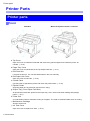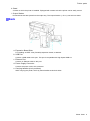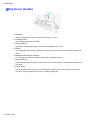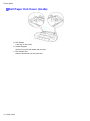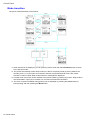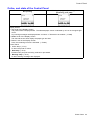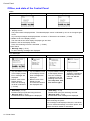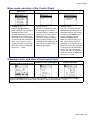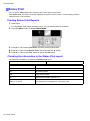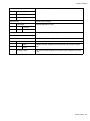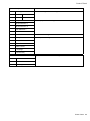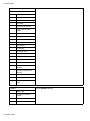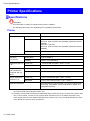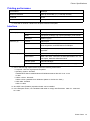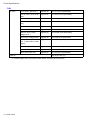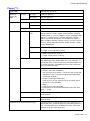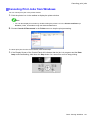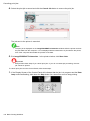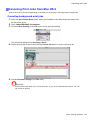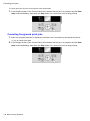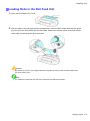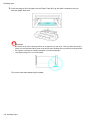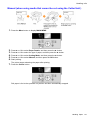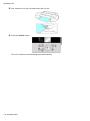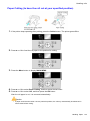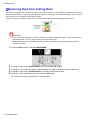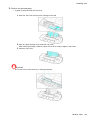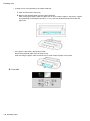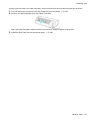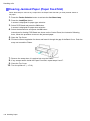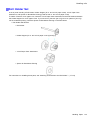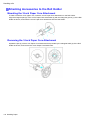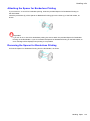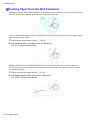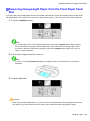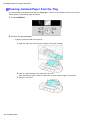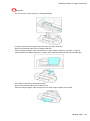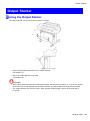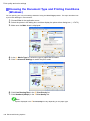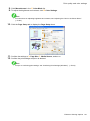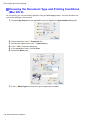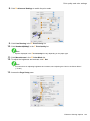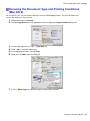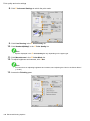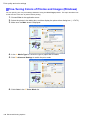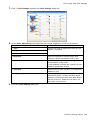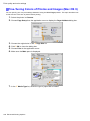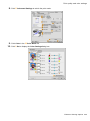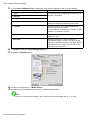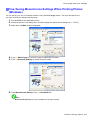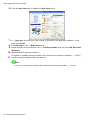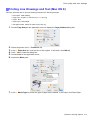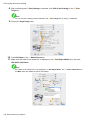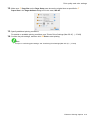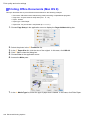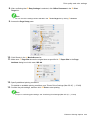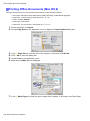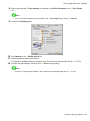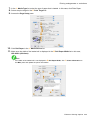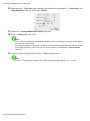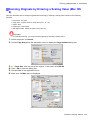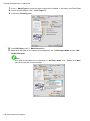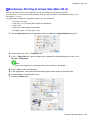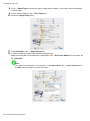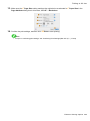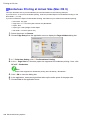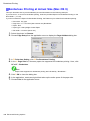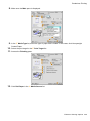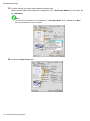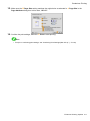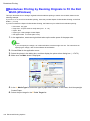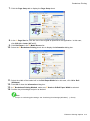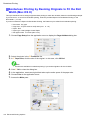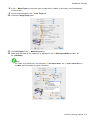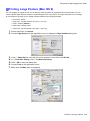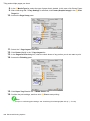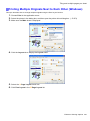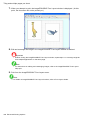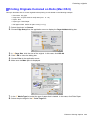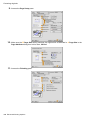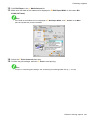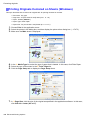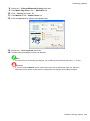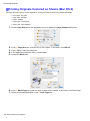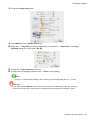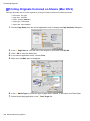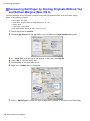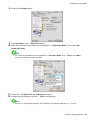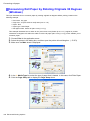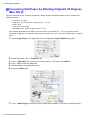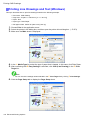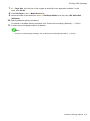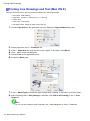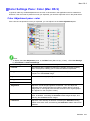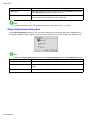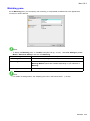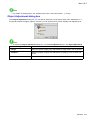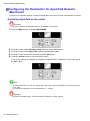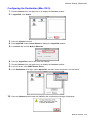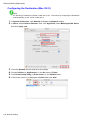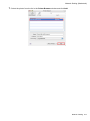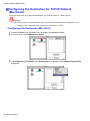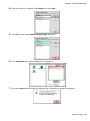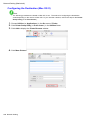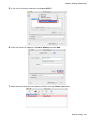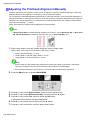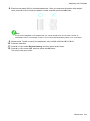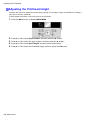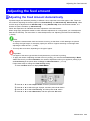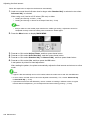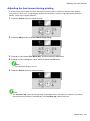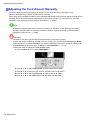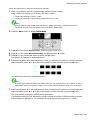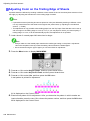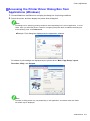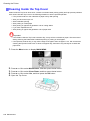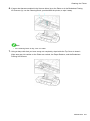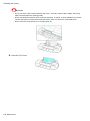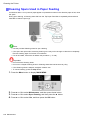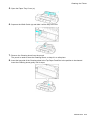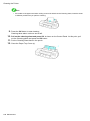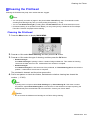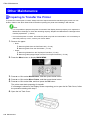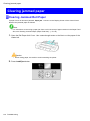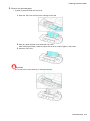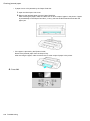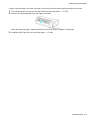
1
Lar g e F o r m a t P r i n t e r User Manual ENG Contents Contents Introduction 1 How to use this manual.....................................................................................1 About This User Manual...............................................................................................................1 Viewing Videos of Explanations...................................................................................................3 HTML Version of the Manual for Printing......................................................................................4 Printer Parts 8 Printer parts.......................................................................................................8 Front.............................................................................................................................................8 Back.............................................................................................................................................9 Top Cover (Inside)......................................................................................................................10 Tray Feed Area........................................................................................................................... 11 Roll Paper Unit Cover (Inside)....................................................................................................12 Carriage......................................................................................................................................13 Ink Tank Cover (Inside)...............................................................................................................14 Control Panel..............................................................................................................................15 Vents..........................................................................................................................................18 Control Panel...................................................................................................19 Turning the Printer On and Off...................................................................................................19 Printer Modes.............................................................................................................................21 Switching Modes........................................................................................................................26 Printer Menu Operations............................................................................................................29 Main Menu Operations...............................................................................................................30 Menu Structure...........................................................................................................................35 Main Menu Settings....................................................................................................................49 Main Menu Settings (During Printing)........................................................................................59 Submenu Display.......................................................................................................................61 Status Print.................................................................................................................................62 Optional accessories.......................................................................................69 Stand..........................................................................................................................................69 Roll Holder Set...........................................................................................................................70 IEEE 1394 Expansion Board......................................................................................................71 Printer Specifications.......................................................................................72 Specifications.............................................................................................................................72 Basic Environmental Performance.............................................................................................77 Print Area....................................................................................................................................78 Contents � Contents Basic Printing Workflow 80 Printing procedure...........................................................................................80 Loading and Printing on Rolls....................................................................................................80 Loading and Printing on Sheets in the Paper Feed Slot............................................................85 Printing Options Using Rolls and Sheets...................................................................................87 Printing from Windows...............................................................................................................88 Printing from Mac OS X..............................................................................................................89 Printing from Mac OS 9..............................................................................................................91 Specifying Paper in the Printer Driver (Windows)......................................................................93 Specifying Paper in the Printer Driver (Mac OS X)....................................................................95 Specifying Paper in the Printer Driver (Mac OS 9).....................................................................97 Canceling print jobs.........................................................................................99 Canceling Print Jobs from the Control Panel.............................................................................99 Canceling Print Jobs from Windows.........................................................................................101 Canceling Print Jobs from Mac OS X.......................................................................................103 Canceling Print Jobs from Mac OS 9.......................................................................................105 Handling Paper 107 Paper.............................................................................................................107 Paper........................................................................................................................................107 Types of Paper.........................................................................................................................108 Paper Sizes.............................................................................................................................. 113 Handling rolls................................................................................................. 115 Selecting the Roll as the Paper Source.................................................................................... 115 Loading Rolls on the Roll Paper Holder................................................................................... 116 Removing Rolls From the Roll Holder...................................................................................... 118 Loading Rolls in the Roll Feed Unit.......................................................................................... 119 Removing Rolls from the Roll Feed Unit..................................................................................122 Selecting the Paper Type (Roll)................................................................................................124 Specifying the Paper Length (Roll)...........................................................................................125 Feeding Roll Paper Manually...................................................................................................126 Detection of the Remaining Roll Paper....................................................................................127 Cutting the Leading Edge of Roll Paper Automatically.............................................................128 Specifying the Cutting Method for Rolls...................................................................................129 Reducing Dust from Cutting Rolls............................................................................................134 Specifying the Ink Drying Time for Rolls...................................................................................135 Clearing Jammed Roll Paper...................................................................................................138 Clearing Jammed Paper (Paper Feed Slot).............................................................................142 Roll Holder Set.........................................................................................................................143 Attaching Accessories to the Roll Holder.................................................................................144 Feeding Paper from the Roll Feed Unit....................................................................................146 Removing the Roll Feed Unit...................................................................................................147 Installing the Roll Feed Unit.....................................................................................................148 Accessing the Printer Driver Dialog Box from the Operating System Menu (Windows)..........149 Media Detailed Settings Dialog Box (Windows).......................................................................151 Media Detailed Settings Dialog Box (Mac OS X).....................................................................152 Media Detailed Settings Dialog Box (Mac OS 9)......................................................................153 ii Contents Contents Handling sheets for paper feed slots.............................................................154 Selecting the Sheet as the Paper Source................................................................................154 Loading Sheets Manually.........................................................................................................156 Selecting the Paper Type (Sheet)............................................................................................162 Selecting the Paper Size (Sheet).............................................................................................163 Removing Sheets from the Top Paper Feed Slot.....................................................................164 Removing Heavyweight Paper from the Front Paper Feed Slot..............................................165 Clearing Jammed Paper from the Tray....................................................................................166 Output Stacker...............................................................................................169 Using the Output Stacker.........................................................................................................169 Output Stacker Precautions.....................................................................................................171 Enhanced Printing Options 172 Print quality and color settings.......................................................................172 Choosing a Paper for Printing..................................................................................................172 Giving Priority to Particular Graphic Elements and Colors for Printing....................................173 Printing Photos and Images (Windows, Mac OS X).................................................................177 Printing Photos and Images (Mac OS 9)..................................................................................179 Printing Line Drawings and Text (Windows, Mac OS X)..........................................................181 Printing Line Drawings and Text (Mac OS 9)...........................................................................182 Printing Office Documents........................................................................................................183 Adjusting the Color in the Printer Driver...................................................................................184 Printing in Ideal Colors for Light in the Viewing Environment...................................................188 Printing Photos in Monochrome...............................................................................................189 Choosing the Document Type and Printing Conditions (Windows)..........................................190 Choosing the Document Type and Printing Conditions (Mac OS X)........................................192 Choosing the Document Type and Printing Conditions (Mac OS 9)........................................195 Fine-Tuning Colors of Photos and Images (Windows).............................................................198 Fine-Tuning Colors of Photos and Images (Mac OS X)...........................................................201 Fine-Tuning Colors of Photos and Images (Mac OS 9)............................................................204 Fine-Tuning Monochrome Settings When Printing Photos (Windows).....................................207 Fine-Tuning Monochrome Settings When Printing Photos (Mac OS X)...................................209 Fine-Tuning Monochrome Settings When Printing Photos (Mac OS 9)...................................212 Printing Line Drawings and Text (Windows).............................................................................215 Printing Line Drawings and Text (Mac OS X)...........................................................................217 Printing Line Drawings and Text (Mac OS 9)...........................................................................220 Printing Office Documents (Windows)......................................................................................222 Printing Office Documents (Mac OS X)....................................................................................224 Printing Office Documents (Mac OS 9)....................................................................................226 Printing Photos and Images (Windows)...................................................................................228 Printing Photos and Images (Mac OS X).................................................................................230 Printing Photos and Images (Mac OS 9)..................................................................................233 Printing Photos in Monochrome (Windows).............................................................................236 Printing Photos in Monochrome (Mac OS X)...........................................................................238 Printing Photos in Monochrome (Mac OS 9)............................................................................241 Contents iii Contents Printing enlargements or reductions..............................................................244 Resizing Originals to Match the Paper Size.............................................................................244 Resizing Originals to Fit the Roll Width....................................................................................245 Resizing Originals by Entering a Scaling Value.......................................................................246 Printing Enlargements of Scanned Originals from a Color imageRUNNER.............................247 Printing Enlargements of Scanned Originals from a Color imageRUNNER (Windows)...........248 Printing Enlargements of Scanned Originals from a Color imageRUNNER (Mac OS X).........250 Resizing Originals by Entering a Scaling Value (Windows).....................................................252 Resizing Originals by Entering a Scaling Value (Mac OS X)....................................................254 Resizing Originals by Entering a Scaling Value (Mac OS 9)....................................................257 Resizing Originals to Fit the Roll Width (Windows)..................................................................261 Resizing Originals to Fit the Roll Width (Mac OS X)................................................................263 Resizing Originals to Fit the Roll Width (Mac OS 9).................................................................266 Resizing Originals to Match the Paper Size (Windows)...........................................................269 Resizing Originals to Match the Paper Size (Mac OS X).........................................................271 Resizing Originals to Match the Paper Size (Mac OS 9)..........................................................274 Printing at full size..........................................................................................277 Printing on Oversized Paper....................................................................................................277 Borderless Printing at Actual Size............................................................................................279 Borderless Printing at Actual Size (Windows)..........................................................................281 Borderless Printing at Actual Size (Mac OS X)........................................................................283 Borderless Printing at Actual Size (Mac OS 9).........................................................................286 Printing at Full Size (Windows)................................................................................................290 Printing at Full Size (Mac OS X)...............................................................................................292 Printing at Full Size (Mac OS 9)...............................................................................................295 Borderless Printing........................................................................................297 Borderless Printing on Paper of Equivalent Size......................................................................297 Borderless Printing by Resizing Originals to Fit the Roll Width................................................299 Borderless Printing at Actual Size............................................................................................301 Borderless Printing at Actual Size (Windows)..........................................................................303 Borderless Printing at Actual Size (Mac OS X)........................................................................305 Borderless Printing at Actual Size (Mac OS 9).........................................................................308 Borderless Printing by Resizing Originals to Fit the Roll Width (Windows)..............................312 Borderless Printing by Resizing Originals to Fit the Roll Width (Mac OS X)............................314 Borderless Printing by Resizing Originals to Fit the Roll Width (Mac OS 9)............................317 Borderless Printing by Resizing Originals to Match the Paper Size (Windows).......................321 Borderless Printing by Resizing Originals to Match the Paper Size (Mac OS X).....................323 Borderless Printing by Resizing Originals to Match the Paper Size (Mac OS 9).....................326 Printing banners or at other non-standard sizes............................................330 Printing Vertical or Horizontal Banners (Large-Format Printing)..............................................330 Printing on Non-Standard Paper Sizes....................................................................................331 Printing on Non-Standard Paper Sizes (Windows)..................................................................332 Printing on Non-Standard Paper Sizes (Mac OS X).................................................................336 Printing on Non-Standard Paper Sizes (Mac OS 9).................................................................338 Printing Vertical or Horizontal Banners (Large-Format Printing; Windows)..............................341 Printing Vertical or Horizontal Banners (Large-Format Printing; Mac OS X)............................345 Printing Vertical or Horizontal Banners (Large-Format Printing; Mac OS 9)............................348 iv Contents Contents Tiling and multiple pages per sheet...............................................................352 Printing Multiple Originals Next to Each Other.........................................................................352 Printing Multiple Pages Continuously.......................................................................................354 Printing Multiple Pages Per Sheet............................................................................................355 Printing Posters in Sections.....................................................................................................356 Printing Large Posters (Windows)............................................................................................357 Printing Large Posters (Mac OS 9)..........................................................................................359 Printing Multiple Originals Next to Each Other (Windows).......................................................361 Printing Multiple Originals Next to Each Other (Mac OS X).....................................................363 Printing Multiple Pages Continuously (Windows).....................................................................365 Printing Multiple Pages Continuously (Mac OS X)...................................................................366 Printing Multiple Pages Continuously (Mac OS 9)...................................................................368 Printing Multiple Pages Per Sheet (Windows)..........................................................................370 Printing Multiple Pages Per Sheet (Mac OS X)........................................................................372 Printing Multiple Pages Per Sheet (Mac OS 9)........................................................................375 Centering originals.........................................................................................378 Printing Originals Centered on Rolls........................................................................................378 Printing Originals Centered on Sheets.....................................................................................379 Printing Originals Centered on Rolls (Windows)......................................................................380 Printing Originals Centered on Rolls (Mac OS X)....................................................................382 Printing Originals Centered on Rolls (Mac OS 9).....................................................................385 Printing Originals Centered on Sheets (Windows)...................................................................388 Printing Originals Centered on Sheets (Mac OS X).................................................................390 Printing Originals Centered on Sheets (Mac OS 9)..................................................................392 Conserving roll paper.....................................................................................395 Conserving Roll Paper by Rotating Originals 90 Degrees.......................................................395 Conserving Roll Paper by Printing Originals Without Top and Bottom Margins.......................396 Conserving Roll Paper by Printing Originals Without Top and Bottom Margins (Windows).....397 Conserving Roll Paper by Printing Originals Without Top and Bottom Margins (Mac OS X)...399 Conserving Roll Paper by Printing Originals Without Top and Bottom Margins (Mac OS 9)....402 Conserving Roll Paper by Rotating Originals 90 Degrees (Windows).....................................404 Conserving Roll Paper by Rotating Originals 90 Degrees (Mac OS X)....................................406 Conserving Roll Paper by Rotating Originals 90 Degrees (Mac OS 9)....................................409 Printing CAD Drawings.................................................................................. 411 Printing CAD Drawings............................................................................................................. 411 Printing Line Drawings and Text (Windows).............................................................................412 Printing Line Drawings and Text (Mac OS X)...........................................................................414 Printing Line Drawings and Text (Mac OS 9)...........................................................................417 Other useful settings......................................................................................419 Printing With Watermarks.........................................................................................................419 Making the Original Orientation Match the Paper Orientation..................................................420 Using Favorites........................................................................................................................421 Cutting Roll Paper After Printing...............................................................................................421 Printing from Photoshop...........................................................................................................422 Using PosterArtist to Compose Originals.................................................................................423 Cutting Roll Paper After Printing (Windows).............................................................................424 Cutting Roll Paper After Printing (Mac OS X)...........................................................................425 Cutting Roll Paper After Printing (Mac OS 9)...........................................................................427 Contents Contents Making the Original Orientation Match the Paper Orientation (Windows)................................429 Making the Original Orientation Match the Paper Orientation (Mac OS X)..............................431 Making the Original Orientation Match the Paper Orientation (Mac OS 9)..............................434 Printing with Watermarks-COPY, FILE COPY, and so on (Windows)......................................436 Printing with Watermarks-COPY, FILE COPY, and so on (Mac OS 9).....................................438 Software 441 Windows........................................................................................................441 Printer Driver Settings (Windows)............................................................................................441 Confirming Print Settings (Windows)........................................................................................443 Previewing Images Before Printing (Windows)........................................................................445 Paper Information on Printer Dialog Box (Windows)................................................................446 Settings Summaries Dialog Box (Windows).............................................................................447 Using Favorites (Windows)......................................................................................................448 Main Sheet (Windows).............................................................................................................450 Page Setup Sheet (Windows)..................................................................................................454 Layout Sheet (Windows)..........................................................................................................456 Gray Adjustment Sheet (Windows)..........................................................................................458 Favorites Sheet (Windows)......................................................................................................459 Utility Sheet (Windows)............................................................................................................460 Support Sheet (Windows)........................................................................................................461 Device Settings Sheet (Windows)............................................................................................462 Using PosterArtist to Compose Originals (Windows)...............................................................463 Printing Adobe RGB Images (Windows)..................................................................................465 imagePROGRAF Status Monitor (Windows)............................................................................468 imagePROGRAF Device Setup Utility......................................................................................469 Installing imagePROGRAF Device Setup Utility......................................................................470 Configuring the IP Address Using imagePROGRAF Device Setup Utility................................471 Digital Photo Front-Access.......................................................................................................472 Accessing the Printer Driver Dialog Box from Applications (Windows)....................................473 Accessing the Printer Driver Dialog Box from the Operating System Menu (Windows)..........475 Color Settings Sheet: Color (Windows)....................................................................................477 Color Settings Sheet: Monochrome (Windows).......................................................................483 Confirming the Print Image Before Printing..............................................................................485 Media Detailed Settings Dialog Box (Windows).......................................................................486 Media Size Options Dialog Box (Windows)..............................................................................487 Printing Enlargements of Scanned Originals from a Color imageRUNNER (Windows)...........488 Special Settings Dialog Box (Windows)...................................................................................490 View Settings Dialog Box for the Printing Application (Windows)............................................491 Mac OS X......................................................................................................492 Printer Driver Settings (Mac OS X)..........................................................................................492 Confirming Print Settings (Mac OS X)......................................................................................493 Checking the Layout Before Printing........................................................................................495 Checking the Layout Before Printing (Mac OS X)....................................................................496 Previewing Images Before Printing (Mac OS X)......................................................................497 Paper Information on Printer Dialog Box (Mac OS X)..............................................................498 Main Pane (Mac OS X)............................................................................................................499 Page Setup Pane (Mac OS X).................................................................................................501 Utility Pane (Mac OS X)...........................................................................................................503 vi Contents Contents Gray Adjustment Pane (Mac OS X)..........................................................................................504 Additional Settings Pane (Mac OS X)......................................................................................505 Support Pane (Mac OS X)........................................................................................................506 Using Favorites (Mac OS X).....................................................................................................506 Printing Adobe RGB Images (Mac OS X).................................................................................507 imagePROGRAF Printmonitor (Macintosh)..............................................................................510 Accessing the Printer Driver Dialog Box from Applications (Mac OS X).................................. 511 Color Settings Pane: Color (Mac OS X)...................................................................................512 Color Settings Pane: Monochrome (Mac OS X).......................................................................514 Media Detailed Settings Dialog Box (Mac OS X).....................................................................515 View Settings Dialog Box for the Printing Application (Mac OS X)...........................................516 Mac OS 9.......................................................................................................517 Printer Driver Settings (Mac OS 9)...........................................................................................517 Confirming Print Settings (Mac OS 9)......................................................................................518 Previewing Images Before Printing (Mac OS 9).......................................................................520 Main Pane (Mac OS 9).............................................................................................................521 Page Setup Pane (Mac OS 9)..................................................................................................523 Finishing Pane (Mac OS 9)......................................................................................................525 Gray Adjustment Pane (Mac OS 9)..........................................................................................526 Device Settings Pane (Mac OS 9)............................................................................................527 Additional Settings Pane (Mac OS 9).......................................................................................528 Using Favorites (Mac OS 9).....................................................................................................529 Printing Adobe RGB Images (Mac OS 9).................................................................................531 imagePROGRAF Printmonitor (Macintosh)..............................................................................534 Accessing the Printer Driver Dialog Box from Applications (Mac OS 9)...................................535 Color Settings Pane: Color (Mac OS 9)...................................................................................537 Color Settings Pane: Monochrome (Mac OS 9).......................................................................540 Media Detailed Settings Dialog Box (Mac OS 9)......................................................................542 Special Settings Dialog Box (Mac OS 9)..................................................................................543 View Settings Dialog Box for the Printing Application (Mac OS 9)...........................................544 Network Setting 545 Network Setting.............................................................................................545 Network Environment...............................................................................................................545 Configuring the IP Address on the Printer................................................................................547 Initializing the Network Settings...............................................................................................548 Configuring the Printer's TCP/IP Network Settings..................................................................549 Configuring the IP Address Using the Printer Control Panel....................................................551 Configuring the IP Address Using ARP and PING Commands................................................552 Specifying Printer-Related Information.....................................................................................554 Using RemoteUI.......................................................................................................................555 Email Notification When Printing is Finished or Errors Occur..................................................556 Network Setting (Windows)...........................................................................557 Configuring the Printer's NetWare Network Settings................................................................557 Specifying the Printer's Frame Type.........................................................................................559 Specifying NetWare Print Services...........................................................................................561 Specifying NetWare Protocols..................................................................................................564 Configuring NetWare Network Settings....................................................................................566 Configuring the Printer Driver Destination (Windows)..............................................................567 Contents vii Contents Sharing the Printer in Windows................................................................................................568 Installing imagePROGRAF Device Setup Utility......................................................................570 Configuring the IP Address Using imagePROGRAF Device Setup Utility................................571 Network Setting (Macintosh)..........................................................................572 Configuring the Printer's AppleTalk Network Settings..............................................................572 Configuring the Printer Driver Destination (Macintosh)............................................................573 Configuring the Destination for AppleTalk Network (Macintosh)..............................................574 Configuring the Destination for TCP/IP Network (Macintosh)..................................................578 Configuring the Destination for Bonjour Network (Macintosh).................................................582 Maintenance 584 Adjusting the Printhead..................................................................................584 Correcting Print Misalignment..................................................................................................584 Adjusting the Printhead Alignment Automatically.....................................................................584 Adjusting the Printhead Alignment Manually............................................................................586 Adjusting the Printhead Height.................................................................................................588 Adjusting the feed amount.............................................................................589 Adjusting the Feed Amount Automatically................................................................................589 Adjusting the Feed Amount Manually.......................................................................................592 Adjusting the Vacuum Strength................................................................................................595 Adjusting the Measurement Scale for Better Accuracy............................................................596 Adjusting Color on the Trailing Edge of Sheets........................................................................598 Color adjustment............................................................................................600 Using Color Calibration to Adjust Colors..................................................................................600 Printing in Ideal Colors for Light in the Viewing Environment...................................................603 By selecting color tones on Charts before printing (Windows).................................................604 Printing in Colors Matching the Measured Ambient Light.........................................................608 Accessing the Printer Driver Dialog Box from Applications (Windows).................................... 611 Ink Tanks........................................................................................................613 Ink Tank....................................................................................................................................613 Replacing Ink Tanks.................................................................................................................614 Checking Ink Tank Levels.........................................................................................................620 When to Replace Ink Tanks......................................................................................................621 Printheads......................................................................................................622 Printhead..................................................................................................................................622 Checking the Print Quality........................................................................................................622 Improving the Print Quality.......................................................................................................622 Checking for Nozzle Clogging..................................................................................................623 Cleaning the Printhead.............................................................................................................624 Replacing the Printhead...........................................................................................................625 Maintenance Cartridge..................................................................................632 Maintenance Cartridge.............................................................................................................632 Replacing the Maintenance Cartridge......................................................................................632 Checking the Remaining Maintenance Cartridge Capacity......................................................637 When to Replace the Maintenance Cartridge..........................................................................638 viii Contents Contents Cleaning the Printer.......................................................................................639 Cleaning the Printer Exterior....................................................................................................639 Cleaning Inside the Top Cover.................................................................................................640 Cleaning the Paper Retainer....................................................................................................643 Cleaning Spurs Used in Paper Feeding...................................................................................644 Cleaning the Printhead.............................................................................................................647 Other Maintenance........................................................................................648 Preparing to Transfer the Printer..............................................................................................648 Updating the Firmware.............................................................................................................652 Troubleshooting 653 Frequently Asked Questions..........................................................................653 Frequently Asked Questions....................................................................................................653 Specifying Paper in the Printer Driver......................................................................................655 Printing does not start....................................................................................656 The Data lamp on the Control Panel does not light up.............................................................656 The Printer Does Not Respond Even if Print Jobs are Sent.....................................................656 The Display Screen indicates the system is filling with ink.......................................................656 Cannot print over a network...........................................................................657 Cannot connect the printer to the network...............................................................................657 Configuring the Communication Mode Manually......................................................................658 Cannot print over a TCP/IP network.........................................................................................659 Cannot print over AppleTalk or Bonjour networks....................................................................660 Cannot print over a NetWare network......................................................................................661 The printer stops during a print job................................................................662 An error message is shown on the Display Screen..................................................................662 The printer ejects blank, unprinted paper.................................................................................662 Problems with the printing quality..................................................................663 Printing is faint..........................................................................................................................663 Paper rubs against the Printhead.............................................................................................664 The edges of the paper are dirty..............................................................................................665 The surface of the paper is dirty...............................................................................................666 The back side of the paper is dirty...........................................................................................666 Banding in different colors occurs............................................................................................666 The contrast becomes uneven during printing.........................................................................667 Colors in printed images are uneven........................................................................................667 Problems with the printing quality caused by the type of paper...............................................668 Lines are misaligned................................................................................................................668 The length of printed images is inaccurate...............................................................................668 Documents are printed in monochrome...................................................................................668 Printed colors are inaccurate....................................................................................................669 Image Edges are Blurred or White Banding Occurs................................................................670 Documents are printed crooked...............................................................................................670 White dots about 1 mm (0.039 in) apart appear on printed documents, in the direction paper is fed...............................................................................................................................670 Contents ix Contents Immediately After Borderless Printing, the Trailing Edge Margin is Soiled During Regular Printing.....................................................................................................................................670 Roller marks are left across the trailing edge of paper.............................................................671 Line thickness is not uniform (Windows)..................................................................................671 Installation problems......................................................................................672 The IEEE 1394 Driver Cannot Be Installed Correctly...............................................................672 Removing Installed Printer Drivers...........................................................................................673 Clearing jammed paper.................................................................................674 Clearing Jammed Roll Paper...................................................................................................674 Clearing Jammed Paper (Paper Feed Slot).............................................................................678 Clearing Jammed Paper from the Tray....................................................................................679 If the Printer makes a strange sound.............................................................682 If the Printer Makes a Strange Sound......................................................................................682 Other problems..............................................................................................683 The printer consumes a lot of ink.............................................................................................683 A message to check the Maintenance Cartridge is not cleared after you replace the Maintenance Cartridge.............................................................................................................683 Paper is not cut straight............................................................................................................683 Paper cannot be cut.................................................................................................................683 Depression on the leading edge is left.....................................................................................684 Roller marks are left across the trailing edge of paper.............................................................684 The printer does not go on.......................................................................................................684 Roll paper cannot be inserted into the Paper Feed Slot...........................................................684 Cannot Load Sheets.................................................................................................................684 Ink level detection.....................................................................................................................685 Error Message 687 Responding to Messages..............................................................................687 Responding to Error Messages................................................................................................687 Error Messages........................................................................................................................689 Messages regarding paper............................................................................691 Paper Mismatch.......................................................................................................................691 Papr Type Mismatch.................................................................................................................691 Papr Size Mismatch.................................................................................................................692 This paper cannot be used.......................................................................................................692 Insufficient paper for job...........................................................................................................693 Roll printing is selected, but sheets are loaded........................................................................694 Roll printing is selected............................................................................................................694 Sheet printing is selected.........................................................................................................694 Wrong paper feed slot for this paper type................................................................................695 Manual printing is selected, but a roll is loaded........................................................................695 Cannot feed paper....................................................................................................................695 Borderless printng not possible................................................................................................696 Paper loaded askew.................................................................................................................697 Paper size not detected............................................................................................................697 Cannot detect papr...................................................................................................................698 Contents Contents End of paper feed.....................................................................................................................698 Cannot feed paper....................................................................................................................698 Paper jam.................................................................................................................................699 Cannot cut paper......................................................................................................................699 The roll is empty.......................................................................................................................700 Roll feed unit err.......................................................................................................................700 No Roll Feed Unit.....................................................................................................................700 Messages regarding ink.................................................................................701 Ink Level: Check.......................................................................................................................701 No ink tank loaded....................................................................................................................701 Ink insufficient...........................................................................................................................702 Ink tank is empty.......................................................................................................................703 Ink tank error............................................................................................................................703 Remaining level of the ink cannot be correctly detected..........................................................703 Messages regarding printing or adjusment....................................................704 Use another paper....................................................................................................................704 Cannot execute this command. Use other paper.....................................................................704 Cannot print as specified..........................................................................................................704 Cannot adjust band..................................................................................................................704 Cannot adjust printhead...........................................................................................................705 Excessive temperature or humidity..........................................................................................705 Cannot calibrate.......................................................................................................................705 Messages regarding printheads....................................................................706 Cannot adjust printhead...........................................................................................................706 Cannot adjust band..................................................................................................................706 x printhead needs cleaning. (x is Left or Right)........................................................................706 PHeads: wrong pos..................................................................................................................706 Problem with Printhead x (x is L, R, or LR)..............................................................................707 x printhead error (x is Left or Right)..........................................................................................707 Messages regarding the maintenance cartridge . .........................................708 No maintenance cartridge........................................................................................................708 Prepare for maint cart replacement..........................................................................................708 No Maintenance Cartridge capacity.........................................................................................708 Maintenance cartridge full........................................................................................................708 Maintenance cartridge problem................................................................................................708 Other Messages............................................................................................709 GARO Wxxxx (x represents a number)....................................................................................709 Top cover is open.....................................................................................................................709 ERROR Exxx-xxxx (x represents a letter or number)...............................................................709 Unknown file.............................................................................................................................709 Prepare for parts replacement..................................................................................................709 Parts replacement time has passed.........................................................................................709 Multi-sensor error.....................................................................................................................710 Roll feed unit err.......................................................................................................................710 No Roll Feed Unit.....................................................................................................................710 Hardware error. xxxxxxxx-xxxx (x represents a letter or number)............................................710 Contents xi Contents xii Contents How to use this manual Introduction How to use this manual About This User Manual • Symbols The following symbols are used in this User Manual to indicate safety information and explanations on restrictions or precautions in use. Important Indicates important information that must be followed when using the printer. Be sure to read this information to prevent printer damage or operating errors. Caution Indicates caution items for which operating error poses a risk of injury or damage to equipment or property. To ensure safe use, always follow these precautions. Note Indicates helpful reference information and supplemental information on particular topics. • Button names and user interface elements Key and button names on the control panel and user interface elements in software (such as menus and buttons) are indicated as follows in this User Manual. Control Panel Buttons Example: Press the OK button. Control Panel Interface Items and Messages Example: Head Cleaning is displayed. Software Interface Items (Menus and Buttons) Example: Click OK . Keyboard Keys Example: Press the Tab key. • Part Names Names of printer parts are indicated as follows in this User Manual. Printer part names Example: Open the Top Cover . Introduction 1 How to use this manual • Cross-reference Other pages or manuals that provide related information are indicated as follows in this User Manual. Cross-Reference in the Same User Manual Example: see “Turning the Printer On and Off”. (→P.19) Click the link to jump to the corresponding page. Cross-Reference in Related Manuals Example: See the Paper Reference Guide . Other Cross-Reference Example: See the printer driver help. • Figures and software screens • Figures in this User Manual may be different from the actual appearance of the printer in some cases. • Screens depicted in this User Manual for the printer driver or other software may be different from the actual screens because of subsequent updates. • Windows XP screens are used in explanations of Windows operations in this User Manual. • Trademarks • Canon, the Canon logo, and imagePROGRAF are trademarks or registered trademarks of Canon Inc. • Microsoft and Windows are registered trademarks of Microsoft Corporation in the United States and other countries. • Macintosh is a registered trademark of Apple Inc. in the United States and other countries. • Other company and product names are trademarks or registered trademarks of their respective owners. • Copyright © 2007 Canon Inc. • Unauthorized reproduction of this User Manual in whole or part is prohibited. • May we request Thank you for understanding the following points. • The information in this User Manual is subject to change without notice. • We strive to ensure accuracy of information in this User Manual, but if you notice errors or omissions, please contact us. 2 Introduction How to use this manual Viewing Videos of Explanations To view videos related to topic pages, click the View Video button. The video will play in a separate window. This way, you can learn by watching demonstrations of the actual procedures. Video Requirements: In Windows, Adobe Flash Player must be installed to view the videos. If it is not installed, download it by clicking the following URL. http://www.adobe.com/products/ashplayer/ Note that this URL is subject to change. If you cannot access this URL, download Adobe Flash Player by visiting the main Adobe website and navigating to the appropriate page. Introduction 3 How to use this manual HTML Version of the Manual for Printing For your convenience when printing this manual, HTML versions of the sections in “Using the Printer” on the top page are available. All topics in a section are combined in one le for printing. This section describes how to print sections of the manual, using the content of Printing Procedure in Basic Printing Workow as an example. 1. On the top page, click Basic Printing Workow. 2. Under Basic Printing Workow in the left frame, click Printing Procedure. 4 Introduction How to use this manual 3. In the title area of Printing Procedure, click Access to the HTML for printing. An HTML version of the topics in Printing Procedure is displayed, suitable for printing. Introduction 5 How to use this manual 4. Access the printing dialog box as follows, depending on your computer’s operating system. • Windows In Windows, right-click anywhere in the explanation area except on a gure or a link. In the shortcut menu, click Print to display the Print dialog box. • Macintosh On a Macintosh computer, click anywhere in the explanation area except on a gure or a link while holding the Ctrl key. In the shortcut menu, click Print Frame to display the Print dialog box. 6 Introduction How to use this manual 5. Specify conditions as needed, and then click Print (Windows) or Print (Macintosh). • Windows • Macintosh Note • To print “Software” on the top page or individual topics that are displayed, follow steps 4 and 5. Introduction 7 Printer parts Printer Parts Printer parts Front Standard When the Ejection Guide is removed a. Top Cover Open this cover to install the Printhead and remove any jammed paper from inside the printer, as needed. (→P.10) b. Paper Tray Cover Open this cover to load sheets in the Top Paper Feed Slot. (→P.11) c. Roll Feed Unit Load rolls in this unit. You can also load sheets in this unit manually. d. Roll Paper Unit Cover Open this cover to load rolls. (→P.12) e. Control Panel Use this panel to operate the printer and check the printer status. (→P.15) f. Ejection Guide Supports paper as it is ejected to prevent it from rising. g. Output Tray ( Front Paper Feed Slot ) All printed documents are ejected to the output tray. Also, use this slot when loading heavyweight paper. (→P.11) h. Cutter Unit A round-bladed cutter for automatic cutting of roll paper. The cutter is retracted inside when not cutting. i. Maintenance Cartridge Absorbs excess ink. j. Ink Tank Cover Open this cover to replace Ink Tank. (→P.14) 8 Printer Parts Printer parts k. Stand A stand on which the printer is installed. Equipped with casters so that the printer can be easily moved. l. Output Stacker Printed documents are ejected into the output tray. The Output Stacker (→P.171) can hold one sheet. Back a. Expansion Board Slots For installing an IEEE 1394 (FireWire) expansion board, as desired. b. USB Port Connect a USB cable to this port. This port is compatible with High Speed USB 2.0. c. Ethernet Port Connect an Ethernet cable to this port. d. Power Supply Connector Connect the power cord to this connector. e. Carrying handles (at six positions) When carrying the printer, hold it by these handles under both sides. Printer Parts 9 Printer parts Top Cover (Inside) a. Carriage Moves the Printhead. It serves a key role in printing. (→P.13) b. Carriage Shaft The Carriage slides along this shaft. c. Paper Retainer Important in supplying the paper. This retainer holds paper as it is fed. d. Platen The Printhead moves across the platen during printing. Vacuum holes on the platen hold paper in place. e. Borderless Printing Ink Grooves For catching ink outside the edges of paper during borderless printing. f. Cleaning Brush When cleaning inside the printer under the Top Cover, use this brush to sweep away paper dust on the Platen. g. Linear Scale The linear scale serves a key role in detecting the Carriage position. Be careful not to touch this part when cleaning inside the Top Cover or clearing paper jams. 10 Printer Parts Printer parts Tray Feed Area a. Tray Extension When loading sheets on the tray, open the Paper Tray Cover before opening the tray. b. Width Guide When loading the sheets , move the guide to match the paper size. c. Top Paper Feed Slot When loading sheets, insert them here. d. Front Paper Feed Slot ( Output Tray ) When loading heavyweight paper, insert it here. Also, all printed documents are ejected from this slot. e. Front Tray Guides Lift all of the guides before printing on heavyweight paper. When feeding heavyweight paper, rest the sheet on these guides, align it to the right, and insert the leading edge up to the Paper Alignment Line. f. Paper Alignment Line When loading heavyweight paper, ensure the paper edge is parallel to this line. Printer Parts 11 Printer parts Roll Paper Unit Cover (Inside) a. Roll Holder Load rolls on this holder. b. Holder Stopper Secure rolls on the Roll Holder with this part. c. Roll Holder Slot Slide the Roll Holder into this guide slot. 12 Printer Parts Printer parts Carriage a. Printhead Fixer Cover Holds the Printhead in place. Do not open this part except during Printhead replacement. b. Printhead The printhead is equipped with ink nozzles. It serves a key role in printing. c. Printhead Fixer Lever Locks the Printhead Fixer Cover. Do not open this part except during Printhead replacement. Printer Parts 13 Printer parts Ink Tank Cover (Inside) a. Ink Tank Cartridges of ink in various colors. b. Ink Tank Lock Lever A lever that locks the Ink Tank in place and protects it. Open or close the lever when replacing an Ink Tank. c. Ink Lamp (Red) Indicates the state of the Ink Tank as follows when the Ink Tank Cover is opened. • On On: The Ink Tank is installed correctly. • Off Off: No Ink Tank is installed, or the ink level detection function is disabled. • Flashing Slowly Not much ink is left. • Flashing Rapidly There is no ink left. a. Ink Color Label Load an Ink Tank corresponding to the color and name on these labels. b. Ink Set An Ink Tank that can be used in the printer (→P.613) is labeled with a white letter “H” in a black circle on the side. When purchasing an Ink Tank, make sure an “H” is printed on the label. 14 Printer Parts Printer parts Control Panel a. Data lamp (Green) • Flashing During printing, the Data lamp ashes when the printer is receiving or processing print jobs. Otherwise, this lamp ashes when the printer is paused or updating the rmware. • Off There are no active print jobs when the Data lamp is off. b. Message lamp (Orange) • On A warning message is displayed. • Flashing An error message is displayed. • Off The printer is off or is operating normally. c. Paper Source Section After you press the Feeder Selection button, the lamp for your chosen paper source is lit. 1. Roll Media lamp (Green) (Rolls) • On Indicates that a roll is selected as the paper source. • Off Shows whether the Tray or Front Paper Feed Slot is selected as the paper source. 2. Cut Sheet lamp (Green) • On Shows whether the Tray or Front Paper Feed Slot is selected as the paper source. • Off Indicates that a roll is selected as the paper source. d. Display Screen Shows the printer menu, as well as the printer status and messages. e. Color Label These labels indicate the Ink Tank colors and names. The labels correspond to the ink levels on the Display Screen. Printer Parts 15 Printer parts f. Online Button Switches the printer online and ofine. (→P.26) • On (Green) The printer is online. • Flashing The printer is recovering from Sleep mode. • Off The printer is ofine. g. Feeder Selection Button Switches the paper source. Each time you press this button, the paper source switches between roll feed (when the paper source is a roll) and sheet feed (when the paper source is the Tray or Front Paper Feed Slot ). The corresponding lamp in the paper source section is lit. h. Menu Button Displays the main menu of the printer. (→P.49) i. Information Button Displays printer submenus. Press this key to display information about ink, paper, and so on. (→P.61) You can also hold down this button for three seconds to clean the Printhead ( Head Cleaning A ). j. ◄ Button Menu mode: Press this button to display the menu one level higher. When you are entering numbers, the button moves the cursor to the next digit. The instructions can be paused when [← Pause] is displayed. When [← Back] is displayed, you can access the previous instruction screen. k. ▲ Button Ofine mode: Press this button to rewind rolls manually. (→P.126) Menu mode: Press this button to display the previous menu item or setting value. l. ► Button Menu mode: Press this button to display the menu one level lower. When [Fwd →] is displayed, you can access the next instruction screen. m.▼ Button Ofine mode: Press this button to feed roll paper manually. (→P.126) Menu mode: Press this button to display the next menu item or setting value. n. OK Button In menu mode, press this button to conrm or execute the selected item or setting. At other times, pressing this button enables you to access the next screen after following the instructions on the Display Screen. o. Power Button Turns the printer on and off. (→P.19) p. Load/Eject Button You can check instructions on loading, replacing, and removing paper. Instructions for loading or replacing paper are shown on the Display Screen if pressed when no paper is loaded, and instructions for removing paper are shown if paper is loaded. 16 Printer Parts Printer parts q. Stop Button Hold down for at least a second to cancel print jobs in progress or end the ink drying period. During display of instructions on loading sheets, for example, you can hold down this button for one second to pause the current screen. Note • When the printer is in Sleep mode, you can press any button to wake the printer and bring it online or ofine again. Printer Parts 17 Printer parts Vents The vents are on top (1), on the right (2), and on the bottom on the right (3 and 4). Caution • Do not block these vents when the printer is on. • Avoid setting paper or other light objects near the vents. 18 Printer Parts Control Panel Control Panel Turning the Printer On and Off Turning the printer on 1. Press the Power button to turn on the printer. The printer will now start up. After the Display Screen shows the Canon logo, Starting up... Please wait. is displayed. 2. The printer goes online in preparation for printing after startup, and the Online lamp and paper source section lamp remain lit. The printer will not go online in the following situations. Take action as needed. • The Top Cover is open Close the Top Cover. • The Ink Tank Cover is open Close the Ink Tank Cover. • The Printhead is not installed Please see “Replacing the Printhead”. (→P.625) • Ink Tank is not installed Please see “Replacing Ink Tanks”. (→P.614) • “ERROR” is shown on the Display Screen Turn off the printer and contact your Canon dealer. • The Online lamp and Message lamp are not lit (even once), and nothing appears on the Display Screen Make sure the printer is plugged in correctly. Check the connection at the plug and electrical outlet. Printer Parts 19 Control Panel • No paper is loaded Load paper. (→P.80) (→P.85) Important • Starting the printer when it is connected via the USB cable to a Macintosh computer that is off may cause the computer to start up at the same time. To prevent this, disconnect the USB cable before starting the printer. Connecting the printer to the computer via a USB hub may solve this issue. Turning the printer off Important • Never turn the printer off or unplug it during a print job. This could damage the printer. 1. Make sure no print jobs are in progress. If the Message lamp is ashing, check the message on the Display Screen and take action as necessary. (→P.689) If the Data lamp is ashing, the printer is receiving a print job. Turn off the printer only after printing is nished. 2. Hold down the Power button for more than a second. After Shut Down.. Please Wait.. is shown on the Display Screen, the printer shuts off. 20 Printer Parts Control Panel Printer Modes Printer modes are classied as follows and described in this topic. • • • • • • Modes (→P.21) Mode transition (→P.22) Online, and state of the Control Panel (→P.23) Ofine, and state of the Control Panel (→P.24) Menu mode, and state of the Control Panel (→P.25) Submenu mode, and state of the Control Panel (→P.25) Modes The printer has ve modes as follows: • Online The printer is ready to receive jobs sent from the computer. Jobs sent from the computer are processed immediately. If jobs are received in other modes, they are printed the next time the printer goes online. • Ofine Any jobs sent from the computer are held without being processed. While the printer is ofine, you can feed or cut roll paper manually. The printer goes ofine automatically if jobs cannot be processed, such as if errors occur. • Menu mode Menus are displayed on the printer, and you can select, set, or execute menu items. Any jobs sent from the computer are held without being printed. • Submenus Submenus are displayed regarding ink and paper information. Jobs can be received and printing is possible while submenus are displayed and the printer is online. In other modes, any jobs sent from the computer are held without being printed while submenus are displayed. • Sleep mode The printer is in power-saving mode. The printer automatically enters Sleep mode to conserve power if it is idle for a specic period (by factory default, ve minutes), that is, if no print jobs are received or buttons are pressed while all covers are closed. You can specify the period before the printer enters Sleep mode in the Sleep Timer menu. (→P.49) If any print jobs are received when the printer is in Sleep mode (after it was originally online), the printer goes online and prints the jobs. Printer Parts 21 Control Panel Mode transition The printer mode transitions are as follows: *1: When submenus are displayed, you can press any button other than the Information button to return to the previous mode. *2: The printer automatically enters Sleep mode if it is idle for a specic period (by factory default, ve minutes), that is, if no print jobs are received or buttons are pressed while all covers are closed. However, it does not enter Sleep mode while error messages are displayed. *3: In Sleep mode, the printer can be restored to the previous state by pressing any button. Sleep mode is also terminated if a print job is received or a command is issued from RemoteUI. *4: The menu of options available during printing can be displayed by pressing the Online button to pause printing and then pressing the Menu button. 22 Printer Parts Control Panel Online, and state of the Control Panel Not printing Printing in progress (receiving or processing print jobs) Display Screen • Top Level of the Display Screen The printer status is displayed here. The selected paper source is indicated by an icon in the upper-right corner. Any warning messages are displayed here on lines 2-4. Take action as needed. (→P.689) • Middle Level of the Display Screen The rst and second lines display the paper type and size. • Bottom Level of the Display Screen Here, the remaining ink level is indicated. (→P.620) Control Panel • Online lamp (→P.15) Lit when the printer is online. • Data lamp (→P.15) Flashes when print jobs are being received or processed. • Message lamp (→P.15) Lit when warning messages are displayed. Printer Parts 23 Control Panel Ofine, and state of the Control Panel Ofine Not printing Printing is paused Display Screen • Display Screen The printer status is displayed here. The selected paper source is indicated by an icon in the upper-right corner. Any warning messages are displayed here on lines 2-4. Take action as needed. (→P.689) • Middle Level of the Display Screen The rst and second lines display the paper type and size. • Bottom Level of the Display Screen Here, the remaining ink level is indicated. (→P.620) Control Panel • Message lamp (→P.15) Lit when warning messages are displayed. Error Messages If action can be taken If no action can be taken • Top and Middle Levels • Top and Middle Levels • Top and Middle Levels of the Display Screen Error messages are displayed. • Bottom Level of the Display Screen Here, the remaining ink level is indicated. (→P.620) of the Display Screen Error messages are displayed. • Bottom Level of the Display Screen The corrective actions are displayed here. of the Display Screen The error message is displayed with the following instructions: Turn off printer, wait, then turn on again. • Data lamp (→P.15) Flashes when print jobs are being received. • Message lamp (→P.15) Flashes when error messages are displayed. Take action as needed. (→P.689) 24 Printer Parts • Display Screen “ERROR” is displayed, followed by the error code and Call for service. • Data lamp (→P.15) Flashes when print jobs are being received. • Message lamp (→P.15) Flashes when error messages are displayed. Turn off the printer and wait at least three seconds before restoring the power. If the message is still displayed after this, write down the error code and message, turn off the printer, and contact the Canon dealer for assistance. Control Panel Menu mode, and state of the Control Panel Main menu • Display Screen Pressing the Menu button when printing is not in progress displays the main menu. The title of the selected menu is displayed on the rst line, and items in this menu are displayed on the second and subsequent lines. If a scroll bar is shown at right, the menu is continued below but cannot be displayed all at once. (→P.30) Menu items and settings • Display Screen The title of the selected menu is displayed on the rst line, and menu items or settings are displayed on the second and subsequent lines. (→P.30) The menu of options available during printing (top gure) can be displayed by pressing the ► button when the main menu is displayed (left gure). Main menu (during printing) • Display Screen The menu of options that are available during printing can be displayed while you are printing by pressing the Online button to pause printing and then pressing the Menu button. When you select a menu, the title of the selected menu is displayed on the rst line and items in the menu are displayed on the second and subsequent lines. If a scroll bar is shown at right, the menu is continued below but cannot be displayed all at once. (→P.30) Submenu mode, and state of the Control Panel Remaining Maintenance Information of the loaded paper Cartridge capacity and ink levels Printer information Press the Information button to display this information, one after another: the Maintenance Cartridge capacity and remaining ink levels, paper information, and printer information. (→P.61) Printer Parts 25 Control Panel Switching Modes Switching the Printer Online/Ofine Press the Online button to switch the printer online or ofine. The Online lamp is lit in Online mode. Printing is possible in this mode. The Online lamp is off in Ofine mode. 26 Printer Parts Control Panel Depending on the status, the printer switches online and ofine as follows. Printer Status When the Online Button is Pressed Online The printer switches ofine and the Online lamp goes off. Online, printing Switches ofine and printing is paused. When printing is paused, the Printing menu is available. Ofine Switches online and the Online lamp is lit. Ofine, when an error message is displayed In the case of error messages other than those shown below or if paper is not loaded, the printer remains ofine until you solve the problem. The Online lamp remains off. If the following error messages are displayed, the printer switches online and printing is resumed. However, you may not be able to obtain the desired printing results. • Insufcient paper for job • PHead needs cleaning. • Papr Size Mismatch • Papr Type Mismatch Menu mode Switches online and the Online lamp is lit. Menu mode, printing Switches online and the Online lamp is lit. Printing is resumed. Printer Parts 27 Control Panel Switching to Menu Mode Press the Menu button to display the main menu. Depending on the status, the printer switches to Menu mode as follows. When the Menu Button is Pressed Printer Status Online Switches to Menu mode. Online, printing The printer stays online. It does not switch to Menu mode. Ofine Switches to Menu mode. Ofine, printing Menus available during printing are displayed. Ofine, when an error message is displayed Not switch to Menu mode until the problem is solved. Press the Information button to display the submenus. Press the Information button to display the Maintenance Cartridge capacity and remaining ink levels, as well as information on the loaded paper and the printer. Press the Information button repeatedly to change the information displayed. (→P.61) Press any button other than the Information button to restore the previous mode. After you display a submenu, the printer will revert to the previous mode in about ten seconds if no print job is received or if you do not operate the printer. Note • You can start Head Cleaning A by holding down the Information button for three seconds or more. (→P.624) 28 Printer Parts Control Panel Printer Menu Operations For instructions on selecting menu items, see “Main Menu Operations”. (→P.30) For details on menu levels and menu items, see “Menu Structure”. (→P.35) The printer menu structure is made up of a main menu and submenus. Access the main menu by pressing the Menu button on the Control Panel. The principal settings available in the main menu are as follows: • Paper Settings Specify the type and size of paper. • Print Settings Adjust or clean the Printhead, or adjust the paper feed amount. • Printer Settings Congure the network settings, set the sleep timer, and specify the unit of measurement on the display. Note • By default, main menu settings apply to all print jobs. However, for settings that are also available in the printer driver, the values specied in the printer driver take priority. Access the submenu by pressing the Information button on the Control Panel. You can check the following information in submenus. • • • • Ink levels Maintenance Cartridge capacity Size and type of paper that is selected Amount of roll paper left Printer Parts 29 Control Panel Main Menu Operations Press the Menu button to display the main menu. For details, see “Main Menu Settings”. (→P.49) • Main menu when no print job is in progress • Main menu during printing Note • The main menu will not be displayed in the following cases even if you press the Menu button. • An error message is displayed You can access the Menu mode after you have solved the problem. • Pressing the Menu button when printing is paused (because you have pressed the Online button) displays main menu items that are available during printing. To access each function menu from the main menu, and set or execute menu items, use buttons on the Control Panel. The following section describes menu operations and how they are presented in this User Manual. • • • • Accessing Menus (→P.31) Specifying menu items (→P.32) Specifying numerical values (→P.33) Executing menu commands (→P.34) 30 Printer Parts Control Panel Accessing Menus Printer menus are grouped by function. Menus are displayed with the upper line selected. Use the buttons on the Control Panel to access each menu. • Press ▲ to access a higher menu in the menu list, and press ▼ to access a lower one. If items of the menu list are more than the lines of the screen, press ▲ and ▼ to scroll the menu. If you navigate to the lowest-level menu and press the ▼ button again, the display switches to the top-level menu screen. If you navigate to the top-level menu and press the ▲ button again, the display switches to the lowest-level menu screen. Items you select are highlighted. The scroll bar at right indicates the current position in the overall menu. • To access these lower level menus, select a menu and press ►. • To return to upper level menus, press the ◄ button. Printer Parts 31 Control Panel Specifying menu items Follow the steps below to specify menu items. 1. Press ▲ or ▼ to select a menu, and then press the ► button. Repeat these steps until the desired menu options are displayed. 2. Press ▲ or ▼ to select the desired setting, and then press the OK button. The check box at left is selected, and the setting is conrmed. After two seconds, the display reverts to the upper level menu. 3. Press the Online button to bring the printer online. Note • If a conrmation message is displayed regarding the setting you entered, press the OK button. The setting is applied, and the printer goes online. 32 Printer Parts Control Panel Specifying numerical values Follow the steps below to enter numbers for items such as network settings. 1. 2. 3. 4. 5. Press ▲ or ▼ to select Interface Setup, and then press the ► button. 6. Press ▲ or ▼ to select the number, and then press the OK button. Press ▲ or ▼ to select TCP/IP, and then press the ► button. Press ▲ or ▼ to select IP Setting, and then press the ► button. Press ▲ or ▼ to select IP Address, and then press the ► button. Press ◄ or ► to move the cursor (_) to each eld for entering numbers. Note • Hold down ▲ or ▼ to increase or decrease the value continuously. • Make sure the IP address you enter for the printer is not the same as any computer IP address in your network. 7. 8. Repeat steps 2 and 3 to continue entering numbers. Press the Online button to bring the printer online. Note • If a conrmation message is displayed regarding the setting you entered, press the OK button. The setting is applied, and the printer goes online. Printer Parts 33 Control Panel Executing menu commands Follow the steps below to execute menu commands. 1. Press ▲ or ▼ to select a menu, and then press the ► button. Repeat these steps until the desired menu options are displayed. 2. Press ▲ or ▼ to select the action to execute, and then press the OK button. After two seconds, the menu command is executed. After commands are executed, the printer commonly reverts to the state before the menu operation, either online or ofine. 34 Printer Parts Control Panel Menu Structure Main Menu The structure of the main menu is as follows. Values at right indicated by an asterisk “*” are the defaults. For instructions on menu operations, see “Main Menu Operations”. (→P.30) For details on menu items, see “Main Menu Settings”. (→P.49) First Level Paper Cutting (*1) Second Level Third Level Fourth Level Fifth Level No * Yes Rep. Ink Tank No * Yes Head Cleaning Head Cleaning A Head Cleaning B Media Menu Manual PaperType Plain Paper (*5) Plain Paper HQ (*5) Plain Paper HG (*5) Recycled Coated (*5) High Resolution (*5) Coated Paper (*5) HW Coated (*5) Ex HW Coated (*5) Premium MatteP (*5) Matte Photo (*5) Glossy Photo (*5) Semi-Gl Photo (*5) HW GlossyPhoto2 (*5) HW SemiGlPhoto2 (*5) Poster Semi-Gl (*5) SatinPhoto 190 (*5) Photo PaperPlus (*5) Printer Parts 35 Control Panel First Level Second Level Third Level PhotoPlusSemiGl (*5) Syn. Paper (*5) Adh. Syn. Paper (*5) Backlit Film (*5) Backprint Film (*5) Flame-Res.Cloth (*5) ThinFab.Banner2 (*5) Proong Paper (*5) News Proof 1 (*5) News Proof 2 (*5) FineArt Photo (*5) FneArt HW Photo (*5) FineArt Txtr (*5) FineArt Wtrclr (*5) FineArtBlockP (*5) Canvas Matte2 (*5) JPN Paper Washi (*5) Colored Coated (*5) CAD Trace Paper (*5) CAD Matte Film (*5) POP Board (*5) Special # Here, the number is 1-10 (*5) Manual PaperSize ISO A1 ISO A2+ ISO A2 ISO A3+ ISO A3 36 Printer Parts Fourth Level Fifth Level Control Panel First Level Second Level Third Level Fourth Level Fifth Level ISO A4 ISO B2 ISO B3 ISO B4 JIS B2 JIS B3 JIS B4 22"x34"(ANSI D) 17"x22"(ANSI C) 11"x17" (Ledger) 13"x19" (Super B) Letter (8.5"x11") Legal (8.5"x14") 24"x36" (ARCH D) 18"x24" (ARCH C) 12"x18" (ARCH B) 9"x12" (ARCH A) DIN C2 DIN C3 DIN C4 20"x24" 18"x22" 14"x17" 12"x16" 10"x12" 10"x15" 8"x10" 16"x20" 20"x30" 13"x22" 300x900mm Free Size Setng Roll Media Type (*1) Plain Paper (*5) Plain Paper HQ (*5) Printer Parts 37 Control Panel First Level Second Level Third Level Plain Paper HG (*5) Recycled Coated (*5) Coated Paper (*5) HW Coated (*5) Ex HW Coated (*5) Premium MatteP (*5) Glossy Photo (*5) Semi-Gl Photo (*5) HW GlossyPhoto2 (*5) HW SemiGlPhoto2 (*5) Poster Semi-Gl (*5) SatinPhoto 190 (*5) Syn. Paper (*5) Adh. Syn. Paper (*5) Backlit Film (*5) Backprint Film (*5) Flame-Res.Cloth (*5) ThinFab.Banner2 (*5) Proong Paper (*5) News Proof 1 (*5) News Proof 2 (*5) FineArt Photo (*5) FneArt HW Photo (*5) FineArt Txtr (*5) FineArt Wtrclr (*5) FineArtBlockP (*5) Canvas Matte2 (*5) 38 Printer Parts Fourth Level Fifth Level Control Panel First Level Third Level Second Level Fourth Level Fifth Level JPN Paper Washi (*5) Colored Coated (*5) CAD Trace Paper (*5) CAD Matte Film (*5) Special # Here, the number is 1-10 (*5) Chk Remain.Roll Off * On Roll Length Set (*1, ### m (*11) *2) ### feet (*11) Paper Details (The paper type is Roll DryingTime displayed here.) (*5) Off 30 sec. 1 min. 3 min. 5 min. 10 min. 30 min. 60 min. Scan Wait Time Off 1 sec. 3 sec. 5 sec. 7 sec. 9 sec. Feed Priority Automatic * Band Joint Print Length Adjust Length From -0.70% to 0.70% Head Height Automatic * Highest High Printer Parts 39 Control Panel First Level Second Level Third Level Fourth Level Standard Low Lowest Skew Check Lv. High Accuracy Standard * Loose Off VacuumStrngth Automatic * Strongest Strong Standard Weak Weakest NearEnd RollMrgn 3mm 20mm Cut Speed Fast Standard Slow Trim Edge First Automatic Off On Cutting Mode Automatic Eject Manual Bordless Margin Automatic Fixed CutDustReduct. On Off NearEnd Sht Mrgn 3mm 20mm Manual Feed Front Top Return Defaults (*12) No Yes 40 Printer Parts Fifth Level Control Panel First Level Adjust Printer Third Level Second Level Auto Head Adj. Standard Adj. Fourth Level Fifth Level No Yes Advanced Adj. No Yes Auto Print Off On * Manual Head Adj (*9) No Yes Auto Band Adj. Standard Adj. No Yes Advanced Adj. No Yes Manual Band Adj No Yes Adj Far Ed Feed No Yes Adjust Length (*3) No Yes Calibration Auto Adjust No Yes Calibration Log Date Paper Type Use Adj. Value Disabled Enabled * Return Defaults No Yes * Interface Setup EOP Timer 10 sec. 30 sec. 1 min. 2 min. 5 min. 10 min. * 30 min. 60 min. Printer Parts 41 Control Panel First Level Third Level Second Level TCP/IP IP Mode Fourth Level Fifth Level Automatic Manual * Protocol (*4) DHCP On Off * BOOTP On Off * RARP On Off * IP Setting (*10) NetWare NetWare IP Address 0.0.0.0 255.255.255.255 Subnet Mask 0.0.0.0 255.255.255.255 Default G/W 0.0.0.0 255.255.255.255 On Off * Frame Type (*6) Auto Detect Ethernet 2 Ethernet 802.2 * Ethernet 802.3 Ethernet SNAP Print Service (*6) BinderyPServer RPrinter NDSPServer * NPrinter AppleTalk On Off * Ethernet Driver Auto Detect On * Off Comm.Mode (*7) Half Duplex * Full Duplex Ethernet Type (*7) 10 Base-T * 100 Base-TX Spanning Tree Not Use * Use MAC Address 42 Printer Parts 000085 XXXXXX Control Panel First Level Third Level Second Level Ext. Interface Fourth Level Fifth Level No IEEE1394 Return Defaults No Yes Maintenance Repl. maint cart No Yes Replace P.head Printhead L No Yes Printhead R No Yes Move Printer No * Yes Clean Platen No Yes Spur Cleaning No Yes System Setup Warning Buzzer Off On * Detect Mismatch Pause Warning None * Keep Media Size Off * On Paper Size Basis Sht Selection ISO A3+ * 13"x19"(Super B) Roll Selection 1 ISO A3 (297mm) * 300mm Roll Roll Selection 2 10in. (254mm) * JIS B4 (257mm) TrimEdge Reload Automatic Off * On Noz. Check Freq. Off 1 page 10 pages Printer Parts 43 Control Panel First Level Second Level Third Level Automatic * Sleep Timer 5 min. * 10 min. 15 min. 20 min. 30 min. 40 min. 50 min. 60 min. 240 min. Length Unit meter * feet/inch Time Zone 0:London (GMT) +1:Paris,Rome +2:Athens,Cairo +3:Moscow +4:Eerevan,Baku +5:Islamabad +6:Dacca +7:Bangkok +8:Hong Kong +9:Tokyo,Seoul +10:Canberra +11NewCaledonia +12:Wellington -12:Eniwetok -11:Midway is. -10Hawaii(AHST) -9:Alaska(AKST) -8:Oregon (PST) -7:Arizona(MST) -6:Texas (CST) -5:NewYork(EST) -4:Santiago -3:Buenos Aires 44 Printer Parts Fourth Level Fifth Level Control Panel First Level Third Level Second Level Fourth Level Fifth Level -2: -1:Cape Verde Date Format yyyy/mm/dd * dd/mm/yyyy mm/dd/yyyy Date & Time Date yyyy/mm/dd (*8) Time hh:mm Language Contrast Adj. -4, -3, -2, -1, 0*, +1, +2, +3, +4 Reset PaprSetngs No Yes Test Print Status Print No Yes Media Details No Yes Print Job Log No Yes Menu Map No Yes Nozzle Check No Printer Parts 45 Control Panel First Level Second Level Third Level Fourth Level Fifth Level Yes Information System Info Error Log ######## - #### Job Log (Choose from Document Name information about the latest three print jobs.) User Name Page Count Job Status Print Start Time Print End Time Print Time Print Size Media Type Interface Ink Consumed *1: *2: *3: *4: *5: Available only if a roll is loaded. Available only if Chk Remain.Roll is On. Available if Feed Priority is Automatic or Print Length. Not displayed if IP Mode is Manual. For information on the types of paper the printer supports, refer to the Paper Reference Guide. (→P.108) The paper type setting in the printer driver and related software (as well as on the Control Panel ) is updated when you install the printer driver from the User Software CD-ROM or if you change paper information by using the Media Conguration Tool. See the Media Conguration Tool Guide (Windows) or Media Conguration Tool Guide (Macintosh). *6: Not displayed if NetWare is Off. *7: Not displayed if Auto Detect is On. *8: Follows the setting in Date Format. *9: Available after you have used Advanced Adj. in Auto Head Adj. once. *10: Not displayed if IP Mode is Automatic. *11: Follows the setting in Length Unit. *12: Select Yes to restore Paper Details to the factory default values. Any paper type settings you have changed on the Control Panel of the printer are restored to the original values when you install the printer driver from the User Software CD-ROM or if you update paper information by using the Media Conguration Tool. Caution • Only the following menus are displayed during printing. • Menu Durng Prtng If you press the Online button while printing to pause printing and then press the Menu button, Head Cleaning, Fine Band Adj., and Information are displayed. 46 Printer Parts Control Panel Submenus Each time you press the Information button on the Control Panel, printer information is displayed in the following order. ■The remaining Maintenance Cartridge capacity and ink levels ■Information on the loaded paper ■Printer information For details on submenu screens, see “Submenu Display”. (→P.61) Printer Parts 47 Control Panel Main menu during printing The structure of the main menu during printing is as follows. For instructions on menu operations, see “Main Menu Operations”. (→P.30) For details on menu items available during printing, see “Main Menu Settings (During Printing)”. (→P.59) First Level Second Level Menu Durng Prtng Head Cleaning Third Level Fourth Level Fifth Level Head Cleaning A Head Cleaning B Fine Band Adj. From -5 to 5 Information System Info Error Log ######## - #### Job Log (Choose from Document Name information about the latest three print jobs.) User Name Page Count Job Status Print Start Time Print End Time Print Time Print Size Media Type Interface Ink Consumed 48 Printer Parts Control Panel Main Menu Settings Main menu items are described in the following tables. For instructions on menu operations, see “Main Menu Operations”. (→P.30) For details on menu levels and values, see “Menu Structure”. (→P.35) Setting Item Description, Instructions Paper Cutting This command is available only if a roll is loaded. Choose Yes to cut the roll at the current position. If the roll is not already at the cut position, the roll will be automatically advanced to that position and then cut. Rep. Ink Tank When replacing the Ink Tank , choose Yes and follow the instructions on the screen. (→P.614) Head Cleaning Specify Printhead cleaning options. (→P.624) Choose Head Cleaning A if printing is faint, oddly colored, or contains foreign substances. Choose Head Cleaning B if no ink is printed at all, or if printing is not improved by Head Cleaning A. Media Menu Specify the type and size of paper. (→P.50) Paper Details Specify detailed paper-related settings, including the ink drying time and borderless printing options. (→P.51) Adjust Printer Adjust the Printhead alignment or amount of feed by printing a test pattern. (→P.53) Interface Setup Congure the EOP timer and network settings. (→P.54) Maintenance Access maintenance settings when replacing the Printhead or preparing to move the printer. (→P.55) System Setup Specify the printer system settings, including the date format and display language. (→P.56) Test Print Choose Status Print to print information about the printer. Choose Media Details to print the paper settings as specied in Paper Details. Choose Print Job Log to print a record of print jobs, including the paper type and size, amount of ink used, and so on. (Information on ink consumption is general, not specic in nature.) Choose Menu Map to print a list of the main menu options. Choose Nozzle Check to print a test pattern for checking the nozzles. Information Displays information about the printer and record of print jobs. (→P.58) Printer Parts 49 Control Panel Media Menu Setting Item Description, Instructions Manual PaperType (*1) Choose the type of sheets to be loaded manually. (→P.162) Manual PaperSize (*1) Choose the size of paper to be loaded manually. (→P.163) Roll Media Type (*1) Choose the size of the roll. (→P.124) Chk Remain.Roll Choose On to print a barcode at the end of a roll before you remove it. The printed barcode can be used in managing the amount of roll paper left. Choose Off if you prefer not to print the barcode. Roll Length Set Displayed if Chk Remain.Roll is On. If a barcode is not printed on rolls, specify the roll length. The roll length is displayed in meters or feet, depending on the setting in Length Unit. *1: For information on the types of paper the printer supports, refer to the Paper Reference Guide. (→P.108) The paper type setting in the printer driver and related software (as well as on the Control Panel ) is updated when you install the printer driver from the User Software CD-ROM or if you change paper information by using the Media Conguration Tool. See the Media Conguration Tool Guide (Windows) or Media Conguration Tool Guide (Macintosh). 50 Printer Parts Control Panel Paper Details Setting Item (The paper type is displayed here.)(*1) Description, Instructions Roll DryingTime Specify the time to wait for the ink to dry for each sheet. Scan Wait Time Specify the time to wait for the ink to dry between each scan in bidirectional printing, in consideration of how quickly the ink dries. Note that printing will take longer if you specify a wait time. Feed Priority Specify exact paper feeding, if desired. Normally, select Automatic. Choose Print Length if you prefer to feed the paper an exact amount. However, note that choosing Print Length may result in slight banding in the direction of Carriage scanning. Adjust Length Displayed if Feed Priority is Print Length. Adjustment relative to the amount of stretching or shrinkage of the current paper. Enter either the adjustment results from Print Pattern or the discrepancy that you measured (as a percentage). For paper that tends to stretch, increase the feed amount by choosing a higher adjustment value. For paper that tends to shrink, decrease the feed amount by choosing a lower adjustment value. Head Height Adjust the Printhead height. (→P.588) Skew Check Lv. If you print on Japanese paper (washi) or other handmade paper that has an irregular width, choose Loose for a higher skew detection threshold, or choose Off to disable skew detection. However, if paper is loaded askew when detection is Off, note that paper jams or Platen soiling may occur. VacuumStrngth Specify the level of suction that holds paper against the Platen . (→P.595) NearEnd RollMrgn Specify the minimum margin at the leading edge of roll paper to ensure better printing quality at the leading edge. Note that if you choose 3mm , it may lower the printing quality at the leading edge and affect feeding accuracy. The printed surface may be scratched, and ink may adhere to the leading edge. It may also cause the Platen to become soiled. Cut Speed Choose the cutting speed. If you use adhesive paper, choosing Slow helps prevent adhesive from sticking to the cutter and keeps the cutter sharp. Trim Edge First If a roll is loaded, the end of the paper will be cut. Choose On to have 40 mm (1.6 in) cut off the leading edge of the roll after you load the roll. Scraps are then removed. When Automatic is selected, if the left and right side of the leading edge of the roll are uneven (by 3 mm [0.12 in] or more), the edge is cut an amount relative to the slant to ensure a straight edge after you load the roll. Scraps are then removed. If the unevenness is less than 3 mm or if Off is selected, the edge is not cut and scraps are not removed. Printer Parts 51 Control Panel Setting Item (The paper type is displayed here.)(*1) Description, Instructions Cutting Mode Specify whether or not to cut with the standard round-bladed cutter. Choose Automatic to have the roll cut automatically after printing. If you choose Eject, the paper is cut after you hold down the Stop button for a second or more. If you choose Manual, the paper will not be cut after printing. Instead, a line will be printed at the cut position. Bordless Margin Adjust the margin during borderless printing. Choose Automatic to have the printer automatically detect the paper width and congure the margin settings for borderless printing. If margins are mistakenly created when Automatic is selected, choose Fixed. In this case, the paper width is not detected automatically, and the document is printed without borders, using the margin settings required by the printer. CutDustReduct. Choose On to reduce the amount of debris generated when cutting lm and similar media by printing a line at the cut position. This option reduces the amount of debris given off after cutting. It also helps prevent adhesive from sticking to the cutter and keeps the cutter sharp if you use adhesive paper. (→P.134) NearEnd Sht Mrgn Specify a margin at the leading edge of sheets to ensure better printing quality at the leading edge. Note that if you choose 3mm , it may lower the printing quality at the leading edge and affect feeding accuracy. The printed surface may be scratched, and ink may adhere to the leading edge. Manual Feed When printing manually, choose the Paper Feed Slot . Normally, choose Top . For heavyweight paper such as POP Board , choose Front . Return Defaults Choose Yes to restore Paper Details to the factory default values. *1: For information on the types of paper the printer supports, refer to the Paper Reference Guide. (→P.108) The paper type setting in the printer driver and related software (as well as on the Control Panel ) is updated when you install the printer driver from the User Software CD-ROM or if you change paper information by using the Media Conguration Tool. 52 Printer Parts Control Panel Adjust Printer Setting Item Auto Head Adj. Standard Adj. Choose Yes to have the printer print and read a test pattern for the automatic adjustment of Printhead alignment relative to the printing direction. (→P.584) Advanced Adj. Choose Yes to have the printer print and read a test pattern for the automatic adjustment of Printhead alignment relative to the nozzle and printing direction. (→P.584) Auto Print Choose On to have the printer automatically execute the Advanced Adj. operations after you replace the Printhead . (→P.584) Manual Head Adj Auto Band Adj. Description, Instructions Choose Yes to print a test pattern for adjustment of Printhead alignment relative to the printing direction. Enter the adjustment value manually based on the resulting pattern. (→P.586) Standard Adj. Choose Yes to have the printer print and read a band adjustment test pattern for automatic adjustment of the feed amount. (→P.589) Advanced Adj. Choose this option when using paper other than genuine Canon paper, or paper for purposes other than checking output. Choose Yes to have the printer print and read a band adjustment test pattern for automatic adjustment of the feed amount. Note that this function takes more time and requires more ink than Standard Adj. (→P.589) Manual Band Adj Choose Yes to print a test pattern for adjusting the feed amount based on the paper type. Adj Far Ed Feed Choose Yes for adjustment of the feed amount of the trailing edge. Adjust Length Choose Yes to print a test pattern for adjustment relative to paper stretching or shrinkage, after which you can enter the amount of adjustment. (→P.596) Calibration Auto Adjust Choose Yes for automatic adjustment of the adjustment value after a test pattern for color calibration is printed. The latest color calibration adjustment value is applied for all paper. Calibration Log The date of color calibration and the paper type is indicated on the Display Screen . Use Adj. Value Select Disabled and press the OK button to print without applying the color calibration adjustment value. The printer driver settings are given priority. Select Enabled and press the OK button to apply the color calibration adjustment value in printing. However, the printer driver settings will be given priority. Return Defaults Clears the color calibration adjustment value and log. Printer Parts 53 Control Panel Interface Setup Setting Item Description, Instructions EOP Timer TCP/IP Specify the timeout period before cancellation of print jobs that cannot be received by the printer. IP Mode Protocol Choose whether the printer IP address is congured automatically or a static IP address is entered manually. DHCP BOOTP Specify the protocol used to congure the IP address automatically. RARP IP Setting IP Address Subnet Mask Default G/W NetWare NetWare Specify the NetWare protocol. To apply your changes, choose Register Setting . Frame Type Specify the frame type to use. Print Service Choose the print service. AppleTalk Ethernet Driver Specify the printer network information when using a static IP address. Enter the IP address assigned to the printer, as well as the network subnet mask and default gateway. Specify whether to use the AppleTalk protocol. To apply your changes, choose Register Setting . Auto Detect Specify the communication method. To apply your changes, choose Register Setting . Choose On for automatic conguration of the LAN communication protocol. Choose Off to use settings values of Comm.Mode and Ethernet Type. Comm.Mode Choose the LAN communication method. Ethernet Type Choose the LAN transfer rate. Spanning Tree Choose whether spanning-tree packets are supported over the LAN. MAC Address Displays the MAC address. Ext. Interface Choose the expansion interface. Return Defaults Execute? is displayed if you press the ▼ button. Choose OK to restore the network settings to the default values. 54 Printer Parts Control Panel Maintenance Setting Item Description, Instructions Repl. maint cart When replacing the Maintenance Cartridge , choose Yes and follow the instructions on the screen. (→P.632) Replace P.head Not displayed during a warning message that the remaining Maintenance Cartridge capacity is low. When replacing the Printhead , choose Yes and follow the instructions on the screen. (→P.625) Move Printer When transferring the printer to another location, follow the instructions on the screen. (→P.648) Clean Platen After you select Yes, the Carriage is moved and the printer is ready for Platen cleaning. Spur Cleaning Click Yes to clean the spurs. (→P.644) Printer Parts 55 Control Panel System Setup Setting Item Warning Description, Instructions Buzzer Set the buzzer. Choose On for the buzzer to sound once for warnings and three times for errors. Detect Mismatch Choose Warning for notication (display of a warning message) during printing if the paper type specied in the printer menu does not match the paper type in the printer driver. Choose None to continue to print without notication. Choose Pause to have printing paused under these circumstances. In this case, you can continue printing by pressing the Online button. Keep Media Size Select On to use the paper size setting as the basis for printing instead of other settings. The margin setting of the printer menu will be used instead of the margin setting of the printer driver if the latter is smaller, which may prevent text or images in the trailing margin from being printed. Choose Off to use the printer driver settings instead. Even if the margin setting of the printer driver is smaller than that of the printer driver, text or images will not be cut off. However, this requires longer paper because the actual margin will be equal to the margin setting of the printer driver plus the margin setting of the printer menu. Paper Size Basis TrimEdge Reload 56 Printer Parts Sht Selection If sheet size detection is activated, choose whether ISO A3+ or 13"x19"(Super B) is applied when an intermediate size is detected. Roll Selection 1 If roll size detection is activated, choose whether ISO A3 (297mm) or 300mm Roll is applied when a roll of an intermediate width is detected. Roll Selection 2 If roll size detection is activated, choose whether 10in. (254mm) or JIS B4 (257mm) is applied when a roll of an intermediate width is detected. When Automatic is selected, the leading edge will be cut as needed, taking into account how long the paper has been loaded without being printed. (However, it is not cut if Cutting Mode is set to Manual.) Choose On to cut the leading edge. Control Panel Setting Item Description, Instructions Noz. Check Freq. Specify the timing for automatic checks of nozzle clogging. Choose 1 page to check once per printed page. Choose 10 pages to check once per ten printed pages. Choose Automatic to have the printer automatically adjust the timing for checks based on the frequency of nozzle use. Sleep Timer Specify the period before the printer enters Sleep mode. Length Unit Choose the unit of measurement when roll length is displayed. You can switch the unit displayed for Roll Length Set and the remaining paper amount displayed in the submenu. Time Zone Specify the time zone. Time zone options indicate a main city in this time zone and the difference from Greenwich Mean Time. Date Format Specify the date format. Date & Time Date Set the current date. Time Set the current time. Language Specify the language used on the Display Screen . Contrast Adj. Adjust the Display Screen contrast level. Reset PaprSetngs Restores settings that you have changed with Media Conguration Tool to the factory default values. If paper added using the Media Conguration Tool was used for color calibration, such color calibration can no longer be applied to any type of paper. Printer Parts 57 Control Panel Information Setting Item System Info Version Description, Instructions Firm Displays the printer rmware version. Boot Displays the version of the boot ROM. MIT Displays the version of the MIT database format. s/n Displays the printer’s serial number. MAC Displays the MAC address of the printer. IP Displays the printer’s IP address. Error Log ########-#### Displays the most recent error messages (up to two). Job Log (Choose from information about the latest three print jobs.) 58 Printer Parts Document Name Displays the document name in the last print job. User Name Displays the name of the user who sent the print job. Page Count Displays the number of pages in the print job. Job Status Displays the results of the print job processed. Print Start Time Displays the time when the print job was started. Print End Time Displays the time when the print job was nished. Print Time Displays the time required to print the job. Print Size Displays the paper size in the print job. Media Type Displays the paper type in the print job. Interface Displays the interface used for the print job. Ink Consumed Displays the ink consumption. Control Panel Main Menu Settings (During Printing) Main menu items during printing are described in the following tables. For instructions on menu operations, see “Main Menu Operations”. (→P.30) For details on menu levels and values, see “Menu Structure”. (→P.35) Setting Item Description, Instructions Head Cleaning Specify Printhead cleaning options. (→P.624) Choose Head Cleaning A if printing is faint, oddly colored, or contains foreign substances. Choose Head Cleaning B if no ink is printed at all, or if printing is not improved by Head Cleaning A. Fine Band Adj. Displayed during print jobs. For ne-tuning the feed amount. Information Displays information about the printer and record of print jobs. (→P.60) Printer Parts 59 Control Panel Information Setting Item System Info Version Description, Instructions Firm Displays the printer rmware version. Boot Displays the version of the boot ROM. MIT Displays the version of the MIT database format. Ext I/F Displays the name of interfaces compatible with the expansion slot. s/n Displays the printer’s serial number. MAC Displays the MAC address. IP Displays the printer’s IP address. Error Log ######## #### Displays the most recent error messages (up to two). Job Log (Choose from Document Name information User Name about the latest three print jobs.) Page Count Displays the document name in the last print job. 60 Printer Parts Displays the name of the user who sent the print job. Displays the number of pages in the print job. Job Status Displays the results of the print job processed. Print Start Time Displays the time when the print job was started. Print End Time Displays the time when the print job was nished. Print Time Displays the time required to print the job. Print Size Displays the paper size in the print job. Media Type Displays the paper type in the print job. Interface Displays the interface used for the print job. Ink Consumed Displays the ink consumption. Control Panel Submenu Display Press the Information button to display this information, one after another: the Maintenance Cartridge capacity and remaining ink levels, paper information, and printer information. Each time you press the Information button, the following submenus are displayed. Note • Press any button other than the Information button to restore the previous mode. • After you display a submenu, the printer will revert to the previous mode in about ten seconds if no print job is received or if you do not operate the printer. Remaining Maintenance Cartridge capacity and ink levels The remaining Maintenance Cartridge capacity is shown on the top level of the Display Screen. The remaining level of each ink is shown on the bottom level of the Display Screen. Ink levels shown on the Display Screen correspond to the inks identied by the color labels on the bottom of the Display Screen. These symbols may be displayed above the ink level: “!” if ink is low, “×” if no ink is left, and “?” if you have deactivated ink level detection. Remaining ink is indicated as follows. Information of the loaded paper Here, the paper size, type, and related printer settings are displayed. Printer information Displays the rmware version, serial number, MAC address, IP address, and interface information. Printer Parts 61 Control Panel Status Print You can print a Status Print report indicating the current status of the printer. With Status Print, information is printed regarding the printer rmware version, various settings, and the utilization level of consumables. Printing Status Print Reports 1. Load paper. If using sheets, load paper A4/Letter-sized. You will need at least four sheets. 2. Press the Menu button to display MAIN MENU. 3. 4. 5. Press ▲ or ▼ to select Test Print, and then press the ► button. Press ▲ or ▼ to select Status Print, and then press the ► button. Press ▲ or ▼ to select Yes, and then press the OK button. Checking the information in the Status Print report The following information is included in the Status Print report. Canon imagePROGRAF iPF6100 Status Print Printer model Firm Firmware version Boot Boot version MIT MIT format version S/N Printer serial number MC Maintenance Cartridge capacity (%) Y, PC, C, PGY, GY, BK, PM, M, MBK, R, G, and B Ink levels. The remaining ink is displayed in a ve-level scale. 62 Printer Parts Control Panel Media Menu Information on the loaded paper. Roll Media Type Check Remain. Roll Cut Sheet Type Adjust Printer Current printer settings. Head Adjust Printhead adjustment value. Auto Print A1-F2 Feed Priority Settings related to paper feeding. Adjust Length Calibration The color calibration setting value. Execution Log Date: Media: Use Effect Value: The calibration log. Indicates the date calibration was performed and the type of paper used. This value indicates whether the results of color calibration are used or not. Printer Parts 63 Control Panel Interface Setup Current network settings. EOP Timer Sets the elapsed time between receiving last data and canceling printing. TCP/IP Settings related to TCP/IP . IP Mode Protocol DHCP BOOTP RARP IP Setting IP Setting values. IP Address Subnet Mask Default G/W NetWare NetWare settings. Frame Type Print Service AppleTalk Values that specify whether AppleTalk is active or not. Ethernet Driver Ethernet Driver settings. Auto Detect Comm.Mode Ethernet Type Spanning Tree MAC Address 64 Printer Parts Control Panel System Setup Warning Current warning and error settings. Buzzer Detect mismatch Keep Media Size Current paper-related settings. Sheet Selection 1 Sheet Selection 2 Roll Selection 1 Roll Selection 2 Nozzle Check Nozzle-check settings. Sleep Timer General printer settings. Length Unit Time Zone Date Format Language Contrast Adj. Information System information and an error log. RAM Ext. Interface Error Log Printer Parts 65 Control Panel Network (RemoteUI) Current network settings used by RemoteUI. TCP/IP Frame Type Use BOOTP Use DHCP Use RARP Raw Mode Bi-direction Enable DNS Dynamic Update Use Zeroconf Function IP Address* Subnet Mask* Gateway Address* LPD Printing IPP Printing IPP Printer URI RAW Printing Raw Port Number FTP Printing SMTP Server Address* Primary DNS Server Address* Secondary DNS Server Address* DNS Host Name* DNS Domain Name* Multicast DNS Service Name *: Blank if the status has been saved by using Status Monitor. NetWare Current NetWare settings. Frame Type IPX External Network Number* Node Number* Print Service *: Depending on the NetWare print service settings, information on one of the following four items is printed. 66 Printer Parts Control Panel Bindery PServer File Server Name* Values set when NetWare > Print Service > Bindery PServer is selected. Print Server Name* Print Server Password* Polling Interval RPrinter Values set when NetWare > Print Service > RPrinter is selected. Print Server Name* Printer Number* NDS PServer Values set when NetWare > Print Service > NDS PServer is selected. Tree Name* Context name* Print Server Name* Print Server Password* Polling Interval NPrinter Values set when NetWare > Print Service > NPrinter is selected. Print Server Name* Printer Number* *: Blank if the status has been saved by using Status Monitor. Printer Parts 67 Control Panel AppleTalk Current AppleTalk settings. Phase Type Name* Network Number* Zone* *: Blank if the status has been saved by using Status Monitor. HEAD LOT NUMBER Printhead lot number. LOT R,L PARTS STATUS Utilization status of replacement parts that require servicing. COUNTER A-I COUNTER Utilization status of the cutter, media, and other items (indicating how much they have been used). CUTTER MEDIA MEDIA1-7 NAME TTL ROLL CUTSHEET AFTER INSTALLATION 68 Printer Parts Optional accessories Optional accessories Stand The printer can be mounted on the following Stand. • Printer Stand ST-25 Note • For details on assembling the Stand, refer to the instructions provided with the Stand. Printer Parts 69 Optional accessories Roll Holder Set A set of parts including a Roll Holder, Holder Stopper (for 2- and 3-inch paper cores), 3-Inch Paper Core Attachment, and Spacer for Borderless Printing (used for both 2- and 3-inch paper cores). To load a roll with a 3-inch paper core, insert the 3-Inch Paper Core Attachment on the Roll Holder and attach the Holder Stopper for 3-inch paper cores. If you use an A1 (594 mm [23.4 in]) roll or A2 (420 mm [16.5 in]) roll for borderless printing, insert the Spacer for Borderless Printing on the Roll Holder. • Roll Holder Set RH2-24 • Roll Holder • Holder Stopper (for 2- and 3-inch paper cores (a) and (b)) • 3-Inch Paper Core Attachment • Spacer for Borderless Printing For instructions on installing these parts, see “Attaching Accessories to the Roll Holder”. (→P.144) 70 Printer Parts Optional accessories IEEE 1394 Expansion Board An interface board to add an IEEE 1394 (also called "FireWire") port. • IEEE1394 Expansion Board EB-05 For instructions on installing the IEEE 1394 expansion board, refer to the documentation provided with the optional IEEE 1394 expansion board. Printer Parts 71 Printer Specications Printer Specications Specications Important • This information is subject to change as the printer is updated. • The following values may vary depending on the operating environment. Printer Power supply Power consumption 100-120 V AC (50/60 Hz), 220-240 V AC (50/60 Hz) In operation 100 W max. Sleep mode 100-120 V: 5 W max. (8 W max. when an IEEE 1394 (FireWire) expansion board is installed.) 220-240 V: 6 W max. (9 W max. when an IEEE 1394 (FireWire) expansion board is installed.) Off 1 W max. (*1) Operating noise Approx. 49 dB (A) max. Operating environment Temperature 15-30°C (59-86°F) Humidity 10-80%, non-condensing Dimensions (W × D × H) Printer only 1,177×670×348 mm (46.3 × 26.4 × 13.7 in) With stand 1,177×861×993 mm (46.3 × 33.9× 39.1 in) Weight (not including the Printhead and Ink Tank ) Printer only 51 kg (112.4 lb) With stand - Space required for installation (*2) Printer only 1,477×1,770×648 mm (58.1 × 80.7 × 25.5 in) With stand 1,477×1,770×1,294 mm (58.1 × 80.7 × 50.9 in) Applicable standards International Energy Star Program, Law on Promoting Green Purchasing, GPN, RoHS, The Eco Declaration, WEEE, U.S. presidential directives *1: The printer uses a trace amount of power even when turned off. To stop all power consumption, turn off the printer and unplug the power cord. *2: Normally, you will need to ensure an unobstructed space of 800 mm (31.5 in) in front of the printer, 300 mm (11.8 in) behind, 150 mm (5.9 in) on both sides, and 300 mm (11.8 in) above the printer. Only when printing from the Front Paper Feed Slot, leave 1,300 mm (51.2 in) of unobstructed space in front of the printer and 700 mm (27.6 in) behind it. 72 Printer Parts Printer Specications Printing performance Print method Bubblejet Maximum resolution 2400 dpi horizontally (*1) × 1200 dpi vertically Printhead PF-03 Number of nozzles 2,560 per color *1: Prints with a minimum 1/2400 inch dot pitch between ink droplets. Interface Expansion Board Slots 1 USB 2.0(*1) Format Internal port Mode Full-speed (12 Mbps), high-speed (480 Mbps), bulk transfer Connector Series B (4-pin) Format Internal port Specication IEEE 802.3 10BASE-T, IEEE 802.3u 100BASE-TX /Auto-Negotiation, and IEEE 802.3x Full Duplex Protocols IPX/SPX (Netware 4.2, 5.1, 6.0), SNMP, HTTP, TCP/IP, AppleTalk Format Optional boards (slot type) Specication IEEE 1394-1995, conforms to P1394a Specication ver. 2.0, half duplex, Data/Strb differential serial Transfer speed 100/200/400 Mbps Connector Conforms to IEEE 1394-1995 (6-pin), no power supply Ethernet (*3) IEEE 1394 (*2) *1: Use in USB 2.0 High Speed mode requires the following environment: • Computer: USB 2.0 High-Speed-compatible • Operating system: Windows Vista/Windows Server 2003/Windows XP/Windows 2000 or Mac OS X ver. 10.3.3 or later • USB 2.0 driver: Microsoft USB 2.0 driver (available from Windows Update or the Service Pack.) • USB cable: Certied USB 2.0 cable *2: One IEEE 1394 (FireWire) expansion board can be installed. *3: In the European Union, use a shielded LAN cable to comply with EN 55022: 1998 +A1: 2000 and A2: 2003. Printer Parts 73 Printer Specications Ink Ink Tank Capacity Y Ink Tank ( Yellow Ink ) Pigment ink PFI-101Y (user-replaceable) PC Ink Tank ( Photo Cyan Ink ) Pigment ink PFI-101PC (user-replaceable) C Ink Tank ( Cyan Ink ) Pigment ink PFI-101C (user-replaceable) PGY Ink Tank ( Photo Gray Pigment ink Ink ) PFI-103PGY (user-replaceable) GY Ink Tank ( Gray Ink ) Pigment ink PFI-103GY (user-replaceable) BK Ink Tank ( Black Ink ) Pigment ink PFI-103BK (user-replaceable) PM Ink Tank ( Photo Magenta Ink ) Pigment ink PFI-101PM (user-replaceable) M Ink Tank ( Magenta Ink ) Pigment ink PFI-101M (user-replaceable) MBK Ink Tank ( Matte Black Pigment ink Ink , or black ink for matte paper) PFI-103MBK (user-replaceable) R Ink Tank ( Red Ink ) Pigment ink PFI-101R (user-replaceable) G Ink Tank ( Green Ink ) Pigment ink PFI-101G (user-replaceable) B Ink Tank ( Blue Ink ) Pigment ink PFI-101B (user-replaceable) 130 ml per color (*1) *1: Printable pages when using the provided Starter Ink Tanks (90 ml per tank) 74 Printer Parts Printer Specications Paper (*1) Paper width Maximum length per page 250-610 mm (9.8-24 in) Sheets Tray (top) 1,600 mm (63.0 in) Tray (front) 914 mm (36.0 in) Rolls Thickness Sheets 18 m (19.7 yd.) Tray (top) 0.08-0.8 mm (0.003-0.031 in) Tray (front) 0.8-1.5 mm (0.031-0.060 in) Rolls Paper size Print area Sheets 0.08-0.8 mm (0.003-0.031 in) Supported sizes ISO A1, ISO A2, ISO A2+, ISO A3, ISO A3+, ISO A4, ISO B2, ISO B3, ISO B4, JIS B2, JIS B3, JIS B4, 22"x34" (ANSI D), 17"x22" (ANSI C), 11"x17" (Ledger), 13"x19" (SuperB), Letter (8.5"x11"), Legal (8.5"x14"), 24"x36" (ARCH D), 18"x24" (ARCH C), 12"x18" (ARCH B), 9"x12" (ARCH A), DIN C2, DIN C3, DIN C4, 20"x24", 18"x22", 14"x17", 12"x16", 10"x12", 10"x15", 8"x10", US Photo 16"x20", Poster 20"x30", 13"x22", Poster 300x900 mm Tray (top) • Width: 203-610 mm (8-24 in) • Length: 279-1,600 mm (11-63 in) Tray (front) • Width: 250-610 mm (8-24 in) • Length: 350-914 mm (14-36 in) Rolls 8 inches (203 mm), 10 inches (254 mm), JIS B4 (257 mm), ISO A3/A4 (297 mm), Banner (300 mm), A3+ (329 mm), 14 inches (356 mm), 16 inches (407 mm), ISO A2/A3 (420 mm), 17 inches (432 mm), JIS B2/B3 (515 mm), ISO A1/A2 (594 mm), 24 inches (610 mm) Normal size Printable area • Sheets ( Top Paper Feed Slot ) Top: 3 mm (0.12 in); bottom: 3 or 23 mm (0.9 in); left and right sides: 3 mm. (The bottom value varies depending on the type of paper.) • Sheets ( Front Paper Feed Slot ) 3 mm (0.12 in) on top, 23 mm (0.9 in) on bottom, and 3 mm (0.12 in) on both sides • Rolls 3 mm (0.12 in) from each side For information on the recommended print area, see “Print Area”. (→P.78) Borderless printing (*2) Printable area (rolls) Entire surface Oversized (*2), (*3) Printable area Entire surface Supported width for borderless printing 10 inches (254 mm), JIS B4 (257 mm), A3+ (329 mm), 14 inches (356 mm), 16 inches (407 mm), ISO A2/A3 (420 mm) (*4), 17 inches (432 mm), JIS B2/B3 (515 mm), ISO A1/A2 (594 mm) (*4), 24 inches (610 mm) Printer Parts 75 Printer Specications *1: For information on the types of paper the printer supports, refer to the Paper Reference Guide. (→P.108) *2: Printing may not be possible in some cases, depending on the type and size of paper. *3: Load paper at least 6 mm (0.24 in) wider and 6 mm higher than the size selected in Page Size for roll paper. Or, load paper at least 6 mm wider and 26 mm (1.0 in) higher for the tray. *4: Borderless printing requires the Spacer for Borderless Printing. 76 Printer Parts Printer Specications Basic Environmental Performance Printer Power consumption Resource efciency Sleep mode 100-120 V: 5 W max. (8 W max. when an IEEE 1394 (FireWire) expansion board is installed.) 220-240 V: 6 W max. (9 W max. when an IEEE 1394 (FireWire) expansion board is installed.) Off 1 W max. Weight Printer only: 51 kg (112.4 lb) Dimensions (W × D × Printer only: 1,177×670×348 mm (46.3 × 26.4 × 13.7 in) H) Product safety Recycling Recyclable plastic used for printer body Toxic substances Structural components: No prohibited brominated ame retardants used (PBB or PBDE) Body plastic: No heavy metals (Pb, Hg, Cr[Vl], or Cd) or halogenated ame retardants used Operating noise Approx. 49 dB (A) max. Packaging materials Heavy metal content (Pb, Hg, Cr[Vl], and Cd) None (none in packaging) Printer Parts 77 Printer Specications Print Area A margin required by the printer is added with respect to the size of paper loaded in the printer. Except in borderless printing, the actual printing area corresponds to the paper size minus the space for this margin. Top Paper Feed Slot Sheets Printable Area Bottom Top Edge Sides Edge 3/23 mm 3 mm (0.12 3 mm (0.12 (0.12/0.91 in) in) in) Front Paper 3 mm (0.12 Feed Slot in) Rolls 0/3 mm (0/0.12 in) 23 mm (0.91 in) 3 mm (0.12 in) 0/3 mm (0/0.12 in) 0/3 mm (0/0.12 in) Recommended Print Area Bottom Top Edge Sides Edge 20 mm (0.79 27 mm (1.06 in) in) 5 mm (0.20 in) 20 mm (0.79 in) 5 mm (0.20 in) 5 mm (0.20 in) Sheets • Printable Area: Printing from the Top Paper Feed Slot requires a margin of 3 mm (0.12 in) on all sides. (A bottom margin of 23 mm [0.9 in] may sometimes be required.) The bottom margin is 23 mm for some types of paper. For more information, see the Paper Reference Guide. (→P.108) When printing from the Front Paper Feed Slot, a margin of 23 mm (0.9 in) on all sides is required. • Recommended print area: A margin of 20 mm (0.79 in) on top, 27 mm (1.06 in) on bottom, and 5 mm (0.20 in) on left and right sides is required. Note • Printable area: The area that can be printed. • Guaranteed Print Area: We recommend printing within this area. • To print so that your original matches the print area exactly, use an oversized paper size that includes the required margin. (→P.277) • You can choose a bottom margin of 3 mm or 23 mm when printing from the Top Paper Feed Slot. In the printer driver, choosing Manual in Media Source sets the bottom margin at 23 mm. On the other hand, choosing Manual (3mm margins) in Media Source sets the bottom margin at 3 mm, which provides a larger area for printing. However, the option Manual (3mm margins) is not available with the following paper. • Fine Art Photo Paper • Fine Art Heavyweight Photo Paper • Fine Art Textured Paper • The types of paper listed above may be updated, in some cases. For details on paper types, see the Paper Reference Guide. (→P.108) • If you set the bottom margin at 3 mm, images in the bottom margin may be distorted. In this case, choose Manual in Media Source to set the bottom margin at 23 mm. 78 Printer Parts Printer Specications Rolls • Printable Area: A margin of 3 mm (0.12 in) on all sides is required. During borderless printing, the margin on all sides is 0 mm. For information on paper compatible with borderless printing, see the Paper Reference Guide. (→P.108) • Recommended print area: A margin of 20 mm (0.79 in) on top, 5 mm (0.20 in) on bottom, and 5 mm (0.20 in) on left and right sides is required. Note • Printable area: The area that can be printed. • Guaranteed Print Area: We recommend printing within this area. • To print so that your original matches the print area exactly, use an oversized paper size that includes the required margin. (→P.277) Printer Parts 79 Printing procedure Basic Printing Workow Printing procedure Loading and Printing on Rolls These are the basic steps for loading and printing on rolls. Follow the steps below to switch to a new roll or a roll of a different type or width before printing. Note • If a sheet is loaded in the Top Paper Feed Slot, remove it before this procedure. (→P.146) • Before printing banners or other long documents, spread a clean cloth or paper on the oor or use the Output Stacker to prevent the printed surface from becoming dirty from the oor after printing. • If you will wait for the ink to dry after printing and simply eject the document, you can deactivate automatic cutting and print a cut line instead. (→P.129) 1. Turn the printer on. (→P.19) 2. Select roll paper as the paper source. (→P.115) 80 Basic Printing Workow Printing procedure 3. Load a roll on the Roll Holder. (→P.116) Note • When switching rolls, rst remove the current roll from the Roll Holder. (→P.118) 4. Load the roll in the Roll Feed Unit. (→P.119) Basic Printing Workow 81 Printing procedure 5. Select the paper type. (→P.124) 6. Select the paper length. (→P.125) 82 Basic Printing Workow Printing procedure 7. Complete settings in the printer driver for the type of paper and other details. • Specifying Paper in the Printer Driver (Windows) (→P.93) • Specifying Paper in the Printer Driver (Mac OS X) (→P.95) • Specifying Paper in the Printer Driver (Mac OS 9) (→P.97) Important • Always specify the same type and size of paper in the printer menu and printer driver. If the type and size do not match, an error message will be displayed and printing is not possible. • Papr Size Mismatch (→P.692) • Papr Type Mismatch (→P.691) • Paper Mismatch (→P.691) Basic Printing Workow 83 Printing procedure 8. Start printing. • Printing from Windows (→P.88) • Printing from Mac OS X (→P.89) • Printing from Mac OS 9 (→P.91) Note • Steps 5 and 6 are not required, if a barcode has been printed on the roll and you have activated automatic detection of the remaining roll paper. The paper type and amount of paper left are automatically detected. • Keeping a roll in the printer for a long time without printing on it may leave a depression on the leading edge. When printing quality is most important, we recommend setting TrimEdge Reload to On or Automatic so that the paper edge is automatically cut before printing. • For details on supported sizes and types of the roll that can be loaded, see Paper Sizes (→P.113) or the Paper Reference Guide. (→P.108) • Clean the platen after you have used up a roll. (→P.640) • When a roll has been advanced, do not pull it out by force. This will prevent the paper from being advanced. If you accidentally pull out the paper, hold the Load/Eject button to enable feeding again. (→P.122) • When printing on rolls after printing on sheets, if the lit paper selection lamp does not switch from the Cut Sheet lamp to the Roll Media lamp, press the Feeder Selection button. 84 Basic Printing Workow Printing procedure Loading and Printing on Sheets in the Paper Feed Slot These are the basic steps for loading sheets in the paper feed slot and then printing from this slot. Follow the steps below to load and print on sheets in the paper feed slot. Note • If a roll is loaded, rewind the roll before this procedure. (→P.146) 1. Turn the printer on. (→P.19) 2. Complete settings in the printer driver for the type and size of paper and other details. • Specifying Paper in the Printer Driver (Windows) (→P.93) • Specifying Paper in the Printer Driver (Mac OS X) (→P.95) • Specifying Paper in the Printer Driver (Mac OS 9) (→P.97) Basic Printing Workow 85 Printing procedure 3. Send the print job. • Printing from Windows (→P.88) • Printing from Mac OS X (→P.89) • Printing from Mac OS 9 (→P.91) 4. Load sheets manually. (→P.156) (Top Paper Feed Slot) (Front Paper Feed Slot) Note • If you will load a sheet before sending a print job, you must select the type and size of paper in advance on the printer Display Screen. Follow these steps. • Selecting the Paper Type (Sheet) (→P.162) • Selecting the Paper Size (Sheet) (→P.163) Start printing. Note • For details on supported sizes and types of the paper that can be loaded in the tray, see Paper Sizes (→P.113) or the Paper Reference Guide. (→P.108) 86 Basic Printing Workow Printing procedure Printing Options Using Rolls and Sheets The printer supports both rolls and sheets. Take advantage of each type of paper for a wide range of printing applications. Rolls and Sheets • Media in spooled rolls is generally called Roll Media. Rolls can be used to print large photos or create posters or banners that cannot be printed on regular sheets. • Sheets refers to individual sheets of paper in regular sizes. Sheets are loaded in the Top Paper Feed Slot. Heavyweight paper is loaded in the Front Paper Feed Slot. Paper Size • Page Size: The size of the image to be printed, as specied in the application. • Paper Size (also called Media Size): • In the case of sheets, paper size refers to the actual size of the paper loaded in the printer. • In the case of rolls, paper size is an imagined size set as the printing area for a single page. Printing Options Using Rolls and Sheets Printing Method Rolls Large-Format Printing Easily print vertical or horizontal banners from familiar applications such as Microsoft Ofce applications. Print banners up to 18 m (19.69 yd) long. Borderless Printing Print without a margin (border) around posters or photos. Free Layout (Windows) Print multiple documents from multiple applications (such as word-processing programs, spreadsheet programs, and so on) next to each other. Free Layout (Macintosh) Banner Printing Print pages of a multi-page document consecutively without blank space between pages. Important • If you use an A1 or A2 roll for borderless printing, be sure to attach the provided Spacer for Borderless Printing on the Roll Holder. If you print without attaching it, the Platen may be soiled, which may cause ink to adhere to the unprinted side of the paper. (→P.144) Basic Printing Workow 87 Printing procedure Printing from Windows Print from the application software menu. Important • The Windows printer driver can be used in the following versions of Windows: • Windows 2000 (Professional or Server) • Windows XP (Home Edition or Professional) • Windows Server 2003 (Standard Edition) • Windows Vista • We recommend exiting unnecessary applications before printing. Running several applications while printing may interrupt the transfer of print data and affect printing quality. 1. In the application software, select Print from the File menu to display the dialog box for printing conditions. 2. After conrming that the printer is selected in the dialog box, click Print or OK to start printing. Note • The appearance of the dialog box varies depending on the application software. In most cases, the dialog box includes basic printing options and enables you to choose the printer, specify the range of pages, number of copies, and so on. Example: Print dialog box displayed by the application software Note • If another printer is selected, select the printer you want to use under Select Printer or in the dialog box displayed after clicking Printer. Settings for many printing methods (including enlarged or reduced printing, borderless printing, and so on) are displayed in the printer driver dialog box. There are two ways to access the printer driver dialog box, as follows: • From the application software (→P.473) • From the operating system menu (→P.149) 88 Basic Printing Workow Printing procedure Printing from Mac OS X Print from the application menu after registering the printer. Important • We recommend exiting unnecessary applications before printing. Running several applications while printing may interrupt the transfer of print data and affect printing quality. Registering the printer Before printing, you must register the printer in Printer Setup Utility (or Print Center ). For instructions on registering the printer, see “Conguring the Printer Driver Destination (Macintosh)”. (→P.573) Important • During this setup process, the printer will not be listed among available printers if it is off or disconnected. • By factory default, the AppleTalk protocol is disabled on the printer. You must enable the AppleTalk protocol before using the printer in an AppleTalk network. For instructions on activating AppleTalk protocol, see “Conguring the Destination for AppleTalk Network (Macintosh)”. (→P.574) Note • When registering the printer, choose USB if the printer is connected via USB, Canon FireWire(iPF) if connected via IEEE 1394, or AppleTalk, Canon IP(iPF), or Bonjour if connected via a network. • For Canon IP(iPF) connections, enter the printer’s IP address. Basic Printing Workow 89 Printing procedure Printing from the application software 1. In the application software, select Print from the File menu to display the dialog box for printing conditions. Note • This dialog box includes basic printing options and enables you to choose the printer, specify the range of pages, number of copies, and so on. 2. Select the printer in the Printer list. 3. Click Print to start printing. As shown in the following illustration, you can switch to other panes in this dialog box to complete settings for various methods of printing, including enlarged and reduced printing, borderless printing, and so on. 90 Basic Printing Workow Printing procedure Printing from Mac OS 9 After selecting the printer in Chooser from the Apple menu, print by using menus in the application software. Important • We recommend exiting unnecessary applications before printing. Running several applications while printing may interrupt the transfer of print data and affect printing quality. Selecting the printer Before printing, you must conrm that the printer is selected in Chooser. For instructions on selecting the printer, see “Conguring the Printer Driver Destination (Macintosh)”. (→P.573) Important • During this setup process, the printer will not be listed in Chooser if it is off or disconnected. • By factory default, the AppleTalk protocol is disabled on the printer. You must enable the AppleTalk protocol before using the printer in AppleTalk network. For instructions on activating AppleTalk protocol, see “Conguring the Destination for AppleTalk Network (Macintosh)”. (→P.574) Note • In Chooser, choose GARO Printer Driver. • In Destination, choose USB if the printer is connected via USB, FireWire if connected via IEEE 1394, or AppleTalk, IP Print, or IP Print (Auto) if connected via network. • If the printer is connected via AppleTalk, click Active under AppleTalk in the lower-right corner of the Chooser window. • If the printer is connected via IP Print, click Registering IP Address under the Destination list to register the printer’s IP address, and then click IP Print. Basic Printing Workow 91 Printing procedure Printing from the application software 1. In the application software, select Print from the File menu to display the dialog box for printing conditions. Note • This dialog box includes basic printing options for the range of pages, number of copies, and so on. You can also specify enlargement or reduction, borderless printing, and a variety of other print settings. 2. Make sure the printer is selected in the Printer list. 3. Click Print to start printing. 92 Basic Printing Workow Printing procedure Specifying Paper in the Printer Driver (Windows) If you have replaced the paper, you must complete the following settings in the printer driver. Important • Always specify the same type and size of paper in the printer menu and printer driver. If the type and size do not match, an error message will be displayed and printing is not possible. 1. 2. 3. Choose Print in the application menu. 4. 5. In the A Media Type list, select the type of paper that is loaded. 6. 7. In the A Page Size list, select the size of the original as specied in the application. Select the printer in the dialog box, and then display the printer driver dialog box. (→P.473) Make sure the Main sheet is displayed. Click the Page Setup tab to display the Page Setup sheet. In the L Media Source list, select how paper is supplied. Basic Printing Workow 93 Printing procedure 8. If you have selected Roll Paper in L Media Source, select the width of the loaded roll in M Roll Paper Width. Note • A variety of settings are available in the printer driver to suit different printing applications. For details on available printing conditions, see “Printer Driver Settings (Windows)”. (→P.441) 94 Basic Printing Workow Printing procedure Specifying Paper in the Printer Driver (Mac OS X) If you have replaced the paper, you must complete the following settings in the printer driver. 1. Choose Page Setup from the application menu to display the Page Attribute dialog box. 2. 3. 4. 5. 6. Select the printer in the B Format for list. 7. In the A Media Type list, select the type of paper that is loaded. Choose the original size in the C Paper Size list. Click F OK to close the dialog box. Choose Print in the application menu. Access the Main pane. Basic Printing Workow 95 Printing procedure 8. 9. 10. Access the Page Setup pane. In the A Media Source list, select how paper is supplied. If you have selected Cut Sheet or Manual in A Media Source, make sure the size as selected in Page Setup is displayed in C Page Size. If you have selected Roll Paper in A Media Source, make sure the width of the loaded roll is displayed in B Roll Paper Width. Note • If the width of the roll loaded in the printer is not shown in B Roll Paper Width, click L Printer Information on the Main pane to update the printer information. Note • A variety of settings are available in the printer driver to suit different printing applications. For details on available printing conditions, see “Printer Driver Settings (Mac OS X)”. (→P.492) 96 Basic Printing Workow Printing procedure Specifying Paper in the Printer Driver (Mac OS 9) If you have replaced the paper, you must complete the following settings in the printer driver. 1. 2. Select the printer in Chooser. 3. 4. 5. 6. Choose the original size in the A Page Size list. 7. In the C Media Type list, select the type of paper that is loaded. Choose Page Setup from the application menu to display the Page Attribute dialog box. Click I OK to close the dialog box. Choose Print in the application menu. Make sure the Main pane is displayed. Basic Printing Workow 97 Printing procedure 8. 9. 10. Access the Finishing pane. In the A Media Source list, select how paper is supplied. If you have selected Roll Paper in A Media Source, make sure the width of the loaded roll is displayed in B Roll Paper Width. Note • If the width of the roll loaded in the printer is not shown in B Roll Paper Width, click L Printer Information on the Main pane to update the printer information. Note • A variety of settings are available in the printer driver to suit different printing applications. For details on available printing conditions, see “Printer Driver Settings (Mac OS 9)”. (→P.517) 98 Basic Printing Workow Canceling print jobs Canceling print jobs Canceling Print Jobs from the Control Panel Hold down the Stop button for a second or more to cancel print jobs or ink drying in progress when the printer is online, ofine, or in Menu mode. Printer operation varies depending on the status when you hold down the Stop button for a second or more during printing. • If you press the Stop button before printing starts Holding down the Stop button for a second or more before printing cancels the print job and brings the printer online. When the roll is selected as the paper source, the printer goes online, and when sheet is selected, the printer goes ofine. • If you press the Stop button during printing Holding down the Stop button for a second or more during printing stops printing immediately. Basic Printing Workow 99 Canceling print jobs • If you press the Stop button when printing is paused Holding down the Stop button for a second or more when printing is paused cancels the print job. 100 Basic Printing Workow Canceling print jobs Canceling Print Jobs from Windows You can cancel print jobs in the printer window. 1. Click the printer icon in the taskbar to display the printer window. Note • You can also display this window by double-clicking the printer icon in the Printers and Faxes (or Printers ) folder, accessible through the Windows start menu. 2. Choose Cancel All Documents in the Printer menu to stop the print processing. To cancel print jobs from the Control Panel, follow these steps. 1. If the Display Screen of the Control Panel still indicates that the job is in progress and the Data lamp continues ashing, hold down the Stop button for a second or more to stop printing. Basic Printing Workow 101 Canceling print jobs Do the following if no print jobs are shown in the printer window (because they have already been sent to the printer). 1. 2. Double-click the taskbar icon to access the imagePROGRAF Status Monitor. On the Printer Status sheet, click Cancel Job. 102 Basic Printing Workow Canceling print jobs Canceling Print Jobs from Mac OS X You can cancel print jobs in imagePROGRAF Printmonitor. 1. 2. Click the printer icon in the Dock to display the printer window. Click Stop Jobs to stop printing. In this window, you can cancel jobs sent to the printer. Note • The print job is displayed on the printer’s screen during the transmission of print data from the computer. When the transmission is completed, the job is not displayed even during printing. 3. Click Utility to display imagePROGRAF Printmonitor. Basic Printing Workow 103 Canceling print jobs 4. Select the print job to cancel and click the Cancel Job button to remove the print job. The job sent to the printer is canceled. Note • The print job is displayed on the imagePROGRAF Printmonitor window while the printer receives the print data from the computer. It is not displayed before transmission of print data to the printer, even if the computer has started the process of the data. 5. Exit imagePROGRAF Printmonitor. In the printer window, click Start Jobs. Important • Always follow these steps if you cancel print jobs. If you do not restart job processing, the next job cannot be printed. To cancel print jobs from the Control Panel, follow these steps. 1. If the Display Screen of the Control Panel still indicates that the job is in progress and the Data lamp continues ashing, hold down the Stop button for a second or more to stop printing. 104 Basic Printing Workow Canceling print jobs Canceling Print Jobs from Mac OS 9 How to cancel print jobs varies depending on whether you are printing in the foreground or background. Canceling background print jobs 1. Open the Garo Printer Extra folder, which was installed on the hard disk at the same time as the printer driver. 2. 3. Open imagePROGRAF Printmonitor. Choose Pause Printing in the File menu to stop print processing. The job status changes from Sending to Send. 4. Select the print job to cancel and click the Cancel Job button to remove the print job. 5. Choose Resume Printing in the File menu. Important • Always follow these steps if you cancel print jobs. If you do not restart the print queue, the next job cannot be printed. Basic Printing Workow 105 Canceling print jobs To cancel print jobs from the Control Panel, follow these steps. 1. If the Display Screen of the Control Panel still indicates that the job is in progress and the Data lamp continues ashing, hold down the Stop button for a second or more to stop printing. Canceling foreground print jobs 1. When the progress indicator is displayed, hold down the Command key and press the period (.) key to cancel print jobs. 2. If the Display Screen of the Control Panel still indicates that the job is in progress and the Data lamp continues ashing, hold down the Stop button for a second or more to stop printing. 106 Basic Printing Workow Paper Handling Paper Paper Paper The printer supports the following types of paper. Paper Type For information on the types of paper the printer supports, refer to the Paper Reference Guide. (→P.108) Paper Size Roll Sheets Paper width 203-610 mm (8-24 in) Outer diameter Up to 150 mm (6 in) Inner diameter of paper core 2 or 3 inches Printing surface Top (outside) 203 × 279 mm to 610 × 1,600 mm (8.0 × 11.0 in to 24.0 × 63.0 in) Note • Paper quality varies among manufacturers. Before buying paper, contact the Canon dealer where you purchased the printer. Handling Paper 107 Paper Types of Paper For information on the types of paper the printer supports, refer to the Paper Reference Guide . This guide identies supported plain paper, coated paper, photo paper (such as glossy photo paper), proong paper, CAD paper, and other types of paper. The Paper Reference Guide identies types and specications of paper, as well as information on printer driver settings and tips on handling paper. You can update paper information in the Paper Reference Guide , on the printer Control Panel, and in the printer driver by downloading the latest version of the Media Conguration Tool from the imagePROGRAF website. Note • The media types with "†" marked in the product name are those specied as genuine Canon media. For other media, please contact the respective media manufacturer after reading the instruction manuals supplied with the media. Viewing the Paper Reference Guide You can access the Paper Reference Guide as follows. Follow the steps for your particular operating system. • Windows 1. Double-click the iPFxxxx Support icon on the desktop. (Here, iPFxxxx represents the printer model.) The online support window is displayed. 2. Select Paper Reference Guide. 108 Handling Paper Paper The Paper Reference Guide is displayed. • Mac OS X 1. Click the iPF Support icon in the Dock. The online support window is displayed. 2. Select Paper Reference Guide. Handling Paper 109 Paper The Paper Reference Guide is displayed. • Mac OS 9 1. Double-click the iPFxxxx Paper Reference Guide icon on the desktop. (Here, iPFxxxx represents the printer model.) The Paper Reference Guide is displayed. 110 Handling Paper Paper Updating paper information You can update paper information in the Paper Reference Guide and on the printer by downloading the latest version of the Media Conguration Tool from the imagePROGRAF website. For information about the Media Conguration Tool, see the Media Conguration Tool Guide (Windows) or Media Conguration Tool Guide (Macintosh). Follow these steps to access the imagePROGRAF website. Important • When you update paper information by using the Media Conguration Tool, the paper type setting on the Control Panel, in the printer driver, and in related software is updated. • Windows 1. Double-click the iPFxxxx Support icon on the desktop. (Here, iPFxxxx represents the printer model.) The online support window is displayed. 2. Select Stay Informed. The default browser is started, and the imagePROGRAF webpage is displayed. Handling Paper 111 Paper • Mac OS X 1. Click the iPF Support icon in the Dock. The online support window is displayed. 2. Select Stay Informed. The default browser is started, and the imagePROGRAF webpage is displayed. Note • In Windows, you can also access the imagePROGRAF webpage by clicking the start menu, selecting Programs > iPFxxxx Media Conguration Tool (here, iPFxxxx represents the printer model) > iPFxxxx Media Conguration Tool to start the Media Conguration Tool, and clicking Extra Information. • On a Macintosh computer, you can also access the imagePROGRAF website from the Finder by selecting Applications (in Mac OS X or OS 9) > Canon Utilities > iPFxxxx Media Conguration Tool (here, iPFxxxx represents the printer model) > MCTxxxx to start the Media Conguration Tool and then clicking Extra Information. 112 Handling Paper Paper Paper Sizes You can use the following sizes of paper. Sheets You can use sheets in the following sizes, up to 610 mm (24 in) wide. ISO A1 594 × 841 mm (23 × 33 in) Feeding from Cassette No ISO A2 420 × 594 mm (16.5 × 23 in) Yes ISO A2+ 432 × 610 mm (17 × 24 in) No ISO A3 297 × 420 mm (12 × 17 in) Yes ISO A3+ 329 × 483 mm (13 × 19 in) Yes ISO A4 210 × 297 mm (8 × 12 in) Yes ISO B2 500 × 707 mm (20 × 28 in) No ISO B3 353 × 500 mm (14 × 20 in) No ISO B4 250 × 353 mm (10 × 14 in) No JIS B2 515 × 728 mm (20 × 29 in) No JIS B3 364 × 515 mm (14 × 20 in) Yes JIS B4 257 × 364 mm (10 × 14 in) Yes 22"x34"(ANSI D) 559 × 864 mm (22 × 34 in) No 17"x22"(ANSI C) 432 × 559 mm (17 × 22 in) Yes 11"x17" (Ledger) 279 × 432 mm (11 × 17 in) Yes 13"x19" (Super B) 330 × 483 mm (13 × 19 in) Yes Letter (8.5"x11") 216 × 279 mm (9 × 11 in) Yes Legal (8.5"x14") 216 × 356 mm (9 × 14 in) Yes 24"x36" (ARCH D) 610 × 914 mm (24 × 36 in) No 18"x24" (ARCH C) 457 × 610 mm (18 × 24 in) No 12"x18" (ARCH B) 305 × 457 mm (12 × 18 in) Yes 9"x12" (ARCH A) 229 × 305 mm (9 × 12 in) No DIN C2 458 × 648 mm (18 × 26 in) No DIN C3 324 × 458 mm (13 × 18 in) No DIN C4 229 × 324 mm (9 × 13 in) No 20"x24" 508 × 610 mm (20 × 24 in) No 18"x22" 457 × 559 mm (18 × 22 in) No 14"x17" 355 × 432 mm (14 × 17 in) Yes 12"x16" 304 × 406 mm (12 × 16 in) Yes 10"x12" 254 × 305 mm (10 × 12 in) Yes 10"x15" 254 × 381 mm (10 × 15 in) Yes Paper Size Dimensions Handling Paper 113 Paper US Photo 16"x20" 406 × 508 mm (16 × 20 in) Feeding from Cassette Yes Poster 20"x30" 508 × 762 mm (20 × 30 in) No 13"x22" 329 × 558 mm (13 × 22 in) Yes Poster 300x900mm 300 × 900 mm (12 × 35 in) No Custom Media Top Paper Size Feed Slot 203 × 279 mm (8 × 11 in) - 610 × 1600 mm (24 × 63 in) No 203× 520 mm (8× 21 in) - 610 × 914 mm (24 × 36 in) No Paper Size Front Paper Feed Slot Dimensions Rolls Rolls that meet the following conditions are supported. • Outer diameter: up to 150 mm (6 in) • Inner diameter of paper core: 2 or 3 inches • Printing side out Identication in Roll Paper Width in Printer Driver (*1) 24-in. Roll (610mm) Yes ISO A1/A2 Roll (594mm) Yes (*2) JIS B2/B3 Roll (515mm) Yes 17-in. Roll (432mm) Yes ISO A2/A3 Roll (420mm) Yes (*2) 16-in. Roll (407mm) Yes 14-in. Roll (356mm) Yes A3+ Roll (329mm) Yes 300mm Roll (300mm) No ISO A3/A4 Roll (297mm) No JIS B4 Roll (257mm) Yes 10-in. Roll (254mm) Yes 8-in. Roll (203mm) No Borderless Printing (*1) *1: For information on types of paper compatible with borderless printing, refer to the Paper Reference Guide (→P.108) *2: Requires the Spacer for Borderless Printing. Note • In the printer driver, paper sizes are categorized into groups based on the “size system,” such as ISO A and JIS. In Windows and Mac OS 9, some size systems are not available by default. • For details on non-standard Custom Media Size, see “Printing on Non-Standard Paper Sizes”. (→P.331) • Borderless printing is not supported on sheets. 114 Handling Paper Handling rolls Handling rolls Selecting the Roll as the Paper Source You can switch the paper source between the roll and the sheet by pressing the Feeder Selection button. Each time you press this button, the paper source switches between the roll (indicated by the Roll Media lamp ) and the sheet (indicated by the Cut Sheet lamp ). Press the Feeder Selection button to activate the Roll Media lamp (a). Caution • Paper jams may occur if you load paper other than the paper specied in the paper settings for the media source. Note • You cannot switch the paper source in the following situations: • If the Message lamp is ashing Check the message on the Display Screen and take action as necessary. (→P.687) • If the Data lamp is ashing Select the paper source after printing. • If a printer menu operation is in progress Select the paper source after the menu operation. • When in the process of loading paper Finish loading the paper before selecting the paper source. • When in the process of replacing Ink Tanks Finish replacing the Ink Tanks before selecting the paper source. • If the Top Cover is open Close the Top Cover before selecting the paper source. After you select the roll as the paper source, a message is displayed instructing you to load the roll. At this point, load the roll. (→P.119) Note • If any paper is loaded that will not be used, remove it before loading the roll. (→P.122) (→P.164) Handling Paper 115 Handling rolls Loading Rolls on the Roll Paper Holder Note • For details on supported sizes and types of the roll that can be loaded, see Paper Sizes (→P.113) or the Paper Reference Guide. (→P.108) • Align the edges of the paper on both ends of the roll. • If the edge of the roll is bent or soiled, use the Paper Cutting operation of the printer to cut the edge of the paper manually. (→P.129) • If the paper is badly creased or bent, cut the edge of the roll with scissors before loading the roll in the printer, and then cut the edge of the paper manually using the Paper Cutting operation of the printer. (→P.129) • To load a roll with a 3-inch paper core, insert the 3-Inch Paper Core Attachment on the roll holder and attach the 3-Inch Paper Core Holder Stopper. (→P.144) • If you use a roll A2 or larger for Borderless Printing, insert the provided Spacer for Borderless Printing on the Roll Holder. Follow the steps 3 and 4 below. 1. Remove the Holder Stopper from the Roll Holder. 2. With the Roll Holder sideways and the edge of the roll paper facing forward as shown, insert the roll in the Roll Holder from the left. Insert the roll rmly until it touches the ange (a) of the Roll Holder. 116 Handling Paper Handling rolls Important • Always put the Roll Holder sideways when loading rolls. If you accidentally load a roll when the Roll Holder is upright, it may damage the Roll Holder. • Set the roll on a table or other at surface so that it does not roll or fall. Rolls are heavy, and dropping a roll may cause injury. 3. Insert the Holder Stopper from the left in the Roll Holder as shown, pushing it rmly in until the ange (a) of the Holder Stopper touches the roll. Important • Insert the roll rmly until it touches the Holder Stopper. If it does not touch the stopper, feeding problems may occur. Handling Paper 117 Handling rolls Removing Rolls From the Roll Holder 1. Remove the Holder Stopper from the Roll Holder. 2. Remove the roll from the Roll Holder. Important • After removal, store the roll in the original bag or box, away from high temperature, humidity, and direct sunlight. If paper is not stored properly, the printing surface may become scratched, which may affect the printing quality when you use it again. Note • How to remove the 3-Inch Paper Core Attachment : (→P.144) • How to remove the Spacer for Borderless Printing : (→P.144) 118 Handling Paper Handling rolls Loading Rolls in the Roll Feed Unit 1. Open the Roll Paper Unit Cover. 2. With the edge of the roll paper facing up toward you, insert the Roll Holder shaft into the guide grooves (a) of the Roll Holder Slot on both sides. Make sure that the colors of the Roll Holder shaft ends (b) and the guide grooves match. Caution • Be careful not to pinch your ngers between the guide grooves (a) and the Roll Holder shaft (b) when loading rolls. Note • If it is difcult to load rolls from the front, load them from behind the printer. Handling Paper 119 Handling rolls 3. Insert the edge of the roll paper into the Paper Feed Slot (a) and feed it manually until you hear the paper feed tone. Important • Be careful not to soil the printing surface of roll paper as you pull it out. This may affect the printing quality. We recommend wearing clean cloth gloves when handling rolls to protect the printing surface. • If the paper is wrinkled or warped, straighten it out before loading it. • Load paper straight so it is not fed askew. The printer now starts advancing the paper. 120 Handling Paper Handling rolls 4. Specify the type and length of the paper. How the printer operates after the paper is fed varies depending on the setting for automatic detection of the remaining roll paper, as well as the barcode printed on rolls. Automatic Detection of the Remaining Roll Paper On Off Barcodes Printer Operation After the Paper is Fed Printed The type and amount of paper left is automatically detected based on the barcode printed on the roll. There is no need to specify the type and length of the paper. Not printed You must specify the type and length of the paper. A menu for selection of the paper type and length is automatically shown on the Display Screen . (→P.124) (→P.125) Printed You must specify the type of paper. (→P.124) Not printed 5. Close the Roll Paper Unit Cover. 6. If the edge of the roll is bent or soiled, cut the edge of the paper. 1. Press the Online button to bring the printer ofine. 2. Press ▲ or ▼ to feed the roll paper to the position for cutting. 3. Select Yes in Paper Cutting on Printer Menu, and then press the OK button. (→P.129) Handling Paper 121 Handling rolls Removing Rolls from the Roll Feed Unit Caution • If you have activated automatic detection of the remaining roll paper, always follow these steps to remove rolls. You will be unable to manage the amount of roll paper left if you remove the roll before the barcode is printed. Important • When a roll has been advanced, do not pull it out by force. This will prevent the paper from being advanced, and you will be unable to manage the amount of roll paper left. If you accidentally pull out the paper, hold down the Stop button to enable feeding. 1. Press the Load/Eject button. A conrmation message is displayed regarding removal of the roll. 2. Press the OK button. The roll can now be removed. Note • If you need to cut the roll, select Paper Cutting and cut the roll at the desired position. (→P.129) • If you have selected Media Menu > Chk Remain.Roll > On in the printer menu and the printed document has been ejected, a barcode and brief text message are printed on the leading edge of rolls. If the document is not cut but kept in the printer, only the text message is printed. This is also the case when printing on 8-inch rolls or clear lm. 3. Open the Roll Paper Unit Cover. 122 Handling Paper Handling rolls 4. Using both hands, rotate the Roll Holder toward the back to rewind the roll. 5. Remove the Roll Holder from the Roll Holder Slot. 6. Close the Roll Paper Unit Cover. Handling Paper 123 Handling rolls Selecting the Paper Type (Roll) When changing the type of paper after the paper has been advanced, specify the type of paper as follows. Important • For best printing results, the printer ne-tunes the feed amount for each type of paper. That’s why the margins and the size of printed images may vary depending on the type of paper used. If printing results are not as you expected, adjust the paper feed amount and Printhead height. (→P.589) (→P.588) Note • After you load the roll, the printer automatically shows a menu for selection of the paper type on the Display Screen, unless a barcode has been printed on the roll or you have activated automatic detection of the remaining roll paper. Select the type of paper, and then press the OK button. If no barcode has been printed on the roll and you have activated automatic detection of the remaining roll paper, specify the roll length after the paper type. (→P.125) 1. Press the Menu button to display MAIN MENU. 2. 3. 4. Press ▲ or ▼ to select Media Menu, and then press the ► button. Press ▲ or ▼ to select Roll Media Type, and then press the ► button. Press ▲ or ▼ to select the type of paper loaded in the printer, and then press the OK button. Note • For details on types of paper, see the Paper Reference Guide. (→P.108) By factory default, Plain Paper is selected. • Be sure to select the correct paper type. If this setting does not match the loaded paper, it may cause feed errors and affect the printing quality. 5. Press the Online button to bring the printer online. 124 Handling Paper Handling rolls Specifying the Paper Length (Roll) When changing the length of paper after the paper has been advanced, specify the length as follows. Note • When you specify the roll length in the printer menu, Chk Remain.Roll must be set to On. If it is Off, the Roll Length Set menu is not shown. • After you load a roll and specify the roll type, the printer automatically shows a menu for selection of the roll length on the Display Screen if no barcode has been printed on the roll and you have activated automatic detection of the remaining roll paper. Select the roll length, and then press the OK button. The printer will automatically go online. 1. Press the Menu button to display MAIN MENU. 2. 3. 4. Press ▲ or ▼ to select Media Menu, and then press the ► button. Press ▲ or ▼ to select Roll Length Set, and then press the ► button. Press ▲ or ▼ to select the length of paper loaded in the printer, and then press the OK button. Specify the roll length as follows. 1. Press ◄ or ► to move the cursor (_) to each eld for entering numbers. 2. Press the ▲ or ▼ button to enter the value. 3. Repeat steps 1 and 2 to nish entering the value, and then press the OK button. 5. Press the Online button to bring the printer online. Handling Paper 125 Handling rolls Feeding Roll Paper Manually You can bring the printer ofine by pressing the Online button. When the printer is ofine and roll paper is selected as the paper source, you can advance or retract the roll by pressing ▲ or ▼. Press ▲ to retract the roll manually. Press ▼ to advance the roll manually. If you hold down the ▲ or ▼ button for less than a second, the roll paper will move about 1 mm (0.039 in). If you hold down ▲ or ▼ for more than a second, the paper will move until you release the button. Release the button when the Display Screen indicates End of paper feed. Cannot feed paper more. 126 Handling Paper Handling rolls Detection of the Remaining Roll Paper If you have activated automatic detection of the remaining roll paper, when the roll is ejected, a barcode with text is printed on the roll paper that identies the type of paper and amount left. If this function is activated and barcodes are printed on the roll paper, the type of paper and amount left are automatically detected when you load a roll. The barcode will be cut off after it has been read. Note • If the document is not cut but kept in the printer, only the text message is printed. This is also the case when printing on 8-inch rolls or clear lm. Important • If the barcode on the roll is not detected, enter the type and length of paper on the Control Panel. Follow these steps to activate detection of the remaining roll paper. 1. Press the Menu button to display MAIN MENU. 2. 3. 4. Press ▲ or ▼ to select Media Menu, and then press the ► button. Press ▲ or ▼ to select Chk Remain.Roll, and then press the ► button. Press ▲ or ▼ to select the desired setting option, and then press the OK button. Handling Paper 127 Handling rolls Cutting the Leading Edge of Roll Paper Automatically If the leading edge of a roll is crooked or warped, it may cause an error message or printing problems. In this case, set Trim Edge First to Automatic or On on the Control Panel to have the printer cut the leading edge to make the edge straight after you load a roll. Trim Edge First offers the following options. • Automatic If the left and right side of the leading edge of the roll ((a) and (b)) are uneven by 3 mm (0.12 in) or more when you load the roll, the edge is cut an amount relative to the slant to ensure a straight edge, and scraps are removed. The edge is not cut if the unevenness is less than 3 mm. • Off The edge is not cut and scraps are not removed. This setting is Off for most types of paper, by default. For more information, see the Paper Reference Guide. (→P.108) • On The leading edge is cut off when you load a roll, and scraps are removed. The amount of paper cut off from the leading edge varies depending on the paper type. For more information, see the Paper Reference Guide. (→P.108) Note • If you print on paper that has an irregular width, set Skew Check Lv. to Loose for a higher skew detection threshold or to Off to disable skew detection. However, if paper is loaded askew when detection is Off, note that paper jams or Platen soiling may occur. Follow these steps to change the Trim Edge First setting. 1. Press the Menu button to display MAIN MENU. 2. 3. 4. 5. Press ▲ or ▼ to select Paper Details, and then press the ► button. Press ▲ or ▼ to select the type of paper, and then press the ► button. Press ▲ or ▼ to select Trim Edge First, and then press the ► button. Press ▲ or ▼ to select the desired setting option, and then press the OK button. This setting takes effect the next time you load a roll. 128 Handling Paper Handling rolls Specifying the Cutting Method for Rolls How a roll is cut after ejection varies depending on the printer settings. Cutting Method Automatic The roll is automatically cut by the Cutter Unit following printer driver settings. Eject (→P.130) Menu Settings Cutting Mode Driver Setting Automatic Auto Cut Yes Choose this setting if you prefer not to have documents dropped immediately after printing, as when waiting for ink to dry. To cut the roll using the Cutter Unit , hold down the Stop button for a second or more. Eject Yes Manual (→P.131) Choose this setting when using media that cannot be cut using the Cutter Unit . Cut each page from the roll using scissors. For continuous printing (if you will cut each page later), in Auto Cut , select Yes , or select Print Cut Guideline . (→P.421) Manual No Yes Print Cut Guideline Paper Cutting (→P.133) Choose this option if you want to cut pages Paper by pressing Cutter Unit buttons for manual Cutting cutting after printing when the printer driver is congured to Auto Cut > No or Print Cut Guideline . Otherwise choose this option if you want to cut the roll edge after loading a roll. Yes No Print Cut Guideline Note • Automatic and Eject are valid only when you have specied Auto Cut > Yes in the printer driver. • With Eject, printing does not resume after a series of jobs have been printed continuously until the roll is cut. Cut rolls manually in the following cases: Handling Paper 129 Handling rolls Eject (waiting for ink to dry after printing) Important • When cutting wide printed documents after ejection, support the documents. If the paper drops, printed documents may be damaged. • Do not lift the paper when holding printed documents before cutting. If the paper rises, it may affect the printing quality. 1. Press the Menu button to display MAIN MENU. 2. 3. 4. 5. 6. Press ▲ or ▼ to select Paper Details, and then press the ► button. Press ▲ or ▼ to select the type of paper, and then press the ► button. Press ▲ or ▼ to select Cutting Mode, and then press the ► button. Press ▲ or ▼ to select Eject, and then press the OK button. Start printing. Roll paper is fed to the specied cut position and then automatically stopped. 7. As you support the printed document to prevent it from dropping, hold down the Stop button for at least a second to cut the roll. 130 Handling Paper Handling rolls Manual (when using media that cannot be cut using the Cutter Unit ) 1. Press the Menu button to display MAIN MENU. 2. 3. 4. 5. 6. Press ▲ or ▼ to select Paper Details, and then press the ► button. Press ▲ or ▼ to select the type of paper, and then press the ► button. Press ▲ or ▼ to select Cutting Mode, and then press the ► button. Press ▲ or ▼ to select Manual, and then press the OK button. Start printing. The printer stops advancing the paper after printing. 7. Press the Online button. Roll paper is fed to the specied cut position and then automatically stopped. Handling Paper 131 Handling rolls 8. Use scissors to cut the roll paper along the cut line. 9. Press the Online button. The roll is rewound, and rewinding stops automatically. 132 Handling Paper Handling rolls Paper Cutting (to have the roll cut at your specied position) 1. If the printer stops operating after printing, press the Online button. The printer goes ofine. 2. Press ▲ or ▼ to feed the roll paper to the position for cutting. 3. Press the Menu button to display MAIN MENU. 4. 5. Press ▲ or ▼ to select Paper Cutting, and then press the ► button. Press ▲ or ▼ to select Yes, and then press the OK button. After the roll paper is cut, it is rewound automatically. Caution • If paper would be short when cut at a particular position, the roll may automatically be advanced in some cases before cutting. Handling Paper 133 Handling rolls Reducing Dust from Cutting Rolls The printer is equipped with a function to reduce cutting dust for media such as Backlit Film that are more likely to generate debris when cut. This may improve printing quality and help prevent Printhead damage. You can set up this function to be activated for some types of paper. When this function is activated, black lines are printed at the leading and trailing edges of documents. Important • Do not activate the function to reduce cutting dust for paper that wrinkles easily, such as Plain Paper or lightweight paper. This may impair cutting and cause paper jams. • Borderless printing is not available when this function is activated. Deactivate this function before borderless printing. 1. Press the Menu button to display MAIN MENU. 2. 3. 4. 5. Press ▲ or ▼ to select Paper Details, and then press the ► button. Press ▲ or ▼ to select the type of paper loaded in the printer, and then press the ► button. Press ▲ or ▼ to select CutDustReduct., and then press the ► button. Press ▲ or ▼ to select On, and then press the OK button. The function to reduce cutting dust is now activated. 134 Handling Paper Handling rolls Specifying the Ink Drying Time for Rolls When you are using paper that takes longer for ink to adhere, if the Cutter touches printed surfaces that are still wet, it may damage the paper or cause rough cut edges. Also, ink may be transferred onto the paper surface during ejection, soiling it. You can prevent problems by adjusting the drying time after printing before the paper is cut. Windows 1. Display the printer driver dialog box. (→P.149) 2. Select the Main sheet and click C Advanced Settings in A Media Type. 3. In the Media Detailed Settings dialog box displayed next, select C Between Pages and D Between Scans in B Drying Time, and then click OK. (→P.151) Handling Paper 135 Handling rolls Mac OS X 1. 2. Choose Print in the application menu. 3. In the Media Detailed Settings dialog box displayed next, select C Between Pages and D Select the Main pane and click C Settings in A Media Type. Between Scans in B Drying Time, and then click OK. (→P.152) 136 Handling Paper Handling rolls Mac OS 9 1. 2. Choose Print in the application menu. 3. In the Media Detailed Settings dialog box displayed next, select C Between Pages and D Select the Main pane and click D Settings in A Media Type. Between Scans in B Drying Time, and then click OK. (→P.153) Note • By factory default, Drying Time is deactivated ( Off ) for all paper types. • To have the printer wait for ink to dry immediately after printing without releasing paper, set Cutting Mode to Eject in the printer menu. (→P.129) Handling Paper 137 Handling rolls Clearing Jammed Roll Paper If paper from a roll becomes jammed, Paper jam. is shown on the Display Screen of the Control Panel. Remove the jammed paper as follows. Note • For instructions on removing a paper jam from a roll if the scrap of paper remains in the Paper Feed Slot, see “Clearing Jammed Paper (Paper Feed Slot)”. (→P.142) 1. Open the Roll Paper Unit Cover. Use a store-bought cutter or the like to cut the paper of the loaded roll. Caution • When cutting paper, be careful to avoid scratching the printer. 2. Press Load/Eject button. 138 Handling Paper Handling rolls 3. Remove the jammed paper. • If paper is jammed inside the Top Cover 1. Open the Top Cover and move the Carriage to the side. 2. Clear any jammed paper from inside the Top Cover. After removing the paper, make sure there are no other scraps of paper in the printer. 3. Close the Top Cover. Important • Do not touch the Linear Scale (a) or Carriage Shaft (b). Handling Paper 139 Handling rolls • If paper from a roll is jammed by the Paper Feed Slot 1. Open the Roll Paper Unit Cover. 2. Remove the jammed paper from the Paper Feed Slot. After removing the paper, make sure there are no other scraps of paper in the printer. If paper is jammed deep in the Paper Feed Slot (→P.141), remove the Roll Feed Unit and clear the paper jam. • If the paper is jammed by the Ejection Guide Remove the jammed paper from the Output Tray. After removing the paper, make sure there are no other scraps of paper in the printer. 4. Press OK. 140 Handling Paper Handling rolls If paper is jammed deep in the Paper Feed Slot, remove the Roll Feed Unit and clear the paper jam as follows. 1. 2. Turn off the printer and remove the Roll Feed Unit from the printer. (→P.147) Remove the jammed paper from the Paper Feed Slot. After removing the paper, make sure there are no other scraps of paper in the printer. 3. Install the Roll Feed Unit on the printer again. (→P.148) Handling Paper 141 Handling rolls Clearing Jammed Paper (Paper Feed Slot) Follow these steps to remove any scraps left in the Paper Feed Slot after you clear jammed sheets or roll paper. 1. 2. Press the Feeder Selection button to activate the Cut Sheet lamp. Press the Load/Eject button. A screen is displayed for paper type selection. 3. Select POP Board and press the OK button. A screen is displayed for paper size selection. 4. Select the desired size and press the OK button. Instructions for feeding POP Board are shown on the Control Panel, but instead of following them, follow this procedure to remove the jammed paper. 5. 6. Open the Top Cover. Fold an A4 sheet lengthwise four times and insert it through the gap of the Back Cover. Push the scrap out toward the Platen. 7. 8. 9. 10. Remove the scrap when it is pushed out onto the Platen. If any scraps remain inside the Paper Feed Slot, repeat steps 6 and 7. Close the Top Cover. Turn the printer off. (→P.19) 142 Handling Paper Handling rolls Roll Holder Set A set of parts including a Roll Holder, Holder Stopper (for 2- and 3-inch paper cores), 3-Inch Paper Core Attachment, and Spacer for Borderless Printing (used for both 2- and 3-inch paper cores). To load a roll with a 3-inch paper core, insert the 3-Inch Paper Core Attachment on the Roll Holder and attach the Holder Stopper for 3-inch paper cores. If you use an A1 (594 mm [23.4 in]) roll or A2 (420 mm [16.5 in]) roll for borderless printing, insert the Spacer for Borderless Printing on the Roll Holder. • Roll Holder Set RH2-24 • Roll Holder • Holder Stopper (for 2- and 3-inch paper cores (a) and (b)) • 3-Inch Paper Core Attachment • Spacer for Borderless Printing For instructions on installing these parts, see “Attaching Accessories to the Roll Holder”. (→P.144) Handling Paper 143 Handling rolls Attaching Accessories to the Roll Holder Mounting the 3-Inch Paper Core Attachment To load a roll with a 3-inch paper core, insert the 3-Inch Paper Core Attachment on the Roll Holder. Align the triangular part (b) of the 3-Inch Paper Core Attachment (a) with the triangular groove (c) of the Roll Holder as shown, and insert the 3-Inch Paper Core Attachment into the Roll Holder. Removing the 3-Inch Paper Core Attachment Spread the tips (b) of the 3-Inch Paper Core Attachment that protrude by the triangular label (a) of the Roll Holder as shown, and remove the 3-Inch Paper Core Attachment. 144 Handling Paper Handling rolls Attaching the Spacer for Borderless Printing If you use an A1 or A2 roll for borderless printing, insert the provided Spacer for Borderless Printing on the Roll Holder. Insert the protrusions (b) of the Spacer for Borderless Printing (a) into the holes (c) of the Roll Holder, as shown. Important • If you use an A1 or A2 roll for borderless printing, be sure to attach the provided Spacer for Borderless Printing on the Roll Holder. If you do not attach the Spacer for Borderless Printing on the Roll Holder, an error message will be displayed and printing is not possible. Removing the Spacer for Borderless Printing Pull out the Spacer for Borderless Printing from the Roll Holder, as shown. Handling Paper 145 Handling rolls Feeding Paper from the Roll Feed Unit The Paper Feed Slot used to feed roll paper is the same as the Paper Feed Slot used for the Top Paper Feed Slot, so both methods of feeding paper cannot be used at the same time. Thus, if a roll has been advanced when you wish to print from the Top Paper Feed Slot or Front Paper Feed Slot, change the paper source. 1. 2. Select sheets as the paper source. (→P.154) After Remove roll? is displayed, press the OK button. The roll is rewound automatically. Similarly, if a sheet is in the Top Paper Feed Slot or Front Paper Feed Slot when you wish to print on a roll, you will need to remove the sheet from the slot and reinsert the roll paper (which has been rewound) in the Paper Feed Slot. 1. 2. Select the roll as the paper source. (→P.115) After Eject sheet? is displayed, press the OK button. The sheet is ejected automatically. 146 Handling Paper Handling rolls Removing the Roll Feed Unit Important • Always make sure the printer is off before removing the Roll Feed Unit. 1. 2. Remove any rolls in the Roll Feed Unit. (→P.122) Use a coin or screwdriver to loosen the screws (a) on both sides of the back of the Roll Feed Unit and remove the unit from the printer. 3. Hold the Roll Feed Unit by the Carrying handles (a) as you remove the Roll Feed Unit from the printer. Handling Paper 147 Handling rolls Installing the Roll Feed Unit Important • Always make sure the printer is off before attaching the Roll Feed Unit. 1. Holding the Roll Feed Unit by the Carrying handles (a), insert the two pins of the Roll Feed Unit (b) into the each hole on the back of the printer (c). 2. Use a coin or screwdriver to tighten the two screws on the back of the Roll Feed Unit (a) to secure it to the printer. 148 Handling Paper Handling rolls Accessing the Printer Driver Dialog Box from the Operating System Menu (Windows) 1. 2. Click start > Printers and Faxes (or Printers ). 3. Click Printing Preferences to display the Printing Preferences dialog box, titled with the Select the printer, and then display the printer properties dialog box. name of this printer. Note • The Device Settings sheet is also an extension of the printer driver. (→P.462) Handling Paper 149 Handling rolls Six sheets of print settings are displayed by the printer driver: Main, Page Setup, Layout, Favorites, Utility, and Support. Important • If you access the printer driver dialog box from the operating system menu, changes you make to the settings will apply to all applications you use for printing. • You can also access the printer driver dialog box from applications. see “Accessing the Printer Driver Dialog Box from Applications (Windows)”. (→P.473) 150 Handling Paper Handling rolls Media Detailed Settings Dialog Box (Windows) The Media Detailed Settings dialog box offers the following settings. For details on settings items, refer to the printer driver help. Note • To display the Media Detailed Settings dialog box, on the Main Sheet (Windows) (→P.450) , click Settings by Media Type. Setting Item Description A Media Type Select the paper type. For information on the types of paper the printer supports, refer to the Paper Reference Guide . (→P.108) B Drying Time Specify the time that the printer waits for ink to dry, as needed. The Drying Time setting is only valid for rolls. (→P.135) C Between Pages Specify the time the printer waits after printing a page until ejecting the paper, as needed. D Between Scans Specify the time the printer waits after printing a line on the page until printing the next line, as needed. E Roll Paper Margin for Safety F Near End Margin You can specify the length of a margin on the leading edge of paper to ensure that paper susceptible to curling is held rmly against the Platen . Specify the length of the Near End Margin (the leading edge margin) of the roll, as needed. G Cut Speed Select the speed of automatic cutting, as needed. You can adjust this setting if paper is not cut well when automatic cutting is used. H Calibration Value You can specify whether to apply the results of calibration performed on the printer to image processing. I Mirror Specify whether to print a mirror image, as needed. Select this option to print a version of the document or image with the left and right sides inverted. Handling Paper 151 Handling rolls Media Detailed Settings Dialog Box (Mac OS X) The Media Detailed Settings dialog box offers the following settings. For details on settings items, refer to the printer driver help. Note • To display the Media Detailed Settings dialog box, on the Main Pane (Mac OS X) (→P.499) , click Settings by Media Type. Setting Item Description A Media Type Select the paper type. For information on the types of paper the printer supports, refer to the Paper Reference Guide . (→P.108) B Drying Time Specify the time that the printer waits for ink to dry, as needed. The Drying Time setting is only valid for rolls. (→P.135) C Between Pages Specify the time the printer waits after printing a page until ejecting the paper, as needed. D Between Scans Specify the time the printer waits after printing a line on the page until printing the next line, as needed. E Roll Paper Margin for Safety F Near End Margin You can specify the length of a margin on the leading edge of paper to ensure that paper susceptible to curling is held rmly against the Platen . Specify the length of the Near End Margin (the leading edge margin) of the roll, as needed. G Cut Speed Select the speed of automatic cutting, as needed. You can adjust this setting if paper is not cut well when automatic cutting is used. H Automatic Cutting You can activate or deactivate Automatic Cutting and printing of cut lines, as desired. In this list, specify Yes , No, or Print Cut Guideline . I Calibration Value You can specify whether to apply the results of calibration performed on the printer to image processing. J Mirror Specify whether to print a mirror image, as needed. Select this option to print a version of the document or image with the left and right sides inverted. 152 Handling Paper Handling rolls Media Detailed Settings Dialog Box (Mac OS 9) The Media Detailed Settings dialog box offers the following settings. For details on settings items, refer to the printer driver help. Note • To display the Media Detailed Settings dialog box, on the Main Pane (Mac OS 9) (→P.521) , click Settings by Media Type. Setting Item Description A Media Type Select the paper type. For information on the types of paper the printer supports, refer to the Paper Reference Guide . (→P.108) B Drying Time Specify the time that the printer waits for ink to dry, as needed. The Drying Time setting is only valid for rolls. (→P.135) C Between Pages Specify the time the printer waits after printing a page until ejecting the paper, as needed. D Between Scans Specify the time the printer waits after printing a line on the page until printing the next line, as needed. E Roll Paper Margin for Safety F Near End Margin You can specify the length of a margin on the leading edge of paper to ensure that paper susceptible to curling is held rmly against the Platen . Specify the length of the Near End Margin (the leading edge margin) of the roll, as needed. G Cut Speed Select the speed of automatic cutting, as needed. Adjust this setting if paper is not cut well when automatic cutting is used. H Automatic Cutting You can activate or deactivate Automatic Cutting and printing of cut lines, as desired. In this list, you can specify Yes or No and Print Cut Guideline . I Mirror Specify whether to print a mirror image, as needed. Select this option to print a version of the document or image with the left and right sides inverted. Handling Paper 153 Handling sheets for paper feed slots Handling sheets for paper feed slots Selecting the Sheet as the Paper Source You can switch the paper source between the roll and the sheet by pressing the Feeder Selection button. Each time you press this button, the paper source switches between the roll (indicated by the Roll Media lamp ) and the sheet (indicated by the Cut Sheet lamp ). Press the Feeder Selection button to activate the Cut Sheet lamp (a). Caution • Paper jams may occur if you load paper other than the paper specied in the paper settings for the media source. If you insert the edge of a roll in the Paper Feed Slot after you have selected sheets as the type of paper in the media source on the Control Panel and specied the type and size of paper, the printer will prepare to print on the roll. If you print under these conditions, an error will occur when the roll is ejected. (→P.699) Note • You cannot switch the paper source in the following situations: • If the Message lamp is ashing Check the message on the Display Screen and take action as necessary. (→P.687) • If the Data lamp is ashing Select the paper source after printing. • If a printer menu operation is in progress Select the paper source after the menu operation. • When in the process of loading paper Finish loading the paper before selecting the paper source. • When in the process of replacing Ink Tanks Finish replacing the Ink Tanks before selecting the paper source. • If the Top Cover is open Close the Top Cover before selecting the paper source. 154 Handling Paper Handling sheets for paper feed slots Select sheets as the paper source, press the Load/Eject button, and load the sheet. If you want to change the type or size of paper shown on the Control Panel, press the Menu button and change the settings in the Control Panel menus. (→P.162) (→P.163) Note • Remove any loaded paper that will not be used. (→P.164) • If a roll is loaded, the roll paper is automatically ejected. Handling Paper 155 Handling sheets for paper feed slots Loading Sheets Manually When using the tray, load the paper in the Top Paper Feed Slot . (→P.156) However, if you have specied POP Board, insert the sheet in the Front Paper Feed Slot . (→P.158) Loading paper in the Top Paper Feed Slot Note • You can load only one sheet in the Top Paper Feed Slot. Do not load more than one sheet at a time. This may cause paper jams. • • • • Store unused paper in the original package, away from high temperature, humidity, and direct sunlight. Paper that is wrinkled or warped may jam. If necessary, straighten the paper and reload it. Load the paper straight. Loading paper askew will cause an error. Before feeding paper or printing, make sure the sheet is at against the Paper Tray Cover . The sheet may jam if it curls before feeding or printing and the trailing edge drops toward the front. • If a roll is loaded, rewind the roll before this procedure. (→P.146) 1. If you send a print job specifying a paper other than POP Board from a computer beforehand, the type and size of paper are shown on the Display Screen. Press the Load/Eject button. Note • If you will load paper before sending a print job, press the Load/Eject button. After a menu for selection of the type of paper is shown on the Display Screen, press ▲ or ▼ to select the type of paper, and then press the OK button. Next, a menu for selection of the paper size is shown on the Display Screen. Press ▲ or ▼ to select the size of paper, and then press the OK button. 2. Open the Paper Tray Cover (a), and then open the Tray Extension (b). 156 Handling Paper Handling sheets for paper feed slots 3. Slide the Width Guide (a) to align it with the mark for the size of paper you will load. 4. Load the paper in the Top Paper Feed Slot with the printing side face-up. Insert the paper until its edge touches the far end of the tray lightly. 5. Move the Width Guide (a) to match the size of paper loaded. Set the Width Guide against the edge of the paper to prevent the paper from becoming crooked or wrinkled. 6. Press the OK button to start feeding the paper. After the paper is advanced and the printer goes online, printing starts automatically. If no print job was received beforehand, the printer enters Standby mode. Handling Paper 157 Handling sheets for paper feed slots Loading heavyweight paper in the Front Paper Feed Slot Important • Before loading heavyweight paper, change the media type setting to POP Board. After POP Board is selected as the type of paper, you can select Front Paper Feed Slot. • Always load a POP Board in the Front Paper Feed Slot. Loading it another way may damage the printer or cause malfunction. Note • • • • • 1. You can load only one sheet of paper at a time. Store unused paper in the original package, away from high temperature, humidity, and direct sunlight. If the paper is warped, straighten it before loading it. Load the paper straight. Loading paper askew will cause an error. After loading the paper, you cannot move it laterally to reposition it. Be sure to load the paper straight. If you send a print job specifying POP Board from a computer beforehand, the type and size of paper are shown on the Display Screen. Press the Load/Eject button. Note • If you will load heavyweight paper before sending a print job, press the Load/Eject button. After a menu for selection of the type of paper is shown on the Display Screen, press ▲ or ▼ to select POP Board, and then press the OK button. Next, a menu for selection of the paper size is shown on the Display Screen. Press ▲ or ▼ to select the size of paper, and then press the OK button. 2. If Leave 70cm (28") space behind printer. is displayed, check the space behind the printer, lift the four Front Tray Guides on the Ejection Guide, and then press the OK button. Note • Sufcient space behind the printer is required when loading paper in the Front Paper Feed Slot. For details on the space required for installation, see “Specications”. (→P.72) 158 Handling Paper Handling sheets for paper feed slots 3. Open Upper Cover is displayed. At this point, open the Top Cover. 4. With the sheet printing-side up, place the leading edge on the Front Tray Guides and insert it straight into the Front Paper Feed Slot. Handling Paper 159 Handling sheets for paper feed slots 5. As you look inside the Top Cover, insert the leading edge of the paper between the Platen and Paper Retainer (a), keeping it parallel to the Paper Retainer (a), and align the paper with the Paper Alignment Line (b) of the Front Tray Guides. Important • Never touch the Linear Scale (a) or Carriage Shaft (b). This may stain your hands and damage the printer. 160 Handling Paper Handling sheets for paper feed slots 6. Close top cover. is displayed. At this point, close the Top Cover and press the OK button. The paper is held between the Platen and Back Cover as it is fed. After the paper is advanced and the printer goes online, printing starts automatically. If no print job has been received from the computer beforehand, the printer enters Standby mode. 7. After printing, the printer will temporarily stop advancing the paper while the trailing edge is still in the rollers to prevent the sheet from dropping. Press the Load/Eject button to release the sheet. After pulling it straight out, press the OK button. (→P.165) 8. Lift the four Front Tray Guides on the Ejection Guide to store them toward the front, and then press the OK button. Handling Paper 161 Handling sheets for paper feed slots Selecting the Paper Type (Sheet) When changing the type of paper after the paper has been advanced, specify the type of paper as follows. Note • After you press the Feeder Selection button to illuminate the Cut Sheet lamp, press the Load/Eject button to display a screen for selection of the paper type. Press ▲ or ▼ to select the type of paper, and then press the OK button to display a screen for selection of the paper size. (→P.163) • If you have sent the print job from a computer beforehand, the screen for paper type and size selection is not displayed. Printing will start after the paper is advanced. 1. Press the Menu button to display MAIN MENU. 2. 3. 4. Press ▲ or ▼ to select Media Menu, and then press the ► button. Press ▲ or ▼ to select Manual PaperType, and then press the ► button. Press ▲ or ▼ to select the type of paper loaded in the printer, and then press the OK button. Note • Select POP Board when loading heavyweight paper. • For details on paper types, see the Paper Reference Guide. (→P.108) Plain Paper is selected by factory default. • Be sure to select the correct paper type. If this setting does not match the loaded paper, it may cause feed errors and affect the printing quality. 5. Press the Online button to bring the printer online. 162 Handling Paper Handling sheets for paper feed slots Selecting the Paper Size (Sheet) To change the paper size after paper has been advanced, select the paper size as follows. Note • After you press the Feeder Selection button to illuminate the Cut Sheet lamp, press the Load/Eject button to display a screen for selection of the paper type automatically. Press ▲ or ▼ to select the type of paper, and then press the OK button to display a screen for selection of the paper size. Press ▲ or ▼ to select the paper size, and then press the OK button. The printer is now ready to advance the paper. • If you have sent the print job from a computer beforehand, the screen for paper type and size selection is not displayed. Printing will start after the paper is advanced. 1. Press the Menu button to display MAIN MENU. 2. 3. 4. Press ▲ or ▼ to select Media Menu, and then press the ► button. Press ▲ or ▼ to select Manual PaperSize, and then press the ► button. Press ▲ or ▼ to select the size of paper loaded in the printer, and then press the OK button. Note • For details on paper sizes, see “Paper Sizes”. (→P.113) 5. Press the Online button to bring the printer online. Handling Paper 163 Handling sheets for paper feed slots Removing Sheets from the Top Paper Feed Slot Press the Load/Eject button to eject the sheet. Note • Paper cannot be ejected by using the Load/Eject button when print jobs are in progress or during the ink drying period. Before ejecting paper, press the Stop button to cancel printing, print job processing, or ink drying. The paper is ejected from the front of the printer. 164 Handling Paper Handling sheets for paper feed slots Removing Heavyweight Paper from the Front Paper Feed Slot If you are printing heavyweight paper from the Front Paper Feed Slot, the printer will stop advancing the paper while the trailing edge is still in the rollers to prevent the sheet from dropping. In this case, remove the paper as follows. 1. Press the Load/Eject button. Note • If you load paper from the Front Paper Feed Slot but press the Load/Eject button without printing, the printer will eject the paper and stop advancing it momentarily while the trailing edge is still in the rollers to prevent the sheet from dropping. Press the Load/Eject button again when you are ready to remove the paper. 2. Pull the sheet straight forward to remove it. Note • If you do not remove POP Board by pulling it straight forward, the printed surface may become scratched. 3. Press the OK button. Caution • After removal, press the OK button. If you do not remove the paper before doing subsequent operations, the sheet may go back inside the printer, leaving roller marks across the trailing edge of paper. Handling Paper 165 Handling sheets for paper feed slots Clearing Jammed Paper from the Tray If a sheet loaded manually becomes jammed, Paper jam. is shown on the Display Screen of the Control Panel. Remove the jammed paper as follows. 1. Press Load/Eject. 2. Remove the jammed paper. • If paper is jammed inside the Top Cover 1. Open the Top Cover and move the Carriage to the side manually. 2. Clear any jammed paper from inside the Top Cover. After removing the paper, make sure there are no other scraps of paper in the printer. 3. Close the Top Cover. 166 Handling Paper Handling sheets for paper feed slots Important • Do not touch the Linear Scale (a) or Carriage Shaft (b). • If paper is jammed by the Paper Feed Slot of the Top Paper Feed Slot Remove the jammed paper from the Paper Feed Slot. After removing the paper, make sure there are no other scraps of paper in the printer. If paper is jammed deep in the Paper Feed Slot (→P.168), remove the Roll Feed Unit and clear the paper jam. • If the paper is jammed by the Ejection Guide Remove the jammed paper from the Output Tray. After removing the paper, make sure there are no other scraps of paper in the printer. Handling Paper 167 Handling sheets for paper feed slots • If paper is jammed in the back of the printer Remove the jammed paper from the back. After removing the paper, make sure there are no other scraps of paper in the printer. 3. Press OK button. If paper is jammed deep in the Paper Feed Slot, remove the Roll Feed Unit and clear the paper jam as follows. 1. Turn off the printer and remove the Roll Feed Unit from the printer. (→P.147) 2. Remove the jammed paper from the Paper Feed Slot. After removing the paper, make sure there are no other scraps of paper in the printer. 3. Install the Roll Feed Unit on the printer again. (→P.148) 168 Handling Paper Output Stacker Output Stacker Using the Output Stacker The Output Stacker can be held at two positions, as shown. • When storing printed documents on the Output Stacker Use position (1). • When the Output Stacker is not used Use position (2). Important • When storing printed documents on the Output Stacker, always use it in position (1). If you do not, printed documents may not be dropped into the Output Stacker, and the printed surface may become soiled. • The Output Stacker can hold one sheet. When printing multiple pages, remove each sheet after it is printed. Handling Paper 169 Output Stacker Use the Output Stacker in the normal position (a). However, for some types of media, you can use the stacker in the position for easy removal (b). To switch the stacker to the position for easy removal, move the Support Rod to the position of (b). This position enables printed documents to be removed more easily. For information on the position for easy removal, refer to the Paper Reference Guide. (→P.108) 170 Handling Paper Output Stacker Output Stacker Precautions When you print on rolls, you can use the Output Stacker to hold ejected printouts. When you use the Output Stacker (b), push down Basket Rod #1 fully toward the front, keeping it even on the left and right so that Basket Rod #2 (a) is not slanted. The Output Stacker can accommodate one sheet. Remove each sheet before printing if you are printing a series of documents. Use the Output Stacker in the normal position (a). However, for some types of media, you can use the stacker in the extended position (b). This position enables printed documents to be removed more easily. For information on types of paper you can use with the stacker in the extended position, refer to the Paper Reference Guide. (→P.108) Handling Paper 171 Print quality and color settings Enhanced Printing Options Print quality and color settings Choosing a Paper for Printing Choosing the right paper for your particular printing application will give you the best printing results. Media type The printer and printer driver offer print settings optimized for various paper characteristics. Note • For information on the types of paper the printer supports, refer to the Paper Reference Guide. (→P.108) • The paper type setting in the printer driver and related software (as well as on the Control Panel ) is updated when you install the Media Conguration Tool from the User Software CD-ROM or if you change paper information by using the Media Conguration Tool. For information about the Media Conguration Tool, see the Media Conguration Tool Guide (Windows) or Media Conguration Tool Guide (Macintosh). • An error message is displayed on the printer Control Panel if the paper type as specied in the printer driver does not match the type specied on the printer. Although you can print under these conditions, the printing results may not be suitable. If the paper type is not listed for selection If the type of paper loaded cannot be selected, try specifying glossy paper or proong paper as a special paper (Special 1 to Special 5, in this order). BK ( Black Ink ) is used as the black ink. Try specifying other types of paper as Special 6 to Special 10. MBK ( Matte Black Ink ) is used as the black ink. Note that higher numbers in this setting enable more vivid colors but may also cause colors to run together. For instructions on specifying the paper type before printing, refer to the following topics, as appropriate for your computer and operating system. • Selecting the Paper Type (Roll) (→P.124) • Selecting the Paper Type (Sheet) (→P.162) 172 Enhanced Printing Options Print quality and color settings Giving Priority to Particular Graphic Elements and Colors for Printing You can specify detailed print settings as desired for the quality level, colors, and other criteria. Advanced Settings For printing results that appear just as expected for your original, you can specify which graphic elements and colors to prioritize for printing. Note • Easy Settings are also available, providing convenient presets. To use the presets, simply choose the printing application. For details on Easy Settings, refer to the following topics. • • • • • Printing Photos and Images (Windows, Mac OS X) (→P.177) Printing Photos and Images (Mac OS 9) (→P.179) Printing Line Drawings and Text (Windows, Mac OS X) (→P.181) Printing Line Drawings and Text (Mac OS 9) (→P.182) Printing Ofce Documents (→P.183) Print Priority Choose the graphic elements that you want to emphasize for printing. Print Priority (*1) Description Image A setting for posters or other documents made up mainly of photos or images, or for emphasizing photos or images in printed documents. Line Drawing/Text Choose this setting for CAD drawings made up mainly of intricate lines, or wall newspapers and other notices with a large amount of text. Suitable for emphasizing detailed text in printed documents. However, the quality may not be sufcient when printing photos or images that require a lot of color coverage. In this case, choose “Image” instead. Ofce Document Choose this setting for better legibility of documents combining text and graphics, such as documents and presentation material created with typical ofce applications. *1: Options suitable for the selected paper type are listed under Print Priority. Enhanced Printing Options 173 Print quality and color settings Print Quality Choose the print quality. The printing mode is determined by a combination of the print quality and resolution. Print Quality (*1) Description Print Priority Highest A setting for printing at the highest resolution when quality is most important. Printing takes longer and consumes more ink than in other modes, but this mode offers superior printing quality. Image High Choose this setting to print at high resolution when quality is most important. Printing takes longer and consumes more ink than in “Standard” or “Draft” modes, but this mode offers exceptional printing quality. Image Line Drawing/Text Standard Choose this setting to print at standard resolution when quality Image and speed are both important. Line Drawing/Text Printing takes less time than in “Highest” or “High” mode. Ofce Document Draft Choose this setting to print faster. Image Printing in draft mode can help you work more efciently when Line Drawing/Text checking layouts. *1: Options suitable for the selected Print Priority are listed under Print Quality. 174 Enhanced Printing Options Print quality and color settings Color Settings Setting Item Options Description Color Mode (*1) Color Monochrome (Photo) Monochrome Choose whether to print in color or monochrome. (→P.184) Color Adjustment (Images) Cyan Magenta Yellow Brightness Contrast Saturation Gray Tone Adjustment You can adjust the levels of cyan, magenta, and yellow as well as the brightness, contrast, saturation, and gray tone separately for images, graphics, and text documents. If you choose Monochrome in Color Mode only Brightness and Contrast can be adjusted. Gray Adjustment Color Balance Brightness Contrast Highlight Shadow Choose the gray tone color balance ( Cool Black or Warm Black ) and adjust levels of brightness, contrast, highlight, and shadow as desired. These levels can be adjusted when Monochrome (Photo) is selected in Color Mode . Color-Matching Modes Driver Matching Mode ICC Matching Mode Off Choose the color-matching mode. Other color-matching modes may be provided by the computer operating system, such as ICM and ColorSync. Color-Matching Method (*2) Auto Perceptual Perceptual (People, Dark Areas) Saturation Colorimetric Others Choose the color-matching method. The available options vary depending on your selection in “Color-Matching Mode.” Color Space (*3) sRGB Adobe RGB Choose a standard color space ( sRGB ) or an expanded color space ( Adobe RGB ). Color Adjustment (Graphics) Color Adjustment (Text) *1: Options suitable for the selected Print Priority are listed under Color Mode. *2: The order of options displayed varies depending on the operating system. *3: Adobe RGB is not available if an incompatible combination of the paper type and print quality is selected. Enhanced Printing Options 175 Print quality and color settings Enhancing Printing Quality Setting Item Description Thicken Fine Lines (*1) Choose this option to make ne lines clearer in CAD drawings or similar documents. Unidirectional Printing Choosing unidirectional printing can improve printing results if lines are printed crooked or images are uneven. However, it takes more time than regular printing. High-Precision Printing Enables printing at the highest level of quality. However, this requires more time than usual for printing. *1: Displayed in Windows and Mac OS 9. Note • To print at a higher level of quality, in the printer driver, choose High or Highest in Print Quality, and choose Unidirectional Printing as the direction of printing. • For instructions on specifying the print quality and color settings before printing, refer to the following topics, as appropriate for your computer and operating system. • Choosing the Document Type and Printing Conditions (Windows) (→P.190) • Choosing the Document Type and Printing Conditions (Mac OS X) (→P.192) • Choosing the Document Type and Printing Conditions (Mac OS 9) (→P.195) 176 Enhanced Printing Options Print quality and color settings Printing Photos and Images (Windows, Mac OS X) Printing is easy when you simply choose the print target. Easy Settings Simply choose the printing application in the list for optimal printing results. Print Target Choose presets that match the type of document to be printed. Print targets for photos and images Print Target Description Highest Quality Setting optimized for printing at the highest level of quality. Draft Setting optimized for high-speed draft printing. Photo (Photo Studio) For printing with an effect similar to that produced by photo studios. In subdued, dark photos, images of people and dark scenes are printed attractively. Photo (Standard) Setting optimized for printing photographic images from digital cameras. Photo (Adobe RGB) Setting optimized for printing in colors matching those of images created using the Adobe RGB color space. Photo (Monochrome) Setting optimized for printing monochrome photos in the neutral black image tone of conventional lm photographs. Poster (Photos) Suitable for printing posters composed mainly of photographs. Enhanced Printing Options 177 Print quality and color settings Print Target Description Poster (Text, Illustrations) Setting optimized for printing vivid, eye-catching store posters combining images and text. Scanned Image Setting optimized for printing scanned images with accurate color reproduction to match the original images. Caution • Depending on the Media Type setting, some Print Target options may not be available. Note • You can check the settings values for each print target by clicking View Settings. • You can also ne-tune these values as needed. (Advanced Settings) For details on Advanced Settings, see “Giving Priority to Particular Graphic Elements and Colors for Printing”. (→P.173) • For instructions on printing photos and images, refer to the following topics, as appropriate for your computer and operating system. • Printing Photos and Images (Windows) (→P.228) • Printing Photos and Images (Mac OS X) (→P.230) 178 Enhanced Printing Options Print quality and color settings Printing Photos and Images (Mac OS 9) Printing is easy when you simply choose the print target. Easy Settings Simply choose the printing application in the list for optimal printing results. Print Target Choose presets that match the type of document to be printed. Print targets for photos and images Print Target Description Highest Quality Settings optimized for printing at the highest level of quality. Photos (High Image Quality) Setting optimized for printing photographic images at a higher level of quality. Photo (from digital camera) Settings optimized for printing photographic images from digital cameras. Photo (Monochrome) Setting optimized for printing monochrome photos in the neutral black image tone of conventional lm photographs. Adobe RGB Images Settings optimized for printing in colors matching those of images created using the Adobe RGB color space. Poster (Graphic Image) Settings optimized for printing posters mainly composed of photos and images. POP Ad Settings optimized for printing vivid, eye-catching store posters combining images and text. Enhanced Printing Options 179 Print quality and color settings Print Target Description Scanned Image Settings optimized for printing scanned images with accurate color reproduction to match the original images. Draft Settings optimized for high-speed draft printing. Caution • Depending on the Media Type setting, some Print Target options may not be available. Note • You can check the settings values for each print target by clicking View Settings. • You can also ne-tune these values as needed. (Advanced Settings) For details on Advanced Settings, see “Giving Priority to Particular Graphic Elements and Colors for Printing”. (→P.173) • For instructions on printing photos and images, refer to the following topics, as appropriate for your computer and operating system. • Printing Photos and Images (Mac OS 9) (→P.179) 180 Enhanced Printing Options Print quality and color settings Printing Line Drawings and Text (Windows, Mac OS X) Printing is easy when you simply choose the type of original to print. Easy Settings Simply choose the printing application in the list for optimal printing results. Print Target Choose presets that match the type of document to be printed. Print targets for line drawings and text Print Target Description Poster (Notice Announcement) Settings optimized for printing announcements such as wall newspapers and other notices with a large amount of text. 3D CAD, GIS Settings optimized for printing 3D CAD drawings, perspective drawings, and maps, including GIS maps. CAD (Line Drawing) Settings optimized to print intricate lines in CAD drawings clearly. Note • You can check the settings values for each print target by clicking View Settings. • You can also ne-tune these values as needed. (Advanced Settings) For details on Advanced Settings, see “Giving Priority to Particular Graphic Elements and Colors for Printing”. (→P.173) For instructions on printing line drawings and text, refer to the following topics, as appropriate for your computer and operating system. • Printing Line Drawings and Text (Windows) (→P.215) • Printing Line Drawings and Text (Mac OS X) (→P.217) Enhanced Printing Options 181 Print quality and color settings Printing Line Drawings and Text (Mac OS 9) Printing is easy when you simply choose the type of original to print. Easy Settings Simply choose the printing application in the list for optimal printing results. Print Target Choose presets that match the type of document to be printed. Print targets for line drawings and text Print Target Description Poster (Notice Announcement) Settings optimized for printing announcements such as wall newspapers and other notices with a large amount of text. 3D-CAD/GIS Settings optimized for printing 3D CAD drawings, perspective drawings, and maps, including GIS maps. CAD (Line Drawing) Settings optimized to print intricate lines in CAD drawings clearly. Note • You can check the settings values for each print target by clicking View Settings. • You can also ne-tune these values as needed. (Advanced Settings) For details on Advanced Settings, see “Giving Priority to Particular Graphic Elements and Colors for Printing”. (→P.173) For instructions on printing line drawings and text, refer to the following topics, as appropriate for your computer and operating system. • Printing Line Drawings and Text (Mac OS 9) (→P.182) 182 Enhanced Printing Options Print quality and color settings Printing Ofce Documents Printing is easy when you simply choose the type of original to print. Easy Settings Simply choose the printing application in the list for optimal printing results. Print Target Choose presets that match the type of document to be printed. Print targets for ofce documents Print Target Ofce Document Description Settings optimized for clear printing of ofce documents such as handouts. Note • You can check the settings values for each print target by clicking View Settings. • You can also ne-tune these values as needed. (Advanced Settings) For details on Advanced Settings, see “Giving Priority to Particular Graphic Elements and Colors for Printing”. (→P.173) For instructions on printing ofce documents, refer to the following topics, as appropriate for your computer and operating system. • Printing Ofce Documents (Windows) (→P.222) • Printing Ofce Documents (Mac OS X) (→P.224) • Printing Ofce Documents (Mac OS 9) (→P.226) Enhanced Printing Options 183 Print quality and color settings Adjusting the Color in the Printer Driver Color settings specied in the application for your documents are essentially given priority over other settings for each print job, but further color adjustment is possible in the printer driver. Color Mode Choose how the printer driver processes color, as desired. The available options vary depending on the color mode. Description Color Mode Color Color Adjustment Print in color. You can adjust the color balance and color-matching method. Monochrome (Photo) Grayscale printing optimized for monochrome photos. You can adjust the color balance in ways tailored to monochrome photos. Monochrome You can adjust the color balance. Print in grayscale. Color Adjustment You can adjust colors separately for images, graphics, and text documents. Adjustment Item Cyan Magenta Description Correct color tones by adjusting the levels of Cyan , Magenta , and Yellow . Yellow Brightness Adjust the brightness of printed images while keeping the darkest and lightest portions intact. Contrast Adjust the contrast of the darkest and lightest portions relative to each other. For soft gradation, decrease the contrast. For hard gradation, increase the contrast. Saturation Adjust the level of color saturation, in a range from subdued to vivid. Gray Tone Adjustment (Gray Tone) Adjust the grayscale, in a range from cool, blue tones to warm, red tones. 184 Enhanced Printing Options Print quality and color settings Matching You can choose the color-matching mode and method. By adjusting the color-matching mode and method, you can make printed colors match the colors of on-screen images more closely. Matching Mode Description Notes Driver Matching Mode Color adjustment based on the original color prole of the printer driver This is the default color-matching method. Normally, use Driver Matching Mode . ICC Matching Mode Color adjustment based on ICC color proles (an international standard) using the printer driver You can select the printer prole in the Printer Prole Settings list. Driver ICM Mode Color adjustment based on the standard Windows ICM function. The printer driver adjusts the colors. Available when using Windows 2000, Windows XP, or Windows Server 2003/Windows Vista Host ICM Mode Color adjustment based on the standard Windows ICM function. Windows adjusts the colors. ColorSync Color adjustment based on the standard Mac OS ColorSync function. Mac OS adjusts the colors. Available when using the Mac OS Off (No Correction) No color-matching Choose this option for color-matching by the software application or with your own color prole, when you want to disable color-matching by the printer driver. Enhanced Printing Options 185 Print quality and color settings Matching Method Description Auto Color-matching optimized for images, graphics, or text Perceptual Color-matching optimized for photos. Print images with smooth gradations and colors closer to those as displayed on the screen. Perceptual (People, Dark Areas) Color matching optimized for printing skin tone and dark areas attractively in subdued, dark photos. For printing indoor shots of people or evening scenes attractively. Colorimetric Color-matching with adjustment to remove color from white area. Without white adjustment, colors are added to white area. Colorimetric (No Wht-pnt Corr) Color-matching without white adjustment to reect the prole of original data. Without white adjustment, colors are added to white area. Saturation Color-matching optimized for graphics. This option emphasizes color saturation. 186 Enhanced Printing Options Notes The available options and their display order varies depending on your selection in Color-Matching Mode, as well as the operating system. Print quality and color settings Gray Tone Adjustment The following settings can be adjusted if “Monochrome (Photo)” is selected in Color Mode. Gray Adjustment Description Items Color Balance Enables you to adjust the gray tone to suit the images of monochrome photos. Choose cool black (tinged with blue), pure black (neutral), warm black (tinged with red), and so on. Select the color tone in the color region or from the list. Brightness Adjust the brightness of printed images while keeping the darkest and lightest portions intact. Contrast Adjust the contrast of the darkest and lightest portions relative to each other. For soft gradation, decrease the contrast. For hard gradation, increase the contrast. Highlight Adjust levels of image highlight areas. Shadow Adjust levels of image shadow areas. Note • Be sure to calibrate your monitor colors correctly if you adjust the colors for printing. If monitor colors are not calibrated correctly, you may not obtain the desired printing results. For instructions on monitor calibration, refer to the documentation for your monitor and operating system. For instructions on color adjustment, refer to the following topics, as appropriate for your computer and operating system. • Fine-Tuning Colors of Photos and Images (Windows) (→P.198) • Fine-Tuning Colors of Photos and Images (Mac OS X) (→P.201) • Fine-Tuning Colors of Photos and Images (Mac OS 9) (→P.204) Enhanced Printing Options 187 Print quality and color settings Printing in Ideal Colors for Light in the Viewing Environment You can print in the colors that look best when viewed under the light where the printed image will be displayed. There are two ways to adjust the color tone for the ambient light, as follows. By selecting color tones on Charts before printing On the printed Chart, note the number of the set of colors with the desired color tone and enter this number in the printer driver before printing. Important • This function requires that the Light Source Check Tool be installed. • You can install the Light Source Check Tool from the User Software CD-ROM. • This function is only supported in Windows. For instructions on selecting color tones on Charts before printing, refer to the following topic: • By selecting color tones on Charts before printing (Windows) (→P.604) Printing in Colors Matching the Measured Ambient Light Measure the light level in the viewing environment and enter the results in the printer driver before printing. Important • This function requires the Eye-One spectrophotometer. The Light Source Measure Tool must also be installed. • You can install the Light Source Measure Tool from the User Software CD-ROM. • For a list of supported Eye-One devices, refer to the manual provided with the Light Source Measure Tool. • This function is only supported in Windows. For instructions on measuring light levels before printing, refer to the following topic: • Printing in Colors Matching the Measured Ambient Light (→P.608) 188 Enhanced Printing Options Print quality and color settings Printing Photos in Monochrome The following settings are available for monochrome printing. Main Easy Settings Print Target Advanced Color Settings Mode Photo A mode optimized for printing monochrome images with (Monochrome) maximum expressiveness through simple operations. Choosing Photo (Monochrome) in Easy Settings applies image processing to keep color ink use to an absolute minimum, suppressing color shift and achieving consistent gray balance. • Photo (Monochrome) is not available for all types of paper. • Printing that matches the pure neutral black of conventional photos (silver-halide prints) is possible. Printing Photos in Monochrome (Windows) (→P.236) Printing Photos in Monochrome (Mac OS X) (→P.238) Printing Photos in Monochrome (Mac OS 9) (→P.241) Monochrome (Photo) A mode for printing monochrome images with maximum expressiveness by specifying detailed settings. In these settings, you can specify to apply image processing to keep color ink use to an absolute minimum, suppress color shift, and achieve consistent gray balance. You can also ne-tune the color balance by selecting “Warm Black,” “Cool Black”, and so on. • Even more detailed adjustment is possible on the Color Adjustment sheet. • Monochrome (Photo) is not available for all types of paper. Fine-Tuning Monochrome Settings When Printing Photos (Windows) (→P.207) Fine-Tuning Monochrome Settings When Printing Photos (Mac OS X) (→P.209) Fine-Tuning Monochrome Settings When Printing Photos (Mac OS 9) (→P.212) Monochrome Deactivates color printing so that images are printed in monochrome, with continuous-tone color data printed using gray midtones. Use this mode to print ofce documents or graphics in monochrome, or if the paper is not compatible with the Monochrome (Photo) setting. • Even more detailed adjustment is possible on the Color Adjustment sheet. • If the paper is not compatible with the Monochrome (Photo) setting, choose Monochrome . • Because color ink is used to produce gray continuous-tone images, the gray may appear to have a tinge of color. Fine-Tuning Monochrome Settings When Printing Photos (Windows) (→P.207) Fine-Tuning Monochrome Settings When Printing Photos (Mac OS X) (→P.209) Fine-Tuning Monochrome Settings When Printing Photos (Mac OS 9) (→P.212) Enhanced Printing Options 189 Print quality and color settings Choosing the Document Type and Printing Conditions (Windows) You can specify your own print settings instead of using the Print Target presets. This topic describes how to print CAD drawings in monochrome. 1. 2. 3. Choose Print in the application menu. 4. 5. In the A Media Type list, select the type of paper that is loaded. 6. 7. Click Line Drawing/Text in the E Print Priority list. Select the printer in the dialog box, and then display the printer driver dialog box. (→P.473) Make sure the Main sheet is displayed. Click D Advanced Settings to switch the print mode. Click Standard (600dpi) in the F Print Quality list. Note • Options displayed in the F Print Quality list vary depending on the paper type. 190 Enhanced Printing Options Print quality and color settings 8. 9. Click Monochrome in the G Color Mode list. To adjust the brightness and contrast, click H Color Settings. Note • For instructions on adjusting brightness and contrast, see “Adjusting the Color in the Printer Driver”. (→P.184) 10. Click the Page Setup tab to display the Page Setup sheet. 11. 12. Conrm the settings of A Page Size, L Media Source, and so on. Conrm the print settings and print as desired. Note • For tips on conrming print settings, see “Conrming Print Settings (Windows)”. (→P.443) Enhanced Printing Options 191 Print quality and color settings Choosing the Document Type and Printing Conditions (Mac OS X) You can specify your own print settings instead of using the Print Target presets. This topic describes how to print CAD drawings in monochrome. 1. Choose Page Setup from the application menu to display the Page Attribute dialog box. 2. 3. 4. 5. 6. Select the printer in the B Format for list. 7. In the A Media Type list, select the type of paper that is loaded. Choose the original size in the C Paper Size list. Click F OK to close the dialog box. In the application menu, choose Print. Access the Main pane. 192 Enhanced Printing Options Print quality and color settings 8. 9. 10. Click D Advanced Settings to switch the print mode. Click Line Drawing in the E Print Priority list. Click Standard(600dpi) in the F Print Quality list. Note • Options displayed in the F Print Quality list vary depending on the paper type. 11. 12. Click Monochrome in the H Color Mode list. To adjust the brightness and contrast, click I Set. Note • For instructions on adjusting brightness and contrast, see “Adjusting the Color in the Printer Driver”. (→P.184) 13. Access the Page Setup pane. Enhanced Printing Options 193 Print quality and color settings 14. 15. Conrm the settings of A Media Source and C Page Size. Conrm the print settings, and then click M Print to start printing. Note • For tips on conrming print settings, see “Conrming Print Settings (Mac OS X)”. (→P.493) 194 Enhanced Printing Options Print quality and color settings Choosing the Document Type and Printing Conditions (Mac OS 9) You can specify your own print settings instead of using the Print Target presets. This topic describes how to print CAD drawings in monochrome. 1. 2. Select the printer in Chooser. 3. 4. 5. 6. Choose the original size in the A Page Size list. 7. In the C Media Type list, select the type of paper that is loaded. Choose Page Setup from the application menu to display the Page Attribute dialog box. Click I OK to close the dialog box. In the application menu, choose Print. Make sure the Main pane is displayed. Enhanced Printing Options 195 Print quality and color settings 8. 9. 10. Click E Advanced Settings to switch the print mode. Click Line Drawing in the F Print Priority list. Click Standard(600dpi) in the G Print Quality list. Note • Options displayed in the G Print Quality list vary depending on the paper type. 11. 12. Click Monochrome in the H Color Mode list. To adjust brightness and contrast, click I Set. Note • For instructions on adjusting brightness and contrast, see “Adjusting the Color in the Printer Driver”. (→P.184) 13. Access the Finishing pane. 196 Enhanced Printing Options Print quality and color settings 14. 15. Conrm the selection in A Media Source. Conrm the print settings, and then click N Print to start printing. Note • For tips on conrming print settings, see “Conrming Print Settings (Mac OS 9)”. (→P.518) Enhanced Printing Options 197 Print quality and color settings Fine-Tuning Colors of Photos and Images (Windows) You can specify your own print settings instead of using the Print Target presets. This topic describes how to ne-tune the color tone of photos before printing. 1. 2. 3. Choose Print in the application menu. 4. 5. In the A Media Type list, select the type of paper that is loaded. 6. Click Color in the G Color Mode list. Select the printer in the dialog box, and then display the printer driver dialog box. (→P.473) Make sure the Main sheet is displayed. Click D Advanced Settings to switch the print mode. 198 Enhanced Printing Options Print quality and color settings 7. Click H Color Settings to display the Color Settings dialog box. 8. On the Color Adjustment sheet, adjust the color tones, brightness, and so on as desired. Adjustment Item C Cyan D Magenta Description Correct color tones by adjusting the levels of Cyan , Magenta , and Yellow . E Yellow 9. F Brightness Adjust the brightness of printed images while keeping the darkest and lightest portions intact. G Contrast Adjust the contrast of the darkest and lightest portions relative to each other. For soft gradation, decrease the contrast. For hard gradation, increase the contrast. H Saturation Adjust the level of color saturation, in a range from subdued to vivid. I Gray Tone Adjustment Adjust the gray tone to suit the images of monochrome photos. Choose cool black (tinged with blue), pure black (neutral), warm black (tinged with red), and so on. Select the color tone in the color region or from the list. Close the Color Settings dialog box. Enhanced Printing Options 199 Print quality and color settings 10. Click the Page Setup tab to display the Page Setup sheet. 11. 12. Conrm the settings of A Page Size, L Media Source, and so on. Conrm the print settings and print as desired. Note • For instructions on conrming print settings, see “Conrming Print Settings (Windows)”. (→P.443) 200 Enhanced Printing Options Print quality and color settings Fine-Tuning Colors of Photos and Images (Mac OS X) You can specify your own print settings instead of using the Print Target presets. This topic describes how to ne-tune the color tone of photos before printing. 1. Choose Page Setup from the application menu to display the Page Attribute dialog box. 2. 3. 4. 5. 6. Select the printer in the B Format for list. 7. In the A Media Type list, select the type of paper that is loaded. Choose the original size in the C Paper Size list. Click F OK to close the dialog box. Choose Print in the application menu. Access the Main pane. Enhanced Printing Options 201 Print quality and color settings 8. 9. 10. Click D Advanced Settings to switch the print mode. Click Color in the H Color Mode list. Click I Set to display the Color Settings dialog box. 202 Enhanced Printing Options Print quality and color settings 11. On the Color Adjustment pane, adjust the color tones, brightness, and so on as desired. Adjustment Item C Cyan D Magenta Description Correct color tones by adjusting the levels of Cyan , Magenta , and Yellow . E Yellow F Brightness Adjust the brightness of printed images while keeping the darkest and lightest portions intact. G Contrast Adjust the contrast of the darkest and lightest portions relative to each other. For soft gradation, decrease the contrast. For hard gradation, increase the contrast. H Saturation Adjust the level of color saturation, in a range from subdued to vivid. I Gray Tone Adjust the gray tone to suit the images of monochrome photos. Choose cool black (tinged with blue), pure black (neutral), warm black (tinged with red), and so on. Select the color tone in the color region or from the list. 12. 13. Click OK to close the Color Settings dialog box. 14. 15. Conrm the settings of A Media Source and C Page Size. Access the Page Setup pane. Conrm the print settings, and then click M Print to start printing. Note • For instructions on conrming print settings, see “Conrming Print Settings (Mac OS X)”. (→P.493) Enhanced Printing Options 203 Print quality and color settings Fine-Tuning Colors of Photos and Images (Mac OS 9) You can specify your own print settings instead of using the Print Target presets. This topic describes how to ne-tune the color tone of photos before printing. 1. 2. Select the printer in Chooser. 3. 4. 5. 6. Choose the original size in the A Page Size list. 7. In the C Media Type list, select the type of paper that is loaded. Choose Page Setup from the application menu to display the Page Attribute dialog box. Click I OK to close the dialog box. Choose Print in the application menu. Make sure the Main pane is displayed. 204 Enhanced Printing Options Print quality and color settings 8. 9. 10. Click E Advanced Settings to switch the print mode. Click Color in the H Color Mode list. Click I Set to display the Color Settingsdialog box. Enhanced Printing Options 205 Print quality and color settings 11. On the Color Adjustment pane, adjust the color tones, brightness, and so on as desired. Adjustment Item C Cyan D Magenta Description Correct color tones by adjusting the levels of Cyan , Magenta , and Yellow . E Yellow F Brightness Adjust the brightness of printed images while keeping the darkest and lightest portions intact. G Contrast Adjust the contrast of the darkest and lightest portions relative to each other. For soft gradation, decrease the contrast. For hard gradation, increase the contrast. H Saturation Adjust the level of color saturation, in a range from subdued to vivid. I Gray Tone Adjust the gray tone to suit the images of monochrome photos. Choose cool black (tinged with blue), pure black (neutral), warm black (tinged with red), and so on. Select the color tone in the color region or from the list. 12. 13. Click OK to close the Color Settings dialog box. 14. 15. Conrm the selection in A Media Source. Access the Finishing pane. Conrm the print settings, and then click N Print to start printing. Note • For tips on conrming print settings, see “Conrming Print Settings (Mac OS 9)”. (→P.518) 206 Enhanced Printing Options Print quality and color settings Fine-Tuning Monochrome Settings When Printing Photos (Windows) You can specify your own print settings instead of using the Print Target presets. This topic describes how to ne-tune monochrome settings before printing. 1. 2. 3. Choose Print in the application menu. 4. 5. In the A Media Type list, select the type of paper that is loaded. 6. Click Monochrome (Photo) in the G Color Mode list. Select the printer in the dialog box, and then display the printer driver dialog box. (→P.473) Make sure the Main sheet is displayed. Click D Advanced Settings to switch the print mode. Note • Monochrome (Photo) may not be available for all types of paper. Enhanced Printing Options 207 Print quality and color settings 7. Click H Color Settings to display the Color Settings dialog box. 8. 9. 10. On the Gray Adjustment sheet, adjust the color tones, brightness, and so on as desired. 11. 12. Conrm the settings of A Page Size, L Media Source, and so on. Close the Color Settings dialog box. Click the Page Setup tab to display the Page Setup sheet. Conrm the print settings and print as desired. Note • For tips on conrming print settings, see “Conrming Print Settings (Windows)”. (→P.443) 208 Enhanced Printing Options Print quality and color settings Fine-Tuning Monochrome Settings When Printing Photos (Mac OS X) You can specify your own print settings instead of using the Print Target presets. This topic describes how to ne-tune monochrome settings before printing. 1. Choose Page Setup from the application menu to display the Page Attribute dialog box. 2. 3. 4. 5. 6. Select the print target in the B Format for list. 7. In the A Media Type list, select the type of paper that is loaded. Choose the original size in the C Paper Size list. Click F OK to close the dialog box. In the source application menu, choose Print. Access the Main pane. Enhanced Printing Options 209 Print quality and color settings 8. Click D Advanced Settings to switch the print mode. 9. Click Monochrome (Photo) in the H Color Mode list. Note • Monochrome (Photo) may not be available for all types of paper. 10. Click I Set to display the Color Settings dialog box. 11. 12. On the Gray Adjustment pane, adjust the color tones, brightness, and so on as desired. Click OK to close the Color Settings dialog box. 210 Enhanced Printing Options Print quality and color settings 13. Access the Page Setup pane. 14. 15. Conrm the settings of A Media Source and C Page Size. Conrm the print settings, and then click M Print to start printing. Note • For tips on conrming print settings, see “Conrming Print Settings (Mac OS X)”. (→P.493) Enhanced Printing Options 211 Print quality and color settings Fine-Tuning Monochrome Settings When Printing Photos (Mac OS 9) You can specify your own print settings instead of using the Print Target presets. This topic describes how to ne-tune monochrome settings before printing. 1. 2. Select the printer in Chooser. 3. 4. 5. 6. Choose the original size in the A Page Size list. 7. In the C Media Type list, select the type of paper that is loaded. Choose Page Setup from the application menu to display the Page Attribute dialog box. Click I OK to close the dialog box. In the source application menu, choose Print. Make sure the Main pane is displayed. 212 Enhanced Printing Options Print quality and color settings 8. Click E Advanced Settings to switch the print mode. 9. Click Monochrome (Photo) in the H Color Mode list. Note • Monochrome (Photo) may not be available for all types of paper. 10. Click I Set to display the Color Settings dialog box. 11. On the Gray Tone Adjustment pane, adjust the color tones, brightness, and so on as desired. Enhanced Printing Options 213 Print quality and color settings 12. Access the Finishing pane. 13. 14. Conrm the selection in A Media Source. Conrm the print settings, and then click N Print to start printing. Note • For tips on conrming print settings, see “Conrming Print Settings (Mac OS 9)”. (→P.518) 214 Enhanced Printing Options Print quality and color settings Printing Line Drawings and Text (Windows) This topic describes how to print line drawings based on the following example. • • • • • Document: CAD drawing Page size: A3 (297.0 × 420.0 mm [11.7 × 16.5 in]) Paper: Roll Paper type: Plain Paper Roll paper width: A2/A3 roll (420.0 mm [16.5 in]) 1. 2. 3. Choose Print in the application menu. 4. 5. In the A Media Type list, select the type of paper that is loaded. In this case, click Plain Paper. Select the printer in the dialog box, and then open the printer driver dialog box. (→P.473) Make sure the Main sheet is displayed. After conrming that D Easy Settings is selected, click CAD (Line Drawing) in the E Print Target list. Note • You can check the settings values selected in the E Print Target list by clicking F View Settings. Enhanced Printing Options 215 Print quality and color settings 6. Click the Page Setup tab to display the Page Setup sheet. 7. In A Page Size, click the size of the original as specied in the application software. In this case, click ISO A3. 8. 9. Click Roll Paper in the L Media Source list. Select the width of the loaded roll in the M Roll Paper Width list-in this case, ISO A2/A3 Roll (420.0mm). 10. Specify additional printing conditions. For details on available printing conditions, see “Printer Driver Settings (Windows)”. (→P.441) 11. Conrm the print settings and print as desired. Note • For tips on conrming print settings, see “Conrming Print Settings (Windows)”. (→P.443) 216 Enhanced Printing Options Print quality and color settings Printing Line Drawings and Text (Mac OS X) This topic describes how to print line drawings based on the following example. • • • • • Document: CAD drawing Page size: A3 (297.0 × 420.0 mm [11.7 × 16.5 in]) Paper: Roll Paper type: Plain Paper Roll paper width: A2/A3 roll (420.0 mm [16.5 in]) 1. Choose Page Setup in the application menu to display the Page Attribute dialog box. 2. 3. 4. 5. 6. Select the printer in the B Format for list. 7. In the A Media Type list, select the type of paper that is loaded. In this case, click Plain Paper. In the C Paper Size list, click the size of the original. In this case, click ISO A3. Click F OK to close the dialog box. Choose Print in the application menu. Access the Main pane. Enhanced Printing Options 217 Print quality and color settings 8. After conrming that D Easy Settings is selected, click CAD (Line Drawing) in the E Print Target list. Note • You can check the settings values selected in the E Print Target list by clicking F View set.. 9. 10. 11. Access the Page Setup pane. Click Roll Paper in the A Media Source list. Make sure the width of the loaded roll is displayed in the B Roll Paper Width list-in this case, ISO A2/A3 (420.0mm). Note • If the width of the loaded roll is not displayed in B Roll Paper Width, click L Printer Information on the Main pane and update the printer information. 218 Enhanced Printing Options Print quality and color settings 12. Make sure C Page Size on the Page Setup pane shows the original size as specied in C Paper Size in the Page Attribute dialog box-in this case, ISO A3. 13. Specify additional printing conditions. For details on available printing conditions, see “Printer Driver Settings (Mac OS X)”. (→P.492) 14. Conrm the print settings, and then click M Print to start printing. Note • For tips on conrming print settings, see “Conrming Print Settings (Mac OS X)”. (→P.493) Enhanced Printing Options 219 Print quality and color settings Printing Line Drawings and Text (Mac OS 9) This topic describes how to print line drawings based on the following example. • • • • • Document: CAD drawing Page Size: A3 (297.0×420.0 mm [11.7 × 16.5 in]) Paper: Sheets ( Manual ) Paper type: Plain Paper Paper size: A3 (297.0×420.0 mm [11.7 × 16.5 in]) 1. 2. Select the printer in Chooser. 3. 4. 5. 6. In the A Page Size list, click the size of the original. In this case, click ISO A4. 7. In the C Media Type list, select the type of paper that is loaded. In this case, click Plain Paper. Choose Page Setup in the application menu to display the Page Attribute dialog box. Click I OK to close the dialog box. Choose Print in the application menu. Make sure the Main pane is displayed. 220 Enhanced Printing Options Print quality and color settings 8. After conrming that E Easy Settings is selected, click CAD (Line Drawing) in the F Print Target list. Note • You can check the settings values selected in the F Print Target list by clicking G View set. 9. 10. 11. Access the Finishing pane. Click Manual in the A Media Source list. Specify additional printing conditions. For details on available printing conditions, see “Printer Driver Settings (Mac OS 9)”. (→P.517) 12. Conrm the print settings, and then click N Print to start printing. Note • For tips on conrming print settings, see “Conrming Print Settings (Mac OS 9)”. (→P.518) Enhanced Printing Options 221 Print quality and color settings Printing Ofce Documents (Windows) This topic describes how to print ofce documents based on the following example. • • • • • Document: Ofce document created using word-processing software or spreadsheet programs Page size: A4 (210.0×297.0 mm)/Letter (8.3 × 11.7 in) Paper: Sheets Paper type: Plain Paper Paper size: A4 (210.0×297.0 mm)/Letter (8.3 × 11.7 in) 1. 2. 3. Choose Print in the application menu. 4. 5. In the A Media Type list, select the type of paper that is loaded. In this case, click Plain Paper. Select the printer in the dialog box, and then display the printer driver dialog box. (→P.473) Make sure the Main sheet is displayed. After conrming that D Easy Settings is selected, click Ofce Document in the E Print Target list. Note • You can check the settings values selected in the E Print Target list by clicking F View Settings. 222 Enhanced Printing Options Print quality and color settings 6. Click the Page Setup tab to display the Page Setupsheet. 7. In the A Page Size list, click the size of the original as specied in the application. In this case, click ISO A4 or Letter (8.5"x11"). 8. 9. Click Manual in the L Media Source list. Specify additional printing conditions. For details on available printing conditions, see “Printer Driver Settings (Windows)”. (→P.441) 10. Conrm the print settings and print as desired. Caution • Depending on the Media Type setting, some Print Target options may not be available. Note • For instructions on conrming print settings, see “Conrming Print Settings (Windows)”. (→P.443) Enhanced Printing Options 223 Print quality and color settings Printing Ofce Documents (Mac OS X) This topic describes how to print ofce documents based on the following example. • • • • • Document: Ofce document created using word-processing or spreadsheet programs Page size: A4 (210.0×297.0 mm)/Letter (8.3 × 11.7 in) Paper: Sheets Paper type: Plain Paper Paper size: A4 (210.0×297.0 mm)/Letter (8.3 × 11.7 in) 1. Choose Page Setup in the application menu to display the Page Attribute dialog box. 2. 3. 4. 5. 6. Select the printer in the B Format for list. 7. In the A Media Type list, select the type of paper that is loaded. In this case, click Plain Paper. In the C Paper Size list, click the size of the original. In this case, click ISO A4. Click F OK to close the dialog box. Choose Print in the application menu. Access the Main pane. 224 Enhanced Printing Options Print quality and color settings 8. After conrming that D Easy Settings is selected, click Ofce Document in the E Print Target list. Note • You can check the settings values selected in the E Print Target list by clicking F View set. 9. 10. 11. Access the Page Setup pane. Click Sheets in the A Media Source list. Make sure C Page Size shows the original size as specied in C Paper Size in the Page Attribute dialog box-in this case, ISO A4. 12. Specify additional printing conditions. For details on available printing conditions, see “Printer Driver Settings (Mac OS X)”. (→P.492) 13. Conrm the print settings, and then click M Print to start printing. Note • For tips on conrming print settings, see “Conrming Print Settings (Mac OS X)”. (→P.493) Enhanced Printing Options 225 Print quality and color settings Printing Ofce Documents (Mac OS 9) This topic describes how to print ofce documents based on the following example. • • • • • Document: Ofce document created using word-processing or spreadsheet programs Page size: A4 (210.0×297.0 mm)/Letter (8.3 × 11.7 in) Paper: Sheets ( Manual ) Paper type: Plain Paper Paper size: A4 (210.0×297.0 mm)/Letter (8.3 × 11.7 in) 1. 2. Select the printer in Chooser. 3. 4. 5. 6. In the A Page Size list, click the size of the original. In this case, click ISO A4. 7. In the C Media Type list, select the type of paper that is loaded. In this case, click Plain Paper. Choose Page Setup in the application menu to display the Page Attribute dialog box. Click I OK to close the dialog box. Choose Print in the application menu. Make sure the Main pane is displayed. 226 Enhanced Printing Options Print quality and color settings 8. After conrming that E Easy Settings is selected, click Ofce Document in the F Print Target list. Note • You can check the settings values selected in the F Print Target list by clicking G View set. 9. 10. 11. Access the Finishing pane. Click Manual in the A Media Source list. Specify additional printing conditions. For details on available printing conditions, see “Printer Driver Settings (Mac OS 9)”. (→P.517) 12. Conrm the print settings, and then click N Print to start printing. Note • For tips on conrming print settings, see “Conrming Print Settings (Mac OS 9)”. (→P.518) Enhanced Printing Options 227 Print quality and color settings Printing Photos and Images (Windows) This topic describes how to print photos based on the following example. • • • • • Document: Photo image from a digital camera Page size: 10×12 inches (254.0×304.8 mm) Paper: Roll Paper type: Glossy Photo Paper Roll paper width: 10 inches (254.0 mm) 1. 2. 3. Choose Print in the application menu. 4. In the A Media Type list, select the type of paper that is loaded. In this case, click Glossy Select the printer in the dialog box, and then display the printer driver dialog box. (→P.473) Make sure the Main sheet is displayed. Photo Paper. In the A Media Type, choose the type of paper used for printing, such as Glossy Paper, Coated Paper, and so on. Make sure the paper you select is loaded in the printer. Note • The paper type setting in the printer driver and related software (as well as on the Control Panel ) is updated when you install the Media Conguration Tool from the User Software CD-ROM or if you change paper information by using the Media Conguration Tool. (See the Media Conguration Tool Guide (Windows) or Media Conguration Tool Guide (Macintosh).) 5. After conrming that D Easy Settings is selected, click Photo (Standard) or Photo (Photo Studio) in the E Print Target list. Note • For information on settings optimized for printing photos and images, see “Printing Photos and Images (Windows, Mac OS X)”. (→P.177) • You can check the settings values selected in the E Print Target list by clicking F View Settings. 228 Enhanced Printing Options Print quality and color settings 6. Click the Page Setup tab to display the Page Setup sheet. 7. In the A Page Size list, click the size of the original as specied in the application. In this case, click 10"x12". 8. 9. Click Roll Paper in the L Media Source list. Select the width of the loaded roll in the M Roll Paper Width list. In this case, click 10-in. Roll (254.0mm), and then click OK. 10. Specify additional printing conditions. For details on available printing conditions, see “Printer Driver Settings (Windows)”. (→P.441) 11. Conrm the print settings and print as desired. Note • For instructions on conrming print settings, see “Conrming Print Settings (Windows)”. (→P.443) Enhanced Printing Options 229 Print quality and color settings Printing Photos and Images (Mac OS X) This topic describes how to print photos based on the following example. • • • • • Document: Photo image from a digital camera Page Size: 10×12 inches (254.0×304.8 mm) Paper: Roll Paper Type: Glossy Photo Paper Roll paper Width: 10 inches (254 mm) 1. Choose Page Setup in the application menu to display the Page Attribute dialog box. 2. 3. 4. 5. 6. Select the printer in the B Format for list. 7. In the A Media Type list, select the type of paper that is loaded. In this case, click Glossy In the C Paper Size list, click the size of the original. In this case, click 10"x12". Click F OK to close the dialog box. Choose Print in the application menu. Access the Main pane. Photo Paper. Make sure the paper you select is loaded in the printer. Note • The paper type setting in the printer driver and related software (as well as on the Control Panel ) is updated when you install the Media Conguration Tool from the User Software CD-ROM or if you change paper information by using the Media Conguration Tool. See the Media Conguration Tool Guide (Windows) or Media Conguration Tool Guide (Macintosh). 230 Enhanced Printing Options Print quality and color settings 8. After conrming that D Easy Settings is selected, click Photo (Standard) or Photo (Photo Studio) in the E Print Target list. Note • For information on settings optimized for printing photos and images, see “Printing Photos and Images (Windows, Mac OS X)”. (→P.177) • You can check the settings values selected in the E Print Target list by clicking F View set. 9. 10. 11. Access the Page Setup pane. Click Roll Paper in the A Media Source list. Make sure the width of the loaded roll is displayed in the B Roll Paper Width list in this case, 10 in. (254.0mm). Note • If the width of the loaded roll is not displayed in B Roll Paper Width, click L Printer Information on the Main pane and update the printer information. Enhanced Printing Options 231 Print quality and color settings 12. Make sure C Page Size on the Page Setup pane shows the original size as specied in C Paper Size in the Page Attribute dialog box-in this case, 10"x12". 13. Specify additional printing conditions. For details on available printing conditions, see “Printer Driver Settings (Mac OS X)”. (→P.492) 14. Conrm the print settings, and then click M Print to start printing. Note • For tips on conrming print settings, see “Conrming Print Settings (Mac OS X)”. (→P.493) 232 Enhanced Printing Options Print quality and color settings Printing Photos and Images (Mac OS 9) This topic describes how to print photos based on the following example. • • • • • Document: Photo image from a digital camera Page size: 10×12 inches (254.0×304.8 mm) Paper: Roll Paper type: Glossy Photo Paper Roll paper width: 10 inches (254.0mm) 1. 2. Select the printer in Chooser. 3. 4. 5. 6. In the A Page Size list, click the size of the original. In this case, click 10"x12". Choose Page Setup from the application menu to display the Page Attribute dialog box. Click I OK to close the dialog box. Choose Print in the application menu. Make sure the Main pane is displayed. Enhanced Printing Options 233 Print quality and color settings 7. In the C Media Type list, select the type of paper that is loaded. In this case, click Glossy Photo Paper. In the C Media Type setting, choose the type of paper for printing, such as Glossy Paper, Coated Paper, and so on. Make sure the paper you select is loaded in the printer. Note • The paper type setting in the printer driver and related software (as well as on the Control Panel ) is updated when you install the Media Conguration Tool from the User Software CD-ROM or if you change paper information by using the Media Conguration Tool. See the Media Conguration Tool Guide (Windows) or Media Conguration Tool Guide (Macintosh). 8. After conrming that E Easy Settings is selected, click Photo (from digital camera) in the F Print Target list. Note • You can check the settings values selected in the F Print Target list by clicking G View set. 9. 10. Access the Finishing pane. Click Roll Paper in the A Media Source list. 234 Enhanced Printing Options Print quality and color settings 11. Make sure the width of the loaded roll is displayed in the B Roll Paper Width list-in this case, 10 in. (254.0mm). Note • If the width of the loaded roll is not displayed in B Roll Paper Width, click L Printer on the Main pane and update the printer information. 12. Specify additional printing conditions. For details on available printing conditions, see “Printer Driver Settings (Mac OS 9)”. (→P.517) 13. Conrm the print settings, and then click N Print to start printing. Note • For tips on conrming print settings, see “Conrming Print Settings (Mac OS 9)”. (→P.518) Enhanced Printing Options 235 Print quality and color settings Printing Photos in Monochrome (Windows) This topic describes how to print photos in monochrome based on the following example. • • • • • Original: Photo image from a digital camera Page size: 10×12 inches Paper: Roll Paper type: Glossy Photo Paper Roll paper width: 10 inches (254.0 mm) 1. 2. 3. Choose Print in the application menu. 4. In the A Media Type list, select the type of paper that is loaded. In this case, click Glossy Select the printer in the dialog box, and then display the printer driver dialog box. (→P.473) Make sure the Main sheet is displayed. Photo Paper. In the A Media Type setting, choose the type of paper for printing, such as Glossy Paper, Coated Paper, and so on. Make sure the paper you select is loaded in the printer. Note • The paper type setting in the printer driver and related software (as well as on the Control Panel ) is updated when you install the Media Conguration Tool from the User Software CD-ROM or if you change paper information by using the Media Conguration Tool. (See the Media Conguration Tool Guide (Windows) or Media Conguration Tool Guide (Macintosh).) 236 Enhanced Printing Options Print quality and color settings 5. After conrming that D Easy Settings is selected, click Photo (Monochrome) in the E Print Target list. Caution • Photo (Monochrome) may not be available for all types of paper. Note • You can check the settings values selected in the E Print Target list by clicking F View Settings. 6. Click the Page Setup tab to display the Page Setup sheet. 7. In the A Page Size list, click the size of the original as specied in the application. In this case, click 10"x12". 8. 9. Click Roll Paper in the L Media Source list. Select the width of the loaded roll in the M Roll Paper Width list. In this case, click 10-in. Roll (254.0mm), and then click OK. 10. Specify additional printing conditions. For details on available printing conditions, see “Printer Driver Settings (Windows)”. (→P.441) 11. Conrm the print settings and print as desired. Note • For tips on conrming print settings, see “Conrming Print Settings (Windows)”. (→P.443) Enhanced Printing Options 237 Print quality and color settings Printing Photos in Monochrome (Mac OS X) This topic describes how to print photos in monochrome based on the following example. • • • • • Original: Photo image from a digital camera Page size: 10×12 inches Paper: Roll Paper type: Glossy Photo Paper Roll paper width: 10 inches (254.0 mm) 1. Choose Page Setup from the application menu to display the Page Attribute dialog box. 2. 3. 4. 5. 6. Select the print target in the B Format for list. In the C Paper Size list, click the size of the original. In this case, click 10"x12". Click F OK to close the dialog box. In the source application menu, choose Print. Access the Main pane. 238 Enhanced Printing Options Print quality and color settings 7. In the A Media Type list, select the type of paper that is loaded. In this case, click Glossy Photo Paper. In the A Media Type setting, choose the type of paper for printing, such as Glossy Paper, Coated Paper, and so on. Make sure the paper you select is loaded in the printer. Note • The paper type setting in the printer driver and related software (as well as on the Control Panel ) is updated when you install the Media Conguration Tool from the User Software CD-ROM or if you change paper information by using the Media Conguration Tool. (See the Media Conguration Tool Guide (Windows) or Media Conguration Tool Guide (Macintosh).) 8. After conrming that D Easy Settings is selected, click Photo (Monochrome) in the E Print Target list. Caution • Photo (Monochrome) may not be available for all types of paper. Note • You can check the settings values selected in the E Print Target list by clicking F View set. 9. 10. Access the Page Setup pane. Click Roll Paper in the A Media Source list. Enhanced Printing Options 239 Print quality and color settings 11. Make sure the width of the loaded roll is displayed in the B Roll Paper Width list-in this case, 10 in. (254.0mm). Note • If the width of the roll loaded in the printer is not shown in B Roll Paper Width, click L Printer Information on the Main pane to update the printer information. 12. Make sure C Page Size on the Page Setup pane shows the original size as specied in C Paper Size in the Page Attribute dialog box-in this case, 10"x12". 13. Specify additional printing conditions. For details on available printing conditions, see “Printer Driver Settings (Mac OS X)”. (→P.492) 14. Conrm the print settings, and then click M Print to start printing. Note • For tips on conrming print settings, see “Conrming Print Settings (Mac OS X)”. (→P.493) 240 Enhanced Printing Options Print quality and color settings Printing Photos in Monochrome (Mac OS 9) This topic describes how to print photos in monochrome based on the following example. • • • • • Original: Photo image from a digital camera Page size: 10×12 inches Paper: Roll Paper type: Glossy Photo Paper Roll paper width: 10 inches (254.0 mm) 1. 2. Select the printer in Chooser. 3. 4. 5. 6. In the A Page Size list, click the size of the original. In this case, click 10"x12". Choose Page Setup from the application menu to display the Page Attribute dialog box. Click I OK to close the dialog box. In the source application menu, choose Print. Make sure the Main pane is displayed. Enhanced Printing Options 241 Print quality and color settings 7. In the C Media Type list, select the type of paper that is loaded. In this case, click Glossy Photo Paper. In the C Media Type setting, choose the type of paper for printing, such as Glossy Paper, Coated Paper, and so on. Make sure the paper you select is loaded in the printer. Note • The paper type setting in the printer driver and related software (as well as on the Control Panel ) is updated when you install the Media Conguration Tool from the User Software CD-ROM or if you change paper information by using the Media Conguration Tool. (See the Media Conguration Tool Guide (Windows) or Media Conguration Tool Guide (Macintosh).) 8. After conrming that E Easy Settings is selected, click Photo (Monochrome) in the F Print Target list. Caution • Photo (Monochrome) may not be available for all types of paper. Note • You can check the settings values selected in the F Print Target list by clicking G View set. 9. 10. Access the Finishing pane. Click Roll Paper in the A Media Source list. 242 Enhanced Printing Options Print quality and color settings 11. Make sure the width of the loaded roll is displayed in the B Roll Paper Width list-in this case, 10 in. (254.0mm). Note • If the width of the roll loaded in the printer is not shown in B Roll Paper Width, click L Printer on the Main pane to update the printer information. 12. Specify additional printing conditions. For details on available printing conditions, see “Printer Driver Settings (Mac OS 9)”. (→P.517) 13. Conrm the print settings, and then click N Print to start printing. Note • For tips on conrming print settings, see “Conrming Print Settings (Mac OS 9)”. (→P.518) Enhanced Printing Options 243 Printing enlargements or reductions Printing enlargements or reductions Resizing Originals to Match the Paper Size You can freely adjust the size of originals by enlarging or reducing them as desired. Enlarged/Reduced Printing Enlarge or reduce the original in the printer driver, as desired. Fit Media Size Enlarge or reduce the original to match the size of the paper you are using. For instructions on resizing originals to match the paper size, refer to the following topics, as appropriate for your computer and operating system. • Resizing Originals to Match the Paper Size (Windows) (→P.269) • Resizing Originals to Match the Paper Size (Mac OS X) (→P.271) • Resizing Originals to Match the Paper Size (Mac OS 9) (→P.274) Note • For better printing results when enlarging photos from a digital camera in TIFF or JPEG format, use an image-editing application software such as Adobe Photoshop to specify an image resolution of 150 dpi or more at actual size. 244 Enhanced Printing Options Printing enlargements or reductions Resizing Originals to Fit the Roll Width You can freely adjust the size of originals by enlarging or reducing them as desired. Enlarged/Reduced Printing Enlarge or reduce the original in the printer driver, as desired. Fit Roll Paper Width Enlarge or reduce the original as a whole to match the roll paper width, as desired. For instructions on resizing originals to match the roll paper width, refer to the following topics, as appropriate for your computer and operating system. • Resizing Originals to Fit the Roll Width (Windows) (→P.261) • Resizing Originals to Fit the Roll Width (Mac OS X) (→P.263) • Resizing Originals to Fit the Roll Width (Mac OS 9) (→P.266) Note • For better printing results when enlarging photos from a digital camera in TIFF or JPEG format, use an image-editing application software such as Adobe Photoshop to specify an image resolution of 150 dpi or more at actual size. Enhanced Printing Options 245 Printing enlargements or reductions Resizing Originals by Entering a Scaling Value You can freely adjust the size of originals by enlarging or reducing them as desired. Enlarged/Reduced Printing Enlarge or reduce the original in the printer driver, as desired. Scaling Enlarge or reduce originals by a particular amount, as desired. For instructions on entering a scaling value to resize originals, refer to the following topics, as appropriate for your computer and operating system. • Resizing Originals by Entering a Scaling Value (Windows) (→P.252) • Resizing Originals by Entering a Scaling Value (Mac OS X) (→P.254) • Resizing Originals by Entering a Scaling Value (Mac OS 9) (→P.257) Note • For better printing results when enlarging photos from a digital camera in TIFF or JPEG format, use an image-editing application software such as Adobe Photoshop to specify an image resolution of 150 dpi or more at actual size. 246 Enhanced Printing Options Printing enlargements or reductions Printing Enlargements of Scanned Originals from a Color imageRUNNER Scanned originals from a Color imageRUNNER can be enlarged and printed automatically. For instructions on printing enlargements of scanned originals from a Color imageRUNNER, refer to the following topic. • Printing Enlargements of Scanned Originals from a Color imageRUNNER (Windows) (→P.248) • Printing Enlargements of Scanned Originals from a Color imageRUNNER (Mac OS X) (→P.250) Enhanced Printing Options 247 Printing enlargements or reductions Printing Enlargements of Scanned Originals from a Color imageRUNNER (Windows) Scanned originals from a Color imageRUNNER can be enlarged and printed automatically. Originals you create by scanning with a Color imageRUNNER are transferred to a "hot folder" and printed automatically after enlargement according to printing conditions you specify for that folder. This processing sequence is called the Color imageRUNNER Enlargement Copy function. To use Color imageRUNNER Enlargement Copy, rst complete these settings in the following order. 1. Register a hot folder on your computer Register a hot folder on your computer for storing scanned originals from the Color imageRUNNER and complete the settings for enlargement copy. 2. Complete the scanning settings on the Color imageRUNNER. Congure the Color imageRUNNER to send scanned originals to the hot folder. After these settings are complete, you can print enlarged copies of scanned originals from the Color imageRUNNER. Registering a hot folder on your computer Folders used for Color imageRUNNER Enlargement Copy (iR enlargement copy) are called hot folders. Register a hot folder on your computer for storing scanned originals from the Color imageRUNNER. You can specify printing conditions (such as the image quality and paper size), based on which originals transferred to the hot folder will be printed. Follow these steps to register and modify hot folders. 1. 2. Display the printer driver dialog box. (→P.149) 3. Click B Color imageRUNNER Enlargement Copy to start the Color imageRUNNER Click the Utility tab to display the Utility sheet. Enlargement Copy utility. 4. Use the Color imageRUNNER Enlargement Copy utility to register or modify hot folders. For instructions on registering and modifying hot folders, refer to the help le for the Color imageRUNNER Enlargement Copy utility. 248 Enhanced Printing Options Printing enlargements or reductions Completing the scanning settings on the Color imageRUNNER. Congure the Color imageRUNNER to send scanned originals to the hot folder. It is easy to send scanned originals to the hot folder if you assign the scanning settings and destination to a Favorites button on the Color imageRUNNER. For instructions on assigning scanning settings and destinations to a Favorites button, refer to the setting manual, displayed by clicking Color imageRUNNER Enlargement Copy Setup Manual button of Color imageRUNNER Enlargement Copy utility, or refer to the Color imageRUNNER manual. Scanning the original and print an enlargement Follow the steps below to scan an original on the Color imageRUNNER for enlarged printing on the printer. For detailed instructions, refer to the Color imageRUNNER manual. 1. 2. 3. 4. Load the original on the platen glass or document feeder of the Color imageRUNNER. Press Send to display the screen for transmission. Press Favorites, and then press the Favorites button assigned to the hot folder. Press Start on the control panel. If you scan originals on the platen glass, after scanning all originals, press Done on the touch-panel display. Scanned originals are sent to the hot folder and automatically enlarged and printed following the conditions you specied for the folder. Note • For details on Color imageRUNNER Enlargement Copy, refer to Color imageRUNNER Enlargement Copy Guide . Enhanced Printing Options 249 Printing enlargements or reductions Printing Enlargements of Scanned Originals from a Color imageRUNNER (Mac OS X) Scanned originals from a Color imageRUNNER can be enlarged and printed automatically. Originals you create by scanning with a Color imageRUNNER are transferred to a "hot folder" and printed automatically enlarged according to printing conditions you specify for that folder. This processing sequence is called the Color imageRUNNER Enlargement Copy function. To use Color imageRUNNER Enlargement Copy, rst complete these settings in the following order. 1. Register a hot folder on your computer. Register a hot folder on your computer for storing scanned originals from the Color imageRUNNER and complete the settings for enlargement copy. 2. Complete the scanning settings on the Color imageRUNNER. Congure the Color imageRUNNER to send scanned originals to the hot folder. After these settings are complete, you can print enlarged copies of scanned originals from the Color imageRUNNER. Registering a hot folder on your computer Folders used for Color imageRUNNER Enlargement Copy (iR enlargement copy) are called hot folders. Register a hot folder on your computer for storing scanned originals from the Color imageRUNNER. You can specify printing conditions (such as the image quality and paper size), based on which originals transferred to the hot folder will be printed. Follow these steps to register and modify hot folders. 1. To display the GARO ExtraKit dialog box, either double-click the GARO ExtraKit icon after navigating to Applications - Canon Utilities - imagePROGRAF, or click C Set on the Utility pane. 2. In Enlarged Copy Settings, click Add or Edit and either create or modify the hot folder. For instructions on registering and modifying hot folders, refer to the help le for the GARO ExtraKit utility. 250 Enhanced Printing Options Printing enlargements or reductions Completing the scanning settings on the Color imageRUNNER. Congure the Color imageRUNNER to send scanned originals to the hot folder. It is easy to send scanned originals to the hot folder if you assign the scanning settings and destination to a Favorites button on the Color imageRUNNER. For instructions on assigning scanning and sending settings to the Favorites button, refer to the Color imageRUNNER manual. Scanning the original and print an enlargement Follow the steps below to scan an original on the Color imageRUNNER for enlarged printing on the printer. For detailed instructions, refer to the Color imageRUNNER manual. 1. 2. 3. 4. Load the original on the platen glass or document feeder of the Color imageRUNNER. Press Send to display the screen for transmission. Press Favorites, and then press the Favorites button assigned to the hot folder. Press Start on the control panel. If you scan originals on the platen glass, after scanning all originals, press Done on the touch-panel display. Scanned originals are sent to the hot folder and automatically enlarged and printed following the conditions you specied for the folder. Note • For details on Color imageRUNNER Enlargement Copy, refer to Color imageRUNNER Enlargement Copy Guide . Enhanced Printing Options 251 Printing enlargements or reductions Resizing Originals by Entering a Scaling Value (Windows) This topic describes how to enlarge originals before printing by entering a scaling value, based on the following example. • • • • • Document: Any type Page size: A4 (210.0×297.0 mm)/Letter (8.3 × 11.7 in) Paper: Roll Paper type: Plain Paper Roll paperr width: A2/A3 roll (420.0 mm [16.5 in]) Important • In borderless printing, you cannot resize originals by entering a scaling value. 1. 2. 3. Choose Print in the application menu. 4. 5. 6. In the A Media Type list, select the type of paper that is loaded. In this case, click Plain Paper. Select the printer in the dialog box, and then display the printer driver dialog box. (→P.473) Make sure the Main sheet is displayed. Select the print target in the E Print Target list. Click the Page Setup tab to display the Page Setup sheet. 252 Enhanced Printing Options Printing enlargements or reductions 7. 8. Click Roll Paper in the L Media Source list. Select the width of the loaded roll in the M Roll Paper Width list-in this case, ISO A2/A3 Roll (420.0mm). 9. In the A Page Size list, click the size of the original as specied in the application. In this case, click ISO A4 or Letter (8.5"x11"). 10. 11. 12. Select the C Enlarged/Reduced Printing check box. Click ISO A4 in the G Media Size list. Click F Scaling and enter “120.” Note • You can specify enlargement that exceeds the paper size, but in this case, the portion off the edge of the paper will not be printed. • If the original size after enlargement or reduction is smaller than the paper size, the original is printed in the upper-left corner. In this case, you can center originals by selecting G Print Centered on the Layout sheet. 13. Conrm the print settings and print as desired. Note • For tips on conrming print settings, see “Conrming Print Settings (Windows)”. (→P.443) Enhanced Printing Options 253 Printing enlargements or reductions Resizing Originals by Entering a Scaling Value (Mac OS X) This topic describes how to enlarge originals before printing by entering a scaling value, based on the following example. • • • • • Document: Any type Page size: A4 (210.0×297.0 mm)/Letter (8.3 × 11.7 in) Paper: Roll Paper type: Plain Paper Roll paper width: A2/A3 roll (420.0 mm [16.5 in]) Important • In borderless printing, you cannot resize originals by entering a scaling value. 1. Choose Page Setup in the application menu to display the Page Attribute dialog box. 2. 3. 4. 5. 6. Select the printer in the B Format for list. In C Paper Size, click the size of the original. In this case, click ISO A4. Click F OK to close the dialog box. Choose Print in the application menu. Access the Main pane. 254 Enhanced Printing Options Printing enlargements or reductions 7. 8. 9. 10. 11. In the A Media Type list, select the type of paper that is loaded. In this case, click Plain Paper. Select the print target in the E Print Target list. Access the Page Setup pane. Click Roll Paper in the A Media Source list. Make sure the width of the loaded roll is displayed in the B Roll Paper Width list-in this case, ISO A2/A3 (420.0mm). Note • If the width of the loaded roll is not displayed in B Roll Paper Width, click L Printer Information on the Main pane and update the printer information. Enhanced Printing Options 255 Printing enlargements or reductions 12. Make sure the C Page Size setting matches the original size as selected in C Paper Size in the Page Attribute dialog box-in this case, ISO A4. 13. 14. Select the D Enlarged/Reduced Printing check box. Click G Scaling and enter “120.” Note • You can specify enlargement that exceeds the paper size, but in this case, the portion off the edge of the paper will not be printed. • If the original size after enlargement or reduction is smaller than the paper size, the original is printed in the upper-left corner. In this case, you can center originals by selecting the J Print Centered check box. 15. Conrm the print settings, and then click M Print to start printing. Note • For tips on conrming print settings, see “Conrming Print Settings (Mac OS X)”. (→P.493) 256 Enhanced Printing Options Printing enlargements or reductions Resizing Originals by Entering a Scaling Value (Mac OS 9) This topic describes how to enlarge originals before printing by entering a scaling value, based on the following example. • • • • • Document: Any type Page size: A4 (210.0×297.0 mm)/Letter (8.3 × 11.7 in) Paper: Roll Paper type: Plain Paper Roll paper width: A2/A3 roll (420.0 mm [16.5 in]) Important • In borderless printing, you cannot resize originals by entering a scaling value. 1. 2. Select the printer in Chooser. 3. 4. 5. 6. In A Page Size, click the size of the original. In this case, click ISO A4. Choose Page Setup from the application menu to display the Page Attribute dialog box. Click I OK to close the dialog box. Choose Print in the application menu. Make sure the Main pane is displayed. Enhanced Printing Options 257 Printing enlargements or reductions 7. 8. 9. 10. 11. In the C Media Type list, select the type of paper that is loaded. In this case, click Plain Paper. Select the print target in the F Print Target list. Access the Finishing pane. Click Roll Paper in the A Media Source list. Make sure the width of the loaded roll is displayed in the B Roll Paper Width list-here, ISO A2/A3 (420.0mm). Note • If the width of the loaded roll is not displayed in B Roll Paper Width, click L Printer on the Main pane and update the printer information. 258 Enhanced Printing Options Printing enlargements or reductions 12. Access the Page Setup pane. 13. Make sure the B Page Size setting matches the original size as selected in A Page Size in the Page Attribute dialog box-in this case, ISO A4. 14. Select the C Enlarged/Reduced Printing check box. Enhanced Printing Options 259 Printing enlargements or reductions 15. Click F Scaling and enter “120.” Note • You can specify enlargement that exceeds the paper size, but in this case, the portion off the edge of the paper will not be printed. • If the original size after enlargement or reduction is smaller than the paper size, the original is printed in the upper-left corner. In this case, you can center originals by selecting F Print Centered on the Finishing pane. 16. Conrm the print settings, and click N Print to start printing. Note • For tips on conrming print settings, see “Conrming Print Settings (Mac OS 9)”. (→P.518) 260 Enhanced Printing Options Printing enlargements or reductions Resizing Originals to Fit the Roll Width (Windows) This topic describes how to enlarge originals before printing to match the roll width, based on the following example. • • • • • Document: Any type Page size: A4 (210.0×297.0 mm)/Letter (8.3 × 11.7 in) Paper: Roll Paper type: Plain Paper Roll paper width: 16 inches (406.4 mm) 1. 2. 3. Choose Print in the application menu. 4. 5. 6. In the A Media Type list, select the type of paper that is loaded. In this case, click Plain Paper. Select the printer in the dialog box, and then display the printer driver dialog box. (→P.473) Make sure the Main sheet is displayed. Select the printing application in the E Print Target list. Click the Page Setup tab to display the Page Setup sheet. Enhanced Printing Options 261 Printing enlargements or reductions 7. 8. Click Roll Paper in the L Media Source list. In the A Page Size list, click the size of the original as specied in the application. In this case, click ISO A4 or Letter (8.5"x11"). 9. Select the C Enlarged/Reduced Printing check box. Note • If the Enlarged/Reduced Printing check box is not displayed on the Page Setup sheet, clear the B Borderless Printing check box. 10. Click E Fit Roll Paper Width. Note • After you click E Fit Roll Paper Width, the Information dialog box is displayed. Select the width of the loaded roll in the Roll Paper Width list and click OK. • Make sure the roll paper width you specify matches the width of the loaded roll. 11. Conrm the print settings and print as desired. Note • For tips on conrming print settings, see “Conrming Print Settings (Windows)”. (→P.443) 262 Enhanced Printing Options Printing enlargements or reductions Resizing Originals to Fit the Roll Width (Mac OS X) This topic describes how to enlarge originals before printing to match the roll width, based on the following example. • • • • • Document: Any type Page size: A4 (210.0×297.0 mm)/Letter (8.3 × 11.7 in) Paper: Roll Paper type: Plain Paper Roll paper width: 16 inches (406.4 mm) 1. Choose Page Setup from the application menu to display the Page Attribute dialog box. 2. 3. 4. 5. 6. Select the printer in the B Format for list. In C Paper Size, click the size of the original. In this case, click ISO A4. Click F OK to close the dialog box. Choose Print in the application menu. Access the Main pane. Enhanced Printing Options 263 Printing enlargements or reductions 7. 8. 9. 10. 11. In the A Media Type list, select the type of paper that is loaded. In this case, click Plain Paper. Select the print target in the E Print Target list. Access the Page Setup pane. Click Roll Paper in the A Media Source list. Make sure the width of the loaded roll is displayed in the B Roll Paper Width list-in this case, 16 in. (406.4mm). Note • If the width of the loaded roll is not displayed in B Roll Paper Width, click L Printer Information on the Main pane and update the printer information. 264 Enhanced Printing Options Printing enlargements or reductions 12. Make sure the C Page Size setting matches the original size as selected in C Paper Size in the Page Attribute dialog box-in this case, ISO A4. 13. 14. 15. Select the D Enlarged/Reduced Printing check box. Click F Fit Roll Paper Width. Conrm the print settings, and then click M Print to start printing. Note • For tips on conrming print settings, see “Conrming Print Settings (Mac OS X)”. (→P.493) Enhanced Printing Options 265 Printing enlargements or reductions Resizing Originals to Fit the Roll Width (Mac OS 9) This topic describes how to enlarge originals before printing to match the roll paper width, based on the following example. • • • • • Document: Any type Page size: A4 (210.0×297.0 mm)/Letter (8.3 × 11.7 in) Paper: Roll Paper type: Plain Paper Roll paper width: 16 inches (406.4 mm) 1. 2. Select the printer in Chooser. 3. 4. 5. 6. In A Page Size, click the size of the original. In this case, click ISO A4. Choose Page Setup from the application menu to display the Page Attribute dialog box. Click I OK to close the dialog box. Choose Print in the application menu. Make sure the Main pane is displayed. 266 Enhanced Printing Options Printing enlargements or reductions 7. 8. 9. 10. 11. In the C Media Type list, select the type of paper that is loaded. In this case, click Plain Paper. Select the print target in the F Print Target list. Access the Finishing pane. Click Roll Paper in the A Media Source list. Make sure the width of the loaded roll is displayed in the B Roll Paper Width list-in this case, 16 in. (406.4mm). Note • If the width of the loaded roll is not displayed in B Roll Paper Width, click L Printer on the Main pane and update the printer information. Enhanced Printing Options 267 Printing enlargements or reductions 12. Access the Page Setup pane. 13. Make sure the B Page Size setting matches the original size as selected in A Page Size in the Page Attribute dialog box-in this case, ISO A4. 14. 15. 16. Select the C Enlarged/Reduced Printing check box. Click E Fit Roll Paper Width. Conrm the print settings, and click N Print to start printing. Note • For tips on conrming print settings, see “Conrming Print Settings (Mac OS 9)”. (→P.518) 268 Enhanced Printing Options Printing enlargements or reductions Resizing Originals to Match the Paper Size (Windows) This topic describes how to enlarge originals before printing to match the paper size, based on the following example. • • • • • Document: Any Type Page size: A4 (210.0×297.0mm)/Letter (8.3 × 11.7 in) Paper: Roll Paper type: Plain Paper Roll paper width: A2/A3 roll (420.0 mm [16.5 in]) 1. 2. 3. Choose Print in the application menu. 4. 5. 6. In the A Media Type list, select the type of paper that is loaded. In this case, click Plain Paper. Select the printer in the dialog box, and then open the printer driver dialog box. (→P.473) Make sure the Main sheet is displayed. Select the printing application in the E Print Target list. Click the Page Setup tab to display the Page Setup sheet. Enhanced Printing Options 269 Printing enlargements or reductions 7. 8. Click Roll Paper in the L Media Source list. Select the width of the loaded roll in the M Roll Paper Width list-in this case, ISO A2/A3 Roll (420.0mm). 9. In the A Page Size list, click the size of the original as specied in the application. In this case, click ISO A4. 10. 11. 12. 13. Select the C Enlarged/Reduced Printing check box. Select the D Fit Media Size check box. Click ISO A3 in the G Media Size list. Conrm the print settings and print as desired. Note • For tips on conrming print settings, see “Conrming Print Settings (Windows)”. (→P.443) 270 Enhanced Printing Options Printing enlargements or reductions Resizing Originals to Match the Paper Size (Mac OS X) This topic describes how to enlarge originals before printing to match the paper size, based on the following example. • • • • • Document: Any Type Page size: A4 (210.0×297.0mm)/Letter (8.3 × 11.7 in) Paper: Roll Paper type: Plain Paper Roll paper width: A2/A3 roll (420.0 mm [16.5 in]) 1. Choose Page Setup in the application menu to display the Page Attribute dialog box. 2. 3. 4. 5. 6. Select the printer in the B Format for list. In C Paper Size, click the size of the original. In this case, click ISO A4. Click F OK to close the dialog box. Choose Print in the application menu. Access the Main pane. Enhanced Printing Options 271 Printing enlargements or reductions 7. 8. 9. 10. 11. In the A Media Type list, select the type of paper that is loaded. In this case, click Plain Paper. Select the printing application in the E Print Target list. Access the Page Setup pane. Click Roll Paper in the A Media Source list. Make sure the width of the loaded roll is displayed in the B Roll Paper Width list-in this case, ISO A2/A3 (420.0mm). Note • If the width of the loaded roll is not displayed in B Roll Paper Width, click L Printer Information on the Main pane and update the printer information. 272 Enhanced Printing Options Printing enlargements or reductions 12. Make sure the C Page Size setting matches the original size as selected in C Paper Size in the Page Attribute dialog box-in this case, ISO A4. 13. 14. 15. 16. Select the D Enlarged/Reduced Printing check box. Make sure E Fit Media Size is selected. Click ISO A3 in the I Media Size list. Conrm the print settings, and then click M Print to start printing. Note • For tips on conrming print settings, see “Conrming Print Settings (Mac OS X)”. (→P.493) Enhanced Printing Options 273 Printing enlargements or reductions Resizing Originals to Match the Paper Size (Mac OS 9) This topic describes how to enlarge originals before printing to match the paper size, based on the following example. • • • • • Document: Any Type Page size: A4 (210.0×297.0 mm)/Letter (8.3 × 11.7 in) Paper: Roll Paper type: Plain Paper Roll paper width: A2/A3 roll (420.0 mm [16.5 in]) 1. 2. Select the printer in Chooser. 3. 4. 5. 6. In A Page Size, click the size of the original. In this case, click ISO A4. Choose Page Setup from the application menu to display the Page Attribute dialog box. Click I OK to close the dialog box. Choose Print in the application menu. Make sure the Main pane is displayed. 274 Enhanced Printing Options Printing enlargements or reductions 7. 8. 9. 10. 11. In the C Media Type list, select the type of paper that is loaded. In this case, click Plain Paper. Select the printing application in the F Print Target list. Access the Finishing pane. Click Roll Paper in the A Media Source list. Make sure the width of the loaded roll is displayed in the B Roll Paper Width list-in this case, ISO A2/A3 (420.0mm). Note • If the width of the loaded roll is not displayed in B Roll Paper Width, click L Printer on the Main pane and update the printer information. Enhanced Printing Options 275 Printing enlargements or reductions 12. Access the Page Setup pane. 13. Make sure the B Page Size setting matches the original size as selected in A Page Size in the Page Attribute dialog box-in this case, ISO A4. 14. 15. 16. 17. Select the C Enlarged/Reduced Printing check box. Make sure D Fit Media Size is selected. Click ISO A3 in the H Media Size list. Conrm the print settings, and then click N Print to start printing. Note • For tips on conrming print settings, see “Conrming Print Settings (Mac OS 9)”. (→P.518) 276 Enhanced Printing Options Printing at full size Printing at full size Printing on Oversized Paper Except in borderless printing, the actual printing area corresponds to your selected paper size minus the space for a margin. (→P.78) To print documents or images you prepare without a margin at actual size, use an oversized paper size. For example, to print a A4-sized original without a margin at A4 size, print it on paper larger than A4 size and cut away the excess margin. Note • If you prepare an original for printing without a margin and print it on paper of regular size, the image near the edge will not be printed. Oversize The margin required by the printer is added around the “outside” of a regular paper size. For example, when printing a A4-sized original (210×297 mm), you have the following options. a. Regular paper size: Gray area not printed b. Page Size c. Oversized paper size: Print area matches the page size (b) Important • When printing on oversize paper, load paper larger than the page size-a size that includes the margin required by the printer. • Sheets: Load paper that is at least 6 mm (0.24 in) wider and 26 mm (1 in) higher than the page size • Rolls: Load paper that is at least 6 mm (0.24 in) wider and 6 mm (0.24 in) higher than the page size • Paper larger than the maximum size supported by the printer cannot be used as paper for oversized printing. (→P.113) Enhanced Printing Options 277 Printing at full size Note • Oversized printing (selecting Oversize in Page Size ) is only available in Windows. For oversized printing on sheets, choose Manual as the media source. • To perform oversized printing on a Macintosh computer, you must specify a non-standard page size and print on it. • To specify a non-standard paper size in oversized printing, register the paper size as a Custom Media Size. Oversized printing is not available with “Custom Size.” (→P.331) For instructions on oversized printing, refer to the following topics, as appropriate for your computer and operating system. • Printing at Full Size (Windows) (→P.290) • Printing at Full Size (Mac OS X) (→P.292) • Printing at Full Size (Mac OS 9) (→P.295) 278 Enhanced Printing Options Printing at full size Borderless Printing at Actual Size Take advantage of borderless printing to print documents such as posters (made up mainly of photos or images) without a surrounding margin, or border. Borderless Printing In regular printing, a margin required by the printer is added around the original. With borderless printing, you can print documents without the margin, so that the printed image covers the entire surface of the paper. Important • Borderless printing is only available with rolls. • Paper you can use for borderless printing is restricted to particular types of paper and rolls of particular widths. For information on types of paper compatible with borderless printing, refer to the Paper Reference Guide. (→P.108) • If you use an A1 or A2 roll for borderless printing, insert the provided Spacer for Borderless Printing on the Roll Holder. (→P.144) If you do not attach the Spacer for Borderless Printing, the Platen may be soiled from borderless printing. • Paper incompatible with the printer’s auto cut function can be printed without borders on the left and right sides only. • These features cannot be used in combination with borderless printing: special page layouts, centering originals, and printing cut lines on rolls. • You cannot have pages rotated 90 degrees to conserve paper if you have set up borderless printing at actual size or in combination with resizing originals to match the paper size. • When borderless printing is used, the edge of the paper is cut during printing. Thus, ink density may be uneven at the edges. If you require higher image quality, specify No in Auto Cut in the printer driver. In this case, the paper can be printed without borders on the left and right sides only. After ejecting and cutting the printed document, use scissors to cut away the top and bottom edges. • By factory default, the ink drying time is disabled for all paper. When you are using paper that takes longer for ink to adhere for borderless printing and the Cutter Unit touches printing surfaces that are not dry yet, it may damage the paper or the edge of the document that is cut, depending on frequency of use. In this case, follow these steps to change the ink drying time. 1. On the Main sheet of the printer driver, click Settings in Media Type. 2. Select the ink drying time in the Between Pages list of Drying Time. Borderless Printing Method Choose the method of borderless printing that suits the original, as desired. Enhanced Printing Options 279 Printing at full size Print Image with Actual Size Prints originals at actual size, without enlarging or reducing them. Originals must be prepared in a size that exceeds the dimensions of the paper by 3 mm (0.12 in) on each side. Note • Not all page sizes are available. • Even if you prepare originals of the same size as the paper size, the originals are automatically enlarged when you print borderlessly in combination with resizing originals to match the paper size. This may affect image quality. When image quality is most important, make the original 3 mm longer on each side than the paper size so that the image can be printed at actual size in borderless printing. For instructions on borderless printing of photos and images at actual size, refer to the following topics, as appropriate for your computer and operating system. • Borderless Printing at Actual Size (Windows) (→P.281) • Borderless Printing at Actual Size (Mac OS X) (→P.283) • Borderless Printing at Actual Size (Mac OS 9) (→P.286) 280 Enhanced Printing Options Printing at full size Borderless Printing at Actual Size (Windows) This topic describes how to print borderlessly at actual size based on the following example. If you use an A1 or A2 roll for borderless printing, insert the provided Spacer for Borderless Printing on the Roll Holder. (→P.144) If you do not attach the Spacer for Borderless Printing, the Platen may be soiled from borderless printing. • • • • • 1. Document: Any type Page size: 10×12 inches (254.0×304.8 mm) Paper: Roll Paper type: Heavyweight Coated Paper Roll paper width: 10 inches (254.0 mm) Create the original in the source application 3 mm (0.12 in) larger on each side than 254.0×304.8 mm (10 × 12 in) -that is, 260.0×310.8 mm (10.2 × 12.2 in) Note • If you can specify the margin, as in Microsoft Word, set the margin at 0 mm. For instructions on specifying the margin, refer to the software documentation. • The extra 3 mm (0.12 in) on each side will not be printed. Create the original so that it ts inside the paper area to be printed on. 2. 3. 4. Choose Print in the application menu. 5. In the A Media Type list, select the type of paper that is loaded. In this case, click Heavyweight Select the printer in the dialog box, and then display the printer driver dialog box. (→P.473) Make sure the Main sheet is displayed. Coated Paper. 6. Select the print target in the E Print Target list. Enhanced Printing Options 281 Printing at full size 7. Click the Page Setup tab to display the Page Setup sheet. 8. In the A Page Size list, click the size of the original as specied in the source application. In this case, click 10"x12". 9. 10. Click Roll Paper in the L Media Source list. 11. Select the width of the loaded roll in the Roll Paper Width list-in this case, click 10-in. Roll Select the B Borderless Printing check box to display the Information dialog box. (254.0mm). 12. 13. 14. Click OK to close the Information dialog box. In C Borderless Printing Method, click F Print Image with Actual Size. Conrm the print settings and print as desired. Note • For tips on conrming print settings, see “Conrming Print Settings (Windows)”. (→P.443) 282 Enhanced Printing Options Printing at full size Borderless Printing at Actual Size (Mac OS X) This topic describes how to print borderlessly at actual size based on the following example. If you use an A1 or A2 roll for borderless printing, insert the provided Spacer for Borderless Printing on the Roll Holder. (→P.144) The platen may be soiled from borderless printing if you do not attach it. • • • • • Document: Any type Page size: 10 × 12 inches (254.0×304.8 mm)-Borderless Paper: Roll Paper type: Heavyweight Coated Paper Roll paper width: 10 inches (254.0 mm) 1. Choose Page Setup from the application menu to display the Page Attribute dialog box. 2. 3. Select the printer in the B Format for list. In the C Paper Size list, choose a paper size supported for borderless printing. Here, click 10"x12" - Borderless. Note • Paper sizes supported for borderless printing are indicated by “-Borderless.” 4. 5. 6. 7. Click F OK to close the dialog box. In the application, create an original that takes up the entire space of the paper size. Choose Print in the application menu. Access the Main pane. Enhanced Printing Options 283 Printing at full size 8. In the A Media Type list, select the type of paper that is loaded. In this case, click Heavyweight Coated Paper. 9. 10. Select the print target in the E Print Target list. 11. 12. Click Roll Paper in the A Media Source list. Access the Page Setup pane. Conrm that the roll paper width matches the paper size. Make sure the width of the loaded roll is displayed in the B Roll Paper Width list-in this case, 10 in. (254.0mm). Note • If the width of the loaded roll is not displayed in B Roll Paper Width, click L Printer Information on the Main pane and update the printer information. 284 Enhanced Printing Options Printing at full size 13. Make sure the C Page Size setting matches the original size as selected in C Paper Size in the Page Attribute dialog box-in this case, 10"x12" - Borderless. 14. Conrm the print settings, and then click M Print to start printing. Note • For tips on conrming print settings, see “Conrming Print Settings (Mac OS X)”. (→P.493) Enhanced Printing Options 285 Printing at full size Borderless Printing at Actual Size (Mac OS 9) This topic describes how to print borderlessly at actual size based on the following example. If you use an A1 or A2 roll for borderless printing, insert the provided Spacer for Borderless Printing on the Roll Holder. (→P.144) If you do not attach the Spacer for Borderless Printing, the Platen may be soiled from borderless printing. • • • • • Document: Any type Page size: 10 × 12 inches (254.0×304.8 mm)-Borderless Paper: Roll Paper type: Heavyweight Coated Paper Roll width: 10 inches (254.0 mm) 1. 2. Select the printer in Chooser. 3. 4. In D Print Area Setting, click H For Broderless Printing. Choose Page Setup from the application menu to display the Page Attribute dialog box. In the A Page Size list, choose a paper size supported for borderless printing. Here, click 10"x12" - Borderless. Note • Paper sizes supported for borderless printing are indicated by “-Borderless.” 5. 6. 7. Click I OK to close the dialog box. In the application, create an original that takes up the entire space of the paper size. Choose Print in the application menu. 286 Enhanced Printing Options Printing at full size 8. Make sure the Main pane is displayed. 9. In the C Media Type list, select the type of paper that is loaded. In this case, click Heavyweight Coated Paper. 10. 11. Select the print target in the F Print Target list. 12. Click Roll Paper in the A Media Source list. Access the Finishing pane. Enhanced Printing Options 287 Printing at full size 13. Conrm that the roll paper width matches the paper size. Make sure the width of the loaded roll is displayed in the B Roll Paper Width list-in this case, 10 in. (254.0mm). Note • If the width of the loaded roll is not displayed in B Roll Paper Width, click L Printer on the Main pane and update the printer information. 14. Access the Page Setup pane. 288 Enhanced Printing Options Printing at full size 15. Make sure the B Page Size setting matches the original size as selected in A Page Size in the Page Attribute dialog box-in this case, 10"x12". 16. Conrm the print settings, and click N Print to start printing. Note • For tips on conrming print settings, see “Conrming Print Settings (Mac OS 9)”. (→P.518) Enhanced Printing Options 289 Printing at full size Printing at Full Size (Windows) This topic describes how to print at full size based on the following example. (Oversized Printing) • • • • • Document: Any Type Page Size: A4 (210.0×297.0 mm)/Letter (8.3 × 11.7 in) Paper: Roll Paper type: Plain Paper Roll paper width: A2/A3 roll (420.0 mm [16.5 in]) 1. 2. 3. Choose Print in the application menu. 4. 5. In the A Media Type list, select the type of paper that is loaded. In this case, click Plain Paper. 6. 7. 8. Click O Size Options to display the Media Size Options dialog box. Select the printer in the dialog box, and then display the printer driver dialog box. (→P.473) Make sure the Main sheet is displayed. Click the Page Setup tab to display the Page Setup sheet. In the Media Size Options dialog box, select the Oversize check box in Display Series. Click OK to close the Media Size Options dialog box. 290 Enhanced Printing Options Printing at full size 9. 10. 11. Click Oversize - ISO A4 in the A Page Size list. Click Roll Paper in the L Media Source list. Select the width of the loaded roll in the M Roll Paper Width list-in this case, ISO A2/A3 Roll (420.0mm). 12. Conrm the print settings and print as desired. Note • For tips on conrming print settings, see “Conrming Print Settings (Windows)”. (→P.443) Note • You can select Oversize in Display Series to make all oversized versions of paper in the selected Display Series available for printing. These sizes are displayed in the Page Size list in the format Oversize - xxxxxx. Enhanced Printing Options 291 Printing at full size Printing at Full Size (Mac OS X) This topic describes how to print at full size based on the following example. (Oversized Printing) • • • • • Document: Any type Page size: A4 (210.0×297.0 mm)/Letter (8.3 × 11.7 in) Paper: Roll Paper type: Plain Paper Roll paper width: A2/A3 roll (420.0 mm [16.5 in]) 1. Choose Page Setup from the application menu to display the Page Attribute dialog box. 2. 3. Select the printer in the B Format for list. In C Paper Size, click the size of the original. In this case, click ISO A4 - Oversize. Note • For oversized printing, choose paper identied by the regular paper name followed by “- Oversize.” 4. 5. 6. Click F OK to close the dialog box. 7. 8. In the A Media Type list, select the type of paper that is loaded. In this case, click Plain Paper. Choose Print in the application menu. Access the Main pane. Select the printing application in the E Print Target list. 292 Enhanced Printing Options Printing at full size 9. 10. 11. Access the Page Setup pane. Click Roll Paper in the A Media Source list. Make sure the width of the loaded roll is displayed in the B Roll Paper Width list-in this case, ISO A2/A3 (420.0mm). Note • If the width of the loaded roll is not displayed in B Roll Paper Width, click L Printer Information on the Main pane and update the printer information. Enhanced Printing Options 293 Printing at full size 12. Make sure C Page Size shows the original size as specied in C Paper Size in the Page Attribute dialog box-in this case, ISO A4 - Oversize. 13. Conrm the print settings, and then click M Print to start printing. Note • For tips on conrming print settings, see “Conrming Print Settings (Mac OS X)”. (→P.493) 294 Enhanced Printing Options Printing at full size Printing at Full Size (Mac OS 9) This topic describes how to print at full size based on the following example. (Oversized Printing) • • • • • Document: Any type Page size: A4 (210.0×297.0 mm)/Letter (8.3 × 11.7 in) Paper: Roll Paper type: Plain Paper Roll paper width: A2/A3 roll (420.0 mm [16.5 in]) 1. 2. Select the printer in Chooser. 3. 4. 5. 6. 7. In D Print Area Setting, click G For printing oversizes. 8. 9. In the C Media Type list, select the type of paper that is loaded. In this case, click Plain Paper. Choose Page Setup from the application menu to display the Page Attribute dialog box. In the A Page Size list, click the size of the original. In this case, click ISO A4. Click I OK to close the dialog box. Choose Print in the application menu. Make sure the Main pane is displayed. Select the printing application in the F Print Target list. Enhanced Printing Options 295 Printing at full size 10. Access the Finishing pane. 11. 12. Click Roll Paper in the A Media Source list. Make sure the width of the loaded roll is displayed in the B Roll Paper Width list-in this case, ISO A2/A3 (420.0mm). Note • If the width of the loaded roll is not displayed in B Roll Paper Width, click L Printer on the Main pane and update the printer information. 13. Conrm the print settings, and then click N Print to start printing. Note • For tips on conrming print settings, see “Conrming Print Settings (Mac OS 9)”. (→P.518) 296 Enhanced Printing Options Borderless Printing Borderless Printing Borderless Printing on Paper of Equivalent Size Take advantage of borderless printing to print documents such as posters (made up mainly of photos or images) without a surrounding margin, or border. Borderless Printing In regular printing, a margin required by the printer is added around the original. With borderless printing, you can print documents without the margin, so that the printed image covers the entire surface of the paper. Important • Borderless printing is only available with rolls. • Paper you can use for borderless printing is restricted to particular types of paper and rolls of particular widths. For information on types of paper compatible with borderless printing, refer to the Paper Reference Guide. (→P.108) • If you use an A1 or A2 roll for borderless printing, insert the provided Spacer for Borderless Printing on the Roll Holder. (→P.144) If you do not attach the Spacer for Borderless Printing, the Platen may be soiled from borderless printing. • Paper incompatible with the printer’s auto cut function can be printed without borders on the left and right sides only. • These features cannot be used in combination with borderless printing: special page layouts, centering originals, and printing cut lines on rolls. • You cannot have pages rotated 90 degrees to conserve paper if you have set up borderless printing at actual size or in combination with resizing originals to match the paper size. • When borderless printing is used, the edge of the paper is cut during printing. Thus, ink density may be uneven at the edges. If you require higher image quality, specify No in Auto Cut in the printer driver. In this case, the paper can be printed without borders on the left and right sides only. After ejecting and cutting the printed document, use scissors to cut away the top and bottom edges. • By factory default, the ink drying time is disabled for all paper. When you are using paper that takes longer for ink to adhere for borderless printing and the Cutter Unit touches printing surfaces that are not dry yet, it may damage the paper or the edge of the document that is cut, depending on frequency of use. In this case, follow these steps to change the ink drying time. 1. On the Main sheet of the printer driver, click Settings in Media Type. 2. Select the ink drying time in the Between Pages list of Drying Time. Borderless Printing Method Choose the method of borderless printing that suits the original, as desired. Enhanced Printing Options 297 Borderless Printing Fit Media Size Enlarge or reduce the original to match the size of the paper you are using. Note • The printer driver automatically enlarges originals 3 mm (0.12 in) past the dimensions of the paper on each side. The 3 mm portion beyond the edge on each side is not printed. For instructions on borderless printing of photos, images, and other documents to match the paper size, refer to the following topics, as appropriate for your computer and operating system. • Borderless Printing by Resizing Originals to Match the Paper Size (Windows) (→P.321) • Borderless Printing by Resizing Originals to Match the Paper Size (Mac OS X) (→P.323) • Borderless Printing by Resizing Originals to Match the Paper Size (Mac OS 9) (→P.326) 298 Enhanced Printing Options Borderless Printing Borderless Printing by Resizing Originals to Fit the Roll Width Take advantage of borderless printing to print documents such as posters (made up mainly of photos or images) without a surrounding margin, or border. Borderless Printing In regular printing, a margin required by the printer is added around the original. With borderless printing, you can print documents without the margin, so that the printed image covers the entire surface of the paper. Important • Borderless printing is only available with rolls. • Paper you can use for borderless printing is restricted to particular types of paper and rolls of particular widths. For information on types of paper compatible with borderless printing, refer to the Paper Reference Guide. (→P.108) • If you use an A1 or A2 roll for borderless printing, insert the provided Spacer for Borderless Printing on the Roll Holder. (→P.144) If you do not attach the Spacer for Borderless Printing, the Platen may be soiled from borderless printing. • Paper incompatible with the printer’s auto cut function can be printed without borders on the left and right sides only. • These features cannot be used in combination with borderless printing: special page layouts, centering originals, and printing cut lines on rolls. • You cannot have pages rotated 90 degrees to conserve paper if you have set up borderless printing at actual size or in combination with resizing originals to match the paper size. • When borderless printing is used, the edge of the paper is cut during printing. Thus, ink density may be uneven at the edges. If you require higher image quality, specify No in Auto Cut in the printer driver. In this case, the paper can be printed without borders on the left and right sides only. After ejecting and cutting the printed document, use scissors to cut away the top and bottom edges. • By factory default, the ink drying time is disabled for all paper. When you are using paper that takes longer for ink to adhere for borderless printing and the Cutter Unit touches printing surfaces that are not dry yet, it may damage the paper or the edge of the document that is cut, depending on frequency of use. In this case, follow these steps to change the ink drying time. 1. On the Main sheet of the printer driver, click Settings in Media Type. 2. Select the ink drying time in the Between Pages list of Drying Time. Borderless Printing Method Choose the method of borderless printing that suits the original, as desired. Enhanced Printing Options 299 Borderless Printing Scale to t Roll Paper Width Enlarge or reduce the original as a whole to match the roll paper width. Note • You can combine this function with rotating pages 90 degrees before printing so that the original width (relative to portrait orientation) matches the roll paper width in borderless printing. For instructions on borderless printing of photos, images, and other documents to match the roll paper width, refer to the following topics, as appropriate for your computer and operating system. • Borderless Printing by Resizing Originals to Fit the Roll Width (Windows) (→P.312) • Borderless Printing by Resizing Originals to Fit the Roll Width (Mac OS X) (→P.314) • Borderless Printing by Resizing Originals to Fit the Roll Width (Mac OS 9) (→P.317) 300 Enhanced Printing Options Borderless Printing Borderless Printing at Actual Size Take advantage of borderless printing to print documents such as posters (made up mainly of photos or images) without a surrounding margin, or border. Borderless Printing In regular printing, a margin required by the printer is added around the original. With borderless printing, you can print documents without the margin, so that the printed image covers the entire surface of the paper. Important • Borderless printing is only available with rolls. • Paper you can use for borderless printing is restricted to particular types of paper and rolls of particular widths. For information on types of paper compatible with borderless printing, refer to the Paper Reference Guide. (→P.108) • If you use an A1 or A2 roll for borderless printing, insert the provided Spacer for Borderless Printing on the Roll Holder. (→P.144) If you do not attach the Spacer for Borderless Printing, the Platen may be soiled from borderless printing. • Paper incompatible with the printer’s auto cut function can be printed without borders on the left and right sides only. • These features cannot be used in combination with borderless printing: special page layouts, centering originals, and printing cut lines on rolls. • You cannot have pages rotated 90 degrees to conserve paper if you have set up borderless printing at actual size or in combination with resizing originals to match the paper size. • When borderless printing is used, the edge of the paper is cut during printing. Thus, ink density may be uneven at the edges. If you require higher image quality, specify No in Auto Cut in the printer driver. In this case, the paper can be printed without borders on the left and right sides only. After ejecting and cutting the printed document, use scissors to cut away the top and bottom edges. • By factory default, the ink drying time is disabled for all paper. When you are using paper that takes longer for ink to adhere for borderless printing and the Cutter Unit touches printing surfaces that are not dry yet, it may damage the paper or the edge of the document that is cut, depending on frequency of use. In this case, follow these steps to change the ink drying time. 1. On the Main sheet of the printer driver, click Settings in Media Type. 2. Select the ink drying time in the Between Pages list of Drying Time. Borderless Printing Method Choose the method of borderless printing that suits the original, as desired. Enhanced Printing Options 301 Borderless Printing Print Image with Actual Size Prints originals at actual size, without enlarging or reducing them. Originals must be prepared in a size that exceeds the dimensions of the paper by 3 mm (0.12 in) on each side. Note • Not all page sizes are available. • Even if you prepare originals of the same size as the paper size, the originals are automatically enlarged when you print borderlessly in combination with resizing originals to match the paper size. This may affect image quality. When image quality is most important, make the original 3 mm longer on each side than the paper size so that the image can be printed at actual size in borderless printing. For instructions on borderless printing of photos and images at actual size, refer to the following topics, as appropriate for your computer and operating system. • Borderless Printing at Actual Size (Windows) (→P.281) • Borderless Printing at Actual Size (Mac OS X) (→P.283) • Borderless Printing at Actual Size (Mac OS 9) (→P.286) 302 Enhanced Printing Options Borderless Printing Borderless Printing at Actual Size (Windows) This topic describes how to print borderlessly at actual size based on the following example. If you use an A1 or A2 roll for borderless printing, insert the provided Spacer for Borderless Printing on the Roll Holder. (→P.144) If you do not attach the Spacer for Borderless Printing, the Platen may be soiled from borderless printing. • • • • • 1. Document: Any type Page size: 10×12 inches (254.0×304.8 mm) Paper: Roll Paper type: Heavyweight Coated Paper Roll paper width: 10 inches (254.0 mm) Create the original in the source application 3 mm (0.12 in) larger on each side than 254.0×304.8 mm (10 × 12 in) -that is, 260.0×310.8 mm (10.2 × 12.2 in) Note • If you can specify the margin, as in Microsoft Word, set the margin at 0 mm. For instructions on specifying the margin, refer to the software documentation. • The extra 3 mm (0.12 in) on each side will not be printed. Create the original so that it ts inside the paper area to be printed on. 2. 3. 4. Choose Print in the application menu. 5. In the A Media Type list, select the type of paper that is loaded. In this case, click Heavyweight Select the printer in the dialog box, and then display the printer driver dialog box. (→P.473) Make sure the Main sheet is displayed. Coated Paper. 6. Select the print target in the E Print Target list. Enhanced Printing Options 303 Borderless Printing 7. Click the Page Setup tab to display the Page Setup sheet. 8. In the A Page Size list, click the size of the original as specied in the source application. In this case, click 10"x12". 9. 10. Click Roll Paper in the L Media Source list. 11. Select the width of the loaded roll in the Roll Paper Width list-in this case, click 10-in. Roll Select the B Borderless Printing check box to display the Information dialog box. (254.0mm). 12. 13. 14. Click OK to close the Information dialog box. In C Borderless Printing Method, click F Print Image with Actual Size. Conrm the print settings and print as desired. Note • For tips on conrming print settings, see “Conrming Print Settings (Windows)”. (→P.443) 304 Enhanced Printing Options Borderless Printing Borderless Printing at Actual Size (Mac OS X) This topic describes how to print borderlessly at actual size based on the following example. If you use an A1 or A2 roll for borderless printing, insert the provided Spacer for Borderless Printing on the Roll Holder. (→P.144) The platen may be soiled from borderless printing if you do not attach it. • • • • • Document: Any type Page size: 10 × 12 inches (254.0×304.8 mm)-Borderless Paper: Roll Paper type: Heavyweight Coated Paper Roll paper width: 10 inches (254.0 mm) 1. Choose Page Setup from the application menu to display the Page Attribute dialog box. 2. 3. Select the printer in the B Format for list. In the C Paper Size list, choose a paper size supported for borderless printing. Here, click 10"x12" - Borderless. Note • Paper sizes supported for borderless printing are indicated by “-Borderless.” 4. 5. 6. 7. Click F OK to close the dialog box. In the application, create an original that takes up the entire space of the paper size. Choose Print in the application menu. Access the Main pane. Enhanced Printing Options 305 Borderless Printing 8. In the A Media Type list, select the type of paper that is loaded. In this case, click Heavyweight Coated Paper. 9. 10. Select the print target in the E Print Target list. 11. 12. Click Roll Paper in the A Media Source list. Access the Page Setup pane. Conrm that the roll paper width matches the paper size. Make sure the width of the loaded roll is displayed in the B Roll Paper Width list-in this case, 10 in. (254.0mm). Note • If the width of the loaded roll is not displayed in B Roll Paper Width, click L Printer Information on the Main pane and update the printer information. 306 Enhanced Printing Options Borderless Printing 13. Make sure the C Page Size setting matches the original size as selected in C Paper Size in the Page Attribute dialog box-in this case, 10"x12" - Borderless. 14. Conrm the print settings, and then click M Print to start printing. Note • For tips on conrming print settings, see “Conrming Print Settings (Mac OS X)”. (→P.493) Enhanced Printing Options 307 Borderless Printing Borderless Printing at Actual Size (Mac OS 9) This topic describes how to print borderlessly at actual size based on the following example. If you use an A1 or A2 roll for borderless printing, insert the provided Spacer for Borderless Printing on the Roll Holder. (→P.144) If you do not attach the Spacer for Borderless Printing, the Platen may be soiled from borderless printing. • • • • • Document: Any type Page size: 10 × 12 inches (254.0×304.8 mm)-Borderless Paper: Roll Paper type: Heavyweight Coated Paper Roll width: 10 inches (254.0 mm) 1. 2. Select the printer in Chooser. 3. 4. In D Print Area Setting, click H For Broderless Printing. Choose Page Setup from the application menu to display the Page Attribute dialog box. In the A Page Size list, choose a paper size supported for borderless printing. Here, click 10"x12" - Borderless. Note • Paper sizes supported for borderless printing are indicated by “-Borderless.” 5. 6. 7. Click I OK to close the dialog box. In the application, create an original that takes up the entire space of the paper size. Choose Print in the application menu. 308 Enhanced Printing Options Borderless Printing 8. Make sure the Main pane is displayed. 9. In the C Media Type list, select the type of paper that is loaded. In this case, click Heavyweight Coated Paper. 10. 11. Select the print target in the F Print Target list. 12. Click Roll Paper in the A Media Source list. Access the Finishing pane. Enhanced Printing Options 309 Borderless Printing 13. Conrm that the roll paper width matches the paper size. Make sure the width of the loaded roll is displayed in the B Roll Paper Width list-in this case, 10 in. (254.0mm). Note • If the width of the loaded roll is not displayed in B Roll Paper Width, click L Printer on the Main pane and update the printer information. 14. Access the Page Setup pane. 310 Enhanced Printing Options Borderless Printing 15. Make sure the B Page Size setting matches the original size as selected in A Page Size in the Page Attribute dialog box-in this case, 10"x12". 16. Conrm the print settings, and click N Print to start printing. Note • For tips on conrming print settings, see “Conrming Print Settings (Mac OS 9)”. (→P.518) Enhanced Printing Options 311 Borderless Printing Borderless Printing by Resizing Originals to Fit the Roll Width (Windows) This topic describes how to enlarge originals before borderless printing to match the roll width, based on the following example. If you use n A1 or A2 roll for borderless printing, insert the provided Spacer for Borderless Printing on the Roll Holder. (→P.144) If you do not attach the Spacer for Borderless Printing, the Platen may be soiled from borderless printing. • • • • • 1. Document: Any type Page size: A4 (210.0×297.0 mm)/Letter (8.3 × 11.7 in) Paper: Roll Paper type: Heavyweight Coated Paper Roll paper width: 10 inches (254.0 mm) In the application, create an original that takes up the entire space of the paper size. Note • If you can specify the margin, as in Microsoft Word, set the margin at 0 mm. For instructions on specifying the margin, refer to the software documentation. 2. 3. 4. Choose Print in the application menu. 5. In the A Media Type list, select the type of paper that is loaded. In this case, click Heavyweight Select the printer in the dialog box, and then display the printer driver dialog box. (→P.473) Make sure the Main sheet is displayed. Coated Paper. 6. Select the print target in the E Print Target list. 312 Enhanced Printing Options Borderless Printing 7. Click the Page Setup tab to display the Page Setup sheet. 8. In the A Page Size list, click the size of the original as specied in the application. In this case, click ISO A4 or Letter (8.5"x11"). 9. 10. Click Roll Paper in the L Media Source list. 11. Select the width of the loaded roll in the Roll Paper Width list-in this case, click 10-in. Roll Select the B Borderless Printing check box to display the Information dialog box. (254.0mm). 12. 13. 14. Click OK to close the Information dialog box. In C Borderless Printing Method, make sure E Scale to t Roll Paper Width is selected. Conrm the print settings and print as desired. Note • For tips on conrming print settings, see “Conrming Print Settings (Windows)”. (→P.443) Enhanced Printing Options 313 Borderless Printing Borderless Printing by Resizing Originals to Fit the Roll Width (Mac OS X) This topic describes how to enlarge originals before printing to match the roll width, based on the following example. If you use an A1 or A2 roll for borderless printing, insert the provided Spacer for Borderless Printing on the Roll Holder. (→P.144) If you do not attach the Spacer for Borderless Printing, the Platen may be soiled from borderless printing. • • • • • Document: Any type Page size: A4 (210.0×297.0 mm)/Letter (8.3 × 11.7 in) Paper: Roll Paper type: Heavyweight Coated Paper Roll paper width: 10 inches (254.0 mm) 1. Choose Page Setup from the application menu to display the Page Attribute dialog box. 2. 3. Select the printer in the B Format for list. In C Paper Size, click the size of the original. In this case, click ISO A4. Note • All sizes are available in borderless printing if you resize originals to t the roll width. 4. 5. 6. 7. Click F OK to close the dialog box. In the application, create an original that takes up the entire space of the paper size. Choose Print in the application menu. Access the Main pane. 314 Enhanced Printing Options Borderless Printing 8. In the A Media Type list, select the type of paper that is loaded. In this case, click Heavyweight Coated Paper. 9. 10. Select the print target in the E Print Target list. 11. 12. Click Roll Paper in the A Media Source list. Access the Page Setup pane. Make sure the width of the loaded roll is displayed in the B Roll Paper Width list-here, 10 in. (254.0mm). Note • If the width of the loaded roll is not displayed in B Roll Paper Width, click L Printer Information on the Main pane and update the printer information. Enhanced Printing Options 315 Borderless Printing 13. Make sure the C Page Size setting matches the original size as selected in C Paper Size in the Page Attribute dialog box-in this case, ISO A4. 14. 15. Select the D Enlarged/Reduced Printing check box. Select the H Borderless Printing check box. This ensures that F Fit Roll Paper Width is automatically selected in D Enlarged/Reduced Printing. 16. Conrm the print settings, and then click M Print to start printing. Note • For tips on conrming print settings, see “Conrming Print Settings (Mac OS X)”. (→P.493) 316 Enhanced Printing Options Borderless Printing Borderless Printing by Resizing Originals to Fit the Roll Width (Mac OS 9) This topic describes how to enlarge originals before printing to match the roll width, based on the following example. If you use an A1 or A2 roll for borderless printing, insert the provided Spacer for Borderless Printing on the Roll Holder. (→P.144) If you do not attach the Spacer for Borderless Printing, the Platen may be soiled from borderless printing. • • • • • Document: Any type Page size: A4 (210.0×297.0 mm)/Letter (8.3 × 11.7 in) Paper: Roll Paper type: Heavyweight Coated Paper Roll width: 10 inches (254.0 mm) 1. 2. Select the printer in Chooser. 3. In A Page Size, click the size of the original. In this case, click ISO A4. Choose Page Setup from the application menu to display the Page Attribute dialog box. Note • All sizes are available in borderless printing if you resize originals to t the roll width. 4. 5. 6. Click I OK to close the dialog box. In the application, create an original that takes up the entire space of the paper size. Choose Print in the application menu. Enhanced Printing Options 317 Borderless Printing 7. Make sure the Main pane is displayed. 8. In the C Media Type list, select the type of paper that is loaded. In this case, click Heavyweight Coated Paper. 9. 10. Select the print target in the F Print Target list. 11. Click Roll Paper in the A Media Source list. Access the Finishing pane. 318 Enhanced Printing Options Borderless Printing 12. Make sure the width of the loaded roll is displayed in the B Roll Paper Width list-in this case, 10 in. (254.0mm). Note • If the width of the loaded roll is not displayed in B Roll Paper Width, click L Printer on the Main pane and update the printer information. 13. Access the Page Setup pane. Enhanced Printing Options 319 Borderless Printing 14. Make sure the B Page Size setting matches the original size as selected in A Page Size in the Page Attribute dialog box-in this case, ISO A4. 15. 16. Select the C Enlarged/Reduced Printing check box. Select the G Borderless Printing check box. This ensures that E Fit Roll Paper Width is automatically selected in C Enlarged/Reduced Printing. 17. Conrm the print settings, and click N Print to start printing. Note • For tips on conrming print settings, see “Conrming Print Settings (Mac OS 9)”. (→P.518) 320 Enhanced Printing Options Borderless Printing Borderless Printing by Resizing Originals to Match the Paper Size (Windows) This topic describes how to enlarge originals before borderless printing to match the paper size, based on the following example. If you use an A1 or A2 roll for borderless printing, insert the provided Spacer for Borderless Printing on the Roll Holder. (→P.144) If you do not attach the Spacer for Borderless Printing, the Platen may be soiled from borderless printing. • • • • • 1. Document: Any type Page size: 10×12 inches (254.0×304.8 mm) Paper: Roll Paper type: Heavyweight Coated Paper Roll paper width: 10 inches (254.0 mm) In the application, create an original that takes up the entire space of the paper size. Note • If you can specify the margin, as in Microsoft Word, set the margin at 0 mm. For instructions on specifying the margin, refer to the software documentation. 2. 3. 4. Choose Print in the application menu. 5. In the A Media Type list, select the type of paper that is loaded. In this case, click Heavyweight Select the printer in the dialog box, and then display the printer driver dialog box. (→P.473) Make sure the Main sheet is displayed. Coated Paper. 6. Select the print target in the E Print Target list. Enhanced Printing Options 321 Borderless Printing 7. Click the Page Setup tab to display the Page Setup sheet. 8. In the A Page Size list, click the size of the original as specied in the application. In this case, click 10"x12". 9. 10. Click Roll Paper in the L Media Source list. 11. Select the width of the loaded roll in the Roll Paper Width list-in this case, click 10-in. Roll Select the B Borderless Printing check box to display the Information dialog box. (254.0mm). 12. 13. 14. 15. Click OK to close the Information dialog box. In C Borderless Printing Method, click D Fit Media Size. Click Match Page Size in the G Media Size list. Conrm the print settings and print as desired. Note • For tips on conrming print settings, see “Conrming Print Settings (Windows)”. (→P.443) 322 Enhanced Printing Options Borderless Printing Borderless Printing by Resizing Originals to Match the Paper Size (Mac OS X) This topic describes how to enlarge originals before borderless printing to match the paper size, based on the following example. If you use an A1 or A2 roll for borderless printing, insert the provided Spacer for Borderless Printing on the Roll Holder. (→P.144) If you do not attach the Spacer for Borderless Printing, the Platen may be soiled from borderless printing. • • • • • Document: Any type Page size: 10×12 inches (254.0×304.8 mm) Paper: Roll Paper type: Heavyweight Coated Paper Roll paper width: 10 inches (254.0 mm) 1. Choose Page Setup from the application menu to display the Page Attribute dialog box. 2. 3. Select the printer in the B Format for list. In the C Paper Size list, click the size of the original. In this case, click 10"x12". Note • All sizes are available in borderless printing if you resize originals to match the paper size. 4. 5. 6. 7. Click F OK to close the dialog box. In the application, create an original that takes up the entire space of the paper size. Choose Print in the application menu. Access the Main pane. Enhanced Printing Options 323 Borderless Printing 8. In the A Media Type list, select the type of paper that is loaded. In this case, click Heavyweight Coated Paper. 9. 10. Select the print target in the E Print Target list. 11. 12. Click Roll Paper in the A Media Source list. Access the Page Setup pane. Make sure the width of the loaded roll is displayed in the B Roll Paper Width list-in this case, 10 in. (254.0mm). Note • If the width of the loaded roll is not displayed in B Roll Paper Width, click L Printer Information on the Main pane and update the printer information. 324 Enhanced Printing Options Borderless Printing 13. Make sure the C Page Size setting matches the original size as selected in C Paper Size in the Page Attribute dialog box-in this case, 10"x12". 14. 15. 16. 17. 18. Select the D Enlarged/Reduced Printing check box. Select the H Borderless Printing check box. Click E Fit Media Size under D Enlarged/Reduced Printing. In I Media Size, click the paper size. In this case, click 10"x12" - Borderless. Conrm the print settings, and then click M Print to start printing. Note • For tips on conrming print settings, see “Conrming Print Settings (Mac OS X)”. (→P.493) Enhanced Printing Options 325 Borderless Printing Borderless Printing by Resizing Originals to Match the Paper Size (Mac OS 9) This topic describes how to enlarge originals before borderless printing to match the paper size, based on the following example. If you use an A1 or A2 roll for borderless printing, insert the provided Spacer for Borderless Printing on the Roll Holder. (→P.144) If you do not attach the Spacer for Borderless Printing, the Platen may be soiled from borderless printing. • • • • • Document: Any type Page size: 10×12 inches (254.0×304.8 mm) Paper: Roll Paper type: Heavyweight Coated Paper Roll width: 10 inches (254.0 mm) 1. 2. Select the printer in Chooser. 3. In the A Page Size list, click the size of the original. In this case, click 10"x12". Choose Page Setup from the application menu to display the Page Attribute dialog box. Note • All sizes are available in borderless printing if you resize originals to match the paper size. 4. 5. 6. Click I OK to close the dialog box. In the application, create an original that takes up the entire space of the paper size. Choose Print in the application menu. 326 Enhanced Printing Options Borderless Printing 7. Make sure the Main pane is displayed. 8. In the C Media Type list, select the type of paper that is loaded. In this case, click Heavyweight Coated Paper. 9. 10. Select the print target in the F Print Target list. 11. Click Roll Paper in the A Media Source list. Access the Finishing pane. Enhanced Printing Options 327 Borderless Printing 12. Make sure the width of the loaded roll is displayed in the B Roll Paper Width list-in this case, 10 in. (254.0mm). Note • If the width of the loaded roll is not displayed in B Roll Paper Width, click L Printer on the Main pane and update the printer information. 13. Access the Page Setup pane. 328 Enhanced Printing Options Borderless Printing 14. Make sure the B Page Size setting matches the original size as selected in A Page Size in the Page Attribute dialog box-in this case, 10"x12". 15. 16. 17. 18. 19. Select the C Enlarged/Reduced Printing check box. Select the G Borderless Printing check box. Click D Fit Media Size under C Enlarged/Reduced Printing. In H Media Size, click the paper size. In this case, click 10"x12" - Borderless. Conrm the print settings, and click N Print to start printing. Note • For tips on conrming print settings, see “Conrming Print Settings (Mac OS 9)”. (→P.518) Enhanced Printing Options 329 Printing banners or at other non-standard sizes Printing banners or at other non-standard sizes Printing Vertical or Horizontal Banners (Large-Format Printing) You can create vertical or horizontal banners by printing originals that are in banner format on rolls. Originals created in Microsoft Word or other applications in your preferred size can be enlarged to ll the width of roll paper by completing simple printer driver settings. Fit Roll Paper Width You can easily create vertical or horizontal banners by automatically enlarging or reducing originals to t the full width of rolls. Note • The maximum supported roll length is 18.0 m or 19.7 yd (when printing in Mac OS X). For instructions on printing vertical or horizontal banners, refer to the following topics, as appropriate for your computer and operating system. • Printing Vertical or Horizontal Banners (Large-Format Printing; Windows) (→P.341) • Printing Vertical or Horizontal Banners (Large-Format Printing; Mac OS X) (→P.345) • Printing Vertical or Horizontal Banners (Large-Format Printing; Mac OS 9) (→P.348) Important • Before printing, check how much of the roll paper is left. If you have activated automatic detection of the remaining roll paper, a warning message is displayed when there is not enough roll paper left. • If not much ink is left, prepare replacement ink tanks. • To print at a higher level of quality, in the printer driver, choose High or Highest in Print Quality, and choose Unidirectional Printing as the direction of printing. 330 Enhanced Printing Options Printing banners or at other non-standard sizes Printing on Non-Standard Paper Sizes By specifying the paper size, you can print on non-standard sizes of paper. There are two ways to print on non-standard paper sizes, as follows. Registering non-standard paper size in the printer driver After you register non-standard paper sizes, they are listed with standard sizes so that you can choose them anytime as needed. Note • These non-standard paper sizes you register in the printer driver are called Custom Media Size in Windows and Mac OS 9. In Mac OS X, they are called “Custom Sizes.” Specifying custom media sizes for temporary use Because these are sizes you specify temporarily in the printer driver, the sizes will not be available after you exit the application. If you want to set up a non-standard paper size so that it will always be available, we recommend registering the paper size in the printer driver. Note • These temporary paper sizes you register on the printer are called “Custom Sizes” in Windows. For instructions on specifying non-standard paper sizes for printing, refer to the following topics, as appropriate for your computer and operating system. • Printing on Non-Standard Paper Sizes (Windows) (→P.332) • Printing on Non-Standard Paper Sizes (Mac OS X) (→P.336) • Printing on Non-Standard Paper Sizes (Mac OS 9) (→P.338) Enhanced Printing Options 331 Printing banners or at other non-standard sizes Printing on Non-Standard Paper Sizes (Windows) This topic describes two ways to print on non-standard paper sizes. • Printing by using Custom Size (→P.332) • Printing by using Custom Media Size (→P.334) Printing by using Custom Size This section describes how to print using Custom Size based on the following example. • • • • • Document: Scanned image Page size: Square of non-standard dimensions (430×430 mm [16.9×16.9 in]) Paper: Sheets ( Manual ) Paper type: Plain Paper Paper size: A square sheet (430×430 mm [16.9×16.9 in]) 1. 2. 3. 4. Load the square paper (430×430 mm [16.9×16.9 in]) in the Top Paper Feed Slot. 5. 6. In the A Media Type list, select the type of paper that is loaded. In this case, click Plain Paper. Choose Print in the source application menu. Select the printer in the dialog box, and then display the printer driver dialog box. (→P.473) Make sure the Main sheet is displayed. After conrming that D Easy Settings is selected, click Scanned Image in the E Print Target list. 332 Enhanced Printing Options Printing banners or at other non-standard sizes 7. 8. 9. 10. Click the Page Setup tab to display the Page Setup sheet. Click Manual in the L Media Source list. Click Custom Size in the A Page Size list to display the Custom Size Settings dialog box. Complete the following settings in the Custom Size Settings dialog box. 1. Select mm or inch in Units. 2. Enter “430” [16.9 in] in both Width and Height. 11. 12. Click OK to close the Custom Size Settings dialog box. Conrm the print settings and print as desired. Note • For instructions on conrming print settings, see “Conrming Print Settings (Windows)”. (→P.443) Enhanced Printing Options 333 Printing banners or at other non-standard sizes Printing by using Custom Media Size This section describes how to print using Custom Media Size based on the following example. First, register a non-standard paper size called “430 mm Square” as a Custom Media Size. • • • • • Document: Scanned image Page size: A square sheet (430×430 mm [16.9×16.9 in]) Paper: Sheets ( Manual ) Paper type: Plain Paper Paper size: A square sheet (430×430 mm [16.9×16.9 in]) 1. 2. 3. 4. Load the square paper (430×430 mm [16.9×16.9 in]) in the Top Paper Feed Slot. 5. 6. In the A Media Type list, select the type of paper that is loaded. In this case, click Plain Paper. Choose Print in the source application menu. Select the printer in the dialog box, and then display the printer driver dialog box. (→P.473) Make sure the Main sheet is displayed. After conrming that D Easy Settings is selected, click Scanned Image in the E Print Target list. 334 Enhanced Printing Options Printing banners or at other non-standard sizes 7. Click the Page Setup tab to display the Page Setup sheet. 8. 9. Click O Size Options to display the Media Size Options dialog box. Complete the following settings in the Media Size Options dialog box. 1. Enter a desired paper name in Custom Media Size Name. “430 mm Square” is used in this example. 2. Select mm or inch in Units. 3. Enter “430” [16.9 in] in both Width and Height. Note • If you select the Fix the Ratio of the Width to Height check box, after you enter a value in either Width or Height, the other value will be automatically applied based on the original aspect ratio. 10. 11. 12. 13. 14. Click Add to register “430 mm Square.” Click OK to close the Media Size Options dialog box. Click Manual in the L Media Source list. In the A Page Size list, click the size you added, "430 mm Square." Conrm the print settings and print as desired. Note • For instructions on conrming print settings, see “Conrming Print Settings (Windows)”. (→P.443) Enhanced Printing Options 335 Printing banners or at other non-standard sizes Printing on Non-Standard Paper Sizes (Mac OS X) This topic describes how to print after registering “Custom Media Size” based on the following example. Here, you will register a non-standard paper size named “430*430” in “Custom Media Size”. • • • • • Document: Scanned image Page size: A square sheet (430×430 mm [16.9×16.9 in]) Paper: Sheets ( Manual ) Paper type: Plain Paper Paper size: A square sheet (430×430 mm [16.9×16.9 in]) Note • The following procedures are based on Mac OS X 10.4. The method of setting up non-standard paper sizes varies depending on the version of Mac OS X. 1. 2. 3. Create the document in the application. 4. 5. Select the printer in the B Format for list. Load the square paper (430×430 mm [16.9×16.9 in]) in the Top Paper Feed Slot. Choose Page Setup from the application menu to display the Page Attribute dialog box. Click Manage Custom Sizes in the C Paper Size list to display the Custom Page Sizes dialog box. 6. In Page Size, enter the height and width of the original. Here, enter “43.00 cm” in Height and Width. 7. In Printer Margins, enter “0.3” for the top and side margins and “2.3” for the bottom margin. Here, measurements are entered in centimeters. 8. Double-click Untitled in the list at left in the Custom Page Sizes dialog box and enter the paper name-in this case, “430*430”. 9. 10. Click OK to close the Custom Page Sizes dialog box. In the C Paper Size list, click the size of the original. In this case, click “430*430”, the size you registered. 11. 12. Click F OK to close the dialog box. Choose Print in the application menu. 336 Enhanced Printing Options Printing banners or at other non-standard sizes 13. Access the Main pane. 14. 15. In the A Media Type list, select the type of paper that is loaded. In this case, click Plain Paper. After conrming that D Easy Settings is selected, click Scanned Image in the E Print Target list. 16. Access the Page Setup pane. 17. 18. 19. Click Manual in the A Media Source list. In D Easy Settings, make sure “430*430” is displayed, as registered in Page Setup. Conrm the print settings, and then click M Print to start printing. Note • For tips on conrming print settings, see “Conrming Print Settings (Mac OS X)”. (→P.493) Enhanced Printing Options 337 Printing banners or at other non-standard sizes Printing on Non-Standard Paper Sizes (Mac OS 9) This topic describes how to print using Custom Media Size based on the following example. Here, you will register a non-standard paper size named “430*430” in Custom Media Size. • • • • • Document: Scanned image Page size: A square sheet (430×430 mm [16.9×16.9 in]) Paper: Sheets ( Manual ) Paper type: Plain Paper Paper size: A square sheet (430×430 mm [16.9×16.9 in]) 1. 2. 3. 4. Create the document in the application. 5. Click Media Design in the Page Attribute list to display the Media Design pane. 6. 7. Enter a paper name of your choice in B Custom Name. “430*430” is used in this example. Load the square paper (430×430 mm [16.9×16.9 in]) in the Top Paper Feed Slot. Select the printer in Chooser. Choose Page Setup in the application menu to display the Page Attribute dialog box. In F Media Size, enter the height and width of the original. Here, enter “430” in H Hght and G Wid.. 8. Click J Add to add the paper size named “430*430”. 338 Enhanced Printing Options Printing banners or at other non-standard sizes 9. 10. Access the Page Attribute dialog box. In the A Page Size list, click the size of the original. In this case, click “430*430”, the size you registered. 11. 12. 13. 14. In D Print Area Setting, click F For Manual printing. 15. 16. In the C Media Type list, select the type of paper that is loaded. In this case, click Plain Paper. Click I OK to close the dialog box. Choose Print in the application menu. Make sure the Main pane is displayed. After conrming that E Easy Settings is selected, click Scanned Image in the F Print Target list. Enhanced Printing Options 339 Printing banners or at other non-standard sizes 17. Access the Finishing pane. 18. 19. Click Manual in the A Media Source list. Conrm the print settings, and then click N Print to start printing. Note • For tips on conrming print settings, see “Conrming Print Settings (Mac OS 9)”. (→P.518) 340 Enhanced Printing Options Printing banners or at other non-standard sizes Printing Vertical or Horizontal Banners (Large-Format Printing; Windows) This topic describes how to print a banner about ve times as long as the roll width based on the following example. • • • • • Document: A horizontal banner created in Microsoft Word Page size: Non-standard (100×500 mm [3.9×19.7 in]) Paper: Roll Paper type: Plain Paper Roll paper width: 16 in (406.4 mm) Follow the steps below to print a banner in either horizontal or vertical format. 1. Register a Custom Media Size. Banners tend to be in non-standard sizes, so register a Custom Media Size. In this example, 100×500 mm (3.9×19.7 in) is registered. 2. In the application, create an original in the size you registered. 3. Print the banner, using the settings that correspond to banners. Registering a Custom Media Size This example describes how to register a paper size that is horizontally elongated and suitable for banners in either horizontal or vertical format. 1. 2. Display the printer driver dialog box. (→P.149) 3. 4. 5. Click Roll Paper in the L Media Source list. Click the Page Setup tab to display the Page Setup sheet. Click O Size Options to display the Media Size Options dialog box. Enter a desired paper name in Custom Media Size Name. “My Horizontal Banner” is used in this example. 6. 7. 8. 9. In Units, click mm. Under Media Size, enter “100” in Width and “500” in Height. Click Add to add the paper size of “My Horizontal Banner.” Click OK to close the Media Size Options dialog box. Enhanced Printing Options 341 Printing banners or at other non-standard sizes 10. Close the printer driver dialog box. Note • You can also specify a Custom Size as the paper size. Note that Custom Size settings are not available after you exit the application. For more information, see “Printing on Non-Standard Paper Sizes (Windows)”. (→P.332) Creating the banner in the application Follow the steps below to create the banner in Microsoft Word using the Custom Media Size you registered. 1. 2. 3. Start Microsoft Word. Choose Page Setup from the File menu to display the Page Setup dialog box. Under Paper Size, click the Custom Media Size you registered-"My Horizontal Banner" in this example. Important • If "My Horizontal Banner" is not listed, make sure this printer is selected as the printer to use. • In applications such as Microsoft PowerPoint that do not enable you to choose registered paper sizes, use the custom paper size setting in “Custom” and specify 100×500 mm (3.9×19.7 in) 4. 5. Set the printing orientation to horizontal Create the banner. Printing the banner Follow the steps below to print the banner using the corresponding banner settings. 1. 2. 3. Choose Print in the Microsoft Word menu. Select the printer in the dialog box, and then open the printer driver dialog box. (→P.473) Make sure the Main sheet is displayed. 342 Enhanced Printing Options Printing banners or at other non-standard sizes 4. 5. 6. In the A Media Type list, select the type of paper that is loaded. In this case, click Plain Paper. 7. 8. In the A Page Size list, click the size you registered, "My Horizontal Banner." After conrming that D Easy Settings is selected, click POP Ad in the E Print Target list. Click the Page Setup tab to display the Page Setup sheet. Select the C Enlarged/Reduced Printing check box. Note • If the Enlarged/Reduced Printing check box is not displayed on the Page Setup sheet, clear the B Borderless Printing check box. Enhanced Printing Options 343 Printing banners or at other non-standard sizes 9. 10. 11. Click Roll Paper in the L Media Source list. After you click E Fit Roll Paper Width, the Information dialog box is displayed. Select the width of the loaded roll in the Roll Paper Width list. In this case, click 16-in. Roll (406.4mm), and then click OK. 12. Conrm the print settings and print as desired. Note • For instructions on conrming print settings, see “Conrming Print Settings (Windows)”. (→P.443) Note • If printing is unsuccessful, you may be able to print after completing the following setting. 1. On the Layout sheet, click M Special Settings to display the Special Settings dialog box. 2. In the FineZoom Settings list, click Yes. 344 Enhanced Printing Options Printing banners or at other non-standard sizes Printing Vertical or Horizontal Banners (Large-Format Printing; Mac OS X) This topic describes how to print a banner about ve times as long as the roll width based on the following example. • • • • • Document: An original designed for a horizontal banner Page Size: Non-standard (100×500 mm [3.9×19.7 in]) Paper: Roll Paper type: Plain Paper Roll paper width: 16 inches (406.4 mm) Follow the steps below to print a banner in either horizontal or vertical format. 1. In the application, create an original in the format of a horizontal or vertical banner. 2. Register a “Custom Page Size.” Banners tend to be in non-standard sizes, so register a “Custom Page Size” in Page Setup. In this example, 100×500 mm (3.9×19.7 in) is registered. 3. Print the banner, using the settings that correspond to banners. Note • The following procedures are based on Mac OS X 10.4. The method of setting up non-standard paper sizes varies depending on the version of Mac OS X. Register a Custom Page Size This example describes how to register and print using a page size that is horizontally elongated and suitable for banners in either horizontal or vertical format. 1. 2. Create the document in the application. 3. 4. Select the printer in the B Format for list. Choose Page Setup from the application menu to display the Page Attribute dialog box. Click Manage Custom Sizes in the C Paper Size list to display the Custom Page Sizes dialog box. 5. Double-click Untitled in the list at left, and then enter a name for the page size you want to register. Here, enter “100*500.” If the Untitled size is not listed at left, click + below the list. 6. Under Page Size, enter “10” in Width and “50” in Height. Here, measurements are entered in centimeters. 7. Specify the margins by entering “0.3” in Printer Margins. Here, too, measurements are entered in centimeters. Enhanced Printing Options 345 Printing banners or at other non-standard sizes 8. 9. Click OK to close the Custom Page Sizes dialog box. In the C Paper Size list, click the size of the original. In this case, click "100*500", the size you registered. 10. 11. In D Orientation, click the icon of the document in landscape orientation. Click F OK to close the dialog box. Print the banner Follow the steps below to print the banner using the corresponding banner settings. 1. 2. Choose Print in the application menu. 3. 4. 5. In the A Media Type list, select the type of paper that is loaded. In this case, click Plain Paper. Access the Main pane. After conrming that D Easy Settings is selected, click POP in the E Print Target list. Access the Page Setup pane. 346 Enhanced Printing Options Printing banners or at other non-standard sizes 6. 7. Click Roll Paper in the A Media Source list. Make sure the width of the loaded roll is displayed in the B Roll Paper Width list-in this case, 16 in. (406.4mm). Note • If the width of the loaded roll is not displayed in B Roll Paper Width, click L Printer Information on the Main pane and update the printer information. 8. 9. 10. 11. In C Page Size, make sure "100*500" is displayed, as registered in Page Setup. Select the D Enlarged/Reduced Printing check box. Click F Fit Roll Paper Width. Conrm the print settings, and click M Print to start printing. Note • For tips on conrming print settings, see “Conrming Print Settings (Mac OS X)”. (→P.493) Enhanced Printing Options 347 Printing banners or at other non-standard sizes Printing Vertical or Horizontal Banners (Large-Format Printing; Mac OS 9) This topic describes how to print a banner about ve times as long as the roll width based on the following example. • • • • • Document: An original designed for a horizontal banner Page size: Non-standard (100×500 mm, [3.9×19.7 in]) Paper: Roll Paper type: Plain Paper Roll paper width: 10 inches (254.0 mm) The steps to print a vertical or horizontal banner are as follows. 1. In the application, create an original in the format of a horizontal or vertical banner. 2. Register a Custom Media Size in Media Design. Banners tend to be in non-standard sizes, so register a Custom Media Size. In this example, 100×500 mm (3.9×19.7 in) is registered. 3. Print the banner, using the settings that correspond to banners. Register a Custom Media Size This example describes how to register and print using a page size that is horizontally elongated and suitable for banners in either horizontal or vertical format. 1. 2. 3. Create the document in the application. 4. Click Media Design in the Page Attribute list to display the Media Design pane. Select the printer in Chooser. Choose Page Setup in the application menu to display the Page Attribute dialog box. 348 Enhanced Printing Options Printing banners or at other non-standard sizes 5. 6. 7. 8. 9. 10. 11. 12. Enter a desired paper name in B Custom Name. “My Horizontal Banner” is used in this example. In C Units, click D mm. Under F Media Size, enter “100” in G Wid. and “500” in H Hght. Click J Add to add the paper size of “My Horizontal Banner.” Access the Page Attribute dialog box. In the A Page Size list, click the size you added, “My Horizontal Banner.” In B Orientation, click the icon of the document in landscape orientation. Click I OK to close the dialog box. Enhanced Printing Options 349 Printing banners or at other non-standard sizes Print the banner Follow these steps to print the banner using the corresponding banner settings. 1. 2. Choose Print in the application menu. 3. 4. 5. In the C Media Type list, select the type of paper that is loaded. In this case, click Plain Paper. Make sure the Main pane is displayed. After conrming that E Easy Settings is selected, click POP in the F Print Target list. Access the Finishing pane. 350 Enhanced Printing Options Printing banners or at other non-standard sizes 6. 7. Click Roll Paper in the A Media Source list. Make sure the width of the loaded roll is displayed in the B Roll Paper Width list-in this case, 10 in. (254.0mm). Note • If the width of the loaded roll is not displayed in B Roll Paper Width, click L Printer on the Main pane and update the printer information. 8. 9. 10. 11. 12. Access the Page Setup pane. In B Page Size, make sure “My Horizontal Banner” is displayed, as registered in Media Design. Select the C Enlarged/Reduced Printing check box. Click E Fit Roll Paper Width. Conrm the print settings, and then click N Print to start printing. Note • For tips on conrming print settings, see “Conrming Print Settings (Mac OS 9)”. (→P.518) Enhanced Printing Options 351 Tiling and multiple pages per sheet Tiling and multiple pages per sheet Printing Multiple Originals Next to Each Other By arranging originals from word-processing or spreadsheet programs or web browser screen shots next to each other on single sheets, you can create highly expressive presentation materials, easy-to-understand meeting materials, and a variety of other printed documents. Free Layout (Windows) Besides combining multiple pages in a single-page layout, you can combine originals from multiple les-even multiple source applications-in a single-page layout. 352 Enhanced Printing Options Tiling and multiple pages per sheet imagePROGRAF Free Layout (Macintosh) Besides combining multiple pages in a single-page layout, you can combine originals from multiple les-even multiple source applications-in a single-page layout. Important • The driver must be installed from the User Software CD-ROM to use this function. For instructions on arranging originals from multiple applications, refer to the following topics. • Printing Multiple Originals Next to Each Other (Windows) (→P.361) • Printing Multiple Originals Next to Each Other (Mac OS X) (→P.363) Enhanced Printing Options 353 Tiling and multiple pages per sheet Printing Multiple Pages Continuously You can print multiple pages as a single continuous image, without margins between pages. Roll paper (banner) Important • This feature is only available with rolls. It cannot be used when printing on sheets. • During banner printing, settings for conserving paper, number of copies, borderless printing, enlargement or reduction, and other layout-related settings are disregarded. For instructions on borderless printing of photos and images at actual size, refer to the following topics, as appropriate for your computer and operating system. • Printing Multiple Pages Continuously (Windows) (→P.365) • Printing Multiple Pages Continuously (Mac OS X) (→P.366) • Printing Multiple Pages Continuously (Mac OS 9) (→P.368) 354 Enhanced Printing Options Tiling and multiple pages per sheet Printing Multiple Pages Per Sheet To conserve paper, you can print several pages of the original on a single sheet by reducing the original and dividing the sheet into areas for each page. Page Layout Specify a number of pages of the original to print on a single sheet, in a layout of multiple pages per sheet. Note • You can print up to 16 pages of the original on a single sheet. • You can also change the page layout order and print page boundary lines, as desired. Important • This function cannot be combined with the following options. • Borderless Printing • Scaling Originals (Windows) • Banner Printing (Windows) For instructions on printing multiple pages per sheet, refer to the following topics, as appropriate for your computer and operating system. • Printing Multiple Pages Per Sheet (Windows) (→P.370) • Printing Multiple Pages Per Sheet (Mac OS X) (→P.372) • Printing Multiple Pages Per Sheet (Mac OS 9) (→P.375) Enhanced Printing Options 355 Tiling and multiple pages per sheet Printing Posters in Sections You can enlarge an original to print it in sections on several sheets. By assembling the printed sheets, you can create a poster larger than the maximum supported paper size of the printer. Page Layout Choose poster printing. For instructions on printing large posters, refer to the following topics, as appropriate for your computer and operating system. • Printing Large Posters (Windows) (→P.357) • Printing Large Posters (Mac OS 9) (→P.359) Note • This method of poster printing is supported in Windows and Mac OS 9. 356 Enhanced Printing Options Tiling and multiple pages per sheet Printing Large Posters (Windows) You can enlarge an original to print it in sections on several sheets. By assembling the printed sheets, you can create a poster larger than the maximum supported paper size of the printer. This topic describes how to enlarge an A2 original for printing it in sections on four sheets, based on the following example. • • • • • Document: Poster Page size: A2 (420.0×594.0 mm [16.5 × 23.4 in]) Paper: Sheets ( Manual ) Paper Type: Glossy Paper Paper size: A2 (420.0×594.0 mm [16.5 × 23.4 in]) 1. 2. 3. Choose Print in the application menu. 4. 5. 6. In the A Media Type list, select the type of paper that is loaded. In this case, click Glossy Paper. Select the printer in the dialog box, and then display the printer driver dialog box. (→P.473) Make sure the Main sheet is displayed. Click Poster (Graphic Image) in the E Print Target list. Click the Page Setup tab to display the Page Setup sheet. Enhanced Printing Options 357 Tiling and multiple pages per sheet 7. In A Page Size, click the size of the original as specied in the application. In this case, click ISO A2. 8. 9. 10. 11. Click Manual in the L Media Source list. Click the Layout tab to display the Layout sheet. Select the A Page Layout check box. Click Poster (2 x 2) in the B Page Layout list. Note • Follow the steps below to print only a portion of the poster as divided for printing. 1. Click C Set under B Page Layout to display the Pages to Print dialog box. 2. On the Pages to Print dialog box, clear the check boxes of the portion you do not want to print. 3. Click OK to close the Pages to Print dialog box. 12. Conrm the print settings and print as desired. Note • For instructions on conrming print settings, see “Conrming Print Settings (Windows)”. (→P.443) 358 Enhanced Printing Options Tiling and multiple pages per sheet Printing Large Posters (Mac OS 9) You can enlarge an original to print it in sections on several sheets. By assembling the printed sheets, you can create a poster larger than the maximum supported paper size of the printer. This topic describes how to enlarge an A2 original for printing on four sheets of paper based on the following example. • • • • • Document: Poster Page size: A2 (420.0×594.0 mm [16.5 × 23.4 in]) Paper: Sheets ( Manual ) Paper type: Glossy Paper Paper size: A2 (420.0×594.0 mm [16.5 × 23.4 in]) 1. 2. Select the printer in Chooser. 3. 4. 5. 6. 7. In the A Page Size list, click the size of the original. In this case, click ISO A2. Choose Page Setup from the application menu to display the Page Attribute dialog box. In D Print Area Setting, click F For Manual printing. Click I OK to close the dialog box. Choose Print in the application menu. Make sure the Main pane is displayed. Enhanced Printing Options 359 Tiling and multiple pages per sheet 8. 9. In the C Media Type list, select the type of paper that is loaded. In this case, click Glossy Paper. After conrming that E Easy Settings is selected, click Poster (Graphic Image) in the F Print Target list. 10. Access the Page Setup pane. 11. 12. 13. 14. Select the I Page Layout check box. 15. 16. Click Paper Tray Feed in the A Media Source list. Click Poster (2 x 2) in the I Page Layout list. In the Pages to Print dialog box, clear the check boxes of any portion you do not want to print. Access the Finishing pane. Conrm the print settings, and then click N Print to start printing. Note • For tips on conrming print settings, see “Conrming Print Settings (Mac OS 9)”. (→P.518) 360 Enhanced Printing Options Tiling and multiple pages per sheet Printing Multiple Originals Next to Each Other (Windows) This topic describes how to arrange multiple originals using the Free Layout function. 1. 2. 3. Choose Print in the application menu. 4. Click the Layout tab to display the Layout sheet. 5. 6. Select the A Page Layout check box. Select the printer in the dialog box, and then open the printer driver dialog box. (→P.473) Make sure the Main sheet is displayed. Click Free Layout in the B Page Layout list. Enhanced Printing Options 361 Tiling and multiple pages per sheet 7. When you attempt to print, the imagePROGRAF Free Layout window is displayed. (At this point, the document will not be printed yet.) 8. Edit and rearrange the image in the imagePROGRAF Free Layout window as desired. Important • Without closing the imagePROGRAF Free Layout window, repeat steps 1-7 to arrange originals from multiple applications on the same page. Note • For instructions on editing and rearranging images, refer to the imagePROGRAF Free Layout help topic. 9. Print from the imagePROGRAF Free Layout menu. Note • For details on imagePROGRAF Free Layout functions, refer to Free Layout Guide . 362 Enhanced Printing Options Tiling and multiple pages per sheet Printing Multiple Originals Next to Each Other (Mac OS X) This topic describes how to use the Free Layout function to arrange multiple originals next to each other before printing. 1. 2. Choose Print in the application menu. 3. The Canon imagePROGRAF Free Layout window is displayed. Click PDF and select Canon imagePROGRAF Free Layout. Enhanced Printing Options 363 Tiling and multiple pages per sheet 4. Edit and rearrange the image in the Canon imagePROGRAF Free Layout window as desired. Important • Without closing the Canon imagePROGRAF Free Layout window, repeat steps 1-7 to arrange originals from multiple applications on the same page. Note • For instructions on editing and rearranging images, refer to the Canon imagePROGRAF Free Layout help topic. 5. Print from the Canon imagePROGRAF Free Layout menu. Note • For details on Canon imagePROGRAF Free Layout functions, refer to Free Layout Guide . 364 Enhanced Printing Options Tiling and multiple pages per sheet Printing Multiple Pages Continuously (Windows) This topic describes how to print multiple pages as a single continuous image, without margins between pages. Important • This feature is only available with rolls. It cannot be used when printing on sheets. • During banner printing, settings for conserving paper, number of copies, borderless printing, enlargement or reduction, and other layout-related settings are disregarded. 1. 2. 3. Choose Print in the application menu. 4. 5. In the A Media Type list, click the type of paper that is loaded. 6. 7. Click Roll Paper (Banner) in the L Media Source list. Select the printer in the dialog box, and then display the printer driver dialog box. (→P.473) Make sure the Main sheet is displayed. Click the Page Setup tab to display the Page Setup sheet. Conrm the print settings and start printing. Note • For tips on conrming print settings, see “Conrming Print Settings (Windows)”. (→P.443) Enhanced Printing Options 365 Tiling and multiple pages per sheet Printing Multiple Pages Continuously (Mac OS X) This topic describes how to print multiple pages as a single continuous image, without margins between pages. Important • This feature is only available with rolls. It cannot be used when printing on sheets. • During banner printing, settings for conserving paper, number of copies, borderless printing, enlargement or reduction, and other layout-related settings are disregarded. 1. Choose Page Setup in the application menu to display the Page Attribute dialog box. 2. 3. 4. 5. 6. Select the printer in the B Format for list. 7. 8. In the A Media Type list, click the type of paper that is loaded. Click the original size in the C Paper Size list. Click F OK to close the dialog box. In the source application menu, choose Print. Access the Main pane. Make your selection in the E Print Target list. 366 Enhanced Printing Options Tiling and multiple pages per sheet 9. 10. 11. Access the Page Setup pane. Click Roll Paper (Banner) in the A Media Source list. Conrm the print settings, and then click M Print to start printing. Note • For tips on conrming print settings, see “Conrming Print Settings (Mac OS X)”. (→P.493) Enhanced Printing Options 367 Tiling and multiple pages per sheet Printing Multiple Pages Continuously (Mac OS 9) This topic describes how to print multiple pages as a single continuous image, without margins between pages. Important • This feature is only available with rolls. It cannot be used when printing on sheets. • During banner printing, settings for conserving paper, number of copies, borderless printing, enlargement or reduction, and other layout-related settings are disregarded. 1. 2. Select the printer in Chooser. 3. 4. 5. 6. Click the original size in the A Page Size list. 7. 8. In the C Media Type list, click the type of paper that is loaded. Choose Page Setup from the application menu to display the Page Attribute dialog box. Click I OK to close the dialog box. In the source application menu, choose Print. Make sure the Main pane is displayed. Make your selection in the F Print Target list. 368 Enhanced Printing Options Tiling and multiple pages per sheet 9. 10. 11. Access the Finishing pane. Click Roll Paper (Banner) in the A Media Source list. Conrm the print settings, and then click N Print to start printing. Note • For tips on conrming print settings, see “Conrming Print Settings (Mac OS 9)”. (→P.518) Enhanced Printing Options 369 Tiling and multiple pages per sheet Printing Multiple Pages Per Sheet (Windows) This topic describes how to print four pages of originals together on a single sheet based on the following example. • • • • • Document: Any Type Page size: A3 (297.0×420.0 mm [11.7×16.5 in]) Paper: Roll Paper type: Plain Paper Roll paper width: A2/A3 roll (420.0 mm [16.5 in]) 1. 2. 3. Choose Print in the application menu. 4. 5. 6. In the A Media Type list, select the type of paper that is loaded. In this case, click Plain Paper. Select the printer in the dialog box, and then open the printer driver dialog box. (→P.473) Make sure the Main sheet is displayed. Select the printing application in the E Print Target list. Click the Page Setup tab to display the Page Setup sheet. 370 Enhanced Printing Options Tiling and multiple pages per sheet 7. In A Page Size, click the size of the original as specied in the application software. In this case, click ISO A4 or Letter (8.5"x11"). 8. 9. Click Roll Paper in the L Media Source list. Select the width of the loaded roll in the M Roll Paper Width list-in this case, ISO A2/A3 Roll (420.0mm). 10. Click the Layout tab to display the Layout sheet. 11. 12. Select the A Page Layout check box. Click 4 Pages/Sheet in the B Page Layout list. Note • You can select the layout order for placing four pages on a sheet and a frame border in the Page Layout Printing dialog box by clicking C Set. 13. Conrm the print settings and print as desired. Note • For tips on conrming print settings, see “Conrming Print Settings (Windows)”. (→P.443) Enhanced Printing Options 371 Tiling and multiple pages per sheet Printing Multiple Pages Per Sheet (Mac OS X) This topic describes how to print four pages of originals together on a single sheet based on the following example. • • • • • Document: Any Type Page size: A3 (297.0 × 420.0 mm [11.7 × 16.5 in]) Paper: Roll Paper type: Plain Paper Roll paper width: A2/A3 roll (420.0 mm [16.5 in]) 1. Choose Page Setup in the application menu to display the Page Attribute dialog box. 2. 3. 4. 5. 6. Select the printer in the B Format for list. 7. Click 4 in the A Pages per Sheet list. In the C Paper Size list, click the size of the original. In this case, click ISO A3. Click F OK to close the dialog box. Choose Print in the application menu. Access the Layout pane. Note • You can choose the layout order and specify a boundary line for the four pages in B Layout Direction and C Border (or Border ). 372 Enhanced Printing Options Tiling and multiple pages per sheet 8. Access the Main pane. 9. 10. 11. In the A Media Type list, select the type of paper that is loaded. In this case, click Plain Paper. 12. Click Roll Paper in the A Media Source list. Select the printing application in the E Print Target list. Access the Page Setup pane. Enhanced Printing Options 373 Tiling and multiple pages per sheet 13. Make sure the width of the loaded roll is displayed in the B Roll Paper Width list-in this case, ISO A2/A3 (420.0mm). Note • If the width of the loaded roll is not displayed in B Roll Paper Width, click L Printer Information on the Main pane and update the printer information. 14. Make sure C Page Size shows the original size as specied in C Paper Size in the Page Attribute dialog box-in this case, ISO A3. 15. Conrm the print settings, and then click M Print to start printing. Note • For tips on conrming print settings, see “Conrming Print Settings (Mac OS X)”. (→P.493) 374 Enhanced Printing Options Tiling and multiple pages per sheet Printing Multiple Pages Per Sheet (Mac OS 9) This topic describes how to print four pages of originals together on a single sheet based on the following example. • • • • • Document: Any Type Page size: A3 (297.0 × 420.0 mm [11.7 × 16.5 in]) Paper: Roll Paper type: Plain Paper Roll paper width: A2/A3 roll (420.0 mm [16.5 in]) 1. 2. Select the printer in Chooser. 3. 4. 5. 6. In the A Page Size list, click the size of the original. In this case, click ISO A3. 7. 8. In the C Media Type list, select the type of paper that is loaded. In this case, click Plain Paper. Choose Page Setup from the application menu to display the Page Attribute dialog box. Click I OK to close the dialog box. Choose Print in the application menu. Make sure the Main pane is displayed. Select the print target in the F Print Target list. Enhanced Printing Options 375 Tiling and multiple pages per sheet 9. 10. 11. Access the Page Setup pane. Select the I Page Layout check box. Click 4 Pages/Sheet in the I Page Layout list. Note • You can choose the layout order and specify a boundary line for the four pages in J Layout Direction and K Page Border. 12. Access the Finishing pane. 13. Click Roll Paper in the A Media Source list. 376 Enhanced Printing Options Tiling and multiple pages per sheet 14. Make sure the width of the loaded roll is displayed in the B Roll Paper Width list-in this case, ISO A2/A3 (420.0mm). Note • If the width of the loaded roll is not displayed in B Roll Paper Width, click L Printer on the Main pane and update the printer information. 15. Conrm the print settings, and then click N Print to start printing. Note • For tips on conrming print settings, see “Conrming Print Settings (Mac OS 9)”. (→P.518) Enhanced Printing Options 377 Centering originals Centering originals Printing Originals Centered on Rolls You can print originals centered on a page-for example, if the paper is larger than the original, or if you are reducing the original. Centering originals relative to roll paper width If you use originals smaller than the roll paper width, you can center them relative to the width when printing. Print Centered Aligns the center of the original with the center of the roll, relative to the width. For instructions on centering originals when printing on rolls, refer to the following topics, as appropriate for your computer and operating system. • Printing Originals Centered on Rolls (Windows) (→P.380) • Printing Originals Centered on Rolls (Mac OS X) (→P.382) • Printing Originals Centered on Rolls (Mac OS 9) (→P.385) 378 Enhanced Printing Options Centering originals Printing Originals Centered on Sheets You can print originals centered on a page-for example, if the paper is larger than the original, or if you are reducing the original. Centering originals on sheets If you use paper larger than the original size or print originals after reduction, the printed images may be aligned in the upper-left corner of the paper. In this case, you can center originals on sheets when printing. Print Centered Aligns the center of the original with the center of the sheet. For instructions on centering originals when printing on sheets, refer to the following topics, as appropriate for your computer and operating system. • Printing Originals Centered on Sheets (Windows) (→P.388) • Printing Originals Centered on Sheets (Mac OS X) (→P.390) • Printing Originals Centered on Sheets (Mac OS 9) (→P.392) Enhanced Printing Options 379 Centering originals Printing Originals Centered on Rolls (Windows) This topic describes how to center originals before printing on rolls based on the following example. • • • • • Document: Any type Page size: A4 (210.0×297.0 mm)/Letter (8.3 × 11.7 in) Paper: Roll Paper type: Plain Paper Roll width: A3/A4 roll (297.0 mm [11.7 in]) 1. 2. 3. Choose Print in the application menu. 4. 5. 6. In the A Media Type list, select the type of paper that is loaded. In this case, click Plain Paper. Select the printer in the dialog box, and then display the printer driver dialog box. (→P.473) Make sure the Main sheet is displayed. Select the print target in the E Print Target list. Click the Page Setup tab to display the Page Setup sheet. 380 Enhanced Printing Options Centering originals 7. In the A Page Size list, click the size of the original as specied in the application. In this case, click ISO A4 or Letter (8.5"x11"). 8. 9. Click Roll Paper in the L Media Source list. Select the width of the loaded roll in the M Roll Paper Width list-in this case, ISO A3/A4 Roll (297.0mm). 10. Click the Layout tab to display the Layout sheet. 11. 12. Select the G Print Centered check box. Conrm the print settings and print as desired. Note • For tips on conrming print settings, see “Conrming Print Settings (Windows)”. (→P.443) Enhanced Printing Options 381 Centering originals Printing Originals Centered on Rolls (Mac OS X) This topic describes how to center originals before printing on rolls based on the following example. • • • • • Document: Any type Page size: A4 (210.0×297.0mm)/Letter (8.3 × 11.7 in) Paper: Roll Paper type: Plain Paper Roll paper width: A3/A4 roll (297.00 mm [11.7 in]) 1. Choose Page Setup from the application menu to display the Page Attribute dialog box. 2. 3. 4. 5. 6. Select the print target in the B Format for list. 7. 8. In the A Media Type list, select the type of paper that is loaded. In this case, click Plain Paper. In C Paper Size, click the size of the original. In this case, click ISO A4. Click F OK to close the dialog box. Choose Print in the application menu. Access the Main pane. Select the print target in the E Print Target list. 382 Enhanced Printing Options Centering originals 9. 10. 11. Access the Page Setup pane. Click Roll Paper in the A Media Source list. Make sure the width of the loaded roll is displayed in the B Roll Paper Width list-in this case, 10-in. Roll. Note • If the width of the loaded roll is not displayed in B Roll Paper Width, click L Printer Information on the Main pane and update the printer information. Enhanced Printing Options 383 Centering originals 12. Make sure the C Page Size setting matches the original size as selected in C Paper Size in the Page Attribute dialog box-in this case, ISO A4. 13. 14. Select the J Print Centered check box. Conrm the print settings, and click M Print to start printing. Note • For tips on conrming print settings, see “Conrming Print Settings (Mac OS X)”. (→P.493) 384 Enhanced Printing Options Centering originals Printing Originals Centered on Rolls (Mac OS 9) This topic describes how to center originals before printing on rolls based on the following example. • • • • • Document: Any type Page size: A4 (210.0×297.0 mm)/Letter (8.3 × 11.7 in) Paper: Roll Paper type: Plain Paper Roll paper width: A3/A4 roll (297.0 mm [11.7 in]) 1. 2. Select the printer in Chooser. 3. 4. 5. 6. In A Page Size, click the size of the original. In this case, click ISO A4. 7. 8. In the C Media Type list, select the type of paper that is loaded. In this case, click Plain Paper. Choose Page Setup from the application menu to display the Page Attribute dialog box. Click I OK to close the dialog box. Choose Print in the application menu. Make sure the Main pane is displayed. Select the print target in the F Print Target list. Enhanced Printing Options 385 Centering originals 9. 10. Access the Page Setup pane. Make sure the B Page Size setting matches the original size as selected in A Page Size in the Page Attribute dialog box-in this case, ISO A4. 11. Access the Finishing pane. 386 Enhanced Printing Options Centering originals 12. 13. Click Roll Paper in the A Media Source list. Make sure the width of the loaded roll is displayed in B Roll Paper Width -in this case, ISO A3/A4 (297.0mm). Note • If the width of the loaded roll is not displayed in B Roll Paper Width, click L Printer on the Main pane and update the printer information. 14. 15. Select the F Print Centered check box. Conrm the print settings, and click N Print to start printing. Note • For tips on conrming print settings, see “Conrming Print Settings (Mac OS 9)”. (→P.518) Enhanced Printing Options 387 Centering originals Printing Originals Centered on Sheets (Windows) This topic describes how to reduce an original 50% for printing centered on a sheet. • • • • • Document: Any type Page size: A4 (210.0×297.0 mm)/Letter (8.3 × 11.7 in) Paper: Sheets ( Manual ) Paper Type: Plain Paper Paper size: A4 (210.0×297.0 mm)/Letter (8.3 × 11.7 in) 1. 2. 3. Choose Print in the application menu. 4. 5. 6. In the A Media Type list, select the type of paper that is loaded. In this case, click Plain Paper. 7. In A Page Size, click the size of the original as specied in the application software. In this case, Select the printer in the dialog box, and then display the printer driver dialog box. (→P.473) Make sure the Main sheet is displayed. Select the type of document in the E Print Target list. Click the Page Setup tab to display the Page Setup sheet. click ISO A4 or Letter (8.5"x11"). 388 Enhanced Printing Options Centering originals 8. 9. 10. 11. 12. Select the C Enlarged/Reduced Printing check box. 13. 14. Select the G Print Centered check box. Click Match Page Size in the G Media Size list. Click F Scaling and enter “50.” Click Manual in the L Media Source list. Click the Layout tab to display the Layout sheet. Conrm the print settings and print as desired. Note • For instructions on conrming print settings, see “Conrming Print Settings (Windows)”. (→P.443) Important • If you have selected Manual as the media source but have not loaded the paper yet, follow the instructions on the printer control panel to complete the size setting before loading the paper. Enhanced Printing Options 389 Centering originals Printing Originals Centered on Sheets (Mac OS X) This topic describes how to center originals for printing on sheets, based on the following example. • • • • • Document: Any type Page size: A4/Letter Paper: Sheets Paper type: Plain Paper Paper size: Non-standard 1. Choose Page Setup from the application menu to display the Page Attribute dialog box. 2. 3. 4. 5. In the C Paper Size list, click the size of the original. In this case, click ISO A4. 6. 7. In the A Media Type list, select the type of paper that is loaded. In this case, click Plain Paper. Click F OK to close the dialog box. In the application software menu, choose Print. Access the Main pane. Select the printing application in the E Print Target list. 390 Enhanced Printing Options Centering originals 8. 9. 10. Access the Page Setup pane. Click Manual in the A Media Source list. Make sure C Page Size shows the original size as specied in C Paper Size in the Page Attribute dialog box-in this case, ISO A4. 11. 12. Select the J Print Centered check box. Conrm the print settings, and then click M Print to start printing. Note • For tips on conrming print settings, see “Conrming Print Settings (Mac OS X)”. (→P.493) Important • If you have selected Manual as the media source but have not loaded the paper yet, follow the instructions on the printer control panel to complete the size setting before loading the paper. Enhanced Printing Options 391 Centering originals Printing Originals Centered on Sheets (Mac OS 9) This topic describes how to center originals for printing on sheets, based on the following example. • • • • • Document: Any type Page size: A4/Letter Paper: Sheets ( Manual ) Paper type: Plain Paper Paper size: Non-standard 1. Choose Page Setup from the source application menu to display the Page Attribute dialog box. 2. 3. 4. 5. In the A Page Size list, click the size of the original. In this case, click ISO A4. 6. 7. In the C Media Type list, select the type of paper that is loaded. In this case, click Plain Paper. Click I OK to close the dialog box. In the source application menu, choose Print. Make sure the Main pane is displayed. Select the printing application in the F Print Target list. 392 Enhanced Printing Options Centering originals 8. Access the Page Setup pane. 9. Make sure B Page Size shows the original size as specied in Page Setup in the Page Attribute dialog box-in this case, ISO A4. 10. Access the Finishing pane. Enhanced Printing Options 393 Centering originals 11. 12. 13. Click Manual in the A Media Source list. Select the F Print Centered check box. Conrm the print settings, and then click N Print to start printing. Note • For tips on conrming print settings, see “Conrming Print Settings (Mac OS 9)”. (→P.518) Important • If you have selected Manual as the media source but have not loaded the paper yet, follow the instructions on the printer control panel to complete the size setting before loading the paper. 394 Enhanced Printing Options Conserving roll paper Conserving roll paper Conserving Roll Paper by Rotating Originals 90 Degrees You can conserve roll paper by specifying particular settings as suitable for your original. Rotate Page 90 degrees (Conserve Paper) When originals are printed in portrait orientation, the original is rotated 90 degrees before printing if it ts within the roll width. This enables you to conserve paper. Important • If the page would exceed the roll paper width after rotation, use this function with Scale to t Roll Paper Width to print rotated pages. For tips on conserving roll paper, refer to the following topics, as appropriate for your computer and operating system. • Conserving Roll Paper by Rotating Originals 90 Degrees (Windows) (→P.404) • Conserving Roll Paper by Rotating Originals 90 Degrees (Mac OS X) (→P.406) • Conserving Roll Paper by Rotating Originals 90 Degrees (Mac OS 9) (→P.409) Enhanced Printing Options 395 Conserving roll paper Conserving Roll Paper by Printing Originals Without Top and Bottom Margins You can conserve roll paper by specifying particular settings as suitable for your original. No Spaces at Top or Bottom (Conserve Paper) You can print without feeding the paper for blank portions of originals if there are top and bottom margins in originals. This enables you to conserve as much paper as the size of the margins. Important • Printing without the top and bottom margins is not supported in the following cases. • Banner printing • If you have chosen poster as the type of page layout Note • Even during borderless printing, you can print without the top and bottom margins. • Printing without the top and bottom margins may cause inconsistency in the size of printed documents, depending on the layout of images or text in your originals. For tips on conserving roll paper, refer to the following topics, as appropriate for your computer and operating system. • Conserving Roll Paper by Printing Originals Without Top and Bottom Margins (Windows) (→P.397) • Conserving Roll Paper by Printing Originals Without Top and Bottom Margins (Mac OS X) (→P.399) • Conserving Roll Paper by Printing Originals Without Top and Bottom Margins (Mac OS 9) (→P.402) 396 Enhanced Printing Options Conserving roll paper Conserving Roll Paper by Printing Originals Without Top and Bottom Margins (Windows) This topic describes how to conserve roll paper when printing originals that have a top and bottom margin, based on the following example. • • • • • Document: Any type Page size: A4 (210.0×297.0mm)/Letter (8.3 × 11.7 in) Paper: Roll Paper type: Plain Paper Roll paper width: A3/A4 roll (297.0 mm [11.7 in]) 1. 2. 3. Choose Print in the application menu. 4. 5. In the A Media Type list, select the type of paper that is loaded. In this case, click Plain Paper. Select the printer in the dialog box, and then display the printer driver dialog box. (→P.473) Make sure the Main sheet is displayed. Click the Page Setup tab to display the Page Setup sheet. Enhanced Printing Options 397 Conserving roll paper 6. In the A Page Size list, click the size of the original as specied in the application. In this case, click ISO A4 or Letter (8.5"x11"). 7. 8. Click Roll Paper in the L Media Source list. Select the width of the loaded roll in the M Roll Paper Width list-in this case, ISO A3/A4 Roll (297.0mm). 9. 10. 11. Click the Layout tab to display the Layout sheet. Select the I No Spaces at Top or Bottom (Conserve Paper) check box. Conrm the print settings and print as desired. Note • For tips on conrming print settings, see “Conrming Print Settings (Windows)”. (→P.443) 398 Enhanced Printing Options Conserving roll paper Conserving Roll Paper by Printing Originals Without Top and Bottom Margins (Mac OS X) This topic describes how to conserve roll paper when printing originals that have a top and bottom margin, based on the following example. • • • • • Document: Any type Page size: A4 (210.0×297.0 mm)/Letter (8.3 × 11.7 in) Paper: Roll Paper type: Plain Paper Roll paper width: A3/A4 roll (297.0 mm [11.7 in]) 1. Choose Page Setup from the application menu to display the Page Attribute dialog box. 2. 3. 4. 5. 6. Select the print target in the B Format for list. 7. In the A Media Type list, select the type of paper that is loaded. In this case, click Plain Paper. In C Paper Size, click the size of the original. In this case, click ISO A4. Click F OK to close the dialog box. Choose Print in the application menu. Access the Main pane. Enhanced Printing Options 399 Conserving roll paper 8. 9. 10. Access the Page Setup pane. Click Roll Paper in the A Media Source list. Make sure the width of the loaded roll is displayed in B Roll Paper Width -in this case, ISO A3/A4 (297.0mm). Note • If the width of the loaded roll is not displayed in B Roll Paper Width, click L Printer Information on the Main pane and update the printer information. 400 Enhanced Printing Options Conserving roll paper 11. Make sure the C Page Size setting matches the original size as selected in C Paper Size in the Page Attribute dialog box-in this case, ISO A4. 12. 13. Select the K No Spaces at Top or Bottom check box. Conrm the print settings, and click M Print to start printing. Note • For tips on conrming print settings, see “Conrming Print Settings (Mac OS X)”. (→P.493) Enhanced Printing Options 401 Conserving roll paper Conserving Roll Paper by Printing Originals Without Top and Bottom Margins (Mac OS 9) This topic describes how to conserve roll paper when printing originals that have a top and bottom margin, based on the following example. • • • • • Document: Any type Page size: A4 (210.0×297.0 mm)/Letter (8.3 × 11.7 in) Paper: Roll Paper type: Plain Paper Roll paper width: A3/A4 roll (297.0 mm [11.7 in]) 1. 2. Select the printer in Chooser. 3. 4. 5. 6. In A Page Size, click the size of the original. In this case, click ISO A4. 7. In the C Media Type list, select the type of paper that is loaded. In this case, click Plain Paper. Choose Page Setup from the application menu to display the Page Attribute dialog box. Click I OK to close the dialog box. Choose Print in the application menu. Make sure the Main pane is displayed. 402 Enhanced Printing Options Conserving roll paper 8. 9. 10. Access the Finishing pane. Click Roll Paper in the A Media Source list. Make sure the width of the loaded roll is displayed in B Roll Paper Width -in this case, ISO A3/A4 (297.0mm). Note • If the width of the loaded roll is not displayed in B Roll Paper Width, click L Printer on the Main pane and update the printer information. 11. 12. Select the H No Spaces at Top or Bottom check box. Conrm the print settings, and click N Print to start printing. Note • For tips on conrming print settings, see “Conrming Print Settings (Mac OS 9)”. (→P.518) Enhanced Printing Options 403 Conserving roll paper Conserving Roll Paper by Rotating Originals 90 Degrees (Windows) This topic describes how to conserve paper by rotating originals 90 degrees before printing, based on the following example. • • • • • Document: Any type Page size: A4 (210.0×297.0 mm)/Letter (8.3×11.7 in) Paper: Roll Paper type: Plain Paper Roll paper width: A3/A4 roll (297.0 mm [11.7 in]) This example illustrates how to rotate an A4 (210.0×297.0 mm)/Letter (8.3×11.7 in) original in portrait orientation 90 degrees to t within the width of A3/A4 roll paper (297.0 mm [11.7 in]), which enables you to conserve paper. 1. 2. 3. Choose Print in the application menu. 4. 5. In the A Media Type list, select the type of paper that is loaded. In this case, click Plain Paper. Select the printer in the dialog box, and then open the printer driver dialog box. (→P.473) Make sure the Main sheet is displayed. Click the Page Setup tab to display the Page Setup sheet. 404 Enhanced Printing Options Conserving roll paper 6. In the A Page Size list, click the size of the original as specied in the application. In this case, click ISO A4 or Letter (8.5"x11"). 7. 8. Click Roll Paper in the L Media Source list. Select the width of the loaded roll in the M Roll Paper Width list-in this case, ISO A3/A4 Roll (297.0mm). 9. 10. Select the K Rotate Page 90 degrees (Conserve Paper) check box. Conrm the print settings and print as desired. Note • For tips on conrming print settings, see “Conrming Print Settings (Windows)”. (→P.443) Enhanced Printing Options 405 Conserving roll paper Conserving Roll Paper by Rotating Originals 90 Degrees (Mac OS X) This topic describes how to conserve roll paper by rotating originals 90 degrees before printing, based on the following example. • • • • • Document: Any type Page Size: A4 (210.0×297.0 mm)/Letter (8.3 × 11.7 in) Paper: Roll Paper type: Plain Paper Roll paper width: A3/A4 roll (297.0 mm [11.7 in]) This example illustrates how to rotate an A4 (210.0×297.0 mm)/Letter (8.3 × 11.7 in) original in portrait orientation 90 degrees to t within the width of A3/A4 roll (297.0 mm [11.7 in]), which enables you to conserve paper. 1. Choose Page Setup in the application menu to display the Page Attribute dialog box. 2. 3. 4. 5. 6. Select the printer in the B Format for list. 7. In the A Media Type list, select the type of paper that is loaded. In this case, click Plain Paper. In the C Paper Size list, click the size of the original. In this case, click ISO A4. Click F OK to close the dialog box. Choose Print in the application menu. Access the Main pane. 406 Enhanced Printing Options Conserving roll paper 8. 9. 10. Access the Page Setup pane. Click Roll Paper in the A Media Source list. Make sure the width of the loaded roll is displayed in B Roll Paper Width -in this case, ISO A3/A4 (297.0mm). Note • If the width of the loaded roll is not displayed in B Roll Paper Width, click L Printer Information on the Main pane and update the printer information. Enhanced Printing Options 407 Conserving roll paper 11. Make sure the C Page Size setting matches the original size as selected in C Paper Size in the Page Attribute dialog box-in this case, ISO A4. 12. 13. Select the L Rotate Page 90 degrees check box. Conrm the print settings, and then click M Print to start printing. Note • For tips on conrming print settings, see “Conrming Print Settings (Mac OS X)”. (→P.493) 408 Enhanced Printing Options Conserving roll paper Conserving Roll Paper by Rotating Originals 90 Degrees (Mac OS 9) This topic describes how to conserve roll paper by rotating originals 90 degrees before printing, based on the following example. • • • • • Document: Any type Page size: A4 (210.0×297.0 mm)/Letter (8.3 × 11.7 in) Paper: Roll Paper type: Plain Paper Roll width: A3/A4 roll (297.0 mm [11.7 in]) This example illustrates how to rotate an A4 (210.0×297.0 mm)/Letter (8.3 × 11.7 in) original in portrait orientation 90 degrees to t within the width of A3/A4 roll (297.0 mm [11.7 in]), which enables you to conserve paper. 1. 2. Select the printer in Chooser. 3. 4. 5. 6. In the A Page Size list, click the size of the original. In this case, click ISO A4. 7. In the C Media Type list, select the type of paper that is loaded. In this case, click Plain Paper. Choose Page Setup from the application menu to display the Page Attribute dialog box. Click I OK to close the dialog box. Choose Print in the application menu. Make sure the Main pane is displayed. Enhanced Printing Options 409 Conserving roll paper 8. 9. 10. Access the Finishing pane. Click Roll Paper in the A Media Source list. Make sure the width of the loaded roll is displayed in the B Roll Paper Width list-in this case, ISO A3/A4 (297.0mm). Note • If the width of the loaded roll is not displayed in B Roll Paper Width, click L Printer on the Main pane and update the printer information. 11. 12. Select the I Rotate Page 90 degrees check box. Conrm the print settings, and then click N Print to start printing. Note • For tips on conrming print settings, see “Conrming Print Settings (Mac OS 9)”. (→P.518) 410 Enhanced Printing Options Printing CAD Drawings Printing CAD Drawings Printing CAD Drawings Using this printer, you can print ne lines and text clearly and sharply. It’s easy to produce highly precise drawings from CAD applications. For instructions on CAD printing, refer to the following topics, as appropriate for your computer and operating system. • Printing Line Drawings and Text (Windows) (→P.412) • Printing Line Drawings and Text (Mac OS X) (→P.414) • Printing Line Drawings and Text (Mac OS 9) (→P.417) Enhanced Printing Options 411 Printing CAD Drawings Printing Line Drawings and Text (Windows) This topic describes how to print line drawings based on the following example. • • • • • Document: CAD drawing Page size: A3 (297.0 × 420.0 mm [11.7 × 16.5 in]) Paper: Roll Paper type: Plain Paper Roll paper width: A2/A3 roll (420.0 mm [16.5 in]) 1. 2. 3. Choose Print in the application menu. 4. 5. In the A Media Type list, select the type of paper that is loaded. In this case, click Plain Paper. Select the printer in the dialog box, and then open the printer driver dialog box. (→P.473) Make sure the Main sheet is displayed. After conrming that D Easy Settings is selected, click CAD (Line Drawing) in the E Print Target list. Note • You can check the settings values selected in the E Print Target list by clicking F View Settings. 6. Click the Page Setup tab to display the Page Setup sheet. 412 Enhanced Printing Options Printing CAD Drawings 7. In A Page Size, click the size of the original as specied in the application software. In this case, click ISO A3. 8. 9. Click Roll Paper in the L Media Source list. Select the width of the loaded roll in the M Roll Paper Width list-in this case, ISO A2/A3 Roll (420.0mm). 10. Specify additional printing conditions. For details on available printing conditions, see “Printer Driver Settings (Windows)”. (→P.441) 11. Conrm the print settings and print as desired. Note • For tips on conrming print settings, see “Conrming Print Settings (Windows)”. (→P.443) Enhanced Printing Options 413 Printing CAD Drawings Printing Line Drawings and Text (Mac OS X) This topic describes how to print line drawings based on the following example. • • • • • Document: CAD drawing Page size: A3 (297.0 × 420.0 mm [11.7 × 16.5 in]) Paper: Roll Paper type: Plain Paper Roll paper width: A2/A3 roll (420.0 mm [16.5 in]) 1. Choose Page Setup in the application menu to display the Page Attribute dialog box. 2. 3. 4. 5. 6. Select the printer in the B Format for list. 7. 8. In the A Media Type list, select the type of paper that is loaded. In this case, click Plain Paper. In the C Paper Size list, click the size of the original. In this case, click ISO A3. Click F OK to close the dialog box. Choose Print in the application menu. Access the Main pane. After conrming that D Easy Settings is selected, click CAD (Line Drawing) in the E Print Target list. Note • You can check the settings values selected in the E Print Target list by clicking F View set.. 414 Enhanced Printing Options Printing CAD Drawings 9. 10. 11. Access the Page Setup pane. Click Roll Paper in the A Media Source list. Make sure the width of the loaded roll is displayed in the B Roll Paper Width list-in this case, ISO A2/A3 (420.0mm). Note • If the width of the loaded roll is not displayed in B Roll Paper Width, click L Printer Information on the Main pane and update the printer information. Enhanced Printing Options 415 Printing CAD Drawings 12. Make sure C Page Size on the Page Setup pane shows the original size as specied in C Paper Size in the Page Attribute dialog box-in this case, ISO A3. 13. Specify additional printing conditions. For details on available printing conditions, see “Printer Driver Settings (Mac OS X)”. (→P.492) 14. Conrm the print settings, and then click M Print to start printing. Note • For tips on conrming print settings, see “Conrming Print Settings (Mac OS X)”. (→P.493) 416 Enhanced Printing Options Printing CAD Drawings Printing Line Drawings and Text (Mac OS 9) This topic describes how to print line drawings based on the following example. • • • • • Document: CAD drawing Page Size: A3 (297.0×420.0 mm [11.7 × 16.5 in]) Paper: Sheets ( Manual ) Paper type: Plain Paper Paper size: A3 (297.0×420.0 mm [11.7 × 16.5 in]) 1. 2. Select the printer in Chooser. 3. 4. 5. 6. In the A Page Size list, click the size of the original. In this case, click ISO A4. 7. In the C Media Type list, select the type of paper that is loaded. In this case, click Plain Paper. Choose Page Setup in the application menu to display the Page Attribute dialog box. Click I OK to close the dialog box. Choose Print in the application menu. Make sure the Main pane is displayed. Enhanced Printing Options 417 Printing CAD Drawings 8. After conrming that E Easy Settings is selected, click CAD (Line Drawing) in the F Print Target list. Note • You can check the settings values selected in the F Print Target list by clicking G View set. 9. 10. 11. Access the Finishing pane. Click Manual in the A Media Source list. Specify additional printing conditions. For details on available printing conditions, see “Printer Driver Settings (Mac OS 9)”. (→P.517) 12. Conrm the print settings, and then click N Print to start printing. Note • For tips on conrming print settings, see “Conrming Print Settings (Mac OS 9)”. (→P.518) 418 Enhanced Printing Options Other useful settings Other useful settings Printing With Watermarks You can add watermarks (background images) to documents that require special handling. Watermark Watermarks are applied to all pages of your document. Important • Watermarks are not printed if you select poster as the type of page layout. The following watermarks are provided: • • • • • • • • CONFIDENTIAL (Windows) COPY (Windows and Mac OS 9) DRAFT (Windows and Mac OS 9) FILE COPY (Windows and Mac OS 9) FINAL (Windows) PRELIMINARY (Windows and Mac OS 9) PROOF (Windows) TOP SECRET (Windows and Mac OS 9) You can also create your own watermarks. Specify the following options to customize your watermark. • Watermark string: Specify the font, size, color, and so on. Surround the watermark with a frame, if desired. • Watermark position: Specify the position on the page, the angle, and so on. • Watermark printing method: Specify whether to print the watermark superimposed or under the document image. You can also print the watermark only on the rst page, if desired. Note • Watermarks are supported in Windows and Mac OS 9. • In addition to the provided watermarks, you can create up to 50 original watermarks in Windows. In Mac OS 9, you can use up to 50 original watermarks including the watermarks provided. For detailed instructions on printing with watermarks, refer to the following topics: • Printing with Watermarks-COPY, FILE COPY, and so on (Windows) (→P.436) • Printing with Watermarks-COPY, FILE COPY, and so on (Mac OS 9) (→P.438) Enhanced Printing Options 419 Other useful settings Making the Original Orientation Match the Paper Orientation You can specify the original orientation to match the orientation of the paper for printing. Orientation Paper is usually loaded in the printer in portrait orientation. When you have an original in landscape orientation, you can specify the printing orientation so that the original is printed in landscape orientation. Rotate 180 degrees The original is rotated 180 degrees to print it upside down. Mirror A mirror image of the original is printed. For instructions on specifying the original orientation before printing, refer to the following topics, as appropriate for your computer and operating system. • Making the Original Orientation Match the Paper Orientation (Windows) (→P.429) • Making the Original Orientation Match the Paper Orientation (Mac OS X) (→P.431) • Making the Original Orientation Match the Paper Orientation (Mac OS 9) (→P.434) 420 Enhanced Printing Options Other useful settings Using Favorites You can register print settings as “favorites” to reuse settings from a particular job that met your expectations, or settings for a particular page size that you will use repeatedly. Favorites Registering a favorite for later use. You can choose the settings you have registered from a list before printing, and you can check the settings details. Note • You can also save the favorite settings as les. Using these les is a convenient way to print under the same conditions on another computer. (In Windows and Mac OS 9.) For instructions on using favorites to print, refer to the following topics, as appropriate for your computer and operating system. • Using Favorites (Windows) (→P.448) • Using Favorites (Mac OS X) (→P.506) • Using Favorites (Mac OS 9) (→P.529) Cutting Roll Paper After Printing Roll paper can be automatically cut after printing. Note • It may not be possible to cut certain types of paper, such as adhesive paper. For details on types of paper that cannot be used with the auto cut feature, see the Paper Reference Guide. (→P.108) Automatic Cutting Roll paper is cut automatically after printing. If you prefer, you can print continuously without cutting the roll, or you can print a cut line. For instructions on cutting roll paper after printing, refer to the following topics, as appropriate for your computer and operating system. • Cutting Roll Paper After Printing (Windows) (→P.424) • Cutting Roll Paper After Printing (Mac OS X) (→P.425) • Cutting Roll Paper After Printing (Mac OS 9) (→P.427) Enhanced Printing Options 421 Other useful settings Printing from Photoshop You can print images in the Adobe RGB color space that you have created in Photoshop, the Adobe Systems photo retouching application. Using the dedicated Photoshop printer driver plug-in (provided with the printer) makes it easy to print Adobe RGB images more attractively. • Using the Plug-in to Print (→P.422) • Using the Printer Driver to Print (→P.422) Using the Plug-in to Print The imagePROGRAF Print Plug-In for Photoshop is a dedicated plug-in provided with the printer that you can load in Photoshop and customize for your printing needs. By using the plug-in, you can print while preserving the 16-bit RGB data from Photoshop without losing the exceptional color gradations of original image. Some of the settings and customizations available in the plug-in are as follows. • Automatic detection of the color space (sRGB or Adobe RGB) for automatic selection of the optimal prole. This feature eliminates the need to complete intricate settings when printing Adobe RGB images. • Advanced gray adjustment, including adjustment of tone curves, in addition to an array of standard adjustments for color balance, brightness, contrast, highlight, and shadow. • Fine-tune color tones in Photoshop while viewing a preview that accurately reproduces printing results. • With print log management, you can save and load setting parameters from past print jobs. Note • imagePROGRAF Print Plug-In for Photoshop for Windows and Macintosh are provided with the printer. For instructions and details on which versions of Photoshop are compatible with the imagePROGRAF Print Plug-In for Photoshop, refer to the following topics, as appropriate for your computer and operating system. • imagePROGRAF Print Plug-In for Photoshop Guide (Windows) • imagePROGRAF Print Plug-In for Photoshop Guide (Macintosh) Using the Printer Driver to Print The printer driver offers the following settings and adjustments. • Choose the standard sRBG color space or Adobe RGB as desired. • Adjust the color balance, brightness, contrast, saturation, and gray levels. For instructions on using the printer driver to print Adobe RGB images created in Photoshop, refer to the following topics, as appropriate for your computer and operating system. • Printing Adobe RGB Images (Windows) (→P.465) • Printing Adobe RGB Images (Mac OS X) (→P.507) • Printing Adobe RGB Images (Mac OS 9) (→P.531) 422 Enhanced Printing Options Other useful settings Using PosterArtist to Compose Originals You can print a variety of source documents from word-processing or spreadsheet programs or screen shots from web browsers after composing an original with them using PosterArtist. Important • PosterArtist (sold separately) must be installed to use this function. Edit Using PosterArtist PosterArtist offers a wide range of features, including features to insert source documents in posters and compose an original with them. Important • This function is only supported in Windows. For detailed instructions on editing with PosterArtist, refer to the following topic: • Using PosterArtist to Compose Originals (Windows) (→P.463) Enhanced Printing Options 423 Other useful settings Cutting Roll Paper After Printing (Windows) This topic describes how to cut roll paper automatically (using the auto cut function) after printing, as well as how to print a cut line to cut the paper manually. Note • Auto cut function is activated on the printer by factory default and when the printer driver is installed. Follow the steps below to reactivate the function after it is disabled, or to change the setting for printing a cut line instead. 1. 2. 3. Choose Print in the application menu. 4. 5. Click Roll Paper in the L Media Source list. 6. To enable automatic cutting, click Yes in the A Automatic Cutting list. If you prefer to cut the Select the printer in the dialog box, and then display the printer driver dialog box. (→P.473) Click the Page Setup tab to display the Page Setup sheet. Click N Auto Cut to display the Automatic Cutting Settingsdialog box. paper later yourself, click Print Cut Guideline. 7. 8. Click OK to close the Automatic Cutting Settings dialog box. Conrm the print settings and print as desired. Note • For tips on conrming print settings, see “Conrming Print Settings (Windows)”. (→P.443) Roll paper will be automatically cut after printing. 424 Enhanced Printing Options Other useful settings Cutting Roll Paper After Printing (Mac OS X) This topic describes how to cut roll paper automatically (using the auto cut function) after printing, as well as how to print a cut line to cut the paper manually. Note • The auto cut function is activated on the printer by factory default and when the printer driver is installed. Follow the steps below to reactivate the function once disabled, or select the setting for printing a cut guideline instead. 1. Choose Page Setup in the application menu to display the Page Attribute dialog box. 2. 3. 4. 5. 6. Select the printer in the B Format for list. 7. Click Roll Paper in the A Media Source list. Choose the original size in the C Paper Size list. Click F OK to close the dialog box. Choose Print in the application menu. Access the Page Setup pane. Enhanced Printing Options 425 Other useful settings 8. Access the Main pane. 9. 10. In the A Media Type list, select the type of paper that is loaded. 11. To enable automatic cutting, click Printer Default in the H Automatic Cutting list. If you prefer Click C Set to display the Media Detailed Settingsdialog box. to cut the paper later yourself, click Print Cut Guideline. Important • If the automatic cut function has been deactivated on the printer, change the auto cut setting on the printer Control Panel. 12. 13. Click OK to close the Media Detailed Settings dialog box. Conrm the print settings, and click M Print to start printing. Note • For tips on conrming print settings, see “Conrming Print Settings (Mac OS X)”. (→P.493) 426 Enhanced Printing Options Other useful settings Cutting Roll Paper After Printing (Mac OS 9) This topic describes how to cut roll paper automatically (using the auto cut function) after printing, as well as how to print a cut line to cut the paper manually. Note • The auto cut function is activated on the printer by factory default and when the printer driver is installed. Follow the steps below to reactivate the function once disabled, or select the setting for printing a cut guideline instead. 1. 2. Select the printer in Chooser. 3. 4. 5. 6. Choose the original size in the A Page Size list. 7. Make sure Roll Paper is selected in A Media Source. Choose Page Setup from the application menu to display the Page Attribute dialog box. Click I OK to close the dialog box. Choose Print in the application menu. Access the Finishing pane. Enhanced Printing Options 427 Other useful settings 8. Access the Main pane. 9. 10. In the C Media Type list, select the type of paper that is loaded. 11. To enable automatic cutting, click Printer Default in the H Automatic Cutting list. If you prefer Click D Set to display the Media Detailed Settingsdialog box. to cut the paper later yourself, click Print Cut Guideline. Important • If the automatic cut function has been deactivated on the printer, change the auto cut setting on the printer Control Panel. 12. 13. Click OK to close the Media Detailed Settings dialog box. Conrm the print settings, and then click N Print to start printing. Note • For tips on conrming print settings, see “Conrming Print Settings (Mac OS 9)”. (→P.518) 428 Enhanced Printing Options Other useful settings Making the Original Orientation Match the Paper Orientation (Windows) This topic describes how to print an original in landscape orientation after matching the paper orientation, based on the following example. • • • • • Document: An original in landscape orientation Page size: A4 (210.0 × 297.0 mm)/Letter (8.3 × 11.7 in) Paper: Roll Paper type: Plain Paper Roll paper width: A2/A3 roll (420.0 mm [16.5 in]) 1. 2. 3. Choose Print in the application menu. 4. 5. 6. In the A Media Type list, select the type of paper that is loaded. In this case, click Plain Paper. Select the printer in the dialog box, and then open the printer driver dialog box. (→P.473) Make sure the Main sheet is displayed. Select the printing application in the E Print Target list. Click the Page Setup tab to display the Page Setup sheet. Enhanced Printing Options 429 Other useful settings 7. In the A Page Size list, click the size of the original as specied in the application. In this case, click ISO A4 or Letter (8.5"x11"). 8. 9. 10. In H Orientation, click J Landscape. Click Roll Paper in the L Media Source list. Select the width of the loaded roll in the M Roll Paper Width list-in this case, ISO A2/A3 Roll (420.0mm). 11. Conrm the print settings and print as desired. Note • For tips on conrming print settings, see “Conrming Print Settings (Windows)”. (→P.443) 430 Enhanced Printing Options Other useful settings Making the Original Orientation Match the Paper Orientation (Mac OS X) This topic describes how to print an original in landscape orientation after matching the paper orientation, based on the following example. • • • • • Document: An original in landscape orientation Page size: A4 (210.0 × 297.0 mm)/Letter (8.3 × 11.7 in) Paper: Roll Paper type: Plain Paper Roll paper width: A2/A3 roll (420.0 mm [16.5 in]) 1. Choose Page Setup in the application menu to display the Page Attribute dialog box. 2. 3. 4. 5. 6. 7. Select the printer in the B Format for list. 8. 9. In the A Media Type list, select the type of paper that is loaded. In this case, click Plain Paper. In the C Paper Size, click the size of the original. In this case, click ISO A4. In D Orientation, click the icon of the document in landscape orientation. Click F OK to close the dialog box. Choose Print in the application menu. Access the Main pane. Select the printing application in the E Print Target list. Enhanced Printing Options 431 Other useful settings 10. Access the Page Setup pane. 11. 12. Click Roll Paper in the A Media Source list. Make sure the width of the loaded roll is displayed in the B Roll Paper Width list-in this case, ISO A2/A3 (420.0mm). Note • If the width of the loaded roll is not displayed in B Roll Paper Width, click L Printer Information on the Main pane and update the printer information. 432 Enhanced Printing Options Other useful settings 13. Make sure the C Page Size setting matches the original size as selected in C Paper Size in the Page Attribute dialog box-in this case, ISO A4. 14. Conrm the print settings, and then click M Print to start printing. Note • For tips on conrming print settings, see “Conrming Print Settings (Mac OS X)”. (→P.493) Enhanced Printing Options 433 Other useful settings Making the Original Orientation Match the Paper Orientation (Mac OS 9) This topic describes how to print an original in landscape orientation after matching the paper orientation, based on the following example. • • • • • Document: An original in landscape orientation Page size: A4 (210.0 × 297.0 mm)/Letter (8.3 × 11.7 in) Paper: Roll Paper type: Plain Paper Roll paper width: A2/A3 roll (420.0 mm [16.5 in]) 1. 2. Select the printer in Chooser. 3. 4. 5. 6. 7. In A Page Size, click the size of the original. In this case, click ISO A4. 8. In the C Media Type list, select the type of paper that is loaded. In this case, click Plain Paper. Choose Page Setup from the application menu to display the Page Attribute dialog box. In B Orientation, click the icon of the document in landscape orientation. Click I OK to close the dialog box. Choose Print in the application menu. Make sure the Main pane is displayed. 434 Enhanced Printing Options Other useful settings 9. 10. Select the printing application in the F Print Target list. 11. 12. Click Roll Paper in the A Media Source list. Access the Finishing pane. Make sure the width of the loaded roll is displayed in the B Roll Paper Width list-in this case, ISO A2/A3 (420.0mm). Note • If the width of the loaded roll is not displayed in B Roll Paper Width, click L Printer on the Main pane and update the printer information. 13. Conrm the print settings, and then click N Print to start printing. Note • For tips on conrming print settings, see “Conrming Print Settings (Mac OS 9)”. (→P.518) Enhanced Printing Options 435 Other useful settings Printing with Watermarks-COPY, FILE COPY, and so on (Windows) This topic describes how to print ofce documents with a watermark (in this case, “FILE COPY”) based on the following example. • • • • • Document: CAD drawing Page size: A2 (420.0 × 594.0 mm [16.5 × 23.4 in]) Paper: Roll Paper type: Plain Paper Roll paper width: A2/A3 roll (420.0 mm [16.5 in]) 1. 2. 3. Choose Print in the application menu. 4. 5. In the A Media Type list, select the type of paper that is loaded. In this case, click Plain Paper. Select the printer in the dialog box, and then open the printer driver dialog box. (→P.473) Make sure the Main sheet is displayed. After conrming that D Easy Settings is selected, click CAD (Line Drawing) in the E Print Target list. Note • You can check the settings values selected in the E Print Target list by clicking F View Settings. 436 Enhanced Printing Options Other useful settings 6. Click the Page Setup tab to display the Page Setup sheet. 7. In A Page Size, click the size of the original as specied in the application software. In this case, click ISO A4 or Letter (8.5"x11"). 8. 9. Click Roll Paper in the L Media Source list. Select the width of the loaded roll in the M Roll Paper Width list-in this case, ISO A2/A3 Roll (420.0mm). 10. Click the Layout tab to display the Layout sheet. 11. 12. Select the D Watermark check box. Click FILE COPY in the E Watermarks list. Note • To create your own, original watermark, click F Edit Watermark. Refer to the printer driver help for instructions on modifying watermarks to create your own. 13. Conrm the print settings and print as desired. Note • For tips on conrming print settings, see “Conrming Print Settings (Windows)”. (→P.443) Enhanced Printing Options 437 Other useful settings Printing with Watermarks-COPY, FILE COPY, and so on (Mac OS 9) This topic describes how to print ofce documents with a watermark (in this case, “FILE COPY”) based on the following example. • • • • • Document: CAD drawing Page size: A2 (420.0 × 594.0 mm [16.5 × 23.4 in]) Paper: Roll Paper type: Plain Paper Roll paper width: A2/A3 roll (420.0 mm [16.5 in]) 1. 2. Select the printer in Chooser. 3. 4. 5. 6. In the A Page Size list, click the size of the original. In this case, click ISO A2. Choose Page Setup from the application menu to display the Page Attribute dialog box. Click I OK to close the dialog box. Choose Print in the application menu. Make sure the Main pane is displayed. 438 Enhanced Printing Options Other useful settings 7. 8. In the C Media Type list, select the type of paper that is loaded. In this case, click Plain Paper. After conrming that E Easy Settings is selected, click CAD (Line Drawing) in the F Print Target list. Note • You can check the settings values selected in the F Print Target list by clicking G View set.. 9. 10. 11. Access the Finishing pane. Click Roll Paper in the A Media Source list. Make sure the width of the loaded roll is displayed in the B Roll Paper Width list-in this case, ISO A2/A3 (420.0mm). Note • If the width of the loaded roll is not displayed in B Roll Paper Width, click L Printer on the Main pane and update the printer information. Enhanced Printing Options 439 Other useful settings 12. 13. Select the C Watermark check box. Click FILE COPY in the D Watermarks list. Note • To create your own, original watermark, click E Edit Watermark. Refer to the printer driver help for instructions on modifying watermarks to create your own. 14. Specify additional printing conditions. For details on available printing conditions, see “Printer Driver Settings (Mac OS 9)”. (→P.517) 15. Conrm the print settings, and then click N Print to start printing. Note • For tips on conrming print settings, see “Conrming Print Settings (Mac OS 9)”. (→P.518) 440 Enhanced Printing Options Windows Software Windows Printer Driver Settings (Windows) For instructions on accessing the Windows printer driver, refer to the following topics. • Accessing the Printer Driver Dialog Box from Applications (Windows) (→P.473) • Accessing the Printer Driver Dialog Box from the Operating System Menu (Windows) (→P.475) For information on the Windows printer driver settings, refer to the following topics. • Main Sheet (Windows) (→P.450) You can specify the media type, color processing, print quality, print preview, and other settings. Choose Easy Settings to specify basic print settings based on the printing application or Advanced Settings to complete more detailed settings as desired. • • • • • Media Detailed Settings Dialog Box (Windows) (→P.486) View Settings Dialog Box for the Printing Application (Windows) (→P.491) Color Settings Sheet: Color (Windows) (→P.477) Color Settings Sheet: Monochrome (Windows) (→P.483) Gray Adjustment Sheet (Windows) (→P.458) • Page Setup Sheet (Windows) (→P.454) You can specify the page size of the original, borderless printing, enlargement or reduction, the orientation, the media size and source, and automatic cutting. • Media Size Options Dialog Box (Windows) (→P.487) Software 441 Windows • Layout Sheet (Windows) (→P.456) You can specify the page layout, watermarks, the orientation, the number of copies, and print processing options. • Special Settings Dialog Box (Windows) (→P.490) • Favorites Sheet (Windows) (→P.459) Groups of print settings you select on each sheet can be saved in a favorite. Favorites you have added can be edited or used at the time of printing as desired. • Utility Sheet (Windows) (→P.460) You can specify settings related to maintenance for the Printhead and feed amount, as well as settings for Color imageRUNNER Enlargement Copy. • Support Sheet (Windows) (→P.461) You can view support information and the user’s manual. • Device Settings Sheet (Windows) (→P.462) You can display settings for optional equipment installed on the printer and see the printer driver version. imagePROGRAF Free Layout is a feature for freely arranging originals from various source applications on a single page as desired before printing. For details, see Free Layout Guide . Color imageRUNNER Enlargement Copy is a feature for automatic enlargement and printing of scanned originals from a Color imageRUNNER. For details, see Color imageRUNNER Enlargement Copy Guide . 442 Software Windows Conrming Print Settings (Windows) There are two ways to conrm the print settings, as follows. • Checking a preview of the settings (→P.443) • Checking a print preview (→P.444) Checking a preview of the settings A preview of the settings is displayed on the left side of the Main, Page Setup, and Layout sheets. By checking images and numerical values in the preview, you can conrm current settings for the page size, orientation, media source, layout, and so on. Display Area Information Displayed Top illustrations Illustrations indicate the orientation, page layout, borderless printing selection, color mode, and other settings information. Middle, bordered area The page size, paper size, and method and percentage of enlargement or reduction are displayed. Bottom illustrations Illustrations indicate the media source, orientation, borderless printing selection, and other settings information. Note • To conrm the Print Target specied in Easy Settings, click F View Settings on the Main sheet to display the View Settings dialog box. Software 443 Windows Checking a print preview You can check an image of the original just as it will be printed. When you activate this feature, PageComposer is launched before printing. Conrming how documents will be printed this way helps prevent printing errors. For details on print previews, see “Previewing Images Before Printing (Windows)”. (→P.445) 444 Software Windows Previewing Images Before Printing (Windows) This topic describes how to preview images of print jobs before actually printing them. 1. 2. 3. Choose Print in the application menu. 4. 5. Select the L Open Preview When Print Job Starts check box. Select the printer in the dialog box, and then display the printer driver dialog box. (→P.473) Make sure the Main sheet is displayed. When you attempt to print, the PageComposer window is displayed. (At this point, the document will not be printed yet.) 6. In the PageComposer editing window, select the document to print and open the Print Preview window. 7. 8. After conrming that the layout is just as you expected, close the Print Preview window. In the PageComposer editing window, make sure the document to print is selected. Choose Print from the File menu. Software 445 Windows Paper Information on Printer Dialog Box (Windows) On the Paper Information on Printer dialog box, you can obtain information on the paper in the printer and congure printer driver settings for the media source and media type. Note • To display the Paper Information on Printer dialog box, on the Main Sheet (Windows) (→P.450) , click Get Information by Media Type. Setting Item A Media Source 446 Software Description Shows the Media Source supported by the printer, as well as information about the loaded paper. To update the Media Source and media type settings in the printer driver, select the desired Media Source option and click OK . Windows Settings Summaries Dialog Box (Windows) The Settings Summaries dialog box enables you to conrm the settings for the Main, Page Setup, Layout, and Favorites sheets. Button A Copy Corresponding Utility Click to copy the settings information to the clipboard. You can paste the settings information into a le created with a text editor or similar application. Software 447 Windows Using Favorites (Windows) This topic describes how to register favorites and print using favorite settings. Registering a favorite Follow the steps below to save the current print settings as a favorite. 1. 2. 3. 4. Choose Print in the application menu. 5. 6. Click H Add to display the Add dialog box. 7. Click OK to close the Add dialog box. Select the printer in the dialog box, and then display the printer driver dialog box. (→P.473) Complete the print settings. Click the Favorites tab to display the Favorites sheet. Complete the following settings in the Add dialog box. • Enter a desired name in Name, such as “Photos for Presentations” or “Monthly Report.” • Choose a tting icon for these print settings in the Icon list. • In Comment, enter a description of the favorite to be added, as desired. The favorite you have added is now displayed in A Favorites. Note • To save a favorite as a le, click J Export and specify the le to save. 448 Software Windows Printing using the favorite Follow the steps below to print using the favorite you have registered. 1. 2. 3. Choose Print in the application menu. 4. In the A Favorites, choose the favorite you registered. Select the printer in the dialog box, and then display the printer driver dialog box. (→P.473) Click the Favorites tab to display the Favorites sheet. Note • To import a favorite, click I Import and specify the favorite le. 5. 6. Click D Apply Favorite to replace the favorite settings with the current print settings. Conrm the print settings and print as desired. Note • For instructions on conrming print settings, see “Conrming Print Settings (Windows)”. (→P.443) Software 449 Windows Main Sheet (Windows) The following settings are available on the Main sheet. For details on settings items, refer to the printer driver help. Note • On the Main sheet, choose Easy Settings to specify basic print settings based on the print target, or switch to Advanced Settings to complete more detailed settings as desired. Conguration using Easy Settings Setting Item A Media Type Description Select the paper type. For information on the types of paper the printer supports, refer to the Paper Reference Guide . (→P.108) B Get Information Click to display the Get Information dialog box, which shows media types and sizes by media source, as specied on the printer. When you select a media source, your selection is applied to the printer driver settings for the media source, media type, and roll width. C Preferences Click to display the Media Detailed Settings dialog box for ink drying time and other detailed settings based on the paper type. E Print Target F View Settings Choose presets that match the type of document to be printed. Printing Photos and Images (Windows, Mac OS X) (→P.177) Printing Line Drawings and Text (Windows, Mac OS X) (→P.181) Printing Ofce Documents (→P.183) Depending on the Media Type setting, some Print Target options may not be available. Click to display the View Settings dialog box, which enables you to conrm the settings for the selected item from the E Print Target list or change the order of items listed in E Print Target . L Open Preview When Print Activate this option to preview the print image before printing. Job Starts 450 Software Conrming the Print Image Before Printing (→P.485) Windows Setting Item Description M Status Monitor Click to start imagePROGRAF Status Monitor , which enables you to conrm the status of the printer and print jobs. You can also set up email notication if printer errors occur by completing the Email Notice settings. For details, refer to the Status Monitor help. N About Click to conrm version information for the printer driver. S Defaults Click to restore all settings on the sheet to the default values. Software 451 Windows Conguration using Advanced Settings Setting Item A Media Type Description Select the paper type. For information on the types of paper the printer supports, refer to the Paper Reference Guide . (→P.108) B Get Information Click to display the Get Information dialog box, which shows media types and sizes by media source, as specied on the printer. When you select a media source, your selection is applied to the printer driver settings for the media source, media type, and roll width. C Preferences Click to display the Media Detailed Settings dialog box for ink drying time and other detailed settings based on the paper type. E Print Priority Choose the graphic elements that you want to emphasize for printing. Giving Priority to Particular Graphic Elements and Colors for Printing (→P.173) F Print Quality Choose the level of print quality. Giving Priority to Particular Graphic Elements and Colors for Printing (→P.173) G Color Mode Choose the color mode. Giving Priority to Particular Graphic Elements and Colors for Printing (→P.173) The available Color Mode options vary depending on the Media Type setting. H Color Settings Click to display the Color Settings dialog box for more advanced color settings. Adjusting the Color in the Printer Driver (→P.184) I Thicken Fine Lines Activate this option to print ne lines more distinctly. J Unidirectional Printing Although unidirectional printing is slower, it can help prevent misaligned lines and ensure better results. K High-Precision Printing Select this option for printing at the highest level of quality. However, this will take more time than regular printing. L Open Preview When Print Activate this option to preview the print image before printing. Job Starts 452 Software Conrming the Print Image Before Printing (→P.485) Windows Setting Item Description M Status Monitor Click to start imagePROGRAF Status Monitor , which enables you to conrm the status of the printer and print jobs. You can also set up email notication if printer errors occur by completing the Email Notice settings. For details, refer to the Status Monitor help. N About Click to conrm version information for the printer driver. S Defaults Click to restore all settings on the sheet to the default values. Software 453 Windows Page Setup Sheet (Windows) The following settings are available on the Page Setupsheet. For details on settings items, refer to the printer driver help. Setting Item Description A Page Size Select the page size as specied in the source application. For details on available page sizes, see “Paper Sizes”. (→P.113) B Borderless Printing Borderless printing is available if Roll Paper is selected in the L Media Source list. Choose from the following options when this setting is activated. Borderless Printing on Paper of Equivalent Size (→P.297) Borderless Printing by Resizing Originals to Fit the Roll Width (→P.299) Borderless Printing at Actual Size (→P.279) D Fit Media Size Scales the document image to match the paper size. E Scale to t Roll Paper Scales the document image to match the roll width. Width F Print Image with Actual Prints documents at their actual size. This function is available, when you Size have selected the size same as the width of Roll Paper for either length or width of the document from the A Page Size list. G Media Size Choose the size of the paper you will print on. For details on available paper sizes, see “Paper Sizes”. (→P.113) Paper sizes compatible with borderless printing are shown in the list. Available when Fit Media Size is selected. C Enlarged/Reduced Printing 454 Software Choose from the following options when this setting is activated. Resizing Originals to Match the Paper Size (→P.244) Resizing Originals to Fit the Roll Width (→P.245) Resizing Originals by Entering a Scaling Value (→P.246) D Fit Media Size Scales the document image to match the paper size. E Fit Roll Paper Width Scales the document image to match the roll width. F Scaling Resizes the document image based on a specied scaling value. Enter a value in a range of “5-600.” G Media Size Choose the size of the paper you will print on. For details on available paper sizes, see “Paper Sizes”. (→P.113) Windows Setting Item Description H Orientation Choose the printing orientation. Making the Original Orientation Match the Paper Orientation (→P.420) K Rotate Page 90 degrees Activate this setting to rotate the document image by 90 degrees before printing. Conserving Roll Paper by Rotating Originals 90 Degrees (→P.395) (Conserve Paper) L Media Source Choose how paper is supplied. Options displayed in the list vary depending on the selection in Media Type in the Main sheet. M Roll Paper Width Choose the roll width. For details on available roll widths, see “Paper Sizes”. (→P.113) N Auto Cut You can activate or deactivate automatic cutting and printing of cut lines, as desired. Click to display the Automatic Cutting Settings dialog box. Under A Automatic Cutting , you can specify Yes or No and Print Cut Guideline . Cutting Roll Paper After Printing (→P.421) O Size Options Click to display the Media Size Options dialog box, which enables you to register additional paper sizes or select the size system for use. S Defaults Restores all settings on the sheet to the default values. Software 455 Windows Layout Sheet (Windows) The following settings are available on the Layoutsheet. For details on settings items, refer to the printer driver help. Setting Item A Page Layout C Set D Watermark Description Activate this setting to select a particular page layout. Printing Multiple Pages Per Sheet (→P.355) Printing Posters in Sections (→P.356) Printing Multiple Originals Next to Each Other (→P.352) Using PosterArtist to Compose Originals (→P.423) Click to display one of the following dialog boxes depending on the selection in A Page Layout . In these dialog boxes, you can specify layout details and which pages to print, as well as other settings. • Page Layout Printing • Pages to Print • Free Layout Settings Activating this option makes two settings available, E Watermarks and F Edit Watermark . Printing With Watermarks (→P.419) E Watermarks Lists the provided watermarks. Choose the watermark to print. F Edit Watermark Click to display the Edit Watermark dialog box for creating your own, original watermark. G Print Centered Activate this setting to print document images in the center of the paper. Printing Originals Centered on Rolls (→P.378) Printing Originals Centered on Sheets (→P.379) H Rotate 180 degrees Activate this option to rotate document images by 180 degrees before printing. I No Spaces at Top or Activate this setting to print the next image skipping blank areas above and below printable data in documents, which enables you to conserve the paper. Conserving Roll Paper by Printing Originals Without Top and Bottom Margins (→P.396) Bottom (Conserve Paper) J Copies 456 Software Enter the number of copies to print, in a range of “1-999.” Reverse Order Activate this option to print pages in reverse order. Collate Activate this option to print complete sets in the specied quantity. Windows Setting Item Description M Special Settings If the printing results are not as you expected, click this option to change how printing is processed. S Defaults Click to restore all settings on the sheet to the default values. Software 457 Windows Gray Adjustment Sheet (Windows) The following settings are available on the Gray Adjustment sheet. Gray Adjustment On the Gray Adjustment sheet, you can adjust the color balance, brightness, contrast, and other image qualities. Note • To display the Gray Adjustment sheet, on the Main Sheet (Windows) (→P.450) , select Monochrome (Photo) by Color Mode in Advanced Settings, and then click Color Settings. • Monochrome (Photo) is not available for all types of paper. Setting Item Description A Sample The image at left is updated to reect any changes you make to setting items on the sheet, enabling you to check the results of adjustment. B Sample List Select a sample image, as desired. C Color Balance Click the list to select a color balance that suits the printing application. DX Adjust the color balance as you check the color tone in the adjustment area. You can adjust the square area in the center by clicking or dragging it. Drag the vertical or horizontal scroll bars for adjustment, as desired. You can click the arrows by the X (horizontal) and Y (vertical) boxes or enter the values directly. EY F Brightness Adjust the overall image brightness as desired. You can adjust the brightness if the printed document is lighter or darker than the original image (that is, the original photo that was scanned or the original graphic as it appears on the computer screen). G Contrast Adjust the contrast of the darkest and lightest portions relative to each other, as desired. Increasing the Contrast makes images sharper, and reducing the Contrast softens images. H Highlight Adjust the brightness of the lightest portion. I Shadow Adjust the brightness of the darkest portion. K Defaults Click to restore all settings on the sheet to the default values. 458 Software Windows Favorites Sheet (Windows) The following settings are available on the Favoritessheet. For details on settings items, refer to the printer driver help. Setting Item Description A Favorites Printing favorites you have created are listed with Default Settings favorites. Using Favorites (→P.421) B Settings Details Displays details of the favorite selected in the A Favorites . C Comment Displays notes registered in the favorite. D Apply Favorite Click to change the current print settings to those of the favorite selected in the A Favorites . E Application Settings Priority Activate this setting to use settings values specied in the source application in preference to favorite settings selected in the A Favorites , when clicking D Apply Favorite . For details on the settings items used in preference, refer to the printer driver help. F Delete Click to delete the selected favorite settings from the A Favorites . G Edit Click to display the Edit dialog box, which enables you to change the name and icon for the favorite settings selected in the Favorites . H Add Click to display the Add dialog box, which enables you to add the current print settings as a favorite. I Import Click to display the Open dialog box, which enables you to import favorite settings saved as a le. J Export Click to display the Save As dialog box, which enables you to save the favorite settings as a le. Software 459 Windows Utility Sheet (Windows) The following settings are available on the Utilitysheet. For details on the utilities, refer to the relevant utility help. Button Corresponding Utility A Maintenance Click to start the imagePROGRAF Status Monitor , which offers the following maintenance for the printer. • Nozzle (ink ejecting outlet) check • Nozzle (ink ejecting outlet) cleaning • Head alignment adjustment • Feed amount adjustment B Color imageRUNNER Enlargement Copy Click to launch Color imageRUNNER Enlargement Copy (*1) (iR enlargement copy), which enables you to create hot folders used for Color imageRUNNER Enlargement Copy and assign print settings to hot folders. Printing Enlargements of Scanned Originals from a Color imageRUNNER (Windows) (→P.248) *1: For details, see Color imageRUNNER Enlargement Copy Guide . 460 Software Windows Support Sheet (Windows) On the Support sheet, you can view support information and the user’s manual. Button Corresponding Utility A Support Information Click to access the Canon support webpage, where you can nd the latest information on the printer and consumables, check for printer driver updates, and browse other information. B User Manual Click to view the printer user’s manual. This function requires the user’s manual to be installed on your computer. C Settings Summaries Click to display the View Settings dialog box, which enables you to conrm the settings for the Main , Page Setup , Layout , and Favorites sheets. Software 461 Windows Device Settings Sheet (Windows) Many settings items on the printer properties sheets are controlled by Windows applications. However, the Device Settings sheet is for conguring the printer, and it is an extension of the printer driver. The following settings are available on the Device Settings sheet. Setting Item A About 462 Software Description You can display version information for the printer driver. Windows Using PosterArtist to Compose Originals (Windows) This topic describes how to use PosterArtist to compose originals from multiple applications, creating a poster layout for printing. Important • PosterArtist (sold separately) must be installed to use this function. 1. 2. 3. Choose Print in the application menu. 4. Click the Layout tab to display the Layout sheet. 5. 6. 7. Select the A Page Layout check box. Select the printer in the dialog box, and then open the printer driver dialog box. (→P.473) Make sure the Main sheet is displayed. Click in the Edit Using PosterArtist in the B Page Layout list. When you attempt to print, PosterArtist starts up and the PageCapture window is displayed. (At this point, the document will not be printed yet.) 8. Choose the page to load in PosterArtist. Software 463 Windows 9. Edit and rearrange the image in the PosterArtist window as desired. Important • Without closing the PosterArtist window, repeat steps 1-8 to arrange originals from multiple applications on the same page. Note • For instructions on editing and rearranging images, refer to the PosterArtist Manual. 10. Print from the PosterArtist menu. 464 Software Windows Printing Adobe RGB Images (Windows) This topic describes how to print Adobe RGB images based on the following example. • • • • • Document: Adobe RGB image created in Photoshop Page Size: 10×12 inches (254.0×304.8 mm) Paper: Roll Paper type: Glossy Photo Paper Roll Paper Width: 10 inches (254.0 mm) Important • In Photoshop, select no color-matching. • In the printer driver settings, select Driver Matching Mode and choose Adobe RGB in Color Space. 1. In Photoshop, create an image in the Adobe RGB color space. Note • The following procedures are based on the example of Photoshop CS2. • For instructions on creating Adobe RGB images, refer to the Photoshop documentation. 2. 3. 4. 5. 6. 7. Choose Print with Preview from the File menu to display the Print dialog box. 8. In the A Media Type list, select the type of paper that is loaded. In this case, click Glossy Make sure the setting mode is Color Management. In the Color Handling list in Options, click No Color Management. Click Print to display the Print dialog box. Select the printer and click Properties to display the printer driver dialog box. Make sure the Main sheet is displayed. Photo Paper. Software 465 Windows 9. 10. 11. Click D Advanced Settings to switch the print mode. Click Image in the E Print Priority list. Select the print quality in the F Print Quality list. Note • Options displayed in the F Print Quality list vary depending on the paper type. 12. 13. 14. 15. 16. 17. 18. Click Color in the G Color Mode list. Click H Color Settings to display the Color Settings dialog box. Click the Matching tab to display the Matching sheet. In Matching Mode, click Driver Matching Mode. In Color Space, click Adobe RGB. Click OK to close the Color Settings dialog box. Click the Page Setup tab to display the Page Setup sheet. 466 Software Windows 19. In the A Page Size list, click the size of the original as specied in the source application. In this case, click 10"x12". 20. 21. Click Roll Paper in the L Media Source list. Select the width of the loaded roll in the Roll Paper Width list. In this case, click 10-in. Roll (254.0mm), and then click OK. 22. Conrm the print settings and print as desired. Note • For tips on conrming print settings, see “Conrming Print Settings (Windows)”. (→P.443) Software 467 Windows imagePROGRAF Status Monitor (Windows) imagePROGRAF Status Monitor is a utility for checking the printer status and managing print jobs. Two screens are available in imagePROGRAF Status Monitor : “Printer List” shows a list of printers, and “Status Monitor” shows details for each printer. • You can view a list of the printers for which printer drivers have been installed on your computer, printers connected to your computer, and printers found on the network. • Printer status can be checked in real time on a computer monitor. • If a printer error occurs, you can investigate the corrective action immediately. • Images of Ink Tanks are shown, with different images for various types of ink. An icon and warning message will notify you when ink levels are low. • The type of paper loaded in each media source is identied. You can also check to see if paper has run out. • This way, the utility enables you to check printer information and take care of printer maintenance for optimal printing results. • You can also set up automatic email notication of any printer problems or errors to email addresses you designate in advance. Note • For details, refer to the imagePROGRAF Status Monitor help. 468 Software Windows imagePROGRAF Device Setup Utility imagePROGRAF Device Setup Utility is a utility to establish communication between the printer and your computer by completing relevant settings. After the printer is installed, for example, you can use imagePROGRAF Device Setup Utility to complete the network settings initially. • Starting imagePROGRAF Device Setup Utility will show a list of printers found on the network. In this list, select the printer (specically, the printer’s MAC address) that you want to set up, and then congure the basic settings from your computer, such as the printer’s IP address and the network frame type. • You can see which printers are online in the network by checking the printer list. Communication between your computer and these printers is possible. Note • We recommend that your network or printer administrator complete the setup work using imagePROGRAF Device Setup Utility. • For details, refer to the imagePROGRAF Device Setup Utility help. Software 469 Windows Installing imagePROGRAF Device Setup Utility Install imagePROGRAF Device Setup Utility from the User Software CD-ROM provided with the printer as follows: Important • In Windows 2000/Windows XP/Windows Server 2003/Windows Vista, you must log on with administrative rights equivalent to the “Administrator” account. 1. 2. 3. 4. Insert the User Software CD-ROM in the CD-ROM drive. On the Setup Menu window, click Install Individual Software. Click Install in imagePROGRAF Device Setup Utility. Follow the instructions on the screen to proceed with the installation. 470 Software Windows Conguring the IP Address Using imagePROGRAF Device Setup Utility From a computer running Windows, you can use imagePROGRAF Device Setup Utility provided with the printer to congure the printer’s IP address. This topic describes how to congure the IP address using imagePROGRAF Device Setup Utility. Important • To congure network settings, you must be logged in with administrative rights such as “Administrator” account. We recommend that your network administrator congure the network settings. • For instructions on installing imagePROGRAF Device Setup Utility, see “Installing imagePROGRAF Device Setup Utility”. (→P.470) 1. 2. 3. 4. 5. 6. 7. Start imagePROGRAF Device Setup Utility from the start menu. In the list of printers, select the printer to congure. Choose Protocol Settings from the Printer menu. In the Setting IP Address list, choose Manual. Enter the IP address assigned to the printer and click the Set button. Click OK after the Conrmation message dialog box is displayed. Exit imagePROGRAF Device Setup Utility. Note • To congure the IP address automatically, choose Auto in the Setting IP Address list and select DHCP, BOOTP, or RARP. • You can also specify the subnet mask and default gateway. Software 471 Windows Digital Photo Front-Access Digital Photo Front-Access is an application that links photos from Canon digital cameras and other image les on your computer with various other applications. • Simply select an image and click the icon of the application you want to start to launch the application. • You can also print from Digital Photo Front-Access. In short, Digital Photo Front-Access can help you manage images in many ways from editing to printing as an effective way to work with other applications. • Digital Photo Front-Access also enables image retouching. For automatic retouching, select an image for retouching and click Image Adjustment. • Because this application automates the workow from retouching to display for all of your images, it can save time and work in retouching. Note • For details, refer to the Digital Photo Front-Access help. 472 Software Windows Accessing the Printer Driver Dialog Box from Applications (Windows) 1. 2. Choose Print from the File menu to display the dialog box for printing conditions. Select the printer, and then display the printer driver dialog box. Note • The dialog box for specifying printing conditions varies depending on the source application. In some cases, when you select the printer, a sheet for conguring the printer driver is added to the dialog box. In the following case, click Preferences. ■Example: Print dialog box displayed by the application software Six sheets of print settings are displayed by the printer driver: Main, Page Setup, Layout, Favorites, Utility, and Support. Note • The titles of dialog boxes may vary depending on the application, and sheets other than these six sheets may be displayed. Software 473 Windows Important • If you access the printer driver dialog box from the source application, changes you make to the settings will only apply temporarily to that application. Because these are sizes you specify temporarily in the printer driver, the sizes will not be available after you exit the application. • You can also access the printer driver dialog box from the Windows system menu. see “Accessing the Printer Driver Dialog Box from the Operating System Menu (Windows)”. (→P.149) 474 Software Windows Accessing the Printer Driver Dialog Box from the Operating System Menu (Windows) 1. 2. Click start > Printers and Faxes (or Printers ). 3. Click Printing Preferences to display the Printing Preferences dialog box, titled with the Select the printer, and then display the printer properties dialog box. name of this printer. Note • The Device Settings sheet is also an extension of the printer driver. (→P.462) Software 475 Windows Six sheets of print settings are displayed by the printer driver: Main, Page Setup, Layout, Favorites, Utility, and Support. Important • If you access the printer driver dialog box from the operating system menu, changes you make to the settings will apply to all applications you use for printing. • You can also access the printer driver dialog box from applications. see “Accessing the Printer Driver Dialog Box from Applications (Windows)”. (→P.473) 476 Software Windows Color Settings Sheet: Color (Windows) In general, make any needed adjustments to the color of documents in the application used to create them. However, if the color tone as printed is not as you expected, you can also adjust the color in the printer driver. Color Adjustment : color If the color tone as printed is not as you expected, you can adjust it on the Color Adjustment sheet. Note • To display the Color Adjustment sheet, on the Main Sheet (Windows) (→P.450) , click Color Settings by Color Mode in Advanced Settings. Setting Item Description A Preview The image at left is updated to reect any changes you make to setting items on the sheet, enabling you to check the results of adjustment. B Original The image at right shows the original state before adjustment. You can compare it to the Preview image. C Cyan Correct color tones by adjusting the levels of each color. D Magenta E Yellow F Brightness Adjust the overall image brightness as desired. You can adjust the brightness if the printed document is lighter or darker than the original image (that is, the original photo that was scanned or the original graphic as it appears on the computer screen). G Contrast Adjust the contrast of the darkest and lightest portions relative to each other, as desired. Increasing the Contrast makes images sharper, and reducing the Contrast softens images. H Saturation Adjust the color intensity as desired. Increasing the Saturation setting makes colors more vivid, and reducing the Saturation makes colors more subdued. I Gray Tone Adjustment Adjust the color tone of grays as desired. Choose Cool Black (tinged with blue), Warm Black (tinged with red), and so on. Software 477 Windows Setting Item Description J Object Adjustment Select this option to display the Object Adjustment dialog box, in which you can specify objects subject to color adjustment. S Defaults Click to restore all settings on the sheet to the default values. Note • For details on settings items, see “Adjusting the Color in the Printer Driver”. (→P.184) Object Adjustment dialog box In the Object Adjustment dialog box, you can specify what type of print jobs to apply color adjustment to. If an original comprises images, graphics, and text, you can specify which portion to apply color adjustment to. Note • To display the Object Adjustment dialog box, click Object Adjustment on the Color Adjustment sheet. Setting Item Description A Image Select this option to apply color adjustment to image areas, such as photos. B Graphics Select this option to apply color adjustment to graphics, such as lines and circles. C Text Select this option to apply color adjustment to text. 478 Software Windows Matching sheet: Driver Matching Mode On the Matching sheet, you can specify color matching, to compensate for differences in the appearance of colors on various devices. The following options are available when you select Driver Matching Mode in the Matching Mode list. Note • To display the Matching sheet, on the Main Sheet (Windows) (→P.450) , click Color Settings by Color Mode in Advanced Settings, and then click the Matching sheet. Setting Item Description A Matching Mode Select the color matching mode to use, as desired. Normally, select Driver Matching Mode . For color matching based on ICC proles, select ICC Matching Mode , Driver ICM Mode , or Host ICM Mode , depending on your color matching system. If you don’t want color matching using the printer driver, select Off . B Matching Method Select the color matching method that suits the document to be printed. Various Matching Method options are available depending on your selection in Matching . C Color Space Select the applicable color space as desired. Note • For details on settings items, see “Adjusting the Color in the Printer Driver”. (→P.184) Software 479 Windows Matching sheet: ICC Matching Mode, Driver ICM Mode, and Host ICM Mode On the Matching sheet, you can specify color matching, to compensate for differences in the appearance of colors on various devices. The following options are available when you select ICC Matching Mode, Driver ICM Mode, or Host ICM Mode on the Matching Mode sheet. Note • To display the Matching sheet, on the Main Sheet (Windows) (→P.450) , click Color Settings by Color Mode in Advanced Settings, and then click the Matching sheet. Setting Item Description A Matching Mode Select the color matching mode to use, as desired. B Input Prole Settings You can select Image , Graphics , or Text . You can choose Matching Method and Input Prole . Various options are available depending on your selected Matching Mode . To apply the same input prole automatically for Graphics and Text , select Use the Same Prole for All Objects . To apply separate input proles to Graphics and Text , clear Use the Same Prole for All Objects and specify the individual settings. C Printer Prole Settings Specify the printer prole as desired. Normally, select Auto Settings . Note • For details on settings items, see “Adjusting the Color in the Printer Driver”. (→P.184) 480 Software Windows Matching sheet: Ambient Light Matching Mode (Kyuanos) On the Matching sheet, you can specify color matching to compensate for differences in the appearance of colors on various devices. The following options are available when you select Ambient Light Matching Mode (Kyuanos) in the Matching Mode list. When you select By selecting a chart number in Setting Method When you select By entering values directly in Setting Method Setting Item Description A Matching Mode Select the color matching mode to use, as desired. Here, select Ambient Light Matching Mode (Kyuanos) . B Matching Method Select the matching method. C Setting Method You can choose conguration based on printed Charts or based on using the Eye-One spectrophotometer. D Print Chart Click to start the Light Source Check Tool , for printing Charts . The Light Source Check Tool must be installed to use this function. Software 481 Windows Setting Item Description E Chart Number In Chart , select the number of the pattern with your desired colors. F Lighting Source Type Select the light source measured using the Eye-One spectrophotometer. G Color Temperature Select the value measured using the Eye-One spectrophotometer. Light Source Check Tool The Light Source Check Tool enables you to print Chart. Setting Item Description A Printer The printer name is displayed here. B Media Type Select the type of paper, as desired. For information on the types of paper compatible with Ambient Light Matching Mode (Kyuanos) , refer to the Paper Reference Guide . (→P.108) C Media Source Choose the media source, as desired. Options displayed in the list vary depending on the selection in Media Type in the Main sheet. D Print Click to print the Chart . 482 Software Windows Color Settings Sheet: Monochrome (Windows) The following settings are available on the Color Settings sheet for monochrome printing. Color Adjustment : monochrome On the Color Adjustment sheet for monochrome printing, you can adjust the brightness and contrast. Note • To display the Color Adjustment sheet, on the Main Sheet (Windows) (→P.450) , click Color Settings by Color Mode in Advanced Settings. Setting Item Description A Preview The image at left is updated to reect any changes you make to setting items on the sheet, enabling you to check the results of adjustment. B Original The image at right shows the original state before adjustment. You can compare it to the Preview image. C Cyan Not available. D Magenta E Yellow F Brightness Adjust the overall image brightness as desired. You can adjust the brightness if the printed document is lighter or darker than the original image (that is, the original photo that was scanned or the original graphic as it appears on the computer screen). G Contrast Adjust the contrast of the darkest and lightest portions relative to each other, as desired. Increasing the Contrast makes images sharper, and reducing the Contrast softens images. H Saturation Not available. I Gray Tone Adjustment Not available. J Object Adjustment Select this option to display the Object Adjustment dialog box, in which you can specify objects subject to color adjustment. S Defaults Click to restore all settings on the sheet to the default values. Software 483 Windows Note • For details on settings items, see “Adjusting the Color in the Printer Driver”. (→P.184) Object Adjustment dialog box In the Object Adjustment dialog box, you can specify what type of print jobs to apply color adjustment to. If an original comprises images, graphics, and text, you can specify which portion to apply color adjustment to. Note • To display the Object Adjustment dialog box, click Object Adjustment on the Color Adjustment sheet. Setting Item Description A Image Select this option to apply color adjustment to image areas, such as photos. B Graphics Select this option to apply color adjustment to graphics, such as lines and circles. C Text Select this option to apply color adjustment to text. 484 Software Windows Conrming the Print Image Before Printing The preview screen displayed before printing enables you to see the original image just as it will be printed. Conrming the image of print jobs helps prevent printing errors. For instructions on previewing print jobs, refer to the following topics, as appropriate for your computer and operating system. • Previewing Images Before Printing (Windows) (→P.445) • Previewing Images Before Printing (Mac OS X) (→P.497) • Previewing Images Before Printing (Mac OS 9) (→P.520) Software 485 Windows Media Detailed Settings Dialog Box (Windows) The Media Detailed Settings dialog box offers the following settings. For details on settings items, refer to the printer driver help. Note • To display the Media Detailed Settings dialog box, on the Main Sheet (Windows) (→P.450) , click Settings by Media Type. Setting Item Description A Media Type Select the paper type. For information on the types of paper the printer supports, refer to the Paper Reference Guide . (→P.108) B Drying Time Specify the time that the printer waits for ink to dry, as needed. The Drying Time setting is only valid for rolls. (→P.135) C Between Pages Specify the time the printer waits after printing a page until ejecting the paper, as needed. D Between Scans Specify the time the printer waits after printing a line on the page until printing the next line, as needed. E Roll Paper Margin for Safety F Near End Margin You can specify the length of a margin on the leading edge of paper to ensure that paper susceptible to curling is held rmly against the Platen . Specify the length of the Near End Margin (the leading edge margin) of the roll, as needed. G Cut Speed Select the speed of automatic cutting, as needed. You can adjust this setting if paper is not cut well when automatic cutting is used. H Calibration Value You can specify whether to apply the results of calibration performed on the printer to image processing. I Mirror Specify whether to print a mirror image, as needed. Select this option to print a version of the document or image with the left and right sides inverted. 486 Software Windows Media Size Options Dialog Box (Windows) In the Media Size Options dialog box, you can create and register your own Custom Media Size. The sizes you dene are listed with standard media sizes for selection later as needed. Note • To display the Media Size Options dialog box, on the Page Setup Sheet (Windows) (→P.454) , click Media Size Options. Setting Item Description A Media Size List Shows the names and sizes of paper that can be used with the printer driver. B Delete Custom media sizes created by users can be deleted from the Media Size List , as needed. However, they cannot be deleted in the following situations. • If a standard media size of the printer driver is selected. • If an oversized media size is selected. • If a media size in a red box is selected. C Custom Media Size Name You can name Custom Media Size as desired. D Units Specify the desired unit of measure for the Custom Media Size height and width. E Media Size Specify the desired Width and Height . You can make your selection from sizes that are compatible with Borderless Printing by selecting Borderless Printing Size . To maintain the aspect ratio of the Width and Height as you resize the paper, select Fix the Ratio of the Width to Height . F Add Enables you to register the custom media size you have specied or overwrite an existing custom media size. G Display Series You can limit the number of options shown in Page Size , Media Size , and Media Size List . Software 487 Windows Printing Enlargements of Scanned Originals from a Color imageRUNNER (Windows) Scanned originals from a Color imageRUNNER can be enlarged and printed automatically. Originals you create by scanning with a Color imageRUNNER are transferred to a "hot folder" and printed automatically after enlargement according to printing conditions you specify for that folder. This processing sequence is called the Color imageRUNNER Enlargement Copy function. To use Color imageRUNNER Enlargement Copy, rst complete these settings in the following order. 1. Register a hot folder on your computer Register a hot folder on your computer for storing scanned originals from the Color imageRUNNER and complete the settings for enlargement copy. 2. Complete the scanning settings on the Color imageRUNNER. Congure the Color imageRUNNER to send scanned originals to the hot folder. After these settings are complete, you can print enlarged copies of scanned originals from the Color imageRUNNER. Registering a hot folder on your computer Folders used for Color imageRUNNER Enlargement Copy (iR enlargement copy) are called hot folders. Register a hot folder on your computer for storing scanned originals from the Color imageRUNNER. You can specify printing conditions (such as the image quality and paper size), based on which originals transferred to the hot folder will be printed. Follow these steps to register and modify hot folders. 1. 2. Display the printer driver dialog box. (→P.149) 3. Click B Color imageRUNNER Enlargement Copy to start the Color imageRUNNER Click the Utility tab to display the Utility sheet. Enlargement Copy utility. 4. Use the Color imageRUNNER Enlargement Copy utility to register or modify hot folders. For instructions on registering and modifying hot folders, refer to the help le for the Color imageRUNNER Enlargement Copy utility. 488 Software Windows Completing the scanning settings on the Color imageRUNNER. Congure the Color imageRUNNER to send scanned originals to the hot folder. It is easy to send scanned originals to the hot folder if you assign the scanning settings and destination to a Favorites button on the Color imageRUNNER. For instructions on assigning scanning settings and destinations to a Favorites button, refer to the setting manual, displayed by clicking Color imageRUNNER Enlargement Copy Setup Manual button of Color imageRUNNER Enlargement Copy utility, or refer to the Color imageRUNNER manual. Scanning the original and print an enlargement Follow the steps below to scan an original on the Color imageRUNNER for enlarged printing on the printer. For detailed instructions, refer to the Color imageRUNNER manual. 1. 2. 3. 4. Load the original on the platen glass or document feeder of the Color imageRUNNER. Press Send to display the screen for transmission. Press Favorites, and then press the Favorites button assigned to the hot folder. Press Start on the control panel. If you scan originals on the platen glass, after scanning all originals, press Done on the touch-panel display. Scanned originals are sent to the hot folder and automatically enlarged and printed following the conditions you specied for the folder. Note • For details on Color imageRUNNER Enlargement Copy, refer to Color imageRUNNER Enlargement Copy Guide . Software 489 Windows Special Settings Dialog Box (Windows) If the printing results are not as you expected, you can change how printing is processed in the Special Settings dialog box. Note • To display the Special Settings dialog box, on the Layout Sheet (Windows) (→P.456) , click Special Settings. Setting Item Description A FineZoom Settings This function is used in large-format printing. Normally, choose Auto . If documents are not printed correctly on large-format media, it may help to select Yes , and if ne lines are not visible or if images are distorted when printed, it may help to select No . B Fast Graphic Process If image colors are inconsistent in printed documents or if lines are printed in varying thicknesses, clearing this option may help produce the expected results. C Application Color You can give applications priority in color management. Matching Priority 490 Software Windows View Settings Dialog Box for the Printing Application (Windows) In the View Settings dialog box, you can check details of the selected printing application. Note • To display the View Settings dialog box, on the Main Sheet (Windows) (→P.450) , click View Settings by Print Target. Setting Item Description A Print Target Shows all Print Target options (settings items for the printing application). B Name Identies the item selected in Print Target by its name and an icon. C Details Here, you can conrm detailed settings values for each listed item for the selected Print Target . Software 491 Mac OS X Mac OS X Printer Driver Settings (Mac OS X) For instructions on accessing the Mac OS X printer driver, refer to the following topics. • Accessing the Printer Driver Dialog Box from Applications (Mac OS X) (→P.511) For information on the Mac OS X printer driver settings, refer to the following topics. • Main Pane (Mac OS X) (→P.499) You can specify the media type, color processing, print quality, print preview, and other settings. Choose Easy Settings to specify basic print settings based on the printing application or Advanced Settings to complete more detailed settings as desired. • • • • • Media Detailed Settings Dialog Box (Mac OS X) (→P.515) View Settings Dialog Box for the Printing Application (Mac OS X) (→P.516) Color Settings Pane: Color (Mac OS X) (→P.512) Color Settings Pane: Monochrome (Mac OS X) (→P.514) Gray Adjustment Pane (Mac OS X) (→P.504) • Page Setup Pane (Mac OS X) (→P.501) You can specify the page size of the original, borderless printing, enlargement or reduction, the orientation, the media size and source, and automatic cutting. • Utility Pane (Mac OS X) (→P.503) You can specify settings related to maintenance for the Printhead and feed amount, as well as settings for Color imageRUNNER Enlargement Copy. • Additional Settings Pane (Mac OS X) (→P.505) You can specify settings for how print jobs are sent to the printer. • Support Pane (Mac OS X) (→P.506) You can view support information and the user’s manual. With the imagePROGRAF Free Layout feature, you can arrange originals from various source applications on a single page before printing. For details, see the Free Layout Guide . With the imagePROGRAF Preview feature, you can check the layout before printing and adjust layout or size settings while viewing a preview screen. For details, see the imagePROGRAF Preview Guide . With the Color imageRUNNER Enlargement Copy feature, you can automatically enlarge and print scanned originals from a Color imageRUNNER. For details, see the Color imageRUNNER Enlargement Copy Guide . 492 Software Mac OS X Conrming Print Settings (Mac OS X) There are two ways to conrm what printing conditions have been specied, as follows. • Checking a preview of the settings (→P.493) • Checking a print preview (→P.494) Checking a preview of the settings A preview of the settings is displayed on the left side of the Main, Page Setup, Utility, and Additional Settings panes. By checking images and numerical values in the preview, you can conrm current settings for the page size, orientation, media source, and so on. Display Area Information Displayed Pane displayed when the Images tab is clicked On top, illustrations indicate the page size of the original, the paper size, orientation, layout, borderless printing selection, color mode, and other settings information. Under this, the page size, paper size, and method and percentage of enlargement or reduction is displayed. Pane displayed when the Size tab is clicked Paper size details are indicated numerically. Pane with printer and paper illustrations Illustrations indicate the media source, orientation, borderless printing selection, and other settings information. Software 493 Mac OS X Note • To conrm the Print Target specied in Easy Settings, click F View set. on the Main pane to display the View settings dialog box. Checking a print preview You can check an image of the original just as it will be printed. Conrming the image of print jobs beforehand helps prevent printing errors. For details on print previews, see “Previewing Images Before Printing (Mac OS X)”. (→P.497) 494 Software Mac OS X Checking the Layout Before Printing You can check the print layout on the preview screen. While viewing this screen, you can also adjust layout or size settings, and your changes will be instantly applied on the preview screen. Preview (Macintosh) Important • The driver must be installed from the User Software CD-ROM to use this function. For instructions on how to check the layout before printing, refer to the following topics: • Checking the Layout Before Printing (Mac OS X) (→P.496) Software 495 Mac OS X Checking the Layout Before Printing (Mac OS X) This topic describes how to check the layout before printing using the Preview function. 1. 2. Choose Print in the application menu. 3. The Canon imagePROGRAF Preview window is displayed. 4. 5. Check the layout and adjust settings in the Canon imagePROGRAF Preview window as desired. Click PDF and select Canon imagePROGRAF Preview. Print from the Canon imagePROGRAF Preview menu. Note • For details on imagePROGRAF Preview functions, refer to imagePROGRAF Preview Guide . 496 Software Mac OS X Previewing Images Before Printing (Mac OS X) This topic describes how to preview images of print jobs before actually printing them. 1. 2. 3. In the application menu, choose Print. Click Preview to open the preview window. Check the layout and other aspects of the printing image, and then click Print to start printing. Note • “Preview” is provided as a standard feature of the operating system. For details, refer to the Mac OS documentation. Software 497 Mac OS X Paper Information on Printer Dialog Box (Mac OS X) On the Paper Information on Printer dialog box, you can obtain information on the paper in the printer and congure printer driver media type setting. Note • To display the Paper Information on Printer dialog box, on the Main Pane (Mac OS X) (→P.499) , click Get Information by Media Type. Setting Item A Media Source 498 Software Description Shows the Media Source supported by the printer, as well as the type of paper loaded. To update the media type setting in the printer driver, select the desired Media Source option and click OK . Mac OS X Main Pane (Mac OS X) The following settings are available on the Main pane. For details on settings items, refer to the printer driver help. Note • On the Main pane, choose Easy Settings to specify basic print settings based on the print target, or switch to Advanced Settings to complete more detailed settings as desired. Conguration using Easy Settings Setting Item A Media Type Description Select the paper type. For information on the types of paper the printer supports, refer to the Paper Reference Guide . (→P.108) B Get Information Click to display the Get Information dialog box, which shows media types specied on the printer for each media source. When you select a media source, your selection is applied to the printer driver settings for the media source and media type. C Set Click to display the Media Detailed Settings dialog box for ink drying time and other detailed settings based on the paper type. E Print Target F View set. L Printer Information Choose presets that match the type of document to be printed. Printing Photos and Images (Windows, Mac OS X) (→P.177) Printing Line Drawings and Text (Windows, Mac OS X) (→P.181) Printing Ofce Documents (→P.183) Click to display the View settings dialog box, which enables you to conrm the settings for the selected item from the E Print Target list or change the order of items listed in E Print Target . Click to display the Printer dialog box, which indicates the ink levels and gives other information about the printer. Software 499 Mac OS X Conguration using Advanced Settings Setting Item A Media Type Description Select the paper type. For information on the types of paper the printer supports, refer to the Paper Reference Guide . (→P.108) B Get Information Click to display the Get Information dialog box, which shows media types specied on the printer for each media source. When you select a media source, your selection is applied to the printer driver settings for the media source and media type. C Set Click to display the Media Detailed Settings dialog box for ink drying time and other detailed settings based on the paper type. E Print Priority Choose the graphic elements that you want to emphasize for printing. Giving Priority to Particular Graphic Elements and Colors for Printing (→P.173) F Print Quality Choose the level of print quality. Giving Priority to Particular Graphic Elements and Colors for Printing (→P.173) H Color Mode Choose the color mode. Giving Priority to Particular Graphic Elements and Colors for Printing (→P.173) I Set Click to display the Color Settings dialog box for more advanced color settings. Adjusting the Color in the Printer Driver (→P.184) J Unidirectional Printing Although unidirectional printing is slower, it can help prevent misaligned lines and ensure better results. K High-Precision Printing Select this option for printing at the highest level of quality. However, this will take more time than regular printing. L Printer Information Click to display the Printer dialog box, which indicates the ink levels and gives other information about the printer. 500 Software Mac OS X Page Setup Pane (Mac OS X) The following settings are available on the Page Setup pane. For details on settings items, refer to the printer driver help. Setting Item Description A Media Source Choose how paper is supplied. Options displayed in the list vary depending on the selection in A Media Type in the Main pane. B Roll Paper Width Displays the paper width of the roll loaded in the printer. Unknown is displayed if the printer cannot detect the roll paper width. C Page Size Displays the size of the original, as specied in the page settings of the application. For details on page sizes available in the application.see “Paper Sizes”. (→P.113) D Enlarged/Reduced Printing Choose from the following options when this setting is activated. Resizing Originals to Match the Paper Size (→P.244) Resizing Originals to Fit the Roll Width (→P.245) Resizing Originals by Entering a Scaling Value (→P.246) E Fit Media Size Resizes the document image to match the paper size. F Fit Roll Paper Width Resizes the document image to match the roll width. G Scaling Resizes the document image based on a specied scaling value. Enter a value in a range of “5-600.” H Borderless Printing Borderless printing is available if Roll Paper is selected in the A Media Source list. Activate this setting for borderless printing to match the size and width of the paper. Borderless Printing on Paper of Equivalent Size (→P.297) Borderless Printing by Resizing Originals to Fit the Roll Width (→P.299) Borderless Printing at Actual Size (→P.279) I Media Size Choose the size of the paper you will print on. Click Display all selections for Media Size to list available sizes. For details on available paper sizes, see “Paper Sizes”. (→P.113) Software 501 Mac OS X Setting Item J Print Centered Description Activate this setting to print document images in the center of the paper. Printing Originals Centered on Rolls (→P.378) Printing Originals Centered on Sheets (→P.379) K No Spaces at Top or Bottom Activate this setting to print the next image skipping blank areas above and below printable data in documents, which enables you to conserve the paper. Conserving Roll Paper by Printing Originals Without Top and Bottom Margins (→P.396) L Rotate Page 90 degrees 502 Software Activate this setting to rotate the original 90 degrees before printing. Conserving Roll Paper by Rotating Originals 90 Degrees (→P.395) Mac OS X Utility Pane (Mac OS X) The following settings are available on the Utilitypane. Setting Item Description A Set Click to display the Printer dialog box, which offers the following maintenance for the printer. • Nozzle (ink ejecting outlet) cleaning • Head alignment adjustment • Feed amount adjustment B View Click to start imagePROGRAF Printmonitor , which enables you to view the status of print jobs. C Set Click to complete the settings for Auto Arrange or Color imageRUNNER Enlargement Copy (iR enlargement copy). *1: For details, see Color imageRUNNER Enlargement Copy Guide . Software 503 Mac OS X Gray Adjustment Pane (Mac OS X) The following settings are available on the Gray Adjustment pane. Gray Adjustment On the Gray Adjustment pane, you can adjust the color balance, brightness, contrast, and other image qualities. Note • To display the Gray Adjustment pane, on the Main Pane (Mac OS X) (→P.499) , select Monochrome (Photo) by Color Mode in Advanced Settings, and then click Color Settings. • Monochrome (Photo) is not available for all types of paper. Setting Item Description A Sample The image at left is updated to reect any changes you make to setting items on the sheet, enabling you to check the results of adjustment. B Sample List Select a sample image, as desired. C Color Balance Click the list to select a color balance that suits the printing application. DX Adjust the color balance as you check the color tone in the adjustment area. You can adjust the square area in the center by clicking or dragging it. Drag the vertical or horizontal scroll bars for adjustment, as desired. You can click the arrows by the X (horizontal) and Y (vertical) boxes or enter the values directly. EY F Brightness Adjust the overall image brightness as desired. You can adjust the brightness if the printed document is lighter or darker than the original image (that is, the original photo that was scanned or the original graphic as it appears on the computer screen). G Contrast Adjust the contrast of the darkest and lightest portions relative to each other, as desired. Increasing the Contrast makes images sharper, and reducing the Contrast softens images. H Highlight Adjust the brightness of the lightest portion. I Shadow Adjust the brightness of the darkest portion. 504 Software Mac OS X Additional Settings Pane (Mac OS X) The following settings are available on the Additional Settingspane. Setting Item A Data Send Method Description Choose how printing data is sent to the printer. • B Send Print Data Immediately to Printer • C Send All Print Data as Batch to Printer Software 505 Mac OS X Support Pane (Mac OS X) On the Support pane, you can view support information and the user’s manual. Button Corresponding Utility A Support Information Click to access the Canon support webpage, where you can nd the latest information on the printer and consumables, check for printer driver updates, and browse other information. B User Manual Click to view the printer user’s manual. This function requires the user’s manual to be installed on your computer. C Settings The settings can be saved as a le. Click to display the Export dialog box, which enables you to specify where to save the le. D About You can display version information for the printer driver. Using Favorites (Mac OS X) You can use the Presets function in Mac OS X for favorite-based printing. Note • In the printing dialog box, click Save As in the Presets list to save the current print settings. This is a standard feature of the operating system. For details, refer to the Mac OS documentation. 506 Software Mac OS X Printing Adobe RGB Images (Mac OS X) This topic describes how to print Adobe RGB images based on the following example. • • • • • Document: Adobe RGB image created in Photoshop Page size: 10×12 inches (254.0×304.8 mm) Paper: Roll Paper type: Glossy Photo Paper Roll Width: 10 inches (254.0 mm) Important • Do not set up color-matching in Photoshop. • In the printer driver, specify Driver Correction and set Color Space to Adobe RGB. 1. In Photoshop, create an image in the Adobe RGB color space. Note • Photoshop CS2 is used in this example. • For instructions on creating Adobe RGB images, refer to the Photoshop documentation. 2. 3. 4. 5. 6. Choose Print with Preview from the Photoshop menu to display the Print dialog box. 7. In the A Media Type list, select the type of paper that is loaded. In this case, click Glossy Make sure the setting mode is Color Management. In the Color Handling list in Options, click No Color Management. Click Print. Access the Main pane. Photo Paper. Software 507 Mac OS X 8. 9. 10. Click D Advanced Settings to switch the print mode. Click Image in the E Print Priority list. Select the print quality in the F Print Quality list. Note • Options displayed in the F Print Quality list vary depending on the paper type. 11. 12. 13. 14. 15. 16. 17. Click Color in the H Color Mode list. Click I Set to display the Color Settings dialog box. Click Matching to display the Matching pane. In Mode, click Driver Correction. In Color Space, click Adobe RGB. Click OK to close the Color Settings dialog box. Access the Page Setup pane. 508 Software Mac OS X 18. 19. Click Roll Paper in the A Media Source list. Make sure the width of the loaded roll paper is displayed in the B Roll Paper Width list-here, 10-in. Roll (254.0mm). Note • If the width of the loaded roll is not displayed in B Roll Paper Width, click L Printer Information on the Main pane and update the printer information. 20. Make sure the page size as specied in Photoshop is shown in C Page Size -in this case, 10"x12". 21. Conrm the print settings, and click M Print to start printing. Note • For tips on conrming print settings, see “Conrming Print Settings (Mac OS X)”. (→P.493) Software 509 Mac OS X imagePROGRAF Printmonitor (Macintosh) imagePROGRAF Printmonitor is a utility for checking the printer status and managing print jobs. • • • • Printer status can be checked in real time on a computer monitor. You can check the status of print jobs, cancel jobs, and manage them as needed. If a printer error occurs, you can investigate the corrective action immediately. You can also set up automatic email notication of any printer problems or errors to email addresses you designate in advance. Note • If the status of the desired printer is not shown in imagePROGRAF Printmonitor, select the printer again as follows. 1. Make sure the printer is on and connected to the network or to a local port. 2. In the Printer menu, select the name of the desired printer. After the printer is detected, the printer status is shown. 3. If information about the printer is not shown in step 2, choose Search Printer in the Printer menu. 4. Select the zone to search (or select *(My Zone) if no zones have been set up) and click the Search button. Printer names listed in the Printer menu are updated with the printers that are now detected. 5. In the Printer menu, select the name of the desired printer. After the printer is detected, the printer status is shown. 510 Software Mac OS X Accessing the Printer Driver Dialog Box from Applications (Mac OS X) 1. In the application software, select Print from the File menu to display the dialog box for printing conditions. Note • This dialog box includes basic printing options and enables you to choose the printer, specify the range of pages, number of copies, and so on. 2. Select the printer in the Printer list. 3. Click Print to start printing. As shown in the following illustration, you can switch to other panes in this dialog box to complete settings for various methods of printing, including enlarged and reduced printing, borderless printing, and so on. Software 511 Mac OS X Color Settings Pane: Color (Mac OS X) In general, make any needed adjustments to the color of documents in the application used to create them. However, if the color tone as printed is not as you expected, you can also adjust the color in the printer driver. Color Adjustment pane: color If the color tone as printed is not as you expected, you can adjust it on the Color Adjustment pane. Note • To display the Color Adjustment pane, on the Main Pane (Mac OS X) (→P.499) , click Color Settings by Color Mode in Advanced Settings. Setting Item Description A Preview The image at left is updated to reect any changes you make to setting items on the pane, enabling you to check the results of adjustment. B Original The image at right shows the original state before adjustment. You can compare it to the Preview image. C Cyan Correct color tones by adjusting the levels of each color. D Magenta E Yellow F Brightness Adjust the overall image brightness as desired. You can adjust the brightness if the printed document is lighter or darker than the original image (that is, the original photo that was scanned or the original graphic as it appears on the computer screen). G Contrast Adjust the contrast of the darkest and lightest portions relative to each other, as desired. Increasing the Contrast makes images sharper, and reducing the Contrast softens images. H Saturation Adjust the color intensity as desired. Increasing the Saturation setting makes colors more vivid, and reducing the Saturation makes colors more subdued. I Gray Tone Adjust the color tone of grays as desired. Choose Cool Black (tinged with blue), Warm Black (tinged with red), and so on. 512 Software Mac OS X Note • For details on settings items, see “Adjusting the Color in the Printer Driver”. (→P.184) Matching pane On the Matching pane, you can specify color matching, to compensate for differences in the appearance of colors on various devices. Note • To display the Matching pane, on the Main Pane (Mac OS X) (→P.499) , click Color Settings by Color Mode in Advanced Settings, and then click Matching. Setting Item Description A Matching Mode Select the color matching mode to use, as desired. B Matching Method Select the matching method that suits the document to be printed. Various Matching Method options are available depending on your selection in Matching . C Color Space Select the applicable color space as desired. Note • For details on settings items, see “Adjusting the Color in the Printer Driver”. (→P.184) Software 513 Mac OS X Color Settings Pane: Monochrome (Mac OS X) The following settings are available on the Color Settings pane for monochrome printing. Color Adjustment pane: monochrome On the Color Adjustment pane for monochrome printing, you can adjust the brightness and contrast. Note • To display the Color Adjustment pane, on the Main Pane (Mac OS X) (→P.499) , click Color Settings in Advanced Settings. Setting Item Description A Preview The image at left is updated to reect any changes you make to setting items on the pane, enabling you to check the results of adjustment. B Original The image at right shows the original state before adjustment. You can compare it to the Preview image. C Cyan Not available. D Magenta E Yellow F Brightness Adjust the overall image brightness as desired. You can adjust the brightness if the printed document is lighter or darker than the original image (that is, the original photo that was scanned or the original graphic as it appears on the computer screen). G Contrast Adjust the contrast of the darkest and lightest portions relative to each other, as desired. Increasing the Contrast makes images sharper, and reducing the Contrast softens images. H Saturation Not available. I Gray Tone Not available. Note • For details on settings items, see “Adjusting the Color in the Printer Driver”. (→P.184) 514 Software Mac OS X Media Detailed Settings Dialog Box (Mac OS X) The Media Detailed Settings dialog box offers the following settings. For details on settings items, refer to the printer driver help. Note • To display the Media Detailed Settings dialog box, on the Main Pane (Mac OS X) (→P.499) , click Settings by Media Type. Setting Item Description A Media Type Select the paper type. For information on the types of paper the printer supports, refer to the Paper Reference Guide . (→P.108) B Drying Time Specify the time that the printer waits for ink to dry, as needed. The Drying Time setting is only valid for rolls. (→P.135) C Between Pages Specify the time the printer waits after printing a page until ejecting the paper, as needed. D Between Scans Specify the time the printer waits after printing a line on the page until printing the next line, as needed. E Roll Paper Margin for Safety F Near End Margin You can specify the length of a margin on the leading edge of paper to ensure that paper susceptible to curling is held rmly against the Platen . Specify the length of the Near End Margin (the leading edge margin) of the roll, as needed. G Cut Speed Select the speed of automatic cutting, as needed. You can adjust this setting if paper is not cut well when automatic cutting is used. H Automatic Cutting You can activate or deactivate Automatic Cutting and printing of cut lines, as desired. In this list, specify Yes , No, or Print Cut Guideline . I Calibration Value You can specify whether to apply the results of calibration performed on the printer to image processing. J Mirror Specify whether to print a mirror image, as needed. Select this option to print a version of the document or image with the left and right sides inverted. Software 515 Mac OS X View Settings Dialog Box for the Printing Application (Mac OS X) In the View Settings dialog box, you can check details of the selected printing application. Note • To display the View Settings dialog box, on the Main Pane (Mac OS X) (→P.499) , click View Settings by Print Target. Setting Item Description A Print Target Shows all Print Target options (settings items for the printing application). B Name Identies the item selected in Print Target by its name and an icon. C Details Here, you can conrm detailed settings values for each item selected in the Print Target list. 516 Software Mac OS 9 Mac OS 9 Printer Driver Settings (Mac OS 9) For instructions on accessing the Mac OS 9 printer driver, refer to the following topics. • Accessing the Printer Driver Dialog Box from Applications (Mac OS 9) (→P.535) For information on the Mac OS 9 printer driver settings, refer to the following topics. • Main Pane (Mac OS 9) (→P.521) You can specify the number of copies, page range, media type, color processing, print quality, and print preview. Choose Easy Settings to specify basic print settings based on the printing application or Advanced Settings to complete more detailed settings as desired. • • • • Media Detailed Settings Dialog Box (Mac OS 9) (→P.542) View Settings Dialog Box for the Printing Application (Mac OS 9) (→P.544) Color Settings Pane: Color (Mac OS 9) (→P.537) Color Settings Pane: Monochrome (Mac OS 9) (→P.540) • Page Setup Pane (Mac OS 9) (→P.523) You can specify the amount of enlargement or reduction, borderless printing, media size, and page layout. • Finishing Pane (Mac OS 9) (→P.525) You can specify the media source, watermarks, and orientation. • Device Settings Pane (Mac OS 9) (→P.527) You can perform maintenance for the Printhead or feed amount. • Special Settings Dialog Box (Mac OS 9) (→P.543) • Additional Settings Pane (Mac OS 9) (→P.528) You can specify settings for background printing, how print jobs are sent to the printer, and notication after printing. Software 517 Mac OS 9 Conrming Print Settings (Mac OS 9) There are two ways to conrm what printing conditions have been specied, as follows. • Checking a preview of the settings (→P.518) • Checking a print preview (→P.519) Checking a preview of the settings A preview of the settings is displayed on the left side of the Main, Page Setup, Finishing, Utility, and Additional Settings panes. By checking images and numerical values in the preview, you can conrm current settings for the page size, orientation, media source, and so on. Display Area Information Displayed Pane displayed when the H Images tab is clicked On top, illustrations indicate the page size of the original, the paper size, orientation, layout, borderless printing selection, color mode, and other settings information. Under this, the page size, paper size, and method and percentage of enlargement or reduction is displayed. Pane displayed when the I Size tab is clicked Paper size details are indicated numerically. Pane with printer and paper illustrations Illustrations indicate the media source, orientation, borderless printing selection, and other settings information. 518 Software Mac OS 9 Note • To conrm the Print Target specied in Easy Settings, click G View set. on the Main pane to display the View set. dialog box. Checking a print preview You can check an image of the original just as it will be printed. Conrming the image of print jobs beforehand helps prevent printing errors. For details on print previews, see “Previewing Images Before Printing (Mac OS 9)”. (→P.520) Software 519 Mac OS 9 Previewing Images Before Printing (Mac OS 9) This topic describes how to preview images of print jobs before actually printing them. 1. 2. 3. In the application menu, choose Print. Click Preview to open the preview window. Check the layout and other aspects of the printing image, and then click Print this page to start printing. Note • “Preview” is provided as a standard feature of the operating system. For details, refer to the Mac OS documentation. 520 Software Mac OS 9 Main Pane (Mac OS 9) The following settings are available on the Main pane. For details on settings items, refer to the printer driver help. Note • On the Main pane, choose Easy Settings to specify basic print settings based on the printing application, or switch to Advanced Settings to complete more detailed settings as desired. Conguration using Easy Settings Setting Item Description A Copies Enter the number of copies to print, in a range of “1-999.” B Page Specify the pages to print. • All Pages • From and To C Media Type Select the paper type. For information on the types of paper the printer supports, refer to the Paper Reference Guide . (→P.108) D Set F Print Target G View set. L Printer Click to display the Media Detailed Settings dialog box for ink drying time and other detailed settings based on the paper type. Choose presets that match the type of document to be printed. Printing Photos and Images (Mac OS 9) (→P.179) Printing Line Drawings and Text (Mac OS 9) (→P.182) Printing Ofce Documents (→P.183) Click to display the View set. dialog box, which enables you to conrm the settings for the selected item from the F Print Target list or change the order of items listed in F Print Target . Click to display the Printer Information dialog box, which indicates the ink levels and gives other information about the printer. Software 521 Mac OS 9 Conguration using Advanced Settings Setting Item Description A Copies Enter the number of copies to print, in a range of “1-999.” B Page Specify the pages to print. • All Pages • From and To C Media Type Select the paper type. For information on the types of paper the printer supports, refer to the Paper Reference Guide . (→P.108) D Set Click to display the Media Detailed Settings dialog box for ink drying time and other detailed settings based on the paper type. F Print Priority Choose the graphic elements that you want to emphasize for printing. Giving Priority to Particular Graphic Elements and Colors for Printing (→P.173) G Print Quality Choose the level of print quality. Giving Priority to Particular Graphic Elements and Colors for Printing (→P.173) H Color Mode Choose the color mode. Giving Priority to Particular Graphic Elements and Colors for Printing (→P.173) I Set Click to display the Color Settings dialog box for more advanced color settings. Adjusting the Color in the Printer Driver (→P.184) J Unidirectional Printing Although unidirectional printing is slower, it can help prevent misaligned lines and ensure better results. Depending on the printing conditions, unidirectional printing may be the default setting even if you do not choose it. In this case, the printing speed will not change if you activate the setting. K Thicken Fine Lines Activate this option to print ne lines more distinctly. L Printer Click to display the Printer Information dialog box, which indicates the ink levels and gives other information about the printer. 522 Software Mac OS 9 Page Setup Pane (Mac OS 9) The following settings are available on the Page Setup pane. For details on settings items, refer to the printer driver help. Setting Item Description A Roll Paper Width Displays the paper width of the roll loaded in the printer. B Page Size Displays the page size, as specied in the source application. For details on paper sizes available from the source application, see “Paper Sizes”. (→P.113) C Enlarged/Reduced Printing Choose from the following options when this setting is activated. Resizing Originals to Match the Paper Size (→P.244) Resizing Originals to Fit the Roll Width (→P.245) Resizing Originals by Entering a Scaling Value (→P.246) D Fit Media Size Scales the document image to match the paper size. E Fit Roll Paper Width Scales the document image to match the roll width. F Scaling Resizes the document image based on a specied scaling value. Enter a value in a range of “5-600.” G Borderless Printing Borderless printing is available if Roll Paper is selected from the A Media Source list in the Finishing Pane (Mac OS 9). (→P.525) Activate this setting for borderless printing to match the size and width of the paper. Borderless Printing on Paper of Equivalent Size (→P.297) Borderless Printing by Resizing Originals to Fit the Roll Width (→P.299) Borderless Printing at Actual Size (→P.279) H Media Size Choose the size of the paper you will print on. For details on available paper sizes, see “Paper Sizes”. (→P.113) I Page Layout Activate this option to select the page layout when printing multiple pages per sheet.(*1) Printing Multiple Pages Per Sheet (→P.355) Printing Posters in Sections (→P.356) Software 523 Mac OS 9 Setting Item Description J Layout Direction This setting is available when I Page Layout is selected. Here, you can specify the orientation of multiple pages to be printed on a single sheet. K Page Border This setting is available when I Page Layout is selected. Here, you can specify the type of boundary line around each page of multiple pages printed on a single sheet. *1: Selecting poster layout from the I Page Layout list displays a check box for specifying the pages to print. 524 Software Mac OS 9 Finishing Pane (Mac OS 9) The following settings are available on the Finishing pane. For details on settings items, refer to the printer driver help. Setting Item Description A Media Source You can choose the media source. Options displayed in the list vary depending on the selection in C Media Type in the Main Pane (Mac OS 9). (→P.521) B Roll Paper Width Displays the paper width of the roll loaded in the printer. Unknown is displayed if the printer cannot detect the roll paper width. C Watermark Activating this option makes two settings available, D Watermarks and E Edit Watermark . Printing With Watermarks (→P.419) D Watermarks Lists the provided watermarks. Choose the watermark to print. E Edit Watermark Click to display the Edit Watermark dialog box for creating your own, original watermark. F Print Centered Choose this option to print the document images in the center of the paper. Printing Originals Centered on Rolls (→P.378) Printing Originals Centered on Sheets (→P.379) G Rotate 180 degrees Activate this setting to rotate the document image by 180 degrees before printing. H No Spaces at Top or Bottom Activate this setting to print the next image skipping blank areas above and below printable data in documents, which enables you to conserve the paper. Conserving Roll Paper by Printing Originals Without Top and Bottom Margins (→P.396) I Rotate Page 90 degrees Activate this setting to rotate the document image by 90 degrees before printing. Conserving Roll Paper by Rotating Originals 90 Degrees (→P.395) Software 525 Mac OS 9 Gray Adjustment Pane (Mac OS 9) The following settings are available on the Gray Adjustment pane. Gray Adjustment On the Gray Adjustment pane, you can adjust the color balance, brightness, contrast, and other image qualities. Note • To display the Gray Adjustment pane, on the Main Pane (Mac OS 9) (→P.521) , select Monochrome (Photo) by Color Mode in Advanced Settings, and then click Color Settings. • Monochrome (Photo) is not available for all types of paper. Setting Item Description A Sample The image at left is updated to reect any changes you make to setting items on the sheet, enabling you to check the results of adjustment. B Sample List Select a sample image, as desired. C Color Balance Click the list to select a color balance that suits the printing application. DX Adjust the color balance as you check the color tone in the adjustment area. You can adjust the square area in the center by clicking or dragging it. Drag the vertical or horizontal scroll bars for adjustment, as desired. You can click the arrows by the X (horizontal) and Y (vertical) boxes or enter the values directly. EY F Brightness Adjust the overall image brightness as desired. You can adjust the brightness if the printed document is lighter or darker than the original image (that is, the original photo that was scanned or the original graphic as it appears on the computer screen). G Contrast Adjust the contrast of the darkest and lightest portions relative to each other, as desired. Increasing the Contrast makes images sharper, and reducing the Contrast softens images. H Highlight Adjust the brightness of the lightest portion. I Shadow Adjust the brightness of the darkest portion. 526 Software Mac OS 9 Device Settings Pane (Mac OS 9) The following settings are available on the Device Settings pane. Setting Item A Utility Description Click to display the Printer Information dialog box, which offers the following maintenance for the printer. • Nozzle (ink ejecting outlet) cleaning • Head alignment adjustment • Feed amount adjustment Software 527 Mac OS 9 Additional Settings Pane (Mac OS 9) The following settings are available on the Additional Settingspane. For details on settings items, refer to the printer driver help. Setting Item Description A Background Printing Choose the printing method. Activate this setting by clicking B On to print in the background. Deactivate this setting by clicking C Off to print in the foreground. D Data Send Method Choose how printing data is sent to the printer. • E Send Print Data Immediately to Printer • F Send All Print Data as Batch to Printer G Printing Finished Alert Method Choose how to notify when printing is nished. Specify how to be notied when printing is nished, by a tone or a message. 528 Software H Make a Sound Activate this setting to be notied by a tone when printing is nished. You can also choose a different tone. J Display a Message Activate this setting to be notied by a dialog box when printing is nished. Mac OS 9 Using Favorites (Mac OS 9) This topic describes how to register favorites and print using favorite settings. Registering a favorite Follow the steps below to save the current print settings as a favorite. 1. 2. 3. 4. 5. Select the printer in Chooser. 6. Click OK to close the Add Favorite dialog box. Choose Print in the application menu. Complete the print settings. In the Favorites list, click Add Favorite to display the Add Favorite dialog box. Complete the following settings in the Add Favorite dialog box. • Enter a desired name in Name, such as “Photos for Presentations” or “Monthly Report.” • In Comment, enter a description of the favorite to be added. The favorite you have added is now displayed in Favorites. Note • To edit the name of an existing favorite or comment, click Edit Favorite in the Favorites list to display the Edit Favorite dialog box. • To save a favorite as a le, click Export and specify the le to save. Printing using the favorite Follow the steps below to print using the favorite you have registered. 1. 2. Select the printer in Chooser. 3. 4. 5. 6. Choose the original size in the A Page Size list. Choose Page Setup from the application menu to display the Page Attribute dialog box. Click I OK to close the dialog box. In the application menu, choose Print. In the Favorites list, choose the favorite you registered. Note • To import a favorite, click Import and specify the favorite le. • If you select a favorite and edit it, an icon is displayed at left of the name to indicate that the settings have been changed. For details, refer to the printer driver help. Software 529 Mac OS 9 7. Conrm the print settings, and then click Print to start printing. Note • For tips on conrming print settings, see “Conrming Print Settings (Mac OS 9)”. (→P.518) 530 Software Mac OS 9 Printing Adobe RGB Images (Mac OS 9) This topic describes how to print Adobe RGB images based on the following example. • • • • • Document: Adobe RGB image created in Photoshop Page size: 10×12 inches (254.0×304.8 mm) Paper: Roll Paper type: Glossy Photo Paper Roll width: 10 inches (254.0 mm) Important • Do not set up color-matching in Photoshop. • In the printer driver, specify Driver Matching Mode and set Color Space to Adobe RGB. 1. In Photoshop, create an image in the Adobe RGB color space. Note • Photoshop CS2 is used in this example. • For instructions on creating Adobe RGB images, refer to the Photoshop documentation. 2. 3. In the Photoshop menu, choose Print. 4. In the C Media Type list, select the type of paper that is loaded. In this case, click Glossy Make sure the Main pane is displayed. Photo Paper. Software 531 Mac OS 9 5. Click E Advanced Settings to switch the print mode. 6. 7. Click Image in the F Print Priority list. Select the print quality in the G Print Quality list. Note • Options displayed in the G Print Quality list vary depending on the paper type. 8. 9. 10. 11. 12. 13. 14. Click Color in the H Color Mode list. 15. Make sure the page size as specied in Photoshop is shown in B Page Size -in this case, Click I Set to display the Color Settings dialog box. Click Matching to display the Matching pane. In Mode, click Driver Correction. In Color Space, click Adobe RGB. Click OK to close the Color Settings dialog box. Access the Page Setup pane. 10"x12". 532 Software Mac OS 9 16. Access the Finishing pane. 17. 18. Click Roll Paper in the A Media Source list. Make sure the width of the loaded roll paper is displayed in the B Roll Paper Width list-here, 10-in. Roll (254.0mm). Note • If the width of the roll loaded in the printer is not shown in the B Roll Paper Width list, click the L Printer in the Main pane to update the printer information. 19. Conrm the print settings, and click N Print to start printing. Note • For tips on conrming print settings, see “Conrming Print Settings (Mac OS 9)”. (→P.518) Software 533 Mac OS 9 imagePROGRAF Printmonitor (Macintosh) imagePROGRAF Printmonitor is a utility for checking the printer status and managing print jobs. • • • • Printer status can be checked in real time on a computer monitor. You can check the status of print jobs, cancel jobs, and manage them as needed. If a printer error occurs, you can investigate the corrective action immediately. You can also set up automatic email notication of any printer problems or errors to email addresses you designate in advance. Note • If the status of the desired printer is not shown in imagePROGRAF Printmonitor, select the printer again as follows. 1. Make sure the printer is on and connected to the network or to a local port. 2. In the Printer menu, select the name of the desired printer. After the printer is detected, the printer status is shown. 3. If information about the printer is not shown in step 2, choose Search Printer in the Printer menu. 4. Select the zone to search (or select *(My Zone) if no zones have been set up) and click the Search button. Printer names listed in the Printer menu are updated with the printers that are now detected. 5. In the Printer menu, select the name of the desired printer. After the printer is detected, the printer status is shown. 534 Software Mac OS 9 Accessing the Printer Driver Dialog Box from Applications (Mac OS 9) 1. In the application software, select Print from the File menu to display the dialog box for printing conditions. Note • This dialog box includes basic printing options and enables you to choose the printer, specify the range of pages, number of copies, and so on. 2. Select the printer in the Printer list. Software 535 Mac OS 9 3. Click Print to start printing. As shown in the following illustration, you can switch to other panes in this dialog box to complete settings for various methods of printing, including enlarged and reduced printing, borderless printing, and so on. 536 Software Mac OS 9 Color Settings Pane: Color (Mac OS 9) In general, make any needed adjustments to the color of documents in the application used to create them. However, if the color tone as printed is not as you expected, you can also adjust the color in the printer driver. Color Adjustment pane: color If the color tone as printed is not as you expected, you can adjust it on the Color Adjustment pane. Note • To display the Color Adjustment pane, on the Main Pane (Mac OS 9) (→P.521) , click Color Settings by Color Mode in Advanced Settings. Setting Item Description A Preview The image at left is updated to reect any changes you make to setting items on the pane, enabling you to check the results of adjustment. B Original The image at right shows the original state before adjustment. You can compare it to the Preview image. C Cyan Correct color tones by adjusting the levels of each color. D Magenta E Yellow F Brightness Adjust the overall image brightness as desired. You can adjust the brightness if the printed document is lighter or darker than the original image (that is, the original photo that was scanned or the original graphic as it appears on the computer screen). G Contrast Adjust the contrast of the darkest and lightest portions relative to each other, as desired. Increasing the Contrast makes images sharper, and reducing the Contrast softens images. H Saturation Adjust the color intensity as desired. Increasing the Saturation setting makes colors more vivid, and reducing the Saturation makes colors more subdued. Software 537 Mac OS 9 Setting Item Description I Gray Tone Adjust the color tone of grays as desired. Choose Cool Black (tinged with blue), Warm Black (tinged with red), and so on. J Object Adjustment Select this option to display the Object Adjustment dialog box, in which you can specify objects subject to color adjustment. Note • For details on settings items, see “Adjusting the Color in the Printer Driver”. (→P.184) Object Adjustment dialog box In the Object Adjustment dialog box, you can specify what type of print jobs to apply color adjustment to. If an original comprises images, graphics, and text, you can specify which portion to apply color adjustment to. Note • To display the Object Adjustment dialog box, click Object Adjustment on the Color Adjustment pane. Setting Item Description A Image Select this option to apply color adjustment to image areas, such as photos. B Graphics Select this option to apply color adjustment to graphics, such as lines and circles. C Text Select this option to apply color adjustment to text. 538 Software Mac OS 9 Matching pane On the Matching pane, you can specify color matching, to compensate for differences in the appearance of colors on various devices. Note • To display the Matching pane, on the Main Pane (Mac OS 9) (→P.521) , click Color Settings by Color Mode in Advanced Settings, and then click Matching. Setting Item Description A Matching Mode Select the color matching mode to use, as desired. B Matching Method Select the matching method that suits the document to be printed. Various Matching Method options are available depending on your selection in Matching . C Color Space Select the applicable color space as desired. Note • For details on settings items, see “Adjusting the Color in the Printer Driver”. (→P.184) Software 539 Mac OS 9 Color Settings Pane: Monochrome (Mac OS 9) The following settings are available on the Color Settings pane for monochrome printing. Color Adjustment pane: monochrome On the Color Adjustment pane for monochrome printing, you can adjust the brightness and contrast. Note • To display the Color Adjustment pane, on the Main Pane (Mac OS 9) (→P.521) , click Color Settings by Color Mode in Advanced Settings. Setting Item Description A Preview The image above is updated to reect any changes you make to setting items on the right of this pane, enabling you to check the results of adjustment. B Original The image on the bottom shows the original state before adjustment. You can compare it to the Preview image. C Cyan Not available. D Magenta E Yellow F Brightness Adjust the overall image brightness as desired. You can adjust the brightness if the printed document is lighter or darker than the original image (that is, the original photo that was scanned or the original graphic as it appears on the monitor). G Contrast Adjust the contrast of the darkest and lightest portions relative to each other, as desired. Increasing the Contrast makes images sharper, and reducing the Contrast softens images. H Saturation Not available. I Gray Tone Not available. J Object Adjustment Select this option to display the Object Adjustment dialog box, in which you can specify objects subject to color adjustment. 540 Software Mac OS 9 Note • For details on settings items, see “Adjusting the Color in the Printer Driver”. (→P.184) Object Adjustment dialog box In the Object Adjustment dialog box, you can specify what type of print jobs to apply color adjustment to. If an original comprises images, graphics, and text, you can specify which portion to apply color adjustment to. Note • To display the Object Adjustment dialog box, on the Color Adjustment pane, click Object Adjustment. Setting Item Description A Image Select this option to apply color adjustment to image areas, such as photos. B Graphics Select this option to apply color adjustment to graphics, such as lines and circles. C Text Select this option to apply color adjustment to text. Software 541 Mac OS 9 Media Detailed Settings Dialog Box (Mac OS 9) The Media Detailed Settings dialog box offers the following settings. For details on settings items, refer to the printer driver help. Note • To display the Media Detailed Settings dialog box, on the Main Pane (Mac OS 9) (→P.521) , click Settings by Media Type. Setting Item Description A Media Type Select the paper type. For information on the types of paper the printer supports, refer to the Paper Reference Guide . (→P.108) B Drying Time Specify the time that the printer waits for ink to dry, as needed. The Drying Time setting is only valid for rolls. (→P.135) C Between Pages Specify the time the printer waits after printing a page until ejecting the paper, as needed. D Between Scans Specify the time the printer waits after printing a line on the page until printing the next line, as needed. E Roll Paper Margin for Safety F Near End Margin You can specify the length of a margin on the leading edge of paper to ensure that paper susceptible to curling is held rmly against the Platen . Specify the length of the Near End Margin (the leading edge margin) of the roll, as needed. G Cut Speed Select the speed of automatic cutting, as needed. Adjust this setting if paper is not cut well when automatic cutting is used. H Automatic Cutting You can activate or deactivate Automatic Cutting and printing of cut lines, as desired. In this list, you can specify Yes or No and Print Cut Guideline . I Mirror Specify whether to print a mirror image, as needed. Select this option to print a version of the document or image with the left and right sides inverted. 542 Software Mac OS 9 Special Settings Dialog Box (Mac OS 9) If the printing results are not as you expected, you can change how printing is processed in the Special Settings dialog box. Note • To display the Special Settings dialog box, on the Additional Settings Pane (Mac OS 9) (→P.528) , click Special Settings. Setting Item A Fast Graphic Process Description If image colors are inconsistent in printed documents or if lines are printed in varying thicknesses, clearing this option may help produce the expected results. Software 543 Mac OS 9 View Settings Dialog Box for the Printing Application (Mac OS 9) In the View Settings dialog box, you can check details of the selected printing application. Note • To display the View Settings dialog box, on the Main Pane (Mac OS 9) (→P.521) , click View Settings by Print Target. Setting Item Description A Print Target Shows all Print Target options (settings items for the printing application). B Name Identies the item selected in Print Target by its name and an icon. C Details Here, you can conrm detailed settings values for each item selected in the Print Target list. 544 Software Network Setting Network Setting Network Setting Network Environment System requirements The system requirements, which vary depending on your network, are as follows. • Printing over a TCP/IP network • Compatible operating systems • Windows 2000 (Professional or Server) • Windows XP (Home Edition or Professional) • Windows Server 2003 (Standard Edition) • Windows Vista (Home Basic/Business/Ultimate) • Mac OS 9.1 or later • Mac OS X 10.2.8 or later • Compatible computer • A computer that runs one of the above operating systems • Printing over an AppleTalk network • Compatible operating systems • Mac OS 9.1 or later • Mac OS X 10.2.8 or later • Compatible computer • A computer that runs one of the above operating systems Note • The printer cannot be used over a LocalTalk network. • Compatible with EtherTalk Phase 2. • Printing over a NetWare network • Compatible servers • Novell NetWare 4.2/5.1/6.0 • Compatible clients • Windows 2000 (Professional or Server) • Windows XP (Professional) • Compatible computer • A computer that runs one of the above operating systems Note • In NetWare 6.0, iPrint is not supported. Network Setting 545 Network Setting Network environment After conrming what type of network environment you will connect the printer to, set up the printer and computers as needed. • Example of a Windows network In Windows networks, print over TCP/IP. Note • NetBIOS is not supported. • Example of a Macintosh network In Macintosh networks, print over AppleTalk (EtherTalk) or TCP/IP, using Bonjour(Zeroconf) functions. • Example of a NetWare network Note • Even if there is a NetWare server in your network environment, you can use both TCP/IP and AppleTalk. In this case, complete the settings for each protocol you will use. 546 Network Setting Network Setting Conguring the IP Address on the Printer You must congure the printer’s IP address before using the printer on a TCP/IP network. The printer’s IP address is congured automatically when you install the printer driver following the instructions in the Quick Start Guide. Follow the steps below to congure the IP address by using imagePROGRAF Device Setup Utility, the printer Control Panel, or ARP or PING commands, if the IP address is changed, or if you change the printer connection mode to a network connection. For details on conguring the IP address, refer to the following topics. • Conguring the IP Address Using imagePROGRAF Device Setup Utility (Windows) (→P.471) • Conguring the IP Address Using the Printer Control Panel (→P.551) • Conguring the IP Address Using ARP and PING Commands (→P.552) Note • We recommend conguring the printer’s IP address even if you will use the printer in other network except for TCP/IP. Conguring the printer’s IP address enables you to use RemoteUI to congure the network settings and manage the printer with a web browser. For details on RemoteUI, see “Using RemoteUI”. (→P.555) Network Setting 547 Network Setting Initializing the Network Settings Use RemoteUI to restore the network settings to the default values as follows. Important • Initializing the network settings will also restore the default value of the printer’s IP address. As a result, the RemoteUI page cannot be displayed in the web browser after this procedure. • For instructions on reconguring the IP address, see “Conguring the IP Address on the Printer”. (→P.547) • For details on RemoteUI, see “Using RemoteUI”. (→P.555) 1. Start the web browser and enter the following URL in the Location (or Address ) box to display the RemoteUI page. http://“printer IP address or name”/ Example: http://xxx.xxx.xxx.xxx/ 2. 3. 4. 5. 6. Select Administrator Mode and click Logon. If a password has been set on the printer, enter the password. Click Network in the Device Manager menu at left to display the Network page. Click Reset to Default settings in the lower-right corner of the Network Interface group. After conrming the message, click OK to restore the network settings to the default values. Note • You can also use imagePROGRAF Device Setup Utility or the Control Panel to restore the default network settings. • If you use the Control Panel to initialize the network settings, press the Menu button to display MAIN MENU, and then press ▲, ▼, and ► to select Interface Setup → Ethernet Driver → Init. Settings → Yes (in this order), and nally press the OK button. 548 Network Setting Network Setting Conguring the Printer’s TCP/IP Network Settings Follow the steps below to congure the TCP/IP network settings. 1. Start the web browser and enter the following URL in the Location (or Address ) box to display the RemoteUI page. http://“printer IP address or name”/ Example: http://xxx.xxx.xxx.xxx/ 2. 3. 4. 5. Select Administrator Mode and click Logon. If a password has been set on the printer, enter the password. Click Network in the Device Manager menu at left to display the Network page. Click Edit in the upper-right corner of the TCP/IP group to display the Edit TCP/IP Protocol Settings page. 6. Refer to the TCP/IP Settings Items table to complete the settings. TCP/IP Settings Items Item Default Setting Details Use DHCP Activate this setting to use DHCP Off for conguring the IP address. Use BOOTP Activate this setting to use BOOTP for conguring the IP address. Use RARP Activate this setting to use RARP Off for conguring the IP address. RAW Mode Bi-direction Activate this setting to use Raw mode bidirectional communication. Off Enable DNS Dynamic Update Activate this setting to perform DNS server registration automatically. Off Use Zeroconf Function Activate this setting to use Bonjour. On IP Address Specify the printer’s IP address. 0.0.0.0 Subnet Mask Specify the printer’s subnet mask. 0.0.0.0 Gateway Address Specify the printer’s default gateway. 0.0.0.0 LPD Printing Activate this setting to use LDP Printing. On IPP Printing Activate this setting to use IPP Printing. On IPP Printer URI Specify the URI of the printer used printer for IPP printing using up to 252 characters (1-252 characters). When using a standard Windows port for IPP printing, enter an URL less than 255 bytes for all characters for “http://<IP address/IPP-URI.” Off Network Setting 549 Network Setting Item 7. Default Setting Details RAW Printing Activate this setting to use Raw Printing. On SMTP Server Address Specify the SMTP server’s IP address. 0.0.0.0 Primary DNS Server Address Specify the IP address of the primary DNS server. 0.0.0.0 Secondary DNS Server Address Specify the IP address of the secondary DNS server. 0.0.0.0 DNS Host Name Specify the printer host name, up to 63 characters (1-63 characters). Use single-byte letters, numbers, and “-” (hyphens). Do not use numbers or “-” for the rst character or “-” for the last character. NB-17FBxxxxxxxxxxxx DNS Domain Name Specify the printer domain (Blank) name, up to 63 characters. Use single-byte letters, numbers, “-” (hyphens), and “.” (periods). Do not use numbers, “-”, or “.” for the rst character, or “-” or “.” for the last character. Multicast DNS Service Name Specify the printer’s Multicast Canon iPFxxxx (xxxxxx) DNS service name, up to 63 characters. (1-63 characters) This name will be displayed when Bonjour functions are used. Click OK to display the Network page. Note • If you specify to congure the IP address using DHCP, BOOTP, or RARP, there must be a server that supports such protocol running in the network. • If you specify to congure the IP address using DHCP, BOOTP, or RARP, the IP address obtained by this method is used rst. If you cannot obtain the IP address, the address specied in IP Address is used. • It takes a minute or two to determine whether DHCP, BOOTP, or RARP are available. We recommend clearing check boxes of options you will not use. • If you are using a DNS server, select Enable DNS Dynamic Update and enter the IP Address for DNS servers, DNS host name, and DNS domain name in Primary DNS Server Address, Secondary DNS Server Address, DNS Host Name, and DNS Domain Name, respectively. 550 Network Setting Network Setting Conguring the IP Address Using the Printer Control Panel This topic describes how to congure the printer’s IP address on the Control Panel. 1. Press the Menu button to display MAIN MENU. 2. 3. 4. 5. 6. 7. Press ▲ or ▼ to select Interface Setup, and then press the ► button. Press ▲ or ▼ to select TCP/IP, and then press the ► button. Press ▲ or ▼ to select IP Setting, and then press the ► button. Press ▲ or ▼ to select IP Address, and then press the ► button. After pressing ◄ or ► to select the input eld, press the OK button to enable numerical input. Press ▲ or ▼ to select the number, and then press the OK button. Note • Pressing the ▲ button increases the number by 1. The maximum value is “255,” after which “0” is displayed. • Pressing the ▼ button decreases the number by 1. The minimum value is “0,” after which “255” is displayed. • Hold down ▲ or ▼ to increase or decrease the value continuously. 8. 9. Repeat steps 3-4 to enter the IP address assigned to the printer. Press the Online button to bring the printer online. If any of the settings are changed, a message for conrmation is displayed. In this case, press the OK button. Note • If an error message is displayed, check the settings and correct any invalid values. • To cancel the setup process, hold down the Stop button for a second or more. Important • Be sure to complete step 6. This will activate the values you have entered. • You can also specify the subnet mask and default gateway on the Control Panel. Network Setting 551 Network Setting Conguring the IP Address Using ARP and PING Commands This topic describes how to congure the IP address using ARP and PING commands. To use the ARP and PING commands, you will need to know the printer’s MAC address. You can conrm the MAC address on the Control Panel. 1. Check the printer’s MAC address. You can conrm the MAC address on the Control Panel as follows: 1. Press the Menu button to display MAIN MENU. 2. Press ▲ or ▼ to select Interface Setup, and then press the ► button. 3. Press ▲ or ▼ to select Ethernet Driver, and then press the ► button. 4. Press ▲ or ▼ to select MAC Address, and then press the ► button. You can also print information on the printer status, which includes the MAC address, as follows: 1. Press the Menu button to display MAIN MENU. 2. Press ▲ or ▼ to select Test Print, and then press the ► button. 3. Press ▲ or ▼ to select Status Print, and then press the ► button. 4. Press ▲ or ▼ to select Yes, and then press the OK button. The MAC address is indicated in the printer status information in the following location. 2. 3. In Windows, open a command prompt or MS-DOS prompt, or in Mac OS X, start Terminal. Execute the following command to add entries to the ARP table for managing IP addresses and corresponding MAC addresses. arp -s [IP address] [the printer’s MAC address you have veried] Example: arp -s xxx.xxx.xxx.xxx 00-00-85-xx-xx-xx Note • In Mac OS X when using Terminal, enter the arp command in the format “arp -s xxx.xxx.xxx.xxx 00:00:85:xx:xx:xx.” For details, refer to the help le for the command line. 552 Network Setting Network Setting 4. Execute the following command to send the IP address to the printer and congure it. ping [IP address as specied in the ARP command] -l 479 Example: ping xxx.xxx.xxx.xxx -l 479 Note • In “-l,” the “l” is the letter “l”. • In Mac OS X when using Terminal, enter the ping command in the format “ping -s 479 xxx.xxx.xxx.xxx.” For details, refer to the help le for the command line. Note • The subnet mask and default gateway will be set to “0.0.0.0.”Use RemoteUI to change the subnet mask and default gateway to match your network settings. For details on RemoteUI, see “Using RemoteUI”. (→P.555) Network Setting 553 Network Setting Specifying Printer-Related Information Follow the steps below to specify device information and security settings. 1. Start the web browser and enter the following URL in the Location (or Address ) box to display the RemoteUI page. http://“printer IP address or name”/ Example: http://xxx.xxx.xxx.xxx/ 2. 3. 4. 5. Select Administrator Mode and click Logon. If a password has been set on the printer, enter the password. Click Information in the Device Manager menu at left to display the Information page. To display the relevant settings page, click Edit in the upper-right corner of Device Information or Security, depending on what information you want to specify. 6. Refer to the tables of settings items for device information and security settings to complete the settings. Device information settings items Item Details Default Setting Device Name Specify the device name. (0-32 characters) (Blank) Location Specify where the device is installed. (0-32 characters) (Blank) Administrator Identify the administrator. (0-32 characters) (Blank) Phone Specify the device administrator’s contact information. (0-32 characters) (Blank) Comments(E-mail) Enter any notes from the device administrator. (0-32 characters) (Blank) Security settings items Item Details Default Setting Old Password Enter the current device password. (0-15 characters) (Blank) New Password Enter a new password. (0-15 characters) (Blank) Conrm Enter the new password again to conrm it. (0-15 characters) (Blank) Besides entering a password, you can specify other security-related information, such as use of SNMP or IPP authentication, or an IP address to restrict printing via TCP/IP. 7. Click OK to activate the settings. 554 Network Setting Network Setting Using RemoteUI Enter the printer’s IP address in a web browser to display the RemoteUI page. After you log on to RemoteUI from the page, you can check and change the status of the printer and print jobs, and congure network settings. For details on conguring printer settings for networks, refer to the following topics. • • • • Conguring the Printer’s TCP/IP Network Settings (→P.549) Conguring the Printer’s AppleTalk Network Settings (→P.572) Conguring the Printer’s NetWare Network Settings (→P.557) Specifying Printer-Related Information (→P.554) Note • RemoteUI also offers many other features. You can display the ink levels, check error messages and other status information, and cancel print jobs. • By factory default, the English screen is displayed. You can change the display language after logging on by choosing the desired language in the Language list. Important • Use Netscape Navigator/Communicator 6.0 or later, Internet Explorer 5.01 or later, or Firefox 1.5 or later as a web browser. In Mac OS X, you can also use Safari 1.32 or later or Safari 2.03 or later. • Access is not possible via a proxy server. In environments where a proxy server is used, add the printer’s IP address to Exceptions (addresses accessed without a proxy server) in the web browser proxy server settings. (Settings may vary depending on the network environment.) • Enable JavaScript and cookies in the web browser. • If you access RemoteUI with the printer name instead of its IP address, make sure the DNS settings are correctly congured. Network Setting 555 Network Setting Email Notication When Printing is Finished or Errors Occur The printer can notify you of the printer status by email. Even when you are away from the printer, you can know when printing is nished or if errors occur. Receive notication via email on your mobile phone or at your computer. Use the imagePROGRAF Status Monitor (Windows) function to set up email recipients and message timing. Besides being informed of nished print jobs or errors, you can also complete settings for email notication when service is needed or it’s time to replace consumables. Note • For details on email notication using imagePROGRAF Status Monitor (in Windows), refer to the imagePROGRAF Status Monitor help. 556 Network Setting Network Setting (Windows) Network Setting (Windows) Conguring the Printer’s NetWare Network Settings Follow the steps below to congure the NetWare network settings. 1. Start the web browser and enter the following URL in the Location (or Address ) box to display the RemoteUI page. http://“printer IP address or name”/ Example: http://xxx.xxx.xxx.xxx/ 2. 3. 4. 5. Select Administrator Mode and click Logon. If a password has been set on the printer, enter the password. Click Network in the Device Manager menu at left to display the Network page. Click Edit in the upper-right corner of the NetWare group to display the Edit NetWare Protocol Settings page. 6. Refer to the NetWare Settings Items table to complete the settings. NetWare Settings Items Item Default Setting Details Frame Type Specify the type of frame to use in NetWare. Disabled NCP Burst Mode Activate this setting to use On NCP Burst Mode. This mode supports fast data transfer when printing in queue server mode. Normally, leave the setting On. Print Application Choose the print service. • Bindery PServer • RPrinter • NDS PServer • NPrinter Packet Signature Select If Requested by Server If Requested by Server to use packet signature. Bindery PServer File Server Name Specify the name of a le server that has a NetWare print server, up to 47 characters. Print Server Name Specify the name of a NetWare print server, up to 47 characters. - Print Server Password Set a password for the print server, up to 20 characters. - Polling Interval Specify the interval to conrm jobs. (1-15 seconds) 5 NDS PServer Network Setting 557 Network Setting (Windows) Item RPrinter NDS PServer NPrinter 7. Print Server Name Specify the name of a NetWare print server, up to 47 characters. - Printer Number Specify the number of the printer connected to the NetWare print server. (0-5) 0 Tree Name Specify the name of an NDS tree that has a NetWare print server, up to 32 characters. - Context Name Specify the name of a context that has a NetWare print server, up to 255 characters. - Print Server Name Specify the name of a NetWare print server, up to 64 characters. - Print Server Password Set a password for the print server, up to 20 characters. - Polling Interval Specify the interval to conrm jobs. (1-255 seconds) 5 Print Server Name Specify the name of a NetWare print server, up to 47 characters. Enter the advertising name of the print server designated by the NetWare print service. Usually, the advertising name is the same as the name of the print server. Printer Number Specify the number of the printer connected to the NetWare print server. (0-254) Enter the printer number designated by the NetWare print service. Click OK to display the Network page. 558 Network Setting Default Setting Details 0 Network Setting (Windows) Specifying the Printer’s Frame Type To enable communication between the printer and computers on your network, specify the Ethernet frame type in your NetWare environment. Follow the steps below to specify the frame type by using imagePROGRAF Device Setup Utility or the printer Control Panel. Note • You can specify the frame type by using RemoteUI if the printer’s IP address is congured. Important • Before specifying the frame type, make sure the printer is on and connected to the network. • For instructions on installing imagePROGRAF Device Setup Utility, see “Installing imagePROGRAF Device Setup Utility”. (→P.470) Specifying the frame type using imagePROGRAF Device Setup Utility 1. 2. 3. 4. 5. 6. Start imagePROGRAF Device Setup Utility. In the list of printers, select the printer to congure. Choose Protocol Settings from the Printer menu. In the NetWare Frame Type list, select the frame type. Make sure ETHERNET II is selected under Frame Type in TCP/IP. In IP Address, enter the IP address assigned to the printer, and then enter the subnet mask in Subnet Mask and the default gateway in Gateway Address. Important • You must specify the IP address here to be able to congure NetWare protocol settings using RemoteUI. 7. 8. 9. Click Set. Click OK after the Conrmation message dialog box is displayed. Exit imagePROGRAF Device Setup Utility. Network Setting 559 Network Setting (Windows) Specifying the frame type using the printer Control Panel 1. Press the Menu button to display MAIN MENU. 2. 3. 4. 5. Press ▲ or ▼ to select Interface Setup, and then press the ► button. Press ▲ or ▼ to select NetWare, and then press the ► button. Press ▲ or ▼ to select NetWare, and then press the ► button. Press ▲ or ▼ to select On, and then press the OK button. Return to the NetWare menu. 6. 7. Press ▲ or ▼ to select Frame Type, and then press the ► button. Press ▲ or ▼ to select the frame type to use, and then press the OK button. Return to the NetWare menu. 8. 9. Press ▲ or ▼ to select Print Service, and then press the ► button. Press ▲ or ▼ to select the desired print service, and then press the OK button. Return to the NetWare menu. 10. Press the Online button to bring the printer online. If any of the settings is changed, a message for conrmation is displayed. In this case, press the OK button. Note • If an error message is displayed, check the settings and correct any invalid values. • To cancel the setup process, hold down the Stop button for a second or more. Important • Be sure to complete step 5. This will activate the values you have entered. 560 Network Setting Network Setting (Windows) Specifying NetWare Print Services Before printing in a NetWare network, you must congure print services such as print servers, print queues, and so on. You can congure the print service settings from a computer using any of the following software. • NWADMIN • PCONSOLE (from Novell, provided with NetWare) Important • If you use NWADMIN to congure the print service settings, Novell Client (the Novell NetWare client software) must be installed as the client software application. • NetWare networking is unsupported in Windows Vista. This topic gives instructions for conguring NetWare print services. The order of this procedure may vary depending on the environment. Choosing the type of print services Before completing print service settings, choose the type of print service. Refer to the following descriptions as needed. Note • In NetWare 5.1/6.0/6.5, NDPS may also be used as the print service. If you use NDPS, use the Novell printer gateway included with NetWare. For details on conguring NDPS, refer to the NetWare documentation. • NDS (Novell Directory Service) and Bindery NDS and bindery are both supported. Use the mode that is compatible with your network environment. • Queue Server Mode and Remote Printer Mode Queue server mode and remote printer mode are both supported. • Queue Server Mode When using queue server mode, all print server functions are supported, so there is no need for other print server software or hardware. In NDS queue server mode (NDS PServer), the NDS print server is used for printing. In bindery queue server mode (Bindery PServer), the bindery print server is used for printing. Note that if you use queue server mode, a NetWare user license is required for each network interface. • Remote Printer Mode In remote printer mode, the printer is controlled by the NetWare print server. Thus, a NetWare print server is required. In NDS remote printer mode (NPrinter), the NDS print server is used for printing, and in bindery remote printer mode (RPrinter), the bindery print server is used for printing. Network Setting 561 Network Setting (Windows) Using NWADMIN or PCONSOLE to set up the print server Use NWADMIN to set up the print server if NDS queue server mode or remote printer mode is used. 1. 2. Log into NetWare as Administrator or with equivalent rights, and then start NWADMIN. Run Quick Setup. 1. Choose Print Services Quick Setup in the Tools menu. 2. Enter a desired name in Print Server Name. To use an existing print server, click the button at right and choose the name from the list. 3. Enter a desired printer name in Name. 4. To use the printer in queue server mode, choose Other/Unknown in Type. To use the printer in remote printer mode, choose Parallel in Type, click Communications, and set Ports to LPT1 and Connection Type to Manual Load. 5. Enter a desired queue name in Name. 6. In Volume, enter the volume object (that is, the object representing the physical volume on the network) where the print queue will be created. Click the button at right to choose from a list. 7. Complete other settings as needed and click OK. Note • The print server name will be required when conguring the printer’s network settings. Note the print server name for future reference. • When running Quick Setup, the printer is assigned printer number “0.” When using the printer in queue server mode, do not change the printer number from “0.” 3. Set a password. 1. Right-click the print server created in step 2 and choose Details. 2. Click Change Password to open the password input dialog box. Enter the password. 3. Click OK to close the password input dialog box. 4. Click OK or Cancel to close the details dialog box. 4. To use the printer in remote printer mode, start the print server. To use the NetWare le server as the print server, enter “LOAD PSERVER.NLM” at the le server and press the Enter key. Note • This procedure is not required when using queue server mode. 562 Network Setting Network Setting (Windows) Use PCONSOLE to set up the print server if bindery queue server mode or remote printer mode is used. 1. 2. 3. Log into NetWare as Supervisor and start PCONSOLE. Switch to bindery mode. If the print server has not been created, create it. 1. In Available Options, select Quick Setup and press the Enter key. 2. Enter the name of the new print server, the new printer, and the queue. Note • The print server name will be required when conguring the printer’s protocol settings. Note down the print server name for future reference. 4. Specify the printer type. 1. To use the printer in queue server mode, choose Other/Unknown in Type. To use remote printer mode, set Printer Type to Parallel and Position to Manual Load. 2. Press the Esc key. 3. After the conrmation message is displayed, choose Yes and press the Enter key. 5. Set a password. 1. In Available Options, select Print Servers and press the Enter key. 2. Select the print server created in step 2 and press the Enter key. 3. Select Password, and press the Enter key to display the password input dialog box. 4. Enter the password and press the Enter key. 6. Press the Esc key several times to display the dialog box for conrming that PCONSOLE is nished. 7. Click Yes to exit PCONSOLE. Network Setting 563 Network Setting (Windows) Specifying NetWare Protocols Follow the steps below to congure NetWare protocol settings other than the frame type by using RemoteUI. Note • For details on RemoteUI, see “Using RemoteUI”. (→P.555) 1. Start the web browser and enter the following URL in the Location (or Address ) box to display the RemoteUI page. http://“printer IP address or name”/ Example: http://xxx.xxx.xxx.xxx/ 2. 3. 4. 5. Select Administrator Mode and click Logon. If a password has been set on the printer, enter the password. Click Network in the Device Manager menu at left to display the Network page. Click Edit in the upper-right corner of the NetWare group to display the Edit NetWare Protocol Settings page. 6. 7. Make sure the Frame Type indicates the frame type used on the NetWare network. To use burst mode, choose On for NCP Burst Mode. Note • Burst mode supports fast data transfer when printing in queue server mode. Normally, choose On. 8. In Print Application, click the print service to be used. Note • Only one print service selected here will be enabled. Multiple print services are not available at the same time. 9. 10. For packet signature, click If Requested by Server in Packet Signature. Complete the following settings based on the selected service. • If you have selected Bindery PServer: Queue Server Mode (Using a Bindery Print Server) 1. In File Server Name, enter the le server name. 2. In Print Server Name, enter the name of the print server created in Specifying NetWare Print Services. (→P.561) 3. In Print Server Password, enter the password of the print server created in Specifying NetWare Print Services. (→P.561) 4. In Polling Interval, specify the interval at which the printer checks the NetWare print queue. • If you have selected RPrinter: Remote Printer Mode (Using a Bindery Print Server) 1. In Print Server Name, enter the advertising name of the print server created in Specifying NetWare Print Services. (→P.561) 2. In Printer Number, enter the same printer number specied in Specifying NetWare Print Services. (→P.561) 564 Network Setting Network Setting (Windows) • If you have selected NDS PServer: Queue Server Mode (Using an NDS Print Server) 1. In Tree Name and Context Name, enter the tree and context name of the print server. Do not exceed 255 characters for the context name. 2. In Print Server Name, enter the name of the print server created in Specifying NetWare Print Services. (→P.561) 3. In Print Server Password, enter the password of the print server created in Specifying NetWare Print Services. (→P.561) 4. In Polling Interval, specify the interval at which the printer checks the NetWare print queue. • If you have selected NPrinter: Remote Printer Mode (Using a NDS Print Server) 1. In Print Server Name, enter the advertising name of the print server created in Specifying NetWare Print Services. (→P.561) Usually, the advertising name is the same as the name of the print server. 2. In Printer Number, enter the same printer number specied in Specifying NetWare Print Services. (→P.561) 11. 12. Click OK to display the Network page. Click Reset to activate the settings. For a list of NetWare protocol settings items, see “Conguring the Printer’s NetWare Network Settings”. (→P.557) Note • If you use RemoteUI to display the print log in RPrinter or NPrinter mode, the document and user information cannot be obtained. Thus, Document Name only indicates Unknown, and the User Name information is identied as RPRINTER/NPRINTER. Network Setting 565 Network Setting (Windows) Conguring NetWare Network Settings To print over a NetWare network, congure the network environment as follows. Important • To congure network settings, you must be logged in with administrative rights such as “Administrator” account. We recommend that your network administrator congure the network settings. 1. Specify the Ethernet frame type for communication between the printer and computers. For instructions, see “Specifying the Printer’s Frame Type”. (→P.559) 2. Specify the NetWare print services, including the print server and queue. For instructions, see “Specifying NetWare Print Services”. (→P.561) 3. Specify NetWare protocol details besides the frame type. For instructions, see “Specifying NetWare Protocols”. (→P.564) After you have completed the steps above, congure each computer for printing over the NetWare network. 4. Connect to the NetWare network. Install NetWare client software on each computer to be used for printing over the network, and log in to the NetWare server or tree. For instructions on connection, refer to the NetWare and operating system documentation. 5. Install the printer driver. Follow the instructions of your network administrator to install the printer driver on each computer to be used for printing. When installing the printer driver, choose Network Printer as the printer destination, and then choose the print queue created from the NetWare print service settings. 6. Follow these steps to congure the printer port. 1. Open the Printers and Faxes (or Printers ) window. 2. Right-click the printer icon and choose Properties. 3. Click the Port (or Advanced ) tab to display the Port (or Advanced ) sheet. 4. As the destination port, specify the print queue created by conguring the NetWare print service settings. Note • This step is not necessary if you specied the printer destination during installation of the printer driver. 566 Network Setting Network Setting (Windows) Conguring the Printer Driver Destination (Windows) This topic describes how to specify the printer driver destination if the printer’s IP address is changed, or if you will use the printer over a network connection instead of via USB connection. Important • If you use the printer on a TCP/IP network, make sure the printer’s IP address is congured correctly. • Conguring the IP Address on the Printer (→P.547) 1. 2. 3. 4. 5. 6. Open the Printers and Faxes (or Printers ) window. Right-click the icon of this printer and choose Properties to open the printer properties window. Click the Port tab to display the Port sheet. Click Add Port to display the Printer Ports dialog box. In the Available Port list, select Standard TCP/IP Port. Click New Port. After the wizard starts, a window is displayed for the Welcome to the Add Standard TCP/IP Printer Port Wizard. 7. 8. 9. 10. 11. 12. Click Next. In Printer Name or IP Address, enter the printer’s IP address. Follow the instructions on the screen to add a printer port. Click Close to close the Printer Ports dialog box. Make sure the printer port you added is displayed under Ports, and that the port is selected. Click OK to close the printer properties window. Note • The procedure described above is the conguration based on the LPR or RAW protocol using the standard TCP/IP port in Windows ( Standard TCP/IP Port ). Network Setting 567 Network Setting (Windows) Sharing the Printer in Windows If you set up a computer as a print server in Windows 2000, Windows XP, or Windows Server 2003, the computer can receive print jobs sent from other computers (clients) connected to it for printing. This topic describes how to share the printer in Windows. Important • We recommend that your network administrator congure your network for printer sharing. 1. Open the Printers and Faxes (or Printers ) window. 2. Right-click the icon of this printer and choose Sharing to open the printer properties window. 568 Network Setting Network Setting (Windows) 3. On the Sharing sheet, click Share this printer and enter the shared name. 4. To print jobs from clients running other versions of Windows, click Additional Drivers and follow the instructions to install the printer driver of the corresponding version. If you are prompted to choose the location of the printer driver le, insert the provided User Software CD-ROM in the CD-ROM drive and specify the folder where the printer driver is located. 5. Click OK. Important • When installing the printer driver on client computers, select "Network Printer" on the connection type screen in the printer wizard, and then select the printer shared from the computer set up as the print server. Network Setting 569 Network Setting (Windows) Installing imagePROGRAF Device Setup Utility Install imagePROGRAF Device Setup Utility from the User Software CD-ROM provided with the printer as follows: Important • In Windows 2000/Windows XP/Windows Server 2003/Windows Vista, you must log on with administrative rights equivalent to the “Administrator” account. 1. 2. 3. 4. Insert the User Software CD-ROM in the CD-ROM drive. On the Setup Menu window, click Install Individual Software. Click Install in imagePROGRAF Device Setup Utility. Follow the instructions on the screen to proceed with the installation. 570 Network Setting Network Setting (Windows) Conguring the IP Address Using imagePROGRAF Device Setup Utility From a computer running Windows, you can use imagePROGRAF Device Setup Utility provided with the printer to congure the printer’s IP address. This topic describes how to congure the IP address using imagePROGRAF Device Setup Utility. Important • To congure network settings, you must be logged in with administrative rights such as “Administrator” account. We recommend that your network administrator congure the network settings. • For instructions on installing imagePROGRAF Device Setup Utility, see “Installing imagePROGRAF Device Setup Utility”. (→P.470) 1. 2. 3. 4. 5. 6. 7. Start imagePROGRAF Device Setup Utility from the start menu. In the list of printers, select the printer to congure. Choose Protocol Settings from the Printer menu. In the Setting IP Address list, choose Manual. Enter the IP address assigned to the printer and click the Set button. Click OK after the Conrmation message dialog box is displayed. Exit imagePROGRAF Device Setup Utility. Note • To congure the IP address automatically, choose Auto in the Setting IP Address list and select DHCP, BOOTP, or RARP. • You can also specify the subnet mask and default gateway. Network Setting 571 Network Setting (Macintosh) Network Setting (Macintosh) Conguring the Printer’s AppleTalk Network Settings Follow the steps below to congure the AppleTalk network settings. 1. Start the web browser and enter the following URL in the Location (or Address ) box to display the RemoteUI page. http://“printer IP address or name”/ Example: http://xxx.xxx.xxx.xxx/ 2. 3. 4. 5. Select Administrator Mode and click Logon. If a password has been set on the printer, enter the password. Click Network in the Device Manager menu at left to display the Network page. Click Edit in the upper-right corner of the AppleTalk group to display the Edit AppleTalk Protocol Settings page. 6. Refer to the AppleTalk Settings Items table to complete the settings. AppleTalk Settings Items Item Details Default Setting Phase Type Specify whether to use AppleTalk. Disabled If you will use AppleTalk, choose Phase 2. If you will not use AppleTalk, choose Disabled . Name (*1) Specify the object name used by Canon NB-17FB (xxxxxx) AppleTalk (in up to 31 single-byte or 15 double-byte characters). However, do not use the following single-byte characters: @ * : = Zone (*2) Specify the printer zone name, up * to 31 single-byte characters. However, do not use the following single-byte characters: @ : = Also avoid using “*” (which represents the default zone) in the middle of a string. *1:The object name you have specied in Name is displayed in Chooser in Mac OS 9 or Printer Setup Utility (or Print Center ) in Mac OS X. If you use multiple printers in the same zone, assign a unique name to each printer. By default, the network interface name is “Canon NB-17FB (xxxxxx).” (Here, xxxxxx is the last six digits of the printer’s MAC address.) *2: If zones have been created on the network, enter the name of the printer’s zone. If there are no zones, leave the asterisk “*” entry (for the default zone) as it is. If you enter a network zone name that does not match created zones, the printer will not be detected by Macintosh computers. Consult your network administrator for information on zone names. 7. Click OK to display the Network page. 572 Network Setting Network Setting (Macintosh) Conguring the Printer Driver Destination (Macintosh) Specify the printer driver destination as follows if the printer’s IP address is changed, or if you will use the printer over a network connection instead of via USB connection. • If you switch to printing in an AppleTalk network, see “Conguring the Destination for AppleTalk Network (Macintosh)”. (→P.574) • If you switch to printing in a TCP/IP network, or if the printer’s IP address is changed, see “Conguring the Destination for TCP/IP Network (Macintosh)”. (→P.578) • If you switch to printing in a Bonjour network, see “Conguring the Destination for Bonjour Network (Macintosh)”. (→P.582) Network Setting 573 Network Setting (Macintosh) Conguring the Destination for AppleTalk Network (Macintosh) To print over an AppleTalk network, activate the AppleTalk protocol and congure the destination as follows. Activating AppleTalk on the printer Important • By factory default, the AppleTalk protocol is disabled on the printer. 1. Press the Menu button to display MAIN MENU. 2. 3. 4. 5. Press ▲ or ▼ to select Interface Setup, and then press the ► button. Press ▲ or ▼ to select AppleTalk, and then press the ► button. Press ▲ or ▼ to select On, and then press the OK button. Press the Online button to bring the printer online. If any of the settings is changed, a message for conrmation is displayed. In this case, press the OK button. Note • By using RemoteUI, you can also specify the object name used by AppleTalk, as well as the printer zone name. For details on RemoteUI, see “Using RemoteUI”. (→P.555) Important • Be sure to complete step 3. This will activate the values you have entered. 574 Network Setting Network Setting (Macintosh) Conguring the Destination (Mac OS 9) 1. 2. Choose Chooser from the Apple menu to display the Chooser window. 3. 4. 5. Close the Chooser window. 6. 7. 8. 9. Close the AppleTalk window and save the settings. 10. In AppleTalk, click Active. Click AppleTalk under Control Panels to display the AppleTalk window. In Connect via, choose Built-in Ethernet. Choose Chooser from the Apple menu to display the Chooser window. In the list at left, click GARO Printer Driver. In the Destination list at right, select AppleTalk, and then select the printer in the list below. Close the Chooser window and click OK after the conrmation message is displayed. Network Setting 575 Network Setting (Macintosh) Conguring the Destination (Mac OS X) Note • The following procedures are based on Mac OS X 10.4. The method of conguring the destination varies depending on the version of Mac OS X. 1. 2. In System Preferences, click Network to display the Network window. In Show, choose Built-in Ethernet. Next, click AppleTalk, select Make AppleTalk Active, and click Apply now. 3. 4. 5. 6. Close the Network window and save the settings. Choose Utilities (or Applications ) in the Go menu of Finder. Click Printer Setup Utility (or Print Center ) in the Utilities folder. If the printer name is not displayed in Printer List, click Add. 576 Network Setting Network Setting (Macintosh) 7. Select the printer from the list in the Printer Browser window and click Add. Network Setting 577 Network Setting (Macintosh) Conguring the Destination for TCP/IP Network (Macintosh) Follow the steps below to congure the destination if you use the printer on TCP/IP network. Important • If you use the printer on TCP/IP network, make sure the printer’s IP address is congured correctly. • Conguring the IP Address Using the Printer Control Panel (→P.551) Conguring the Destination (Mac OS 9) 1. 2. Choose Chooser from the Apple menu to display the Chooser window. 3. Click Registering IP Address in the Destination list to display the IP Address Register/Edit In the list at left, click GARO Printer Driver. dialog box. 578 Network Setting Network Setting (Macintosh) 4. Enter the printer’s IP address in IP Address and click Add. 5. Click OK to close the IP Address Register/Edit dialog box. 6. In the Destination list, click the address you registered. 7. Close the Chooser window and click OK after the conrmation message is displayed. Network Setting 579 Network Setting (Macintosh) Conguring the Destination (Mac OS X) Note • The following procedures are based on Mac OS X 10.4. The method of conguring the destination varies depending on the version of Mac OS X. If you use other versions, refer to the help for the Printer Setup Utility (or the Print Center ). 1. 2. 3. Choose Utilities (or Applications ) in the Go menu of Finder. 4. Click More Printers. Click Printer Setup Utility (or Print Center ) in the Utilities folder. Click Add to display the Printer Browser window. 580 Network Setting Network Setting (Macintosh) 5. In the list of connection methods, click Canon IP(iPF). 6. Enter the printer’s IP address in Printer’s Address and click Add. 7. Make sure the printer has been added, and then close the Printer List window. Network Setting 581 Network Setting (Macintosh) Conguring the Destination for Bonjour Network (Macintosh) In Mac OS X 10.2.8 and later, use Bonjour functions to easily connect the printer to the network. Follow the steps below to congure the destination if you use the printer on TCP/IP network. Note • In Mac OS 9, if the computer’s TCP/IP settings have been congured, you can connect the printer to the network as easily as with the Bonjour function. Select IP Print (Auto) from the Destination list in Chooser to specify the destination. Important • Bonjour and IP Print (Auto) do not support printing to a printer on other network groups that require a router for connection. Make sure the computer and printer are on the same network. For information about network settings, ask your network administrator. • By default, Bonjour is activated on the printer. The printer name as displayed in Chooser in Mac OS 9 or Printer Setup Utility (or Print Center ) in Mac OS X is predened as the Multicast DNS Service Name. You can activate or deactivate the Bonjour function or change the printer name by using RemoteUI. For instructions on changing it, see “Using RemoteUI”. (→P.555) 1. 2. 3. Choose Utilities (or Applications ) in the Go menu of Finder. Click Printer Setup Utility (or Print Center ) in the Utilities folder. If the printer name is not displayed in Printer List, click Add. 582 Network Setting Network Setting (Macintosh) 4. Select the printer from the list in the Printer Browser window and click Add. Network Setting 583 Adjusting the Printhead Maintenance Adjusting the Printhead Correcting Print Misalignment If printed vertical lines are warped or colors are out of alignment, adjust the Printhead alignment. Adjust the Printhead alignment automatically or manually by using a printed test pattern. For instructions on automatic adjustment, see “Adjusting the Printhead Alignment Automatically”. (→P.584) For instructions on manual adjustment, see “Adjusting the Printhead Alignment Manually”. (→P.586) Adjusting the Printhead Alignment Automatically If printed vertical lines are warped or colors are out of alignment, adjust the Printhead alignment. Adjust the Printhead alignment automatically or manually by printing and reading a test pattern. There are two modes for automatic adjustment: Standard Adj. and Advanced Adj. Standard Adj. will x most slight image distortion or color misalignment, but if not, try Advanced Adj. If using special media or printing does not improve even after performing automatic adjustment using advanced adjustment, try manual adjustment. For instructions on manual adjustment, see “Adjusting the Printhead Alignment Manually”. (→P.586) Follow these steps for standard automatic adjustment of the Printhead. 1. When using sheets, have two unused sheets A4/Letter-sized or larger ready when Standard Adj. is selected or 8 when Advanced Adj. is selected. When using a roll, load a roll 10 inches (254 mm) or wider. • Loading Sheets Manually (→P.156) • Loading Rolls on the Roll Paper Holder (→P.116) • Loading Rolls in the Roll Feed Unit (→P.119) Note • Use Standard Adj. if you have switched to another type of paper or if you want the boundaries between colors to appear as attractive as possible. • Use Advanced Adj. to ne-tune the space between nozzles or colors if you have switched the printhead or if you want printed documents to appear as vivid as possible. We recommend using Advanced Adj. for printing at a higher level of image quality. • Always make sure the loaded paper matches the media type setting on the printer. Adjustment cannot be completed correctly unless the setting value matches the loaded paper. • We recommend using the type of paper you use most often for adjustment. • This function is not available for CAD Tracing Paper, CAD Translucent Matte Film, or CAD Clear Film. If adjustment is not possible as expected using highly transparent lm or similar media, try another type of media or adjust the Printhead alignment manually. (→P.586) 584 Maintenance Adjusting the Printhead 2. Press the Menu button to display MAIN MENU. 3. 4. 5. 6. Press ▲ or ▼ to select Adjust Printer, and then press the ► button. Press ▲ or ▼ to select Auto Head Adj., and then press the ► button. Press ▲ or ▼ to select Advanced Adj., and then press the ► button. Press ▲ or ▼ to select Yes, and then press the OK button. A test pattern is printed for printhead adjustment. After reading the pattern, the printer automatically adjusts the Printhead alignment. Note • If paper is fed automatically and no roll is loaded, select the media source and click the OK button. Maintenance 585 Adjusting the Printhead Adjusting the Printhead Alignment Manually If printed vertical lines are warped or colors are out of alignment, adjust the Printhead alignment. Adjust the Printhead alignment automatically or manually by using a printed test pattern. You can adjust the Printhead alignment automatically or manually. Normally, choose automatic adjustment. If using special media or printing does not improve even after performing automatic adjustment using advanced adjustment, try manual adjustment. For instructions on automatic adjustment, see “Adjusting the Printhead Alignment Automatically”. (→P.584) Follow these steps for standard manual adjustment of the Printhead. Note • If Manual Head Adj is unusable although displayed in the menu, choose Advanced Adj. in Auto Head Adj. Manual Head Adj is available in the menu after you try Auto Head Adj. once. 1. When using sheets, have two unused sheets A4-sized or larger ready. When using a roll, load a roll 10 inches (254 mm) or wider. • Loading Sheets Manually (→P.156) • Loading Rolls on the Roll Paper Holder (→P.116) • Loading Rolls in the Roll Feed Unit (→P.119) Note • Always make sure the loaded paper matches the media type setting on the printer. Adjustment cannot be completed correctly unless the setting value matches the loaded paper. • We recommend using the type of paper you use most often for feed amount adjustment. 2. Press the Menu button to display MAIN MENU. 3. 4. 5. Press ▲ or ▼ to select Adjust Printer, and then press the ► button. Press ▲ or ▼ to select Manual Head Adj, and then press the ► button. Press ▲ or ▼ to select Yes, and then press the OK button. A test pattern is printed for printhead adjustment. 6. 7. Press ▲ or ▼ to select D, and then press the ► button. Press ▲ or ▼ to select D-1, and then press the ► button. 586 Maintenance Adjusting the Printhead 8. Examine test pattern D-1 for printhead adjustment. After you determine the pattern with straight lines, press ▲ or ▼ to choose the pattern number, and then press the OK button. Note • If lines seem straightest in two patterns but you cannot decide which one is better, choose an intermediate value. For example, choose 11 if you cannot decide whether pattern 10 or 12 is better. 9. 10. 11. 12. Repeat steps 7 and 8 to specify the adjustment value for D-2 to D-5 and D-7 to D-11. Press the ◄ button. Press ▲ or ▼ to select Register Setting, and then press the ► button. Press ▲ or ▼ to select Yes, and then press the OK button. The printer now goes online. Maintenance 587 Adjusting the Printhead Adjusting the Printhead Height If printed documents rub against the printer during printing or if the edge of paper is wrinkled from rubbing, it may help to raise the Printhead. If image edges are blurred, it may help to lower the Printhead. 1. Press the Menu button to display MAIN MENU. 2. 3. 4. 5. Press ▲ or ▼ to select Paper Details, and then press the ► button. Press ▲ or ▼ to select the type of paper, and then press the ► button. Press ▲ or ▼ to select Head Height, and then press the ► button. Press ▲ or ▼ to select the Printhead height, and then press the OK button. 588 Maintenance Adjusting the feed amount Adjusting the feed amount Adjusting the Feed Amount Automatically If printed images are affected by banding in different colors, adjust the amount that paper is fed. There are two modes for adjusting the amount paper is fed, Standard Adj. and Advanced Adj. Advanced Adj. offers a wider range of adjustment than Standard Adj. If using Standard Adj. does not eliminate streaks, or if streaks are quite noticeable, try Advanced Adj. Follow the steps below for standard automatic adjustment of the feed amount. When using highly transparent media for which automatic adjustment is not supported, you must adjust the feed amount manually. For instructions on manual adjustment, see “Adjusting the Feed Amount Manually”. (→P.592) Note • To adjust the measurement scale and ensure accuracy (so that lines in CAD drawings are printed at exactly the right length, for example), specify the amount of paper stretching or shrinkage when adjusting the feed amount. (→P.596) • This may take some time, depending on the type of paper. Important • Use paper of the same type and size for adjustment as you will use for printing. • To apply the results of adjusting the feed amount in printing, you must rst set Feed Priority to Band Joint. Note that if you select Automatic, the results of adjustment will only be applied in printing if you set Print Priority in the printer driver to Image or Ofce Document. (→P.173) Follow these steps to change the Feed Priority setting. 1. Press the Menu button to display MAIN MENU. 2. Press ▲ or ▼ to select Paper Details, and then press the ► button. 3. Press ▲ or ▼ to select the type of paper, and then press the ► button. 4. Press ▲ or ▼ to select Feed Priority, and then press the ► button. 5. Press ▲ or ▼ to select Band Joint, and then press the OK button. Maintenance 589 Adjusting the feed amount Follow the steps below to adjust the feed amount automatically. 1. Load one unused sheet A4/Letter-sized or larger when Standard Adj. is selected or two when Advanced Adj. is selected. When using a roll, load a roll 10 inches (254 mm) or wider. • Loading and Printing on Rolls (→P.80) • Loading and Printing on Sheets in the Paper Feed Slot (→P.85) Note • Always make sure the loaded paper matches the media type setting. Adjustment cannot be completed correctly unless the setting value matches the loaded paper. 2. Press the Menu button to display MAIN MENU. 3. 4. 5. 6. Press ▲ or ▼ to select Adjust Printer, and then press the ► button. Press ▲ or ▼ to select Auto Band Adj., and then press the ► button. Press ▲ or ▼ to select Standard Adj. or Advanced Adj., and then press the ► button. Press ▲ or ▼ to select Yes, and then press the OK button. A test pattern is printed for band adjustment. After reading the pattern, the printer automatically adjusts the feed amount and returns to online mode. Note • If paper is fed automatically and no roll is loaded, select the media source and click the OK button. • In some cases, the feed amount cannot be adjusted automatically. If so, choose Advanced Adj. in Auto Band Adj. (→P.49) • If printed documents are still affected by uneven contrast or banding in different colors at regular intervals after this adjustment, you can adjust the feed amount during printing. (→P.591) 590 Maintenance Adjusting the feed amount Adjusting the feed amount during printing If, during printing, the contrast is uneven sideways across the paper or banding in different colors appears every 40 mm (1.6 in) or so, try adjusting the feed amount as follows. However, note that because printing is paused, colors may be slightly different. 1. Press the Online button to pause printing. 2. Press the Menu button to display Menu Durng Prtng. 3. 4. Press ▲ or ▼ to select Fine Band Adj., and then press the OK button. Press ▲ or ▼ to change the value, and then press the OK button. Note • The supported range is -5 to +5. 5. Press the Online button to resume printing. Note • The Fine Band Adj. value set during printing is also applied to the next print job. However, if you adjust the feed amount (manually or automatically), the Fine Band Adj. value is reset to 0. Maintenance 591 Adjusting the feed amount Adjusting the Feed Amount Manually If printed images are affected by banding in different colors, adjust the amount that paper is fed. This topic describes how to adjust the feed amount manually. When using highly transparent media for which automatic adjustment is not supported, adjust the feed amount manually. We recommend automatic adjustment for other types of media. For instructions on automatic adjustment, see “Adjusting the Feed Amount Automatically”. (→P.589) Note • To adjust the measurement scale and ensure accuracy (so that lines in CAD drawings are printed at exactly the right length, for example), specify the amount of paper stretching or shrinkage when adjusting the feed amount. (→P.596) Important • Use paper of the same type and size for adjustment as you will use for printing. • To apply the results of adjusting the feed amount in printing, you must rst set Feed Priority to Band Joint. Note that if you select Automatic, the results of adjustment will only be applied in printing if you set Print Priority in the printer driver to Image or Ofce Document. (→P.173) Follow these steps to change the Feed Priority setting. 1. Press the Menu button to display MAIN MENU. 2. Press ▲ or ▼ to select Paper Details, and then press the ► button. 3. Press ▲ or ▼ to select the type of paper, and then press the ► button. 4. Press ▲ or ▼ to select Feed Priority, and then press the ► button. 5. Press ▲ or ▼ to select Band Joint, and then press the OK button. 592 Maintenance Adjusting the feed amount Follow the steps below to adjust the feed amount manually. 1. When using sheets, load two unused sheets A4/Letter-sized or larger. When using a roll, load a roll 10 inches (254 mm) or wider. • Loading and Printing on Rolls (→P.80) • Loading and Printing on Sheets in the Paper Feed Slot (→P.85) Note • Always make sure the loaded paper matches the media type setting. Adjustment cannot be completed correctly unless the setting value matches the loaded paper. 2. Press the Menu button to display MAIN MENU. 3. 4. 5. Press ▲ or ▼ to select Adjust Printer, and then press the ► button. Press ▲ or ▼ to select Manual Band Adj, and then press the ► button. Press ▲ or ▼ to select Yes, and then press the OK button. Test pattern A is printed for band adjustment. 6. Examine test pattern A for band adjustment. After you determine the pattern in which streaks are least noticeable, press ▲ or ▼ to choose the pattern number, and then press the OK button. Test pattern B is printed for band adjustment. Note • If streaks seem least noticeable in two patterns but you cannot decide which one is better, choose an intermediate value. For example, choose 11 if you cannot decide whether pattern 10 or 12 is better. 7. Examine test pattern B for band adjustment. After you determine the pattern in which streaks are least noticeable, press ▲ or ▼ to choose the pattern number, and then press the OK button. The feed amount is adjusted, and the printer goes online. If printed documents are still affected by uneven contrast or banding in different colors at regular intervals after this adjustment, you can adjust the feed amount during printing. (→P.594) Maintenance 593 Adjusting the feed amount Adjusting the feed amount during printing If, during printing, the contrast is uneven sideways across the paper or banding in different colors appears every 40 mm (1.6 in) or so, try adjusting the feed amount as follows. The results of adjustment are applied to printing in progress, enabling you to check the results immediately. However, note that because printing is paused, colors may be slightly different. 1. Press the Online button to pause printing. 2. Press the Menu button to display Menu Durng Prtng. 3. 4. Press ▲ or ▼ to select Fine Band Adj., and then press the OK button. Press ▲ or ▼ to change the value, and then press the OK button. Note • The supported range is -5 to +5. 5. Press the Online button to resume printing. Note • The Fine Band Adj. adjustment value set during printing is also applied to the next print job. However, if you adjust the Printhead alignment, the Fine Band Adj. value is reset to 0. 594 Maintenance Adjusting the feed amount Adjusting the Vacuum Strength When printing on heavyweight paper or paper that curls or wrinkles easily, if paper rubs against the printer or the edge is wrinkled from rubbing, adjusting the level of suction against paper on the Platen may improve results. 1. Press the Menu button to display MAIN MENU. 2. 3. 4. 5. Press ▲ or ▼ to select Paper Details, and then press the ► button. Press ▲ or ▼ to select the type of paper, and then press the ► button. Press ▲ or ▼ to select VacuumStrngth, and then press the ► button. Press ▲ or ▼ to select the level of suction against paper on the Platen, and then press the OK button. Maintenance 595 Adjusting the feed amount Adjusting the Measurement Scale for Better Accuracy To adjust the measurement scale and ensure accuracy (so that lines in CAD drawings are printed at exactly the right length, for example), specify the amount of paper stretching or shrinkage when adjusting the feed amount. Note • If printed images are affected by banding in different colors, adjust the amount that paper is fed. (→P.592) Important • Use paper of the same type and size for adjustment as you will use for printing. • To apply the results of adjusting the measurement scale for better accuracy in printing, you must rst set Feed Priority to Print Length. Note that if you select Automatic, the results of adjustment will only be applied in printing if you set Print Priority in the printer driver to Line Drawing/Text. (→P.173) Follow these steps to change the Feed Priority setting. 1. Press the Menu button to display MAIN MENU. 2. Press ▲ or ▼ to select Paper Details, and then press the ► button. 3. Press ▲ or ▼ to select the type of paper, and then press the ► button. 4. Press ▲ or ▼ to select Feed Priority, and then press the ► button. 5. Press ▲ or ▼ to select Print Length or Automatic, and then press the OK button. 596 Maintenance Adjusting the feed amount Follow these steps to adjust the scale for better accuracy. 1. When using sheets, load one unused sheet A4/Letter-sized or larger. When using a roll, load a roll 10 inches (254 mm) or wider. • Loading Rolls on the Roll Paper Holder (→P.116) • Loading Rolls in the Roll Feed Unit (→P.119) • Loading Sheets Manually (→P.156) Note • When loading paper, specify the correct paper type. When the paper type is not specied, the printing quality may be affected without the correct adjustment of the feeding. • We recommend using the type of paper you use most often for feed amount adjustment. 2. Press the Menu button to display MAIN MENU. 3. 4. 5. Press ▲ or ▼ to select Adjust Printer, and then press the ► button. Press ▲ or ▼ to select Adjust Length, and then press the ► button. Press ▲ or ▼ to select Yes, and then press the OK button. A test pattern is printed for adjustment based on the amount of paper stretching or shrinkage. The scale bar shows “Millimeter” in 50 mm units and “Inch” in 1 inch units. 6. Measure the length of the adjustment pattern. Calculate the difference between the measured length and actual length. Enter it as a percentage and press the OK button. You can adjust the value in 0.02% increments. Press ▲ to increase the value and ▼ to decrease it. If the scale is printed shorter than actual size, set the value toward the positive side; if it is printed longer, set the value toward the negative side. Note • You can also specify the adjustment value by selecting Paper Details → Adjust. Setting. Maintenance 597 Adjusting the feed amount Adjusting Color on the Trailing Edge of Sheets If printed sheets are affected by banding in different colors toward the end of the sheet (about 20-30 mm from the edge), try adjusting the feed amount of the trailing edge of sheets. Note • If printed documents (including documents printed on rolls) are affected by banding in different colors not only toward the end of the sheet but throughout the printed area, try adjusting the overall feed amount. (→P.589) • This adjustment is only possible when feeding paper from the Top Paper Feed Slot that can be set up with a margin on the trailing edge of 3 mm (0.12 in). If you use paper for which you cannot specify a trailing margin of 3 mm, it will be automatically ejected, and adjustment is not possible. 1. Load a sheet of unused paper A4/Letter-sized or larger. Note • Always make sure the loaded paper matches the media type setting on the printer. Adjustment cannot be completed correctly unless the setting value matches the loaded paper. • We recommend using the type of paper you use most often for adjustment. 2. Press the Menu button to display MAIN MENU. 3. 4. 5. Press ▲ or ▼ to select Adjust Printer, and then press the ► button. Press ▲ or ▼ to select Adj Far Ed Feed, and then press the ► button. Press ▲ or ▼ to select Yes, and then press the OK button. A test pattern is printed for adjustment. C1 is displayed on the Control Panel. 6. Examine test pattern C1 for adjustment. After you determine the pattern in which streaks are least noticeable, press the ▲ or ▼ to choose the pattern number, and then press the OK button. C2 is displayed on the Control Panel. 598 Maintenance Adjusting the feed amount 7. Examine test pattern C2 for adjustment. After you determine the pattern in which streaks are least noticeable, press the ▲ or ▼ to choose the pattern number, and then press the OK button. The printer now goes back online. Note • If streaks seem least noticeable in two patterns but you cannot decide which one is better, choose an intermediate value. For example, choose 17 if you cannot decide whether pattern 16 or 18 is better. Maintenance 599 Color adjustment Color adjustment Using Color Calibration to Adjust Colors Color calibration is a feature that compensates for changes in color from individual variation among Printhead or from the printing environment, ensuring better color consistency. We recommend using color calibration in the following situations. • After initial installation • After Printhead replacement • If colors seem different from before (however, make sure you are printing under the same conditions and in the same printing environment) • When consistent color is desired from multiple printers (in this case, also use the same version of rmware and printer driver and the same settings.) When you execute color calibration, a test pattern is printed and an adjustment value is automatically set based on the results of printing. Important • Before executing color calibration, you must prepare one of the following types of paper. Note that various environmental conditions are recommended for various types of paper. Use the printer under the recommended environmental conditions for the paper to be used. For details on recommended environmental conditions for various paper, see the Paper Reference Guide. (→P.108) Paper Compatible With Color Calibration Japan Europe Americas Matte Coated 90 - Compatible Compatible HW Coated Compatible Compatible Compatible Premium MatteP Compatible Compatible Compatible Matte Photo Compatible Compatible Compatible GlossyPhoto 190 - Compatible Compatible SatinPhoto 190 Compatible Compatible Compatible GlossyPhoto 240 - Compatible Compatible SatinPhoto 240 - Compatible Compatible Glossy Photo Compatible Compatible Compatible HW GlossyPhoto2 Compatible Compatible Compatible HW SemiGlPhoto2 Compatible Compatible Compatible Photo PaperPlus Compatible Compatible Compatible FineArt Photo Compatible Compatible Compatible FneArt HW Photo Compatible Compatible Compatible Comm Proong - Compatible Compatible 600 Maintenance Color adjustment RC Proong 210 - Compatible Compatible Proong Paper Compatible Compatible Compatible Opaque Paper - Compatible - Art Extr Smooth - Compatible - • Optimal adjustment values from color calibration are also applied for paper other than the type you use to execute color calibration when printing on that other type of paper. • In the printer driver or in the MAIN MENU of the Control Panel, you can specify whether to apply the adjustment value from color calibration when printing. The printer driver settings are given priority. For menu details, see “Main Menu Settings”. (→P.49) For information on printer driver settings, refer to the following topics. • Printer Driver Settings (Windows) (→P.441) • Printer Driver Settings (Mac OS X) (→P.492) • Printer Driver Settings (Mac OS 9) (→P.517) • Before color calibration, ensure the printer is not exposed to direct sunlight or other strong sources of light. • If you reinstall the printer driver and change the region selection of the Media Conguration Tool, region-specic paper information originally registered on the printer before installation will be deleted. If the information of paper you used for color calibration is deleted, such color calibration can no longer be applied to any type of paper. To apply the results of color calibration, perform color calibration again using paper supported in the newly selected region and compatible with color calibration. See the Media Conguration Tool Guide (Windows) or Media Conguration Tool Guide (Macintosh) • Default settings will be restored if you select MAIN MENU > System Setup > Reset PaprSetngs > Yes. Because information added or updated using the Media Conguration Tool is also deleted, if paper of which information was added using the Media Conguration Tool was used for color calibration and is now deleted, such color calibration can no longer be applied to any type of paper. To apply the results of color calibration, perform color calibration again using a paper included originally in the default settings that is compatible with color calibration. See the Media Conguration Tool Guide (Windows) or Media Conguration Tool Guide (Macintosh). Note • For further adjustment of the color of documents as printed applying color calibration, adjust the color in the printer driver. (→P.184) • You can check when color calibration was executed and what paper was used from Status Print, imagePROGRAF Status Monitor (in Windows) or imagePROGRAF Printmonitor (on a Macintosh computer) in the MAIN MENU on the Control Panel. For menu details, see “Main Menu Settings”. (→P.49) For details on imagePROGRAF Status Monitor, refer to the imagePROGRAF Status Monitor help. For details on imagePROGRAF Printmonitor, refer to the imagePROGRAF Printmonitor help. Maintenance 601 Color adjustment Follow these steps to execute color calibration. 1. Load paper compatible with color calibration. When using sheets, load paper A4 (210.0×297.0 mm)/Letter (8.5×11 in) vertical, or larger. One sheet is required. When using a roll, load a roll 10 inches (254 mm) or wider. • Loading and Printing on Rolls (→P.80) • Loading and Printing on Sheets in the Paper Feed Slot (→P.85) 2. Press the Menu button to display MAIN MENU. 3. 4. 5. 6. Press ▲ or ▼ to select Adjust Printer, and then press the ► button. Press ▲ or ▼ to select Calibration, and then press ►. Press ▲ or ▼ to select Auto Adjust, and then press the ► button. Press ▲ or ▼ to select Yes, and then press the OK button. After the printer measures environmental conditions and checks the paper, a test pattern for color calibration is printed. An adjustment value based on the results of printing is set automatically. After adjustment is complete, the printer goes online or ofine automatically. 602 Maintenance Color adjustment Printing in Ideal Colors for Light in the Viewing Environment You can print in the colors that look best when viewed under the light where the printed image will be displayed. There are two ways to adjust the color tone for the ambient light, as follows. By selecting color tones on Charts before printing On the printed Chart, note the number of the set of colors with the desired color tone and enter this number in the printer driver before printing. Important • This function requires that the Light Source Check Tool be installed. • You can install the Light Source Check Tool from the User Software CD-ROM. • This function is only supported in Windows. For instructions on selecting color tones on Charts before printing, refer to the following topic: • By selecting color tones on Charts before printing (Windows) (→P.604) Printing in Colors Matching the Measured Ambient Light Measure the light level in the viewing environment and enter the results in the printer driver before printing. Important • This function requires the Eye-One spectrophotometer. The Light Source Measure Tool must also be installed. • You can install the Light Source Measure Tool from the User Software CD-ROM. • For a list of supported Eye-One devices, refer to the manual provided with the Light Source Measure Tool. • This function is only supported in Windows. For instructions on measuring light levels before printing, refer to the following topic: • Printing in Colors Matching the Measured Ambient Light (→P.608) Maintenance 603 Color adjustment By selecting color tones on Charts before printing (Windows) Print Charts, note the number of the chart with your desired color tone, and enter this number in the printer driver before printing. Important • This function requires that the Light Source Check Tool be installed. • You can install the Light Source Check Tool from the User Software CD-ROM. 1. 2. 3. Choose Print in the application menu. 4. In the A Media Type list, select the type of paper that is loaded (for example, Glossy Photo Select the printer in the dialog box, and then display the printer driver dialog box. (→P.473) Make sure the Main sheet is displayed. Paper). Important • Ambient Light Matching Mode (Kyuanos) may not be available, depending on the type of paper used. For details, see “Types of Paper”. (→P.108) 604 Maintenance Color adjustment 5. Click D Advanced Settings to switch the print mode. 6. In F Print Quality, click Highest or High. Important • Ambient Light Matching mode is only available when the F Print Quality is set to Highest or High. 7. 8. 9. 10. Click Color in the G Color Mode list. 11. Conrm that By selecting a chart number is selected in C Setting Method. Click H Color Settings to display the Color Settings dialog box. Click the Matching tab to display the Matching sheet. Click Ambient Light Matching Mode (Kyuanos) in the A Matching Mode list. If it is not selected already, select it. Maintenance 605 Color adjustment 12. Click D Print Chart. Light Source Check Tool now starts up. 13. Check the settings and click Print. The Chart is printed. 14. In the viewing environment, determine the number of the set of images on the Chart in which all four vertical images have the best overall color tone. Note • Choose the number of the set of images in which the people, the blue of the sky, and the red of the strawberries look the most natural overall. 606 Maintenance Color adjustment 15. After conrming that Ambient Light Matching Mode (Kyuanos) is selected in A Matching Mode, select the number for the desired color tone on the chart in E Chart Number. 16. 17. Click OK. Conrm the print settings and start printing. Maintenance 607 Color adjustment Printing in Colors Matching the Measured Ambient Light Measure the light level in the viewing environment and enter the results in the printer driver before printing. Important • This function requires the Eye-One spectrophotometer. The Light Source Measure Tool must also be installed. • You can install the Light Source Measure Tool from the User Software CD-ROM. • For a list of supported Eye-One devices, refer to the manual provided with the Light Source Measure Tool. 1. Using the Eye-One spectrophotometer and the Light Source Measure Tool, determine the Lighting Source Type and Color Temperature in the viewing environment. Note • For detailed instructions on Eye-One and the Light Source Measure Tool, refer to the provided instructions. 2. 3. 4. Choose Print in the application menu. 5. In the A Media Type list, select the type of paper that is loaded (for example, Glossy Photo Select the printer in the dialog box, and then display the printer driver dialog box. (→P.473) Make sure the Main sheet is displayed. Paper). Important • Ambient Light Matching Mode (Kyuanos) may not be available, depending on the type of paper used. For details, see “Types of Paper”. (→P.108) 608 Maintenance Color adjustment 6. Click D Advanced Settings to switch the print mode. 7. In F Print Quality, click Highest or High. Important • Ambient Light Matching mode is only available when the F Print Quality is set to Highest or High. 8. 9. 10. 11. Click Color in the G Color Mode list. Click H Color Settings to display the Color Settings dialog box. Click the Matching tab to display the Matching sheet. Click Ambient Light Matching Mode (Kyuanos) in the A Matching Mode list. Maintenance 609 Color adjustment 12. Select By entering values directly in C Setting Method. 13. 14. 15. Select the F Lighting Source Type and G Color Temperature determined in step 1. Click OK. Conrm the print settings and start printing. 610 Maintenance Color adjustment Accessing the Printer Driver Dialog Box from Applications (Windows) 1. 2. Choose Print from the File menu to display the dialog box for printing conditions. Select the printer, and then display the printer driver dialog box. Note • The dialog box for specifying printing conditions varies depending on the source application. In some cases, when you select the printer, a sheet for conguring the printer driver is added to the dialog box. In the following case, click Preferences. ■Example: Print dialog box displayed by the application software Six sheets of print settings are displayed by the printer driver: Main, Page Setup, Layout, Favorites, Utility, and Support. Note • The titles of dialog boxes may vary depending on the application, and sheets other than these six sheets may be displayed. Maintenance 611 Color adjustment Important • If you access the printer driver dialog box from the source application, changes you make to the settings will only apply temporarily to that application. Because these are sizes you specify temporarily in the printer driver, the sizes will not be available after you exit the application. • You can also access the printer driver dialog box from the Windows system menu. see “Accessing the Printer Driver Dialog Box from the Operating System Menu (Windows)”. (→P.149) 612 Maintenance Ink Tanks Ink Tanks Ink Tank An Ink Tank that can be used in the printer is labeled with a white letter “H” in a black circle on the side. When purchasing an Ink Tank, make sure an “H” is printed on the label, along with the following Ink Tank part numbers. • • • • • • • • • • • • Y Ink Tank PFI-101Y PC Ink Tank PFI-101PC C Ink Tank PFI-101C PGY Ink Tank PFI-103PGY GY Ink Tank PFI-103GY BK Ink Tank PFI-103BK PM Ink Tank PFI-101PM M Ink Tank PFI-101M MBK Ink Tank PFI-103MBK R Ink Tank PFI-101R G Ink Tank PFI-101G B Ink Tank PFI-101B 130 ml per color Note • For instructions on replacing Ink Tank, see “Replacing Ink Tanks”. (→P.614) Maintenance 613 Ink Tanks Replacing Ink Tanks Compatible Ink Tank An Ink Tank that can be used in the printer is labeled with a white letter “H” in a black circle on the side. Request an Ink Tank with the same label when you purchase a new Ink Tank. For more information, see “Ink Tank”. (→P.613) Precautions when handling an Ink Tank Take the following precautions when handling an Ink Tank. Caution • For safety, keep an Ink Tank out of the reach of children. • If ink is accidentally ingested, contact a physician immediately. Important • Before removing an Ink Tank from the pouch for installation, shake it gently seven or eight times. If you do not shake the Ink Tank, the ink may sediment, which may affect printing quality. • Do not remove and shake an Ink Tank that has already been installed in the printer. Ink may leak out. • Avoid dropping the Ink Tank after removing it from the pouch. Otherwise, ink may leak and cause stains. • There may be ink around the ink holes of Ink Tank you remove. Handle an Ink Tank carefully during replacement. The ink may stain clothing. • We recommend using up an Ink Tank in the course of printing within six months after breaking the seal. Using an old Ink Tank may affect the printing quality. • Do not remove the Ink Tank if the printer is not used for a long period (a month or more). Ink remaining in the printer may become clogged and cause of printing problems. • Coverage may be uneven if you replace the ink during a print job. 614 Maintenance Ink Tanks Replacing an Ink Tank 1. Make sure no print jobs are in progress. You can replace Ink Tank if the Display Screen indicates the printer is Online or Ofine, or if messages advise you to check the amount of ink left or replace the Ink Tank. If a message prompts you to replace the Ink Tank, press the OK button. Steps 2 and 3 are unnecessary in this case. Go to step 4 and remove the Ink Tank. Do not remove an Ink Tank during initialization immediately after turning on the printer, or during printing or printhead cleaning. Note • Ink Tank replacement is possible even when print jobs are being canceled or if paper is being fed. 2. Press the Menu button to display MAIN MENU. 3. 4. Press ▲ or ▼ to select Rep. Ink Tank, and then press the ► button. Press ▲ or ▼ to select Yes, and then press the OK button. A message on the Display Screen advises you to open the Ink Tank Cover. Next, remove the Ink Tank. Maintenance 615 Ink Tanks 5. Open the Ink Tank Cover and check the Ink Lamp. The Ink Lamp ashes quickly if there is no ink left. 6. Press the tip of the Ink Tank Lock Lever of the color for replacement and lift the Ink Tank Lock Lever to open it. 616 Maintenance Ink Tanks 7. Hold the empty Ink Tank by the grip to remove it, and press the OK button. Note • If there is still some ink left in the Ink Tank you removed, store the ink tank with the ink holes (a) facing up. Otherwise, ink may leak and cause stains. Put the Ink Tank in a plastic bag and seal it. • Dispose of used Ink Tank according to local regulations. 8. Before opening the pouch, shake the Ink Tank gently seven or eight times. Agitate the ink in the Ink Tank by slowly turning the Ink Tank upside-down and right side up several times. Note • If you do not shake the Ink Tank, the ink may sediment, which may affect printing quality. Maintenance 617 Ink Tanks 9. Open the pouch and remove the Ink Tank. Note • Never touch the ink holes or metal contacts. This may cause stains, damage the Ink Tank, and affect printing quality. • Avoid dropping the Ink Tank after removing it from the pouch. Otherwise, ink may leak and cause stains. • Do not remove and shake an Ink Tank that has already been installed in the printer. Ink may leak out. 10. Press the OK button and insert the Ink Tank into the holder facing as shown in the gure, with the ink holes down. Important • Ink Tank cannot be loaded in the holder if the color or orientation is wrong. If the Ink Tank does not t in the holder, do not force it into the holder. Make sure the color of the Ink Tank Lock Lever matches the color of the Ink Tank, and check the orientation of the Ink Tank before reloading it. 618 Maintenance Ink Tanks 11. Close the Ink Tank Lock Lever until it clicks. 12. Make sure the Ink Lamp is lit in red. Note • Ink Lamp ashes when there is little ink left. 13. Close the Ink Tank Cover. The printer returns to the mode before replacement of Ink Tank. Maintenance 619 Ink Tanks Checking Ink Tank Levels On the Display Screen, you can check how much ink is left in the Ink Tank. The Display Screen indicates the remaining ink levels, unless a message is displayed. During messages, press the Information button to view the ink levels on the Display Screen. These levels shown on the Display Screen correspond to the inks identied by the Color Label on the bottom of the Display Screen. These symbols may be displayed above the ink level: “!” if ink is low, “×” if no ink is left, and “?” if you have deactivated ink level detection. The remaining ink level is indicated as shown below. If the Display Screen indicates to replace the Ink Tank, replace the Ink Tank. If a message is displayed indicating to check the remaining ink levels, or after tasks that consume a lot of ink such as large-format printing or head cleaning, check the remaining levels and replace Ink Tank as needed. (→P.614) 620 Maintenance Ink Tanks When to Replace Ink Tanks Replace or prepare to replace Ink Tank in the following situations. If a message for checking the ink is shown on the Display Screen When there is little ink left, the Message lamp is lit and Ink Level: Check is shown on the Display Screen. You can continue to print, but prepare to replace the Ink Tank. (→P.620) Before print jobs and maintenance that consume a lot of ink If little ink is left, there may not be enough for large-format printing, head cleaning, and maintenance, which require a lot of ink. In this case, replace or prepare to replace the Ink Tank before maintenance. If a message for ink replacement is shown on the Display Screen When ink runs out, the Message lamp ashes, a message regarding Ink Tank replacement is shown on the Display Screen, and printing is disabled. Replace the Ink Tank at this point. Maintenance 621 Printheads Printheads Printhead This is a replacement Printhead for the printer. • Printhead PF-03 Note • For instructions on replacing the Printhead, see “Replacing the Printhead”. (→P.625) Checking the Print Quality If printing is faint or streaked in different colors, make sure the Printhead nozzles are clear by printing a test pattern to check the nozzles. For instructions, see “Checking for Nozzle Clogging”. (→P.623) Improving the Print Quality If printing is faint or streaked in different colors, make sure the Printhead nozzles are clear by printing a test pattern to check the nozzles. Clean the Printhead if the printed test pattern was faint. For instructions on cleaning the Printhead, see “Cleaning the Printhead”. (→P.624) 622 Maintenance Printheads Checking for Nozzle Clogging If printing is faint or streaked in different colors, make sure the Printhead nozzles are clear by printing a test pattern to check the nozzles. Note • You can specify a number of pages in the printer’s Noz. Check Freq. menu for automatic nozzle checking every time you nish printing that quantity. (→P.49) 1. Load unused paper. • Loading and Printing on Rolls (→P.80) • Loading and Printing on Sheets in the Paper Feed Slot (→P.85) 2. Press the Menu button to display MAIN MENU. 3. 4. 5. Press ▲ or ▼ to select Test Print, and then press the ► button. Press ▲ or ▼ to select Nozzle Check, and then press the ► button. Press ▲ or ▼ to select Yes, and then press the OK button. The printer goes online and prints a test pattern. 6. Check the printing results. If the horizontal lines are not faint or incomplete, the nozzles are clear. If some sections of the horizontal lines are faint or incomplete, the nozzles for those colors are clogged. If horizontal lines are faint or incomplete, follow the steps below and check again for nozzle clogging. 1. Clean the Printhead. (→P.624) 2. Print a test pattern to check the nozzles. Note • If you repeat these steps several times but the horizontal lines are still faint or incomplete, contact your Canon dealer. Maintenance 623 Printheads Cleaning the Printhead Cleaning the Printhead may help clear nozzles that are clogged. Note • You can specify a number of pages in the printer’s Noz. Check Freq. menu for automatic nozzle checking and cleaning every time you nish printing that quantity. (→P.49) • You can start Head Cleaning A by holding down the Information button for three seconds or more. • Printhead cleaning is not possible if POP Board (1.5 mm [0.06 in] thick) is loaded in the Front Paper Feed Slot. Remove the paper before cleaning. Cleaning the Printhead 1. Press the Menu button to display MAIN MENU. 2. 3. Press ▲ or ▼ to select Head Cleaning, and then press the ► button. Press ▲ or ▼ to select the type of cleaning, and then press the OK button. • Head Cleaning A Use Head Cleaning A if printing is faint or contains foreign substances. This method of cleaning consumes the least amount of ink. It takes about four minutes to complete. • Head Cleaning B Use Head Cleaning B if no ink comes out of the printhead, or if Head Cleaning A does not solve the problem. It takes about ve minutes to complete. The printhead is cleaned, and the printer goes online. 4. Print a test pattern to check the nozzles, and determine whether cleaning has cleared the nozzles. (→P.623) Note • If printing does not improve after Head Cleaning A, try Head Cleaning B. If this does not solve the problem, repeat Head Cleaning B two or three times. If this still does not improve printing, the Printhead may have reached the end of its useful life. Contact your Canon dealer. Caution • Do not remove the Maintenance Cartridge or Ink Tanks during cleaning. 624 Maintenance Printheads Replacing the Printhead When to replace the Printhead This printer uses two Printheads. Replace one or both Printheads in the following situations. • If the printing quality does not improve even after two cycles of Head Cleaning B from the printer menu Replace both Printheads, one at a time. • If the Display Screen indicates Open top cover and replace the left printhead. Replace the left Printhead. • If the Display Screen indicates Open top cover and replace the right printhead. Replace the right Printhead. • If your Canon dealer has advised you to replace the Printhead Replace the Printhead that your dealer advised you to replace. Compatible Printhead For information on the compatible Printhead, see “Printhead”. (→P.622) Precautions when handling the Printhead Take the following precautions when handling the Printhead. Caution • For safety, keep the Printhead in a place inaccessible for children. • If ink is accidentally ingested, contact a physician immediately. • Do not touch the Printhead immediately after printing. The Printhead becomes extremely hot, and there is a risk of burns. Important • Avoid dropping or shaking the Printhead. Otherwise, ink may leak and cause stains. • There may be ink around the nozzles of the Printhead you remove. Handle the Printhead carefully during replacement. The ink may stain clothing. • Do not open the Printhead pouch until immediately before installation. After removing the Printhead from the pouch, install it right away. If the Printhead is left after the pouch is opened, the nozzles may dry out, which may affect printing quality. • If you need to store a Printhead temporarily before installation, do not keep the nozzles and metal contacts (→P.629) facing down. If the nozzles or metal contacts are damaged, it may affect the printing quality. • Never attempt to take apart or modify a Printhead. This may damage the printer. • Never touch the Printhead nozzles or the metal contacts. This may cause printing problems. Maintenance 625 Printheads Replacing the Printhead Follow the steps below to replace the Printhead. Failure to follow this procedure may cause ink leak from the Printhead, which may cause stains. Note • Prepare a new Ink Tank when ink levels are low. • Your hands may become dirty during Printhead replacement. Use the gloves provided with the new Printhead for replacement. • Choose On in Auto Print to have the printer automatically adjust the Printhead alignment after replacement of the Printhead. (→P.49) 1. If the roll is not ejected because of the cutting method selected, cut it manually and remove it. (→P.421) 2. 3. Clean inside the Top Cover. (→P.640) 4. 5. 6. 7. Press ▲ or ▼ to select Maintenance, and then press the ► button. Press the Menu button to display MAIN MENU. Press ▲ or ▼ to select Replace P.head, and then press the ► button. Press ▲ or ▼ to select the Printhead for replacement, and then press the ► button. Press ▲ or ▼ to select Yes, and then press the OK button. Select Printhead L to replace the Printhead L or select Printhead R to replace the Printhead R. Be sure to specify the correct printhead. Ink is now lled. After about three minutes, a message is shown on the Display Screen instructing you to open the Top Cover. 8. Open the Top Cover. Instructions are now shown on the Display Screen regarding Printhead replacement. 626 Maintenance Printheads 9. If the Printhead Fixer Cover or Printhead Fixer Lever is dirty, use a damp cloth that you have wrung out completely to wipe it clean. Important • Never touch the Linear Scale (a) or Carriage Shaft (b). • Never touch the metal contacts of the Carriage. This may damage the printer. 10. Pull the Printhead Fixer Lever forward all the way to open it completely. Maintenance 627 Printheads 11. Pull up the Printhead Fixer Cover to open it completely. 12. Remove the used Printhead. Caution • When replacing the Printhead immediately after printing, wait a few minutes before replacing it. The metal parts of the Printhead become hot during printing, and there is a risk of burns from touching these parts. Note • Dispose of the used Printhead in accordance with local regulations. 628 Maintenance Printheads 13. Holding the new Printhead by the grips (a), remove it from the case. Important • When handling the Printhead, always hold it by the grips (a). Never touch the nozzles (b) or the metal contacts (c). This may damage the Printhead and affect printing quality. 14. While rmly holding the Printhead you have removed, use your other hand to remove the orange Safety Cap 1 (a). Squeeze the grips (c) of Safety Cap 2 (b) and pull it down to remove it. Important • Safety Cap 1 (a) may be coated with ink to protect the Printhead. Be careful not to touch areas other than the grips. • Never touch the ink supply section (d). This may cause printing problems. • The inside surface of Safety Cap 2 (b) is coated with ink to protect the nozzles. Handle it carefully to avoid touching the nozzles or spilling ink. Spilled ink may cause stains. The Printhead contains ink to protect the nozzles. If this ink is accidentally spilled, it may stain the printer or surrounding area. We recommend removing the Safety Cap 2 (b) on top of the Printhead package or safely out of the way. Wipe off any spilled ink with a dry cloth. This ink is non-toxic. • Do not reattach the Safety Cap or protective material. Dispose of these materials in accordance with local regulations. Maintenance 629 Printheads 15. With the nozzles facing down and the metal contacts toward the back, insert the Printhead into the Carriage. Making sure that the metal contacts do not touch the Carriage, carefully push the printhead rmly into the carriage. 16. Pull the Printhead Fixer Cover down toward the front to lock the Printhead in place. 17. Push the Printhead Fixer Lever toward the back of the printer until it clicks. 630 Maintenance Printheads 18. Close the Top Cover. Ink now lls the system. After about ten minutes, the Printhead alignment will be automatically adjusted, and the printer will go online. If no paper has been loaded, a message is displayed requesting you to load paper. Important • Never remove an Ink Tank while the system is lling with ink. • If Auto Print is Off in the printer menu, the Printhead alignment will not be adjusted. In this case, adjust the alignment after Printhead replacement by accessing Auto Head Adj. in Advanced Adj. (→P.584) Maintenance 631 Maintenance Cartridge Maintenance Cartridge Maintenance Cartridge This is a replacement Maintenance Cartridge for the printer. • Maintenance Cartridge MC-16 Note • For instructions on replacing the Maintenance Cartridge, see “Replacing the Maintenance Cartridge”. (→P.632) Replacing the Maintenance Cartridge Compatible Maintenance Cartridge For information on the compatible Maintenance Cartridge, see “Maintenance Cartridge”. (→P.632) Precautions when handling the Maintenance Cartridge Take the following precautions when handling the Maintenance Cartridge. Caution • For safety, keep the Maintenance Cartridge out of the reach of children. • If ink is accidentally ingested, contact a physician immediately. Important • Do not remove the Maintenance Cartridge except to replace it. • To prevent ink from leaking from a used Maintenance Cartridge, avoid dropping the cartridge or storing it at an angle. Otherwise, ink may leak and cause stains. • Ink adheres to the top of the Maintenance Cartridge after it has been used. Handle the Maintenance Cartridge carefully during replacement. The ink may stain clothing. • Do not install a used Maintenance Cartridge in another printer. 632 Maintenance Maintenance Cartridge Replacing the Maintenance Cartridge 1. Make sure no print jobs are in progress. You can replace the Maintenance Cartridge if the Display Screen indicates the printer is Ofine or if messages advise you to replace the Maintenance Cartridge. If a message prompts you to replace the Maintenance Cartridge, press the OK button. Steps 2 and 3 are unnecessary in this case. Go to step 4 and remove the Maintenance Cartridge. Do not replace the Maintenance Cartridge during initialization immediately after turning on the printer, during Printhead cleaning, or while ink is being lled. If you pause printing to replace the Maintenance Cartridge, it may cause the printed images to be blurry. 2. Press the Menu button to display MAIN MENU. 3. 4. 5. 6. Press ▲ or ▼ to select Maintenance, and then press the ► button. Press ▲ or ▼ to select Repl. maint cart, and then press the ► button. Press ▲ or ▼ to select Yes, and then press the OK button. Remove the Ejection Guide. Maintenance 633 Maintenance Cartridge 7. Hold the handle (a) of the used Maintenance Cartridge and pull out the cartridge. Grasp the handles on both sides (b) and keep the cartridge level as you remove it. Important • Used Maintenance Cartridge is heavy. Always grasp the cartridge handles on both sides rmly and keep the cartridge level during removal and storage. If you drop a used Maintenance Cartridge or store it at an angle, ink may leak and cause stains. • The remaining Maintenance Cartridge capacity is recorded on each printer. Do not install a used Maintenance Cartridge in another printer. 8. Open the plastic bag of the new Maintenance Cartridge and remove the packaging material. Holding the handles on both sides (a), remove the cartridge. Important • Never touch the metal contacts (a). This may damage the Maintenance Cartridge. 634 Maintenance Maintenance Cartridge 9. Keeping the used Maintenance Cartridge level, put it in the plastic bag that was in the box, as shown. 10. Expel air in the plastic bag and seal the zipper. Fold the plastic bag in half. 11. Put the used Maintenance Cartridge and packaging material in the box for storage, just like the new Maintenance Cartridge was, keeping it level. Important • Always put the used Maintenance Cartridge back in the box and store the box on a at surface. Otherwise, ink may leak and cause stains. • In accordance with its active and ongoing policy to protect the environment, Canon collects used Maintenance Cartridge. Follow the instructions provided with the new Maintenance Cartridge that describe how to process the used Maintenance Cartridge. Maintenance 635 Maintenance Cartridge 12. Holding the handles on both sides of the new Maintenance Cartridge (a), insert it completely, keeping it level. 13. Hold the Ejection Guide on both sides by the near end. Aligning the Ejection Guide with the guides (a), insert it into the printer until it locks in place. 14. Press the OK button. The printer returns to the mode before replacement of the Maintenance Cartridge. If a message is displayed advising you to replace the Maintenance Cartridge, printing is not possible. Make sure that the Maintenance Cartridge is installed correctly. If a print job was in progress when the Maintenance Cartridge was replaced, printing is resumed. Important • Do not remove the Maintenance Cartridge during about the rst ve seconds after the printer goes back online. This may damage the Maintenance Cartridge. • If you replace the Maintenance Cartridge when the printer is off, do not remove the Maintenance Cartridge during about the rst ve seconds after you turn the printer on again after replacement. This may damage the Maintenance Cartridge. 636 Maintenance Maintenance Cartridge Checking the Remaining Maintenance Cartridge Capacity The Maintenance Cartridge absorbs excess ink from borderless printing, printhead cleaning, and other processes. You can conrm the remaining capacity of the Maintenance Cartridge by checking the Maintenance Cartridge capacity shown on the Display Screen. Press the Information button to display the remaining capacity of the Maintenance Cartridge on the Display Screen. If the Display Screen indicates to replace the Maintenance Cartridge, replace the Maintenance Cartridge. If a message is displayed indicating to check the remaining capacity of the Maintenance Cartridge, or before tasks that deplete much of the capacity such as head cleaning or preparations to move the printer, check the remaining Maintenance Cartridge capacity and replace the Maintenance Cartridge as needed. (→P.632) Maintenance 637 Maintenance Cartridge When to Replace the Maintenance Cartridge Replace or prepare to replace the Maintenance Cartridge in the following situations. If a message for checking the Maintenance Cartridge is shown on the Display Screen When the Maintenance Cartridge capacity is low, the Message lamp is lit and Prepare for maint cart replacement. is displayed. You can continue to print, but check the remaining Maintenance Cartridge capacity and prepare to replace the Maintenance Cartridge with a new one. (→P.637) When much of the Maintenance Cartridge capacity is depleted Printhead cleaning, Printhead replacement, and preparations to transfer the printer deplete much of the Maintenance Cartridge capacity. (In particular, preparing to move the printer depletes a lot of the capacity.) To check the remaining Maintenance Cartridge capacity, press the Information button. Replace the Maintenance Cartridge and perform related maintenance as needed. If a message for the Maintenance Cartridge replacement is shown on the Display Screen When the Maintenance Cartridge is full, the Message lamp ashes and a message to replace the Maintenance Cartridge is shown on the Display Screen. Printing is disabled, and you cannot replace the Printhead or transfer the printer. Replace the Maintenance Cartridge with a new one. 638 Maintenance Cleaning the Printer Cleaning the Printer Cleaning the Printer Exterior Clean the printer regularly to maintain better printing quality and help prevent problems. About once a month, clean the printer exterior. 1. 2. Turn the printer off. (→P.19) Unplug the power cord from the outlet. Caution • Always turn off the printer and unplug the power cord before cleaning or maintenance. Accidentally leaving the printer on poses a risk of injury if you touch moving parts inside the printer. 3. Using a damp cloth that you have wrung out completely, wipe the exterior surfaces of the printer. Dry the surfaces with a dry cloth. Caution • Never use ammable solvents such as alcohol, benzene, or thinner. If these substances come into contact with electrical components inside the printer, there is a risk of re or electrical shock. Important • If the Ejection Guide is dirty, it may soil the edge of the paper when the paper is cut. We recommend cleaning the Ejection Guide even if it does not appear dirty, because it may actually be covered with paper dust. 4. Plug the power cord into the outlet. Maintenance 639 Cleaning the Printer Cleaning Inside the Top Cover Clean inside the Top Cover about once a month to maintain better printing quality and help prevent problems. Also clean inside the Top Cover in the following situations to ensure optimal operation. • • • • • • • If the printed surface or the underside of paper is dirty after printing After you have used up a roll After borderless printing After printing on small paper After printing on paper that generates a lot of cutting debris If you have replaced the roll After printing on paper that generates a lot of paper dust Important • If the Platen inside the Top Cover becomes dirty, it may soil the underside of paper. We recommend always cleaning the Platen after borderless printing or printing on small paper. • If the Ejection Guide is dirty, it may soil the edge of the paper when the paper is cut. We recommend cleaning the Ejection Guide even if it does not appear dirty, because it may actually be covered with paper dust. 1. Press the Menu button to display MAIN MENU. 2. 3. 4. 5. Press ▲ or ▼ to select Maintenance, and then press the ► button. Press ▲ or ▼ to select Clean Platen, and then press the ► button. Press ▲ or ▼ to select Yes, and then press the OK button. Open the Top Cover. 640 Maintenance Cleaning the Printer 6. If paper dust has accumulated in the Vacuum holes (a) on the Platen or in the Borderless Printing Ink Grooves (b), use the Cleaning Brush, provided with the printer, to wipe it away. Note • If the Cleaning Brush is dirty, rinse it in water. 7. Using a damp cloth that you have wrung out completely, wipe inside the Top Cover to clean it. Wipe away any ink residue on the Platen as a whole, the Paper Retainer, and the Borderless Printing Ink Grooves. Maintenance 641 Cleaning the Printer Important • Do not use a dry cloth to wipe inside the Top Cover. This may create a static charge, which may attract dust and affect the printing quality. • Never use ammable solvents such as alcohol, benzene, or thinner. If these substances come into contact with electrical components inside the printer, there is a risk of re or electrical shock. • Never touch the Linear Scale (a) or Carriage Shaft (b). 8. Close the Top Cover. 642 Maintenance Cleaning the Printer Cleaning the Paper Retainer Clean the Paper Retainer about once a month to maintain better printing quality and help prevent problems. Also clean the Paper Retainer in the following situations to ensure the printer offers a comfortable working environment. • If the printed surface or the underside of paper is dirty after printing • After printing on small paper Caution • During cleaning, use a type of paper that does not generate much dust from cutting, such as Plain Paper. It may affect printing quality if you use lm or other media that are more likely to generate debris when cut, or that have a surface nish that may come off. 1. 2. Turn the printer off. (→P.19) Unplug the power cord from the outlet. Caution • Always turn off the printer and unplug the power cord before cleaning and maintenance. Accidentally leaving the printer on poses a risk of injury if you touch moving parts inside the printer. 3. 4. Remove the Roll Feed Unit. (→P.147) Fold a sheet of Plain Paper two or three times (a) and insert it under the Paper Retainer (b) behind the printer to wipe the entire surface of the Paper Retainer clean. 5. 6. Reinstall the Roll Feed Unit. (→P.148) Plug the power cord into the outlet. Maintenance 643 Cleaning the Printer Cleaning Spurs Used in Paper Feeding If white dots about 1 mm (0.039 in) apart appear on printed documents in the direction paper is fed, clean the spurs. During spur cleaning, a Cleaning sheet fed from the Top Paper Feed Slot is repeatedly advanced and retracted to clean the spurs (a). Note • Use the provided Cleaning sheet for spur cleaning. • If the spurs are quite soiled, executing cleaning once may not be enough to clean them completely. Execute cleaning again if one time is not effective. • If a roll is loaded, rewind the roll before this procedure. (→P.146) Important • • • • Do not fold the Cleaning sheet. Do not use a frayed Cleaning sheet or Cleaning sheet that has become very dirty. If the Cleaning sheet is warped, straighten it before use. To cancel cleaning, press the Stop button. 1. Press the Menu button to display MAIN MENU. 2. 3. 4. Press ▲ or ▼ to select Maintenance, and then press the ► button. Press ▲ or ▼ to select Spur Cleaning, and then press the ► button. Press ▲ or ▼ to select Yes, and then press the OK button. 644 Maintenance Cleaning the Printer 5. Open the Paper Tray Cover (a). 6. Squeeze the Width Guide (a) and slide it all the way to the left. 7. Remove the Cleaning sheet from the pouch. The pouch is used to store the Cleaning Sheet, so keep it in a safe place. 8. Insert the long side of the Cleaning sheet in the Top Paper Feed Slot in the position to be cleaned. Insert the Cleaning sheet gently until it stops. Maintenance 645 Cleaning the Printer Note • If the width of the paper used when soiling occurred is wider than the Cleaning sheet, insert the sheet in different positions as you perform cleaning. 9. Press the OK button to start cleaning. Cleaning takes about a minute and a half. 10. Pull out the cleaning sheet and press OK. is shown on the Control Panel. At this point, pull out the Cleaning sheet and press the OK button. 11. 12. Put the Cleaning Sheet back in the pouch. Close the Paper Tray Cover (a). 646 Maintenance Cleaning the Printer Cleaning the Printhead Cleaning the Printhead may help clear nozzles that are clogged. Note • You can specify a number of pages in the printer’s Noz. Check Freq. menu for automatic nozzle checking and cleaning every time you nish printing that quantity. (→P.49) • You can start Head Cleaning A by holding down the Information button for three seconds or more. • Printhead cleaning is not possible if POP Board (1.5 mm [0.06 in] thick) is loaded in the Front Paper Feed Slot. Remove the paper before cleaning. Cleaning the Printhead 1. Press the Menu button to display MAIN MENU. 2. 3. Press ▲ or ▼ to select Head Cleaning, and then press the ► button. Press ▲ or ▼ to select the type of cleaning, and then press the OK button. • Head Cleaning A Use Head Cleaning A if printing is faint or contains foreign substances. This method of cleaning consumes the least amount of ink. It takes about four minutes to complete. • Head Cleaning B Use Head Cleaning B if no ink comes out of the printhead, or if Head Cleaning A does not solve the problem. It takes about ve minutes to complete. The printhead is cleaned, and the printer goes online. 4. Print a test pattern to check the nozzles, and determine whether cleaning has cleared the nozzles. (→P.623) Note • If printing does not improve after Head Cleaning A, try Head Cleaning B. If this does not solve the problem, repeat Head Cleaning B two or three times. If this still does not improve printing, the Printhead may have reached the end of its useful life. Contact your Canon dealer. Caution • Do not remove the Maintenance Cartridge or Ink Tanks during cleaning. Maintenance 647 Other Maintenance Other Maintenance Preparing to Transfer the Printer To protect the internal parts in transit, always follow the steps below before transferring the printer to a new location. Refer to the Quick Start Guide for details on packing the printer and installing it after transfer. Note • It is not possible to prepare the printer for transfer if the Display Screen prompts you to replace the Maintenance Cartridge or check the remaining capacity. Replace the Maintenance Cartridge before transfer preparations. (→P.632) • Do not tilt the printer in transit. Ink inside the printer may leak and cause stains. If it is necessary to stand the printer up or tilt it, contact your Canon dealer. 1. Remove the paper. • Rolls 1. Removing Rolls from the Roll Feed Unit (→P.122) 2. Removing Rolls From the Roll Holder (→P.118) • Sheet 1. Removing Sheets from the Top Paper Feed Slot (→P.164) 2. Removing Heavyweight Paper from the Front Paper Feed Slot (→P.165) 2. Press the Menu button to display MAIN MENU. 3. 4. 5. Press ▲ or ▼ to select Maintenance, and then press the ► button. Press ▲ or ▼ to select Move Printer, and then press the ► button. Press ▲ or ▼ to select Yes, and then press the OK button. The printer now starts preparing for transfer. If a message is shown on the Display Screen requesting you to open the Ink Tank Cover, follow the procedure starting with step 6. 6. Open the Ink Tank Cover. 648 Maintenance Other Maintenance 7. Open the Ink Tank Lock Lever and remove every Ink Tank. Put the Ink Tank in a plastic bag and seal it. Note • Store the Ink Tank you removed with the ink holes (a) facing up. Otherwise, ink may leak and cause stains. 8. Close every Ink Tank Lock Lever, and close the Ink Tank Cover. At this point, ink is drawn out from inside the tubes. Important • Do not remove the Maintenance Cartridge during this process. When the suction is nished, Turn Power Off!! is displayed. Maintenance 649 Other Maintenance 9. Press the Power button and turn off the printer. Important • Turn off the printer before you unplug it. It may damage the printer if you unplug it before it is off and transfer it in that state. If you accidentally unplug the printer, plug it in again, reinstall the Ink Tanks, wait until the printer comes online, and follow this procedure again. 10. 11. Disconnect the power cord and interface cable. 12. Grasp the Belt, insert it between the Belt Stopper, and afx the Belt Stopper to the Carriage Shaft. Open the Top Cover. 650 Maintenance Other Maintenance Important • Never touch the Linear Scale (a) or Carriage Shaft (b). Note • Here, the Belt Stopper is the one that was removed and stored after initial installation. 13. Close the Top Cover. 14. 15. Tape down printer covers to secure them, in the reverse order of tape removal during installation. Repack the Roll Holder, Holder Stopper, and printer in shipping materials, and then package them in a shipping box. Maintenance 651 Other Maintenance Updating the Firmware Update the printer rmware to take advantage of new and improved printer functions. Conrming the rmware version 1. Press the Menu button to display MAIN MENU. 2. 3. Press ▲ or ▼ to select Information, and then press ►. Press ▲ or ▼ to select System Info, and then press the ► button. The rmware version is displayed. Updating the rmware To obtain the latest rmware, visit the Canon website. If the rmware available online is newer than the installed rmware, update the printer rmware. For details on downloading and updating the rmware, visit the Canon website. 652 Maintenance Frequently Asked Questions Troubleshooting Frequently Asked Questions Frequently Asked Questions This section presents frequently asked questions and answers. To view more detailed explanations, click the hyperlinks in the answer column. Question Answer How do I print on a roll? When printing on rolls, after loading the roll, specify the paper type and length, both on the Control Panel and in the printer driver. ⇒Loading and Printing on Rolls (→P.80) How do I print manually? When printing manually, specify the paper type and size in the printer driver, and then load the paper. ⇒Loading and Printing on Sheets in the Paper Feed Slot (→P.85) How do I switch between printing on a roll and printing manually? Press the Feeder Selection button to switch the paper source between the roll and a sheet. ⇒Selecting the Roll as the Paper Source (→P.115) ⇒Selecting the Sheet as the Paper Source (→P.154) How do I change the paper type or size? Specify the type and size of paper, both on the Control Panel and in the printer driver. • Specifying it in the Printer Driver ⇒Specifying Paper in the Printer Driver (→P.655) • Specifying it on the Control Panel Selecting the paper type ⇒Selecting the Paper Type (Roll) (→P.124) ⇒Selecting the Paper Type (Sheet) (→P.162) Selecting the Paper Size ⇒Specifying the Paper Length (Roll) (→P.125) ⇒Selecting the Paper Size (Sheet) (→P.163) How do I cut the roll paper after printing? You can wait until ink dries before cutting the roll, and you can cut rolls at a desired position. ⇒Specifying the Cutting Method for Rolls (→P.129) How do I print without borders? Borderless printing is possible on rolls. You can also specify borderless printing in the printer driver by adjusting the original size to match the paper size. Borderless printing is not supported on sheets. ⇒Borderless Printing on Paper of Equivalent Size (→P.297) ⇒Borderless Printing by Resizing Originals to Fit the Roll Width (→P.299) ⇒Borderless Printing at Actual Size (→P.279) Troubleshooting 653 Frequently Asked Questions Question Answer How do I print an A4 original enlarged on A2 paper? In the printer driver, you can adjust the original image to match the paper size or width, or you can specify enlargement or reduction before printing as desired. ⇒Resizing Originals to Match the Paper Size (→P.244) ⇒Resizing Originals to Fit the Roll Width (→P.245) ⇒Resizing Originals by Entering a Scaling Value (→P.246) How do I print without wasting paper? To conserve paper, you can specify in the printer driver to rotate originals 90 degrees or to print without top and bottom margins. ⇒Conserving Roll Paper by Rotating Originals 90 Degrees (→P.395) ⇒Conserving Roll Paper by Printing Originals Without Top and Bottom Margins (→P.396) How do I print without wasting all the blank space on the right side when printing an A4-sized original at A3 size? By specifying to rotate originals 90 degrees in the printer driver, you can print at A4 size to ll the width of A3 paper. ⇒Conserving Roll Paper by Rotating Originals 90 Degrees (→P.395) How do I print in landscape (or portrait) orientation? You can print originals that are in landscape (or portrait) orientation automatically enlarged to t the roll width. This is an easy way to create vertical or horizontal banners. ⇒Printing Vertical or Horizontal Banners (Large-Format Printing) (→P.330) How do I print on a custom paper size? You can specify custom sizes temporarily in the printer driver. ⇒Printing on Non-Standard Paper Sizes (→P.331) How do I register custom paper sizes? You can add desired sizes (Custom Media Sizes) in the Size Options dialog box of the printer driver. ⇒Printing on Non-Standard Paper Sizes (→P.331) How do I print lines thicker? By specifying Thicken Fine Lines in the printer driver, you can print ne lines thicker to make them easier to see. ⇒Giving Priority to Particular Graphic Elements and Colors for Printing (→P.173) How do I modify how colors are printed? To compensate for changes in color from individual variation among Printheads or from the printing environment and to ensure better color consistency, execute color calibration. ⇒Using Color Calibration to Adjust Colors (→P.600) You can adjust colors even further in the printer driver before printing. ⇒Adjusting the Color in the Printer Driver (→P.184) How do I use printer driver settings again in subsequent jobs? By saving settings information in a favorite, you can apply the settings again before printing anytime as needed. ⇒Using Favorites (→P.421) 654 Troubleshooting Frequently Asked Questions Answer Question How do I use the printer in combination with a Color imageRUNNER ? The printer can be used for automatic enlargement and printing of scanned originals from a Color imageRUNNER . ⇒Printing Enlargements of Scanned Originals from a Color imageRUNNER (→P.247) How do I print enlargements of scanned originals from a Color imageRUNNER ? By using Color imageRUNNER Enlargement Copy (iR enlargement copy), you can automatically print enlargements of scanned originals from a Color imageRUNNER . ⇒Printing Enlargements of Scanned Originals from a Color imageRUNNER (→P.247) Specifying Paper in the Printer Driver If you replace the paper, complete the printer driver settings for the paper type and size. For instructions on conguring paper settings in the printer driver, refer to the following topics, as appropriate for your computer and operating system. • Specifying Paper in the Printer Driver (Windows) (→P.93) • Specifying Paper in the Printer Driver (Mac OS X) (→P.95) • Specifying Paper in the Printer Driver (Mac OS 9) (→P.97) Troubleshooting 655 Printing does not start Printing does not start The Data lamp on the Control Panel does not light up Cause Corrective Action The printer is not on. Make sure the power cord is securely plugged in, all the way. Press the Power button to turn the printer on. The printer is not selected in the printer driver. (The printer is in Sleep mode.) In Windows, select the printer by clicking Select Printer or Printer in the printing dialog box and try printing again. In Mac OS X, select the printer by clicking Printer Setup Utility (or Print Center ) and try printing again. In Mac OS 9, select the printer in Chooser and try printing again. The print job is paused. (The printer is in Sleep mode.) In Windows, restart the print job as follows. 1. Select the printer icon in the Printers and Faxes (or Printers ) window. 2. Clear Pause Printing in the File menu to restart the print job. In Mac OS X, restart the print job as follows. 1. Open the Printer Setup Utility (or the Print Center ). 2. Select the printer, and then Start Jobs in the Printers menu to restart the print job. In Mac OS 9, restart the print job as follows. 1. Open imagePROGRAF Printmonitor . 2. Choose Resume Printing in the File menu to restart the print job. The Printer Does Not Respond Even if Print Jobs are Sent Cause Corrective Action The printer is ofine. Press the Online button on the Control Panel to bring the printer online. The Display Screen indicates the system is lling with ink Cause When the printer was turned off previously, some cleaning operation was terminated. 656 Troubleshooting Corrective Action Wait until the system has been lled with ink. This process may take about ten minutes. Cannot print over a network Cannot print over a network Cannot connect the printer to the network Cause Corrective Action The Ethernet cable is not connected correctly to the printer’s Ethernet port. 1. Make sure the printer is connected to the network with the correct Ethernet cable, and then turn the printer on. For instructions on connecting the cable, refer to the Quick Start Guide . 2. Make sure the Link indicator is lit. The Link indicator is green if the printer is connected via 100 Base-TX and orange if connected via 10Base-T. If the Link indicator is not lit, check the following points. • Make sure the hub is on. • Make sure the end of the Ethernet cable is connected correctly. Insert the Ethernet cable until it clicks and locks in place. • Make sure there is no problem with the Ethernet cable. If there is any problem, replace the Ethernet cable. • Check the communication mode with the hub. Although the printer normally detects the hub communication mode and transmission rate automatically (in auto negotiation mode), sometimes the hub settings cannot be detected. In this case, congure the connection method manually, specifying the communication mode in use. (→P.658) Troubleshooting 657 Cannot print over a network Conguring the Communication Mode Manually This topic gives instructions for conguring the communication mode manually. 1. Press the Menu button to display MAIN MENU. 2. 3. 4. 5. Press ▲ or ▼ to select Interface Setup, and then press ►. Press ▲ or ▼ to select Ethernet Driver, and then press ►. Press ▲ or ▼ to select Auto Detect, and then press ►. Press ▲ or ▼ to select Off, and then press OK. Return to the Ethernet Driver menu. 6. 7. Press ▲ or ▼ to select Comm.Mode, and then press ►. Press ▲ or ▼ to select the communication mode, and then press the OK button. Return to the Ethernet Driver menu. 8. 9. Press ▲ or ▼ to select Ethernet Type, and then press ►. Press ▲ or ▼ to select the Ethernet type, and then press OK. Return to the Ethernet Driver menu. 10. 11. Press ▲ or ▼ to select Spanning Tree, and then press ►. Press ▲ or ▼ to enable or disable spanning tree support, and then press OK. Return to the Ethernet Driver menu. 12. Press the Online button. After the conrmation message is displayed, press OK. The printer will now restart. 658 Troubleshooting Cannot print over a network Cannot print over a TCP/IP network Cause Corrective Action The printer’s IP address is not congured correctly. Make sure the printer’s IP address is congured correctly. For details, see “Conguring the IP Address Using imagePROGRAF Device Setup Utility”. (→P.471) or see “Conguring the IP Address Using the Printer Control Panel”. (→P.551) The printer’s TCP/IP network settings are not congured correctly. Make sure the printer’s TCP/IP network settings are congured correctly. For details, see “Conguring the Printer’s TCP/IP Network Settings”. (→P.549) The computer you are trying to print from is not congured correctly. Make sure the computer’s TCP/IP network settings are congured correctly. For details, see “Conguring the Printer Driver Destination (Windows)”. (→P.567) Troubleshooting 659 Cannot print over a network Cannot print over AppleTalk or Bonjour networks Cause Corrective Action The AppleTalk protocol is not enabled on the printer. Activate AppleTalk on the printer. For details, see “Conguring the Printer’s AppleTalk Network Settings”. (→P.572) The computer you are trying to print from is not congured correctly. Make sure the computer’s AppleTalk settings are congured correctly. For details, see “Conguring the Destination for AppleTalk Network (Macintosh)”. (→P.574) or see “Conguring the Destination for Bonjour Network (Macintosh)”. (→P.582) The computer and printer are not on the same network. Due to the nature of Bonjour, you cannot print if the printer is on another network behind a router. Make sure the computer and printer are on the same network. For information about network settings, ask your network administrator. 660 Troubleshooting Cannot print over a network Cannot print over a NetWare network Cause Corrective Action The printer’s NetWare settings are not congured correctly. Make sure the printer’s NetWare settings are congured correctly. In particular, make sure a valid frame type is selected. For details, see “Conguring the Printer’s NetWare Network Settings”. (→P.557) The computer you are trying to print from is not congured correctly. Make sure the computer’s NetWare settings are congured correctly. For details, see “Conguring NetWare Network Settings”. (→P.566) The NetWare server and services are not congured Check the following points. correctly. 1. Make sure the NetWare le server is running. 2. Make sure there is enough free disk space on the NetWare le server. Insufcient disk space may prevent you from processing large print jobs. 3. Start NWADMIN or PCONSOLE and conrm that the print service is congured correctly and the print queue is available. 4. If data transmission to a printer on another subnet fails, deactivate NCP burst mode in that printer’s network protocol settings. 5. If the printer is used in queue server mode, specify “Other/Unknown” as the printer type. Troubleshooting 661 The printer stops during a print job The printer stops during a print job An error message is shown on the Display Screen Status Corrective Action An error message is displayed during printing. Check the error message and take action as necessary. (→P.689) The last portion of roll paper was used during a print job, and paper could not be advanced because the trailing edge is taped to the roll. Remove the used roll and insert a new roll. (→P.122) (→P.118) (→P.80) The printer ejects blank, unprinted paper Status Corrective Action The leading edge of the roll paper was cut to straighten it. This operation is normal. The printer cuts the leading edge of the roll to straighten it and ejects the scraps when Trim Edge First in the printer menu is On or when Trim Edge First is Automatic and the leading edge is slanted. The printer is ready to print after this initial preparation. When Off is selected under Trim Edge First , the edge is not cut and scraps are not removed. The Printhead nozzles are clogged. Print a test pattern to check the nozzles and make sure the Printhead is in good condition for printing. (→P.623) Clean the Printhead if the nozzles are clogged. (→P.624) A print job was received from an incompatible printer Use the correct imagePROGRAF printer driver for driver. the printer and try printing again. The printer is damaged. 662 Troubleshooting Contact your Canon dealer for assistance. Problems with the printing quality Problems with the printing quality Printing is faint Cause Corrective Action You may be printing on the wrong side of the paper. Print on the printing surface. The Printhead nozzles are clogged. Print a test pattern to check the nozzles and see if they are clogged. (→P.623) Because the printer was left without Ink Tanks installed for some time, ink has become clogged in the ink supply system. After the Ink Tank has been installed for 24 hours, run Head Cleaning B . (→P.624) Paper is jammed inside the Top Cover . Follow the steps below to remove the jammed piece of paper inside the Top Cover . 1. Press the Online button to bring the printer ofine. 2. Open the Top Cover and make sure the Carriage is not over the Platen . 3. Remove any scraps of paper inside the Top Cover . 4. Close the Top Cover . For tips on clearing paper jams, refer to the following topics. • Clearing Jammed Roll Paper (→P.138) • Clearing Jammed Paper from the Tray (→P.166) During borderless printing, the ink was not dry enough before cutting. Specify a longer drying period in the printer menu, in Roll DryingTime in Paper Details . (→P.49) Printing may be faint if Print Quality in Advanced Settings in the printer driver is set to Standard or Draft . In Advanced Settings in the printer driver, choose Highest or High in Print Quality . (→P.173) Troubleshooting 663 Problems with the printing quality Paper rubs against the Printhead Cause Corrective Action The paper type as specied in the printer driver does Load paper of the same type as you have specied not match the type loaded in the printer. (*1) in the printer driver. (→P.119) (→P.156) Make sure the same type of paper is specied in the printer driver as you have loaded in the printer. 1. Hold down the Stop button for a second or more to cancel printing. 2. Change the paper type in the printer driver and try printing again. Paper has been loaded incorrectly, causing it to wrinkle. Reload the paper. (→P.119) (→P.156) The Printhead is set too low. In Head Height , choose Automatic . (→P.588) You are printing on heavyweight paper or paper that curls or wrinkles easily after absorbing ink. When printing on Heavyweight Coated Paper or other paper-based media, choose a VacuumStrngth setting of Strong , or Strongest . If the paper is still scratched, try setting the Printhead level in Head Height to Highest . (→P.595) (→P.588) When printing on CAD Tracing Paper or other lm-based media, choose a VacuumStrngth setting of Standard , Strong , or Strongest . If the paper is still scratched, try setting the Printhead level in Head Height to Highest . (→P.595) (→P.588) When printing on paper 0.1 mm (0.004 in) thin or thinner, choose a VacuumStrngth setting of Weakest . If the paper is still scratched, try setting the Printhead level in Head Height to Highest . (→P.595) (→P.588) If edges of the paper curl and become soiled when printing on rolls of glossy photo paper, in Media Detailed Settings in the printer driver, set Near End Margin to 20mm . *1: Always make sure the loaded paper matches the media type setting on the printer. 664 Troubleshooting Problems with the printing quality The edges of the paper are dirty Cause Corrective Action The Platen has become dirty after borderless printing Open the Top Cover and clean the Platen . or printing on small paper. (→P.640) The paper type as specied on the printer does not match the type specied in the printer driver. Make sure the same paper type is specied on the printer as in the printer driver. (→P.124) (→P.162) Make sure the same paper type is specied in the printer driver as on the printer. 1. Hold down the Stop button for a second or more to cancel printing. 2. Change the paper type in the printer driver and try printing again. The paper is wrinkled or warped. Straighten out the wrinkles or curls and reload the paper. Do not use paper that has been printed on previously. (→P.119) (→P.156) A cut line is printed because the function to reduce cutting dust has been activated. If this function is not needed, deactivate CutDustReduct. through the printer menu. (→P.49) The Printhead is set too low. In Head Height , choose Automatic . (→P.588) You are printing on heavyweight paper or paper that curls or wrinkles easily after absorbing ink. When printing on Heavyweight Coated Paper or other paper-based media, choose a VacuumStrngth setting of Strong , or Strongest . If the paper is still scratched, try setting the Printhead level in Head Height to Highest . (→P.595) (→P.588) When printing on CAD Tracing Paper or other lm-based media, choose a VacuumStrngth setting of Standard , Strong , or Strongest . If the paper is still scratched, try setting the Printhead level in Head Height to Highest . (→P.595) (→P.588) If edges of the paper curl and become soiled when printing on rolls of glossy photo paper, in Media Detailed Settings in the printer driver, set Near End Margin to 20mm . The Ejection Guide is soiled. Clean the Ejection Guide . (→P.639) Troubleshooting 665 Problems with the printing quality The surface of the paper is dirty Cause Corrective Action The Paper Retainer is soiled. Clean the Paper Retainer . (→P.643) You are using a paper that does not dry easily. Specify a time of about a minute in Roll DryingTime . The back side of the paper is dirty Cause Corrective Action The Platen has become dirty after borderless printing Open the Top Cover and clean the Platen . or printing on small paper. (→P.640) The Paper Retainer is soiled. Clean the Paper Retainer . (→P.643) Banding in different colors occurs Cause Corrective Action The roll is not loaded correctly in the Roll Feed Unit . Remove the roll and reload it. (→P.119) The paper feed amount is not adjusted correctly. Adjust the feed amount. (→P.589) Printing does not proceed smoothly because print jobs are interrupted during transmission. Exit other applications and cancel other print jobs. In the printer menu, Print Length is specied in Feed Priority . To adjust the feed amount, specify Band Joint in Feed Priority in the printer menu. (→P.589) The Printhead is out of alignment. Adjust the Printhead alignment. (→P.584) Streaks may occur if you set the Print Quality too low. Choose a higher level of Print Quality in the Advanced Settings of the printer driver and try printing again. (→P.173) 666 Troubleshooting Problems with the printing quality The contrast becomes uneven during printing Cause The paper feed amount is out of adjustment. Corrective Action Adjust the feed amount. (→P.589) Execute Fine Band Adj. during printing. (→P.589) Colors in printed images are uneven Cause Corrective Action Line Drawing/Text is selected when printing images Specify Image in the printer driver. in many solid colors. You are printing on paper that curls easily. Printed colors may appear uneven on the leading edge of paper that is susceptible to curling. Increase the level of vacuum holding the paper against the Platen or specify a margin of 20 mm (0.79 in) or more for the leading edge. (→P.595) If you use Glossy Paper , art paper or Coated Paper In Advanced Settings of the printer driver, choose , color shading may appear at the rear edges of the Highest or High in Print Quality . paper. (→P.173) Printed colors may be uneven if you set the Print Quality too low. Choose a higher level of Print Quality in the Advanced Settings of the printer driver. (→P.173) Color may be uneven between dark and light image areas. Select Unidirectional Printing in the Advanced Settings of the printer driver. When using Borderless Printing, the edge of the paper is cut during printing. Thus, ink density may not be even at the edges. Specify No in Auto Cut in the printer driver before printing. In this case, the paper can be printed without borders on the left and right sides only. Cut the printed document ejected from the printer, then use scissors to cut away the edges on the top and bottom. Choose a higher level of Print Quality in the Advanced Settings of the printer driver. (→P.173) The Printhead is out of alignment. Adjust the Printhead alignment. (→P.584) Drying documents stacked on each other may cause To avoid uneven colors, we recommend drying each uneven colors. sheet separately. Troubleshooting 667 Problems with the printing quality Problems with the printing quality caused by the type of paper For paper-specic troubleshooting tips to improve the printing quality, refer to the Paper Reference Guide. (→P.108) Lines are misaligned Cause The Printhead alignment is not adjusted. Corrective Action Adjust the Printhead alignment. (→P.584) (→P.586) The length of printed images is inaccurate Cause Corrective Action In the printer menu, Band Joint is specied in Feed Priority . To ensure the feed amount matches the paper size, select Print Length in Feed Priority in the printer menu and enter the amount for adjustment in Adjust Length . You can adjust the feed amount in 0.02% increments. (→P.49) Documents are printed in monochrome Cause Corrective Action In the Advanced Settings of the printer driver, In the Advanced Settings of the printer driver, Monochrome or Monochrome (Photo) , is specied specify Color in Color Mode and try printing again. in Color Mode . The Printhead nozzles are clogged. 668 Troubleshooting Print a test pattern to check the color ink nozzles and see if they are clogged. (→P.623) Problems with the printing quality Printed colors are inaccurate Cause Corrective Action Color adjustment has not been activated in the Advanced Settings of the printer driver. In the Advanced Settings of the printer driver, access Color Settings in Color Mode to adjust colors. Colors have not been adjusted on the computer or monitor. Refer to the computer and monitor documentation to adjust the colors. Adjust the settings of the color management software, referring to the software documentation as needed. The Printhead nozzles are clogged. Print a test pattern to check the nozzles and see if they are clogged. (→P.623) In the printer driver, Application Color Matching Priority is not selected. Click Special Settings on the Layout sheet of the printer driver and select Application Color Matching Priority in the dialog box. There may be a slight difference in how colors are printed after you replace the Printhead because of individual variation among Printheads . Execute color calibration. Printhead characteristics gradually change through repeated use, and colors may change. Execute color calibration. Color may change slightly even on the same model Follow these steps to prepare the printing of printer if you use a different version of the rmware environment. or printer driver, or when you print under different 1. Use the same version of rmware or printer driver. settings or in a different printing environment. 2. Specify the same value for all settings items. 3. Execute color calibration. The region selection of the Media Conguration Tool Perform color calibration again using paper supported was changed when you reinstalled the printer driver. in the newly selected region and compatible with If you change the region selection of the Media color calibration. Conguration Tool , region-specic paper information originally registered on the printer before installation will be deleted. If the information of paper you used for color calibration is deleted, such color calibration can no longer be applied to any type of paper. Troubleshooting 669 Problems with the printing quality Image Edges are Blurred or White Banding Occurs Cause Corrective Action The Platen suction is too strong. Set VacuumStrngth to Weakest . (→P.595) The Printhead is set too high. Lower the Printhead . (→P.588) Documents are printed crooked Cause Corrective Action Skew Skew Check Lv. has been set to Loose or Off . Choose Standard in Skew Check Lv. . Width Detection has been set to Off . Choose On in Width Detection . White dots about 1 mm (0.039 in) apart appear on printed documents, in the direction paper is fed. Cause Corrective Action The media type setting is incorrect. After you select the correct media type, clean the parts used in paper feeding (spurs). (→P.162) (→P.124) (→P.644) Parts used in paper feeding (spurs) are soiled. Clean the Spurs. (→P.644) Immediately After Borderless Printing, the Trailing Edge Margin is Soiled During Regular Printing Cause Corrective Action Depending on your printing environment, after Follow these steps to set the Between Pages setting borderless printing in which the leading and trailing of Drying Time in a range of 30 seconds to 3 minutes edge of the roll is cut automatically, any ink adhering before borderless printing. to the cutter unit may rub off on the next printed 1. On the Main sheet of the printer driver, click document. Settings in Media Type . 2. Select the ink drying time in the Between Pages list of Drying Time . 670 Troubleshooting Problems with the printing quality Roller marks are left across the trailing edge of paper Cause A document was removed after printing from the Front Paper Feed Slot without pressing the Load/Eject button. Corrective Action Following the instructions, press the Load/Eject button, remove the paper, and then press the OK button. Wipe away any soiling on the rollers. (→P.640) (→P.643) Line thickness is not uniform (Windows) Cause In the Special Settings dialog box of the Windows printer driver, Fast Graphic Process is selected. Corrective Action Open the printer driver’s Properties dialog box from Print in the application software’s File menu, and try printing following the steps below. 1. Remove the check from Open Preview When Print Job Starts in the Main sheet. 2. Remove the check from Page Layout in the Layout sheet. 3. Click the Special Settings button in the Layout sheet to open the Special Settings dialog box, and remove the check from Fast Graphic Process . Troubleshooting 671 Installation problems Installation problems The IEEE 1394 Driver Cannot Be Installed Correctly In Windows, the device interface driver may not be installed correctly in some cases if you connected the IEEE 1394 cable before installing the printer driver. If so, reinstall the IEEE 1394 device interface driver and the printer driver as follows. Important • This procedure is based on an example for Windows XP. The name of the wizard may be different in other operating systems. 1. 2. 3. 4. Right-click My Computer and choose Properties to display the System Properties window. On the Hardware sheet, click Device Manager to display the Device Manager window. Right-click Other Devices icon and choose Properties. On the Driver sheet, click Update Driver to start the Hardware Update Wizard (or the Upgrade Device Driver Wizard.) 5. 6. Follow the instructions on the screen. When the window is displayed to choose the source for driver installation, select the CD-ROM drive. Insert the User Software CD-ROM provided with the printer and follow the instructions on the screen. The device/interface driver is installed. The device is detected, and the New Hardware Wizard (or Add New Hardware Wizard ) is started. 7. 8. Follow the instructions on the screen. When the window is displayed to choose the source for driver installation, select the printer driver folder. Choose the CD-ROM drive > Driver > WinXP_2K > Driver, and click OK. (For Windows 2000/Windows XP/Windows Server 2003) 9. Follow the instructions on the screen. The printer driver is installed. 672 Troubleshooting Installation problems Removing Installed Printer Drivers Follow the steps below to remove installed printer drivers and utilities. Removing printer drivers (Windows) Remove the printer driver as follows. Note • In Windows 2000/Windows XP/Windows Server 2003/Windows Vista, you must log on with administrative rights such as “Administrator” account. 1. From the Windows start menu, select Programs > Canon Printer Uninstaller > imagePROGRAF Printer Driver Uninstaller to display the Delete Printer window. 2. 3. 4. Select the printer in the list and click Delete. Click Yes in the Warning message dialog box. Make sure that the printer has been removed from the list, and click Exit. Removing Printer Drivers and imagePROGRAF Printmonitor (Macintosh) Remove the printer driver or imagePROGRAF Printmonitor as follows. 1. 2. Insert the User Software CD-ROM provided with the printer in the CD-ROM drive. Start the printer driver installer included in the User Software CD-ROM. For Mac OS X, open OS X and double-click iPF Driver Installer X. For Mac OS 9, open OS 9 and double-click iPF Driver Installer 9. 3. 4. In the upper-left menu, choose Uninstall, and click Uninstall. Follow the instructions on the screen to remove the printer driver or imagePROGRAF Printmonitor. Removing imagePROGRAF Status Monitor (Windows) Remove imagePROGRAF Status Monitor as follows. 1. From the Windows start menu, select Programs > imagePROGRAF Status Monitor > Uninstaller (imagePROGRAF Status Monitor) to start the wizard. 2. 3. In the wizard window, click Delete, and then click Next. Follow the instructions on the screen to remove imagePROGRAF Status Monitor. Removing imagePROGRAF Device Setup Utility (Windows) Remove imagePROGRAF Device Setup Utility as follows. 1. From the Windows start menu, select Programs > imagePROGRAF Device Setup Utility > Uninstaller (imagePROGRAF Device Setup Utility) to start the wizard. 2. 3. In the wizard window, click Delete, and then click Next. Follow the instructions on the screen to remove imagePROGRAF Device Setup Utility. Troubleshooting 673 Clearing jammed paper Clearing jammed paper Clearing Jammed Roll Paper If paper from a roll becomes jammed, Paper jam. is shown on the Display Screen of the Control Panel. Remove the jammed paper as follows. Note • For instructions on removing a paper jam from a roll if the scrap of paper remains in the Paper Feed Slot, see “Clearing Jammed Paper (Paper Feed Slot)”. (→P.142) 1. Open the Roll Paper Unit Cover. Use a store-bought cutter or the like to cut the paper of the loaded roll. Caution • When cutting paper, be careful to avoid scratching the printer. 2. Press Load/Eject button. 674 Troubleshooting Clearing jammed paper 3. Remove the jammed paper. • If paper is jammed inside the Top Cover 1. Open the Top Cover and move the Carriage to the side. 2. Clear any jammed paper from inside the Top Cover. After removing the paper, make sure there are no other scraps of paper in the printer. 3. Close the Top Cover. Important • Do not touch the Linear Scale (a) or Carriage Shaft (b). Troubleshooting 675 Clearing jammed paper • If paper from a roll is jammed by the Paper Feed Slot 1. Open the Roll Paper Unit Cover. 2. Remove the jammed paper from the Paper Feed Slot. After removing the paper, make sure there are no other scraps of paper in the printer. If paper is jammed deep in the Paper Feed Slot (→P.677), remove the Roll Feed Unit and clear the paper jam. • If the paper is jammed by the Ejection Guide Remove the jammed paper from the Output Tray. After removing the paper, make sure there are no other scraps of paper in the printer. 4. Press OK. 676 Troubleshooting Clearing jammed paper If paper is jammed deep in the Paper Feed Slot, remove the Roll Feed Unit and clear the paper jam as follows. 1. 2. Turn off the printer and remove the Roll Feed Unit from the printer. (→P.147) Remove the jammed paper from the Paper Feed Slot. After removing the paper, make sure there are no other scraps of paper in the printer. 3. Install the Roll Feed Unit on the printer again. (→P.148) Troubleshooting 677 Clearing jammed paper Clearing Jammed Paper (Paper Feed Slot) Follow these steps to remove any scraps left in the Paper Feed Slot after you clear jammed sheets or roll paper. 1. 2. Press the Feeder Selection button to activate the Cut Sheet lamp. Press the Load/Eject button. A screen is displayed for paper type selection. 3. Select POP Board and press the OK button. A screen is displayed for paper size selection. 4. Select the desired size and press the OK button. Instructions for feeding POP Board are shown on the Control Panel, but instead of following them, follow this procedure to remove the jammed paper. 5. 6. Open the Top Cover. Fold an A4 sheet lengthwise four times and insert it through the gap of the Back Cover. Push the scrap out toward the Platen. 7. 8. 9. 10. Remove the scrap when it is pushed out onto the Platen. If any scraps remain inside the Paper Feed Slot, repeat steps 6 and 7. Close the Top Cover. Turn the printer off. (→P.19) 678 Troubleshooting Clearing jammed paper Clearing Jammed Paper from the Tray If a sheet loaded manually becomes jammed, Paper jam. is shown on the Display Screen of the Control Panel. Remove the jammed paper as follows. 1. Press Load/Eject. 2. Remove the jammed paper. • If paper is jammed inside the Top Cover 1. Open the Top Cover and move the Carriage to the side manually. 2. Clear any jammed paper from inside the Top Cover. After removing the paper, make sure there are no other scraps of paper in the printer. 3. Close the Top Cover. Troubleshooting 679 Clearing jammed paper Important • Do not touch the Linear Scale (a) or Carriage Shaft (b). • If paper is jammed by the Paper Feed Slot of the Top Paper Feed Slot Remove the jammed paper from the Paper Feed Slot. After removing the paper, make sure there are no other scraps of paper in the printer. If paper is jammed deep in the Paper Feed Slot (→P.681), remove the Roll Feed Unit and clear the paper jam. • If the paper is jammed by the Ejection Guide Remove the jammed paper from the Output Tray. After removing the paper, make sure there are no other scraps of paper in the printer. 680 Troubleshooting Clearing jammed paper • If paper is jammed in the back of the printer Remove the jammed paper from the back. After removing the paper, make sure there are no other scraps of paper in the printer. 3. Press OK button. If paper is jammed deep in the Paper Feed Slot, remove the Roll Feed Unit and clear the paper jam as follows. 1. Turn off the printer and remove the Roll Feed Unit from the printer. (→P.147) 2. Remove the jammed paper from the Paper Feed Slot. After removing the paper, make sure there are no other scraps of paper in the printer. 3. Install the Roll Feed Unit on the printer again. (→P.148) Troubleshooting 681 If the Printer makes a strange sound If the Printer makes a strange sound If the Printer Makes a Strange Sound The following sounds do not indicate a problem with the printer. • There is a sound of vacuum from the Platen To prevent paper from rising, paper is held against the Platen by suction from Vacuum holes under it. • Roll paper makes a uttering sound during printing There may be a uttering sound when large paper is advanced. • If you suddenly hear the tone for cleaning operations At regular intervals, for printer maintenance, cleaning operations will begin automatically, even if the printer is in Sleep mode. In other cases, contact your Canon dealer. 682 Troubleshooting Other problems Other problems The printer consumes a lot of ink Cause Corrective Action Many full-page color images are printed. In print jobs such as photos, images are lled with color. This consumes a lot of ink. This does not indicate a problem with the printer. Head Cleaning B is used often. Head Cleaning B consumes a lot of ink. This does not indicate a problem with the printer. Unless the printer has been moved or stored for a long period or you are troubleshooting Printhead problems, we recommend not performing Head Cleaning B , to the extent possible. You have just nished initial installation, when more ink is consumed to ll the system. After initial installation or at the rst-time use after transfer, ink ows into the system between the Ink Tank and Printhead , which may cause the ink level indicators to drop to 80%. This does not indicate a problem with the printer. A message to check the Maintenance Cartridge is not cleared after you replace the Maintenance Cartridge Cause The printer has not detected the new Maintenance Cartridge . Corrective Action Remove the new Maintenance Cartridge you have just installed and insert it again rmly. Restart the printer. Paper is not cut straight Cause Corrective Action The paper is bent or curled at the cut position. Straighten out any curling by the edges of the paper. Paper rises by the ends of the cut position before it is cut. Reload the paper correctly. Paper cannot be cut Cause Corrective Action The printed document became caught on a foreign Remove the foreign object by the Output Tray to object by the Output Tray , which lifted the document. enable the printer to eject the printed document, The Cutter passed under the paper. keeping it level. In the printer driver, No or Print Cut Guideline is specied in Auto Cut . Specify Yes in Auto Cut in the printer driver. In MAIN MENU , Eject or Manual is specied in Cutting Mode . Specify Automatic in Cutting Mode in MAIN MENU . Troubleshooting 683 Other problems Depression on the leading edge is left Cause Keeping a roll in the printer for a long time without printing on it may leave a depression on the leading edge. Corrective Action When printing quality is most important, we recommend setting TrimEdge Reload to On or Automatic so that the paper edge is automatically cut before printing. Roller marks are left across the trailing edge of paper Cause A document was removed after printing from the Front Paper Feed Slot without pressing the Load/Eject button. Corrective Action Following the instructions, press the Load/Eject button, remove the paper, and then press the OK button. Wipe away any soiling on the rollers. (→P.640) (→P.643) The printer does not go on Cause Corrective Action The printer is unplugged. Plug the power cord into the outlet, and then turn on the printer. The specied voltage is not supplied. Check the voltage of the outlet and breaker. For information on the specied voltage, see “Specications”. (→P.72) Roll paper cannot be inserted into the Paper Feed Slot Cause Corrective Action The roll paper is warped. Straighten out curls and reload the roll. The roll was pulled out by force when it had been advanced before printing, and this action closed the Paper Feed Slot . Hold down the Load/Eject button for a while and reload the roll. Cannot Load Sheets Cause The paper source selection is incorrect. 684 Troubleshooting Corrective Action Press the Feeder Selection button to activate the Cut Sheet lamp . Other problems Ink level detection Ink level detection will be deactivated if you load ink tanks once emptied. Ink level detection Ink Tanks (→P.613) specied for this printer feature an ink level detection function to prevent the ink from running out during printing, which prevents printer damage. This function will not work correctly if you use rell ink tanks. As a result, printing stops. Thus, before using rell ink tanks, you must cancel the ink level detection. Printing with the ink level detection canceled may lead to printer damage and printing problems. Canon Inc. is not liable for any damage that may occur as a result of relling ink. Caution • After ink level detection has been disabled, this function cannot be reactivated for the currently loaded Ink Tank. To use ink level detection again, replace the Ink Tank with a new ink tank specied for use with the printer. • Repeatedly removing and inserting an Ink Tank may damage the connection between the Ink Tank and the printer, which may cause ink leakage from the Ink Tank and damage the printer. Disabling Ink Level Detection 1. On the Display Screen, a message indicates that the ink level cannot be detected. 2. Press ▲ or ▼ to select Information, and then press the OK button. A conrmation message is shown on the Display Screen about disabling ink level detection. 3. Press ► and check the message on the Display Screen. Troubleshooting 685 Other problems 4. Press ▲ or ▼ to select Yes, and then press the OK button. A conrmation message is shown on the Display Screen. 5. Press ▲ or ▼ to select Yes, and then press the OK button. A conrmation message about updating ink information is shown on the Display Screen. 6. Press ▲ or ▼ to select Yes, and then press the OK button. Ink level detection is now disabled, and the printer goes online. 686 Troubleshooting Responding to Messages Error Message Responding to Messages Responding to Error Messages Warning messages Warning messages are shown on lines 2-4 of the Display Screen. Although warning messages do not prevent printer operation, you should check the message and take the appropriate action. (→P.689) Error messages (if action can be taken) Error messages are indicated on the Display Screen if you must respond before the printer can resume operation. Check the message and take the appropriate action. (→P.689) Error messages (if no action can be taken) In the following situations, turn off the printer and wait at least three seconds before restoring power. If the message is still displayed, write down the error code and message, turn off the printer, and contact your Canon dealer for assistance. • The error message is displayed with the following instructions: Turn off printer, wait, then turn on again. • “ERROR” is displayed, followed by the error code and Call for service. Error Message 687 Responding to Messages Other Messages These messages do not prevent printer operation. Check the information on the Display Screen and take action as necessary. Messages requiring special attention are as follows: Note • Messages are also displayed in imagePROGRAF Status Monitor (Windows) or imagePROGRAF Printmonitor (Macintosh). 688 Error Message Responding to Messages Error Messages Warning messages Warning messages are shown on lines 2-4 of the Display Screen. Although warning messages do not prevent printer operation, you should check the message and take the appropriate action. • • • • • • • • • • GARO Wxxxx (x represents a number) (→P.709) Ink Level: Check (→P.701) End of paper feed. (→P.698) Prepare for parts replacement. (→P.709) Parts replacement time has passed. (→P.709) Problem with Printhead x (x is L, R, or LR) (→P.707) Prepare for maint cart replacement. (→P.708) Paper Mismatch (→P.691) Papr Size Mismatch (→P.692) Papr Type Mismatch (→P.691) Error messages (if action can be taken) Check the message and take the appropriate action. • • • • • • • • • • • • • • • • • • • • • • • • • • • • • Ink tank is empty. (→P.703) Ink insufcient. (→P.702) No ink tank loaded. (→P.701) Ink tank error. (→P.703) Top cover is open. (→P.709) Sheet printing is selected. (→P.694) Cannot calibrate. (→P.705) Cannot feed paper. (→P.695) Insufcient paper for job (→P.693) Use another paper. (→P.704) This paper cannot be used. (→P.692) Cannot print as specied. (→P.704) Manual printing is selected, but a roll is loaded. (→P.695) Wrong paper feed slot for this paper type. (→P.695) Cannot adjust band. (→P.704) Unknown le. (→P.709) Borderless printng not possible. (→P.696) x printhead error (x is Left or Right) (→P.707) x printhead needs cleaning. (x is Left or Right) (→P.706) PHeads: wrong pos. (→P.706) Cannot adjust printhead. (→P.705) Multi-sensor error (→P.710) Maintenance cartridge problem. (→P.708) Maintenance cartridge full. (→P.708) No maintenance cartridge. (→P.708) No Maintenance Cartridge capacity. (→P.708) Paper Mismatch (→P.691) Paper jam. (→P.699) Paper loaded askew. (→P.697) Error Message 689 Responding to Messages • • • • • • • • • • • Papr Size Mismatch (→P.692) Paper size not detected. (→P.697) Papr Type Mismatch (→P.691) Cannot feed paper. (→P.698) Cannot cut paper. (→P.699) Cannot detect papr (→P.698) Roll printing is selected. (→P.694) Roll printing is selected, but sheets are loaded. (→P.694) The roll is empty. (→P.700) Roll feed unit err (→P.700) No Roll Feed Unit. (→P.700) Error messages (if no action can be taken) • Hardware error. xxxxxxxx-xxxx (x represents a letter or number) (→P.710) • ERROR Exxx-xxxx (x represents a letter or number) (→P.709) Other Messages These messages do not prevent printer operation. Check the information on the Display Screen and take action as necessary. Messages requiring special attention are as follows: • Remaining level of the ink cannot be correctly detected. (→P.703) • Excessive temperature or humidity. (→P.705) • Cannot execute this command. Use other paper. (→P.704) 690 Error Message Messages regarding paper Messages regarding paper Paper Mismatch Cause Corrective Action You printed a test pattern for printer adjustment on several sheets, but sheets of different types or sizes of paper were used. When printing a test pattern, use sheets of the same type and size of paper. Papr Type Mismatch Cause The paper type as specied on the printer does not match the type specied in the printer driver. Corrective Action Make sure the same type of paper is specied on the printer as in the printer driver. (→P.80) (→P.85) Follow these steps to ensure the paper type matches on the printer and in the printer driver. 1. Hold down the Stop button for a second or more to cancel printing. 2. Either change the type of paper specied in the printer driver settings or replace the loaded paper and change the paper type setting on the printer. Press the Online button to resume printing. However, this may cause a paper jam or printing problem. *Printing will continue if you have set Detect Mismatch to Warning or None. Error Message 691 Messages regarding paper Papr Size Mismatch Cause Corrective Action The paper size as specied on the If you have selected Fit Roll Paper printer does not match the size Width in the printer driver settings specied in the printer driver. and Warning in Detect Mismatch in the printer menu: Printing resumes after the warning message is displayed. However, note that this error may cause paper jams and affect the printing quality. Try printing again after adjusting the paper size as specied in the printer driver and the size specied on the printer so that they match. If you have selected Fit Roll Paper Follow the steps below to ensure Width in the printer driver settings the paper size matches on the and Pause in Detect Mismatch in printer and in the printer driver. the printer menu: 1. Hold down the Stop button for a second or more to cancel printing. 2. Load paper of the same size as you have specied in the printer driver. 3. Change the paper size in the printer driver and try printing again. Press the Online button to resume printing. However, this may cause a paper jam or printing problem. This paper cannot be used. Check supported paper sizes. Cause Corrective Action The loaded paper is too large for the printer. Load paper of the correct size. (→P.113) The loaded paper is too small for the printer. Load paper of the correct size. (→P.113) Paper has been loaded that is too small to print the test pattern for printhead adjustment or nozzle checking. Load unused paper A4/Letter-sized or larger. More than one sheet may be required depending on the adjustment. 692 Error Message Messages regarding paper Insufcient paper for job Cause The printer has received a print job longer than the amount of roll paper left. Corrective Action Follow the steps below to replace the roll. 1. Remove the roll. (→P.122) (→P.118) 2. Load a roll with enough paper left. (→P.116) (→P.119) 3. If no barcode was printed on the roll, specify the paper type. (→P.124) 4. Select the paper length, unless a barcode was printed on the roll and you have deactivated automatic detection of the remaining roll paper. (→P.125) Hold down the Stop button for a second or more to cancel printing. Press the Online button to resume printing. However, the roll paper may run out during the print job and you may not be able to print all of the document. Error Message 693 Messages regarding paper Roll printing is selected, but sheets are loaded. Cause A print job for rolls was received when a sheet is loaded. Corrective Action Press the OK button and remove the sheet. (→P.164) Load a roll and try printing again. (→P.80) Hold down the Stop button for a second or more to cancel printing. Roll printing is selected. Cause You have attempted to print a test print sheet or other printer status information on a roll, but no roll is loaded. Corrective Action Load a roll and try printing again. To print on a sheet instead, hold the Stop button for more than a second to cancel printing, load a sheet, and then print. (→P.85) Sheet printing is selected. Cause Corrective Action You have attempted to print a test print sheet or other Load a sheet and try printing again. printer status information on a sheet, but no sheet To print on a roll instead, hold the Stop button for is loaded. more than a second to cancel printing, load a roll, and then print. (→P.80) 694 Error Message Messages regarding paper Wrong paper feed slot for this paper type. Cause Corrective Action The Paper Feed Slot where paper is loaded does not Try printing again after changing the settings in the match the Paper Feed Slot specied as the paper printer driver so that the Paper Feed Slot where paper source. is loaded matches the Paper Feed Slot specied as the paper source. (→P.85) Manual printing is selected, but a roll is loaded. Cause A print job for manually printing on sheets was sent when a roll is loaded. Corrective Action Hold down the Stop button for a second or more to cancel printing. Load paper of the type and size you have specied in the printer driver. (→P.85) Hold down the Stop button for a second or more to cancel printing. Change the printer driver settings to match the roll already loaded, and then try printing again. Cannot feed paper. Cause Corrective Action The paper has come out of the printer. Remove the paper, press the Load/Eject button, and reload the paper. A paper jam has occurred. Press the Load/Eject button, remove the jammed paper, and reload paper. If the error occurs again, turn off the printer and wait a while before restoring power. Error Message 695 Messages regarding paper Borderless printng not possible. Check roll width and spacers. Cause The paper is loaded askew. Corrective Action Insert the paper and Spacer for Borderless Printing rmly all the way into the printer. When using A1 or A2 rolls, attach the Spacer for Borderless Printing before loading the roll. (→P.144) When using sizes other than A1 or A2, remove the Spacer for Borderless Printing before loading the roll. (→P.144) The paper loaded is not compatible with borderless printing. Load paper compatible with borderless printing and try printing again. Paper you can use for borderless printing is restricted to particular types of paper and rolls of particular widths. For information on types of paper compatible with borderless printing, refer to the Paper Reference Guide . (→P.108) Because paper expands or contracts depending on Use each type of paper only where the recommended the environment of use, it may become narrower or environmental conditions are met. For details on wider than the supported width for borderless printing. environmental conditions for various paper, see the Paper Reference Guide . (→P.108) Check supported paper. Cause Corrective Action The print job received species a type or width of paper that is not compatible with borderless printing. Follow these steps to change the settings of the print job to enable borderless printing. 1. Hold down the Stop button for a second or more to cancel printing. 2. Make sure the correct printer driver for the printer is selected and try printing again. For information on types of paper compatible with borderless printing, refer to the Paper Reference Guide . (→P.108) If you press the Online button and continue printing, the document will be printed with a border. 696 Error Message Messages regarding paper Paper loaded askew. Cause Paper has been loaded askew. Corrective Action Follow these steps to reload a roll. 1. Remove the crooked paper. 2. Press the Load/Eject button and reload the roll. (→P.119) Follow these step to reload a sheet. 1. Remove the crooked paper. 2. Press the Load/Eject button and reload the sheet. (→P.156) Note • To disable this message (if it is displayed repeatedly despite reloading paper, for example), choose Off or Loose in the Skew Check Lv. setting of the printer menu. However, this may cause jams if paper is crooked when printed. Also, the Platen may become soiled, which may soil the back of the next document when it is printed. Paper size not detected. Cause Paper has been loaded askew, or warped paper has been loaded. Corrective Action Reload paper straight, in the correct position. (→P.119) (→P.156) Error Message 697 Messages regarding paper Cannot detect papr Cause Corrective Action The paper has come out of the printer. Remove the paper that has come out of the printer, press the Load/Eject button, and reload the paper. (→P.80) (→P.85) A paper jam occurred in the printer. Remove the jammed paper, press the Load/Eject button, and reload paper. (→P.138) (→P.166) The roll cannot be correctly detected. Rewind the roll manually until the paper caught in the rollers is completely out of the rollers. Press the Load/Eject button and reload the roll. End of paper feed. Cause You are pressing the ▲ button on the Control Panel and trying to rewind the roll to the edge. Corrective Action Release the ▲ button. Cannot feed paper. Cause The sheet cannot be fed correctly. 698 Error Message Corrective Action Reload the sheet straight, in the correct position. (→P.156) Messages regarding paper Paper jam. Cause Corrective Action A paper jam occurred in the printer during printing. Press the Load/Eject button and remove the jammed paper. (→P.138) (→P.166) You have loaded and printed on a roll when sheets are selected as the paper source on the Control Panel . Press the Load/Eject button, remove the roll, and load a sheet. Otherwise, select the roll as the media source on the Control Panel and reload the roll. Cannot cut paper. Cause Corrective Action There are sheets left on the Ejection Guide . Remove the paper. There is a foreign object by the Output Tray , obstructing the Cutter Unit . Remove the foreign object. You are not using the printer under the recommended Use the printer only where the recommended environmental conditions for the paper. environmental conditions for the paper are met. Note that various environmental conditions are recommended for various types of paper. For details on the recommended environmental conditions for paper, see “Types of Paper”. (→P.108) You are using paper that is not compatible with automatic cutting. Cut the roll manually. (→P.129) The Cutter Unit stops in the middle of cutting. Move the Cutter Unit to the left, and then remove the roll paper. If the roll cannot be cut using the Cutter Unit , cut the roll manually. (→P.129) In other cases, the Cutter Unit may be damaged. Contact your Canon dealer for assistance. Error Message 699 Messages regarding paper The roll is empty. Cause There is no more paper left on the roll. Corrective Action Follow the steps below to replace the used roll with a new roll of the same type and size. 1. Remove the roll. (→P.122) (→P.118) 2. Load the new roll. (→P.119) 3. If no barcode was printed on the roll, specify the paper type. (→P.124) 4. If no barcode was printed on the roll, specify the paper length. (→P.125) Roll feed unit err Cause The Roll Feed Unit is not working. Corrective Action Turn off the printer, remove the Roll Feed Unit momentarily, and then reinstall it. (→P.147) (→P.148) If the message is still displayed after you do this, contact your Canon dealer for assistance. No Roll Feed Unit. Cause The printer has received a print job that species rolls, but the Roll Feed Unit is not installed. 700 Error Message Corrective Action Install the Roll Feed Unit and resend the print job. (→P.148) Messages regarding ink Messages regarding ink Ink Level: Check Cause Not much ink is left. Corrective Action Prepare a new Ink Tank . We recommend replacing the Ink Tank with a new Ink Tank at this point if you plan to print large-format or high-quantity jobs. No ink tank loaded. Cause Corrective Action There is no Ink Tank of the indicated color in the printer. Load or reload the Ink Tank . (→P.614) There is a problem with the Ink Tank . Replace it with a new Ink Tank . (→P.614) Error Message 701 Messages regarding ink Ink insufcient. Cause Corrective Action The ink level is low, so you cannot clean the Printhead . Press the OK button and replace the Ink Tank that is low with a new Ink Tank . (→P.614) The ink level is low, so there may not be enough ink to nish printing. Press the OK button and replace the Ink Tank that is low with a new Ink Tank . (→P.614) You can print until the ink runs out by pressing the Online button. However, if the ink runs out during printing, the following situation will occur depending on the position of the leading edge when it passes through the printer. 1. Ink tank is empty. is displayed and printing stops. Press the Stop button to cancel printing, or press the OK button, replace the ink tank that is low with a new one, and continue printing. However, note that because printing is paused, colors may be slightly different. (→P.614) 2. Ink tank empty. Canceling printing of this page. is displayed and printing stops. After the paper is ejected, press the OK button and replace the ink tank that is low with a new one. (→P.614) 702 Error Message Messages regarding ink Ink tank is empty. Cause There is no ink left. Corrective Action Open the Ink Tank Cover and replace the Ink Tank for which the Ink Lamp is ashing. (→P.614) Ink tank error. Cause The Ink Tank in the printer is incompatible. Corrective Action Load an Ink Tank specied for use with the printer. (→P.614) Remaining level of the ink cannot be correctly detected. Cause Ink level detection cannot work correctly if you use rell ink tanks. Corrective Action The rell ink tank can no longer be used. See the section “Ink level detection” and take the appropriate action. (→P.685) Error Message 703 Messages regarding printing or adjusment Messages regarding printing or adjusment Use another paper. Cause Corrective Action The Printhead and feed amount cannot be adjusted when highly transparent lm is loaded. For automatic Printhead adjustment, we recommend using a type of paper that you often use, other than lm. (→P.584) Adjust the feed amount manually. (→P.592) Cannot execute this command. Use other paper. Cause Corrective Action The loaded paper cannot be used for color calibration. Load paper compatible with color calibration.*1 See "Paper Reference Guide ." (→P.108) *1: Always make sure the loaded paper matches the media type setting on the printer. Adjustment cannot be completed correctly unless the setting value matches the loaded paper. Cannot print as specied. Press Load/Eject and replace paper with A4/LTR (vertical) or larger Cause The loaded paper is too small. Corrective Action Press the Load/Eject button and switch to paper A4/Letter, vertical, or larger. Press Load/Eject and replace roll with 10 in. wide or larger roll. Cause The loaded paper is too small. Corrective Action Press the Load/Eject button and load a roll at least 10 inches (254 mm) wide. Cannot adjust band. Cause The Printhead nozzles are clogged. Corrective Action Follow the steps below to check the nozzles. 1. Print a test pattern to check the nozzles. (→P.623) 2. Clean the Printhead if the nozzles are clogged. (→P.624) Highly transparent lm is loaded that cannot be used Adjust the feed amount manually. for feed amount adjustment. (→P.592) 704 Error Message Messages regarding printing or adjusment Cannot adjust printhead. Cause The Printhead nozzles are clogged. Corrective Action Follow the steps below to check the nozzles. 1. Print a test pattern to check the nozzles. (→P.623) 2. Clean the Printhead if the nozzles are clogged. (→P.624) Highly transparent lm is loaded that cannot be used We recommend using a type of paper that you often for Printhead adjustment. use, other than lm, for Printhead adjustment. (→P.584) Excessive temperature or humidity. Cause The temperature or humidity where the printer is installed is out of the acceptable range for printer operation. Corrective Action Press the Stop button and stop printing. Use the printer in an environment that meets the requirements for the operating environment. Note that various environmental conditions are also recommended for various types of paper. For details on the recommended environmental conditions for paper, see "Paper Reference Guide ." (→P.108) Press the OK button and complete color calibration. However, calibration may not be completed successfully. Cannot calibrate. Cause Corrective Action The paper for printing a test pattern for adjustment is Load unused paper compatible with color calibration. soiled. Otherwise, colored paper is loaded. (→P.108) The printed test pattern is faint. Take steps to remedy the faint printing. (→P.663) Direct sunlight or strong lighting may be shining on the printer and causing the sensor to malfunction. Take steps to ensure the printer is not used when exposed to direct sunlight or strong lighting. Error Message 705 Messages regarding printheads Messages regarding printheads Cannot adjust printhead. Cause The Printhead nozzles are clogged. Corrective Action Follow the steps below to check the nozzles. 1. Print a test pattern to check the nozzles. (→P.623) 2. Clean the Printhead if the nozzles are clogged. (→P.624) Highly transparent lm is loaded that cannot be used We recommend using a type of paper that you often for Printhead adjustment. use, other than lm, for Printhead adjustment. (→P.584) Cannot adjust band. Cause The Printhead nozzles are clogged. Corrective Action Follow the steps below to check the nozzles. 1. Print a test pattern to check the nozzles. (→P.623) 2. Clean the Printhead if the nozzles are clogged. (→P.624) Highly transparent lm is loaded that cannot be used Adjust the feed amount manually. for feed amount adjustment. (→P.592) x printhead needs cleaning. (x is Left or Right) Cause The Printhead nozzles are clogged. Corrective Action Specify Printhead cleaning options. (→P.624) If the message is still displayed after you execute Head Cleaning B two or three times, contact your Canon dealer for assistance. PHeads: wrong pos. Cause Corrective Action The left Printhead is installed in the right position and Turn off the printer and wait at least three seconds vice versa. before restoring the power. If the message is displayed again, contact your Canon dealer for assistance. 706 Error Message Messages regarding printheads Problem with Printhead x (x is L, R, or LR) Cause The Printhead nozzles are becoming clogged. Corrective Action If printing is faint, clean the Printhead . (→P.624) x printhead error (x is Left or Right) Cause Corrective Action An incompatible Printhead has been installed. Install a Printhead specied for use with the printer. If “Printhead L” is displayed, install the Printhead L ; if “Printhead R” is displayed, install the Printhead R . (→P.625) There is a problem with the Printhead . Open the Top Cover . If the Carriage is over the Platen , replace the Printhead with a new one. If “Printhead L” is displayed, replace the Printhead L ; if “Printhead R” is displayed, replace the Printhead R . (→P.625) If, after opening the Top Cover , you see that the Carriage is not over the Platen , follow the steps below. 1. Close the Top Cover and press the Online button. 2. If “Printhead L” is displayed, install the Printhead L ; if “Printhead R” is displayed, install the Printhead R. (→P.625) Error Message 707 Messages regarding the maintenance cartridge Messages regarding the maintenance cartridge No maintenance cartridge. Cause The Maintenance Cartridge is not installed. Corrective Action Install the Maintenance Cartridge . (→P.632) Prepare for maint cart replacement. Cause The Maintenance Cartridge is almost full. Corrective Action You can continue to print, but prepare a new Maintenance Cartridge to use when the message for replacement is displayed. No Maintenance Cartridge capacity. Cause The Maintenance Cartridge cannot absorb enough ink for Printhead cleaning or other operation. Corrective Action After conrming that the printer has stopped operating, replace the Maintenance Cartridge . (→P.632) Maintenance cartridge full. Cause The Maintenance Cartridge is full. Corrective Action After conrming that the printer has stopped operating, replace the Maintenance Cartridge . (→P.632) Maintenance cartridge problem. Cause Corrective Action An incompatible or used Maintenance Cartridge has been installed. Install an unused Maintenance Cartridge specied for use with the printer. (→P.632) 708 Error Message Other Messages Other Messages GARO Wxxxx (x represents a number) Cause There is a problem with the print job. Corrective Action Try printing again, using the correct printer driver. It is also possible to continue printing in this state. However, you may not be able to obtain the desired printing results. Top cover is open. Cause Corrective Action The printer has detected that the Top Cover is open. Open the Top Cover fully, remove any foreign objects, and close the Top Cover again. If the error occurs again, turn off the printer and wait a while before restoring power. ERROR Exxx-xxxx (x represents a letter or number) In the following situations, turn off the printer and wait at least three seconds before restoring power. If the message is still displayed, write down the error code and message, turn off the printer, and contact your Canon dealer for assistance. • “ERROR” is displayed, followed by the error code and Call for service. Unknown le. Cause Invalid data format. Corrective Action Check the print job and resend it. Prepare for parts replacement. Cause It is almost time to replace consumables for which service is required. Corrective Action If Parts replacement time has passed. is displayed, you can continue to use the printer for some time. Contact your Canon dealer for assistance. Parts replacement time has passed. Cause It is past the recommended time to replace consumables for which service is required. Corrective Action Contact your Canon dealer for assistance. Error Message 709 Other Messages Multi-sensor error Cause Corrective Action Direct sunlight or strong lighting may be shining on the printer and causing the sensor to malfunction. Take steps to ensure the printer is not used when exposed to direct sunlight or strong lighting. The performance of a sensor inside the printer may be impaired. Contact your Canon dealer for assistance. Roll feed unit err Cause The Roll Feed Unit is not working. Corrective Action Turn off the printer, remove the Roll Feed Unit momentarily, and then reinstall it. (→P.147) (→P.148) If the message is still displayed after you do this, contact your Canon dealer for assistance. No Roll Feed Unit. Cause The printer has received a print job that species rolls, but the Roll Feed Unit is not installed. Corrective Action Install the Roll Feed Unit and resend the print job. (→P.148) Hardware error. xxxxxxxx-xxxx (x represents a letter or number) In the following situations, turn off the printer and wait at least three seconds before restoring power. However, keep the printer off and remove the roll if the last portion of roll paper was used during a print job and paper could not be advanced because the trailing edge is taped to the roll. If tape and the Belt Stopper have not been removed from inside the Top Cover, turn off the printer, open the Top Cover, and remove the tape and Belt Stopper before restoring power. If the message is still displayed, write down the error code and message, turn off the printer, and contact your Canon dealer for assistance. • The error message is displayed with the following instructions: Turn off printer, wait, then turn on again. 710 Error Message Index Index A B A message to check the Maintenance Cartridge is not cleared after you replace the Maintenance Cartridge..................................................................683 About This User Manual..............................................1 Accessing the Printer Driver Dialog Box from Applications (Mac OS 9)..........................................535 Accessing the Printer Driver Dialog Box from Applications (Mac OS X)......................................... 511 Back............................................................................9 Banding in different colors occurs...........................666 Basic Environmental Performance............................77 Packaging materials............................................77 Printer..................................................................77 Basic Printing Workflow.............................................80 Borderless Printing..................................................297 Accessing the Printer Driver Dialog Box from Applications (Windows)................................... 473, 611 Borderless Printing at Actual Size...................279, 301 Accessing the Printer Driver Dialog Box from the Operating System Menu (Windows)................149, 475 Borderless Printing Method.......................279, 301 Additional Settings Pane (Mac OS 9)......................528 Additional Settings Pane (Mac OS X).....................505 Adjusting Color on the Trailing Edge of Sheets.......598 Adjusting the Color in the Printer Driver..................184 Color Adjustment...............................................184 Color Mode........................................................184 Gray Tone Adjustment.......................................187 Matching............................................................185 Adjusting the feed amount.......................................589 Adjusting the Feed Amount Automatically...............589 Adjusting the feed amount during printing.........591 Adjusting the Feed Amount Manually......................592 Adjusting the feed amount during printing.........594 Adjusting the Measurement Scale for Better Accuracy..................................................................596 Adjusting the Printhead...........................................584 Adjusting the Printhead Alignment Automatically....584 Adjusting the Printhead Alignment Manually...........586 Adjusting the Printhead Height................................588 Adjusting the Vacuum Strength...............................595 An error message is shown on the Display Screen.....................................................................662 Attaching Accessories to the Roll Holder................144 Attaching the Spacer for Borderless Printing....145 Mounting the 3-Inch Paper Core Attachment....144 Removing the 3-Inch Paper Core Attachment...144 Removing the Spacer for Borderless Printing...145 Borderless Printing....................................279, 301 Print Image with Actual Size......................280, 302 Borderless Printing at Actual Size (Mac OS 9)......................................................286, 308 Borderless Printing at Actual Size (Mac OS X)......................................................283, 305 Borderless Printing at Actual Size (Windows).......................................................281, 303 Borderless Printing by Resizing Originals to Fit the Roll Width................................................................299 Borderless Printing............................................299 Borderless Printing Method...............................299 Scale to fit Roll Paper Width..............................300 Borderless Printing by Resizing Originals to Fit the Roll Width (Mac OS 9).............................................317 Borderless Printing by Resizing Originals to Fit the Roll Width (Mac OS X)............................................314 Borderless Printing by Resizing Originals to Fit the Roll Width (Windows)..............................................312 Borderless Printing by Resizing Originals to Match the Paper Size (Mac OS 9).....................................326 Borderless Printing by Resizing Originals to Match the Paper Size (Mac OS X).....................................323 Borderless Printing by Resizing Originals to Match the Paper Size (Windows).......................................321 Borderless Printing on Paper of Equivalent Size.....297 Borderless Printing............................................297 Borderless Printing Method...............................297 Fit Media Size....................................................298 Borderless printng not possible...............................696 Check roll width and spacers............................696 Check supported paper.....................................696 By selecting color tones on Charts before printing (Windows)...............................................................604 Index 711 Index C Cleaning the Printhead....................................624, 647 Cleaning the Printhead..............................624, 647 Canceling print jobs...................................................99 Clearing jammed paper...........................................674 Canceling Print Jobs from Mac OS 9......................105 Clearing Jammed Paper (Paper Feed Slot)....142, 678 Canceling background print jobs.......................105 Clearing Jammed Paper from the Tray...........166, 679 Canceling foreground print jobs........................106 Clearing Jammed Roll Paper..........................138, 674 Canceling Print Jobs from Mac OS X......................103 Color adjustment.....................................................600 Canceling Print Jobs from the Control Panel............99 Color Settings Pane: Color (Mac OS 9)..................537 Canceling Print Jobs from Windows........................101 Color Adjustment pane: color............................537 Cannot adjust band.........................................704, 706 Matching pane...................................................539 Cannot adjust printhead..................................705, 706 Object Adjustment dialog box............................538 Cannot calibrate......................................................705 Color Settings Pane: Color (Mac OS X)..................512 Cannot connect the printer to the network..............657 Color Adjustment pane: color............................512 Cannot cut paper.....................................................699 Matching pane...................................................513 Cannot detect papr..................................................698 Color Settings Pane: Monochrome (Mac OS 9)......540 Cannot execute this command. Use other paper....704 Color Adjustment pane: monochrome...............540 Cannot feed paper...........................................695, 698 Object Adjustment dialog box............................541 Cannot Load Sheets................................................684 Color Settings Pane: Monochrome (Mac OS X)......514 Cannot print as specified.........................................704 Color Adjustment pane: monochrome...............514 Cannot print over a NetWare network.....................661 Color Settings Sheet: Color (Windows)...................477 Cannot print over a network....................................657 Color Adjustment : color....................................477 Cannot print over a TCP/IP network........................659 Light Source Check Tool...................................482 Cannot print over AppleTalk or Bonjour networks...660 Carriage.....................................................................13 Matching sheet: Ambient Light Matching Mode (Kyuanos)..........................................................481 Centering originals..................................................378 Matching sheet: Driver Matching Mode.............479 Checking for Nozzle Clogging.................................623 Matching sheet: ICC Matching Mode, Driver ICM Mode, and Host ICM Mode...............................480 Checking Ink Tank Levels........................................620 Checking the Layout Before Printing.......................495 Preview (Macintosh)..........................................495 Checking the Layout Before Printing (Mac OS X)...496 Checking the Print Quality.......................................622 Checking the Remaining Maintenance Cartridge Capacity..................................................................637 Object Adjustment dialog box............................478 Color Settings Sheet: Monochrome (Windows)......483 Color Adjustment : monochrome.......................483 Object Adjustment dialog box............................484 Colors in printed images are uneven.......................667 Configuring NetWare Network Settings...................566 Choosing a Paper for Printing.................................172 Configuring the Communication Mode Manually.....658 If the paper type is not listed for selection.........172 Configuring the Destination for AppleTalk Network (Macintosh)..............................................................574 Media type.........................................................172 Choosing the Document Type and Printing Conditions (Mac OS 9)............................................195 Choosing the Document Type and Printing Conditions (Mac OS X)............................................192 Choosing the Document Type and Printing Conditions (Windows).............................................190 Activating AppleTalk on the printer....................574 Configuring the Destination (Mac OS 9)............575 Configuring the Destination (Mac OS X)...........576 Configuring the Destination for Bonjour Network (Macintosh)..............................................................582 Cleaning Inside the Top Cover................................640 Configuring the Destination for TCP/IP Network (Macintosh)..............................................................578 Cleaning Spurs Used in Paper Feeding..................644 Configuring the Destination (Mac OS 9)............578 Cleaning the Paper Retainer...................................643 Configuring the Destination (Mac OS X)...........580 Cleaning the Printer.................................................639 Configuring the IP Address on the Printer...............547 Cleaning the Printer Exterior...................................639 Configuring the IP Address Using ARP and PING Commands..............................................................552 712 Index Index Configuring the IP Address Using imagePROGRAF Device Setup Utility.........................................471, 571 Configuring the IP Address Using the Printer Control Panel...........................................................551 Configuring the Printer Driver Destination (Macintosh)..............................................................573 Cutting the Leading Edge of Roll Paper Automatically...........................................................128 D Depression on the leading edge is left....................684 Configuring the Printer Driver Destination (Windows)...............................................................567 Detection of the Remaining Roll Paper...................127 Configuring the Printer's AppleTalk Network Settings...................................................................572 Device Settings Sheet (Windows)...........................462 Configuring the Printer's NetWare Network Settings...................................................................557 Documents are printed crooked..............................670 Configuring the Printer's TCP/IP Network Settings...................................................................549 Confirming Print Settings (Mac OS 9).....................518 Checking a preview of the settings....................518 Checking a print preview...................................519 Device Settings Pane (Mac OS 9)...........................527 Digital Photo Front-Access......................................472 Documents are printed in monochrome..................668 E Email Notification When Printing is Finished or Errors Occur............................................................556 Confirming Print Settings (Mac OS X).....................493 End of paper feed....................................................698 Checking a preview of the settings....................493 Enhanced Printing Options......................................172 Checking a print preview...................................494 ERROR Exxx-xxxx (x represents a letter or number).............................709 Confirming Print Settings (Windows).......................443 Checking a preview of the settings....................443 Checking a print preview...................................444 Error Message.........................................................687 Error Messages.......................................................689 Error messages (if action can be taken)............689 Confirming the Print Image Before Printing.............485 Error messages (if no action can be taken).......690 Conserving roll paper..............................................395 Other Messages................................................690 Conserving Roll Paper by Printing Originals Without Top and Bottom Margins.........................................396 No Spaces at Top or Bottom (Conserve Paper)..............................................396 Conserving Roll Paper by Printing Originals Without Top and Bottom Margins (Mac OS 9)......................402 Conserving Roll Paper by Printing Originals Without Top and Bottom Margins (Mac OS X)......................399 Conserving Roll Paper by Printing Originals Without Top and Bottom Margins (Windows).......................397 Conserving Roll Paper by Rotating Originals 90 Degrees...................................................................395 Warning messages............................................689 Excessive temperature or humidity..........................705 F Favorites Sheet (Windows).....................................459 Feeding Paper from the Roll Feed Unit...................146 Feeding Roll Paper Manually..................................126 Fine-Tuning Colors of Photos and Images (Mac OS 9)..............................................................204 Rotate Page 90 degrees (Conserve Paper)......395 Fine-Tuning Colors of Photos and Images (Mac OS X)..............................................................201 Conserving Roll Paper by Rotating Originals 90 Degrees (Mac OS 9)...............................................409 Fine-Tuning Colors of Photos and Images (Windows)...............................................................198 Conserving Roll Paper by Rotating Originals 90 Degrees (Mac OS X)...............................................406 Fine-Tuning Monochrome Settings When Printing Photos (Mac OS 9)..................................................212 Conserving Roll Paper by Rotating Originals 90 Degrees (Windows).................................................404 Fine-Tuning Monochrome Settings When Printing Photos (Mac OS X).................................................209 Control Panel.......................................................15, 19 Fine-Tuning Monochrome Settings When Printing Photos (Windows)...................................................207 Correcting Print Misalignment.................................584 Cutting Roll Paper After Printing..............................421 Automatic Cutting..............................................421 Cutting Roll Paper After Printing (Mac OS 9)..........427 Finishing Pane (Mac OS 9).....................................525 Frequently Asked Questions...................................653 Front............................................................................8 Cutting Roll Paper After Printing (Mac OS X)..........425 Cutting Roll Paper After Printing (Windows)............424 Index 713 Index G Installation problems...............................................672 GARO Wxxxx (x represents a number)...................709 Installing imagePROGRAF Device Setup Utility................................................................470, 570 Giving Priority to Particular Graphic Elements and Colors for Printing....................................................173 Installing the Roll Feed Unit....................................148 Advanced Settings............................................173 Introduction..................................................................1 Color Settings....................................................175 Enhancing Printing Quality................................176 Print Priority.......................................................173 Print Quality.......................................................174 Gray Adjustment Pane (Mac OS 9).........................526 Gray Adjustment................................................526 Gray Adjustment Pane (Mac OS X).........................504 Insufficient paper for job..........................................693 L Layout Sheet (Windows).........................................456 Line thickness is not uniform (Windows).................671 Lines are misaligned...............................................668 Loading and Printing on Rolls...................................80 Gray Adjustment................................................504 Loading and Printing on Sheets in the Paper Feed Slot............................................................................85 Gray Adjustment Sheet (Windows).........................458 Loading Rolls in the Roll Feed Unit......................... 119 Gray Adjustment................................................458 Loading Rolls on the Roll Paper Holder.................. 116 H Loading Sheets Manually........................................156 Loading heavyweight paper in the Front Paper Feed Slot...........................................................158 Handling Paper........................................................107 Handling rolls........................................................... 115 Handling sheets for paper feed slots.......................154 Hardware error. xxxxxxxx-xxxx (x represents a letter or number).............................710 Loading paper in the Top Paper Feed Slot........156 M Mac OS 9................................................................517 How to use this manual...............................................1 Mac OS X................................................................492 HTML Version of the Manual for Printing.....................4 Main Menu Operations..............................................30 I Accessing Menus................................................31 Executing menu commands................................34 IEEE 1394 Expansion Board.....................................71 Specifying menu items........................................32 If the Printer Makes a Strange Sound.....................682 Specifying numerical values................................33 Image Edges are Blurred or White Banding Occurs.....................................................................670 Main Menu Settings...................................................49 imagePROGRAF Device Setup Utility.....................469 Information..........................................................58 imagePROGRAF Printmonitor (Macintosh).....510, 534 Interface Setup....................................................54 imagePROGRAF Status Monitor (Windows)...........468 Maintenance........................................................55 Immediately After Borderless Printing, the Trailing Edge Margin is Soiled During Regular Printing.......670 Media Menu.........................................................50 Improving the Print Quality......................................622 System Setup......................................................56 Initializing the Network Settings..............................548 Main Menu Settings (During Printing).......................59 Ink insufficient..........................................................702 Adjust Printer.......................................................53 Paper Details.......................................................51 Information..........................................................60 Ink level detection....................................................685 Main Pane (Mac OS 9)............................................521 Disabling Ink Level Detection............................685 Configuration using Advanced Settings.............522 Ink level detection..............................................685 Configuration using Easy Settings....................521 Ink Level: Check......................................................701 Main Pane (Mac OS X)...........................................499 Ink Tank...................................................................613 Configuration using Advanced Settings.............500 Ink Tank Cover (Inside)..............................................14 Configuration using Easy Settings....................499 Ink tank error...........................................................703 Main Sheet (Windows)............................................450 Ink tank is empty......................................................703 Configuration using Advanced Settings.............452 Ink Tanks.................................................................613 Configuration using Easy Settings....................450 714 Index Index Maintenance............................................................584 Maintenance Cartridge............................................632 O Maintenance cartridge full.......................................708 Optional accessories.................................................69 Maintenance cartridge problem...............................708 Other Maintenance..................................................648 Making the Original Orientation Match the Paper Orientation...............................................................420 Other Messages......................................................709 Mirror.................................................................420 Other useful settings...............................................419 Orientation.........................................................420 Output Stacker........................................................169 Rotate 180 degrees...........................................420 Output Stacker Precautions....................................171 Making the Original Orientation Match the Paper Orientation (Mac OS 9)...........................................434 Making the Original Orientation Match the Paper Orientation (Mac OS X)...........................................431 Other problems........................................................683 P Page Setup Pane (Mac OS 9).................................523 Making the Original Orientation Match the Paper Orientation (Windows).............................................429 Page Setup Pane (Mac OS X)................................501 Manual printing is selected, but a roll is loaded.......695 Paper.......................................................................107 Media Detailed Settings Dialog Box (Mac OS 9)......................................................153, 542 Paper Size.........................................................107 Media Detailed Settings Dialog Box (Mac OS X)......................................................152, 515 Paper cannot be cut................................................683 Media Detailed Settings Dialog Box (Windows).......................................................151, 486 Media Size Options Dialog Box (Windows).............487 Menu Structure..........................................................35 Main Menu...........................................................35 Main menu during printing...................................48 Submenus...........................................................47 Messages regarding ink..........................................701 Messages regarding paper......................................691 Messages regarding printheads..............................706 Messages regarding printing or adjusment.............704 Messages regarding the maintenance cartridge ....708 Multi-sensor error....................................................710 N Page Setup Sheet (Windows).................................454 Paper Type........................................................107 Paper Information on Printer Dialog Box (Mac OS X)..............................................................498 Paper Information on Printer Dialog Box (Windows)...............................................................446 Paper is not cut straight...........................................683 Paper jam................................................................699 Paper loaded askew................................................697 Paper Mismatch......................................................691 Paper rubs against the Printhead............................664 Paper size not detected...........................................697 Paper Sizes............................................................. 113 Rolls.................................................................. 114 Sheets............................................................... 113 Papr Size Mismatch................................................692 Papr Type Mismatch................................................691 Parts replacement time has passed........................709 Network Environment..............................................545 PHeads: wrong pos.................................................706 Network environment........................................546 Prepare for maint cart replacement.........................708 System requirements........................................545 Prepare for parts replacement.................................709 Network Setting.......................................................545 Preparing to Transfer the Printer.............................648 Network Setting (Macintosh)...................................572 Previewing Images Before Printing (Mac OS 9)......520 Network Setting (Windows).....................................557 Previewing Images Before Printing (Mac OS X).....497 No ink tank loaded...................................................701 Previewing Images Before Printing (Windows).......445 No Maintenance Cartridge capacity.........................708 Print Area...................................................................78 No maintenance cartridge.......................................708 Rolls....................................................................79 No Roll Feed Unit............................................700, 710 Sheets.................................................................78 Print quality and color settings................................172 Printed colors are inaccurate...................................669 Printer Driver Settings (Mac OS 9)..........................517 Printer Driver Settings (Mac OS X).........................492 Index 715 Index Printer Driver Settings (Windows)...........................441 Printing from Photoshop..........................................422 Printer Menu Operations...........................................29 Using the Plug-in to Print...................................422 Printer Modes............................................................21 Using the Printer Driver to Print.........................422 Menu mode, and state of the Control Panel........25 Printing from Windows..............................................88 Mode transition....................................................22 Printing in Colors Matching the Measured Ambient Light.........................................................................608 Modes..................................................................21 Offline, and state of the Control Panel................24 Online, and state of the Control Panel................23 Submenu mode, and state of the Control Panel.......................................................25 Printer parts.................................................................8 Printer Specifications.................................................72 Printhead.................................................................622 Printheads...............................................................622 Printing Adobe RGB Images (Mac OS 9)................531 Printing in Ideal Colors for Light in the Viewing Environment....................................................188, 603 By selecting color tones on Charts before printing.......................................................188, 603 Printing in Colors Matching the Measured Ambient Light............................................188, 603 Printing is faint.........................................................663 Printing Large Posters (Mac OS 9).........................359 Printing Large Posters (Windows)...........................357 Printing Adobe RGB Images (Mac OS X)................507 Printing Line Drawings and Text (Mac OS 9)..............................................182, 220, 417 Printing Adobe RGB Images (Windows).................465 Easy Settings....................................................182 Printing at full size...................................................277 Print Target........................................................182 Printing at Full Size (Mac OS 9)..............................295 Print targets for line drawings and text..............182 Printing at Full Size (Mac OS X)..............................292 Printing Line Drawings and Text (Mac OS X)......................................................217, 414 Printing at Full Size (Windows)...............................290 Printing banners or at other non-standard sizes.....330 Printing CAD Drawings............................................ 411 Printing does not start.............................................656 Printing Enlargements of Scanned Originals from a Color imageRUNNER..............................................247 Printing Enlargements of Scanned Originals from a Color imageRUNNER (Mac OS X)..........................250 Printing Line Drawings and Text (Windows).......................................................215, 412 Printing Line Drawings and Text (Windows, Mac OS X).............................................181 Easy Settings....................................................181 Print Target........................................................181 Print targets for line drawings and text..............181 Completing the scanning settings on the Color imageRUNNER.................................................251 Printing Multiple Originals Next to Each Other........352 Registering a hot folder on your computer........250 imagePROGRAF Free Layout (Macintosh).......353 Scanning the original and print an enlargement .....................................................251 Printing Multiple Originals Next to Each Other (Mac OS X)..............................................................363 Printing Enlargements of Scanned Originals from a Color imageRUNNER (Windows)....................248, 488 Printing Multiple Originals Next to Each Other (Windows)...............................................................361 Completing the scanning settings on the Color imageRUNNER. .......................................249, 489 Printing Multiple Pages Continuously......................354 Registering a hot folder on your computer...................................................248, 488 Scanning the original and print an enlargement..............................................249, 489 Printing enlargements or reductions........................244 Free Layout (Windows).....................................352 Roll paper (banner)...........................................354 Printing Multiple Pages Continuously (Mac OS 9)..............................................................368 Printing Multiple Pages Continuously (Mac OS X)..............................................................366 Printing from Mac OS 9.............................................91 Printing Multiple Pages Continuously (Windows)...............................................................365 Printing from the application software.................92 Printing Multiple Pages Per Sheet...........................355 Selecting the printer............................................91 Page Layout......................................................355 Printing from Mac OS X.............................................89 Printing Multiple Pages Per Sheet (Mac OS 9).......375 Printing from the application software.................90 Printing Multiple Pages Per Sheet (Mac OS X).......372 Registering the printer.........................................89 Printing Multiple Pages Per Sheet (Windows).........370 716 Index Index Printing Office Documents.......................................183 Printing Photos in Monochrome..............................189 Easy Settings....................................................183 Printing Photos in Monochrome (Mac OS 9)...........241 Print Target........................................................183 Printing Photos in Monochrome (Mac OS X)..........238 Print targets for office documents......................183 Printing Photos in Monochrome (Windows)............236 Printing Office Documents (Mac OS 9)...................226 Printing Posters in Sections....................................356 Printing Office Documents (Mac OS X)...................224 Page Layout......................................................356 Printing Office Documents (Windows).....................222 Printing procedure.....................................................80 Printing on Non-Standard Paper Sizes...................331 Printing Vertical or Horizontal Banners (Large-Format Printing)...........................................330 Registering non-standard paper size in the printer driver......................................................331 Fit Roll Paper Width..........................................330 Specifying custom media sizes for temporary use.....................................................................331 Printing Vertical or Horizontal Banners (Large-Format Printing; Mac OS 9).........................348 Printing on Non-Standard Paper Sizes (Mac OS 9)..............................................................338 Print the banner.................................................350 Printing on Non-Standard Paper Sizes (Mac OS X)..............................................................336 Printing Vertical or Horizontal Banners (Large-Format Printing; Mac OS X).........................345 Printing on Non-Standard Paper Sizes (Windows)...............................................................332 Print the banner.................................................346 Printing by using Custom Media Size................334 Register a Custom Media Size..........................348 Register a Custom Page Size...........................345 Printing by using Custom Size..........................332 Printing Vertical or Horizontal Banners (Large-Format Printing; Windows)..........................341 Printing on Oversized Paper...................................277 Creating the banner in the application...............342 Oversize............................................................277 Printing the banner............................................342 Printing Options Using Rolls and Sheets..................87 Registering a Custom Media Size.....................341 Paper Size...........................................................87 Printing With Watermarks........................................419 Printing Options Using Rolls and Sheets............87 Watermark.........................................................419 Rolls and Sheets.................................................87 Printing with Watermarks-COPY, FILE COPY, and so on (Mac OS 9).............................................438 Printing Originals Centered on Rolls.......................378 Printing Originals Centered on Rolls (Mac OS 9)....385 Centering originals relative to roll paper width..378 Printing with Watermarks-COPY, FILE COPY, and so on (Windows)...............................................436 Printing Originals Centered on Rolls (Mac OS X)...382 Problem with Printhead x (x is L, R, or LR).............707 Printing Originals Centered on Rolls (Windows).....380 Problems with the printing quality............................663 Printing Originals Centered on Sheets....................379 Problems with the printing quality caused by the type of paper...........................................................668 Centering originals on sheets............................379 Printing Originals Centered on Sheets (Mac OS 9)..............................................................392 Printing Originals Centered on Sheets (Mac OS X)..............................................................390 Printing Originals Centered on Sheets (Windows)...............................................................388 R Reducing Dust from Cutting Rolls...........................134 Remaining level of the ink cannot be correctly detected...................................................................703 Printing Photos and Images (Mac OS 9).........179, 233 Removing Heavyweight Paper from the Front Paper Feed Slot.................................................................165 Easy Settings....................................................179 Removing Installed Printer Drivers..........................673 Print Target........................................................179 Removing imagePROGRAF Device Setup Utility (Windows).........................................................673 Print targets for photos and images..................179 Printing Photos and Images (Mac OS X)................230 Printing Photos and Images (Windows)..................228 Printing Photos and Images (Windows, Mac OS X).............................................177 Easy Settings....................................................177 Print Target........................................................177 Print targets for photos and images..................177 Removing imagePROGRAF Status Monitor (Windows).........................................................673 Removing printer drivers (Windows).................673 Removing Printer Drivers and imagePROGRAF Printmonitor (Macintosh)...................................673 Removing Rolls from the Roll Feed Unit.................122 Removing Rolls From the Roll Holder..................... 118 Index 717 Index Removing Sheets from the Top Paper Feed Slot....164 Roll Holder Set..................................................70, 143 Removing the Roll Feed Unit..................................147 Replacing Ink Tanks................................................614 Roll paper cannot be inserted into the Paper Feed Slot..........................................................................684 Compatible Ink Tank..........................................614 Roll Paper Unit Cover (Inside)...................................12 Precautions when handling an Ink Tank............614 Roll printing is selected, but sheets are loaded.......694 Replacing an Ink Tank.......................................615 Roll printing is selected...........................................694 Replacing the Maintenance Cartridge.....................632 Roller marks are left across the trailing edge of paper...............................................................671, 684 Compatible Maintenance Cartridge...................632 Precautions when handling the Maintenance Cartridge............................................................632 S Replacing the Maintenance Cartridge...............633 Selecting the Paper Size (Sheet)............................163 Replacing the Printhead..........................................625 Selecting the Paper Type (Roll)...............................124 Compatible Printhead........................................625 Selecting the Paper Type (Sheet)............................162 Precautions when handling the Printhead.........625 Selecting the Roll as the Paper Source................... 115 Replacing the Printhead....................................626 Selecting the Sheet as the Paper Source...............154 When to replace the Printhead..........................625 Settings Summaries Dialog Box (Windows)............447 Resizing Originals by Entering a Scaling Value.......246 Sharing the Printer in Windows...............................568 Enlarged/Reduced Printing...............................246 Sheet printing is selected........................................694 Scaling...............................................................246 Software..................................................................441 Resizing Originals by Entering a Scaling Value (Mac OS 9)..............................................................257 Special Settings Dialog Box (Mac OS 9).................543 Resizing Originals by Entering a Scaling Value (Mac OS X)..............................................................254 Specifications............................................................72 Resizing Originals by Entering a Scaling Value (Windows)...............................................................252 Interface..............................................................73 Special Settings Dialog Box (Windows)..................490 Ink........................................................................74 Resizing Originals to Fit the Roll Width...................245 Paper...................................................................75 Enlarged/Reduced Printing...............................245 Printer..................................................................72 Fit Roll Paper Width..........................................245 Printing performance...........................................73 Resizing Originals to Fit the Roll Width (Mac OS 9)..............................................................266 Specifying NetWare Print Services..........................561 Resizing Originals to Fit the Roll Width (Mac OS X)..............................................................263 Using NWADMIN or PCONSOLE to set up the print server........................................................562 Resizing Originals to Fit the Roll Width (Windows)...............................................................261 Specifying NetWare Protocols.................................564 Resizing Originals to Match the Paper Size............244 Specifying Paper in the Printer Driver (Mac OS 9)....97 Enlarged/Reduced Printing...............................244 Specifying Paper in the Printer Driver (Mac OS X)...95 Fit Media Size....................................................244 Specifying Paper in the Printer Driver (Windows).....93 Resizing Originals to Match the Paper Size (Mac OS 9)..............................................................274 Specifying Printer-Related Information....................554 Resizing Originals to Match the Paper Size (Mac OS X)..............................................................271 Eject (waiting for ink to dry after printing)..........130 Resizing Originals to Match the Paper Size (Windows)...............................................................269 Responding to Error Messages...............................687 Error messages (if action can be taken)............687 Error messages (if no action can be taken).......687 Other Messages................................................688 Warning messages............................................687 Responding to Messages........................................687 Roll feed unit err..............................................700, 710 718 Index Choosing the type of print services...................561 Specifying Paper in the Printer Driver.....................655 Specifying the Cutting Method for Rolls..................129 Manual (when using media that cannot be cut using the Cutter Unit ).......................................131 Paper Cutting (to have the roll cut at your specified position)..............................................133 Specifying the Ink Drying Time for Rolls..................135 Mac OS 9..........................................................137 Mac OS X..........................................................136 Windows............................................................135 Specifying the Paper Length (Roll)..........................125 Index Specifying the Printer's Frame Type........................559 Types of Paper........................................................108 Specifying the frame type using imagePROGRAF Device Setup Utility...........................................559 Updating paper information............................... 111 Specifying the frame type using the printer Control Panel.....................................................560 Stand.........................................................................69 Status Print................................................................62 Viewing the Paper Reference Guide.................108 U Unknown file............................................................709 Checking the information in the Status Print report ..................................................................62 Updating the Firmware............................................652 Printing Status Print Reports...............................62 Updating the firmware.......................................652 Submenu Display......................................................61 Use another paper...................................................704 Information of the loaded paper..........................61 Using Color Calibration to Adjust Colors.................600 Printer information...............................................61 Using Favorites.......................................................421 Remaining Maintenance Cartridge capacity and ink levels..............................................................61 Favorites............................................................421 Using Favorites (Mac OS 9)....................................529 Support Pane (Mac OS X).......................................506 Printing using the favorite..................................529 Support Sheet (Windows).......................................461 Registering a favorite........................................529 Switching Modes.......................................................26 Using Favorites (Mac OS X)....................................506 Switching the Printer Online/Offline.....................26 Using Favorites (Windows).....................................448 Switching to Menu Mode.....................................28 Printing using the favorite..................................449 T Confirming the firmware version........................652 Registering a favorite........................................448 Using PosterArtist to Compose Originals................423 The back side of the paper is dirty..........................666 Edit Using PosterArtist......................................423 The contrast becomes uneven during printing........667 Using PosterArtist to Compose Originals (Windows)...............................................................463 The Data lamp on the Control Panel does not light up.....................................................................656 Using RemoteUI......................................................555 The Display Screen indicates the system is filling with ink....................................................................656 Using the Output Stacker........................................169 The edges of the paper are dirty.............................665 Utility Sheet (Windows)...........................................460 The IEEE 1394 Driver Cannot Be Installed Correctly..................................................................672 The length of printed images is inaccurate..............668 The printer consumes a lot of ink............................683 The printer does not go on......................................684 The Printer Does Not Respond Even if Print Jobs are Sent...................................................................656 The printer ejects blank, unprinted paper................662 Utility Pane (Mac OS X)..........................................503 V Vents.........................................................................18 View Settings Dialog Box for the Printing Application (Mac OS 9)..............................................................544 View Settings Dialog Box for the Printing Application (Mac OS X)..............................................................516 The printer stops during a print job..........................662 View Settings Dialog Box for the Printing Application (Windows)...............................................................491 The roll is empty......................................................700 Viewing Videos of Explanations..................................3 The surface of the paper is dirty..............................666 This paper cannot be used......................................692 Tiling and multiple pages per sheet.........................352 Top Cover (Inside).....................................................10 Top cover is open....................................................709 Tray Feed Area.......................................................... 11 Troubleshooting.......................................................653 Turning the Printer On and Off..................................19 Turning the printer off..........................................20 W When to Replace Ink Tanks.....................................621 Before print jobs and maintenance that consume a lot of ink..........................................................621 If a message for checking the ink is shown on the Display Screen..................................................621 If a message for ink replacement is shown on the Display Screen..................................................621 Turning the printer on..........................................19 Index 719 Index When to Replace the Maintenance Cartridge.........638 If a message for checking the Maintenance Cartridge is shown on the Display Screen........638 If a message for the Maintenance Cartridge replacement is shown on the Display Screen...638 When much of the Maintenance Cartridge capacity is depleted...........................................638 White dots about 1 mm (0.039 in) apart appear on printed documents, in the direction paper is fed......670 Windows..................................................................441 Wrong paper feed slot for this paper type...............695 X x printhead error (x is Left or Right).........................707 x printhead needs cleaning. (x is Left or Right).......706 720 Index ©CANON INC. 2007