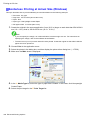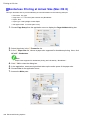
1
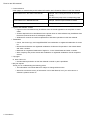
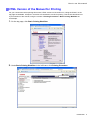
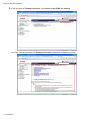
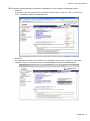
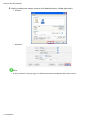
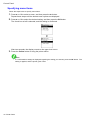
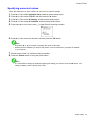
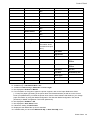
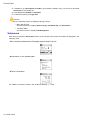
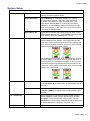
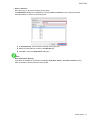
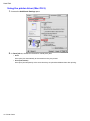
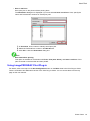
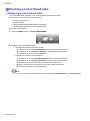
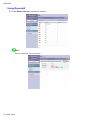
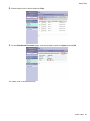
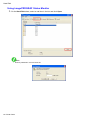
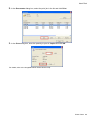
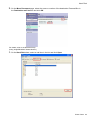
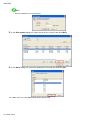
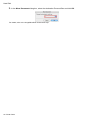
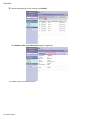
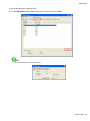
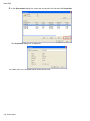
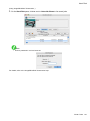
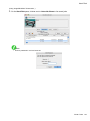
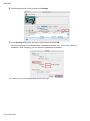
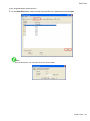
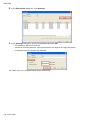
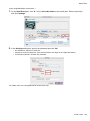
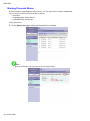
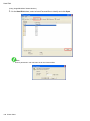
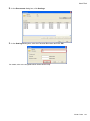
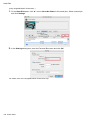
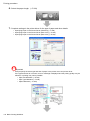
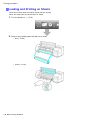
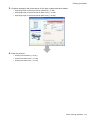
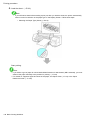
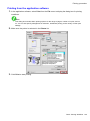
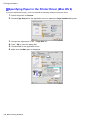
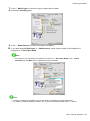
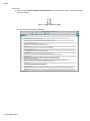
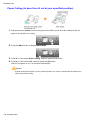
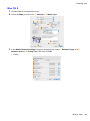
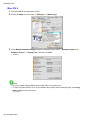
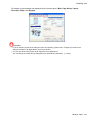
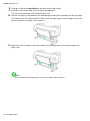
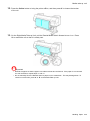
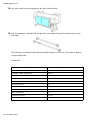
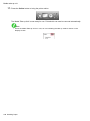
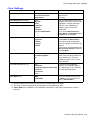
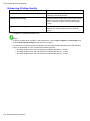
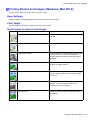
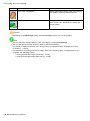
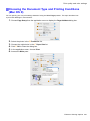
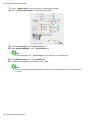
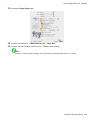
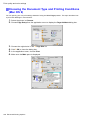
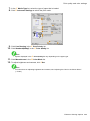
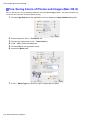
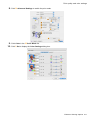
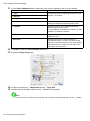
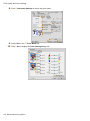
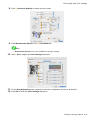
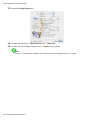
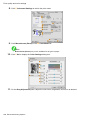
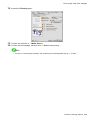
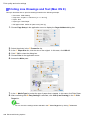
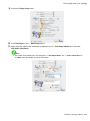
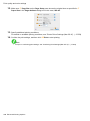
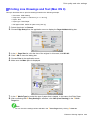
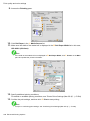
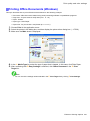
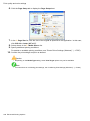
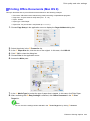
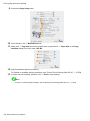
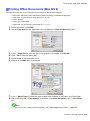
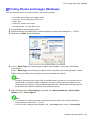
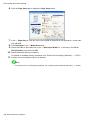
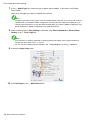
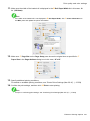
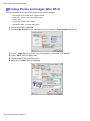
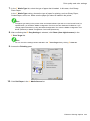
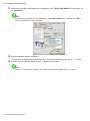
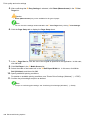
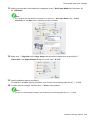
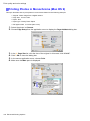
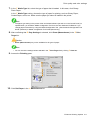
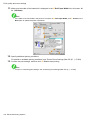
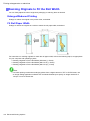
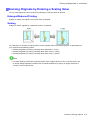
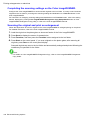
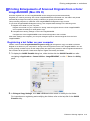
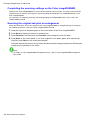
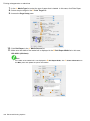
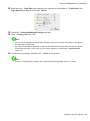
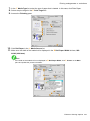
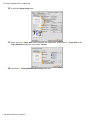
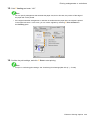
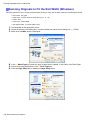
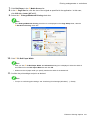
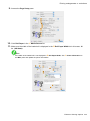
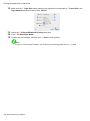
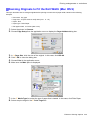
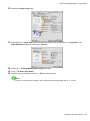
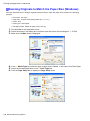
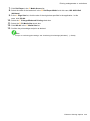
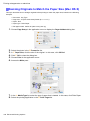
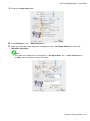
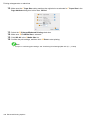
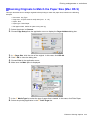
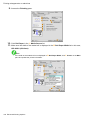
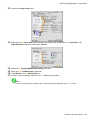
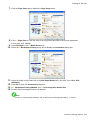
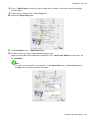
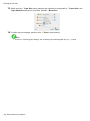
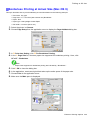
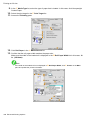
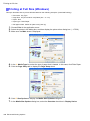
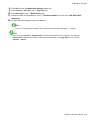
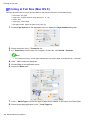
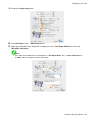
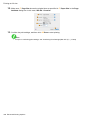
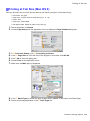
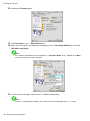
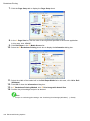
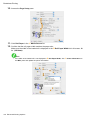
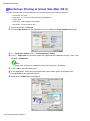
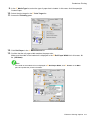
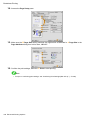
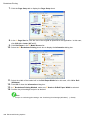
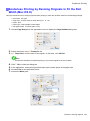
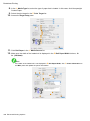
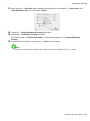
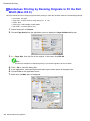
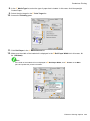
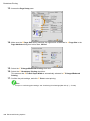
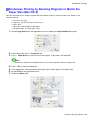
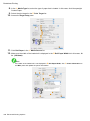
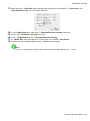
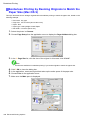
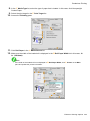
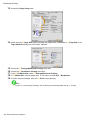
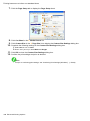
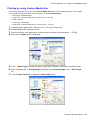
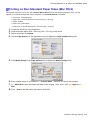
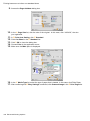
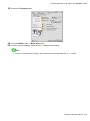
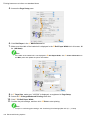
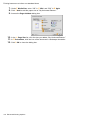
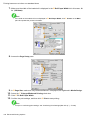
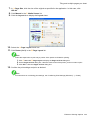
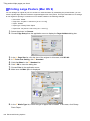
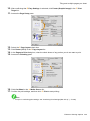
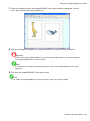
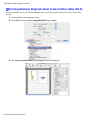
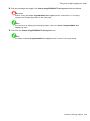
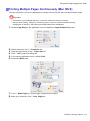
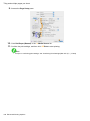
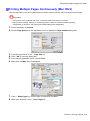
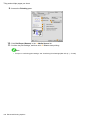
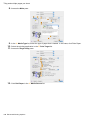
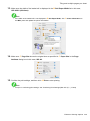
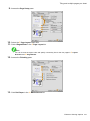
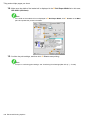
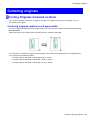
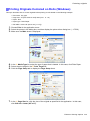
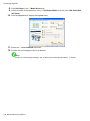
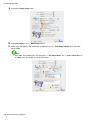
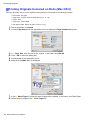
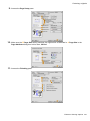
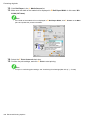
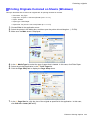
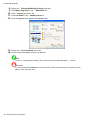
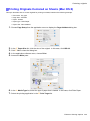
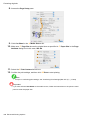
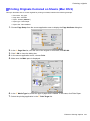
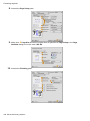
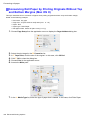
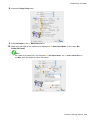
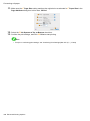
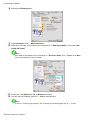
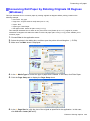
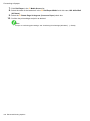
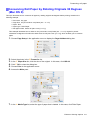
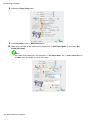
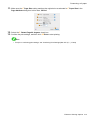
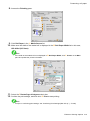
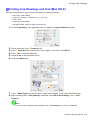
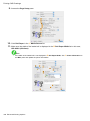
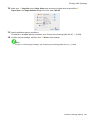
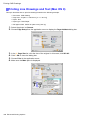
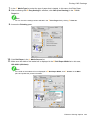
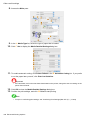
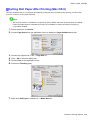
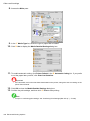
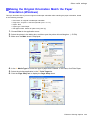
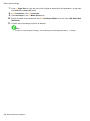
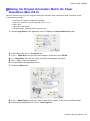
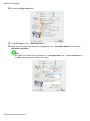
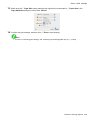
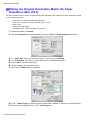
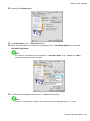
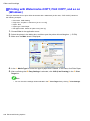
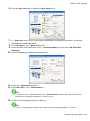
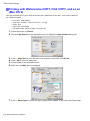
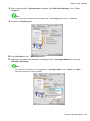
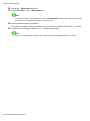
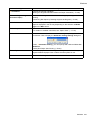
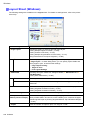
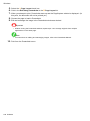
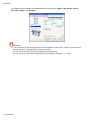
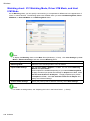
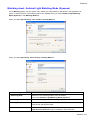
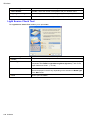
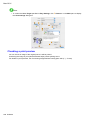
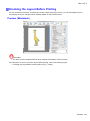
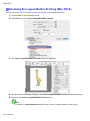
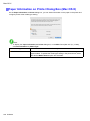
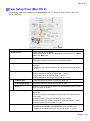
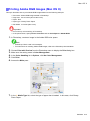
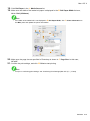
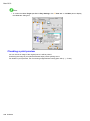
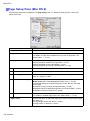
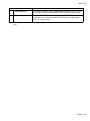
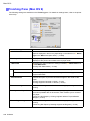
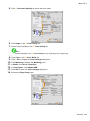
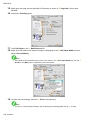
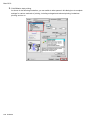
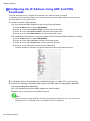
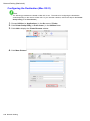
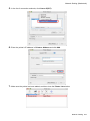
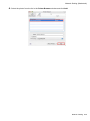
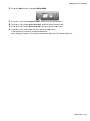
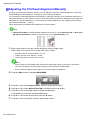
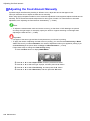
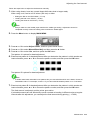
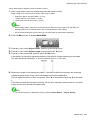
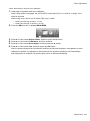
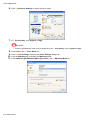
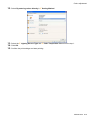
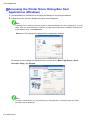
Borderless Printing 13. Access the Page Setup pane. 14. Make sure the B Page Size setting matches the original size as selected in A Page Size in the Page Attribute dialog box-in this case, 10"x12". 15. 16. 17. 18. 19. Select the C Enlarged/Reduced Printing check box. Select the G Borderless Printing check box. Click D Fit Media Size under C Enlarged/Reduced Printing. In H Media Size, click the paper size. In this case, click 10"x12" - Borderless. Conrm the print settings, and click N Print to start printing. Note • For tips on conrming print settings, see “Conrming Print Settings (Mac OS 9)”. (→P.585) 394 Enhanced Printing Options