1
3.2
FLIGHT PLAN VIEW
3.2.1
Flight Plan Table
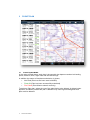
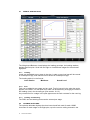
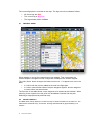
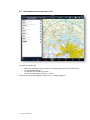
The flight plan table contains all information about the flight plan. When tapping on a
row in the flight plan, the Terminal pane is opened with the details on that leg. The
flight plan can be hidden from view by pressing the <Flight Plan> button on the top of
the En Route, Terminal, Weather and Text pages.
3.2.2
Flight Plan Header
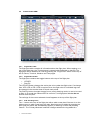
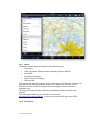
The flight plan contains two toggle buttons at the top of the flight plan
•
VFR/IFR
•
Plan/Fly
The VFR/IFR button changes the entire plan to be under that flight rules. If a change
from VFR->IFR or IFR->VFR is required, then the flight rules for individual legs can
be changed in the terminal view for those track points.
The Plan/Fly button changes the app from a purely planning mode, to one to be used
in flight. In fly mode the onboard GPS is turned on, and flight plan altitudes do not
auto fill down the plan.
The call sign of the current selected aircraft appears at the top of the flight plan.
3.2.3
Add Tracking Point
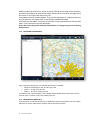
The ‘+’ button at the top of the flight plan either adds a new plan if the user is on the
index screen or adds a new leg to the plan. New legs can be added by entering the
ident (and the results will automatically appear) or entering a name and pressing
‘Search’. The ‘Primary/Alternate’ selection changes whether the leg added is a
7
AvPlan User Manual