1
SYSTEM SETUP
In order to satisfy different kinds of consumers and because of the outfits with different performance,
this unit is equipped with various functions. You can proceed the system setup to layout the performance
of this unit to better meet your needs and cooperate with your outfits. Certainly you may use the default
settings to satisfy your basic requirements if you want to avoid the trouble.
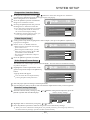
Operation Interface and General Steps
This section introduces the operation interface and general steps of the system setup.
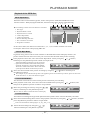
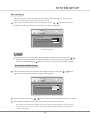
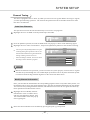
1 Press the [SETUP] button to enter the system setup mode. Now the top part of the OSD displays the
system setup control bar, which is shown in the following:
If the system displays ¡ INVALID ¡ , it means the System Setup mode cannot be entered in the current
mode, so please exit this mode first.
2
4
1
5
3
6
The meanings of the icons are as follows:
1
2
3
4
5
6
2
3
4
General setup
Playback setup
Record setup
Language setup
Channel Scan
Date, Time setup
GNRL
GNRL
PLAY
PLAY
CLOCK CLOCK
LANGLANGTUNERTUNER
REC
REC
General system setup
General
Setup
System Setup Control Bar
Select the desired item to be set on the control bar by using the [ ], [ ] buttons, and then press the
[SELECT] button to enter the setup submenu of this item.
In the submenu , operate the relative controllers by using the cursor buttons and the [SELECT] button
to fulfill the corresponding setup.
Pressing the [RETURN] button to return to the previous menu, or press the [SETUP] button to exit
the system setup mode.
Notes
The steps above are general operations. Some setup may not need a certain step, or need more steps.
Please proceed the system setup in the tray out or no disc status, otherwise some setup may not
be proceeded.
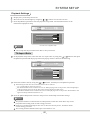
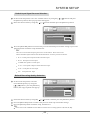
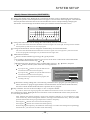
General setup
1
2
3
GNRL
GNRL
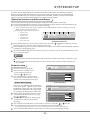
Enter the system setup mode.
Select the item "GNRL" in the
system setup control bar by
using the [ ],[ ] buttons.
Press the [SELECT] button to enter
the general setup submenu ,which is
shown as the illustration on the right:
REC
REC
LANGTUNERTUNER
CLOCK CLOCK
LANG
General
Setup
Screen saver
ON
Progressive/Interlace
Interlace
Video output
RGB
Video output format
PAL
OK
Restore factory settings
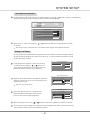
Screen Saver Setup
1
PLAY
PLAY
General Setup Menu
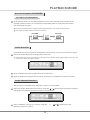
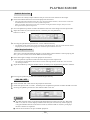
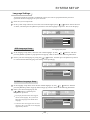
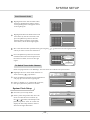
The screen saver function is that an interesting
screen saver picture appears on the screen
PLAY
automatically, when this unit's video output
PLAY
GNRL
REC
CLOCK CLOCK
REC LANGLANGTUNERTUNER
GNRL
GNRL
signal has no change(that is the image on the
TV screen has no change) for a certain time.
General Setup
In the general setup menu, move the cursor
Screen saver
ON
Progressive/Interlace
to select the item "Screen saver" by using
Interlace
PAL
Video output
YCbCr
the [ ], [ ] buttons.
Video output format
PAL
Press the [SELECT] button , and a pop-up
OK
Restore factory settings
list will pop up, which is shown in the
following.
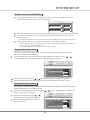
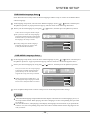
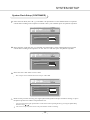
Move the cursor up and down to select "ON" or "OFF" by using the [ ], [ ] buttons.
Press the [SELECT] button to turn on or turn off the screen saver function.
ON
OFF
2
3
4
Pressing any button can exit the screen saver mode after the screen saver picture appears.
5
Press the [RETURN] button to return to the previous menu to proceed other settings.
38