1
SYSTEM SETUP
Playback Settings
1
2
3
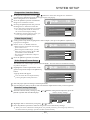
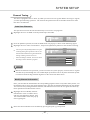
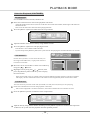
Display the system setup control bar.
Move the cursor left and right by using the [ ],[ ] buttons to select the "PLAY" .
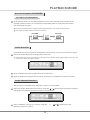
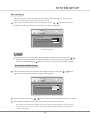
Press the [SELECT] button to enter the playback setup mode. The illustration below is the
main menu of playback setup.
GNRL
GNRL
PLAY
PLAY
PLAY
REC
REC
LANGTUNERTUNER
CLOCK CLOCK
LANG
Playback Setup
TV aspect ratio
Pan Scan
Rating level
OFF
Digital audio output
RAW
Closed captions
OFF
Analog audio output
5.1CH
the main menu of playback setup
Note
This setup must be proceeded in No Disc or Tray Out status.
TV Aspect Ratio
1
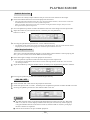
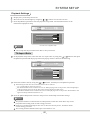
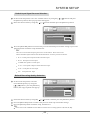
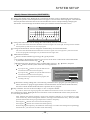
In the playback setup menu, select the item "TV aspect ratio" by using the [ ], [ ] buttons, then press
the [SELECT] button and the pop-up menu will pop up, which is shown in the following.
GNRL
GNRL
PLAY
PLAY
PLAY
REC
REC
LANGTUNERTUNER
CLOCK CLOCK
LANG
Playback Setup
TV aspect ratio
Digital audio output
Pan Scan
16:9
Pan Scan
Letter Box
Closed captions
OFF
Analog audio output
5.1CH
Rating level
2
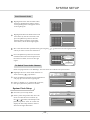
Select the suitable value by using the [
], [
] buttons, and then press the [SELECT] button.
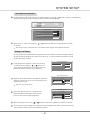
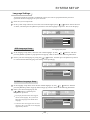
The meaning of each value to be selected of this item is as follows:
16 : 9: Applicable to wide screen TV set.
Pan Scan: Suitable for the common size TV set. When playing wide screen pictures, left and right edges
of the original pictures are cut off. The picture will be displayed to full screen.
Letter Box: Suitable for the common size TV set. When playing wide screen pictures, black banners will
appear on the top and bottom of the TV set.
3
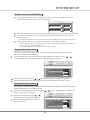
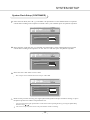
Press the [RETURN] button to return to the previous menu and proceed other settings.
Notes
The playback effect is related to the recorded pictures of the disc. Some discs may not be
played back according to the screen setting you select.
If a disc is recorded in the aspect ratio of 4:3, the ratio can only be 4:3, no matter which
screen setting you select.
This setting should conform to the aspect ratio of the TV set.
40