1
Configuring an Image, Button, or Picture Button to Control a Frame
8.3 Configuring an Image, Button, or Picture
Button to Control a Frame
In general, to configure an image, button, or picture button to control a frame:
1.
Open the dashboard in edit mode, as described in “Editing a Dashboard,” earlier in this book.
2.
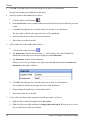
Double-click the image, button, or picture button object in the dashboard.
DeepSee displays a dialog box in which you specify the details.
3.
For Dashboard Id, click the browse button (...) and then click the name of a dashboard.
4.
Click OK. You might need to resize the dialog box in order to see this button.
5.
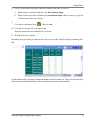
Right-click the object that you just edited or added and select Set as Refresh Trigger.
6.
Right-click the frame and select Set as Refresh Target. When you do so, a gray line is drawn
between the frame and the object you just edited.
7.
Optionally save the dashboard.
Tip:
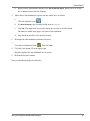
To delete links to an object, right-click it and then click Delete all links to object.
8.4 Adding a Drop-down Menu to Control a
Frame
You can add drop-down menus to dashboards. Drop-down menus use DeepSee shortcuts, which are
discussed in the DeepSee Site Configuration and Maintenance Guide.
There are several types of shortcuts:
•
A link to a DeepSee module.
•
A link to a dashboard.
•
A link to a dashboard function (such as the Edit Dashboard option).
•
A group of other shortcuts. When you add a drop-down menu to a dashboards, you choose a
shortcut of this type.
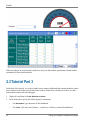
In general, to add a drop-down menu and configure it to control a frame:
Using the DeepSee Dashboard Designer 77