1
STEP 4 Set Up the Hardware
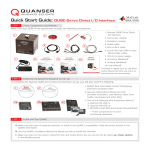
The steps below use the Quanser QUBE-Servo USB Interface, with a built-in data acquisition device. If you are using the QUBEServo Direct I/O interface systems, please refer to its own Quick Start Guide or the QUBE-Servo User Manual for instructions
on connecting to an external data acquisition device (enclosed with shipment).
A
Place the QUBE-Servo on a flat surface with enough space so that the modules will not be obstructed.
B
Connect the inertia disc module to the QUBE-Servo
base by aligning the inertia disc magnets with the
magnets on the QUBE-Servo module connector. The
module should snap into place.
QUBE
QUBE
ROTARY SERVO EXPERIMENT
ROTARY SERVO EXPERIMENT
WWW.QUANSER.COM
Made in Canada
WWW.QUANSER.COM
Made in Canada
Power
Power
C
USB
USB
Using the supplied USB cable, connect the cable from
the back cover of theQUBE
QUBE-Servo to an enabled USB
2.0 port or higher on your desktop PC or laptop.
QUBE
ROTARY SERVO EXPERIMENT
QUBE
ROTARY SERVO EXPERIMENT
WWW.QUANSER.COM
Made in Canada
ROTARY SERVO EXPERIMENT
WWW.QUANSER.COM
Made in Canada
WWW.QUANSER.COM
Made in Canada
Power
Power
USB
Power
USB
USB
PC/ Laptop
E
D
ROTARY SERVO EXPERIMENT
ROTARY SERVO EXPERIMENT
WWW.QUANSER.COM
Made in Canada
WWW.QUANSER.COM
Made in Canada
Power
Power
Power
USB
F
USB
The green Power
LED on the QUBE
should turn ON.
QUBE
ROTARY SERVO EXPERIMENT
G
Windows1 should automatically
detect the presence of the
QUBE-Servo and attempt to
install the driver.
WWW.QUANSER.COM
Made in Canada
Power
USB
1
Connect the power
supply to a wall outlet
using the appropriate
power cable.
Connect the power connector on
the QUBE-Servo to the QUBE
supplied
15V power supply.
QUBE
Windows is a registered trademark of Microsoft Corporation in the United States and other countries.
H
Upon completion, Windows
will notify you that the
device is ready for use.