1
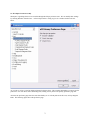
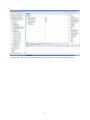
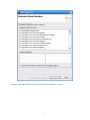
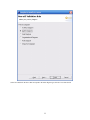
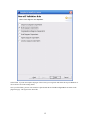
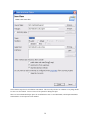
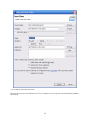
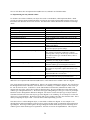
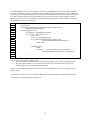
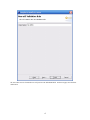
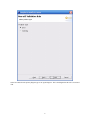
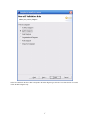
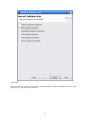
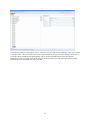
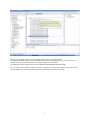
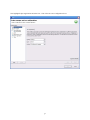
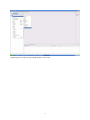
As you can see, we currently have five rules primarily associated with the activity diagram. Deselecting any of
these settings will ‘turn off’ any reporting of this problem to the user. For example, if we don’t care to see an error
when an Activity Diagram is not present as a Service in an Agent Diagram within the same project, we would
deselect the box next to this rule. Doing this deactivates that rule and when a diagram that contains this problem is
found, it is not report to the user. These preferences are only valid in the global settings and not available as project
specific settings. This means that if we chose to use the validation engine this way, we must use the global settings
on our project.
2.3. Project Specific and Global Workspace Preferences
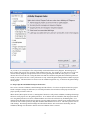
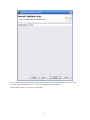
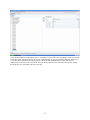
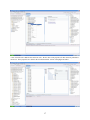
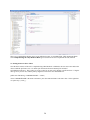
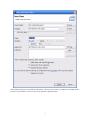
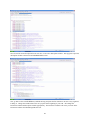
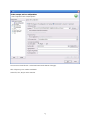
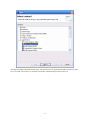
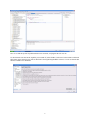
Here we have Activate Validation, Check Warnings and Check Errors. If we have an option activated on a project
but the workspace settings are deactivated, we will still perform the selected actions on the project because the
project specific preferences tell us to.
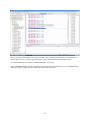
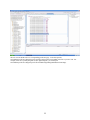
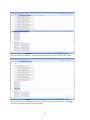
When checked, these options are active, meaning that if checked we will perform validation, including all warnings
and errors on all projects set to the global preferences. If we uncheck Activate Validation, then all projects that are
set to the global preferences will not be validated and the user will not be notified of any invalid diagrams. If we
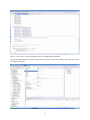
uncheck Check Warnings, then all projects that are set to the global preferences will not report warnings back to the
user but all errors will be reported, so long that validation and Check Errors are active. The same goes for errors as
with warnings. Deselecting Check Warnings and Check Errors has the same end result as deselecting Activate
Validation, although it is advisable to deselect Activate Validation if this is wanted.
4