1
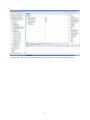
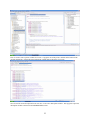
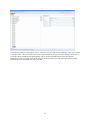
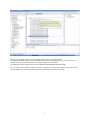
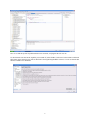
create a new Activity Diagram. This will create an error problem because one of our governing rules is that all
Activity Diagrams must be represented in an Agent Diagram as a Service component. In the following sections we
will cover what features accompany our validation engine.
2.1. Workspace vs. Project Specific Preferences
Within at3 Validation we are given the liberty to chose either global or project specific properties with certain
preferences. We can decide if we want to follow the global settings for each project or whether we want a specific
project to follow its own set of preferences. We will first discuss the preferences that pertain solely to the global
workspace.
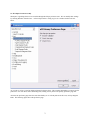
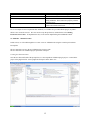
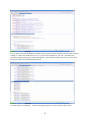
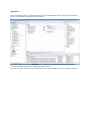
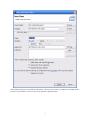
In order to open a projects preference page through a resource we must first highlight the resource. With at3
Validation, the resource must be a diagram file. We filter all other out by checking the files extension and see if it is
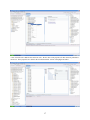
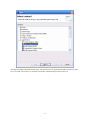
a correct file type for validation. Right-click the at3 diagram and select Properties at the bottom. This opens a
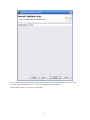
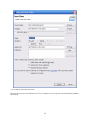
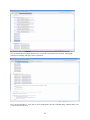
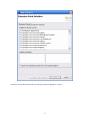
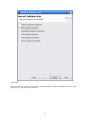
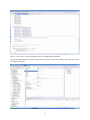
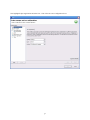
preference page for us. We see at3 Primary Preferences Page in the right panel of the window. Highlight it. We
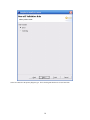
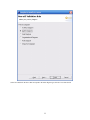
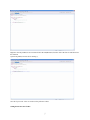
now see this:
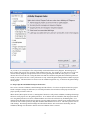
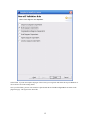
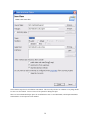
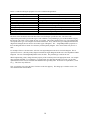
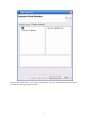
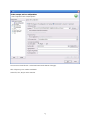
We have the choice to set the preferences according to either the global workspace settings or to use project Specific
Settings. If we elect to configure the workspace settings, we only are allowed to edit the three main preferences
Activate Validation, Check Warnings, and Check Errors. This is because, as we discussed earlier, the other
preferences are only editable by choosing the preferences through the WindowÆPreferences path. If we select the
Use Project Settings button, the Use Workspace Setting button is now disabled. We discuss the purpose of each of
these options later in section Project Specific and Global Workspace Preferences
2