1
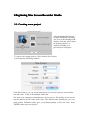
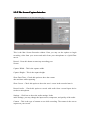
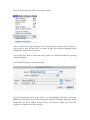
The highlighted area is the position and size of the camera You may move it by
dragging within the highlighted area. To resize, drag the small boxes at the corners of
the highlight area.
Press the space key to accept the position and size. Press the ESC key to cancel the
changes. You may also right-click to bring up a menu.
Do this:
- Position and size the camera
- Press the space key to accept the position and size.
Now it should be recording your screen.
Do this:
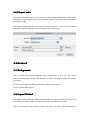
- Once you’re ready to end the capture, click on the Mac Screen Recorder Studio icon
in the dock to end it, or you may press the start/stop hot key if you have it set.
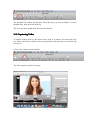
Your recorded movie should now automatically load into your project.
1-4. Adding Clips
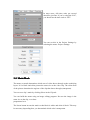
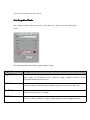
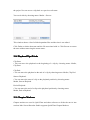
To add movie, audio or photos into your project, first select the layer you want to
insert into, and then oven the playhead to the position you want the clip to insert at.
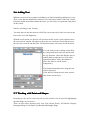
Click on the Insert File tool bar button: