1
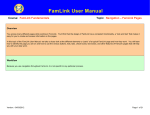
FamLink User Manual Course: FamLink Fundamentals Topic: Case Notes This is the FamLink Desktop, your starting point to create, edit, or view case notes. You open the Case Notes page as follows: If you have a case assignment: On your Outliner, click the Cases expando, and click the Actions hyperlink for the desired case. Then, select the Create Case Note radio button, and click Continue to open the Case Notes page. -or - From the Desktop, on the Create menu, click Case Work. Click the Case Notes list, and select a case type, such as CPS. Select a Case Name and Case Participant. Click Create to open the Case Notes page. If you do not have a case assignment: Version: 04/04/2013 From the Desktop, click Search and search for the case name. In the Cases Returned group box, locate your case and click the case Actions hyperlink. Then, select the Create Case Note radio button, and click Continue to open the Case Notes page. Page 2 of 28