1
Klinkmann Automation PROFACE GP Server
Action
26
Remote OPC Server
Computer name –
JohnB
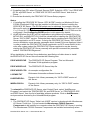
Install the OPC Server.
Run Dcomcnfg.exe
Invoke Default Properties and set
Default Authentication Level to (None),
Default Impersonation Level to
Impersonate.
Select OPC Server from Applications list
and click on the Properties… button. Click
on the Location tab, uncheck Run
application on this computer, check
Run application on the following
computer and browse the remote
computer JohnB.
Edit Security settings:
1) set the following custom access
permissions: NETWORK, SYSTEM,
SteveL;
2) set the following custom launch
permissions: INTERACTIVE,
SYSTEM, NETWORK, SteveL;
3) be sure the Default Configuration
Permissions contain SYSTEM.
Click on the Identity tab and select The
interactive user.
OPC Client
Computer name –
SteveL
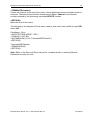
Before starting a remote OPC Server, be sure the OPC Server computer and OPC Client
computer can access each other on the network. The “Remote Procedure Call” Service
should be started on OPC Server computer.
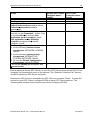
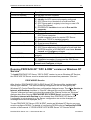
Now remote OPC Server is accessible for OPC Client on computer SteveL. To allow the
access to more OPC Clients, configure DCOM on each OPC Client computer. The
following table contains most frequent errors when configuring DCOM.
PROFACE GP Server Ver 1.x User Manual Rev 1.2
4101XM12