1
Klinkmann Automation PROFACE GP Server
6
Installing the I/O Server Infrastructure
The I/O Server Infrastructure installation package can be supplied:
1. As a self-extracting archive (IOServerInfrastructure.exe) if downloaded from
Klinkmann’s web site.
2. On one distribution disk (floppy).
To install the I/O Server Infrastructure from the self-extracting archive, run the
IOServerInfrastructure.exe and proceed as directed by the I/O Server Infrastructure
Setup program.
To install the I/O Server Infrastructure from the distribution disk, on MS Windows (NT or
9x):
1.
2.
3.
4.
5.
Insert the I/O Server Infrastructure disk into a floppy drive A: or B:.
Select the Run command under the Start menu.
Type “A:SETUP” or “B:SETUP”.
Click on OK.
Proceed as directed by the I/O Server Infrastructure Setup program.
To uninstall the I/O Server Infrastructure, start Control Panel, select “Add/Remove
Programs” and select the “IO Server Infrastructure” from the list of available software
products. Click on “Add/Remove…” and proceed as directed by the UnInstallShield
program.
Note. The I/O Server Infrastructure installation will be rejected if Wonderware FS2000
Common Components are already installed on same computer.
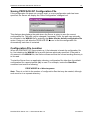
Configuring the PROFACE GP Server
After the PROFACE GP Server is initially installed, a small amount of configuration is
required. Configuring the Server automatically creates a PROFACEGP.CFG file, which
holds all the topic definitions, entered, as well as the communication port configurations.
This file will automatically be placed in the same directory in which PROFACEGP.EXE is
located unless the path where the configuration file will be placed is a specified by the
/Configure/Server Settings… command.
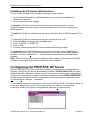
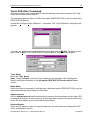
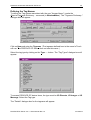
To perform the required configurations, start up the PROFACE GP. If the Server starts up
as an icon, double-click on the icon to open the server's window. To access the
commands used for the various configurations, open the /Configure menu:
PROFACE GP Server Ver 1.x User Manual Rev 1.2
4101XM12