1
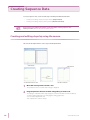
Creating Sequence Data
3
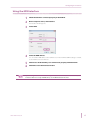
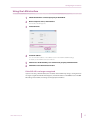
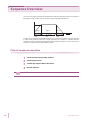
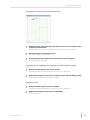
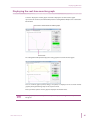
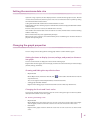
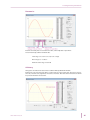
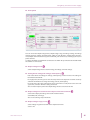
If you want to continue creating steps, move the mouse pointer over the end
point of the step that you have just created. When the pointer becomes a
crosshair, drag the mouse pointer to the point that corresponds to the time
and the voltage that you want to set.
The setting is confirmed, and the step settings are entered in the first blank row of the worksheet.
Repeat this procedure until you have set all the steps.
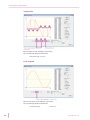
• For AC mode of single-phase, three-wire and of three-phase, you need to create steps of each
phase one step at a time. You cannot consecutively enter steps for a single phase.
• You can change the graph scale. For the procedure, see “Changing the setting graph scale.”
Changing the setting graph scale
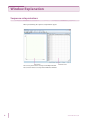
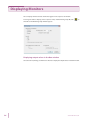
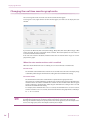
You can change the Graph window’s X-axis and Y-axis scales.
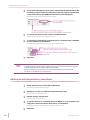
On the Graph menu, click Scale. Or, click
on the toolbar. The Scale window appears. You can
also right-click in the Graph window, and click Scale to display the Scale window.
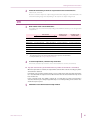
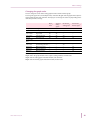
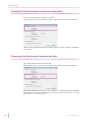
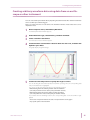
If you select the Maximum Time, Maximum Value, or Minimum Value check box, the auto scale feature will be enabled. This feature automatically updates the scale values to the appropriate values
when you enter values to set a step or when you open a saved file.
If the auto scale feature is disabled, settings that are outside of the range are not displayed on the
graph.
If you are using the mouse to set steps, the scale will not be updated automatically even if the auto
scale feature is enabled. To update the scale, on the Graph menu, click Update Auto Scale.
SD011-PCR-LE Ver.5.4x
21