1
Chapter 10: Takes
Add
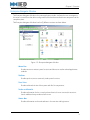
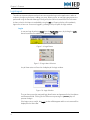
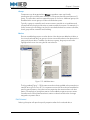
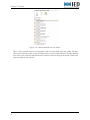
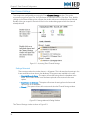
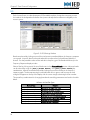
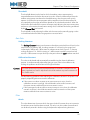
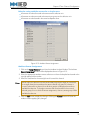
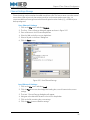
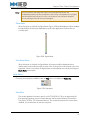
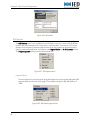
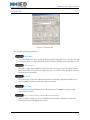
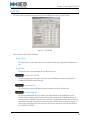
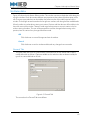
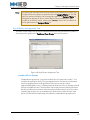
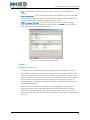
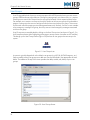
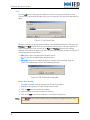
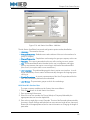
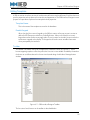
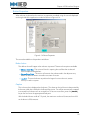
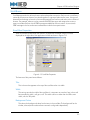
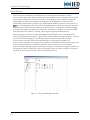
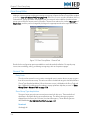
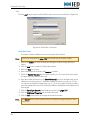
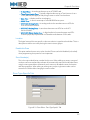
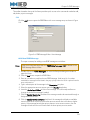
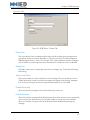
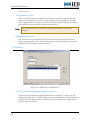
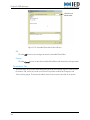
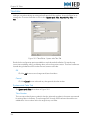
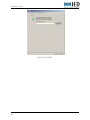
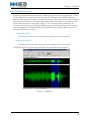
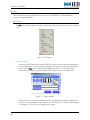
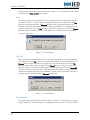
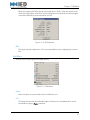
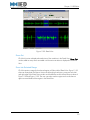
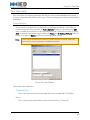
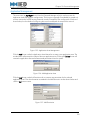
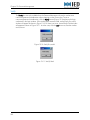
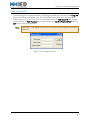
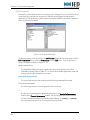
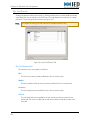
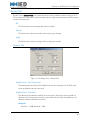
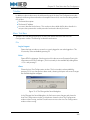
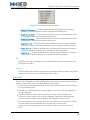
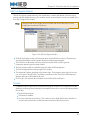
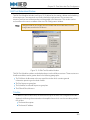
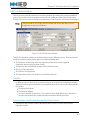
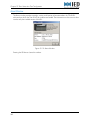
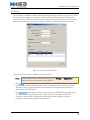
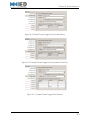
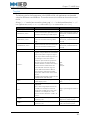
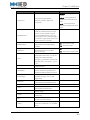
Click the Add button to open the Editor with a new take entry as shown in Figure 10-4.
Figure 10-4: Take Editor - New Take
Add New Take
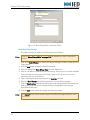
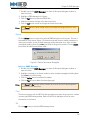
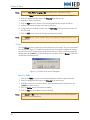
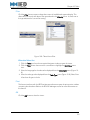
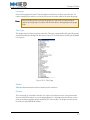
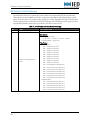
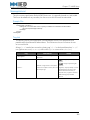
The steps necessary to add a new take to the system are as follows:
Note:
1.
2.
3.
4.
5.
6.
7.
8.
9.
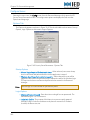
Refer to the Take Editor on "Take Editor" on page 156 for details on the Take
Editor window.
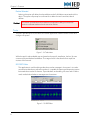
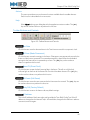
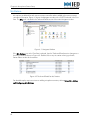
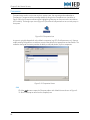
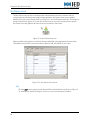
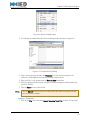
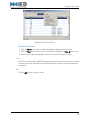
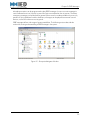
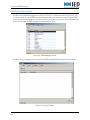
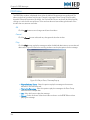
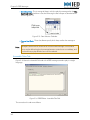
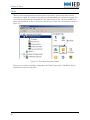
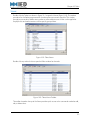
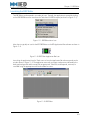
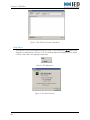
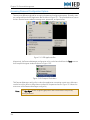
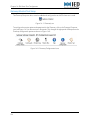
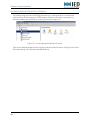
Click on the Takes icon from the Enterprise Navigator window to open the Viewer.
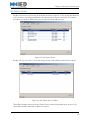
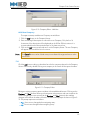
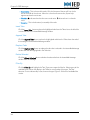
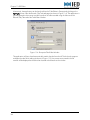
Click the Add button to open the Editor window.
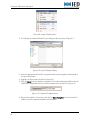
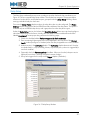
Enter a new (unused) take number in the Take Number field.
Select the appropriate language for this take from the Language droplist box.
Select the appropriate take type from the Take Type droplist box.
Select either Male or Female gender from the Gender droplist box.
Type in the text for the message in the Take Text entry box.
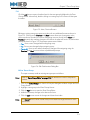
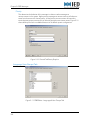
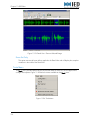
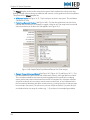
Go to the Record / Play Take tab.
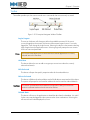
Select the mic station that will be used to record the take from the Use Mic Station
droplist box.
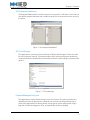
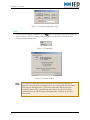
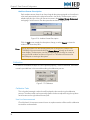
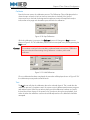
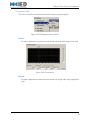
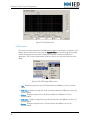
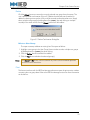
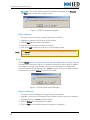
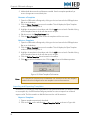
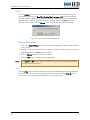
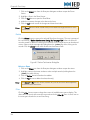
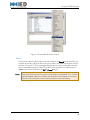
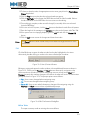
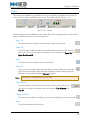
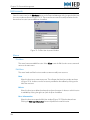
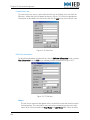
10.Click the Record button. A window with the take text will appear and the mic station will
indicate that it is ready to record.
11.Press the mic switch on the station and record the message as it appears in the take text
window.
152