1
Visualization
source/visualization/VRML/g4vrmlview/
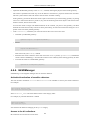
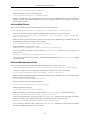
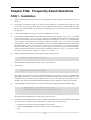
Installation instructions for g4vrmlview can be found in the README file there, or on the WWW page below.
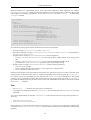
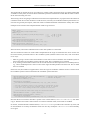
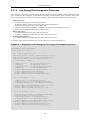
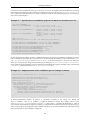
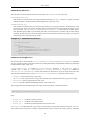
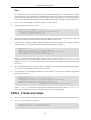
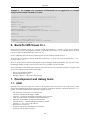
The following steps realize remote Geant4 visualization displayed with your local VRML browser:
1.
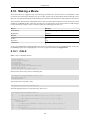
Invoke the g4vrmlview on your local host, giving a VRML viewer name as its argument:
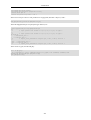
Local_Host> java g4vrmlview
VRML_viewer_name
For example, if you want to use the Netscape browser as your VRML viewer, execute g4vrmlview as
follows:
Local_Host> java g4vrmlview
2.
3.
netscape
Of course, the command path to the VRML viewer should be properly set.
Log in to the remote host where a Geant4 executable is placed.
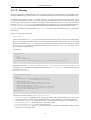
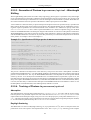
Set an environment variable on the remote host as follows:
Remote_Host> setenv G4VRML_HOST_NAME local_host_name
For example, if you are working on the local host named "arkoop.kek.jp", set this environment variable as
follows:
Remote_Host> setenv G4VRML_HOST_NAME arkoop.kek.jp
4.
This tells a Geant4 process running on the remote host where Geant4 Visualization should be performed, i.e.,
where the visualized views should be displayed.
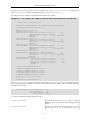
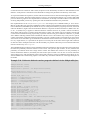
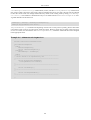
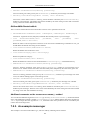
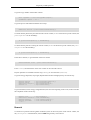
Invoke a Geant4 process and perform visualization with the VRML-Network driver. For example:
Idle> /vis/open VRML2
Idle> /vis/drawVolume
Idle> /vis/viewer/update
In step 4, 3D scene data are sent from the remote host to the local host as VRML-formatted data, and the VRML
viewer specified in step 3 is invoked by the g4vrmlview process to visualize the VRML data. The transferred
VRML data are saved as a file named g4.wrl in the current directory of the local host.
Further information:
•
http://geant4.kek.jp/GEANT4/vis/GEANT4/VRML_net_driver.html
Further information (VRML drivers):
•
•
http://geant4.kek.jp/GEANT4/vis/GEANT4/VRML_file_driver.html
http://geant4.kek.jp/GEANT4/vis/GEANT4/VRML_net_driver.html
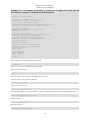
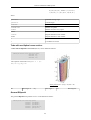
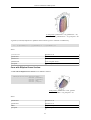
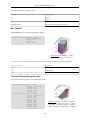
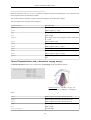
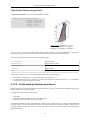
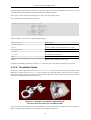
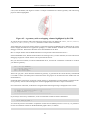
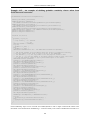
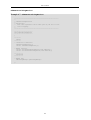
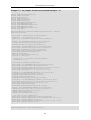
Sample VRML files:
204