1
Using the Embedded MPEG Encoder
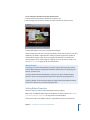
When you install DVD Studio Pro, you also install an embedded MPEG encoder.
The embedded MPEG encoder outputs an MPEG-2 video stream with a closed GOP
pattern and a fixed GOP size (15 frames for NTSC and 12 frames for PAL). The exported
MPEG video stream can be used for multi-angle tracks. The file type is “.m2v.”
If the file to be encoded has audio multiplexed together with the video, the audio is
encoded as a PCM audio file and given the same name as the video file, but with an
“.aiff” extension. See “Preparing Audio Sources” on page 77 for more information on
audio formats.
Transcoding With the Embedded MPEG Encoder
If you import a QuickTime asset whose video standard is different from the project’s
current setting, the embedded MPEG encoder automatically transcodes the asset to
the project’s video standard while encoding it. For example, if you are working on a
PAL project and accidentally import an NTSC QuickTime file, the NTSC file is encoded
as a PAL asset and is imported into the project.
You should be aware, though, that the embedded MPEG encoder is not intended to
transcode video from one video standard to the other, and the results you get are
usually not suitable for use in a project. Compressor and a variety of third-party
products can provide good transcoding results, as well as facilities that specialize in
video standards conversion.
Configuring the Embedded MPEG Encoder
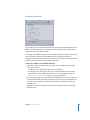
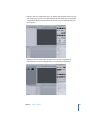
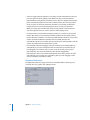
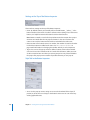
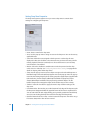
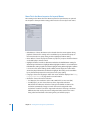
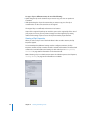
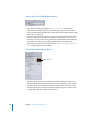
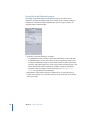
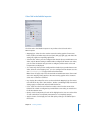
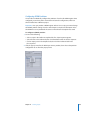
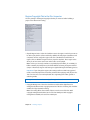
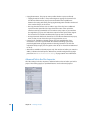
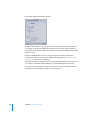
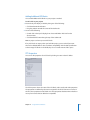
DVD Studio Pro Preferences contain the settings that determine how DVD Studio Pro
uses the embedded MPEG encoder.
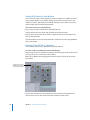
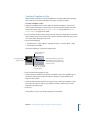
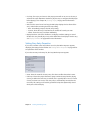
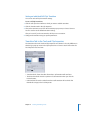
To configure the embedded MPEG encoder:
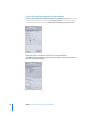
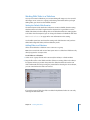
1 Choose DVD Studio Pro > Preferences.
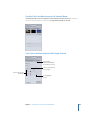
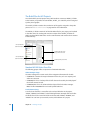
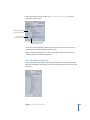
2 Click Encoding to open the Encoding pane.
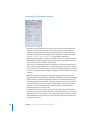
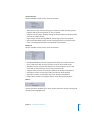
3 Configure the settings in the Encoding pane. See the following sections for information
about the options in this pane.
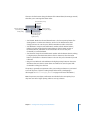
4 Click Apply to enable the settings, then click OK to close the Preferences window.
62
Chapter 2 Preparing Assets