1
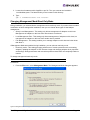
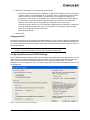
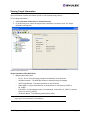
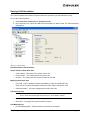
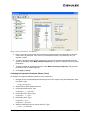
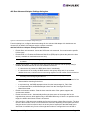
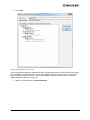
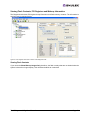
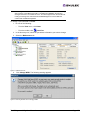
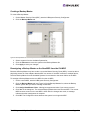
7. Click Close. The Firmware tab displays the updated firmware information for the selected
adapter.
If you are updating the firmware on a dual-channel adapter, repeat steps 1 through 6 to update
the firmware on the second port or use the Updating Firmware using Batch Mode procedure.
Note: if the state of the boot code on the board has changed, this change is reflected
immediately on the Port Information tab.
8. Repeat steps 2 through 6 to update boot code on additional HBAs.
Updating Adapter Firmware using Batch Mode
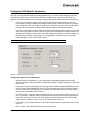
Use batch mode to install firmware on multiple HBAs in a single step. Batch firmware loading is
restricted to a single firmware file and to all accessible HBAs for which that file is compatible. (Not
available in read-only mode).
Note: Stop other HBAnyware utility functions while batch loading is in progress.
Before you can perform a batch update, the firmware file must be downloaded from the Emulex Web site
and extracted:
•
In Windows to a directory on your local drive.
•
In Solaris LPFC and Solaris SFS to the Emulex Repository folder (RMRepository) in
/opt/HBAnyware/RMRepository.
•
In Linux to the Emulex Repository folder (RMRepository) in usr/sbin/hbanyware/RMRepository.
To batch load firmware:
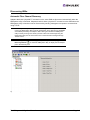
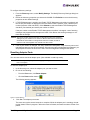
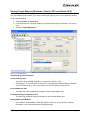
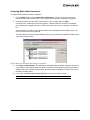
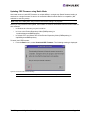
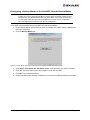
1. From the Batch menu, select Download HBA Firmware.
Note: You do not need to select a particular tree element for this operation.
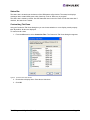
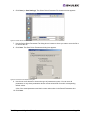
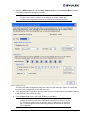
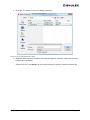
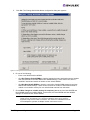
2. Windows: When the Select Firmware File dialog box appears, browse to locate and select the
firmware file to download.
Solaris and Linux: Click Browse. A file selection dialog box appears. Select the firmware file.
The HBAnyware Utility User Manual
Page 118