1
Map display / Background maps
110
Delete cross sections
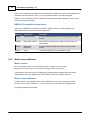
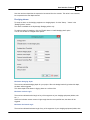
There are two ways to delete a single cross section:
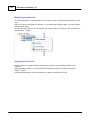
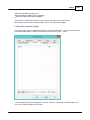
1. Right-click the center anchor point of the cross section in the map, and select "Remove Section" from
the popup menu;
2. Right-click the cross section name in the "Project Explorer" and select "Remove Section.
To delete all cross sections, right click the "Sections" folder in the "Project Explorer" and select
"Remove All...". After confirmation, all cross sections will be removed from the project.
4.14
Cross Sections from CAD
Cross Sections from CAD
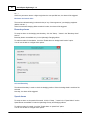
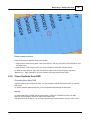
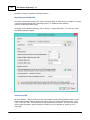
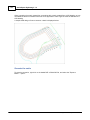
Instead of placing cross sections by hand, it is also possible to import them directly from an AutoCad
DXF project.
To use this method, please make sure you use a separate AutoCad layer for these lines.
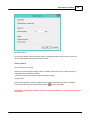
Import
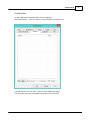
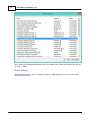
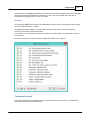
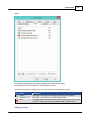
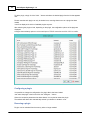
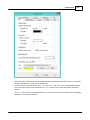
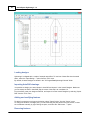
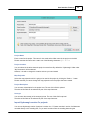
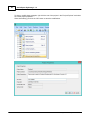
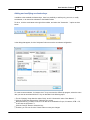
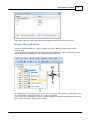
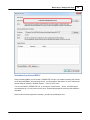
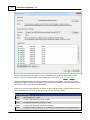
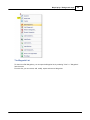
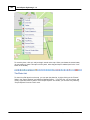
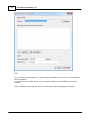
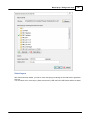
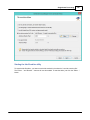
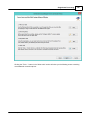
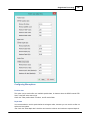
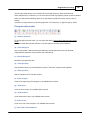
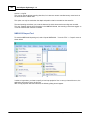
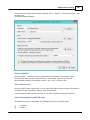
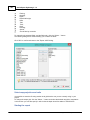
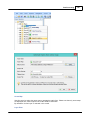
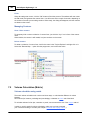
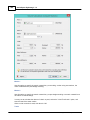
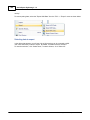
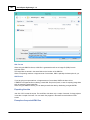
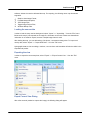
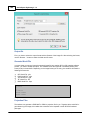
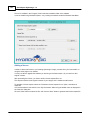
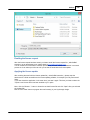
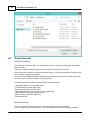
To start importing the line data used to create sections, select the "Generate sections from DXF..."
option by right clicking the "Sections" folder in the project view.
If the project view is not visible, you can show it by selecting "Project Explorer" from the "View" menu.
(C) 2015 ActiveXperts Software B.V.






















































































![U.S. Version [Last Updated on: Jun 13th, 2014]](http://vs1.manualzilla.com/store/data/005873845_1-0370c7761d3b42576ec2ae1fd24c9e75-150x150.png)