1
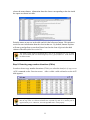
When you have filled in the empty fields in the import dialog window and clicks "OK",
the data will be imported. The program also produces a new file on the same directory
with the same name as the data file and ending with ".cgh". This file contains the
information you submitted in the import dialog window, and the next time you open the
data file, all fields will be filled in (but you still have the option to make changes,
resulting in an update of the .cgh file).
A comment regarding the option to perform automatic position range adjustment: in some cases (such as
for the sample data on the web site), nucleotide positions may be inaccurate and even extend beyond the
actual range for a given chromosome. This may happen, for example, if nucleotide positions are obtained
on the basis of an early draft of the human genome. In such cases, you may want to perform automatic
position adjustment by scaling the position values to fit the length of the chromosome exactly. This will
only give a crude approximation to the correction positions, and results obtained after such rescaling of the
positions of genes on a chromosome should be interpreted with that in mind.
4.4 Saving data tables to file
To save a table made in CGH-Explorer as a tab-delimited file, you have two options:
•
Select the table (i.e. activate the window by pointing at it and clicking the left
mouse button) and choose File | Save As..
•
You may also save a table (or part of it) by selecting all (or some) elements in the
table, making a copy of the selection by typing Ctrl-C, and then pasting the result
into an Excel sheet.
4. 5 Saving graphics to file
Plots produced by CGH-Explorer can be printed or saved. To save a plot, first make the
graph window active. You now have three options:
•
Choose File | Save As.. to save the plot as a Postscript file.
•
Choose File | Print Graph.. and select a printer that gives you the option to print
to file. Check the box ‘Print to file’ and select ‘Print’. The file (with the ending
“.prn”) is essentially a postscript file and should be treated as such by postscript
printers. If you have installed Adobe Acrobat PDFMaker, you may also be able
to print the document to ‘Adobe PDF’ to produce a pdf-file.
•
Choose Tools | Convert to table to convert the graph to a numerical representation
in a table. This table may then saved as described in the preceding section.
18