1
3. A quick tutorial
The following tutorial is designed to get you started quickly with CGH-Explorer. The
main components of the program are shown, and you learn how to import a data file,
perform simple preprocessing of the data, plot the data and search for copy number
alterations. For a complete overview and more details on CGH-Explorer, please see later
chapters. Before you start on the tutorial, download the sample data set from the CGHExplorer download central and save it under the name “cghdata.txt”.
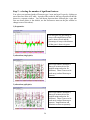
Step 1: Launching the program for the first time
When you launch the program for the first time, a file dialog appears. Use the dialog to
specify the working directory, i.e. the directory you want to use as the default start
location for file dialogs when you import or export files.
Your selection will be stored for later sessions as well. Normally, you would like to
select the directory where your CGH data files typically reside. You can change the
location of the working directory at any time, using the Preferences menu.
Step 2: Importing data
Having selected the working directory, the application main window appears:
Notice the tool bar located below the menu bar. Many commonly used commands are
available from the tool bar; however you should nevertheless familiarize yourself with
the menus in order to make the best possible use of CGH-Explorer.
5