1
First Light User Manual v1.2
First Light - Quick Workflow Overview:
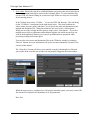
1. File Import: Drag your file(s) to the Clip Library from Windows Explorer (or use “FileImport…”)
2. Adjust Color Parameters: Select a clip in the bin. Hit Play or Pause as appropriate. Adjust
color parameters, usually beginning at the top of the color adjustment window on the right.
(Make sure the Enable checkboxes are enabled as appropriate).
3. Save Color Snapshot: If you want to save your color adjustments as a Profile for later use,
click Save Snapshot and give your color profile a name. You can recall the Snapshot
anytime later.
4. Copy Color Adjustments to Other Clips: If you want your adjustment(s) applied to
multiple clips in the Library select “Edit-Copy” (or Ctrl+C). Then select one of more
destination clips and select “Edit-Paste” (or Ctrl+V).
5. View Adjustments in Your Editorial Application: Click on your editorial or playback
application (Premiere Pro, Vegas, WMP, etc) to bring it into the foreground; then hit “Play”.
You’ll see the adjustments you made in First Light applied immediately. Keep First Light
open so you can switch back and forth between applications as necessary.
6. Save your project (“File-Save Project”) for recall later.
For more detailed discussion of various parameters, keep reading….
-2-