1
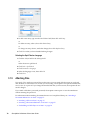
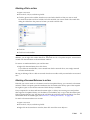
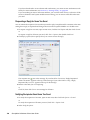
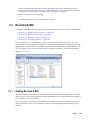
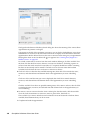
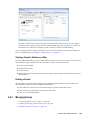
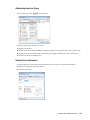
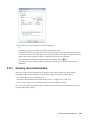
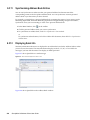
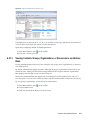
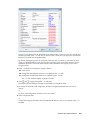
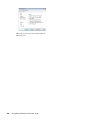
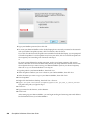
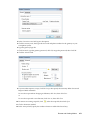
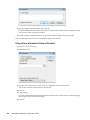
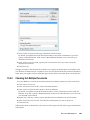
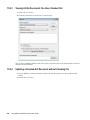
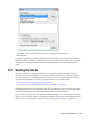
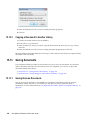
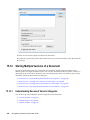
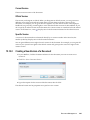
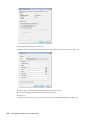
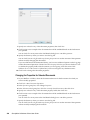
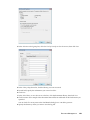
3 Click the Check in method drop-down list, then click Update without checking in. 4 Click Update. GroupWise updates the document in the library with any changes you have made to the checked-out document, but the document is not checked in. You can use Update without checking in if you are still in the process of editing a document but want to allow other users to view the changes you have made. 15.9 Opening Documents When you double-click a document reference in your Mailbox or folder, GroupWise opens the document in the associated application. You can then edit the document. If you only have rights to view the document, you can open the document two ways: you can open the document as a readonly file in the application, or you can open the document in the GroupWise viewer. Section 15.9.1, “Opening a Document,” on page 332 Section 15.9.2, “Opening Multiple Versions of a Document,” on page 333 GroupWise sets the status of the selected version as In Use while you have it open. This status locks the selected document version and prevents other users from editing it while you have it open. When you exit the document, the In Use status is removed and the version is unlocked. If you want to lock a version of a document for multiple editing sessions, use Check Out. Check Out lets you copy the selected version of a document to another location, and it remains locked until you check it in. For more information, see Section 15.8, “Checking Out Documents,” on page 328. Document Management 331