1
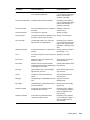
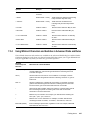
Action
Result
Forward
Forwards items to one or more users when the rule conditions are met. For
example, if you are on a core team, you can have a rule forward meeting minutes to
extended team members.
This action forwards the message as a regular message item, with the forwarded
message visible in the message.
Forward as
Attachment
Forwards items as attachments to one or more users when the rule conditions are
met. For example, if you are on a core team, you can have a rule forward meeting
minutes to extended team members.
Delegate
Delegates an appointment, reminder note, or task to another user when the rule
conditions are met. For example, if someone is covering for you while you’re away
from the office, your rule can delegate appointments, tasks, or reminder notes to
that person.
Reply
Sends a prepared reply to the sender when the rule conditions are met. For
example, if you need to be out of the office for several days, your rule could send a
reply to incoming items indicating when you’ll be back.
You can also use Define Conditions to prevent replies going to mail list servers and
other large groups.
250
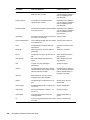
Accept
Accepts an appointment, reminder note, or task when the rule conditions are met.
For example, your rule could accept all appointments from a specific individual.
Category
Assigns a category to any item meeting the specified conditions. Categories include
Low Priority, Urgent, Follow-up, Personal, and any other user-defined category.
Delete/Decline
Deletes or declines any item when the rule conditions are met. For example, your
rule could decline any appointment scheduled for a certain day of the week if you
are always unavailable for meetings on that day.
Empty Item
Deletes items from the Trash when the rule conditions are met. For example, your
rule could empty items received from a company that routinely sends you junk mail.
Move to Folder
Moves items to a folder when the rule conditions are met. For example, you might
want all items with certain words in the Subject box moved to a common folder.
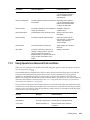
Link to Folder
Links items to one or more folders when the rule conditions are met. Linking an item
to a folder lets you view the item from more than one folder. For example, if you
have an item that relates to Marketing and Personnel, you can place it in the
Marketing folder, then link it to the Personnel folder. You can then open the item
from either folder.
Mark as Private
Marks all items matching the rule conditions as Private. When an item is marked
Private, you can restrict your proxies from accessing the item. For example, your
rule could mark all items from your family members to be Private.
Mark as Read
Marks all items matching the rule conditions as if they have been read. For
example, if you are skimming a reply thread in a shared folder and don’t want to
follow the thread anymore, your rule could mark all the items in the thread as if they
had been read so they wouldn’t sort to the top of the Item List.
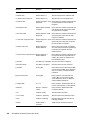
Archive
Archives items when the rule conditions are met. For example, your rule could
archive all items regarding a certain subject. Archive is not available to use as an
action when the triggering event is New Item or Filed Item.
Mark as Unread
Marks all items matching the rule conditions as if they have not been read. For
example, you could create a user-activated rule to mark as unread all items you
have opened from your manager to remind yourself to re-read or act on them.
GroupWise 8 Windows Client User Guide