1
Page Design
Controls
249
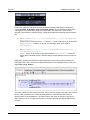
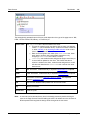
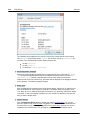
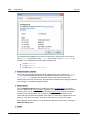
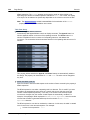
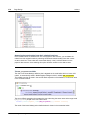
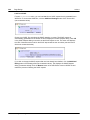
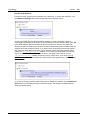
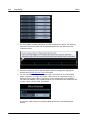
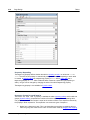
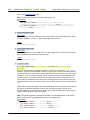
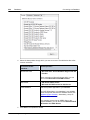
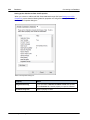
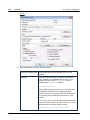
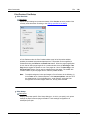
An XPath expression that should evaluate to true() or false(). If the expression evaluates
to false()—and only if it evaluates to false()—is the control not visible. If the expression
evaluates to true() or returns some other value, then the control is visible. The default is
true(). Double-click inside the value field, or click the XPath button, to enter or edit an
XPath expression. The Visible property can be used to render an object visible or not
depending upon whether an XPath expression evaluates to true(). As a result, the display
of an object can be made to be dynamically dependent on the content or structure of data.
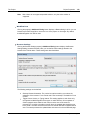
Note: The $MTControlValue variable is not available for the evaluation of the Visible
property. If it is used, then a validation error results.
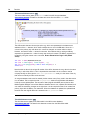
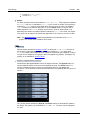
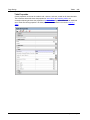
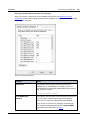
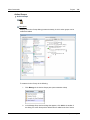
Enabled/Editable
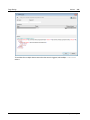
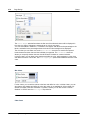
The control is either enabled or disabled, according to whether the value of the property is
true (enabled) or false (disabled). The value can be entered directly (by selecting it in the
combo box or by double-clicking in the value field and entering the value you want). The value
can also be an XPath expression that evaluates to boolean true or false. The default value
is true. Typically the XPath expression of the Enabled/Editable property of a control would
check the presence or value of a node. If the expression evaluates to true, the control will be
enabled.
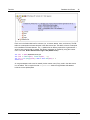
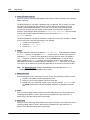
Text Color
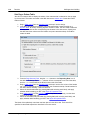
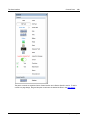
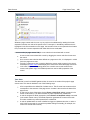
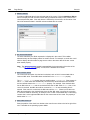
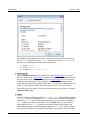
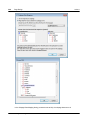
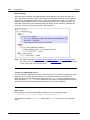
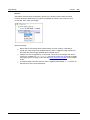
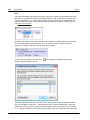
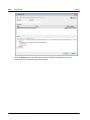
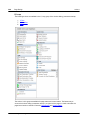
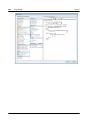
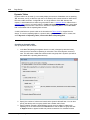
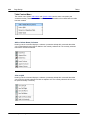
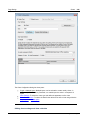
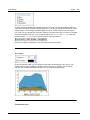
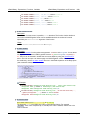
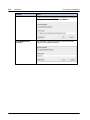
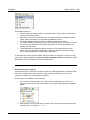
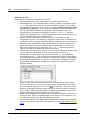
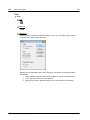
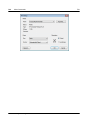
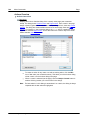
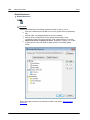
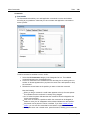
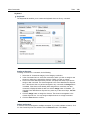
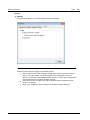
Sets the color of the control's text. You can do one of the following to select the color:
Click the color palette to select a text color
Select a color from the dropdown list of the combo box
Double-click in the value field to enter a color code (for example, #FF0000), or click
the XPath toolbar button and enter an XPath expression to generate the required
text
Text Size
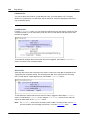
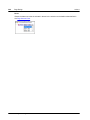
Select a size from the dropdown list of the combo box, or double-click in the value field to
enter a text size.
Bold Text
Select true or false from the dropdown list of the combo box. Default is false.
Italic Text
Select true or false from the dropdown list of the combo box. Default is false.
Underline Text
Select true or false from the dropdown list of the combo box. Default is false.
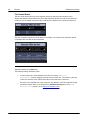
Background Color
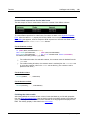
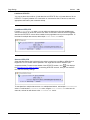
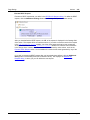
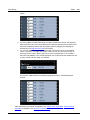
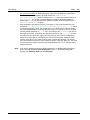
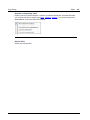
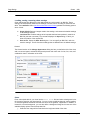
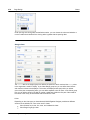
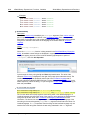
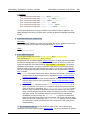
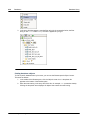
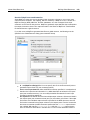
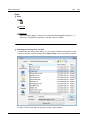
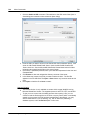
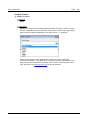
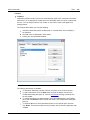
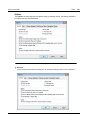
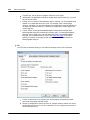
Sets the background color of the object. You can do one of the following to select the color:
Click the color palette to select a background color
Select a color from the dropdown list of the combo box
Double-click in the value field to enter a color code (for example, #FF0000), or click
the XPath toolbar button and enter an XPath expression to generate the required
© 2015 Altova Gmb H
Altova MobileTogether Designer