1
Menu Commands
Tools
793
Keyboard
Keyboard
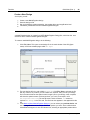
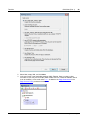
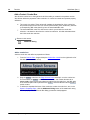
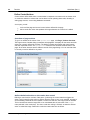
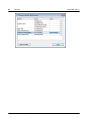
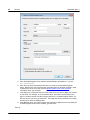
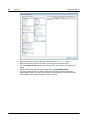
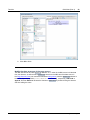
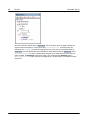
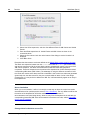
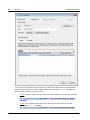
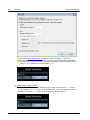
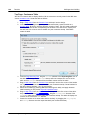
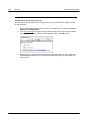
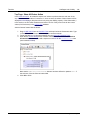
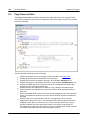
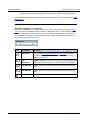
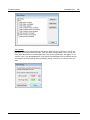
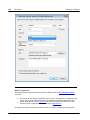
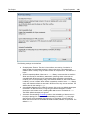
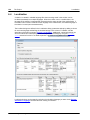
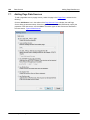
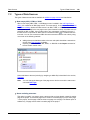
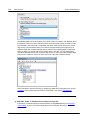
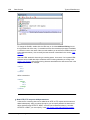
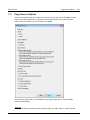
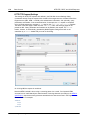
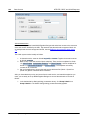
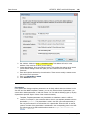
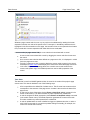
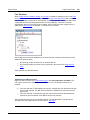
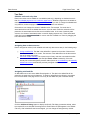
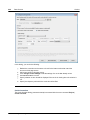
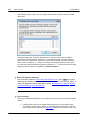
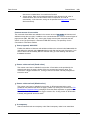
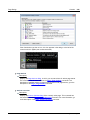
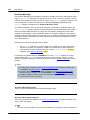
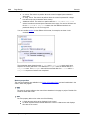
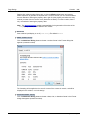
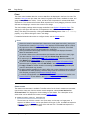
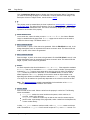
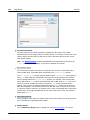
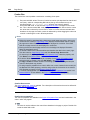
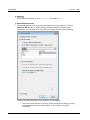
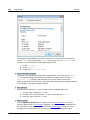
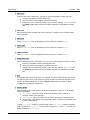
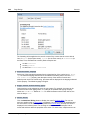
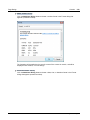
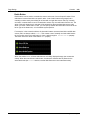
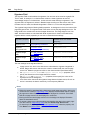
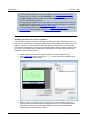
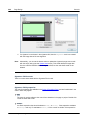
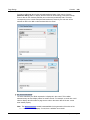
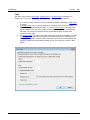
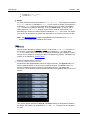
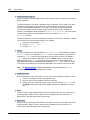
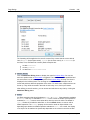
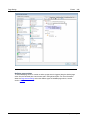
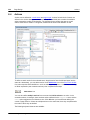
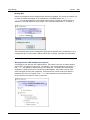
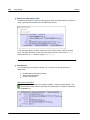
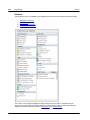
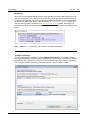
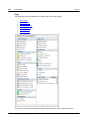
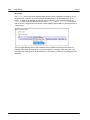
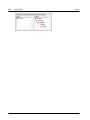
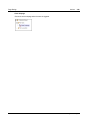
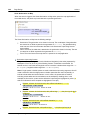
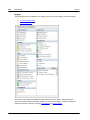
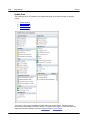
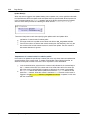
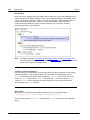
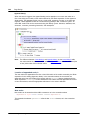
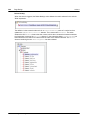
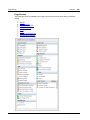
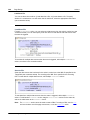
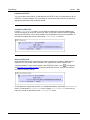
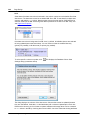
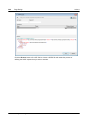
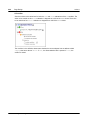
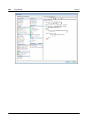
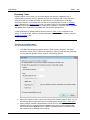
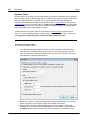
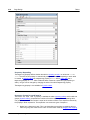
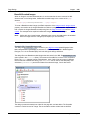
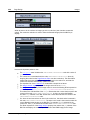
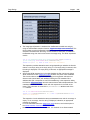
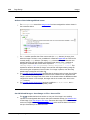
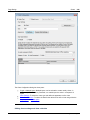
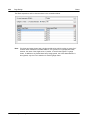
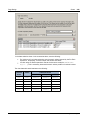
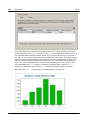
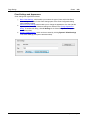
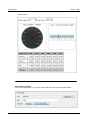
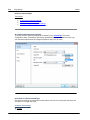
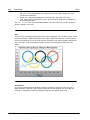
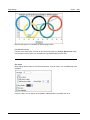
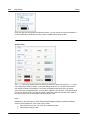
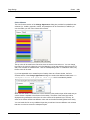
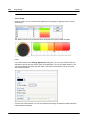
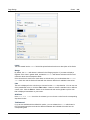
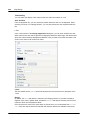
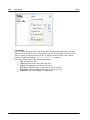
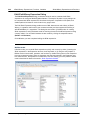
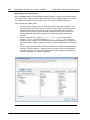
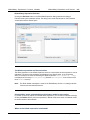
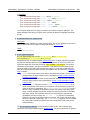
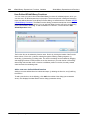
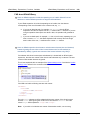
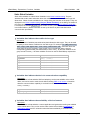
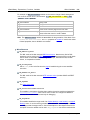
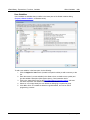
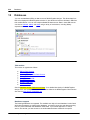
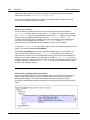
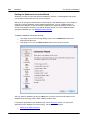
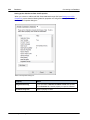
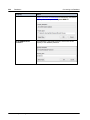
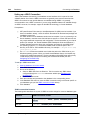
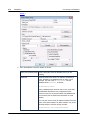
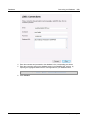
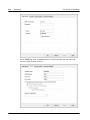
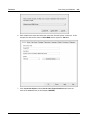
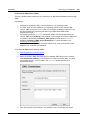
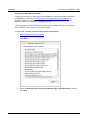
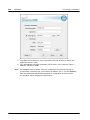
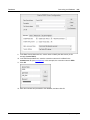
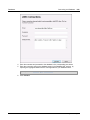
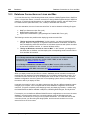
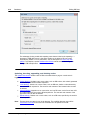
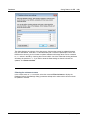
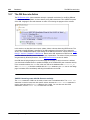
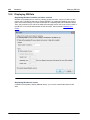
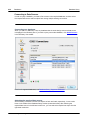
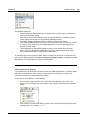
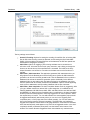
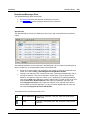
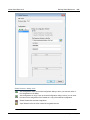
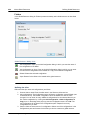
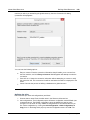
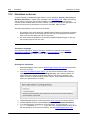
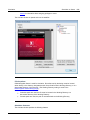
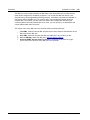
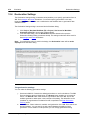
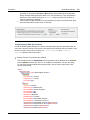
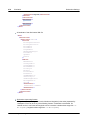
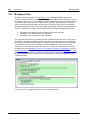
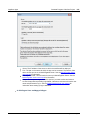
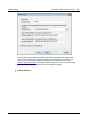
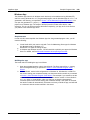
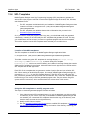
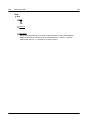
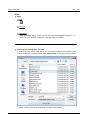
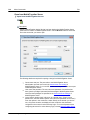
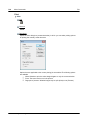
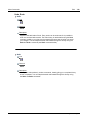
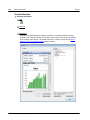
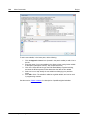
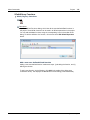
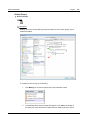
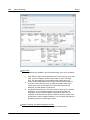
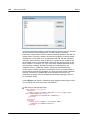
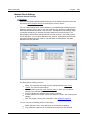
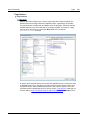
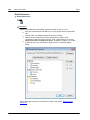
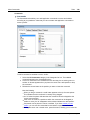
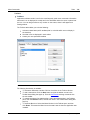
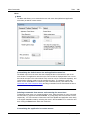
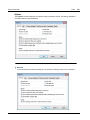
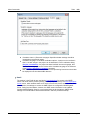
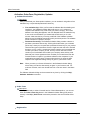
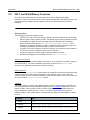
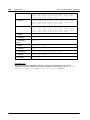
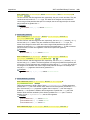
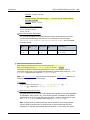
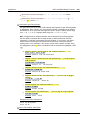
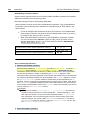
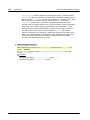
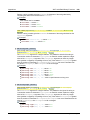
The Keyboard tab enables you to create new keyboard shortcuts for any command.
Assign a shortcut
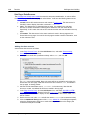
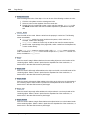
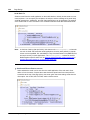
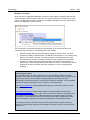
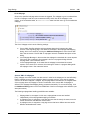
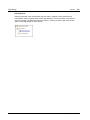
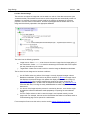
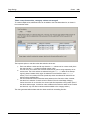
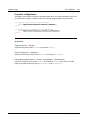
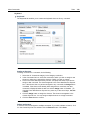
To assign a shortcut to a command, do the following.
1.
2.
3.
4.
5.
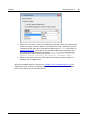
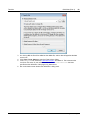
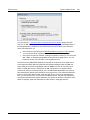
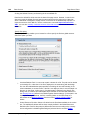
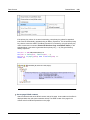
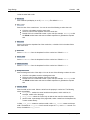
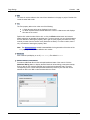
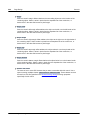
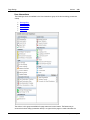
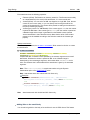
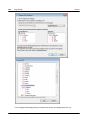
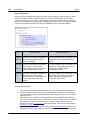
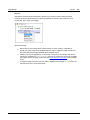
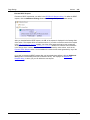
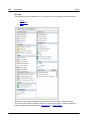
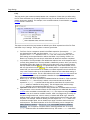
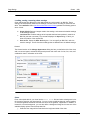
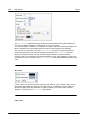
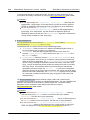
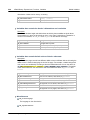
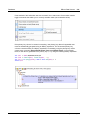
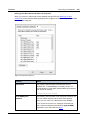
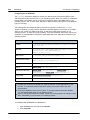
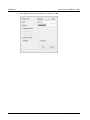
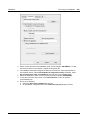
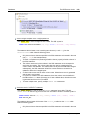
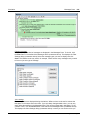
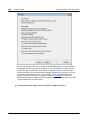
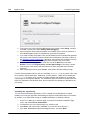
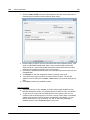
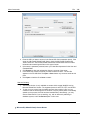
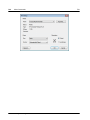
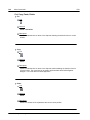
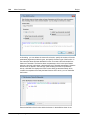
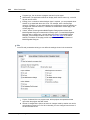
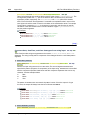
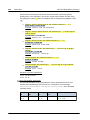
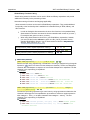
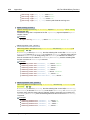
Select the All Commands category in the Category combo box.
In the Commands list box, select the command to which you wish to assign a new
shortcut or select the command the shortcut of which you wish to change.
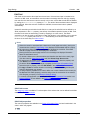
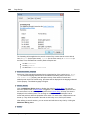
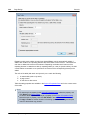
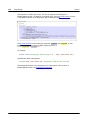
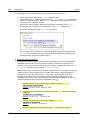
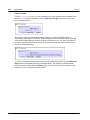
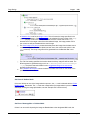
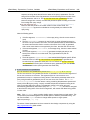
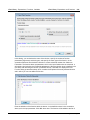
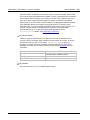
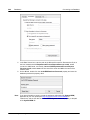
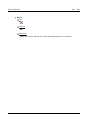
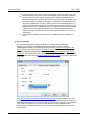
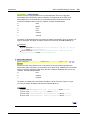
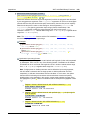
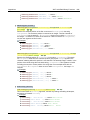
Click in the Press New Shortcut Key text box, and press the shortcut you wish to
assign to that command. The shortcut appears in the Press New Shortcut Key text
box. If the shortcut has not yet been assigned to any command, the Assign button
is enabled. If the shortcut has already been assigned to a command, then that
command is displayed below the text box and the Assign button is disabled. (To
clear the Press New Shortcut Key text box, press any of the control keys, Ctrl, Alt
or Shift).
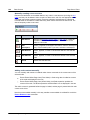
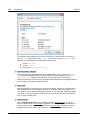
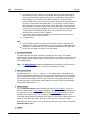
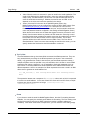
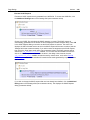
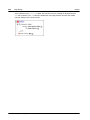
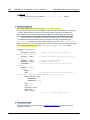
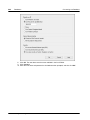
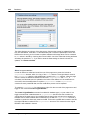
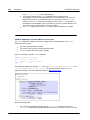
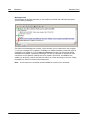
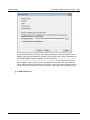
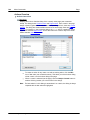
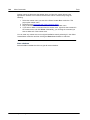
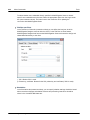
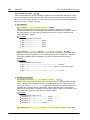
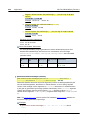
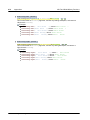
Click the Assign button to assign the shortcut. The shortcut now appears in the
Current Keys list box. You can assign multiple shortcuts to a single command.
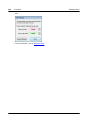
Click the Close button to confirm.
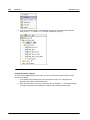
Delete a shortcut
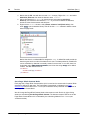
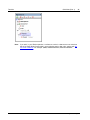
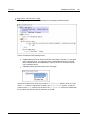
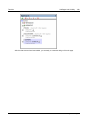
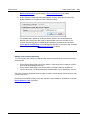
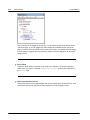
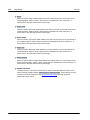
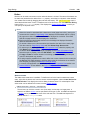
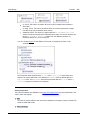
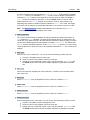
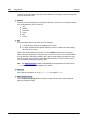
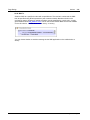
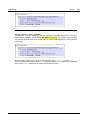
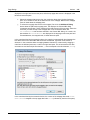
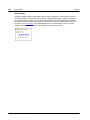
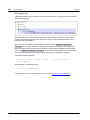
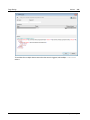
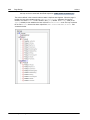
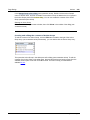
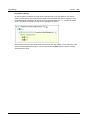
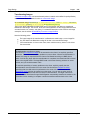
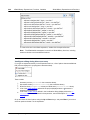
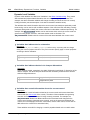
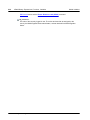
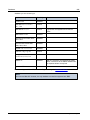
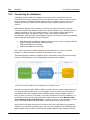
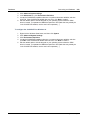
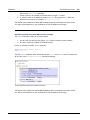
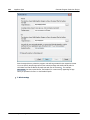
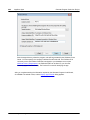
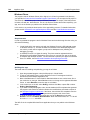
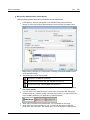
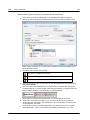
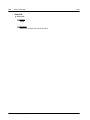
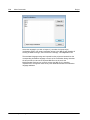
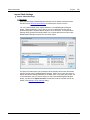
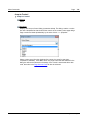
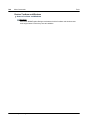
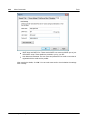
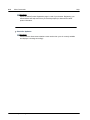
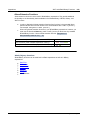
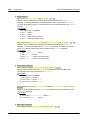
A shortcut cannot be assigned to multiple commands. If you wish to delete a shortcut, click
it in the Current Keys list box and then click the Remove button. Click Close.
© 2015 Altova Gmb H
Altova MobileTogether Designer