1
350
Page Design
Actions
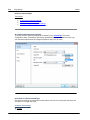
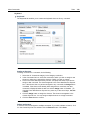
Solution Execution
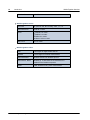
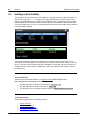
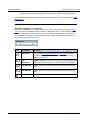
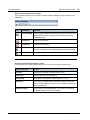
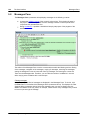
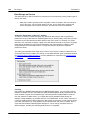
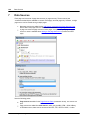
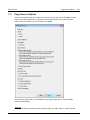
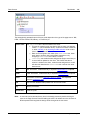
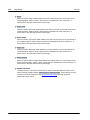
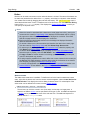
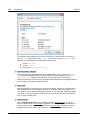
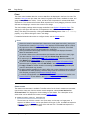
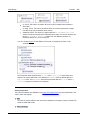
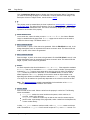
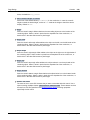
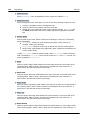
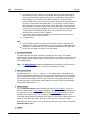
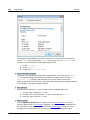
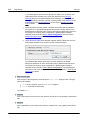
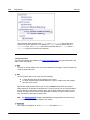
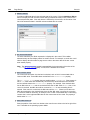
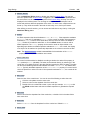
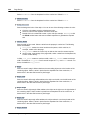
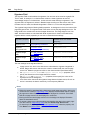
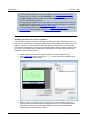
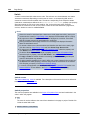
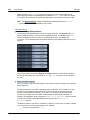
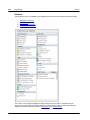
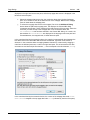
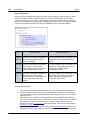
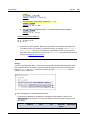
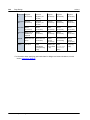
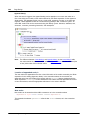
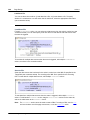
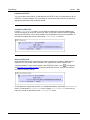
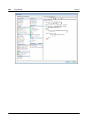
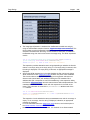
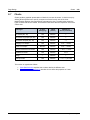
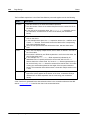
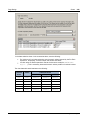
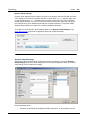
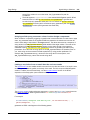
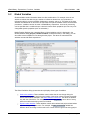
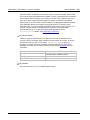
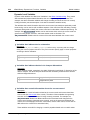
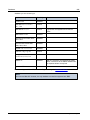
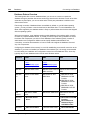
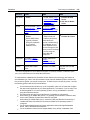
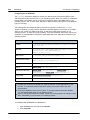
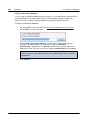
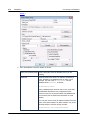
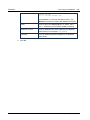
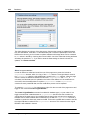
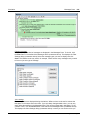
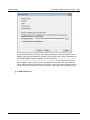
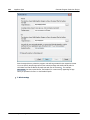
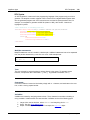
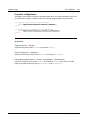
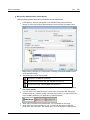
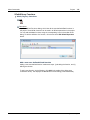
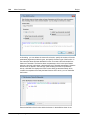
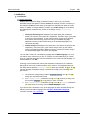
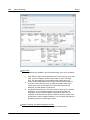
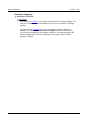
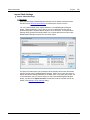
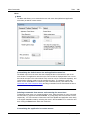
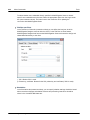
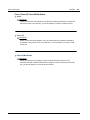
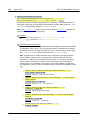
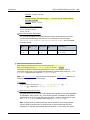
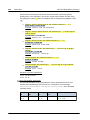
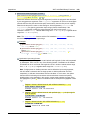
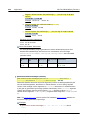
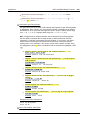
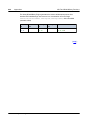
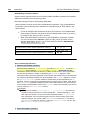
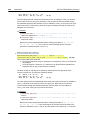
When the event is triggered, the Solution Execution action provides you with the option to either
cancel the solution or leave it suspended (that is, running in the background). In both cases
(cancel or suspend), you can do one of the following: (i) switch to another solution, (ii) switch to
the Solutions Overview (the Solutions page of MobileTogether Client), (iii) do not switch to either a
solution or the Solutions Overview. The various possibilities are given in the table below.
Switch
to...
Cancel solution
Suspend solution
Another
solution
Solution is closed without displaying
any message, and the specified
solution is opened.
The current solution runs "minimized" in the
background, and the specified solution is
opened.
Solution
s
Overvie
w
Solution is closed without displaying
any message, and the display
switches to the Solutions Overview
page of MobileTogether Client.
The current solution runs "minimized" in the
background, and the display switches to
the Solutions Overview page of
MobileTogether Client.
Uncheck
ed
Solution is closed without displaying
any message, and the display
switches to where it was before the
solution was started (see notes
below).
The current solution runs "minimized" in the
background, and the display switches to
where it was before the solution was
started (see notes below).
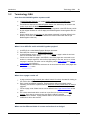
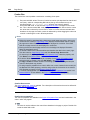
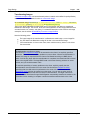
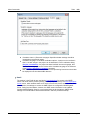
Note the following points:
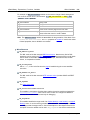
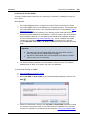
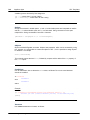
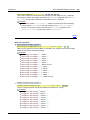
Web clients do not support suspended solutions; only the active solution is supported.
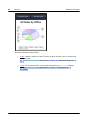
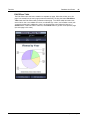
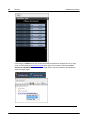
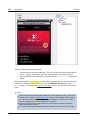
A solution that is suspended (running in the background) is displayed minimized as an
icon in the Running page of the MobileTogether Client application, and can be opened by
tapping this icon.
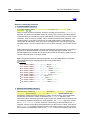
If the solution runs "minimized" in the background, then the solution is paused at that
point, and no further solution action is executed. For example, no timers are executed, no
geolocations are used. When the solution is re-opened, actions defined for the On
Reopen option of the OnPageRefresh event are executed. Also see the project property
On Switch to Other Solution.
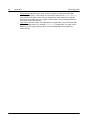
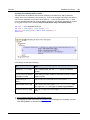
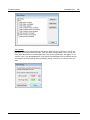
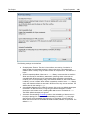
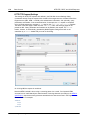
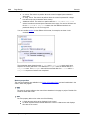
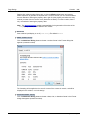
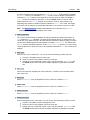
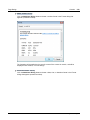
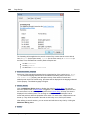
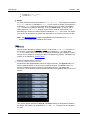
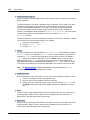
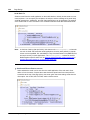
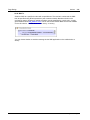
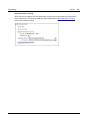
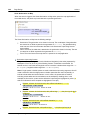
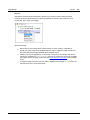
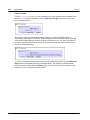
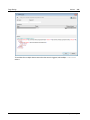
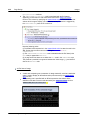
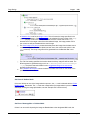
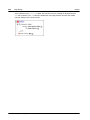
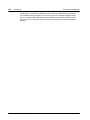
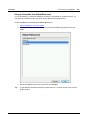
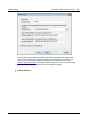
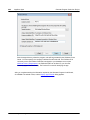
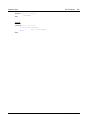
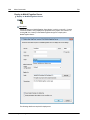
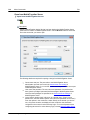
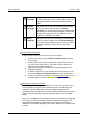
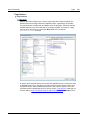
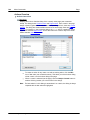
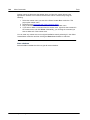
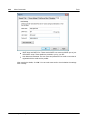
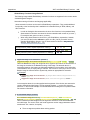
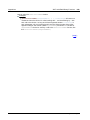
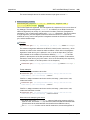
The solution to switch to is specified by clicking the Edit XPath Expression button and
entering the location of the solution as a string (that is, within quotes). The location must
Altova MobileTogether Designer
© 2015 Altova Gmb H