1
X
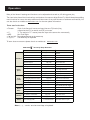
Keyboard/Non -Venom
TM
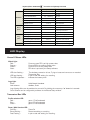
mouse On the Fly Setup Command
Function
Deadzone
Mouse
Speed
Swap
Result
F12 + Wheel-Up
16-100
Decrease Deadzone
F12 + Wheel-Down
16-100
Increase ADS Deadzone
F11 + Wheel-Up
16-100
Decrease ADS Deadzone
F11 + Wheel-Down
16-100
Deadzone Square
F12 + S
Square selected
Deadzone Circular
F12 + C
Circle selected
Mouse speed increase
F12 + ↑
0.2x/step increment
Mouse speed decrease
F12 + ↓
0.2x/step decrease
ADS Mouse speed increase
F11 + ↑
0.2x/step increment
ADS Mouse speed decrease
F11 + ↓
0.2x/step decrease
Auto Firing On/Off
Firing
option
Operation
Increase Deadzone
F12 + Mouse-left click
Toggle Auto firing on/off
Auto firing tap select increase
F12 + →
Burst 2->3->4->continue
Auto firing tap select decrease
F12 + ←
Continue-> 4->3->2 burst
Aim Down Sigh Lock On/Off
F11 + L
Toggle ADS Lock on/off
Swap Left stick and mouse
F11 + W
Swap Enable/Disable toggle
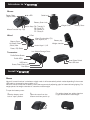
LED Display
Venom-X Mouse LEDs
Wheel Light :
Red –
Orange –
Green –
Note:
LED slow flashing –
LED fast flashing –
The LED brightness –
Logo Light:
Effect:
Color scheme:
Current mouse DPI is at high preset value
Current DPI is at medium preset value
Current DPI is at low preset value
DPI value is pre-set by the Setup software
The wireless connection is lost; Trying to locate and connect to a matched
Transceiver Box.
In pair mode and waiting for matching
Indicates the battery level
Solid, Breath, Heartbeat
Gradient, Fixed
Logo lighting effect can be switched or turned off by holding the mouse top “▲” button for 2 seconds.
Color scheme can be configured by software in the Mouse Setup window.
Transceiver Box LEDs
Profile selection LED:
Red –
Blue –
Green –
game 1 Profile selected
game 2 Profile selected
game 3 Profile selected
Power/Multi-function LED:
Solid On –
Power On
Burst Blinking –
Data transmitting or receiving
Fast Flashing –
In pair mode and waiting for matching.