1
8.1.4. Edit route
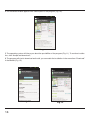
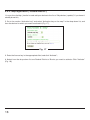
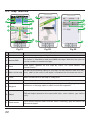
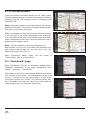
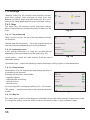
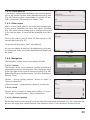
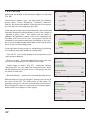
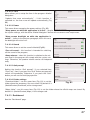
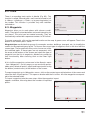
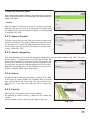
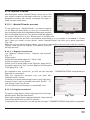
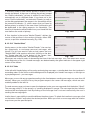
Press the maneuver sign to edit the route. The context menu that appears when you click, contains the
basic commands for route editing (Fig. 89).
«Stop route guidance» — delete the route from the map
and stop routing.
«Avoid» — when moving along the active route this menu
item specifies the program that from the current location on
the route there is no possibility to move further. The program
analyzes the situation and looking for alternative, less time
route. When the system is off, this item is not available.
«Go next via point» — press this button to get to the next
point of the route, if you suddenly passed the current point.
Fig. 89
«Demo route» — this menu item is only available when you
turn off the GPS. Using this menu item you can see the
route, turns on the route and some rough information on the
route. Full demonstration allows you to pre-identify hazardous or adverse parts of the route and re-route if it is necessary.
«Show route» - displays the route fit in the screen of the
device.
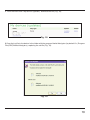
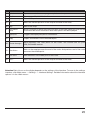
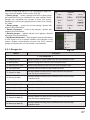
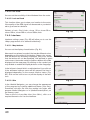
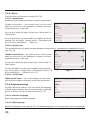
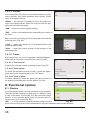
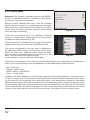
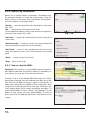
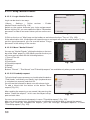
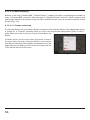
Also editing the route can be made using the intermediate
points. When the route is active, tap anywhere on the map to
create a point. Then tap «Cursor», and select the arrow in the
Fig. 90
right bottom part of the screen, after you will see a button
«Go», «Stop», «Continue», «Start», and also get the opportunity to copy the coordinates of the object.
8.1.5. Route properties
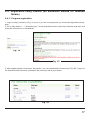
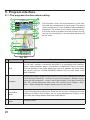
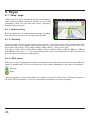
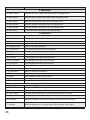
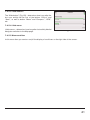
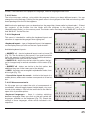
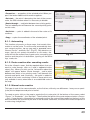
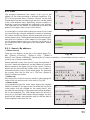
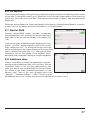
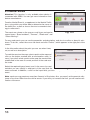
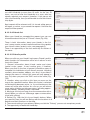
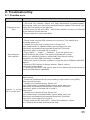
The program allows to work with the route. Go to the
«Route» (Fig. 91).
Top of the page indicate the total length of the route. In the
bottom of the page are buttons that let you import and
export the route. The settings of «Detour», «Simulation of
the route», «Plan route», «Edit route» and «Export» are only
available with an active route.
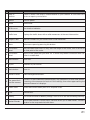
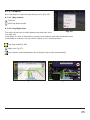
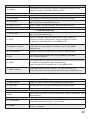
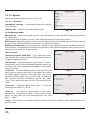
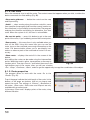
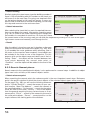
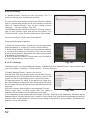
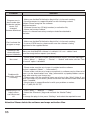
In the menu “Plan route” displays points of the route, using
different filtration.
50
Fig. 91