1
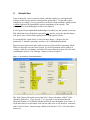
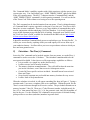
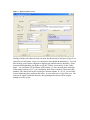
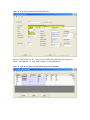
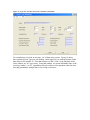
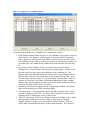
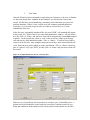
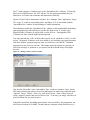
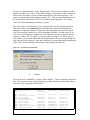
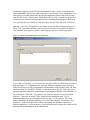
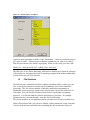
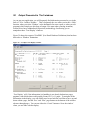
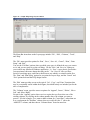
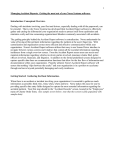
Figure 42 -- Sample EZQ Design Layout window.
The Menu Bar items hear on the Layout page include ‘File’, ‘Edit’, ‘Columns’, ‘Tools’,
and ‘Help’.
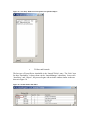
The ‘File’ menu provides options for ‘Run’, ‘Save’, ‘Save As’, ‘Cancel’, ‘Print’, ‘Print
Setup’, and ‘Exit.’
You use the ‘File/Run’ options when you think your query is defined the way you want to
see it, and you are ready to see the real thing. Use the ‘Save’ and ‘Save As’ options as
you would in any Microsoft Windows application. I.e. ‘Save’ a query that is good before
you experiment with some change that may not be.’ Use ‘Save As’ after you have
retrieved a working query, and want to build a new one which is a variation on the first.
The ‘Print’ and ‘Print Setup’ options let you print the Layout Page, and the ‘Cancel’ and
‘Exit’ options both end the EZQ design session.
The ‘Edit’ menu provides access to the typical ‘Cut’, ‘Copy’, and ‘Paste’ functions that
may be occasionally useful within the designer, but which mostly are included just for the
sake of completeness.
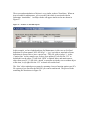
The ‘Columns’ menu, provides assess to options for ‘Append’, ‘Insert’, ‘Delete’, ‘Move
Left’, and ‘Move Right.’
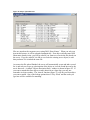
Except for the ‘Append’ option, these services require that you first select one of the
existing columns, by clicking on the column number above the column you want to
process. If in the example, if we want to Add a column for ‘Create Date’, rather than use
it as a replacement for ‘DueDate’ column, then we would click the ‘3’ above the
‘AMOUNT’ column, and then choose ‘Columns/Insert’ from the menu bar.