1
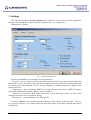
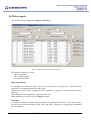
- Printer – choose printer to use for reports. Printer should be attached to the system before
program is started. If the printer is not visible in the list – restart the program.
- Paper – choose paper size in use for printing(A4,A5)
- Copies – number of copies of the report to be printed
- Orientation – paper orientation for printing
- Data delimiter – used for the Export option in reports. Exported data is a comma separated
text and can be opened in Excel or similar program. If proper delimiter of data is used, the data will
be loaded in separate columns automatically.
*Note – Data delimiter is a common setting for both sections in Reports
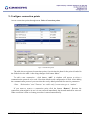
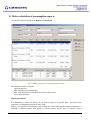
In the second part – “Consumption reports”, several additional parameters can be tuned:
- Show table gridlines – this option allows user to see the gridlines of the table in the report on
screen. If not checked – gridlines are not shown
- Print table borders – this option allows each section of calculation to be in a table in the
printed calculation report. If not checked – table borders will not be printed
- Show all tariffs – this option shows all 4 tariffs for every meter even if no data is registered for
them. Normally this option is not checked.
- Show reactive energy – this option is used only for industrial electricity meters. For all other
types this is not needed. If you do not want the reactive energy fields to be shown in report –
uncheck this.
- Decimal separator is comma – normally decimal separator is a point (‘.’). If someone wants to
change it to a comma this option should be checked. If that is checked it is recommended to use
another delimiter for data export.
The last section – “Security” in Settings concerns remote access to database. This section is
needed if database server is located on another machine. Be very careful granting access from a
distant computer or network. If database and application reside on different machines connection
issues can interfere the normal work of the program. It is recommended the database server and the
program are located on the same machine.
*Note – extreme caution is advised when granting root access from other machines
When configuration is finished – click button „Save”. Changes will be activated permanently.
If no changes are to be saved user can exit clicking on button „Cancel”.
MBUS Communicator v.1.3 – USER MANUAL
6 / 26