1
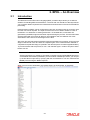
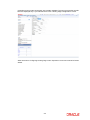
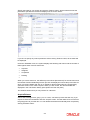
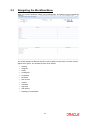
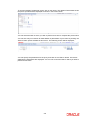
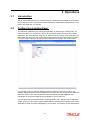
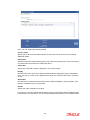
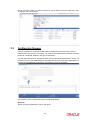
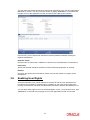
Specify the basis for your search and click the ‘Search’ button. All the tasks that meet the parameters specified are fetched as displayed in the screen below: If you do not specify any search parameter before clicking ‘Search’ button, all the tasks will be displayed. Under the ‘Standard’ menu, the system displays the following sub-menus and the number of tasks against each of these sub-menus: Acquired Assigned Completed Pending When you click a sub-menu, the different process flows (transactions) for the sub-menu and the number of tasks outstanding for each process are displayed. Choose the process flow for which you require details and click on it. Details for all the tasks under the corresponding queue are shown in the Task List pane. When you click a task, the relevant details are displayed in the Transaction History pane (below the Task List pane) The workflow actions that you can perform for a task are: Acquire/Release After a task is assigned to a group, you, as a user, can further process the task only if you acquire it. Select the transaction and click ‘Acquire’ button. The task will then be moved from the group queue to your task list. You can release the task that has already been acquired by clicking ‘Release’ button.. 2-4