1
5
DIAGRAMMING
Dragging, Copying, Cutting, and Pasting
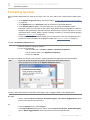
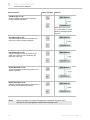
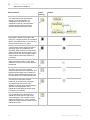
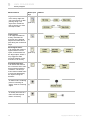
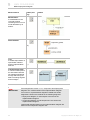
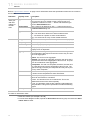
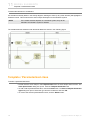
To drag multiple selected symbols
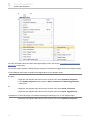
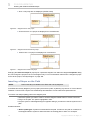
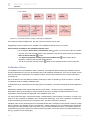
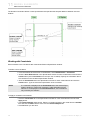
Select the symbols and drag them to the desired area on the diagram pane.
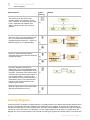
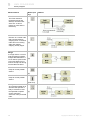
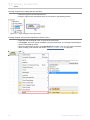
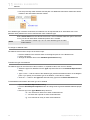
To copy a shape using dragging-and-dropping
Hold down the CTRL key while dragging the selected shape to the area where you wish to make
a copy.
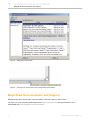
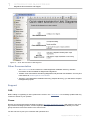
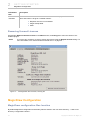
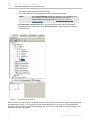
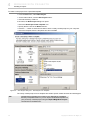
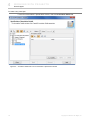
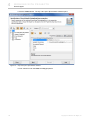
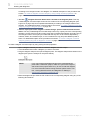
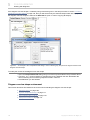
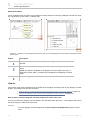
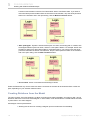
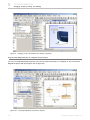
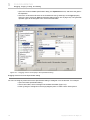
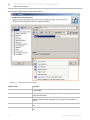
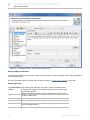
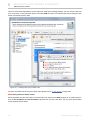
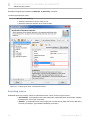
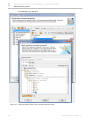
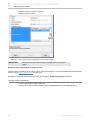
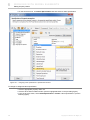
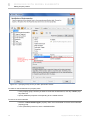
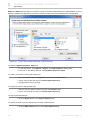
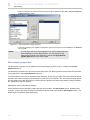
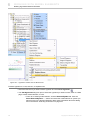
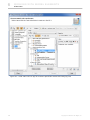
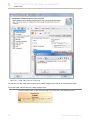
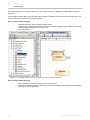
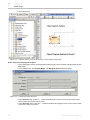
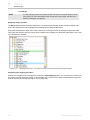
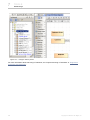
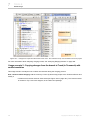
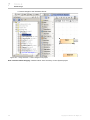
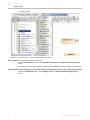
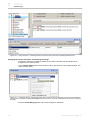
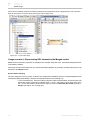
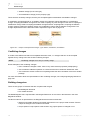
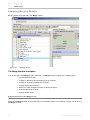
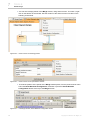
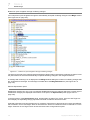
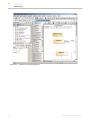
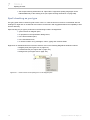
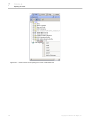
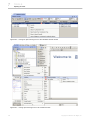
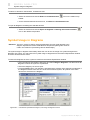
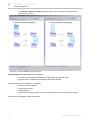
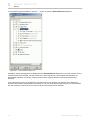
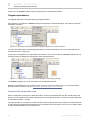
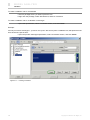
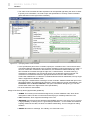
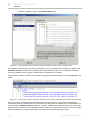
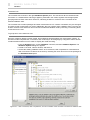
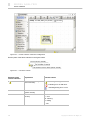
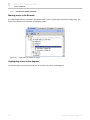
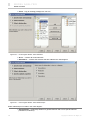
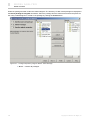
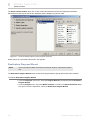
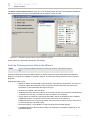
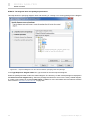
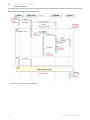
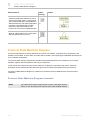
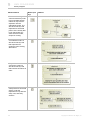
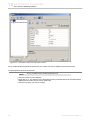
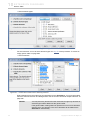
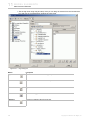
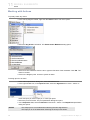
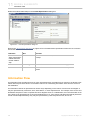
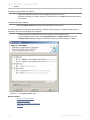
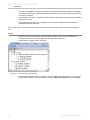
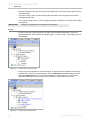
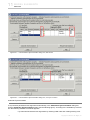
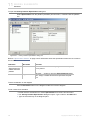
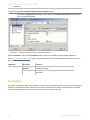
Drag and drop items from the browser to the diagram pane
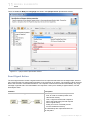
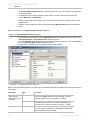
1. In the Browser tree, select the created model element you wish to draw.
2. Drag it to the desired location on the diagram pane and drop it there.
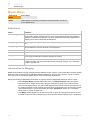
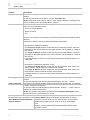
NOTES
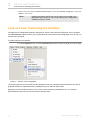
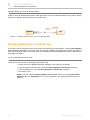
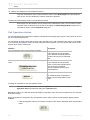
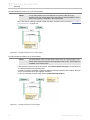
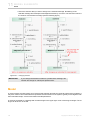
•You may select several model elements and draw them on the
diagram pane.
•If the selected model elements are not compatible with the open
diagram, you will not be allowed to draw those model elements.
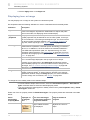
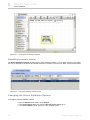
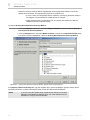
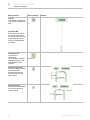
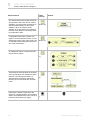
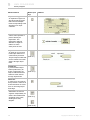
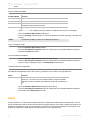
To copy/cut and paste the selected shape on the diagram
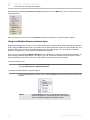
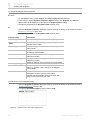
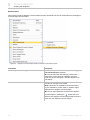
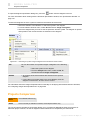
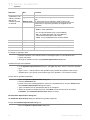
1. From the Edit menu, select Copy/Cut (shortcut keys CTRL+C/CTRL+X.)
2. From the Edit menu, select Paste (shortcut keys CTRL+V.)
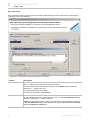
NOTE:
You may copy/paste many (but not all) model elements among various
diagrams.
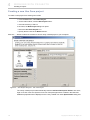
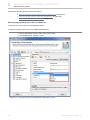
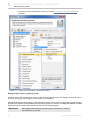
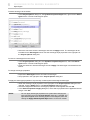
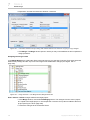
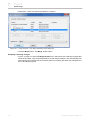
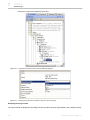
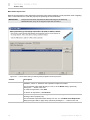
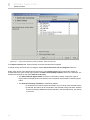
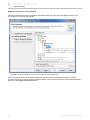
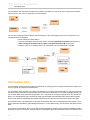
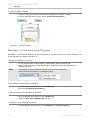
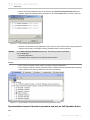
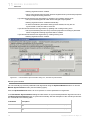
To paste one or more copied model elements by creating new data and symbols
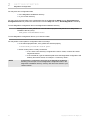
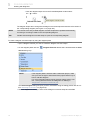
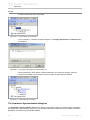
From the Edit menu, select the Paste With New Data command (shortcut keys CTRL+E.)
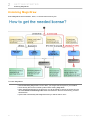
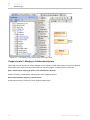
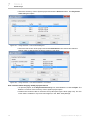
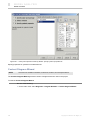
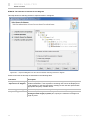
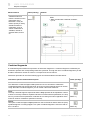
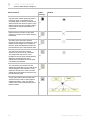
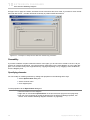
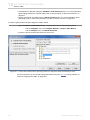
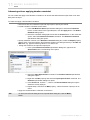
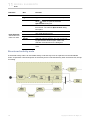
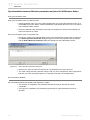
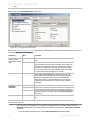
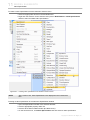
To copy the whole diagram and paste it to MS Office or other application
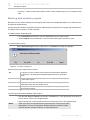
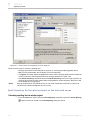
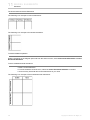
1. Select or deselect all model elements on the diagram.
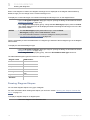
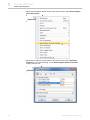
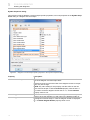
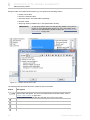
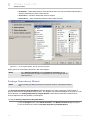
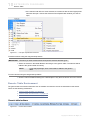
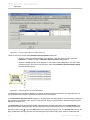
2. From the Edit menu, select Copy as BMP Image, Copy as EMF Image, Copy as JPG Image,
or Copy as PNG Image (shortcut keys CTRL+SHIFT+B, CTRL+SHIFT+E, CTRL+SHIFT+J, or
CTRL+SHIFT+P)
3. Open the desired application and paste the copied diagram.
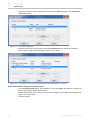
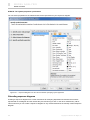
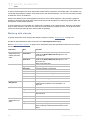
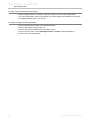
To copy the selected model elements and paste to MS Office or other application
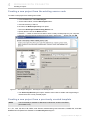
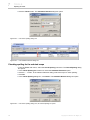
1. Select the desired model elements on the diagram pane.
2. From the Edit menu, select Copy as BMP Image, Copy as EMF Image, Copy as JPG Image,
or Copy as PNG Image (shortcut keys CTRL+SHIFT+B, CTRL+SHIFT+E, CTRL+SHIFT+J, or
CTRL+SHIFT+P).
3. Open the desired application and paste the copied model elements.
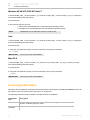
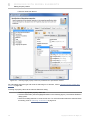
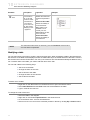
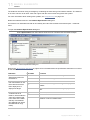
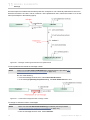
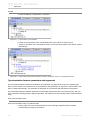
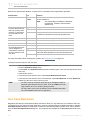
TIP!
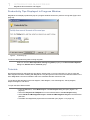
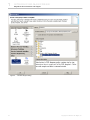
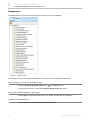
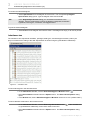
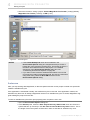
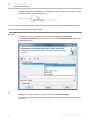
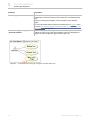
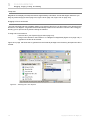
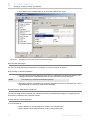
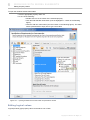
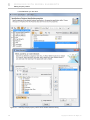
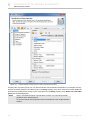
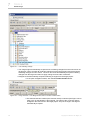
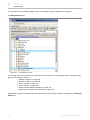
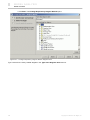
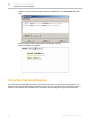
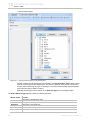
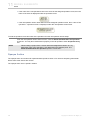
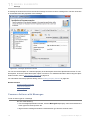
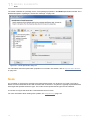
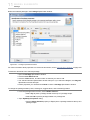
You can drag and drop source code files from the native file manager
to a MagicDraw Code Engineering Set.
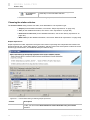
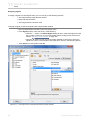
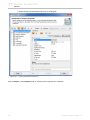
NOTE
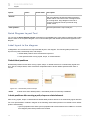
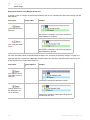
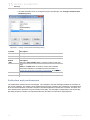
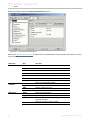
You can copy or cut and paste the text only when using the shortcut
keys CTRL+C or CTRL+X and CTRL+V. When you use the buttons or
commands, the whole element is copied/cut and pasted.
190
Copyright © 1998-2011 No Magic, Inc..