1
11 M ODEL ELEM ENTS
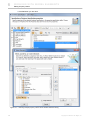
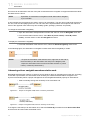
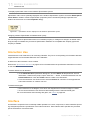
Message
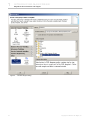
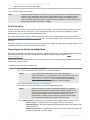
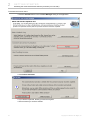
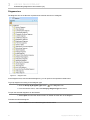
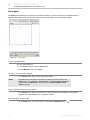
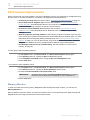
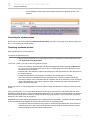
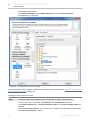
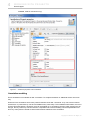
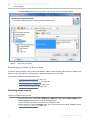
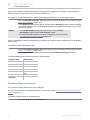
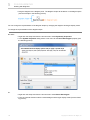
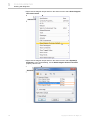
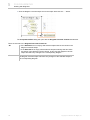
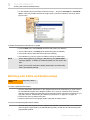
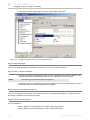
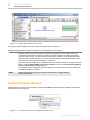
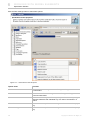
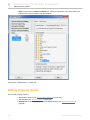
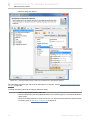
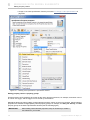
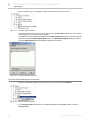
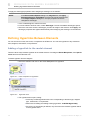
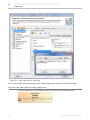
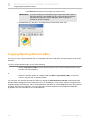
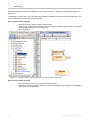
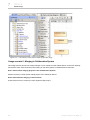
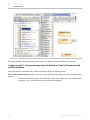
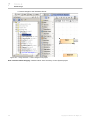
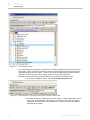
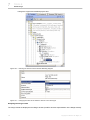
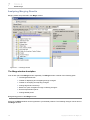
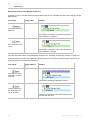
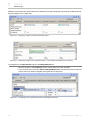
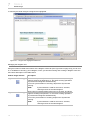
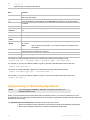
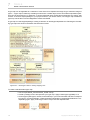
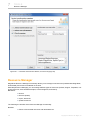
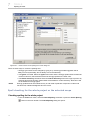
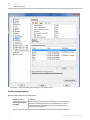
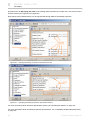
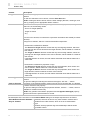
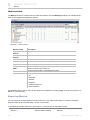
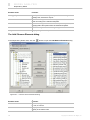
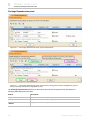
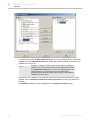
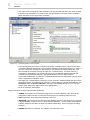
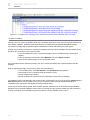
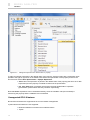
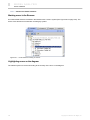
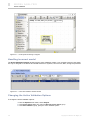
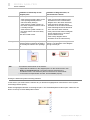
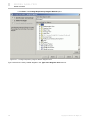
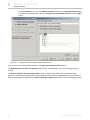
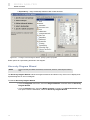
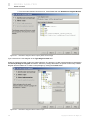
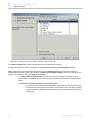
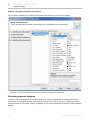
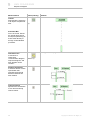
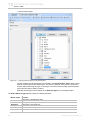
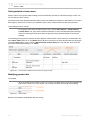
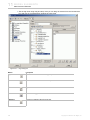
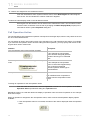
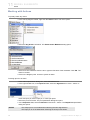
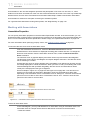
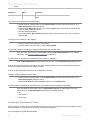
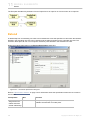
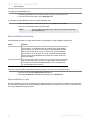
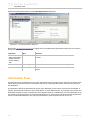
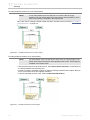
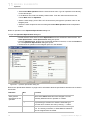
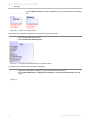
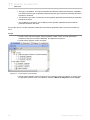
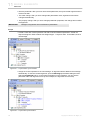
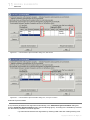
2. Drag the selected signal to a desired message.
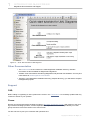
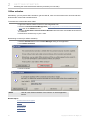
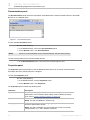
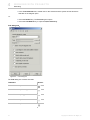
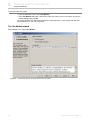
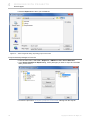
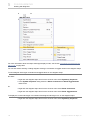
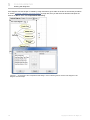
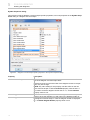
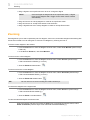
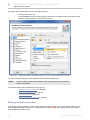
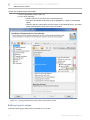
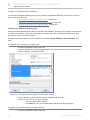
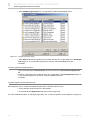
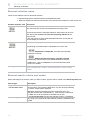
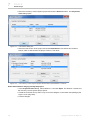
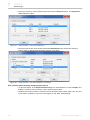
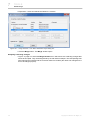
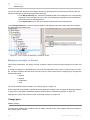
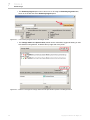
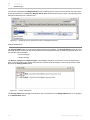
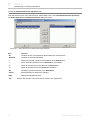
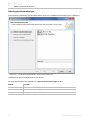
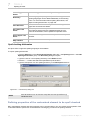
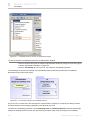
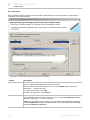
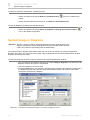
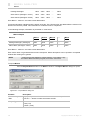
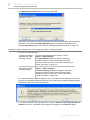
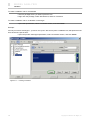
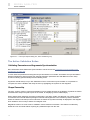
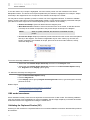
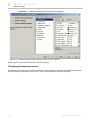
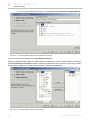
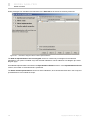
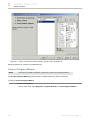
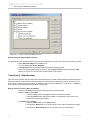
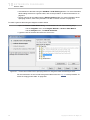
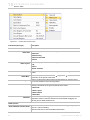
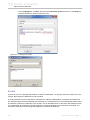
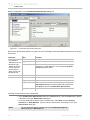
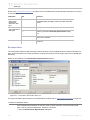
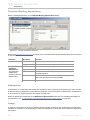
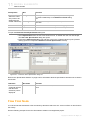
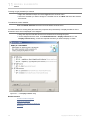
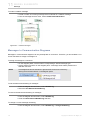
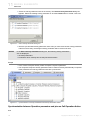
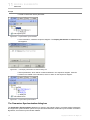
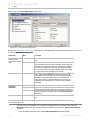
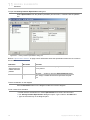
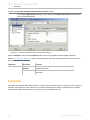
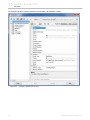
To assign a signal to a message via the message Specification window
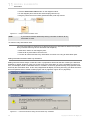
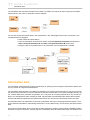
1. Draw a send message between two lifelines or select an existing one on a diagram pane.
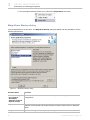
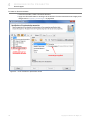
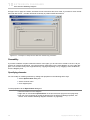
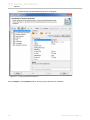
2. Open the message Specification window (see the procedure "To open the corresponding
Specification window" on page 221).
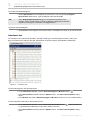
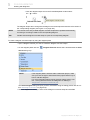
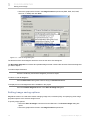
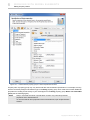
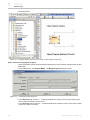
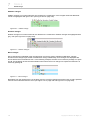
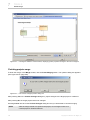
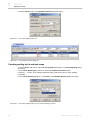
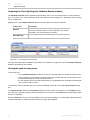
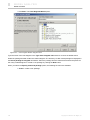
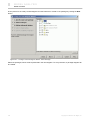
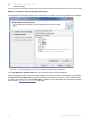
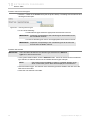
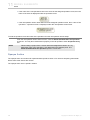
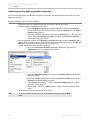
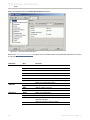
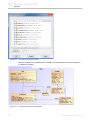
3. Click the Signature (signal) property value cell and then select a signal in the drop-down list.
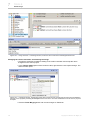
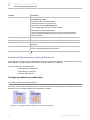
Creating signal receptions for messages
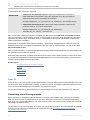
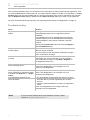
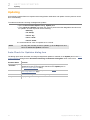
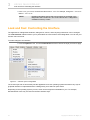
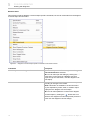
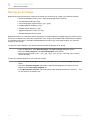
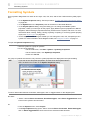
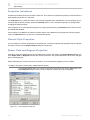
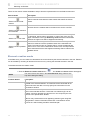
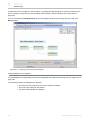
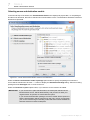
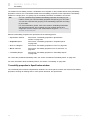
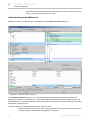
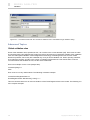
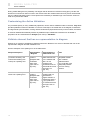
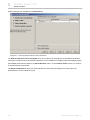
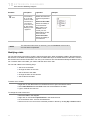
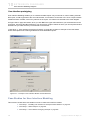
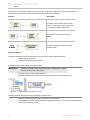
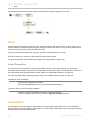
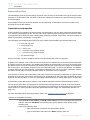
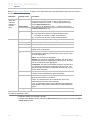
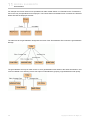
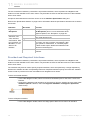
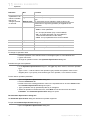
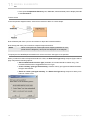
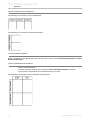
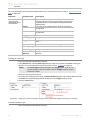
Assigning a signal reception to a message is very similar to the procedure of assigning an operation to a message.
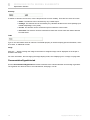
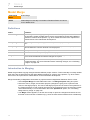
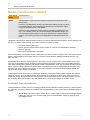
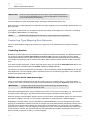
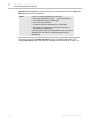
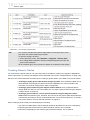
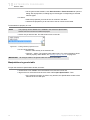
IMPORTANT!
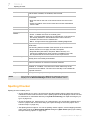
There are two conditions that must be satisfied when creating a new
signal reception. They are as follows:
• At least one signal must exist in your project.
• A possible signal reception receiver (an activation to which the
message points) must have a type assigned.
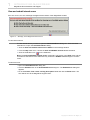
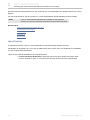
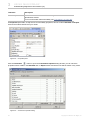
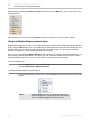
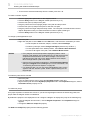
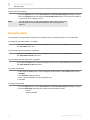
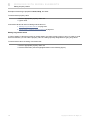
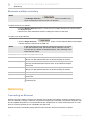
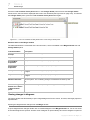
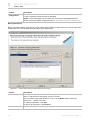
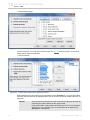
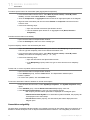
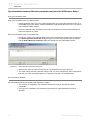
To create a new signal reception for the message
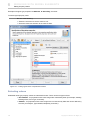
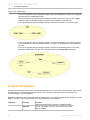
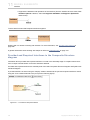
1. Draw a send message between the lifelines or select an existing one on a diagram pane.
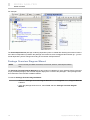
2. Assign a signal to the message (see the procedure "To assign a signal to a message using a
drag-and-drop operation" on page 712).
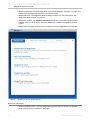
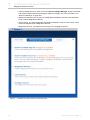
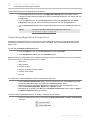
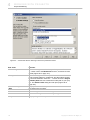
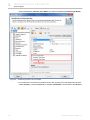
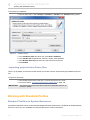
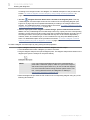
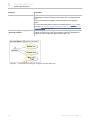
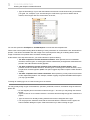
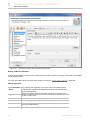
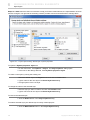
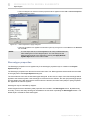
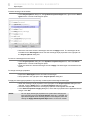
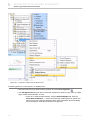
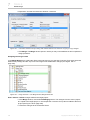
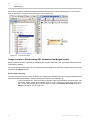
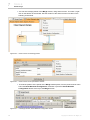
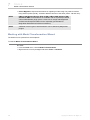
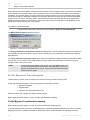
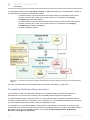
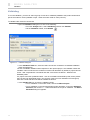
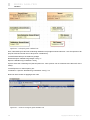
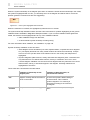
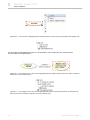
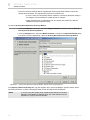
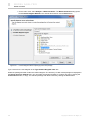
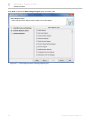
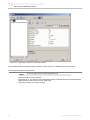
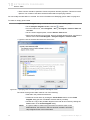
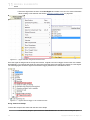
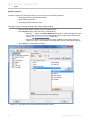
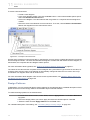
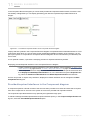
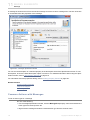
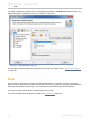
3. Do one of the following:
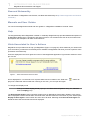
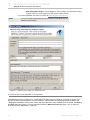
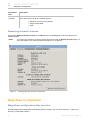
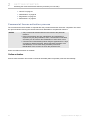
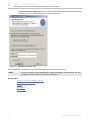
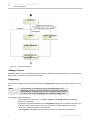
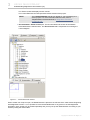
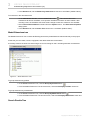
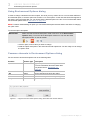
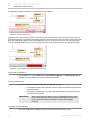
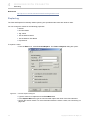
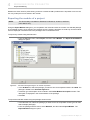
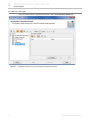
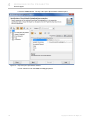
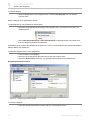
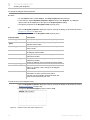
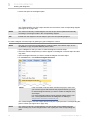
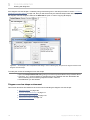
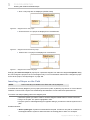
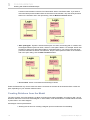
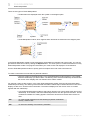
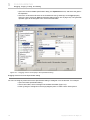
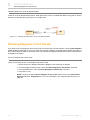
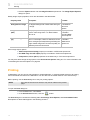
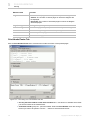
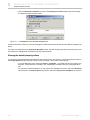
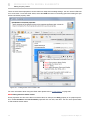
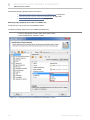
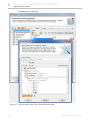
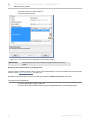
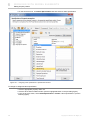
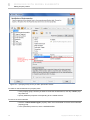
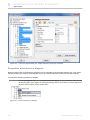
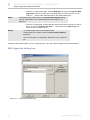
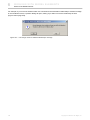
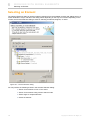
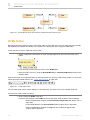
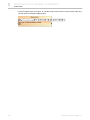
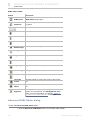
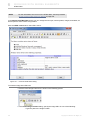
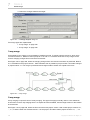
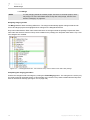
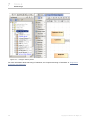
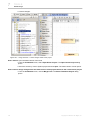
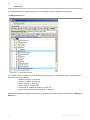
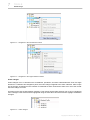
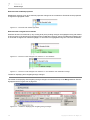
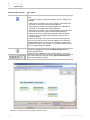
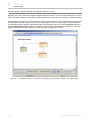
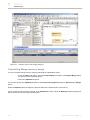
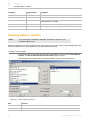
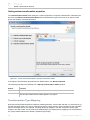
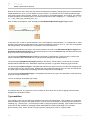
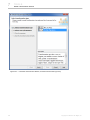
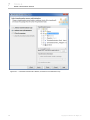
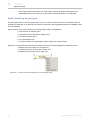
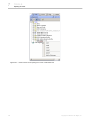
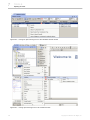
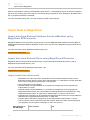
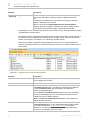
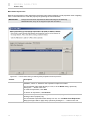
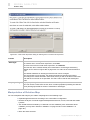
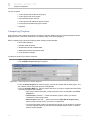
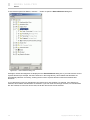
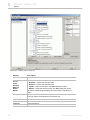
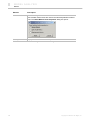
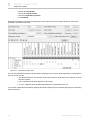
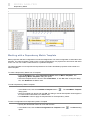
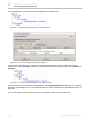
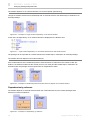
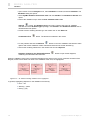
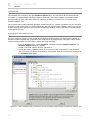
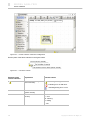
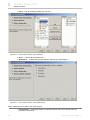
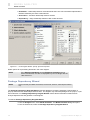
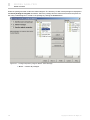
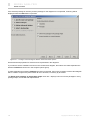
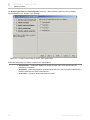
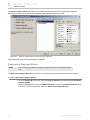
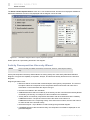
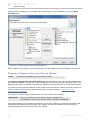
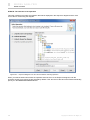
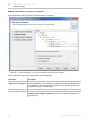
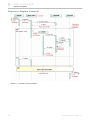
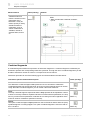
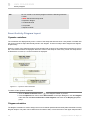
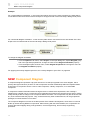
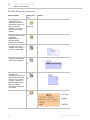
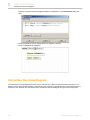
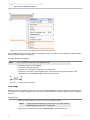
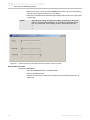
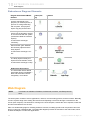
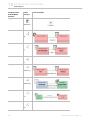
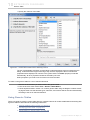
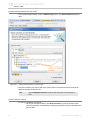
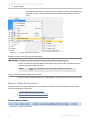
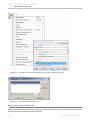
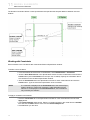
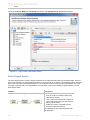
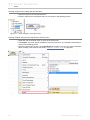
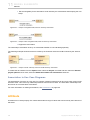
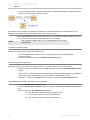
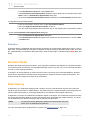
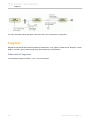
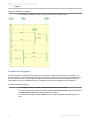
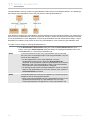
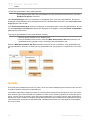
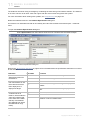
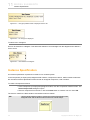
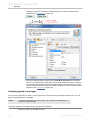
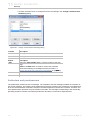
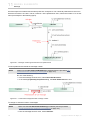
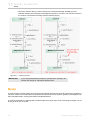
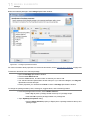
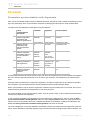
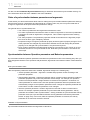
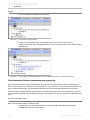
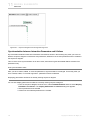
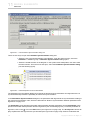
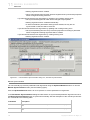
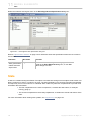
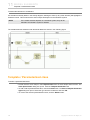
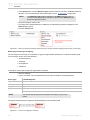
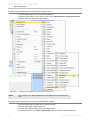
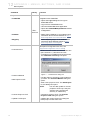
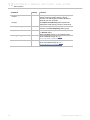
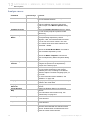
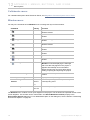
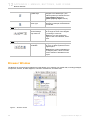
• Click the button in the shape of a small red circle at the end of the message name
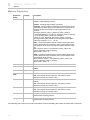
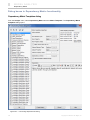
(see the following figure). Define signal reception property values in the signal
713
Copyright © 1998-2011 No Magic, Inc..