1
Quick Start Guide
Q: I got a message telling me I have an invalid database connection. How do I fix it.?
A: There are a couple of possibilities. Please check the following:
1. Confirm that your SQL server is running. Go to start on your computer
taskbar, then select Run... In the Run dialogue box. type “services.msc” (no
quotation marks). This opens your Services Manager. It sometimes takes a
minute or two to open and list all of the services on your computer that run in
the background. Look for “SQL Server (SOSHOME309)”.
2. If it is not listed as STARTED, right-click the service name and click Start. A
progress bar displays while it is starting.
3. Close the Services window and log into Switched-On Schoolhouse.
If restarting SQL did not fix the problem, the problem might be that WIndows
Firewall is blocking the database connection. There is a tool on the SOS
application disc to help open the ports on your Firewall specific to Switched-On
Schoolhouse. To run the Firewall utility:
1. Insert the SOS application disc in your CD-ROM/DVD drive on your
computer. Close the application when it opens to the Installation window.
2. Click Start on your computer taskbar, and select My Computer (Computer if
using Vista).
3. Right-click the drive containing the SOS installation disc, and click Open.
4. Double-click the Tools folder, and then double-click the FWConf folder.
5. Right-click the FWconf.exe file. Choose Run As Administrator (If you are
using XP, the choice is Run.)
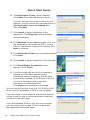
6. On the Firewall Exception window, click the Create Exceptions button.
7. When the indicator at the bottom of the box with the exceptions reads True,
close the windows you opened while following these seven steps and log into
Switched-On Schoolhouse.
Q: I’m having trouble performing a Client Installation. What do I do?
A: There are a couple of possibilities. We’ll walk through each problem and solution.
1. Make sure you can see the SQL Instance name of the database
(SOSHome309) in the drop-down list to pick your database. If you do not see
it:
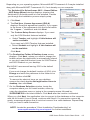
1. Manually type the network path to where the SQL instance
(SOSHome309) is located into the box. It should look something like this:
“Computer Name\SOSHome309”. Do not type in the quotation marks.
Substitute your computer name for “Computer Name”. (To locate your
computer name, click start on the computer task bar, then right-click
Computer (XP users, My Computer) and select Properties.
Continue with your Client Installation.
40 • SOS Home Edition Quick Start Guide