1
TROUBLE SHOOTING
Now, whenever you press VOL▲, VOL▼ or MUTE your Audio component will
control the volume in all device modes.
You can also change the Volume Lock setting so that each component controls
its own volume. However, some components do not have volume control. Using
this setting may eliminate volume control in some device modes. To change the
Volume Lock setting on the Cinema 5 so each mode controls its own volume:
Press and hold SETUP until the Cinema 5’s red light
blinks twice, then release SETUP.
1.
2.
3.
9-9-3
The SLEEP key allows you to access the sleep timer of your TV, Cable Converter/DBS Satellite or Audio component. You can access your TV, Cable
Converter, DBS Satellite or Audio component’s Sleep Timer by pressing the
SLEEP key. Most Sleep Timers advance in increments of 10 or 15 minutes,
however, for specific instructions on setting your components Sleep Timer,
please consult your original owners manual.
Even if your original Cable Converter remote control did not have a sleep timer,
your Cinema 5 has its own built-in sleep timer. If your Cable Converter does not
have a sleep timer, press the SLEEP key to activate the Cinema 5’s built-in
sleep timer. For example:
2.
Press and release the CBL/SAT key then press the SLEEP
key once to set the Cinema 5’s built-in sleep timer for 15
minutes. The red light will blink once.
Each additional press of the SLEEP key will add 15 more
minutes to the Sleep Timer, up to a maximum of 60
minutes. The LED will blink twice when the sleep timer is
set for 30 minutes, 3 times for 40 minutes, or 4 times for 60
minutes.
NOTE: The sleep timer starts 10 seconds after the last press of the SLEEP key.
Once you have activated the Cinema 5’s built-in sleep timer, you must keep the
remote control aimed directly at the component.
3.
Try all of the codes listed for your
brand of home entertainment
component in the “Setup Codes”
section. Many setup codes may allow
for partial functionality, however, only
one setup code will operate your
home entertainment component
correctly. Make sure that all of the
components you are setting up can
be operated with an infrared remote
control.
The Cinema 5 is
not performing commands
properly?
Try all of the codes listed for your
brand of home entertainment
component in the “Set-Up Codes”
section. Many set-up codes may
allow some degree of operation.
However, only one set-up code will
work correctly with your home
entertainment component.
Problems programming a TV/
VCR combo?
Try the VCR set-up codes for your
brand. However, some combo units
may require both a TV code for
volume control and a VCR code for
the remaining functions.
VCR not recording?
As a safety feature on the Cinema 5,
you must press the REC key twice.
CH ▲/▼ and PREV CH not
working for your RCA TV?
Due to RCA design (1983-1987), only
the original remote control will
operate these functions.
Problems changing channels?
If your original remote control
required an Enter keystroke when
changing channels, press the ENTER
key on the Cinema 5 after you enter
the channel number.
The red light blinks when you
press a key but you receive no
response from your home
entertainment component?
Make sure you are aiming your
Cinema 5 at your home entertainment component and that you are
within 15 feet before using your
remote.
Press and release VOL▲. The Cinema 5’s red light will blink
twice.
USING THE SLEEP KEY
To de-activate the built-in sleep timer, press POWER.
NOTE: Plugging your TV into the outlet on the back of the Cable Converter may
allow you to turn both your Cable Converter and your TV ON and OFF.
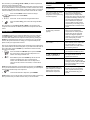
TROUBLE SHOOTING
Solution
Replace the batteries with four (4)
new AAA alkaline batteries.
The Cinema 5 does not operate
your home entertainment
components or is not performing
commands properly?
Press 9 - 9 - 3. The Cinema 5’s red light will blink twice.
Now, whenever you press VOL▲, VOL▼ or MUTE on the Cinema 5 each
component will control its own volume, provided each component has volume
control.
1.
Problem
Red light does not blink when
you press a key?
World Wide Web: http://www.oneforall.com