1
Interacting with Models
Add a deck surface
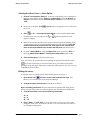
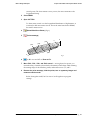
or <S> to turn on Quick Spline Mode.
9
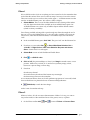
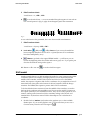
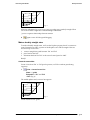
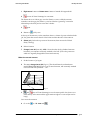
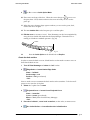
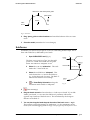
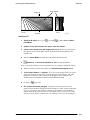
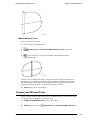
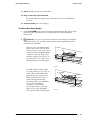
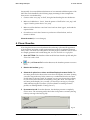
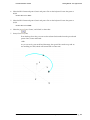
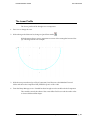
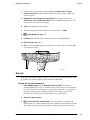
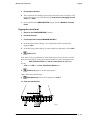
10 Place cursor at the tip of the bow. When the cursor changes to
you are over
the point there. Click, release and move the cursor aft until you are over the
point ‘p0’.
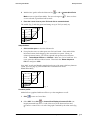
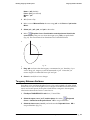
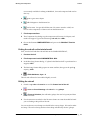
11 When the cursor changes shape again to indicate you are over the point, click,
release and move aft again.
12 This time double click on the last point 'p1' to end the spline.
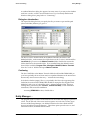
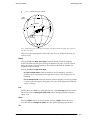
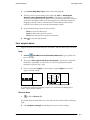
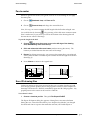
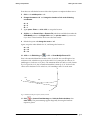
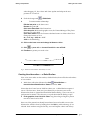
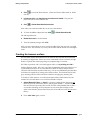
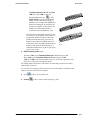
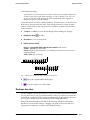
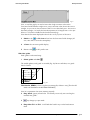
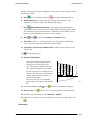
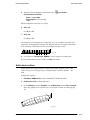
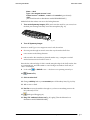
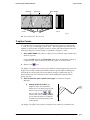
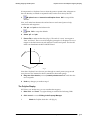
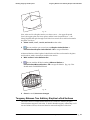
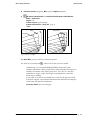
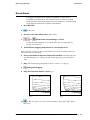
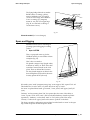
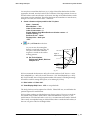
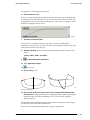
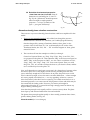
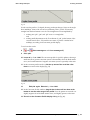
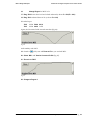
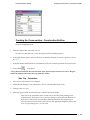
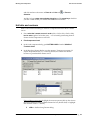
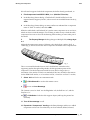
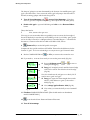
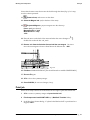
13 Edit the curve to rename it ‘crown’ Hint: Renaming can also be acomplished by
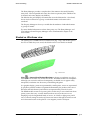
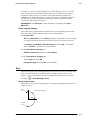
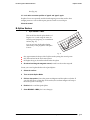
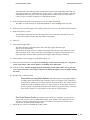
using the slow double click method in the Entity Manager. This method of renaming is a Windows standard operation. (Fig. 18)
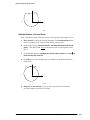
'crown'
Fig. 18
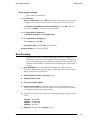
Reset the Quick Spline mode default back to B-spline.
14
Create the deck surface
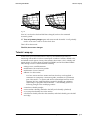
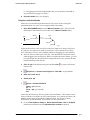
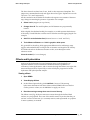
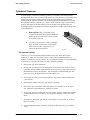
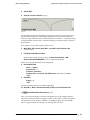
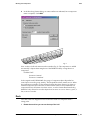
In order to create the deck as an Arc Lofted Surface we first need to create a curve on
'hull' that the deck can use.
1
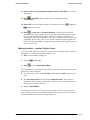
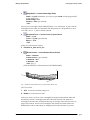
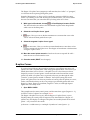
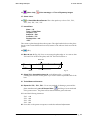
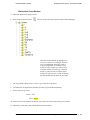
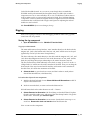
Turn off Point Nametags and select the ‘hull’ surface.
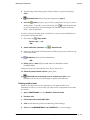
>Edge Snake or Insert>Snake>Edge Snake.
2
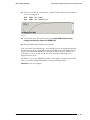
Name = ‘hulldeck’
Surface edge = u=0
Surface = 'hull' (pre-selected)
<OK>
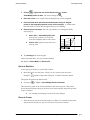
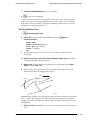
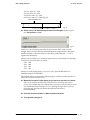
Next we need a curve to terminate the deck surface at the centerline. To do this we'll
project 'crown' onto the *Y=0 plane.
3
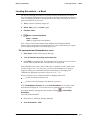
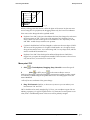
Select the C-spline Curve ‘crown’
>Projected Curve or Insert>Curve>Projected Curve.
4
Name = ‘centerline’
Curve = 'crown' (pre-selected)
Mirror = *Y=0 (select from the Entity Manager)
<OK>
5
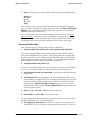
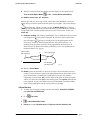
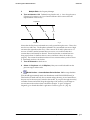
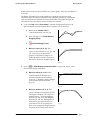
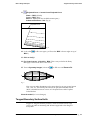
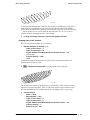
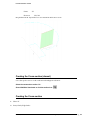
Pre-select ‘hulldeck’, ‘crown’ and ‘centerline’, in that order, as master curves.
6
March 24, 2011
>Arc Lofted Surface or Insert>Surface>Arc Lofted Surface
AeroHydro, Inc Marine Tutorials User's Guide • 70