1
CBAS Manual – REV 08-12-2009
© 2009 Computrols, Inc
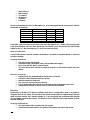
operator can command the AHU to start and watch the status change from OFF to ON through a single
point.
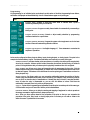
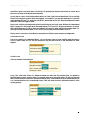
Supervised Points - Monitors the consistency of a wire. Sends one of a possible three states: Open,
Closed, or Trouble. Trouble is how CBAS defines a broken connection between the controller and the
point. For example, if a door is normally closed, a binary point would indicate an open or closed door. A
supervised point would do the same thing, but would also indicate when the wire connected from the
controller to the door monitor has been tampered with.
Counter Points - Counts the number of times that a binary point changed status. These are most often
used in Kilowatt (KW) meters for monitoring power usage. This number is constantly increasing and
rolls over to 0 when it reaches 65535. As of CBAS Version 2.2.6, the Counter point stores up to
4,000,000.00
Software Points
Software points include calculations, points of reference, and logic statements. They are intelligent points that are
not physically connected to the controller. Instead, they gather data and send commands to hardware points. An
example of gathering data is the average supply temperature of all AHUs in the building. An example of sending
commands is, "if Outside Air Temp is less than 50°F, then start VAV heat strips." For a complete description of
Software Points, see Chapter 4, Section 2 “Software Points.”
Adding Points
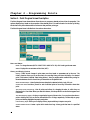
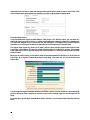
Each panel has a given number of hardware points based on the type of controller. The entire database can have
up to 60,000 software points. Once a panel is added to the system, there are two ways to add a point: From
Database on the Main Menu or from Hardware View. You will be prompted for all of the information necessary
to add the points to the system. Note that CBAS prompts you with only choices that make sense based on
previous choices. Therefore, some steps may not be necessary for certain point types. The steps involved in
adding points from the main menu are as follows:
Note: To add points, you must be in Editor Mode.
The best way to add points is from Hardware View.
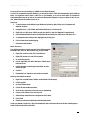
To Add Points:
1.
Click on the channel that contains the controller to which you want to add the points.
2.
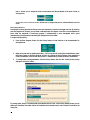
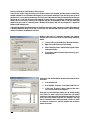
Click on the Controllers button and find the controller in the list.
3.
Click on the controller and click the Points button.
4.
On HVAC-DDC Internet Controllers, any point position can be any of the four point types. On VAV
Controllers, certain positions are allotted for certain point types, such as Analog, Binary, In, or Out.
5.
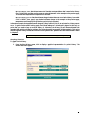
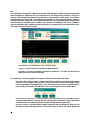
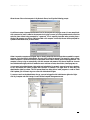
From the list of points, click “Add a Point” on the position where you want to add the point.
6.
Give the point a unique and descriptive name.
7.
Choose the Configuration type for the point.
8.
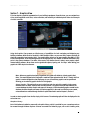
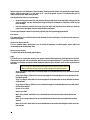
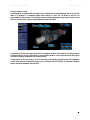
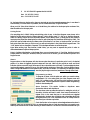
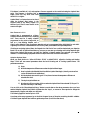
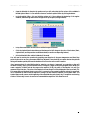
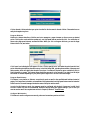
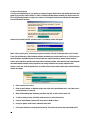
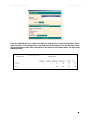
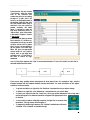
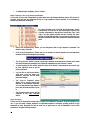
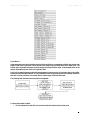
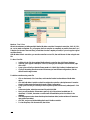
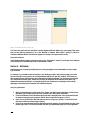
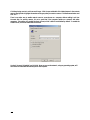
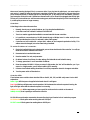
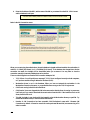
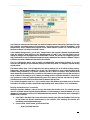
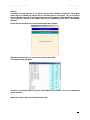
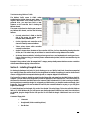
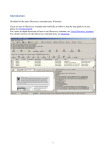
To add a Software Point, click “Add a Software Point” on the bottom line of the list. The following
window will appear:
9.
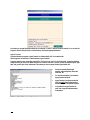
Type in a descriptive and unique name for the point. It can contain up to 32 Characters.
10. Hit Enter and select a configuration from the drop-down list.
31