1
9.
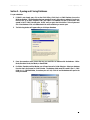
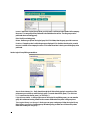
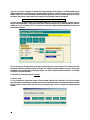
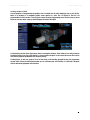
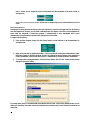
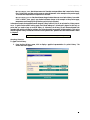
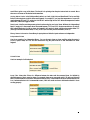
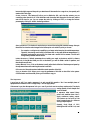
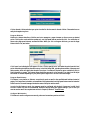
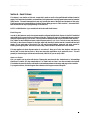
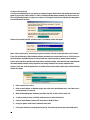
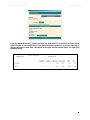
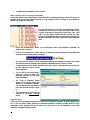
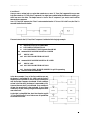
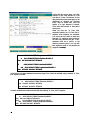
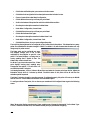
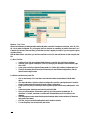
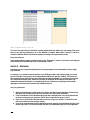
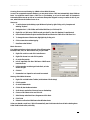
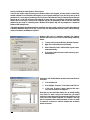
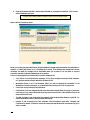
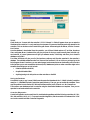
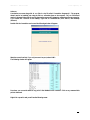
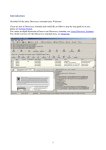
Enter the IP address of the DPU, and the name of the GW as you entered it on the DPU. Click Connect
and the database should open.
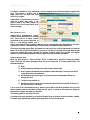
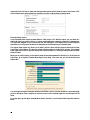
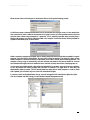
Note: In the workstation Channel on the Server, there is a Local GW listed. This is actually the Graphic Interface
on the Server itself. It is added by default when a database is created, and cannot be removed or renamed.
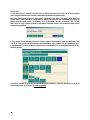
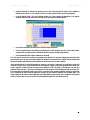
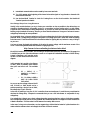
Below is the GW Connection screen:
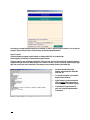
When you connect using the method above, the entire database is zipped and downloaded to the workstation. It
resides in C:\CBAS\[GW Name] (or C:\CBAS2000\[GW Name]). If the database has changed since the last
connection was made, the changes will be downloaded when you re-connect. You may have to close the
connection manually to see newly added points and controllers.
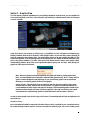
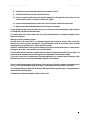
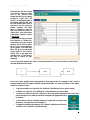
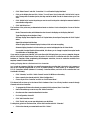
There are a few things that can cause the GW Connection attempt to fail:
128
•
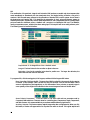
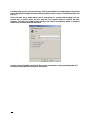
TCP/IP Error: You will get this error message if TCP/IP is not configured correctly on both computers,
or if you have used the wrong IP address for the Server (DPU).
•
Workstation Name is not in the Database: Either you have not entered the workstation in the
Workstation Channel on the server, or you spelled the name wrong on the TCP/IP Login screen.
•
CBAS is not running in Real Mode on the Server.
•
CBAS version is incorrect: Upgrade the GW to the same version that the Server is running. In some cases,
it will ask you if you want to download the correct version from the DPU. If the Install.exe file is on the
Server, then this will work.
•
This GW is already in use: Another GW has logged in using the Workstation Name you specified. Try
another Workstation Name, or add more GWs to the Server.
•
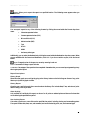
Number of GW Connections has been exceeded: CBAS Professional comes with 2 Remote GW
Connections by default. A license for more GWs can be purchased. Meanwhile, have someone log off in
order to connect.