1
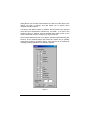
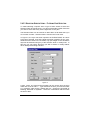
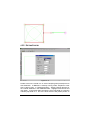
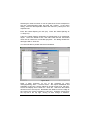
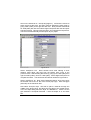
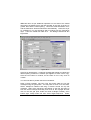
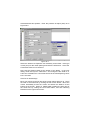
Click OK on the color dialog and click OK on the Drawing Properties
dialog. Because there is more than one type of object selected (e.g. line
and arc), the Change / Match dialog appears with the color in the
Change column checked. Click OK. Now select the object by using
Tools|Select|Window and invoke the Tools|Create Symbol command.
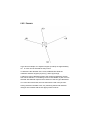
Type in Pine Tree for the name and click OK.
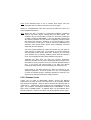
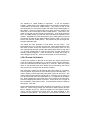
Select Draw|Symbol. Uncheck the Dynamically Size checkbox. Enter
the width as 12ft (3.5m). Click OK.
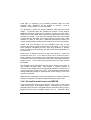
Place a symbol on a grid point at the top left of the screen. Select
Tools|Copy|Array and, moving the cursor over the symbol just placed,
click the mouse. In the dialog enter 14 as the number of copies, and 14
as the number of rows and click OK. Click on the grid point where the
tree is placed as the reference point. Drag the ghosted symbols to the
right of the original symbol and left click. Then drag the cursor down at
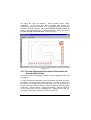
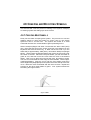
right angles to the previous ghosted row of trees and left click. You now
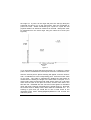
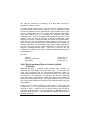
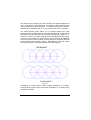
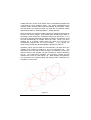
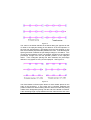
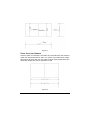
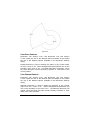
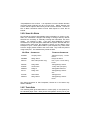
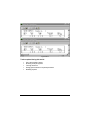
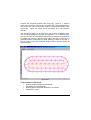
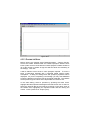
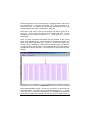
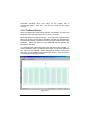
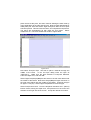
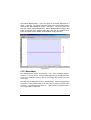
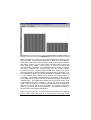
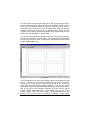
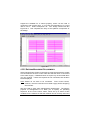
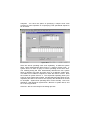
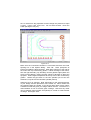
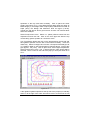
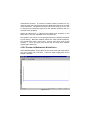
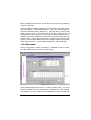
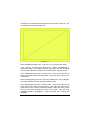
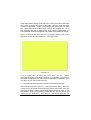
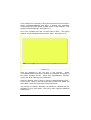
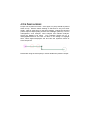
have a block of trees 14 x 15. See Figure CMS 4.
Figure CMS 4
IRRICAD User Guide
Tutorials • 4-129