1
4.1.2 THE FIRST STEPS
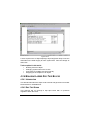
To start a design:
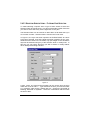
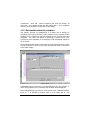
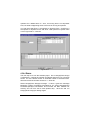
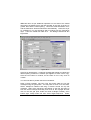
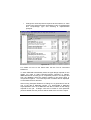
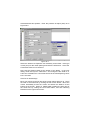
1. The first thing to do is to select the database to use for this design.
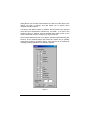
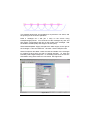
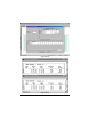
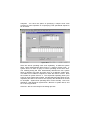
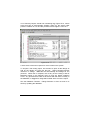
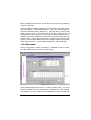
Go to Settings|Irrigation - Design Specific and browse for the
Version 7 database you want to use for the design. When you save
the design, IRRICAD remembers what database was used to create
it, so if the database is moved, IRRICAD will warn you when you
reload the design. If you want to set this database as the default
database (that is, it will be the databases IRRICAD will always start
up with) then click the Save as Default button in the
Settings|Irrigation - Design Specific dialog.
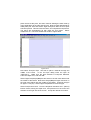
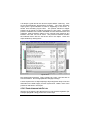
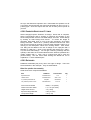
2. Design headings can be entered at any time. However, it is a good
idea to include these at the beginning to avoid confusion if several
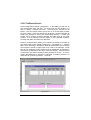
copies of the base design are made. Select Settings|Design Details
and Settings|Client.
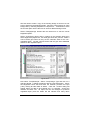
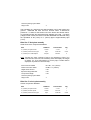
3. Your company information is also important and can be saved for
use with future designs.
Select Settings|Company and after
entering your company details click the Save As Default button.
4. Customize IRRICAD for future designs. Select Settings|Irrigation Design Specific if to customize the pipe line widths. Select
Settings|Irrigation Items to customize other hydraulic symbols. If a
Save As Default button is present, you need to click this to retain the
settings for all future designs.
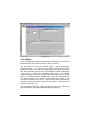
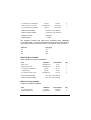
5. Select Settings|Units to select the units to use for each dimension.
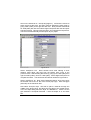
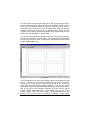
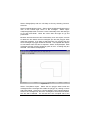
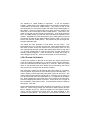
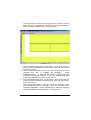
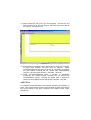
6. If you know how large your design will be, you can select a Design
size from Settings|Miscellaneous. This option gives the symbols on
the screen an appropriate symbol size relative to the area the design
covers. It can be altered at any time during the design by selecting
another design size or typing in a base database symbol size. Note
if the Update database Symbols checkbox is checked, all symbols
currently on the screen will be updated to the new size. Select a
size where the symbols are recognizable in the design.
7. You are now ready to enter your design. All Management and
Design options are available from the Design menu. All Zooms are
available from the View menu. Remember if you cannot find
something, use Find or Search in the Help|Help Topics to locate
which menu it is in.
Remember that you can enter items and information at any time and in
any order. Make sure only Mainline items are used upstream from a
4-6 • Tutorials
IRRICAD User Guide