1
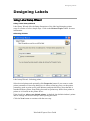
Designing Labels
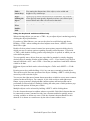
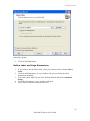
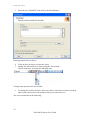
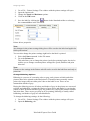
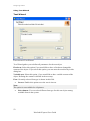
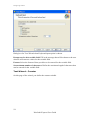
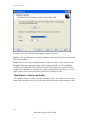
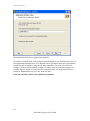
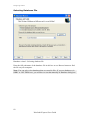
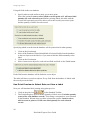
Choose Delimited, if you know that data fields are separated with some special
character. File preview at the bottom of the dialog box can be helpful, if you do not
know exactly how the data is organized.
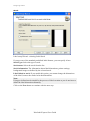
Choose Fixed if you know, that your data fields always occupy the same number of
characters.
Start import at row option is useful, when you do not want to import some rows at the
top of the file. Most usual situation, when you would want to use this option is when
text file contains some header on top of actual data fields.
Setting the Fields
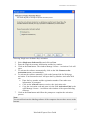
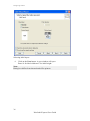
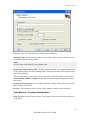
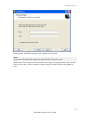
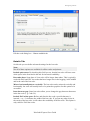
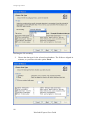
Database Wizard –Setting separator and delimiter
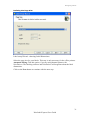
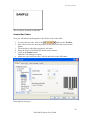
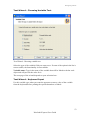
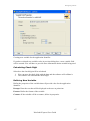
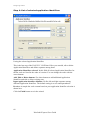
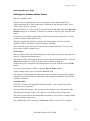
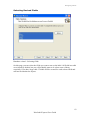
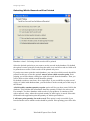
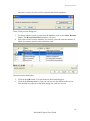
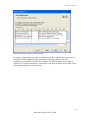
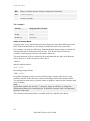
In the second step of the Text File Wizard you have to set the fields in the text file. If
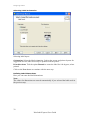
you have selected Delimited in the previous step, choose the appropriate separator
here. The ones that are usually used with text files are already pre-defined. But if you
require some other, there is an option to use a custom-defined one.
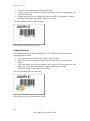
You can also select the Delimiter character that is used when separator character is
used in the text field itself. The delimiter should be used to enclose such field. Text
between two delimiter characters is treated as one field although it contains the field
separator character.
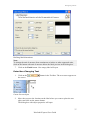
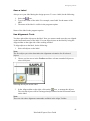
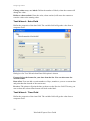
The data preview in the bottom part of the dialog box will let you know if your choice
of a separator character is a correct one. Fields will be separated with vertical lines, if
a separator is valid.
94
NiceLabel Express User Guide