1
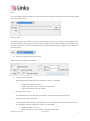
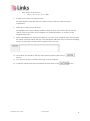
o The step shows as due on; o July 1st, 2nd, 3rd, 4th, 6th, 7th & 8th # days from a Step Completion Date This will make the step due the set number of days after the selected step is completed. Within # to # days from start date This will allow the step to display similar to within # days from start however the first date is not from the start of the program. For example within 7 to 14 days of the program start date. 9. Enter a description for the step if required. You may to for example enter what should be said in a phone call for this step. The description will show in the customers tracking screen so that staff can see what is required from the step. 10. Once all of the details of the step have been entered, click on the button 11. You are now ready to add the next step of your program 12. Continue until all steps are completed and the click on the Retention User Guide January 2013 button 8