1
change each setting: Direction: Determines the side of the object a drop shadow will appear on. The default direction matches the light source of the color swatches. Depth: Determines the length of the drop shadow Opacity: Determines how transparent the drop shadow appears Noise: Increasing ‘noise’ will add a textured appearance to the shadow. In‐
creasing noise is more suitable for the Pencil Crayon style swatches Softness: Determines how defined a drop shadow appears without changing opacity Tip: Using Drop Shadows Effects to Show Grade
Changes
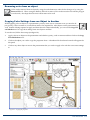
Drop shadows can be used to effectively convey grade changes such as steps, retaining walls and pools. Use the shadow override panel to adjust the direction and depth of the shadow to suit the grade change you are go‐
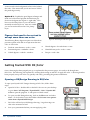
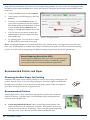
ing to show. You do not need to worry about using a light source direction that matches the majority of other drop shadows used in the presentation, since these are strictly used to show a change in grade for the benefit of your client. Figure 27— Drop shadow to show a step Changing the Drop Shadow Defaults
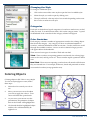
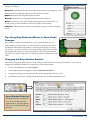
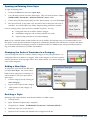
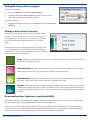
Each time you open the drop shadow tool the settings will return back to the program defaults. If you wish to change these defaults to settings you prefer to use, follow theses steps: 1. Click on the View menu and then Options 2. In the Options panel that appears, select the Shadow Defaults tab 3. Change any setting you wish to be the new default by typing in the new value 4. Click Ok to save the new settings for the next time you use the Drop Shadow tool About Shadow Direction
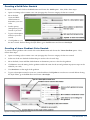
The default direction of the shad‐
ow is 0°. If you enter a value greater than ‘0’, the drop shadow will move in a counter‐clockwise direction. Figure 28— Changing the drop shadow defaults Color User Guide
21