1
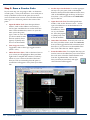
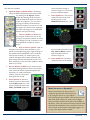
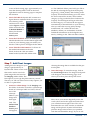
9. Trim the Plant Bed Line: The last step to finish the plant bed line is to trim the section of line that overlaps the patio. Click on the ‘Trim (clip) lines…’ tool in the Quick Start toolbox. Next click on the section of the plant bed line that overlaps the patio. Right‐click and the section will be re‐
Step 4. Insert Patterns and Figures
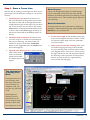
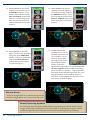
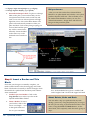
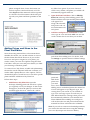
Now it is time to insert your pattern into your patio and place symbols of your rocks, trees and shrubs (figures): 1. Set the Layer for the Pattern: Click on the Patten_A layer in the Layer list in the DynaSCAPE Sidebar Folder. 2. Open the Hatch Pattern Tool: From the Quick Start toolbox, click on the ‘Insert a hatch pattern…’ tool to open a modifier box (the one with the blue dot). Although you can choose any pattern and adjust the scale and rota‐
tion, you will use the de‐
fault pattern: ‘TUMBLED_A’ with the default scale of 0.325. 3. Insert a Pattern into the Patio: To insert the pattern, click anywhere inside the circle patio and right‐click. The pattern will fill the circle complete‐
ly. Next you will learn how to insert the shrub, 12
DynaSCAPE Software