1
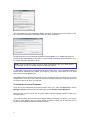
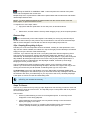
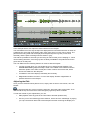
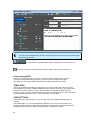
Mouse Graphic
Click and Drag
Start of the Fade-in
End of the Fade-in
Start of the Fade-out
End of the Fade-out
If you want to alter the type of fade curve, you can, with Playlist editing still enabled, simply
hold down the ALT key. Your mouse pointer will turn into a wavy line; click and drag it to
change the shape of the fade in or fade out.
That said, greater flexibility for adjusting crossfades is possible with the Trim Editor.
Using the Trim Editor
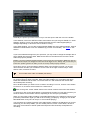
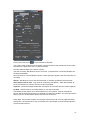
The Trim Editor is primarily intended for 'trimming' the edit between two clips. The Trim Editor
is opened and loaded with the two Clips in question selected from the Playlist. You then make
precise and fine adjustments to the edit in the Trim Editor itself, writing the result back to the
Playlsit once you are happy.
As well as how tightly one Clip joins to another, you can also adjust how they join, for
example how a piece of music fades down under a voice-over, how one piece of atmosphere
cross-fades into the next, or how one word merges to the following one. This timing and the
quality of cross-fade is crucial to the pace of the person speaking if you are editing speech,
the timing of the music if you are music editing, or the flow of sound if you are merging
atmospheres for sound design..
Because the Trim Editor is so precise, you can easily trim between words, parts of words,
letters and phonemes if you are speech editing. Having cut out a chunk of speech, say, in the
Playlist, you can trim the join, precisely merging the letters together. For example if the result
of your cut is ‘So this…(cut) ….saves us time and money’, and the joined up Clips are
between ‘this’ and ‘saves’ you could end up with two s’s. By merging one s into the other, you
effectively get a more natural ‘So thi’ saves us money’. This elision in speech has been
crafted more naturally, and therefore far more convincing that a straight butt-edit…. assuming
this is appropriate for your interviewers way of speaking!
Once you are happy with the many things you can do in the Trim Editor, you then Write Back
the edited version to the Playlist
Opening the Trim Editor
Select the Clips you want to load into the Trim Editor, either side of the edit in question.
They do not have to be on the same Stream.
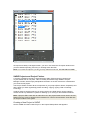
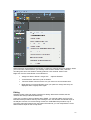
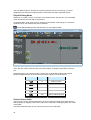
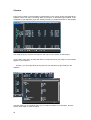
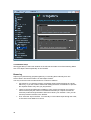
Press the OPEN TRIM EDITOR button on the Playlist toolbar. A Trim Editor window will now
appear containing the Clips that you loaded.
19